
Quick Overview
Once the built-in SFTP server is enabled (see SFTP Configuration), users sign in over SFTP with their MetaDefender® MFT account and see their own "My Files" folder tree. Files uploaded over SFTP are scanned and handled exactly like web uploads.
SFTP access has two sides:
Users register their SSH keys and find the connection details on "User Preferences" → "SFTP Access".
Administrators review every registered key and set the authentication method per account on "Settings" → "Security" → "SFTP Access".
Authentication Methods
Each account authenticates over SFTP with one of the following methods. An administrator sets it per account; until then, the account uses the server default, which accepts either a password or an SSH key.
Method | Behavior |
|---|---|
Password | The user's MetaDefender MFT password only. |
SSH Key | A registered SSH key only. Password sign-in over SFTP is refused. |
SSH Key and Password | Both are required in the same session. |
Info
When a user adds their first SSH key, the account switches to "SSH Key" automatically, so password sign-in over SFTP is turned off for that account. Accounts already set to "SSH Key and Password" keep that requirement.
Managing SSH Keys (Administrator)
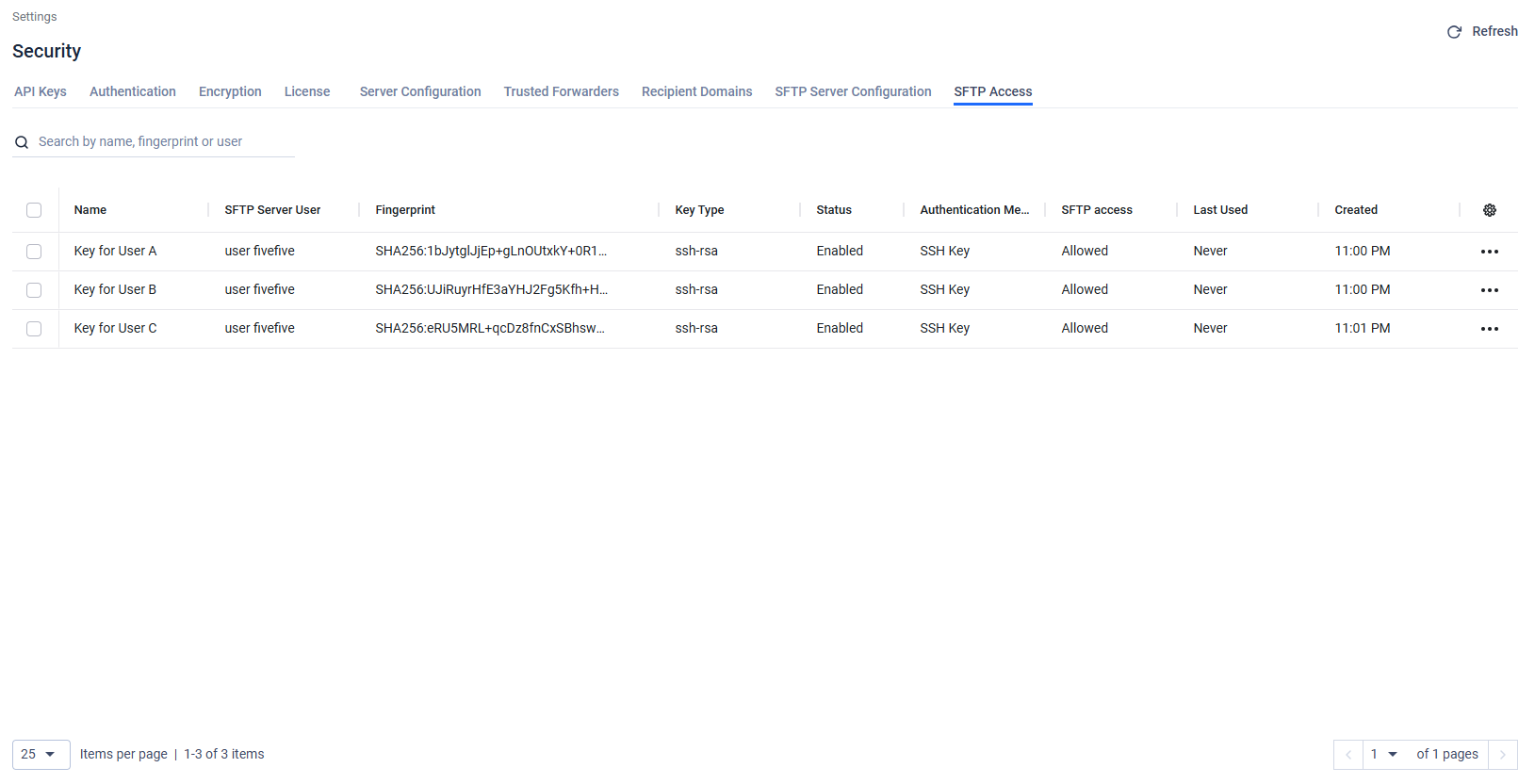
Column | Description |
|---|---|
Name | The label the user gave the key. |
SFTP Server User | The account the key belongs to. |
Fingerprint | SHA-256 fingerprint of the public key. |
Key Type | Key algorithm, for example |
Status | Whether the key is enabled. |
Authentication Method | The method set for the owning account. |
SFTP access | Whether the owning account can sign in over SFTP. "No access" means the account is not a local account. |
Last Used | When the key last authenticated a session, or "Never". |
Created | When the key was registered. |
Available actions:
Search by key name, fingerprint or user.
Authentication Method (row action): opens a window to change the method for the key's owner. Select "Password", "SSH Key" or "SSH Key and Password" and click "Save Changes". The method applies to every SFTP session of that account.
Delete (row action or bulk action on selected rows): removes the key. The user can no longer sign in with it.
Keys are not added on this page. Each user registers their own keys on "User Preferences" → "SFTP Access".
Warning
A warning at the top of the list means some keys belong to accounts that cannot sign in over SFTP. Those keys never work; delete them or give the user a local account.
Registering Your SSH Key (User)
Create a key pair on your computer if you do not have one. RSA (2048-bit or larger) and ECDSA keys are supported; Ed25519 is not.
In MetaDefender MFT, open "User Preferences" → "SFTP Access".
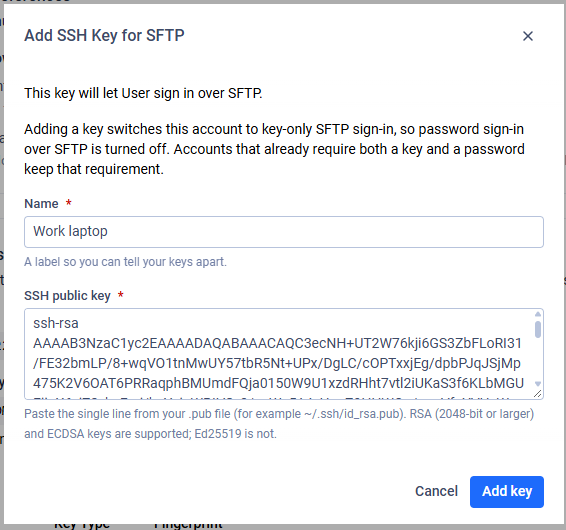
Click "Add key".
Enter a "Name" so you can tell your keys apart, for example "work laptop".
Paste the single line from your public key file (for example
~/.ssh/mft_key.pub) into "SSH public key". It starts withssh-rsaorecdsa-sha2-.Click "Add key".
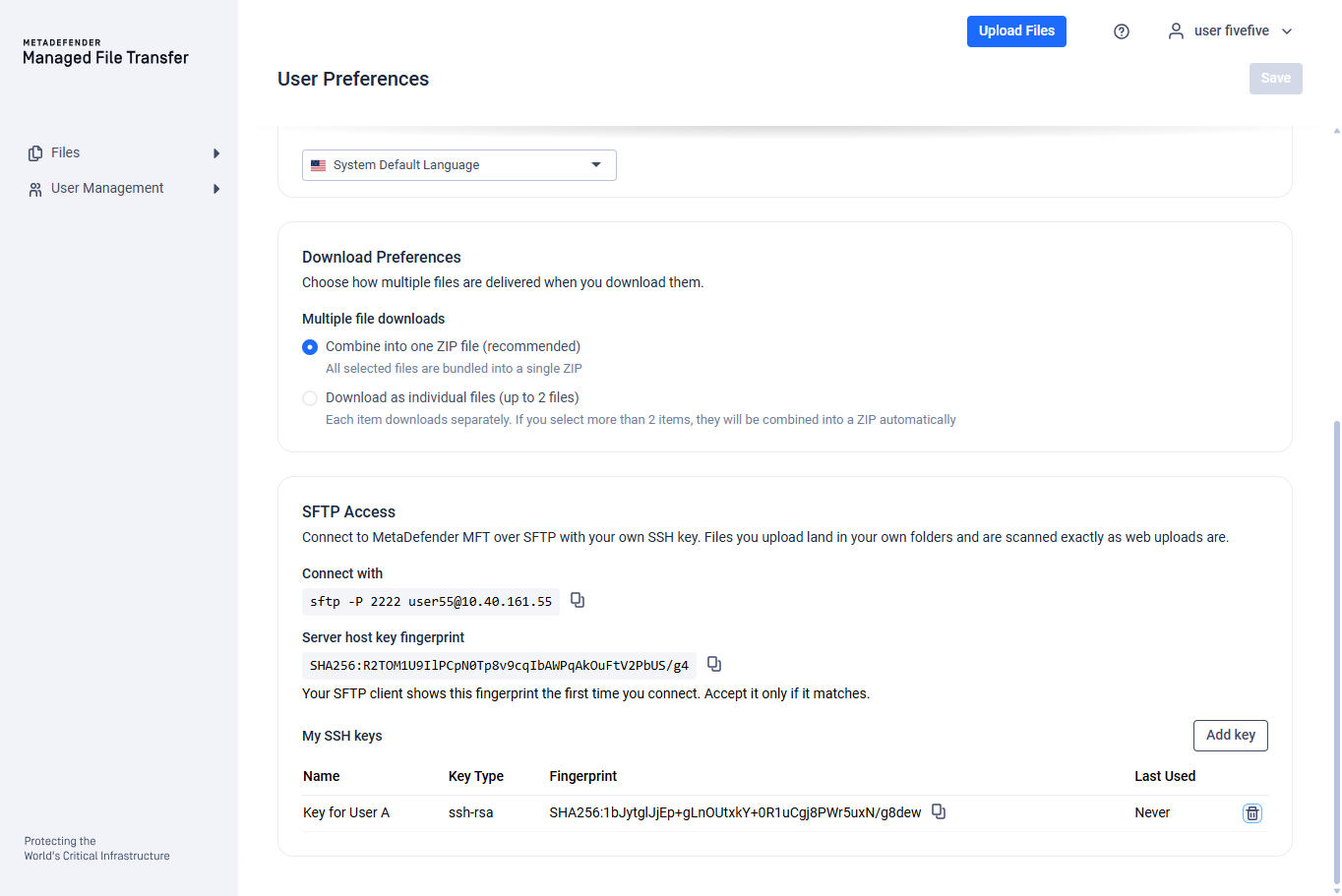
The key appears under "My SSH keys" with its type, fingerprint and last-used time. To remove a key, click the delete icon in its row.
Info
If the card says the SFTP server is not enabled, keys you add are kept and start working once an administrator turns the server on. If it says public key authentication is turned off, keys cannot be used to sign in until an administrator enables it.
Connecting
The "SFTP Access" card shows the command to connect and the server's host key fingerprint:
For example:
On the first connection, your client shows the server's host key fingerprint and asks you to accept it. Compare it with the fingerprint on the "SFTP Access" card and accept it only if it matches.
With a key stored outside the default location, pass it explicitly:
In graphical clients such as WinSCP or FileZilla, choose the SFTP protocol, enter the host, the port from the card, your MetaDefender MFT username, and either your password or the private key file, according to your authentication method.
Working with Files over SFTP
After signing in, you are in your "My Files" folder. Listings show your actual MetaDefender MFT folders and files. The actions below are performed as your account, so your role permissions apply exactly as in the web interface.
SFTP action | Result in MetaDefender MFT |
|---|---|
List, download | Shows and downloads files you have access to. |
Upload | The file is stored in the folder you uploaded to and scanned like a web upload. It becomes available once processing has completed. File size and storage quota policies apply. |
Create folder | Creates a folder. |
Rename | Renames a file or folder within its current folder. Moving between folders is not supported. |
Delete file | Moves the file to the recycle bin. |
Delete folder | Removes the folder only if it is empty. |
Changing file permissions or timestamps (chmod, touch) is accepted but has no effect. Symbolic links are not supported.
Troubleshooting
Message | Cause and fix |
|---|---|
"Remote host identification has changed" | The server's host key was replaced. Confirm the new fingerprint with your administrator, remove the old entry (for example |
"Connection refused" or a timeout | The SFTP server is disabled, the port is wrong, or a firewall blocks it. Check the port on the "SFTP Access" card and ask your administrator to verify the server and firewall. |
"Permission denied (publickey)" or "(password)" | The authentication method on your account does not allow what your client offered, the key is not registered, or the account is not a local account. Check the method with your administrator and the key under "My SSH keys". |
"Permission denied" on an upload, rename or delete | Your role does not grant that action. The same restriction applies in the web interface. |
Too many failed attempts | The connection closes after 3 failed authentication attempts. Connect again. |