
Check Your Version:
This article applies to all MetaDefender Kiosk v4 releases deployed on Windows systems.
Summary
After upgrading the Kiosk Hardened Image or the Kiosk Application, you may encounter rare cases where the Kiosk Application does not start automatically after booting into the operating system.
This article explains the possible causes and provides guidance depending on how the Kiosk was deployed and whether boot hardening is enabled.
Startup Configuration Overview
The Kiosk startup behavior differs based on the deployment method:
1. Hardened Image Deployment
When the Kiosk is deployed using the Hardened Image, the system includes a Task Scheduler configuration that:
Monitors the shell process.
Blocks access to the Windows operating system (displaying a white screen) until the Kiosk UI is launched.
This is part of the boot hardening feature, which is enabled by default.
2. Manual Kiosk Application Installation
When the Kiosk Application is installed manually:
The Kiosk UI Launcher is added to Windows Startup to enable automatic launch.
The Task Scheduler tasks (used for boot hardening) are created but remain disabled.
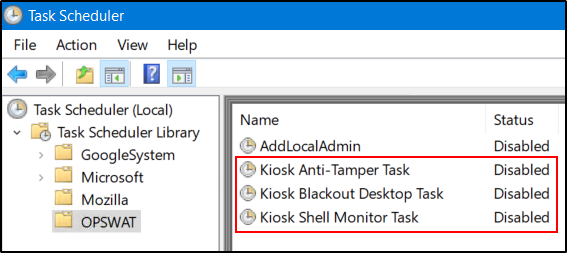
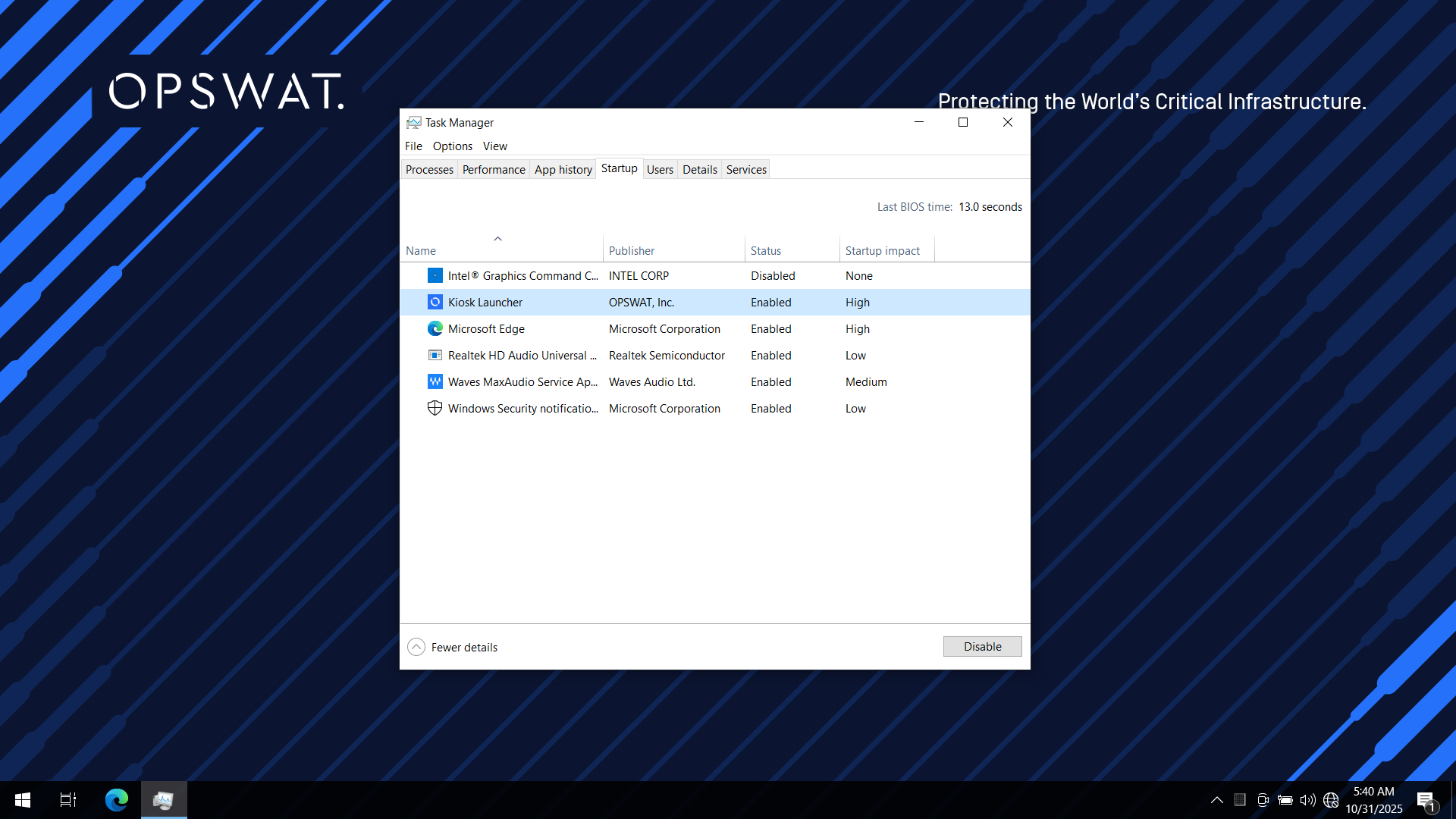
If boot hardening is later enabled from the Kiosk Management Console:
The Task Scheduler tasks will be enabled.
The Kiosk UI Launcher will be removed from Windows Startup (as the scheduler takes over the autostart function).
Behavior Summary
Scenario | Boot Hardening | Launch Method |
|---|---|---|
Hardened Image | Enabled (by default) | Task Scheduler |
Manual Install | Disabled | Windows Startup (Kiosk UI Launcher) |
Manual Install + Boot Hardening Enabled Later | Enabled | Task Scheduler |
Troubleshooting: Kiosk Not Starting After Upgrade
If the Kiosk does not start automatically after an upgrade, perform one of the following actions:
Enable boot hardening and ensure that all related Task Scheduler tasks are enabled.
orEnable and then disable boot hardening again. This will re-add the Kiosk UI Launcher to Windows Startup.
Recommendation
We strongly recommend keeping boot hardening enabled.
This feature significantly enhances security by preventing unauthorized users from accessing the Windows backend before the Kiosk UI has fully launched.
If Further Assistance is required, please proceed to log a support case or chat with one of our support engineers.