
Check Your Version: This article applies to all MetaDefender Kiosk versions
Issue
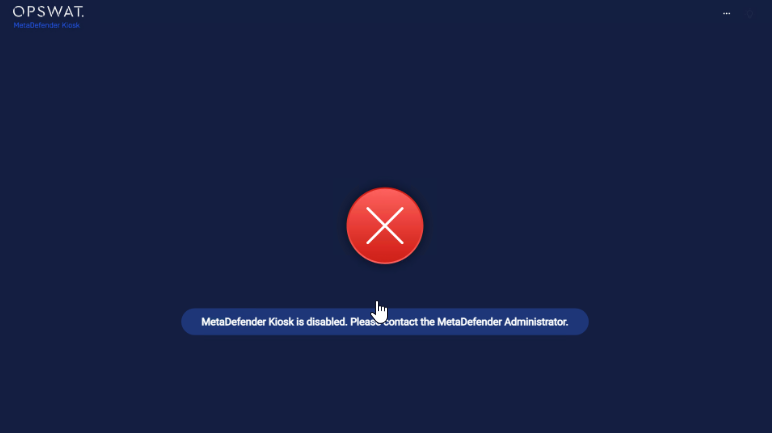
When users attempt to use the Kiosk, the UI displays the following message:
“MetaDefender Kiosk is disabled. Please contact the MetaDefender Administrator.”
As a result, the Kiosk cannot be used.
Root cause
This behavior occurs when a Self-scan run on the Kiosk detects one or more infected files.
The Kiosk UI is automatically disabled to prevent further use.
A warning message is shown to the user, instructing them to contact the Kiosk Administrator.
All files marked as Infected are listed in the Kiosk Management Console, along with their File Path and Threat details.
The Kiosk Administrator can review this information to investigate the affected files.
Resolution
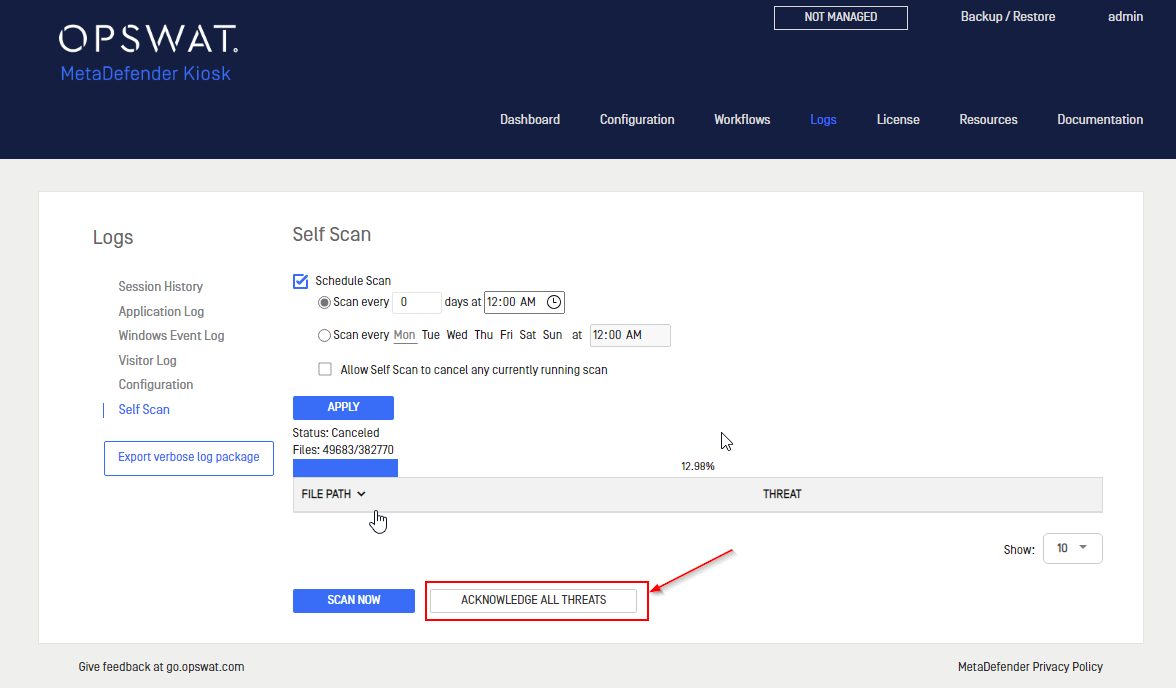
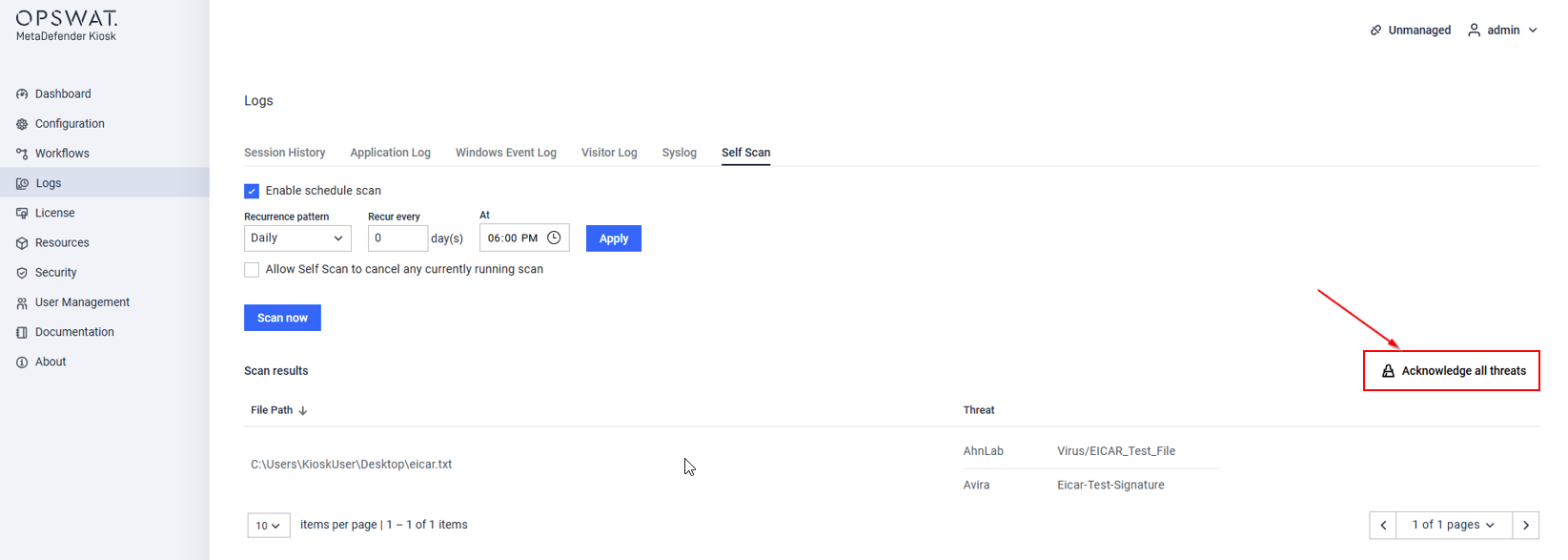
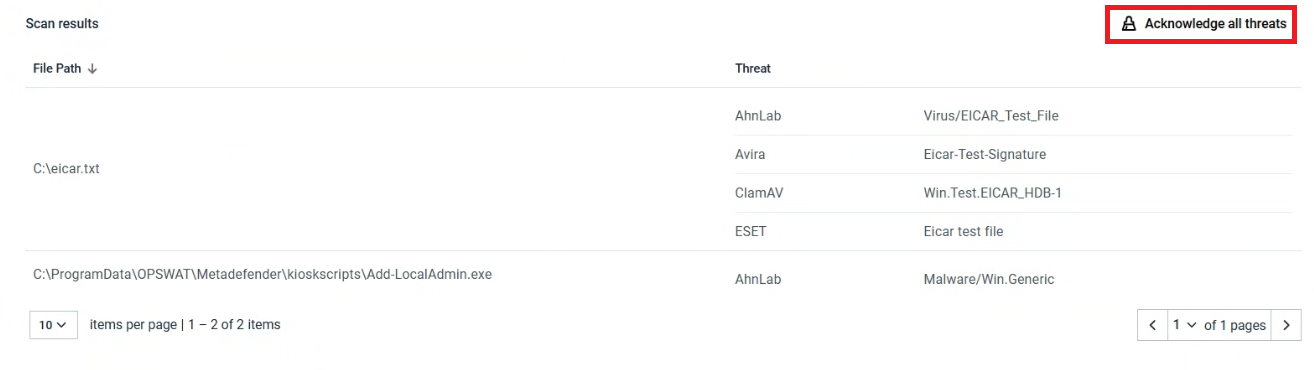
Once the infected files have been reviewed, the ACKNOWLEDGE ALL THREATS button must be used to:
Clear the threat information table
Re-enable the Kiosk UI
The location of this button depends on your Kiosk version:
Kiosk versions prior to 4.7.0
The button is located here:
MD Kiosk Management Console > Logs > Self-scan
Kiosk versions from 4.7.0 to 4.7.4
The button is located here:
MD Kiosk Management Console > Logs > Self-scan
Kiosk 4.7.5 and later
The Self-scan has its own workflow. You can find the Acknowledge all threats button here:
MD Kiosk Management Console > Workflow > Edit Self-scan workflow > Schedule tab
Support: If Further Assistance is required, please proceed to log a support case or chatting with our support engineer.