Requirement
MD ICAP Server v5.7.0 and newer
2 new service paths were created to support integration with GLobalScape (avoid setting the flag unique_uri_per_service)
REQMOD: OMSScanReq-AV-GLBEFT
RESPMOD: OMSScanResp-AV-GLBEFT
MD ICAP Server v4.11.0 and newer
with traditional service path (OMScanReq-AV and OMScanResp-AV) set true for unique_uri_per_service on the MD ICAP Server and then restart the MD ICAP Server (supported since MD ICAP Server v4.11.0) Refer to: https://docs.opswat.com/mdicap/configuration/configuration-file
Sample Configuration
below is the guideline to configure the upload server with GlobalScape and also integrate with MD ICAP Server (as a example)
Use-case
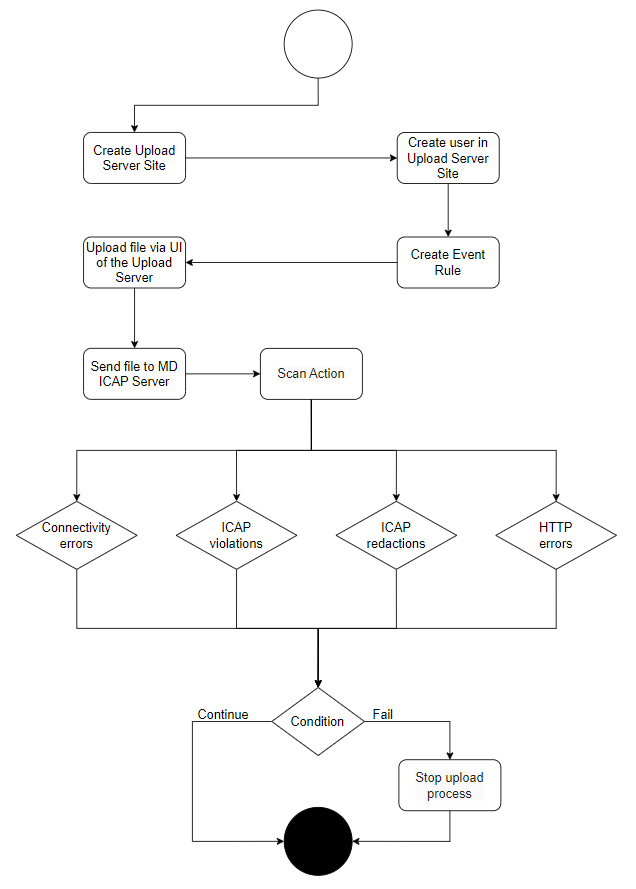
Configuration
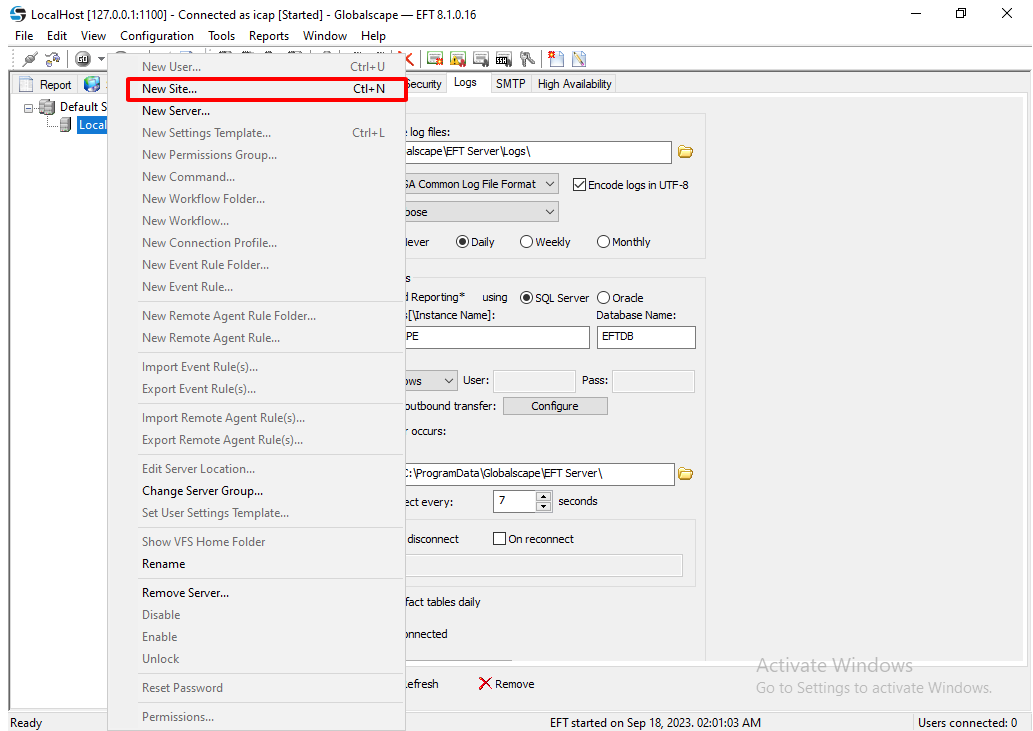
Navigate to the tab Server → Default Server Group → LocalHost → Right-click to create the new Site
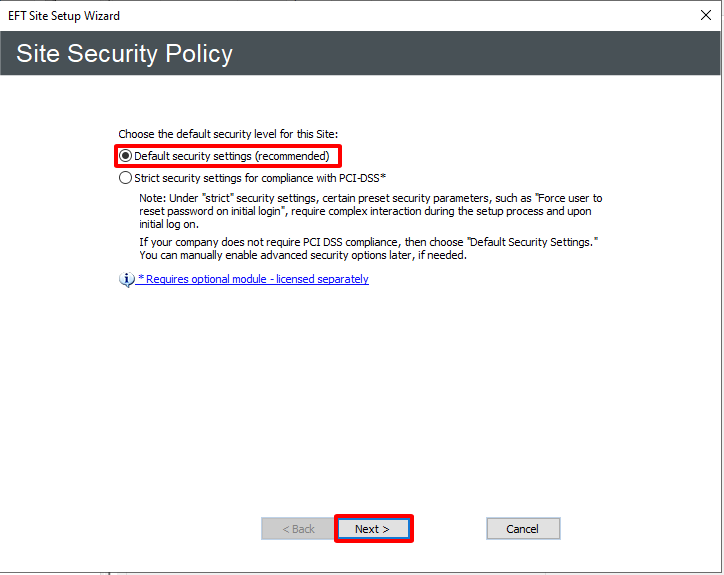
Choose the Next button
Input the Site label → Click on the next button
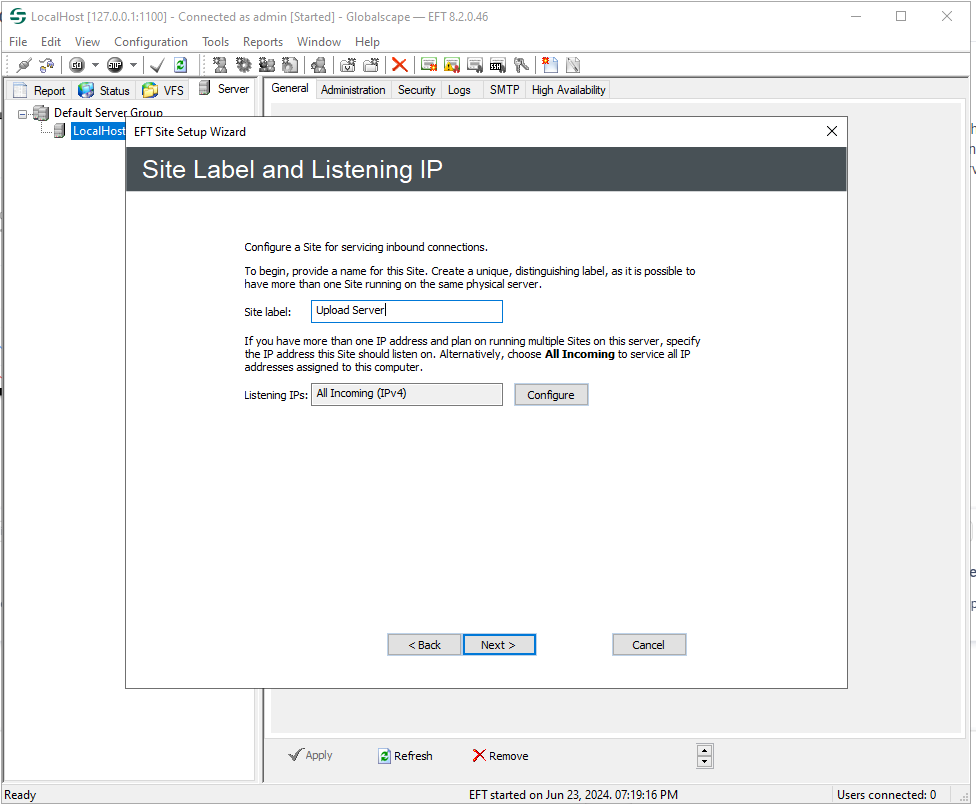
Choose the next button
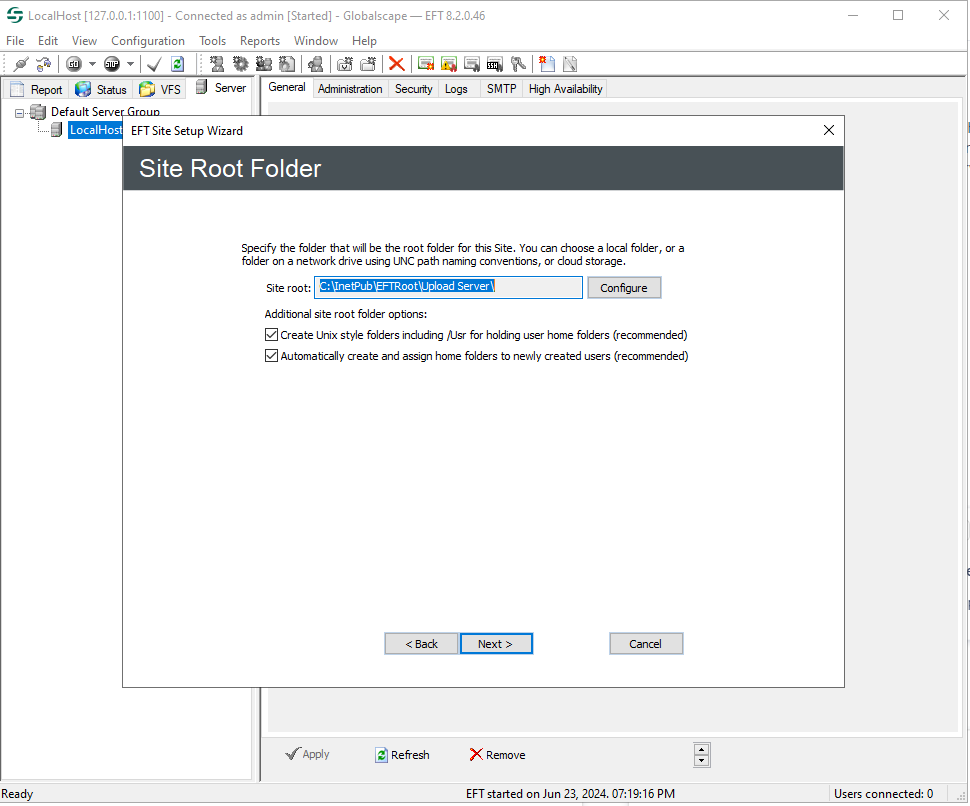
Choose the next button
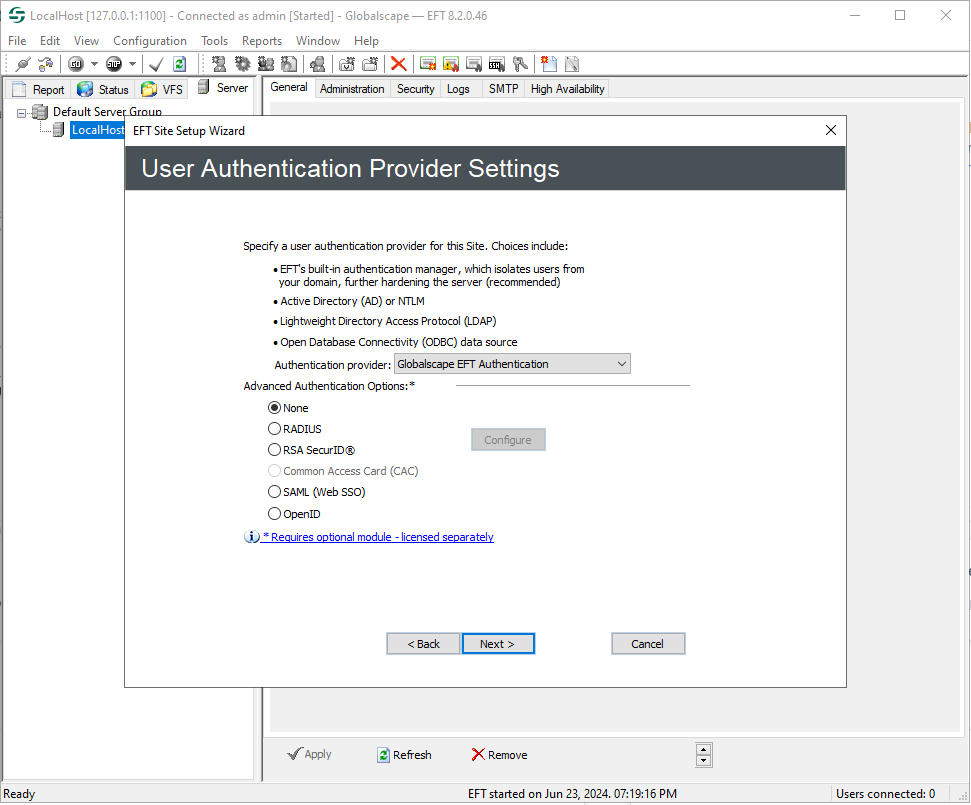
Choose the next button
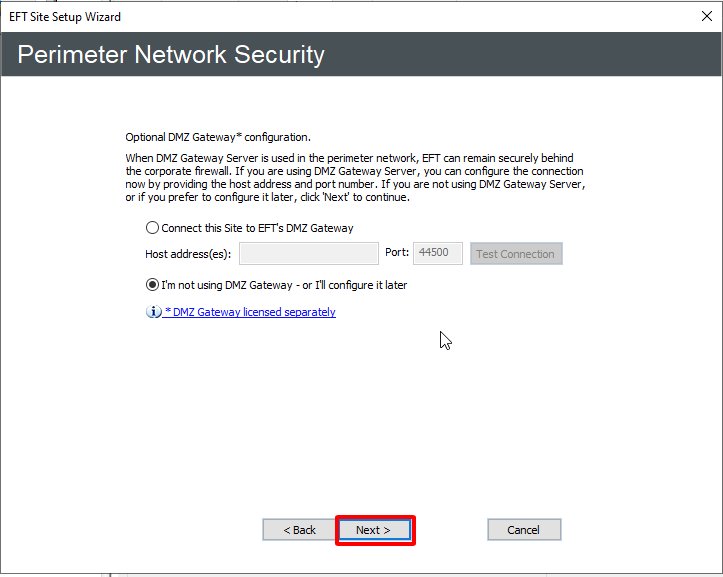
Generate certificates for the server and add them to your site
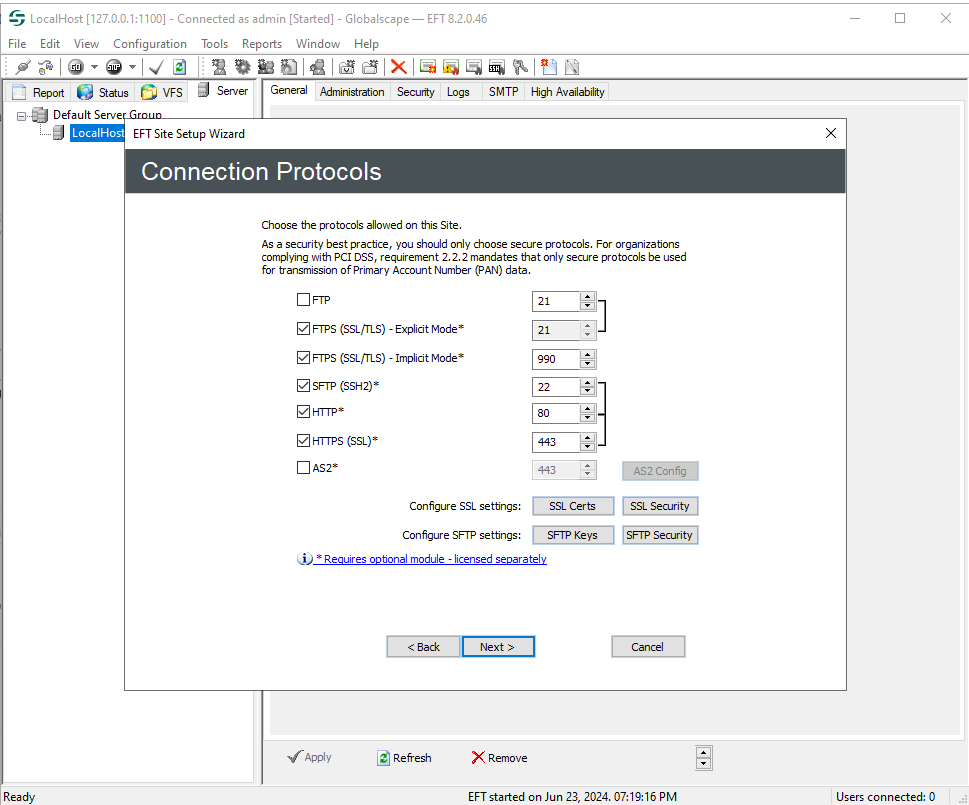
Create a new user for your site
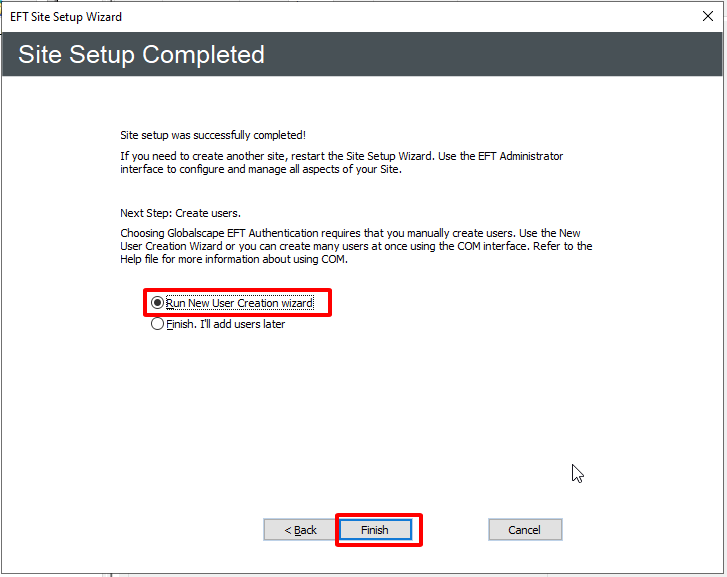
Fill your username and password to the input box
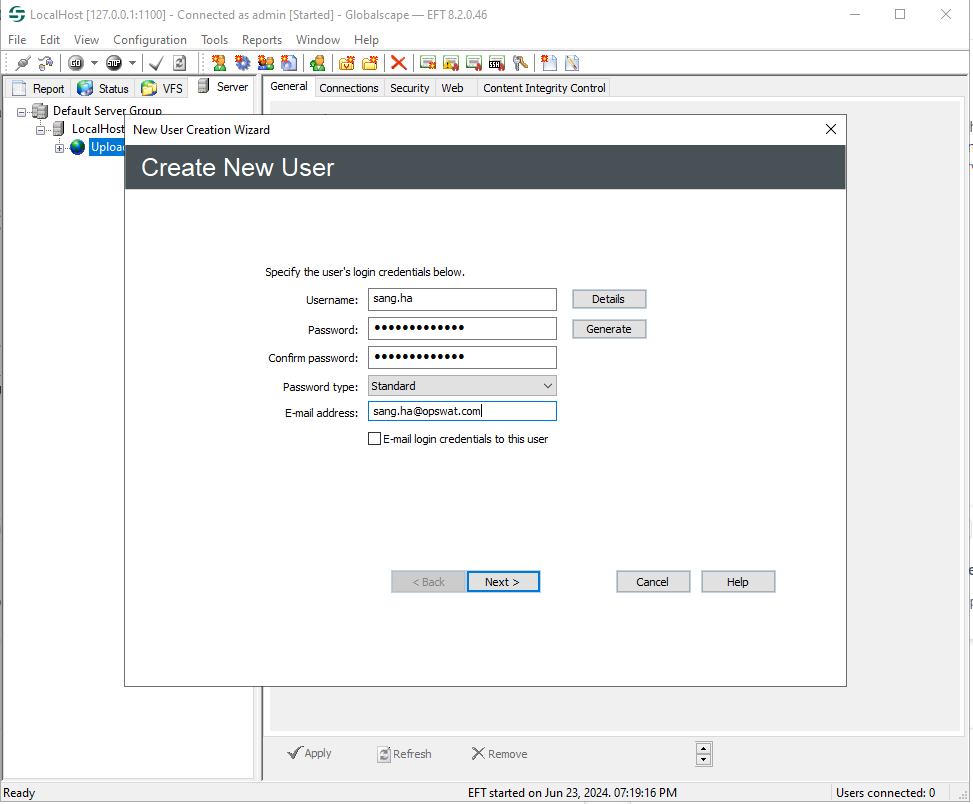
Choose the next button
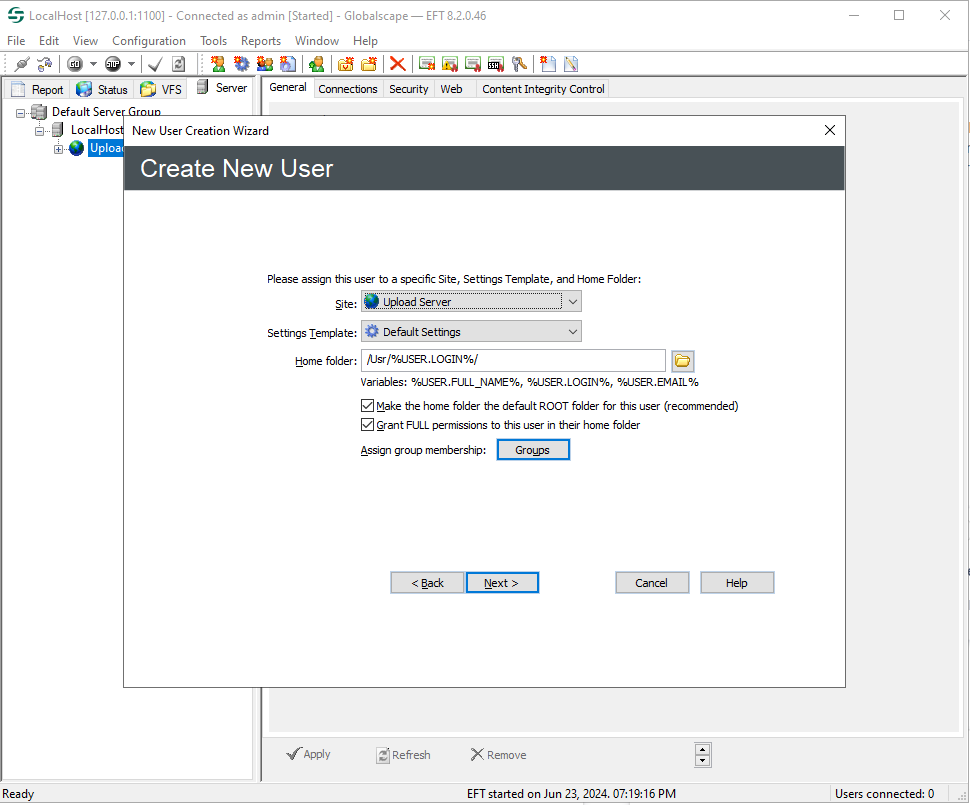
Choose the next button to complete create user
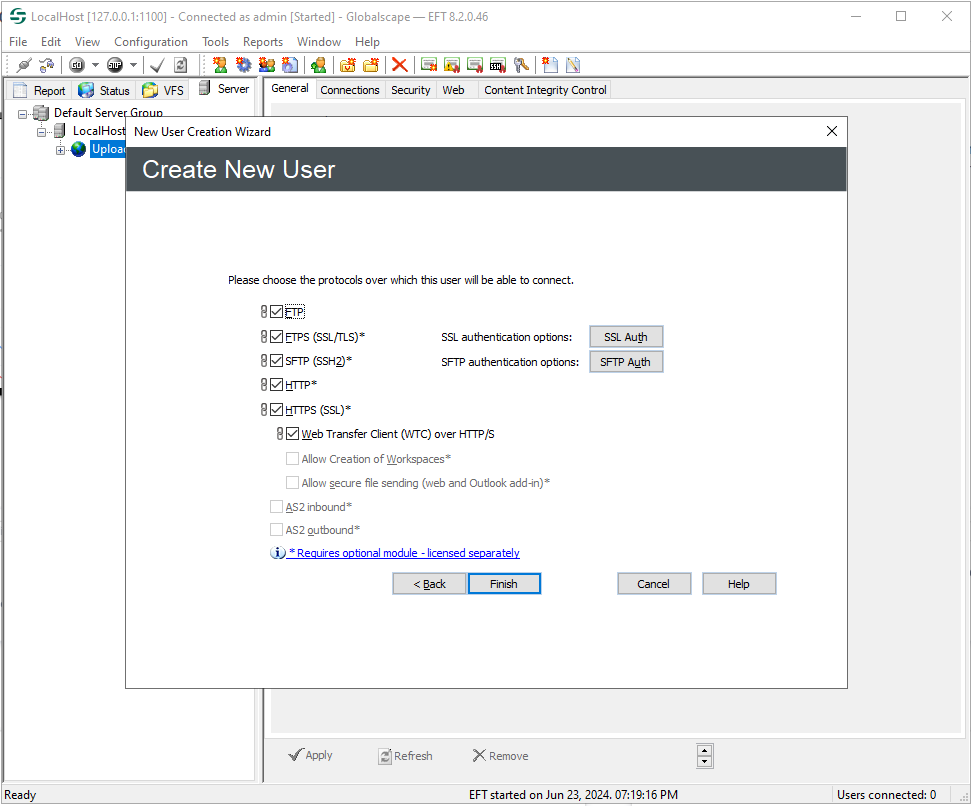
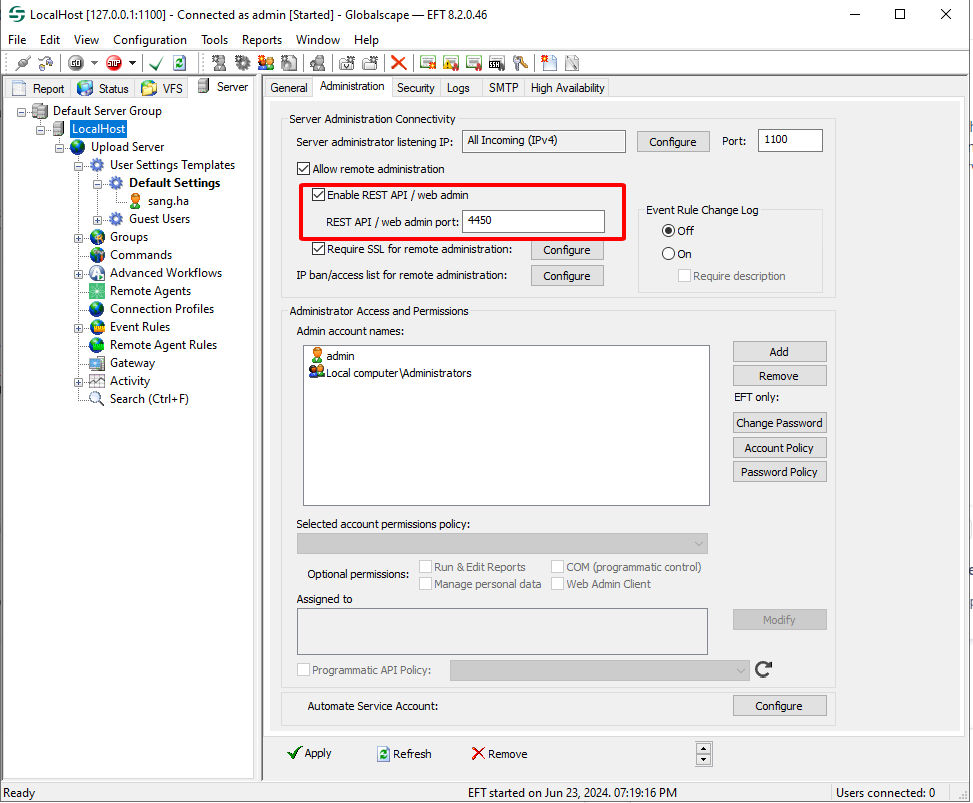
After creating the user we will enable the WEB Admin to upload files to the server
Create a new profile
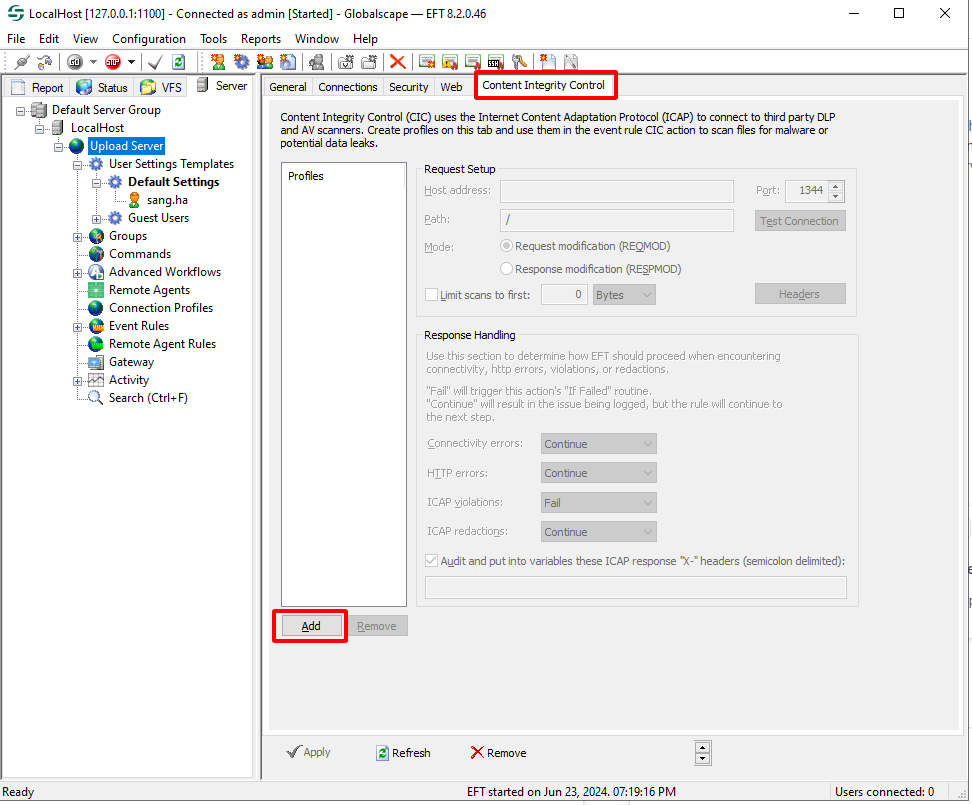
Configure Content Integrity Control profile: https://www.globalscape.com/services-support/eft-best-practices/use-efts-content-integrity-control-feature-add-extra-layer-data
with ICAP version v5.7.0 or newer the path can be OMSScanReq-AV-GLBEFT for REQMOD or OMSScanResp-AV-GLBEFT for RESPMOD
with ICAP v4.11.0 or newer, if use the traditional service paths (OMScanReq-AV and OMScanResp-AV) the the flag unique_uri_per_service must be set true
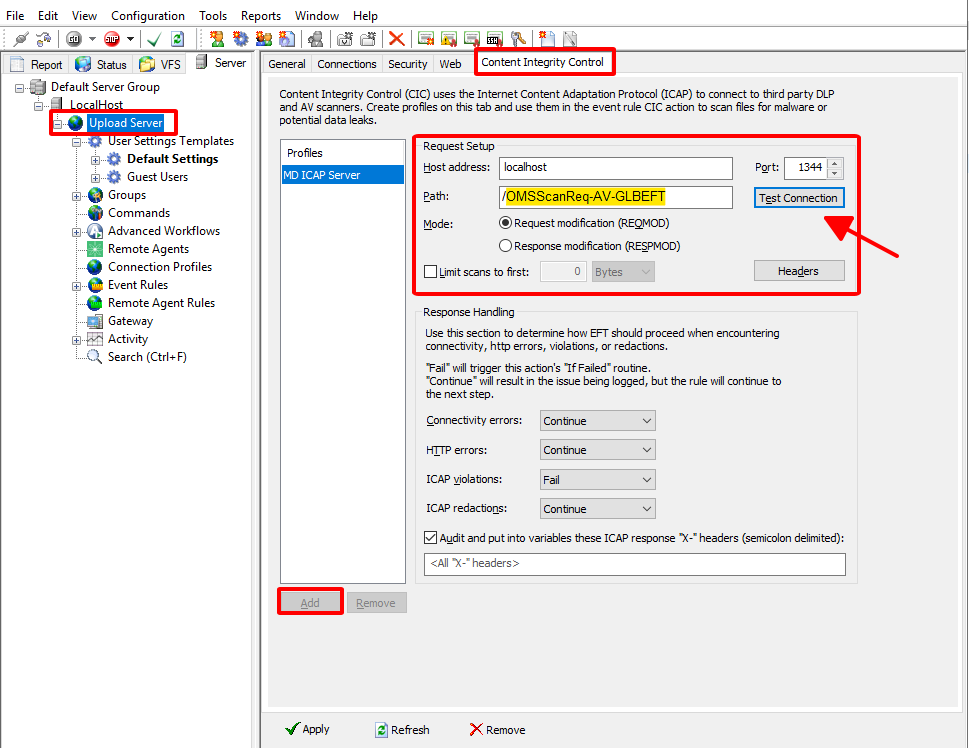
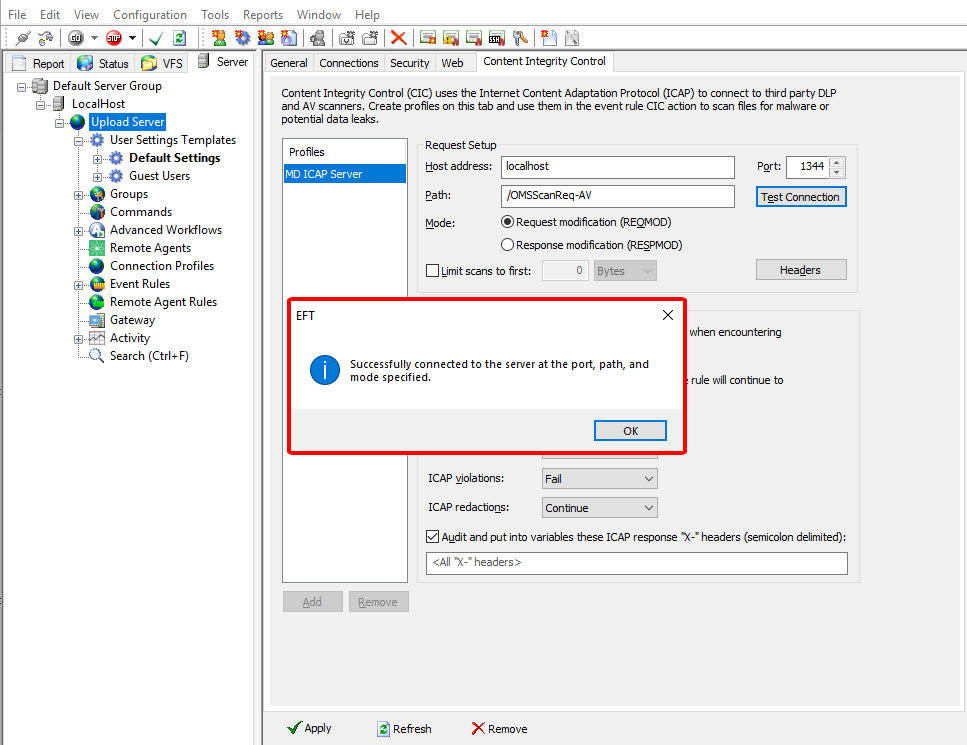
Hit the button Test Connection to verify connection to the MD ICAP Server
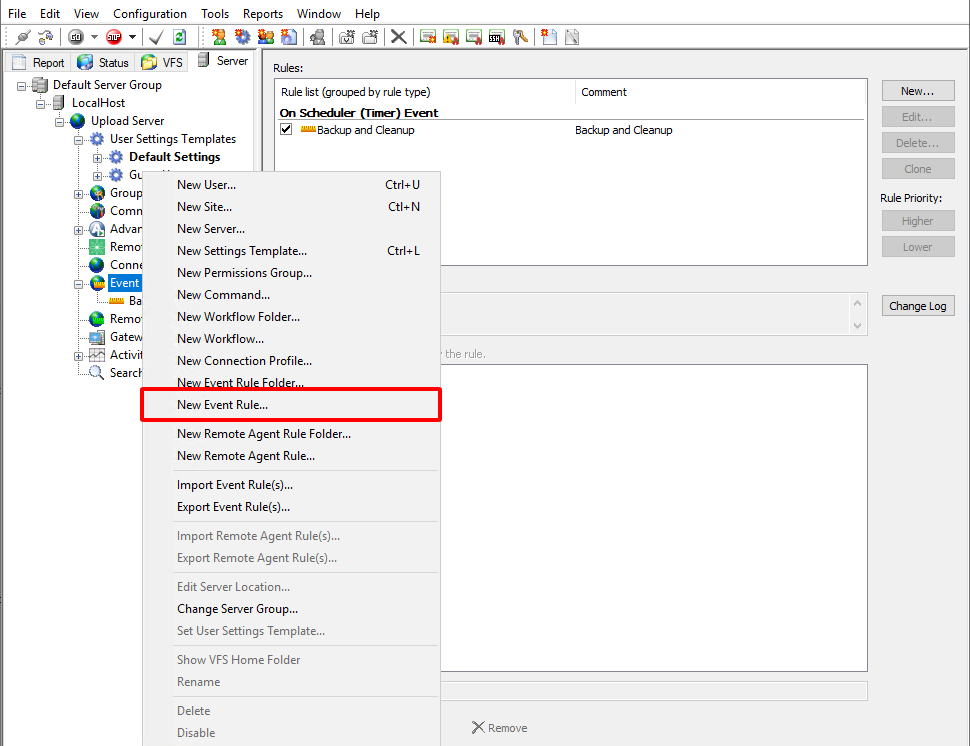
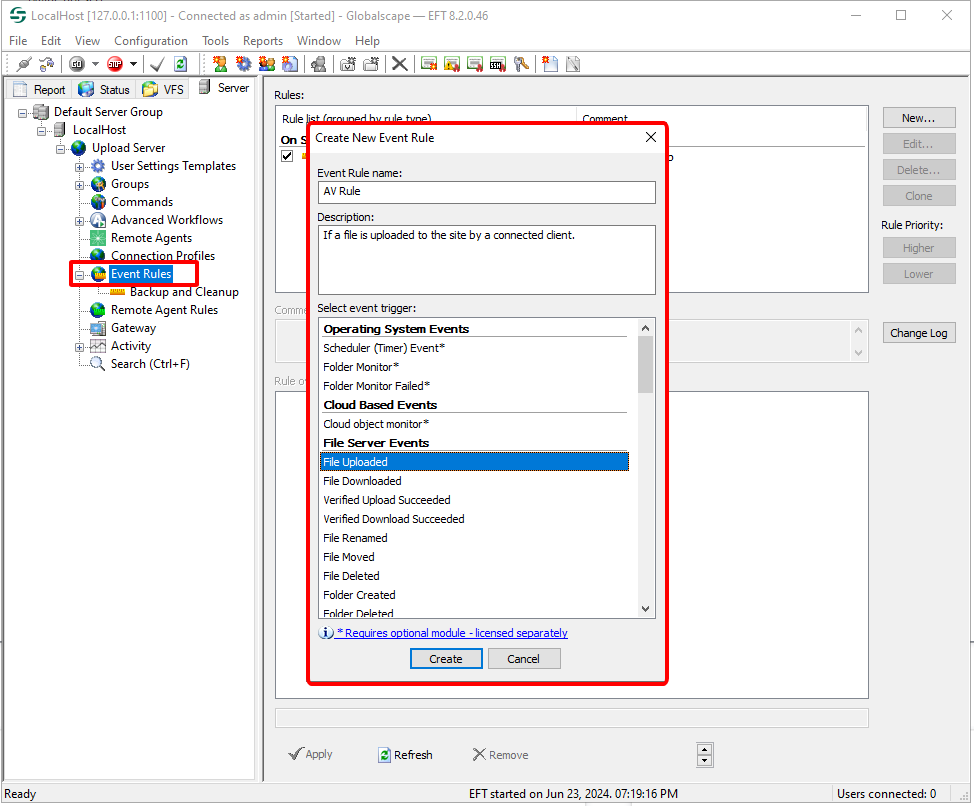
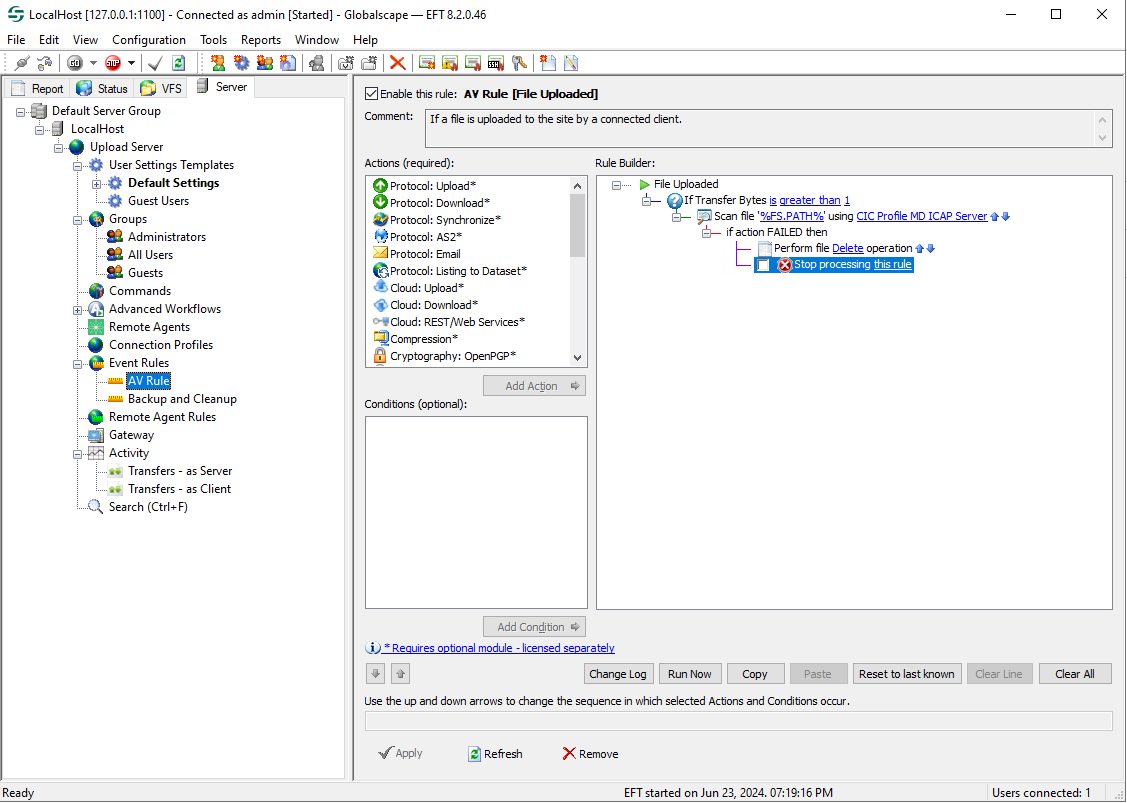
Create a new Event Rule for the Site
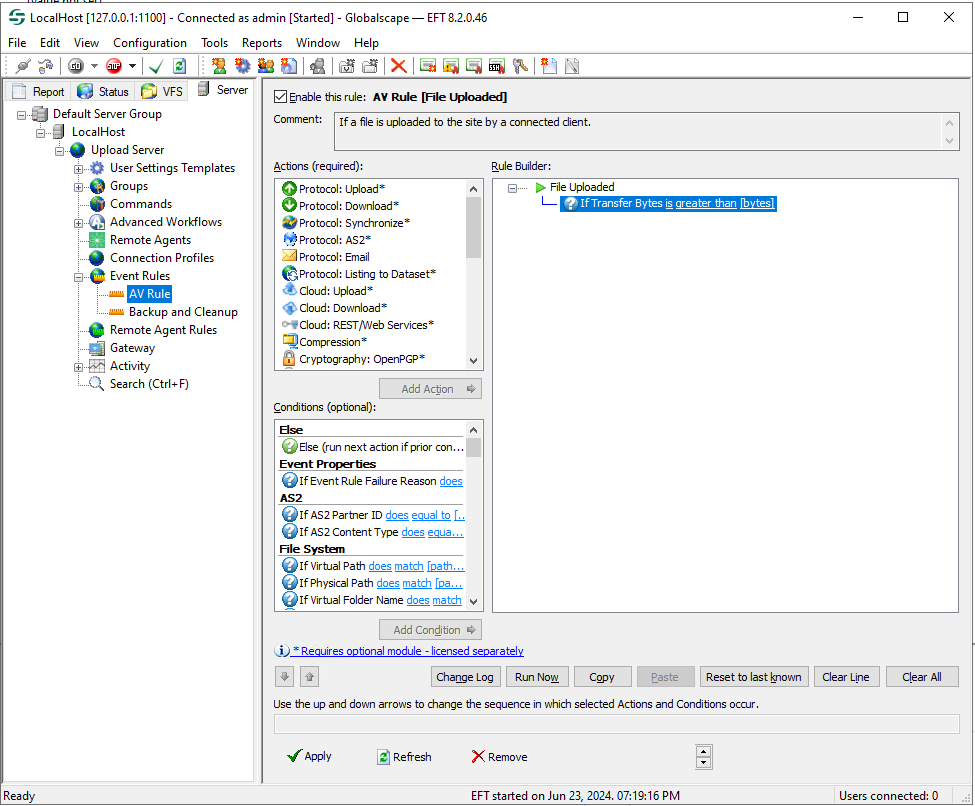
Add the condition If Transfer Bytes below the event File Uploaded
Add the action File: Scan and select the MD ICAP Server profile created above
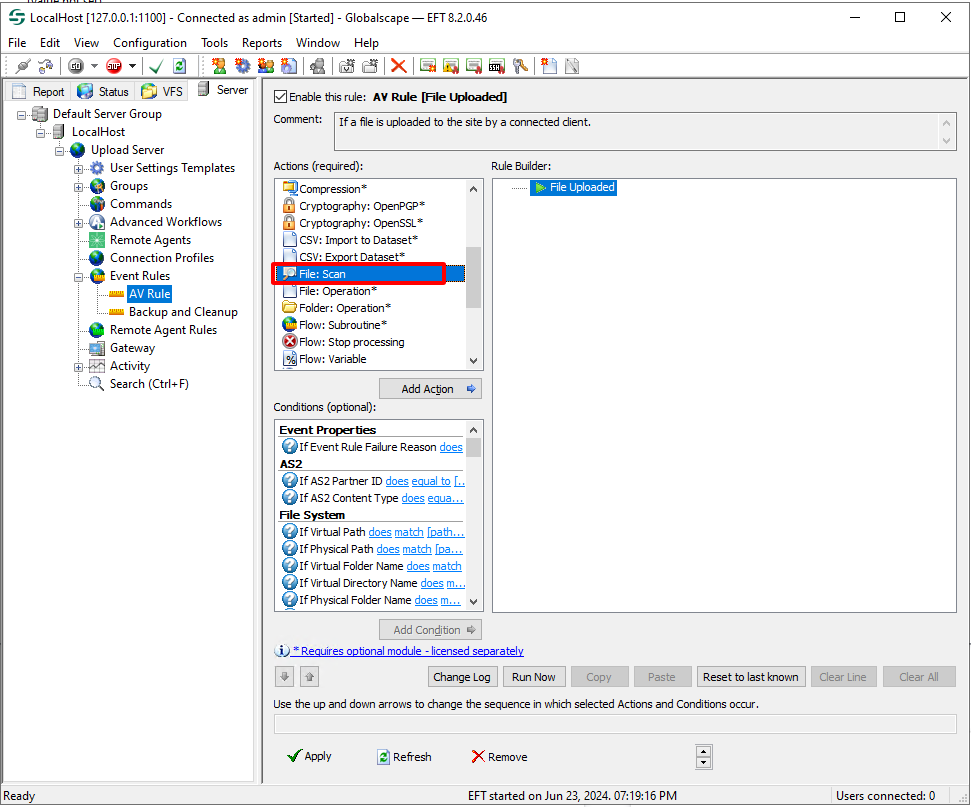
Select the profile MD ICAP Server created above
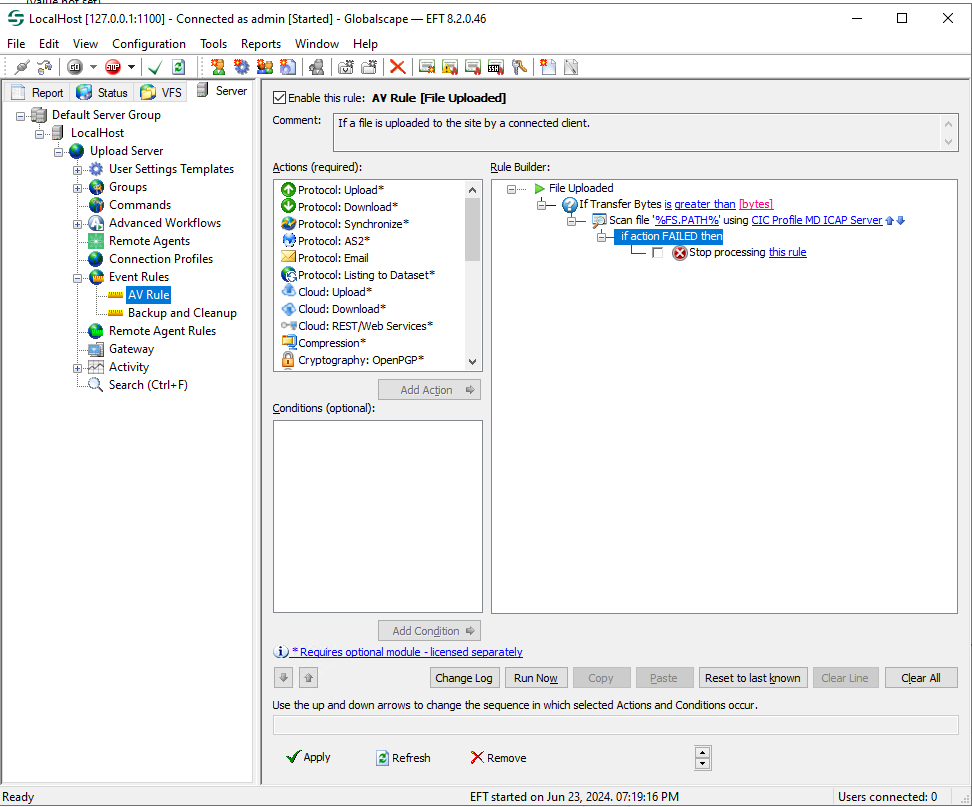
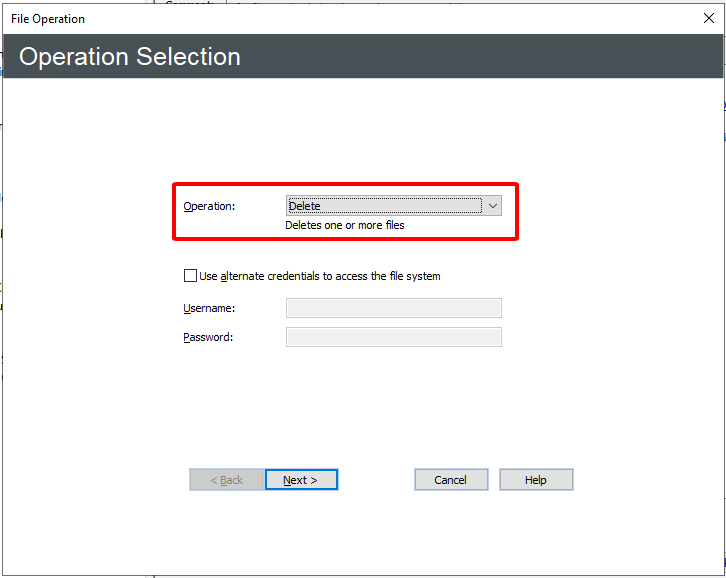
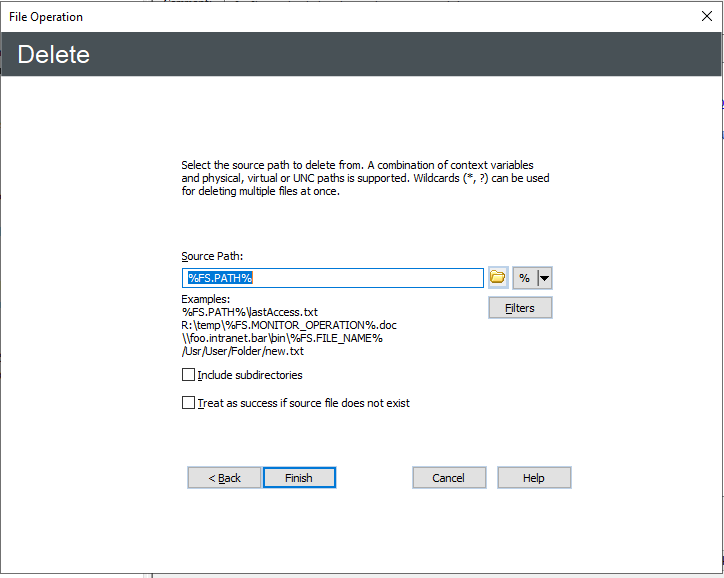
Add an action File: * Operation to delete the file if the result is failed
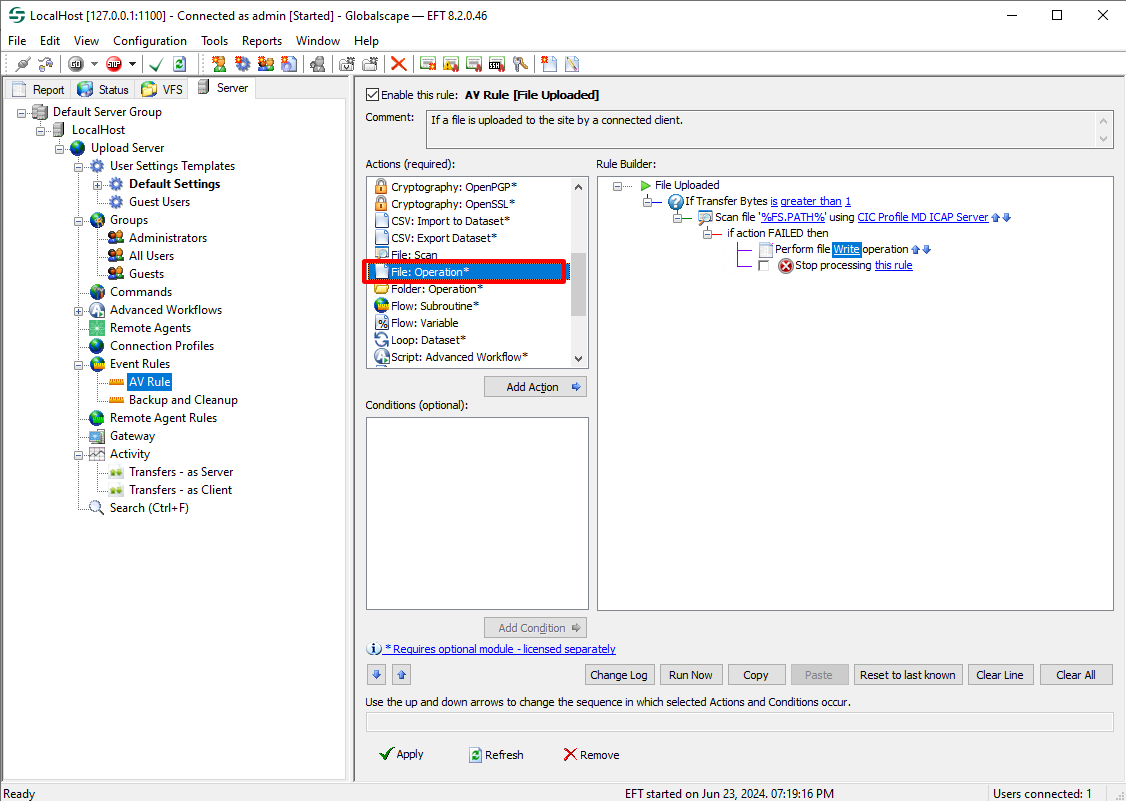
Config File Operation
How to Get UserName from GlobalScaple
1. Receive GlobalScape custom header
GlobalScape can custom the value of below header: X-Client-IP, X-Server-IP, X-Authenticated-User, X-Authenticated-Groups
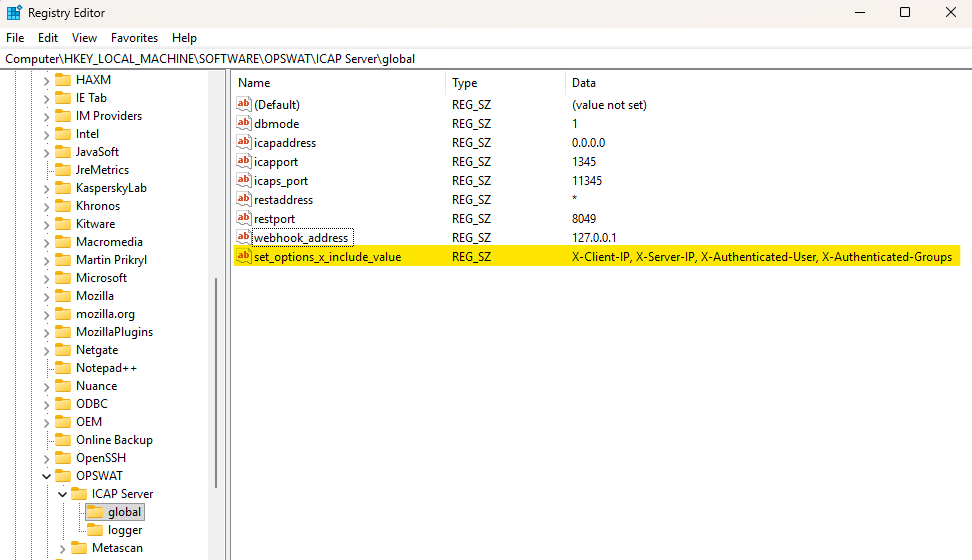
to allow GlobalScape send these headers to MD ICAP Server, the X-Include header of OPTIONS's response must contain those values
X-Include header on OPTIONS responses X-Client-IP by default, to override this value the MD ICAP Server since v5.10.0 has supported by flag global/set_options_x_include_value (refer to Configuration file)
e.g for configuration on Windows:
2.Enable ICAP headers override from GlobalScape
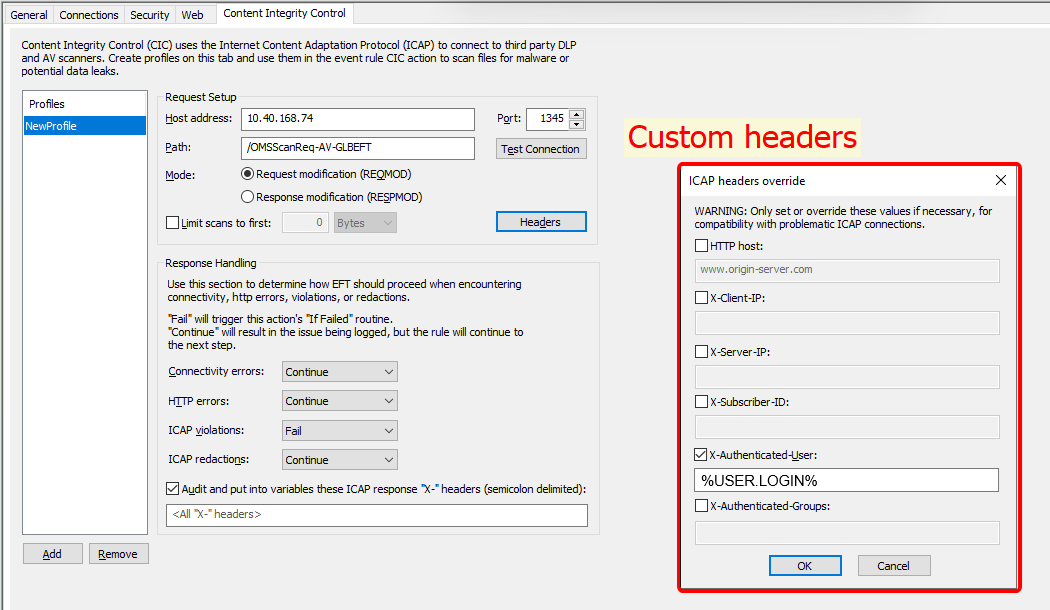
GlobalScape -> Go to profile -> Headers -> ICAP Headers override
check X-Authenticated-User and input as below
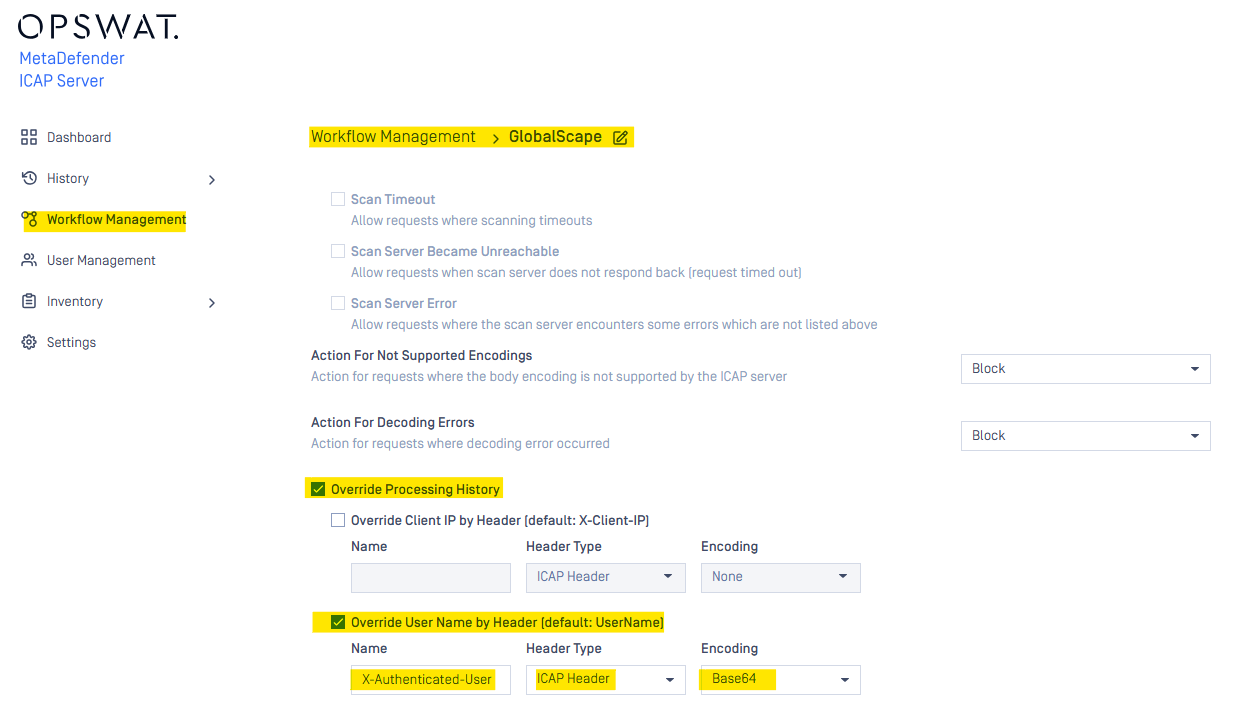
3.Override username at ICAP Server
MD ICAP Server -> Workflow Management -> Go to each workflow (Example: GlobalScape workflow)
-> Go to Advantaged tab of workflow
-> Check the checkbox "Override Processing History"
-> Check the checkbox "Override User Name by Header (Default: UserName)
-> Input X-Authenticated-User as ICAP Header with Encoding Base64