
This article applies to all MetaDefender Endpoint releases deployed on Windows, Linux, macOS, iOS or Android systems.
The version of MetaDefender Endpoint installed on a device can be confirmed either remotely via the My OPSWAT Console, or locally via the device OS.
MetaDefender IT-OT Access Console
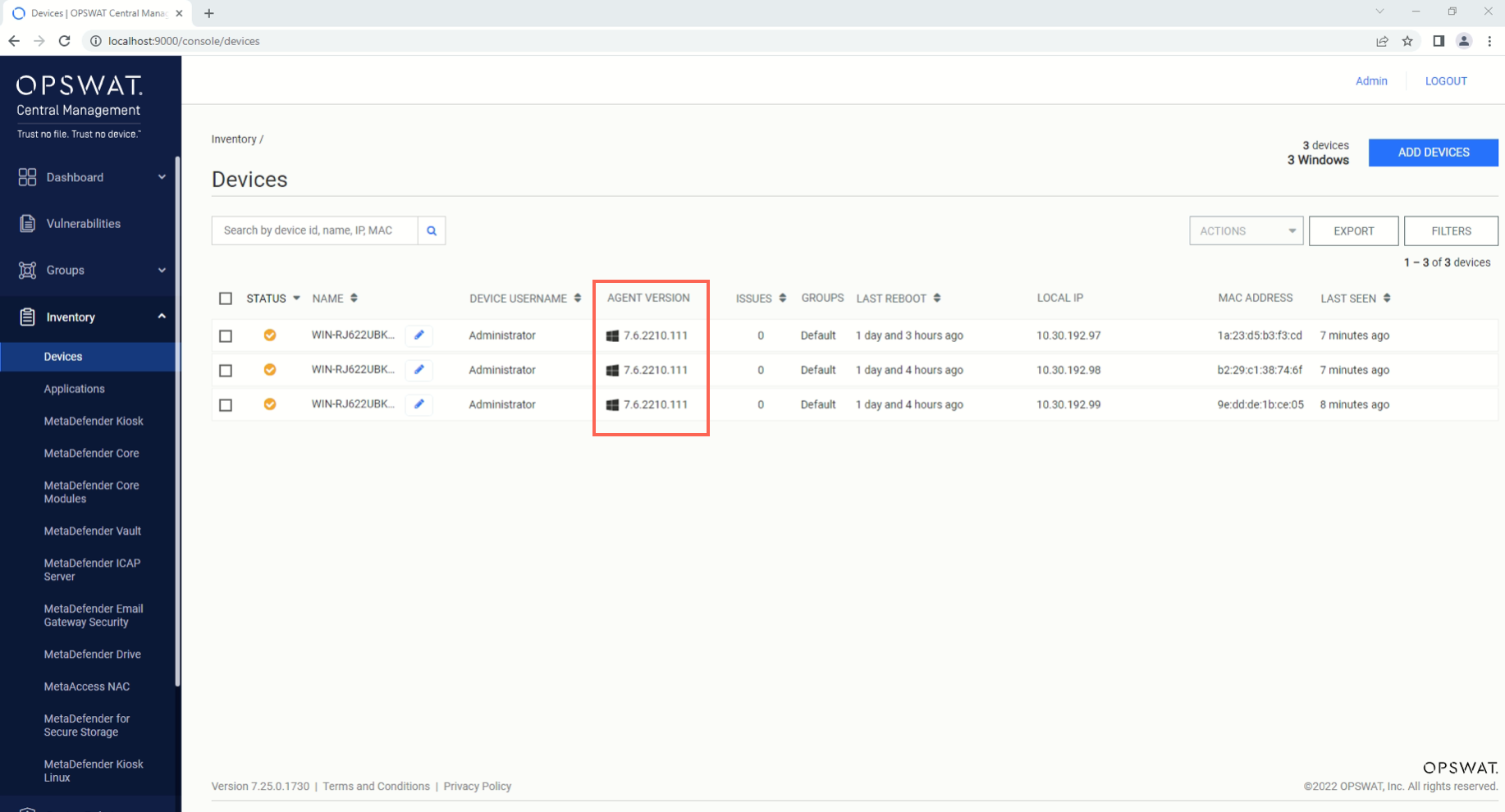
Log into the My OPSWAT Console and navigate to the Inventory>Devices tab.
Enter the device ID, username, group name, IP address, or MAC address into the search field and run the Search.
Once located, Client version details will be listed in the Agent Version column, as illustrated below.
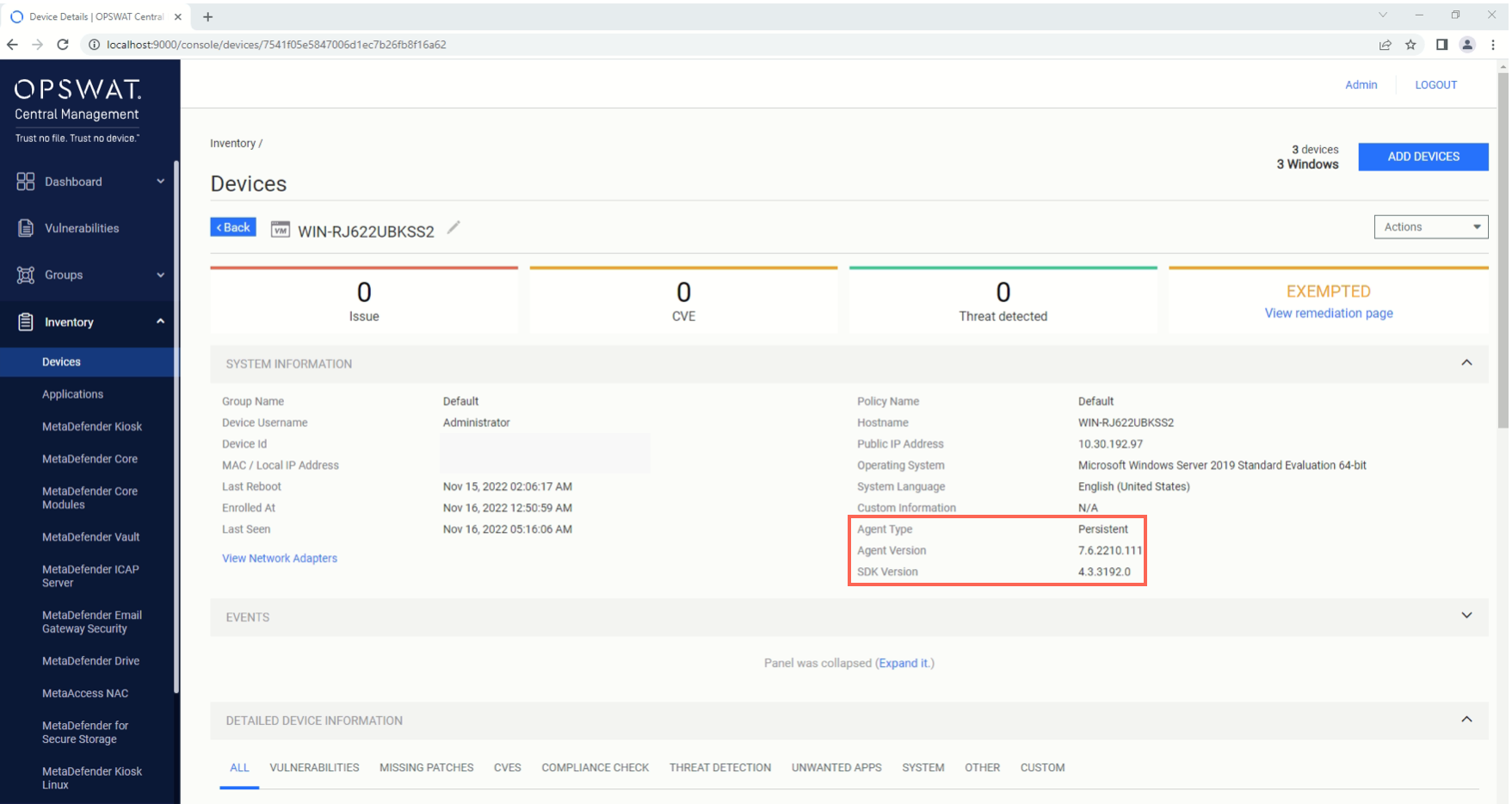
Client/Agent version and type is also shown in the System Information box when we view device details. In this view, users can also check which SDK version the client is running, as illustrated below.
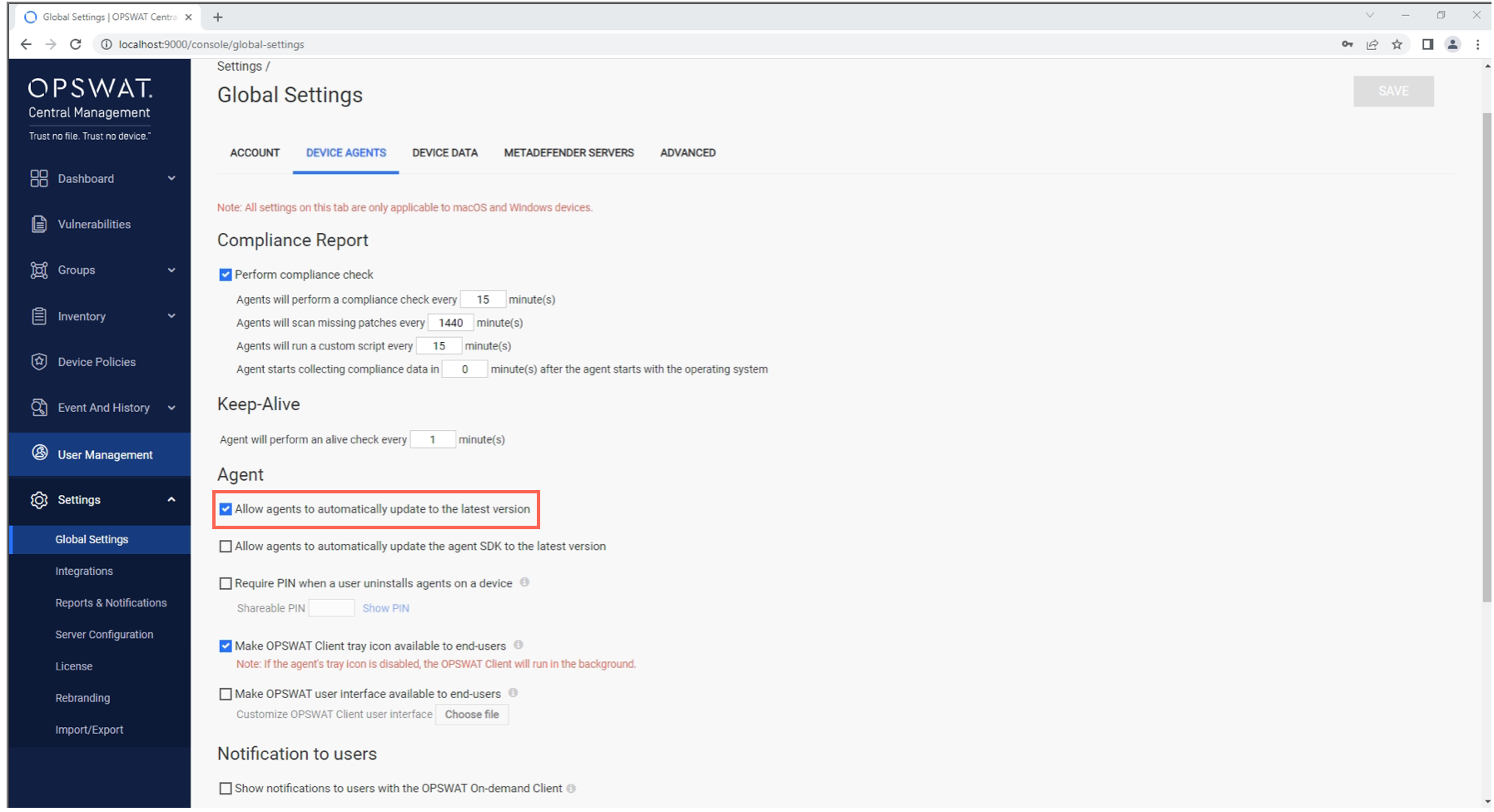
Unless the automatic updates are disabled (via the My OPSWAT Console>Settings>Global Settings>Device Agents tab), the Persistent MetaDefender Endpoint will update automatically as new versions are released.
If the device is offline for an extended period, the version will update as soon as the device is back online.
The On-Demand MetaDefender Endpoint will not automatically update, regardless of whether the account is set to do so.
From Windows On-Demand and Persistent Client, tray icon enabled
Open the Windows Start menu.
Search for MetaDefender Endpoint.
Right-click the Client Tray Icon.
Select the About option to view the device Client version details.
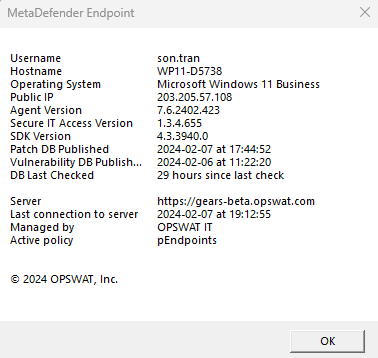
Information listed in the About dialogue includes:
the agent version
the SDK version (OESIS Framework version)
hostname
username
OS information
IP address
MAC address
the server the MetaDefender Endpoint is communicating with
the account the device is associated with
the last time the MetaDefender Endpoint communicated with the My OPSWAT Cloud.
From Windows Persistent Client, tray icon disabled
MetaDefender Endpoint version
Users can check on the Client version via the registry at the relevant location below:
For Windows 32-bit:
Go to HKEY_LOCAL_MACHINE\SOFTWARE\OPSWAT\Gears Client\Config, and key , MSIPackageVersion.
For Windows 64-bit:
Go to HKEY_LOCAL_MACHINE\SOFTWARE\Wow6432Node\OPSWAT\Gears Client\Config, and key MSIPackageVersion
SDK version (OESIS Framework version)
For Windows 32-bit:
Go to C:\Program Files\OPSWAT\OnDemand\ondemands\oesis and check the product version/file version of any dll file.
For Windows 64-bit:
Go to C:\Program Files (x86)\OPSWAT\OnDemand\ondemands\oesis and check the product version/file version of any dll file.
From macOS Persistent Client, tray icon disabled
Open Finder and go to /Applications/OPSWAT GEARS Client.
CTRL Click OPSWAT Gears and select Get Info, to see all application data, as illustrated in the screenshot below.
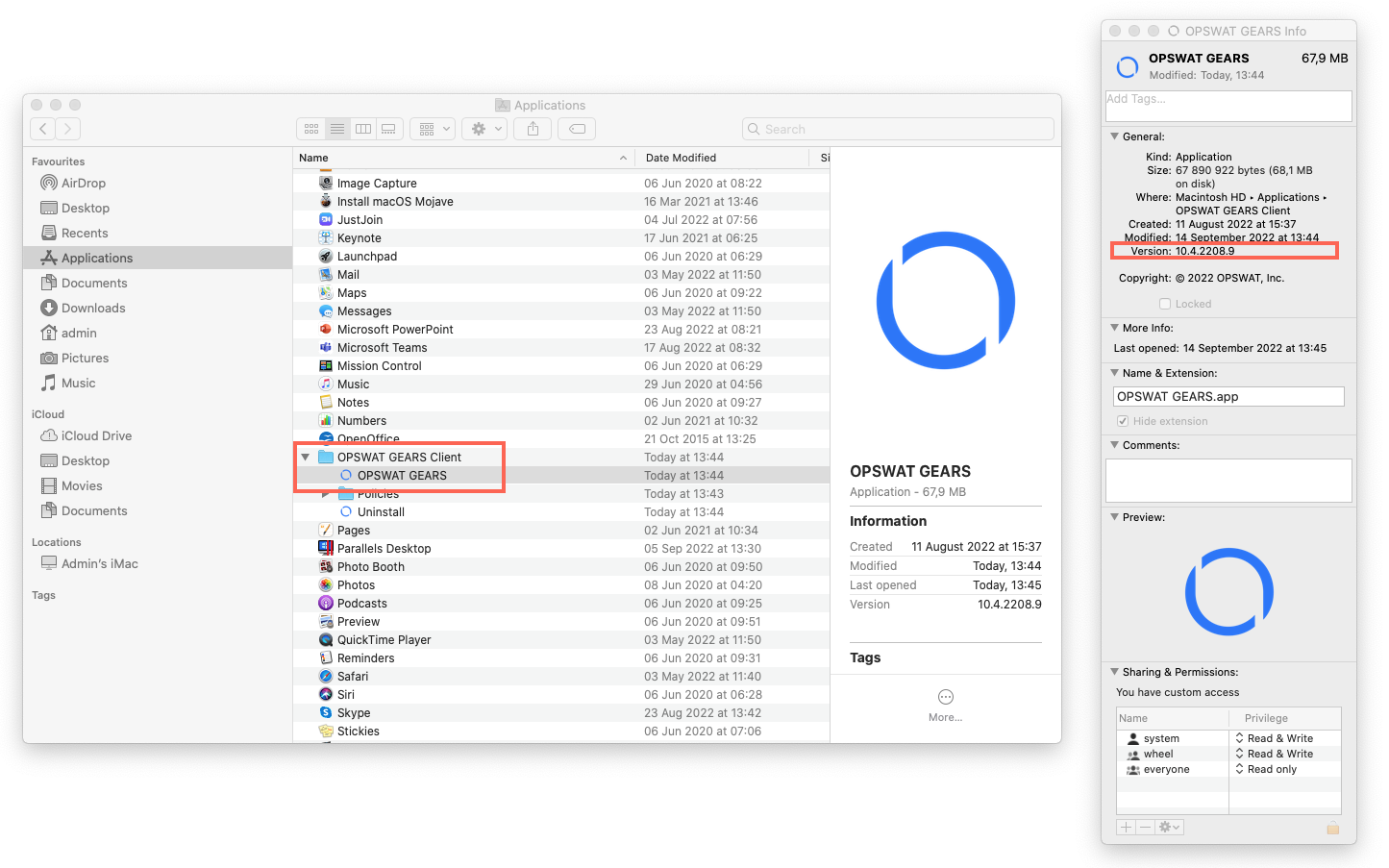
From Linux Client
Check Client version via command
Open a Terminal and run the command: opswat-client -i
Client version details will be listed as command output.
Check Client version via file name
Go to /usr/bin/opswatclient/bin
Product version will be included with the file name.
For example, file name: dax-15.5.4.0 (where the product version is 15.5.4.0).
From iOS/Android Mobile App
Open the OPSWAT App.
Click on the Menu icon in the top right-hand corner of the screen.
Select About to view the version details.
If you have any difficulty Accessing Device Client Version Information, please open a Support Case with the OPSWAT team via phone, online chat or form, or feel free to ask the community on our OPSWAT Expert Forum.