
This article applies to the Microsoft Endpoint Configuration Manager, the current MetaDefender IT-OT Access Console and API, and all MetaDefender Endpoint releases deployed on Windows systems.
Users running MetaDefender Endpoint on one or more Windows devices may occasionally see MetaDefender IT-OT Access device compliance warnings/flags related to Missing OS Patches.
These warnings/flags are triggered by device issues and will appear under MetaDefender IT-OT Access Console>Inventory>Devices>Relevant Device>Detailed Device Information>Missing Patches.
Malware is frequently designed to exploit the vulnerabilities in outdated applications and operating systems in order to gain entry to and infect a system.
This is why keeping your operating system, OS security patches and all associated apps up-to-date is an essential element of risk reduction in cyber-security.
One way to ensure that the OS patches on your Windows devices are kept up-to-date is to configure Microsoft Endpoint Configuration Manager (MECM), previously known as Microsoft System Center Configuration Manager (SCCM).
MECM/SCCM is a software management suite designed to streamline the deployment of updates and patches across networks of Windows computers.
To remediate Missing OS Patch related device compliance issues on your managed Windows devices, please follow the instructions for configuring the Microsoft SCCM below.
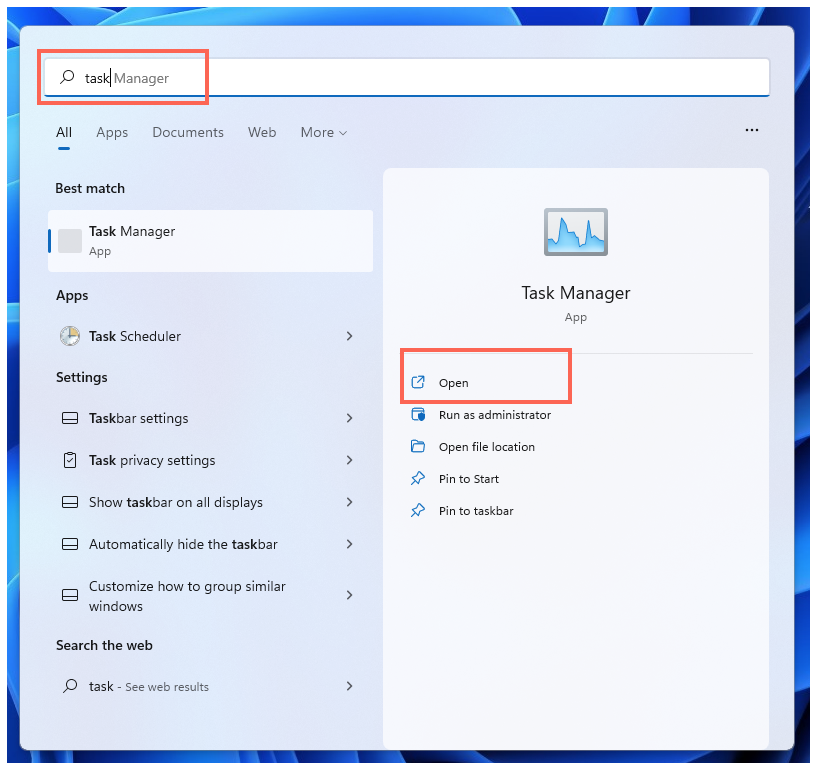
Check whether MECM is running on your device by opening the Windows Start menu, searching for Task Manager and launching it.
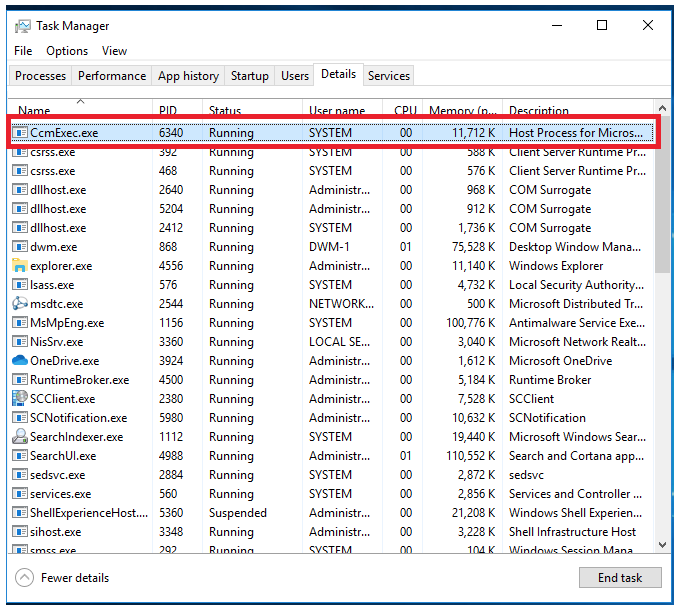
In Task Manager, expand the Details tab, then search for CcmExec.exe. If you cannot find it, contact your administrator to remediate the issue.
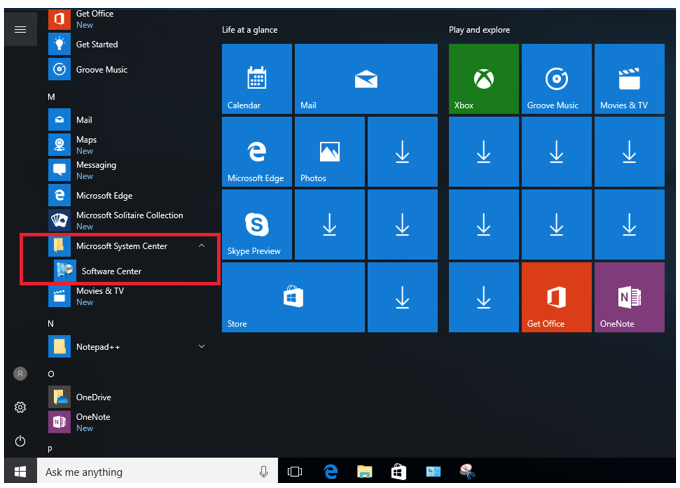
Next, you can install all missing patches on the device by going to the Start menu, then searching for Microsoft System Center and launching Software Center.
Inside the Software Center app, click on the Updates tab in the left-hand navigation panel.
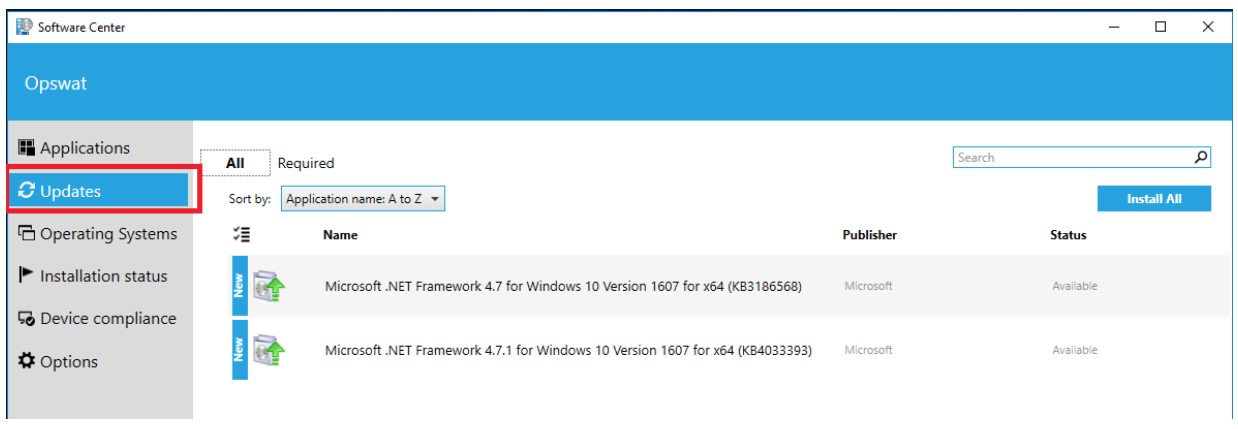
On the Updates page, click Install All to install all missing OS security patches.
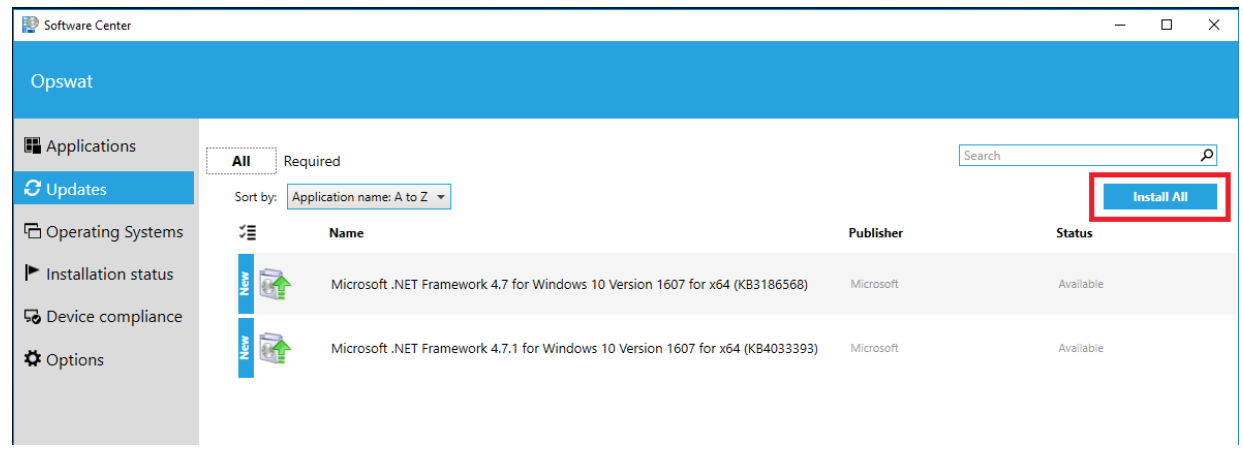
Restart your device if prompted to do so.
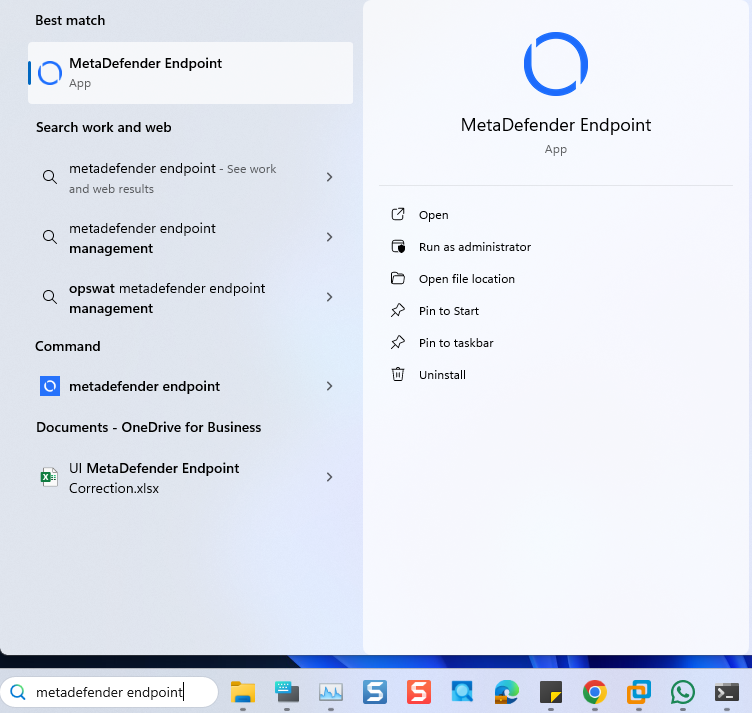
Open the Windows Start menu, search for the MetaDefender Endpoint or MetaDefender IT-OT Access, then select the Run as administrator option.
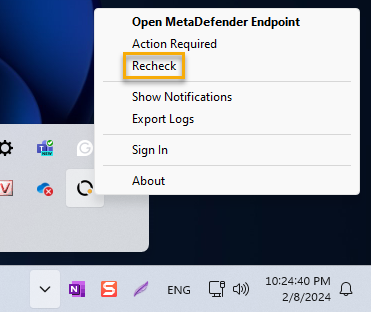
Once the app is running, right-click on the MetaDefender Endpoint tray Icon and, from the pop-up menu, click Recheck.
This will trigger the MetaDefender Endpoint to scan all device compliance data and report to the MetaDefender IT-OT Access servers again.
To remediate Missing OS Patch related device compliance issues on your managed Windows devices without MECM, please Read This.
If you have followed the instructions above but Continue To Experience Missing OS Patch Issues On Your MetaDefender Endpoint/MetaDefender IT-OT Access Managed Windows Devices, please open a Support Case with the OPSWAT team via phone, online chat or form, or feel free to ask the community on our OPSWAT Expert Forum.