You need to setup at least one multi-scanning server before enabling the feature. Following this to setup: https://docs.opswat.com/mdendpoint/endpoint-management/setup-the-multi-scanning-server
Enable the Removable Media Protection feature on the MetaDefender IT-OT Access
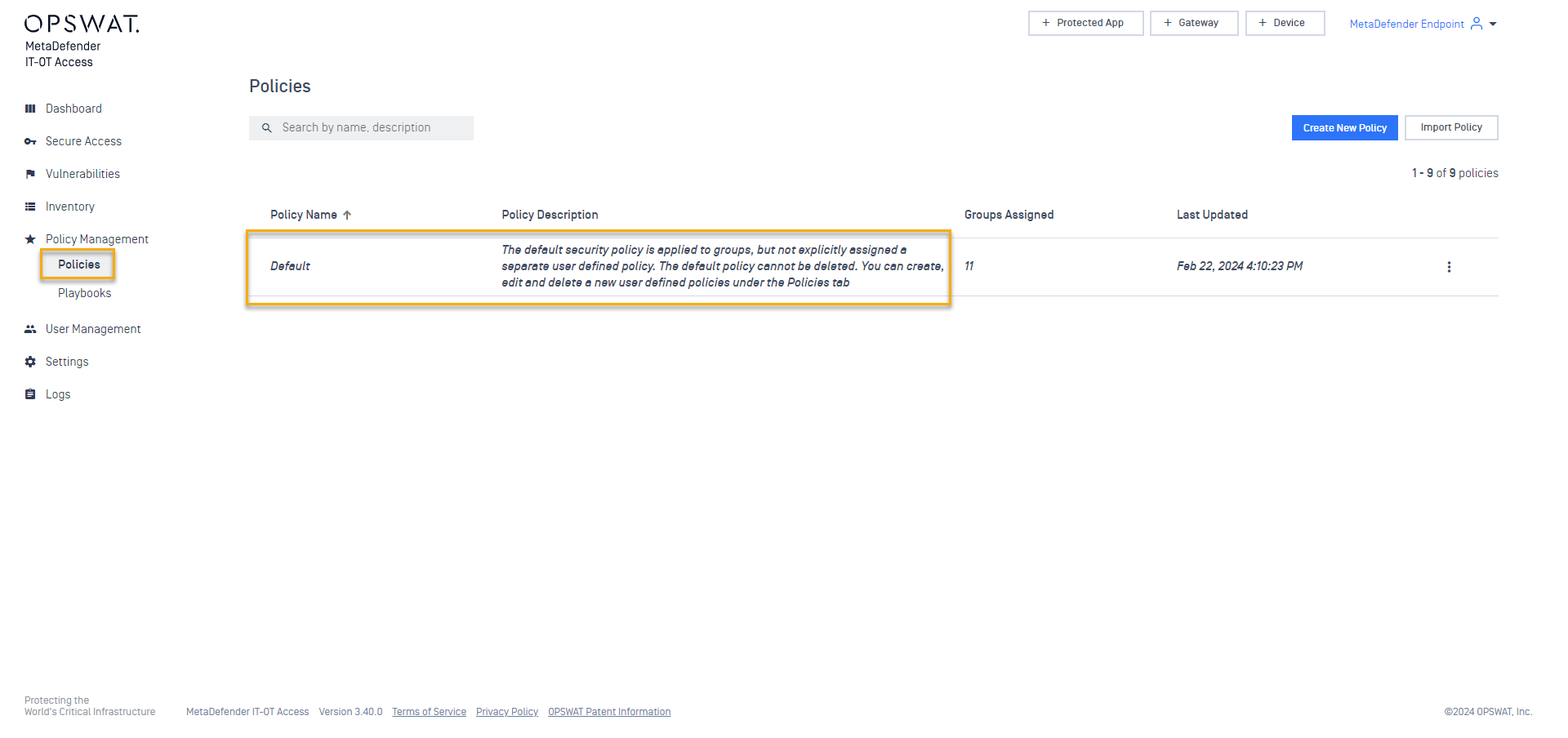
Go to Policy Management -> Policies -> Click a policy which you want to enable the feature (Choose the Default policy on this example). As illustrated in the screenshot below.
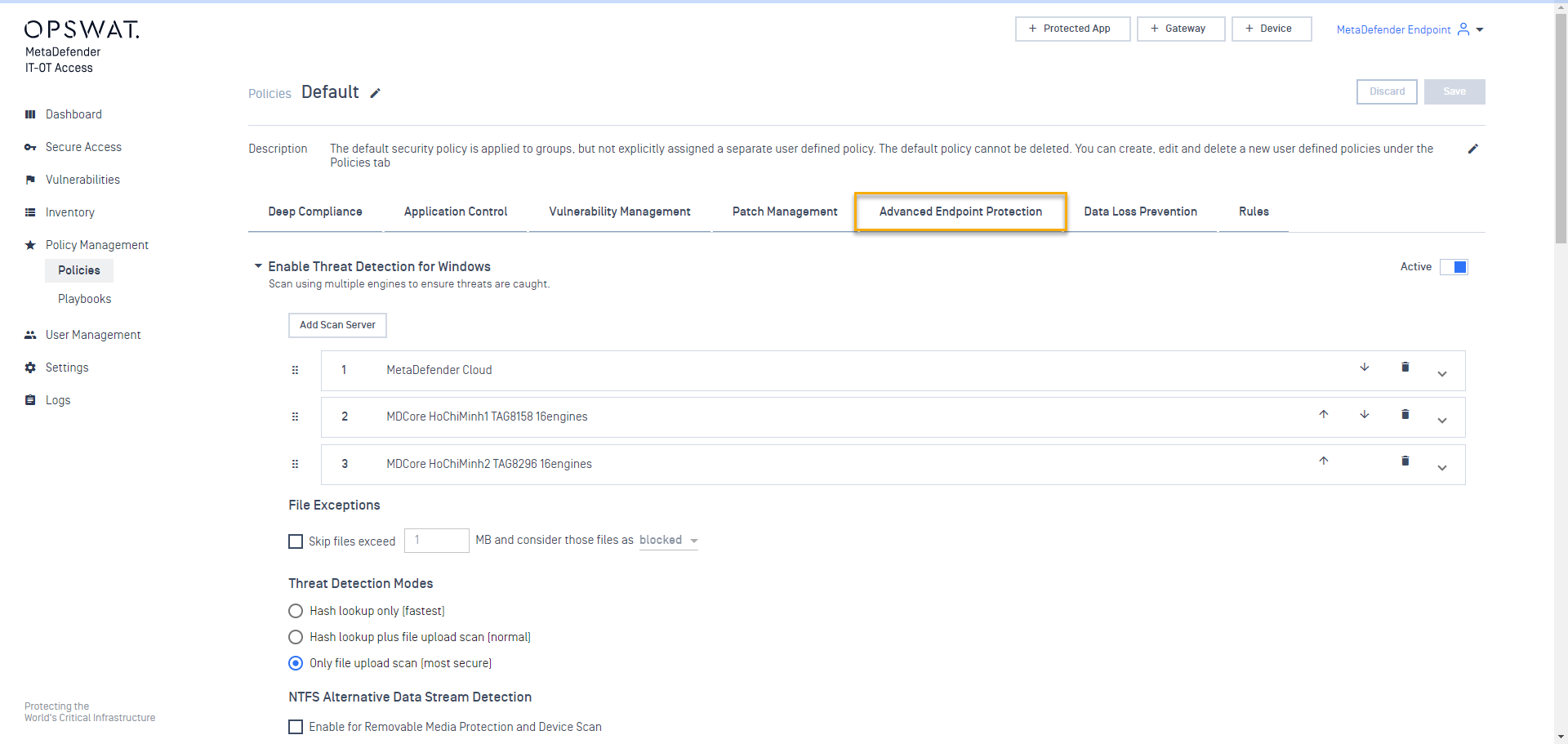
Click Advanced Endpoint Protection tab and enable Threat Detection for Windows. As illustrated in the screenshot below.
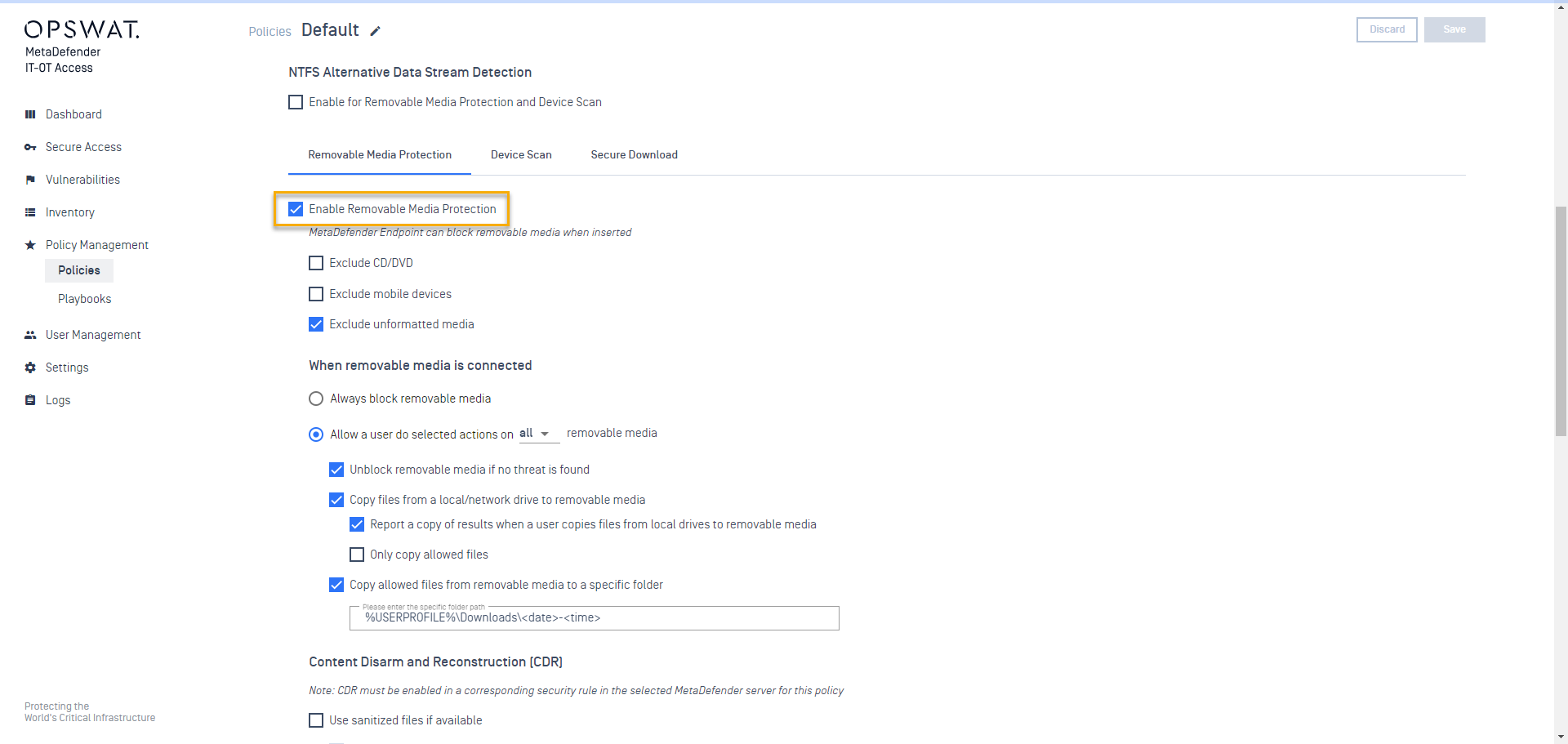
Enable Removable Media Protection as illustrated in the screenshot below.
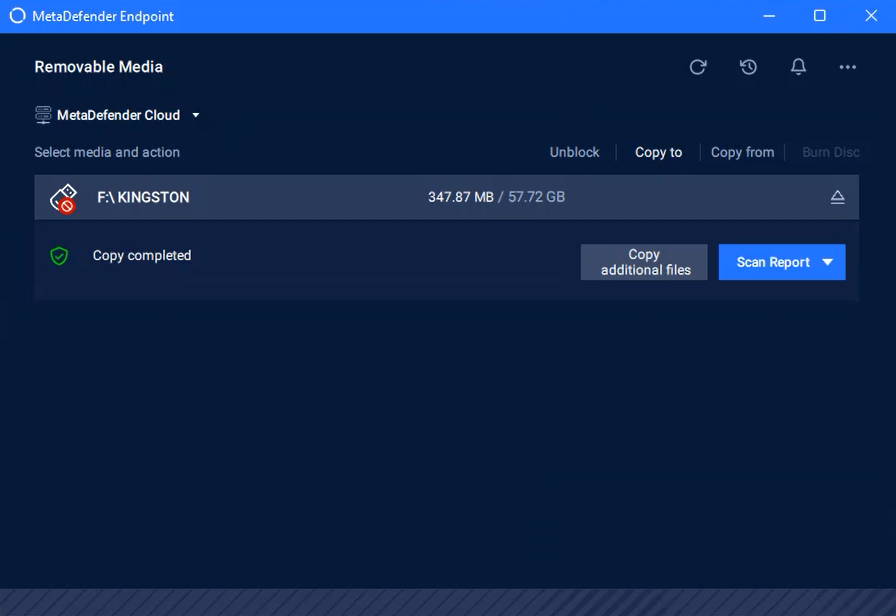
Removable Media Protection feature on MetaDefender Endpoint
The guide to Unblock USB
Step 1: Select USB, click on the “Unblock“ tab and then click ”Scan” to scan this USB.
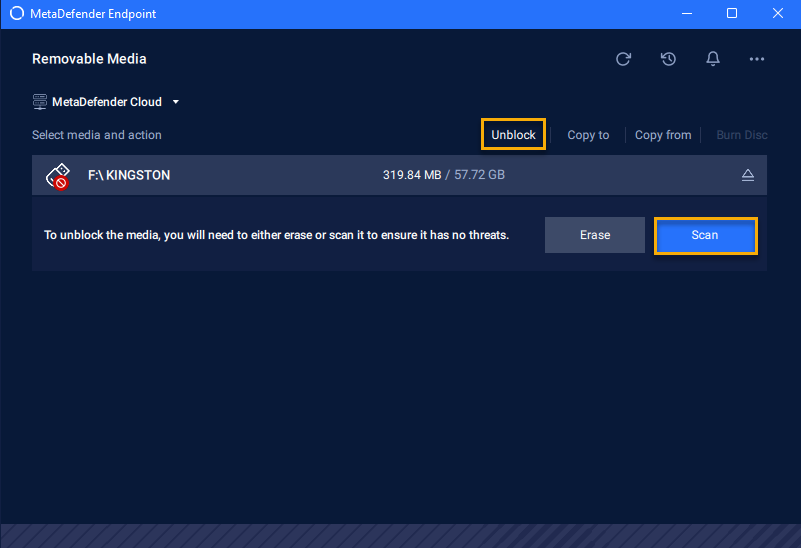
Step 2: Wait for the scanning process to complete and check the scan result.
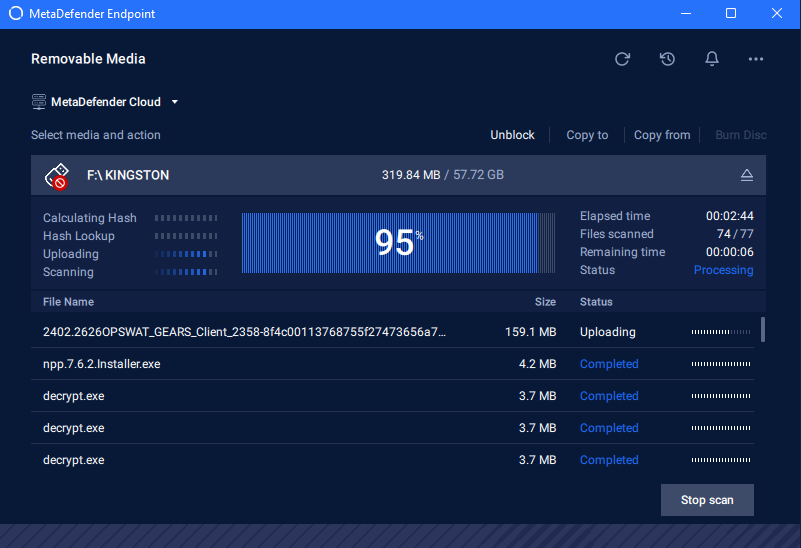
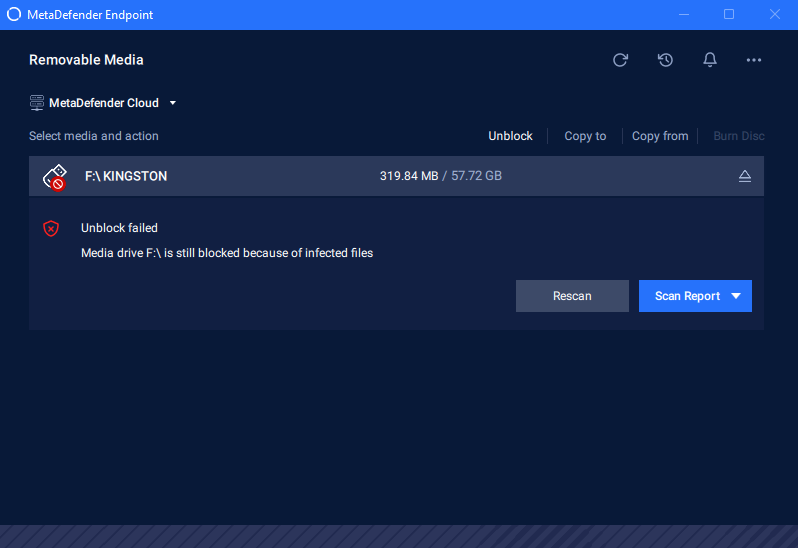
Unblock Fail: The result of unblocking USB
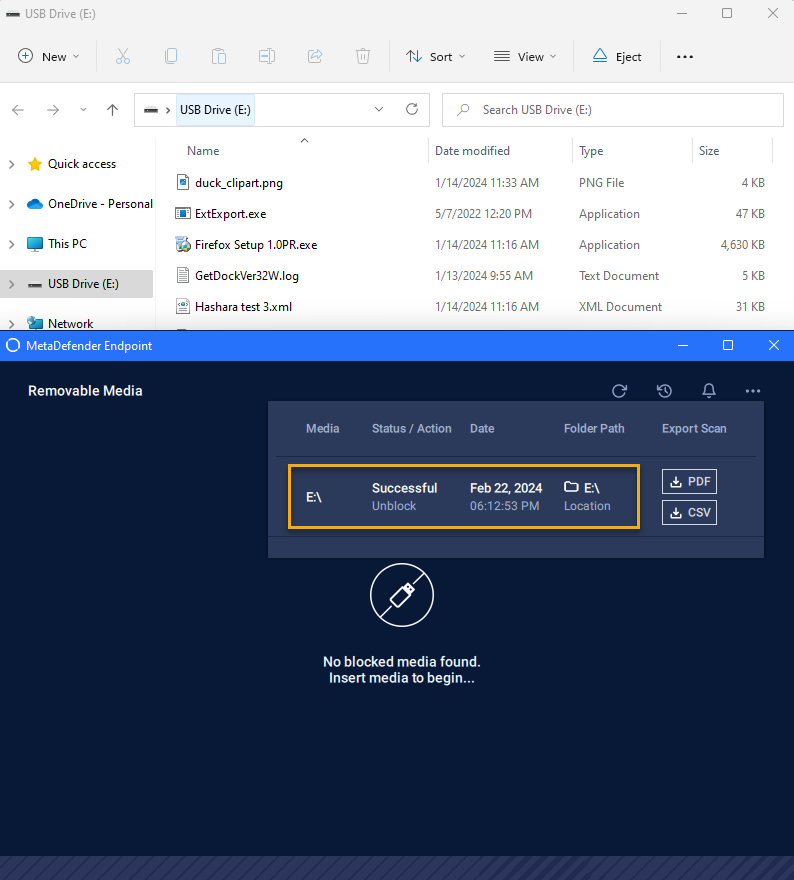
Unblock Success: The result of unblocking USB
The guide to Copy file from USB
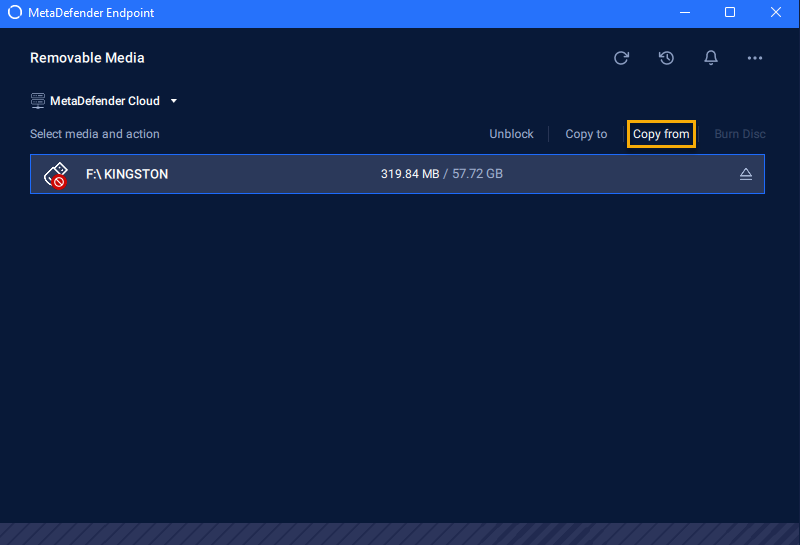
Step 1: Click on the “Copy from” tab to copy files from Media to the local drive.
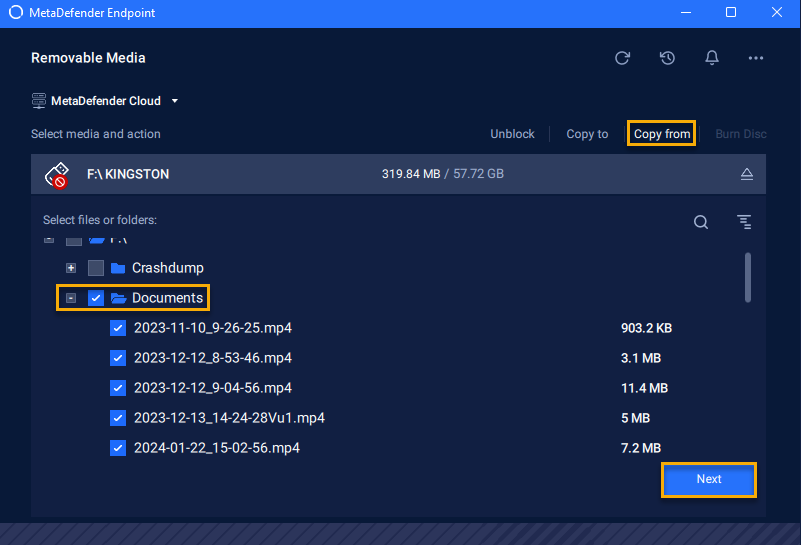
Step 2: Expand the media file to select the files you want to copy, then click “Next“.
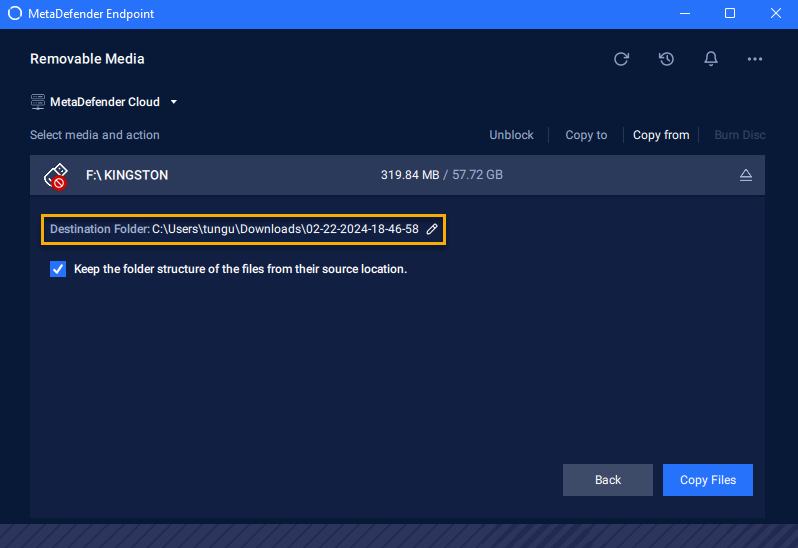
Step 3: Configure the file copy settings, including the destination path and the option to maintain folder structure. Afterward, click 'Copy Files' to initiate the file copying process, or click 'Back' to return to file selection.
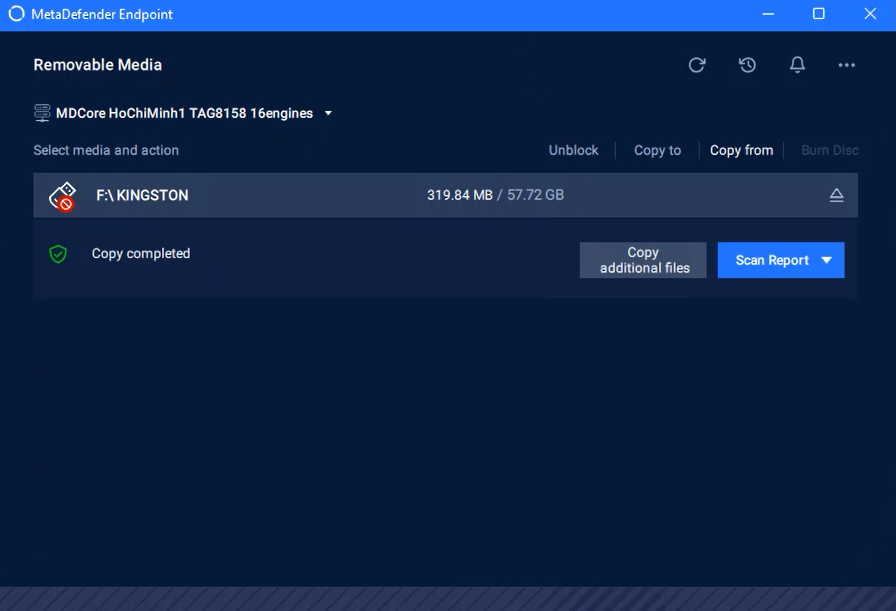
Step 4: Wait for the copying process to complete and check the file.
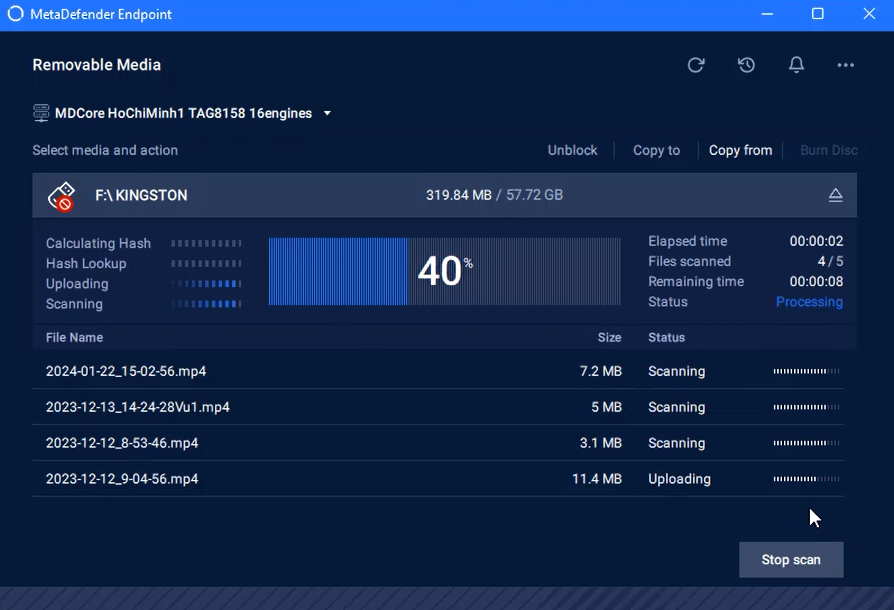
Copy Fail: The result of copying from USB
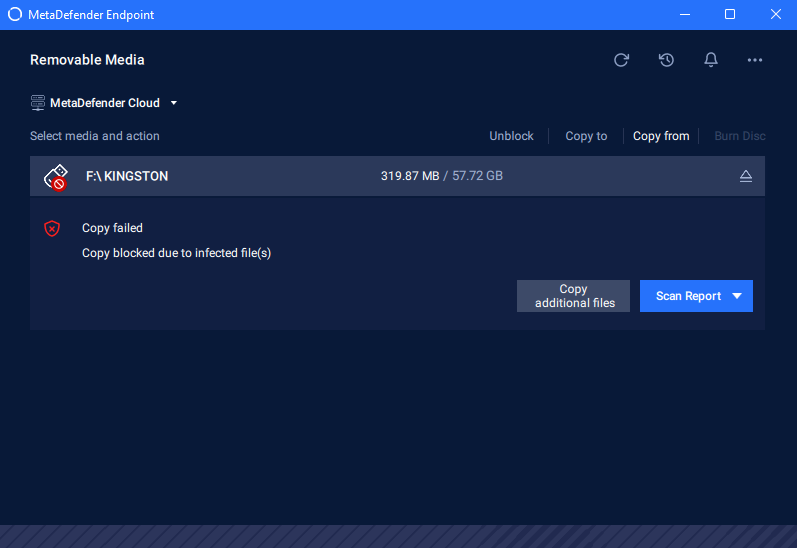
Copy Success: The result of copying from USB
The guide to Copy file to USB
Step 1: To copy files from the local drive to Removable Media, Click on the “Copy to” tab to copy the files from the local drive to Removable Media. Click “Next” to continue.
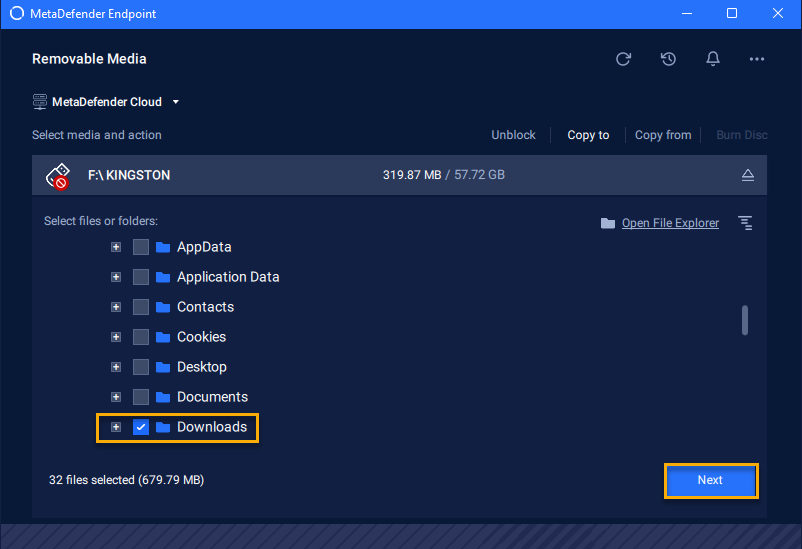
Step 2: Check the correct information and then click “Copy Files“ to start the copying process.
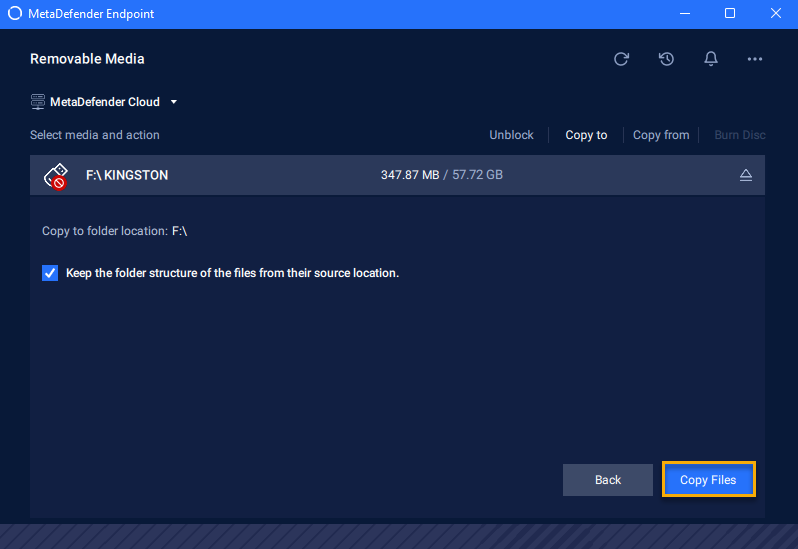
Step 3: Wait for the copying process to complete and check the file.
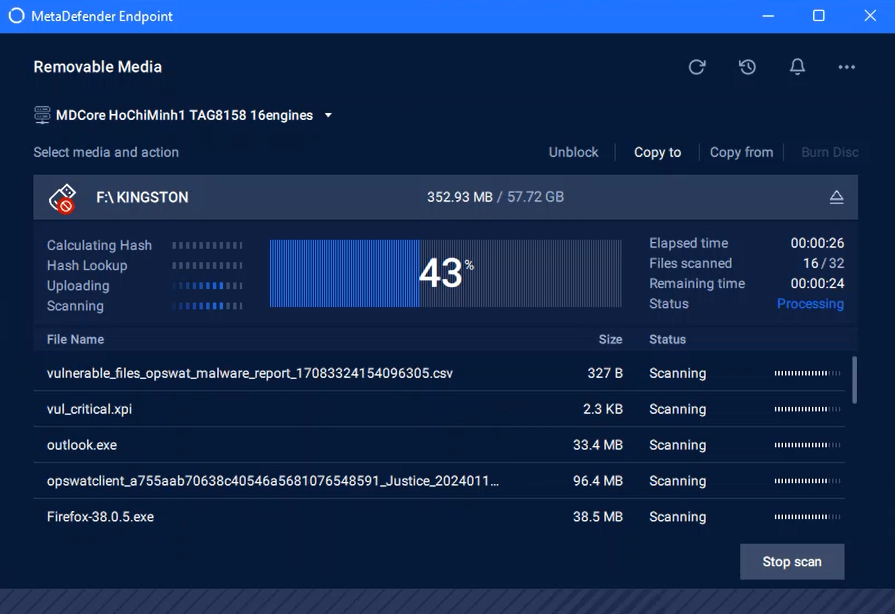
Copy Fail: The result of copying to USB
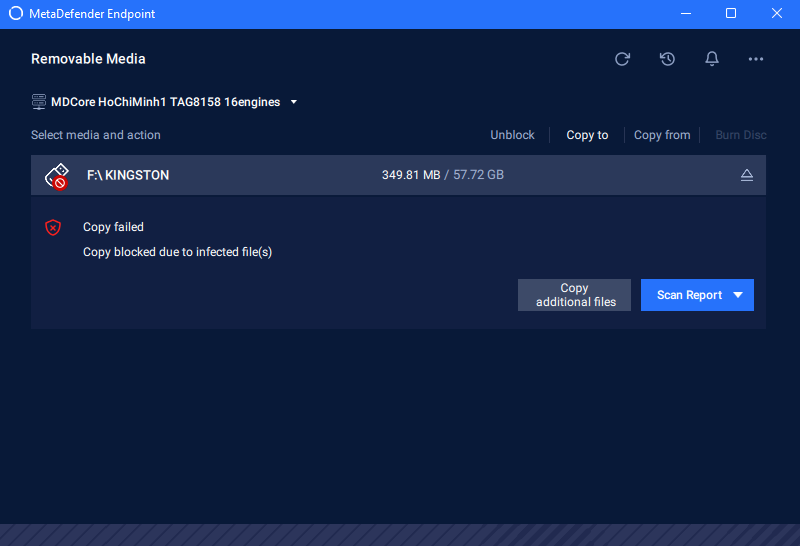
Copy Success: The result of copying to USB