
Preferences → FileType Analysis and Archive Handling
Starting with v4.4.11, FileType Analysis has its own setting, separate from Archive Handling. Use these settings to control file type detection, archive extraction, and scan time.
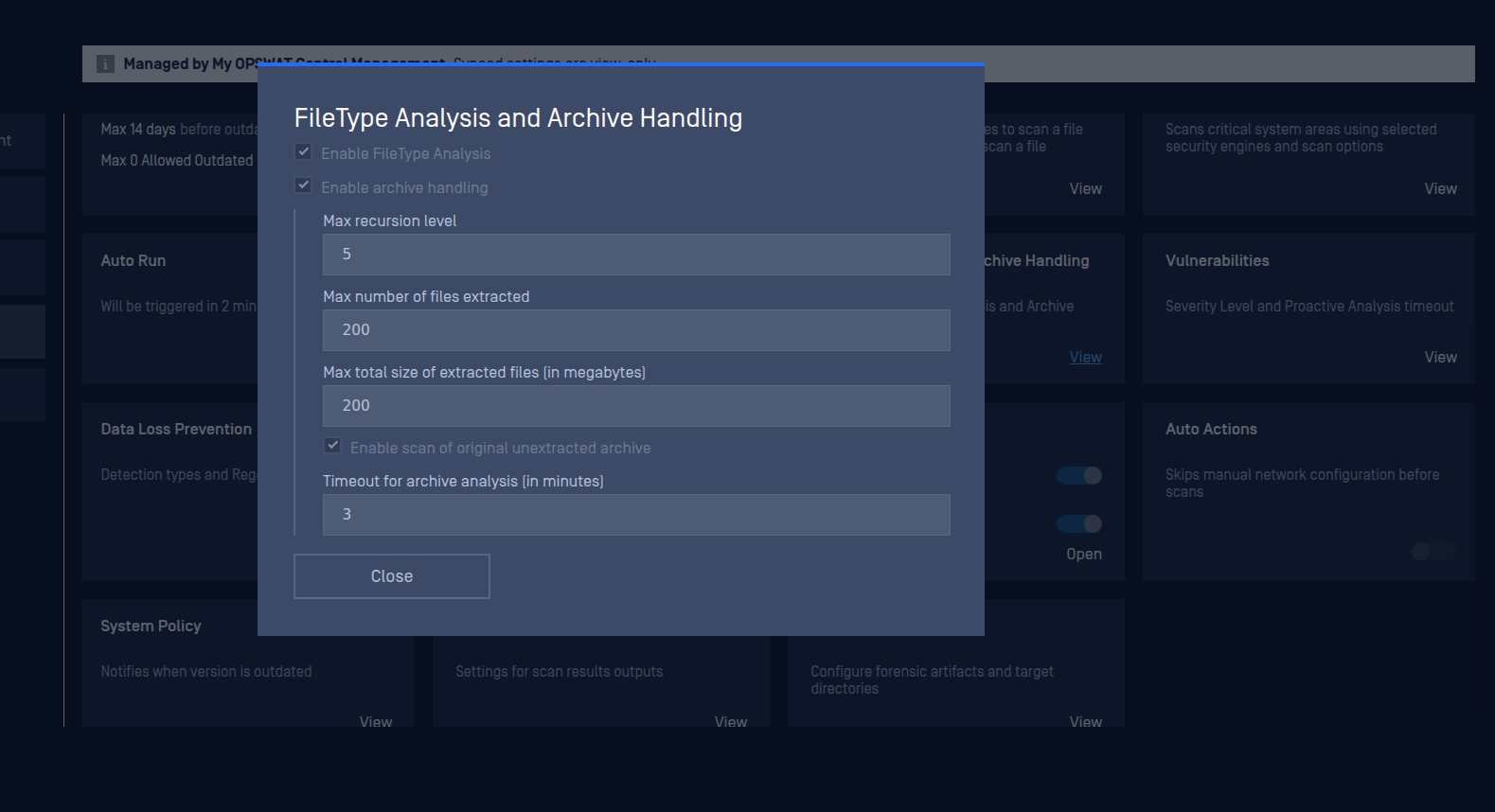
Enable FileType Analysis: Identify each file's real type from its content. Can be enabled on its own.
Turning off archive handling unlocks FileType Analysis and keeps its current value.
FileType Analysis on, archive handling off: file types are identified, archives are not extracted.
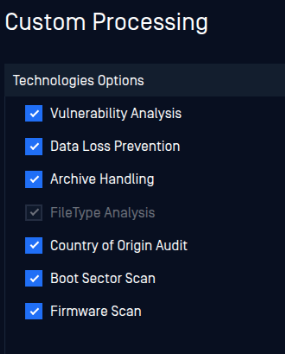
In a custom scan, FileType Analysis will be visible as a pre-selected technology
Enable archive handling: Extract archives and scan every file inside. FileType Analysis is required, so it is selected and locked while this option is on.
Max recursion level: The scan will fail if an archive has more nested layers than this value.
Max number of files extracted: The scan will fail if an archive contains more files than this value.
Max total size of extracted files (in megabytes): The scan will fail if the extracted files exceed this total size.
Enable scan of original unextracted archive: Scan the archive file itself before extraction.
Timeout for archive analysis (in minutes): Max time to analyze one archive.
Full, Custom, and Smart Scan follow these settings. An option off here cannot be turned on in a scan.
After upgrading, FileType Analysis takes the current archive handling value.