
MetaDefender Managed File Transfer (formerly MD Vault) is a secure solution to transfer your sensitive data across your critical infrastructure networks. You can set up an integration between MetaDefender Drive and MetaDefender Managed File Transfer to securely transfer and store the safe files after a completed scan by MetaDefender Drive.
Before you start, you need to deploy a MetaDefender Managed File Transfer instance for your organization using the following MetaDefender Managed File Transfer Installation Instructions.
Setting Up Managed File Transfer Integration
Go to Settings → MetaDefender MFT. The MetaDefender MFT page will show if there are any MetaDefender Managed File Transfer instances connected to the currently plugged drive.
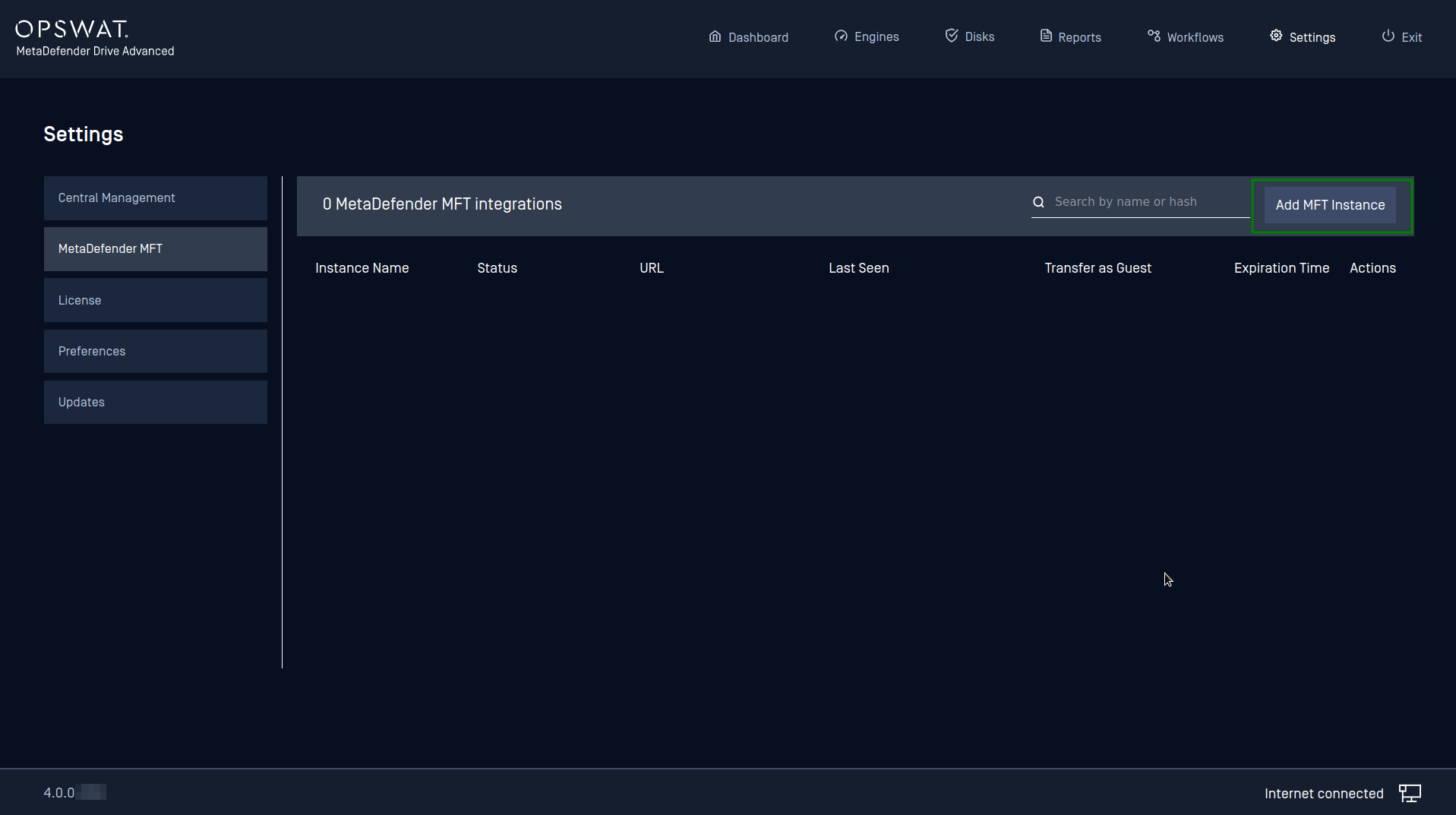
Click Add MFT Instance, and enter the MFT URL and API Key in the Add a New MetaDefender MFT instance window, then press Add MFT.
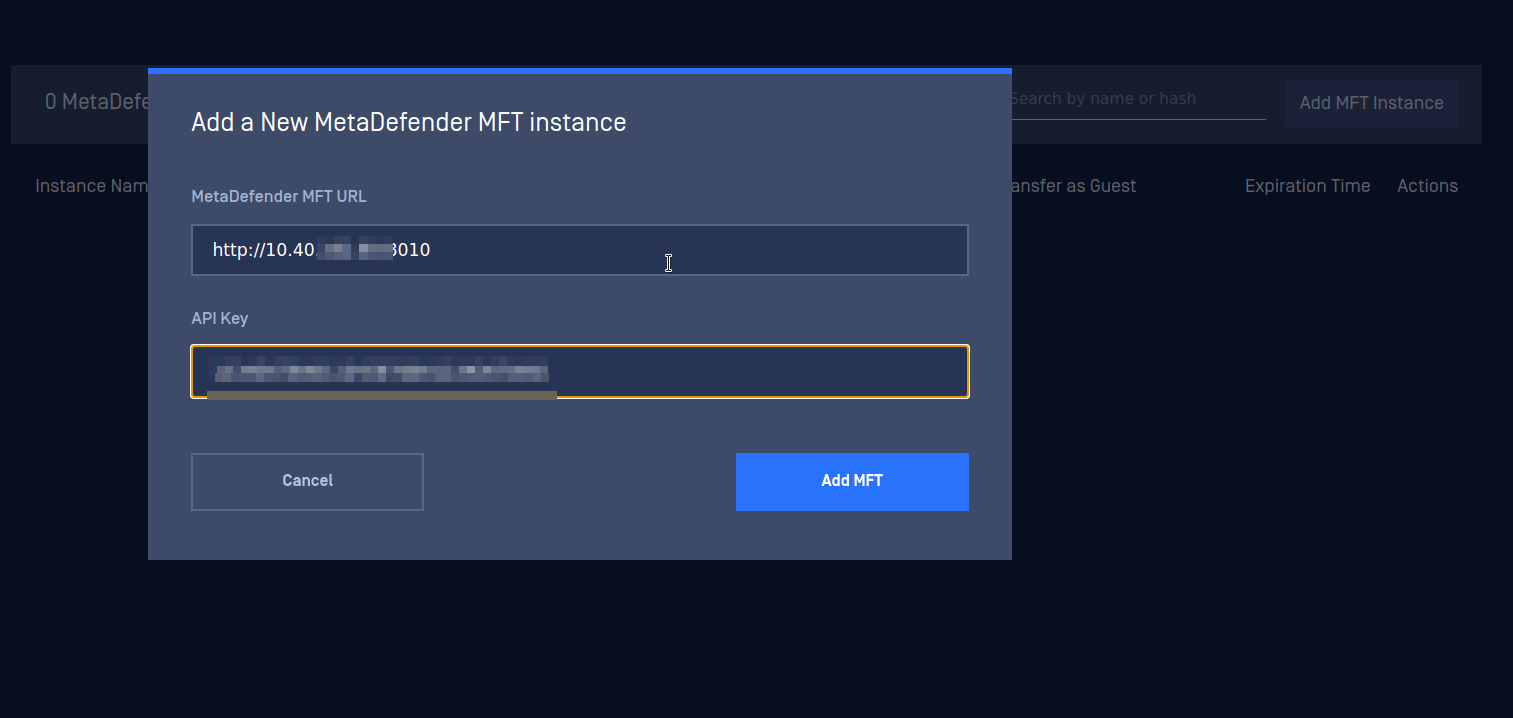
One MetaDefender Drive can connect to multiple instances of MetaDefender Managed File Transfer.
After a successful connection, you can toggle the Transfer as Guest option to NO, and you will be able to transfer files as administrator and set the expiration time. By default, MetaDefender Drive transfers data to newly connected Managed File Transfer instances as a Guest.

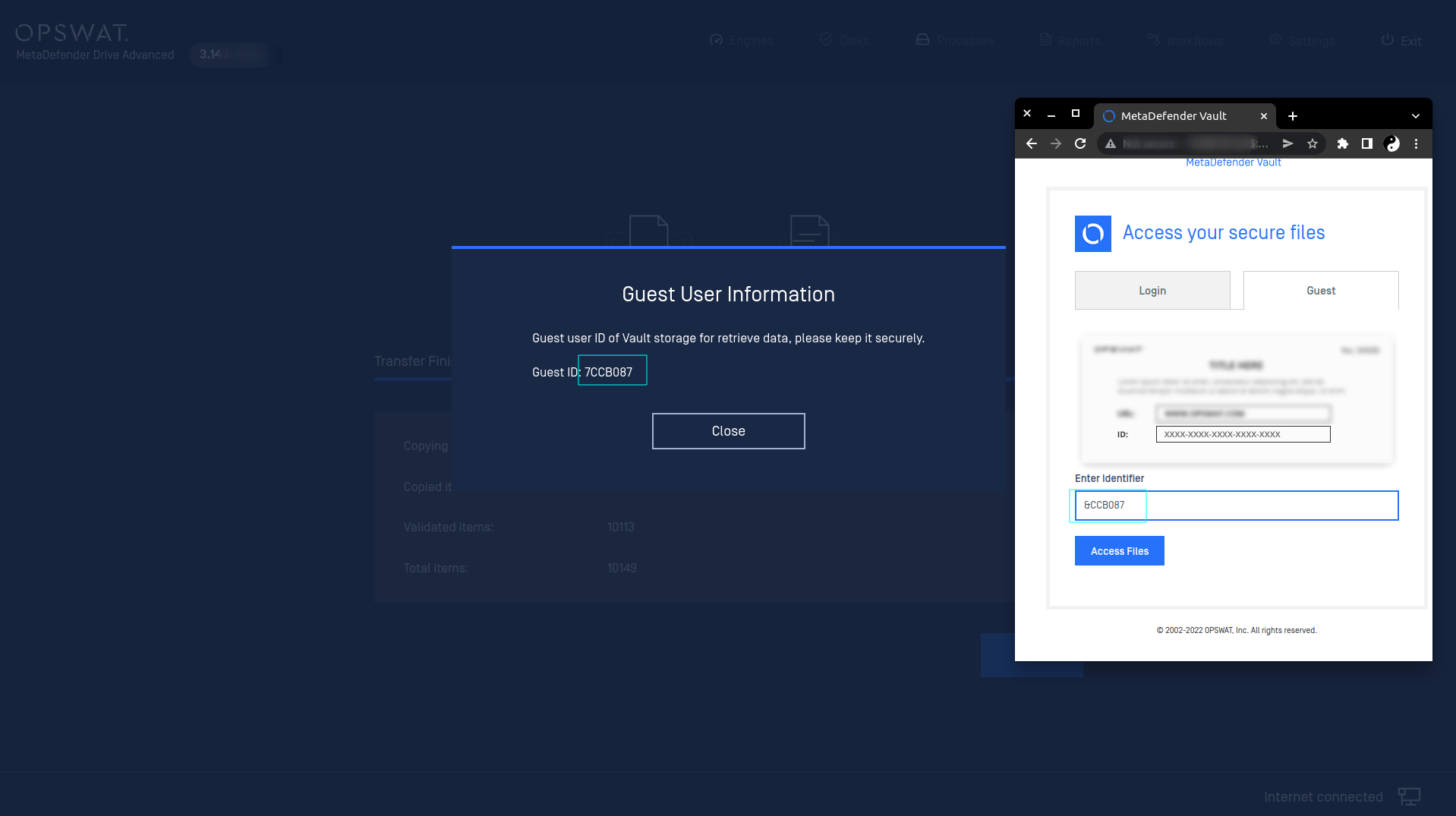
If you transfer the clean data as a Guest, your data will be securely stored for a specified amount of time and cleared afterward. The provided Guest ID can be used to log in to MetaDefender Managed File Transfer and retrieve your files.
..