
About This Guide
The MetaDefender Endpoint is a lightweight, unobtrusive application which runs on every machine that is being managed by your account on either MetaDefender IT-OT Access. The agent transmits the machine's security status to the servers and receives commands from the servers in order to resolve any issues with the machine.
MetaDefender Endpoint with MetaDefender IT-OT Access can be leveraged by Omnissa Unified Access Gateway (UAG) 3.1 and newer to provide enhanced compliance checking capabilities for Horizon Client access to virtual desktops and RDS hosted applications. This guide specifically illustrates:
- How to establish Endpoint Compliance Policy checks by setting up UAG Endpoint Compliance Check Provider Settings to enforce installation of the MetaDefender Endpoint on Horizon client devices.
- How to distribute MetaDefender Endpoint to endpoints.
- How to check for device compliance before allowing access to virtual desktops or RDS hosted applications.
About the interfaces and domain in this guide
This guide is prepared with MetaDefender Endpoint for Windows version 7.6.267.0, My OPSWAT Central Management, Omnissa Unified Access Gateway 3.9. If you are using other operating system versions or distro, there may be some variations of the interface.
The domain used in this document is gears.opswat.com. If you are using different My OPSWAT Central Management tenants, you need to change gears.opswat.com domain in steps with the server domain you are using. For example, your OPSWAT Central Management domain is ocm.yourdomain.com, the URL in step 1.1 will be https://ocm.yourdomain.com/o
1. Set up your account on My OPSWAT Central Management
The following steps will walk you through gathering the information needed and creating the My OPSWAT Central Management configuration in Omnissa UAG Endpoint Compliance Check Provider Settings. This will ensure that each Horizon Client device accessing Omnissa Horizon desktops and RDS hosts through UAG has the MetaDefender Endpoint installed and meets the policy defined in My OPSWAT Central Management.
Step 1.1: Create an oAuth app on My OPSWAT Central Management oAuth Portal
- Log into the My OPSWAT Central Management oAuth Portal at https://gears.opswat.com/o.
Reminder: If you are using different My OPSWAT Central Management tenants, you need to replace the gears.opswat.com with a domain of the My OPSWAT Central Management tenant you are
Navigate to Application
Click Register New Application
- Application name, such as Omnissa - My OPSWAT Central Management
- Description
- Website URL, your organization domain
- Callback URL: can be set as http://127.0.0.1/opswat
Click SAVE
Make a note of the client key and client secret for use in later steps
Step 1.2: Configure device policies
- Log into My OPSWAT Central Management console, https://gears.opswat.com.
- Navigate to Policies.
- Select an existing policy to update or create a new policy.
- Configure any security requirements to indicate what you consider an issue or critical issue.
- Configure how you consider a device as non-compliant.
- Assign that policy to the desired. device groups. More details can be found here.
2. Configure Omnissa UAG to enforce device compliance
In this section, the steps will guide you in configuring UAG to enforce device compliance with My OPSWAT Central Management policies before and during network access.
Step 2.1: Configure Endpoint Compliance Check Provider Settings in UAG.
This can either be done through the UAG Admin GUI or through settings in your PowerShell .ini file for UAG.
- Log into UAG Admin console
- In Advanced Settings, click the setting(
) icon of Endpoint Compliance Check Provider Settings.
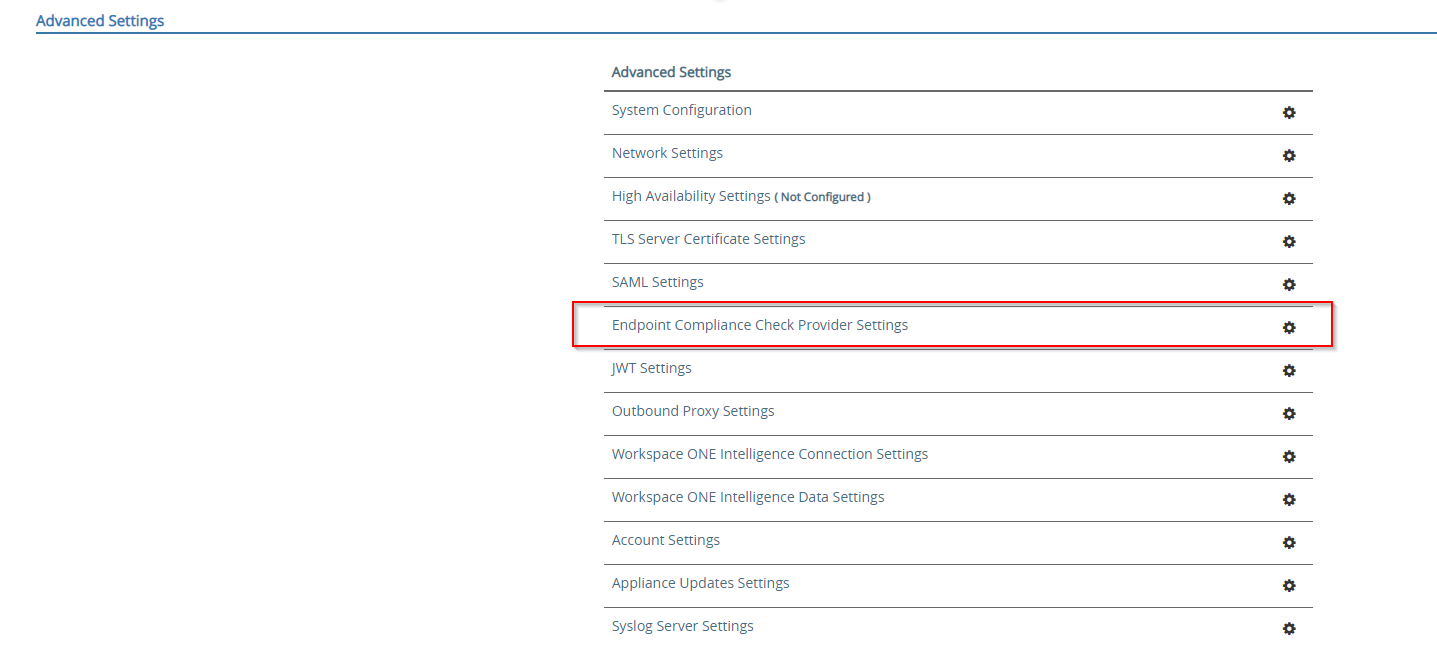
- Click Add
- From the Endpoint Compliance Check Provider dropdown list, select OPSWAT
- Copy and paste the client key and client secret values that you obtained in step 1 – Part 1
- Enter a domain of your My OPSWAT Central Management tenant, for gears.opswat.com
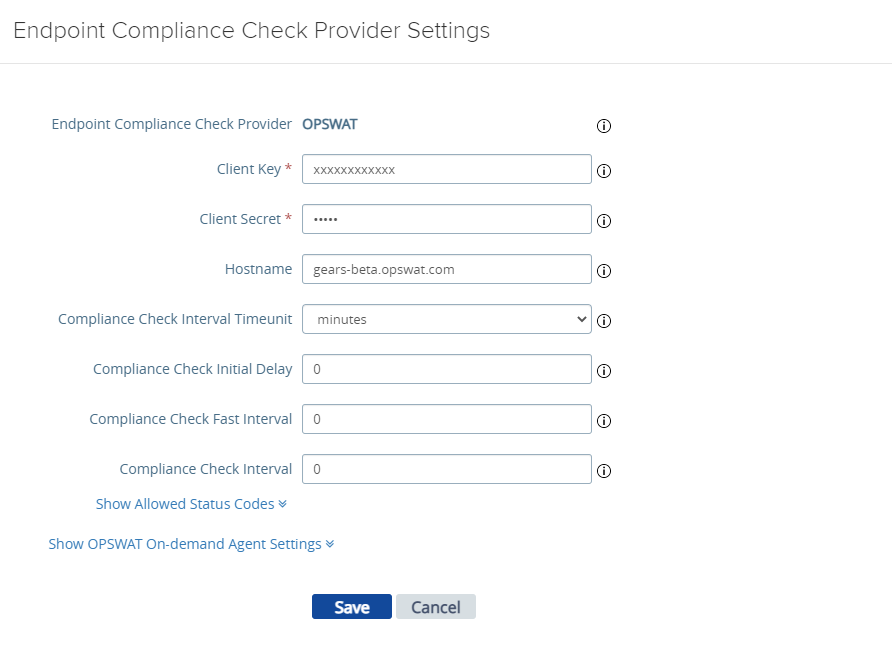
- Configure how often Horizon Client should query device compliance status during the Horizon session. More details.
- Default is 0; it means Horizon Client doesn’t perform periodic device compliance check during the session
- When Compliance Check Fast Interval (mins) is also configured, Unified Access Gateway first runs the Compliance Check Fast Interval (mins)
- After the endpoint becomes compliant, Unified Access Gateway then runs the Compliance Check Interval (mins)
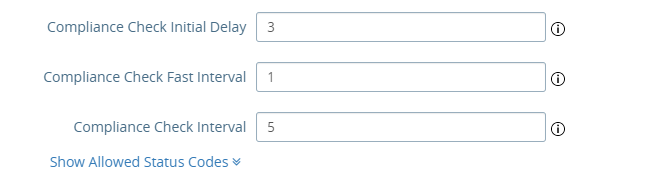
- Configure enforcement policy:
- Click Show Status Code if it has not expanded yet
- Configure what device status you would like to UAG grant a device access to a VDI
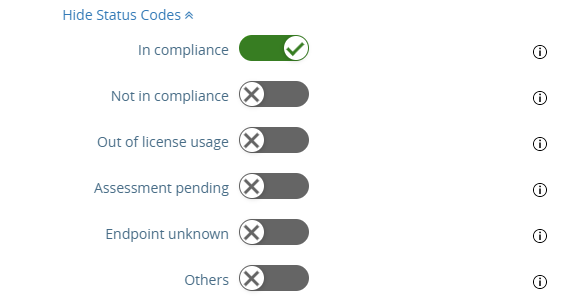
- Click Save
Step 2.2: Activate Endpoint Compliance Check Provider
- Log into UAG Admin console
- In General Settings, select Show next to Edge Service Settings
- Click the setting icon next to the Horizon Settings
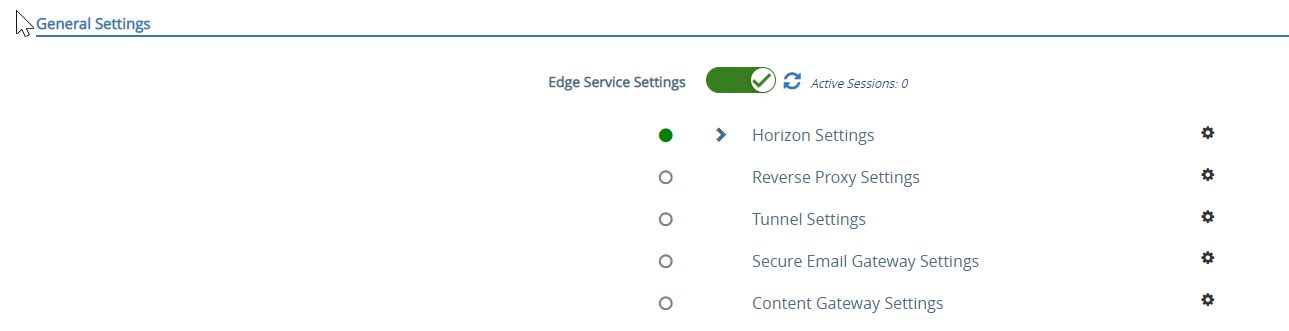
- Click More
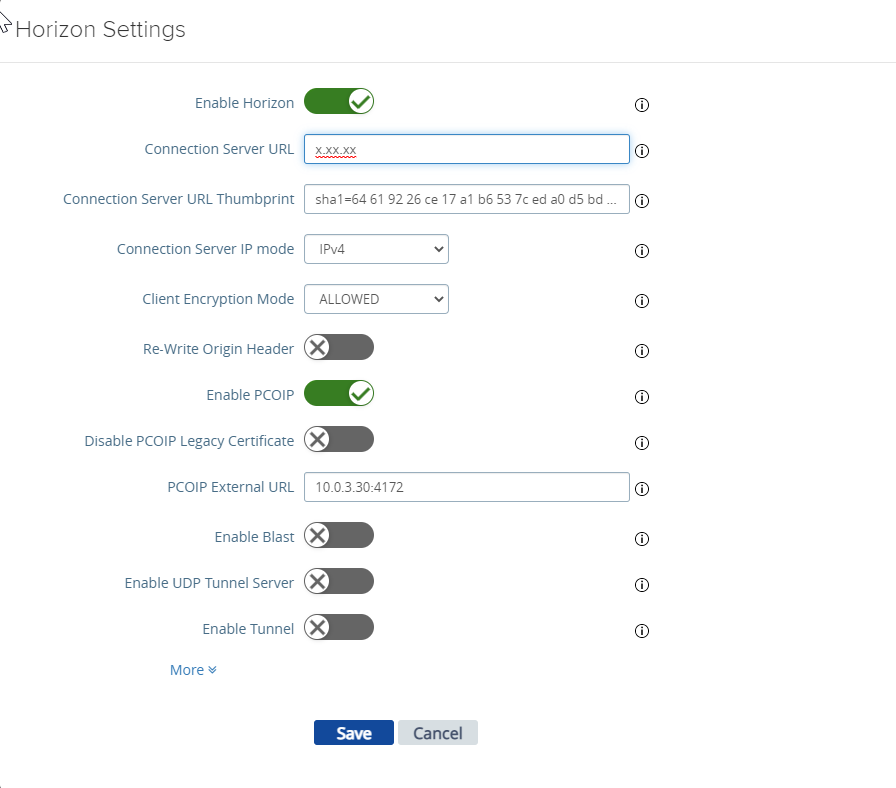
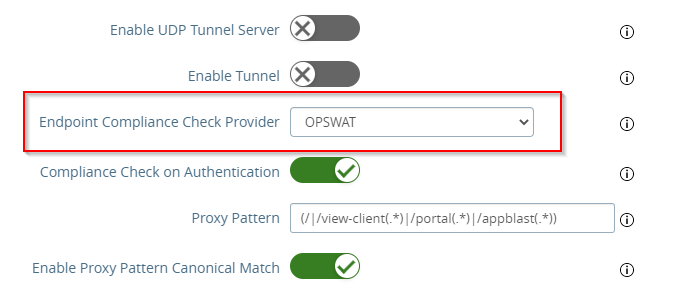
- Select OPSWAT for Endpoint Compliance Check Provider
- Click Save.
UAG is now configured to enforce endpoint compliance for Omnissa Horizon client access.
3. Distribute MetaDefender Endpoint to endpoints
Omnissa UAG queries device compliance status against with My OPSWAT Central Management before a user accesses to a virtual desktop. The MetaDefender Endpoint should be installed/run on a device to able to gain access to VDIs.
This section gives you options to deploy MetaDefender Endpoint to endpoints.
Windows and macOS devices: there are 2 deployment options:
- Option 1: install persistent MetaDefender Endpoint on endpoints
- OR option 2: distribute the on-demand MetaDefender Endpoint to endpoint and trigger the On-Demand MetaDefender Endpoint run while a user logs into Horizon Client
Linux devices: MetaDefender Endpoint needs to be installed on endpoints
Android and iOS devices: users need to install OPSWAT Mobile App from Play Store/Apple store on their mobile devices. Note that user experience when a user accesses a VDI can be different on Android and iOS devices compared with the user experience on PCs
Please refer OPSWAT KBs for:
- Minimum system requirements for MetaDefender Endpoint
- Configure MetaDefender Endpoint to work with a proxy or outbound firewall
- MetaDefender Endpoint Support chart
3.1. Install Persistent MetaDefender Endpoint on endpoints
- Log into My OPSWAT Central Management console
- Click Add Devices
- Click Download MetaDefender Endpoint for distribution to download an installer for your device; or copy the download link and send to your users
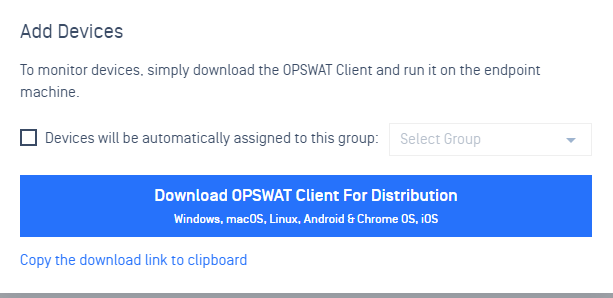
- Use the MetaDefender Endpoint installers to install MetaDefender Endpoint on Windows/macOS/Linux endpoints or follow guidelines on the download page to install the OPSWAT Mobile App on Android/iOS devices.
Please visit OPSWAT KBs for other methods to distribute OPSWAT Clients to endpoints
- Distribute MetaDefender Endpoint to Windows device via Active Directory
- Distribute MetaDefender Endpoint to macOS device via Jamf
- Create a golden image withMetaDefender Endpoint
3.2. Distribute On-Demand MetaDefender Endpoint through Horizon Client
This option only supports for Windows and macOS devices. For other operating systems, please distribute the Persistent MetaDefender Endpoint to endpoints as guidelines in 3.1. Install Persistent MetaDefender Endpoint on endpoints
- Log into My OPSWAT Central Management console
- Click Add Devices
- Click Download MetaDefender Endpoint for distribution
- Download On-Demand MetaDefender Endpoint executable file for operating systems you would like
to have Horizon Client distribute the On-Demand MetaDefender Endpoint
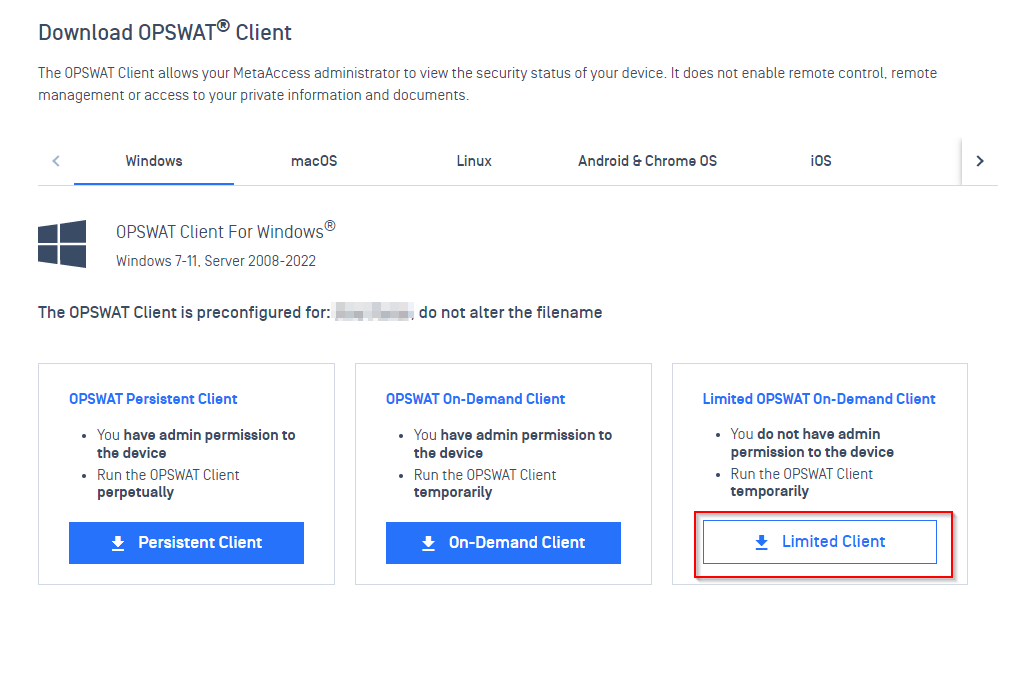
- Windows: on the Windows tab
- If your users do not have admin privilege, download the on-demand agent without admin right. This agent will run with user privilege and Windows will not show User Access Control popup if UAC is enabled
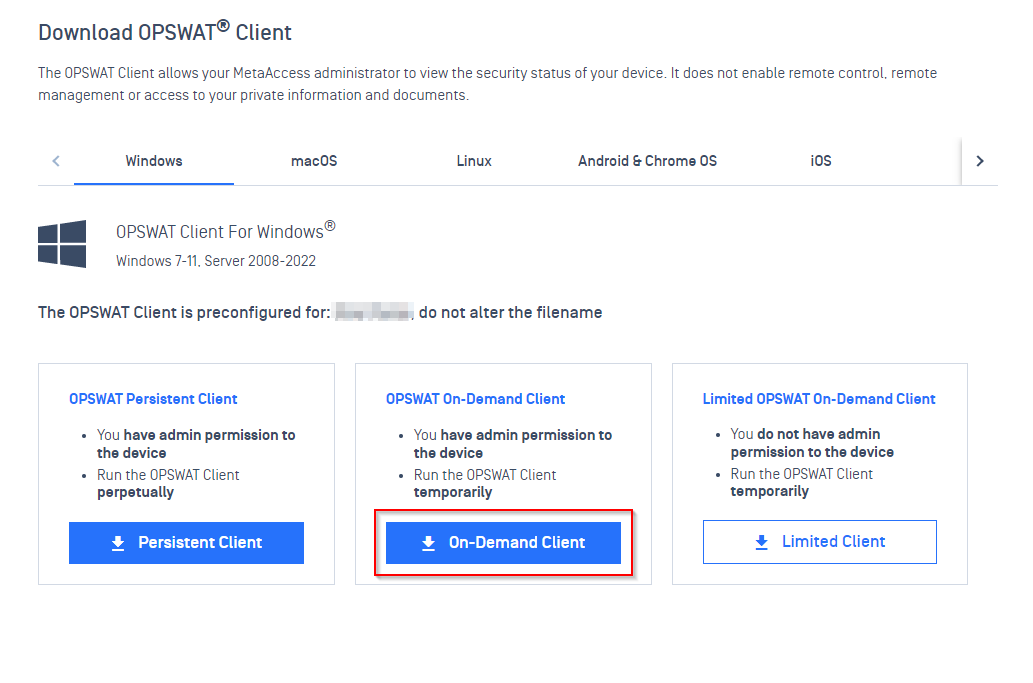
- Windows: on the Windows tab
- If your users have admin privilege, download the on-demand agent with admin right
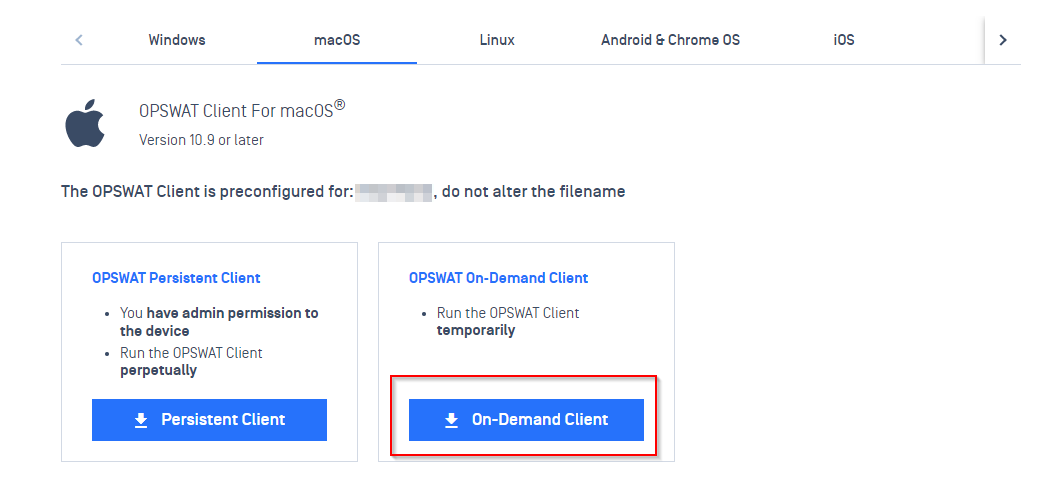
- macOS: on macOS tab, click Run Once to download On-Demand MetaDefender Endpoint executable file
- Log into Omnissa UAG Admin console
- In Advanced Settings, click the setting() icon of Endpoint Compliance Check Provider Settings.
- Click the setting() icon of the OPSWAT provider
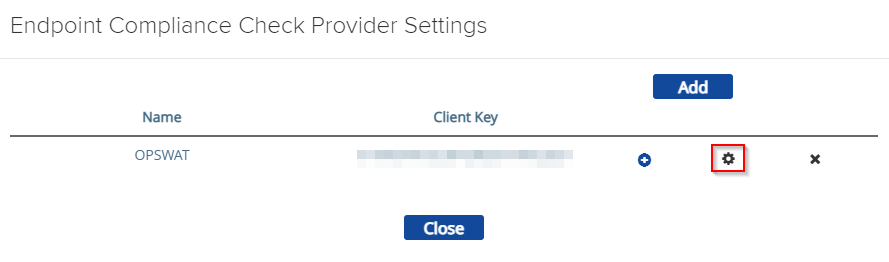
Click Show OPSWAT On-demand Agent Settings
For each operating system
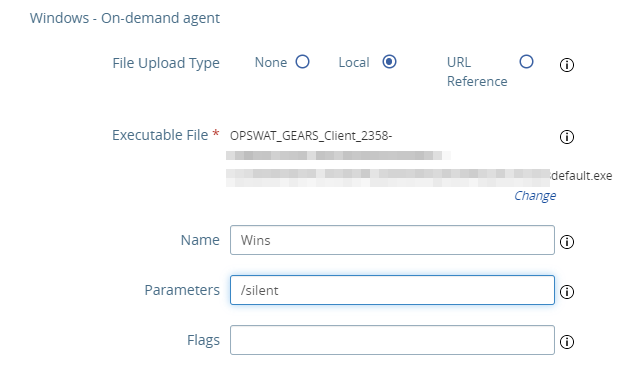
Select File Upload Type depends on where you want to host the On-Demand MetaDefender Endpoint
- Select Local for File Upload Type if you want to host the On-Demand MetaDefender Endpoint executable file on UAG and then upload the executable file you downloaded earlier from My OPSWAT Central Management console
- Select URL reference for File Upload Type if you host the On-Demand MetaDefender Endpoint executable file on other servers
Agent Name
Specify how you want to run the On-Demand MetaDefender Endpoint with Parameters. You can learn more what parameters the On-Demand MetaDefender Endpoint offers here.
For example:
- /silent: run the On-Demand MetaDefender Endpoint silent
- Click SAVE
Now, you can test the integration
For more information, or if you have any questions, please contact OPSWAT Support for further assistance.