
Driver & Firmware Updates extend Patch Management to device drivers, BIOS, and firmware. It continuously detects out‑of‑date drivers and firmware across your fleet, prioritizes them by vendor severity, and lets you approve and deploy them through the same deployment, report, and notification workflows you already use for OS and application patches.
Driver & Firmware Workflows
Driver & Firmware workflow is integrated directly into existing Patch Management features. Refer to the corresponding guides below for detailed instructions:
Feature/Area | Guideline |
|---|---|
Driver & Firmware Dashboard | Patch Dashboard: Track high-level driver and firmware posture across your fleet. |
Driver & Firmware Missing Patches List | Manage Missing Patches: View detected driver and BIOS/firmware updates by device or component. |
Driver & Firmware Job Detail | Monitor Deployment: View job progress, ring phases, and device-level result |
Driver & Firmware Job Deployment | Deploy driver and firmware updates using your preferred method:
|
Reports & Notifications | Refer to Patch Reports & Notifications to set up automated email notifications and export compliance reports |
Air-gapped Patching | Refer to Air-Gapped Patching - New Patch Management for detailed instruction |
Driver & Firmware Settings on Endpoint
Administrators can manage how MetaDefender Endpoint handles driver and firmware updates on managed devices. This guide covers how to:
Control the visibility of the Driver/Firmware Updates page on the client UI for end-users
Configure the scan and compliance reporting interval for driver and firmware updates
Show the Driver/Firmware Updates page on MetaDefender Endpoint
Control whether the end‑user MetaDefender Endpoint client shows the Driver/Firmware Updates page.
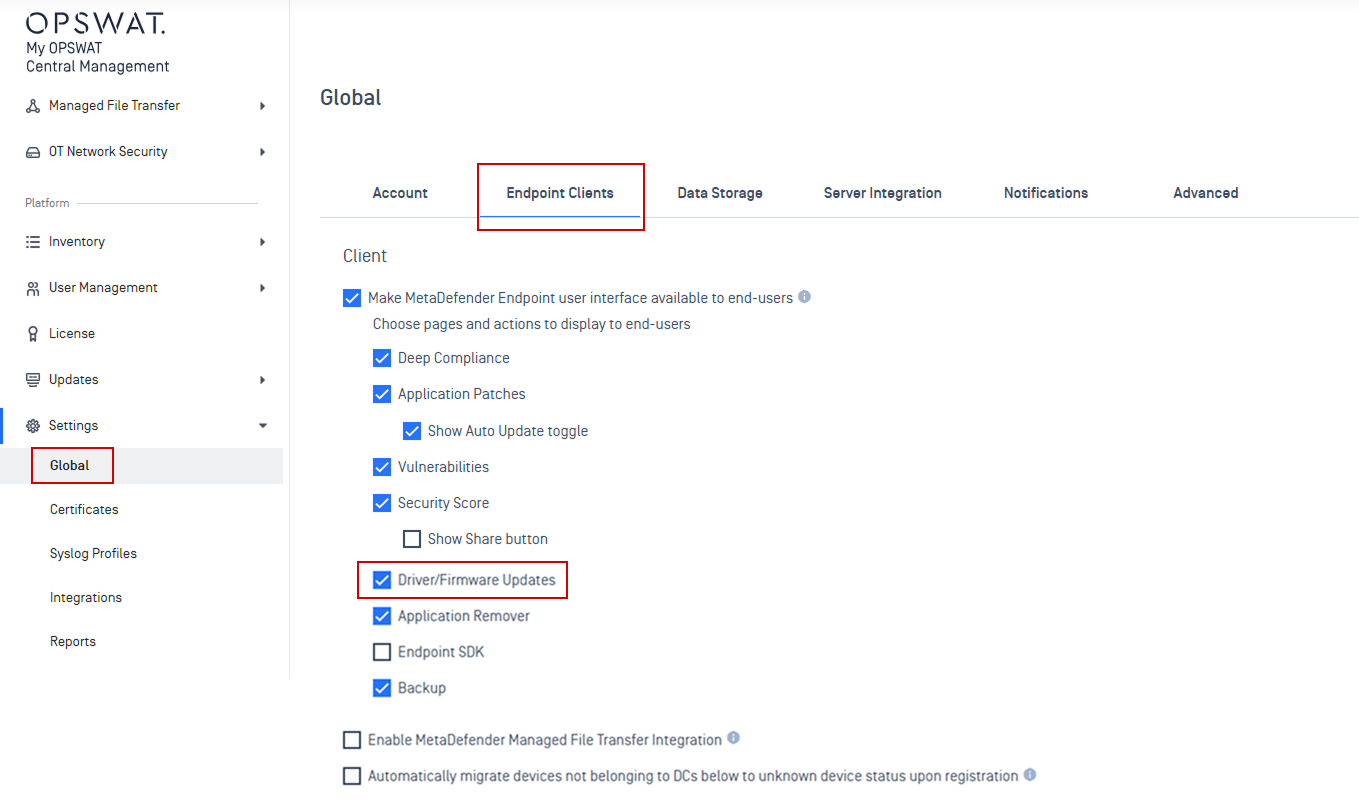
Navigate to the agent settings:
Global Level: Go to Settings > Global > Endpoint Clients > Clients
Group Level: Go to Inventory > Groups > [Select Endpoint Group] > Open Settings tab > Go to Agent section
Select Make MetaDefender Endpoint user interface available to end‑users > Enable Driver/Firmware Updates
Save
Configure the Driver & Firmware interval
The Driver & Firmware interval controls how often endpoints scan for driver & firmware updates, and the freshness window used for compliant reporting.
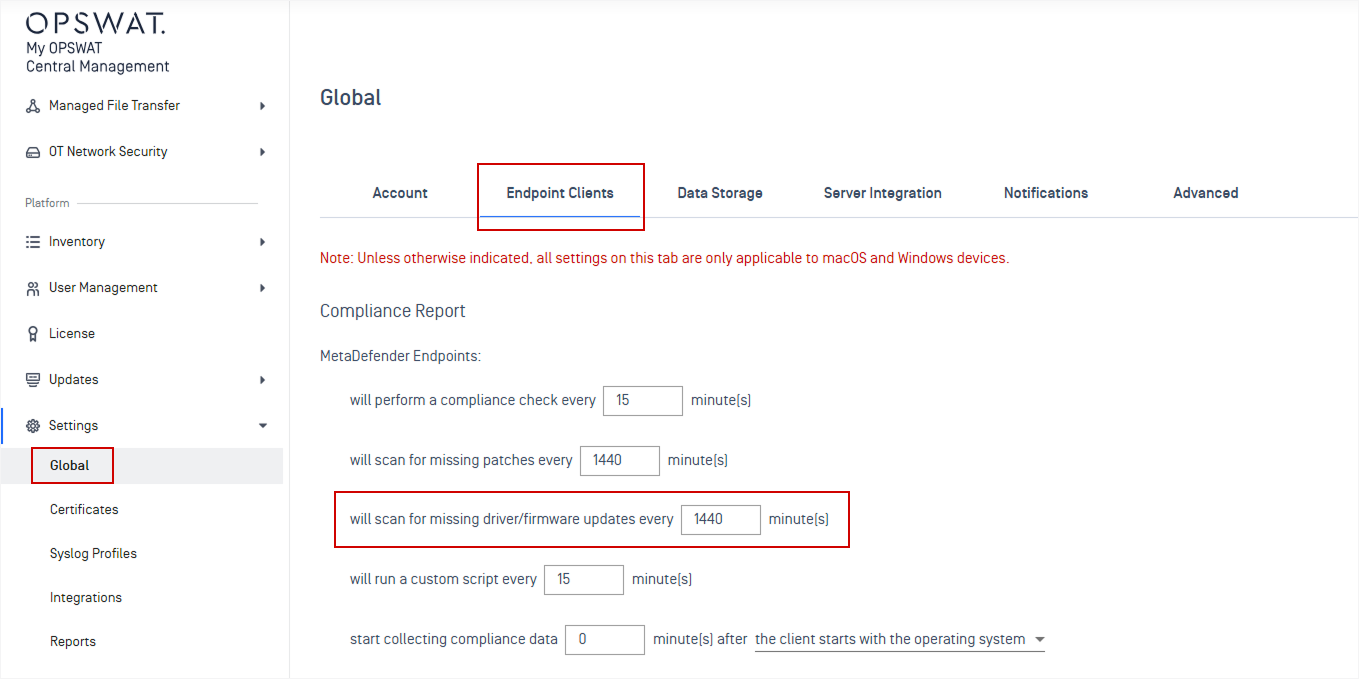
Navigate to the compliance report settings:
Global Level: Go to Settings > Global > Endpoint Clients > Compliance Report section
Group Level: Go to Inventory > Groups > [Select Endpoint Group] > Settings > Compliance Report section.
Set the desired scan and reporting interval. For existing accounts and groups, the interval defaults to the current OS patch interval until you change it.
Click Save.