Title
Create new category
Edit page index title
Edit category
Edit link
On-Premise Patch Management
A new unified patch management solution for on-premises environments is now available, streamlining both OS and third-party application patches in one place.

What’s New?
If you are currently utilizing the Classic Patch Settings, this guide will help you transition seamlessly to the new workflow.
Centralized Patch Management Interface
All patch-related features have been consolidated into a single Patch Management section to eliminate menu navigation overhead. The menu has been reorganized as follows:

| Menu Item | Description | Guidelines |
|---|---|---|
| Overview | A centralized dashboard providing full visibility key patch insights across systems and applications. By emphasizing risk-based prioritization, the dashboard helps you identify and focus on the vulnerabilities that matter most. | Patch Dashboard (OS) Patch Dashboard (Application) |
| Patches | Previously located under Inventory. An automated tracking system that monitors missing operating system patches and third-party application updates across all endpoints. | |
| Deployments | Replaces Patch Settings. Helps you create equivalent, on-demand deployment tasks using your existing configurations. | |
| Policy | Establish policy-based, automated deployments to keep endpoints updated with minimal manual intervention. | Patch Management Policy (OS) Patch Policy (Application) |
| Logs | Access comprehensive, historical patch execution logs for auditing and troubleshooting. | Guideline for this feature is coming soon |
Feature Availability
- Fresh Installations (Version 10.6.2605 and later): The new Patch Management solution is enabled by default.
- Upgraded Installations (To Version 10.6.2605 and later): Administrators can manually toggle between the Classic and New Patch Management experiences to evaluate the new workflows.
How to switch to New Patch Management?
Administrators can enable the new interface using either of the following two methods:
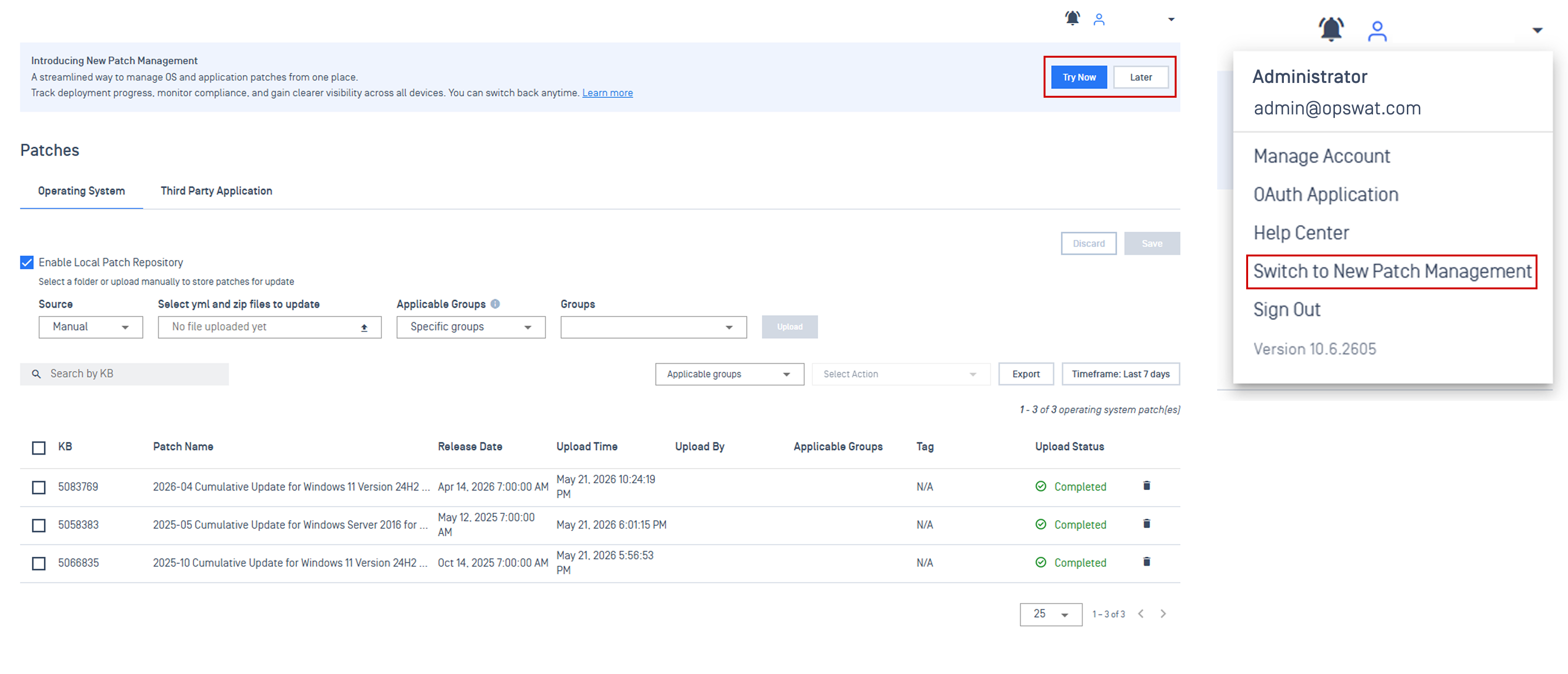
- Click Try Now on the Introducing New Patch Management dashboard banner.
- Open the User Profile Menu in the top-right corner and select Switch to New Patch Management.

How to switch back to Classic Patch Settings?
If you need to revert to the classic interface:
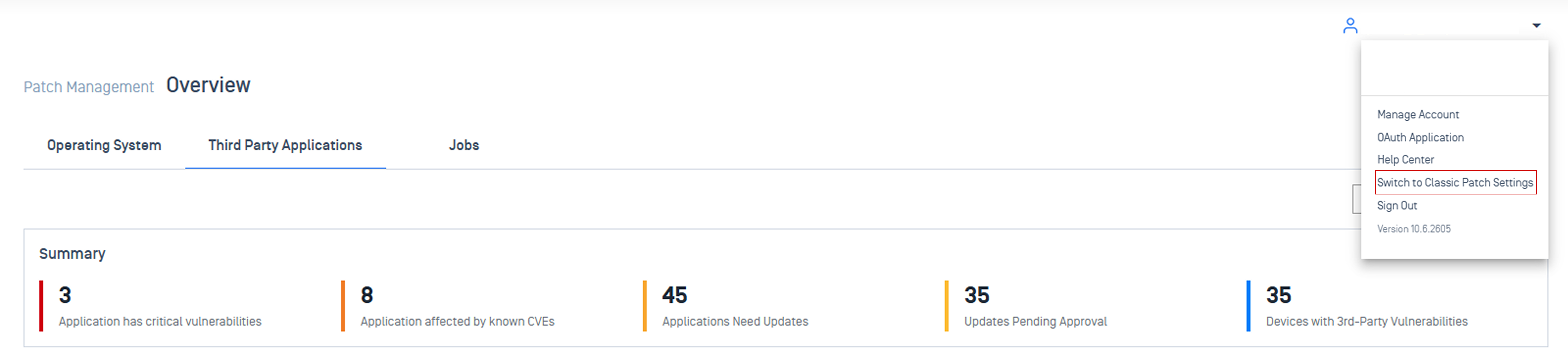
- Open the User Profile Menu in the top-right corner.
- Select Switch to Classic Patch Settings.