
Setting up My OPSWAT Central Management On-Premises
Info
Starting with My OPSWAT Central Management 10.6.2605, the new Patch Management solution is available and provides a unified approach to patching operations.
To switch to new Patch Management solution, see How to switch guidelines.
To begin setting up the new air-gapped patch management solution, two things need to be done first:
My OPSWAT Central Management on-premises is installed, licensed, and switched to the new Patch Management solution
Endpoint devices are enrolled
When endpoints are enrolled and communicating with My OPSWAT Central Management, they will begin to report their missing patches.
There are 2 places where missing patches can be viewed:
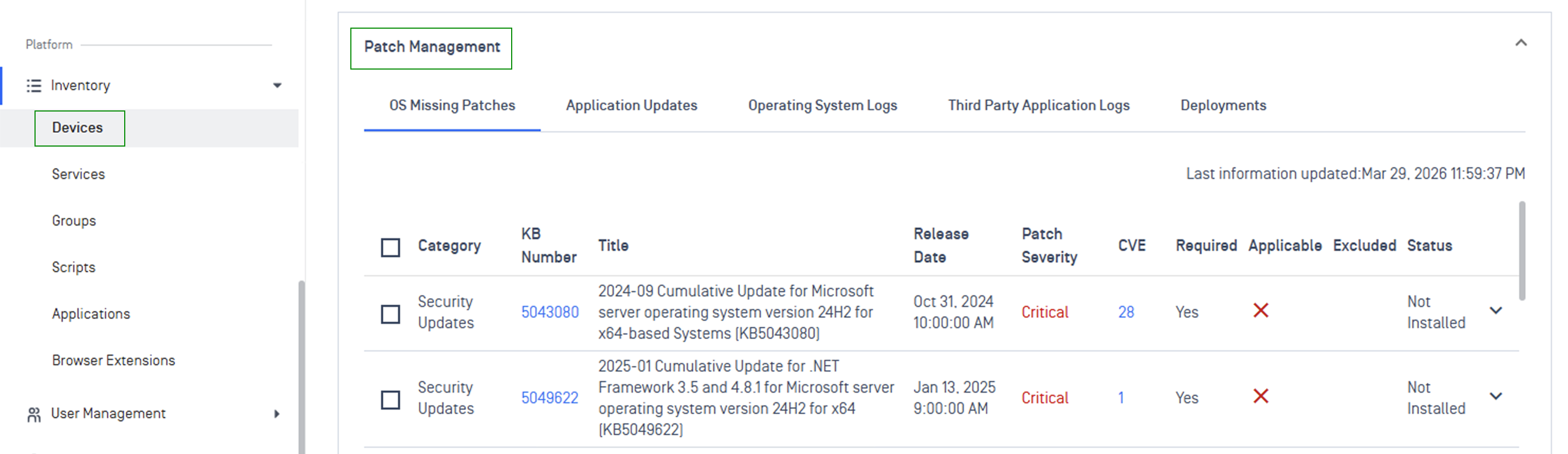
For a singular device
Inventory > Devices > selected device > Patch Management
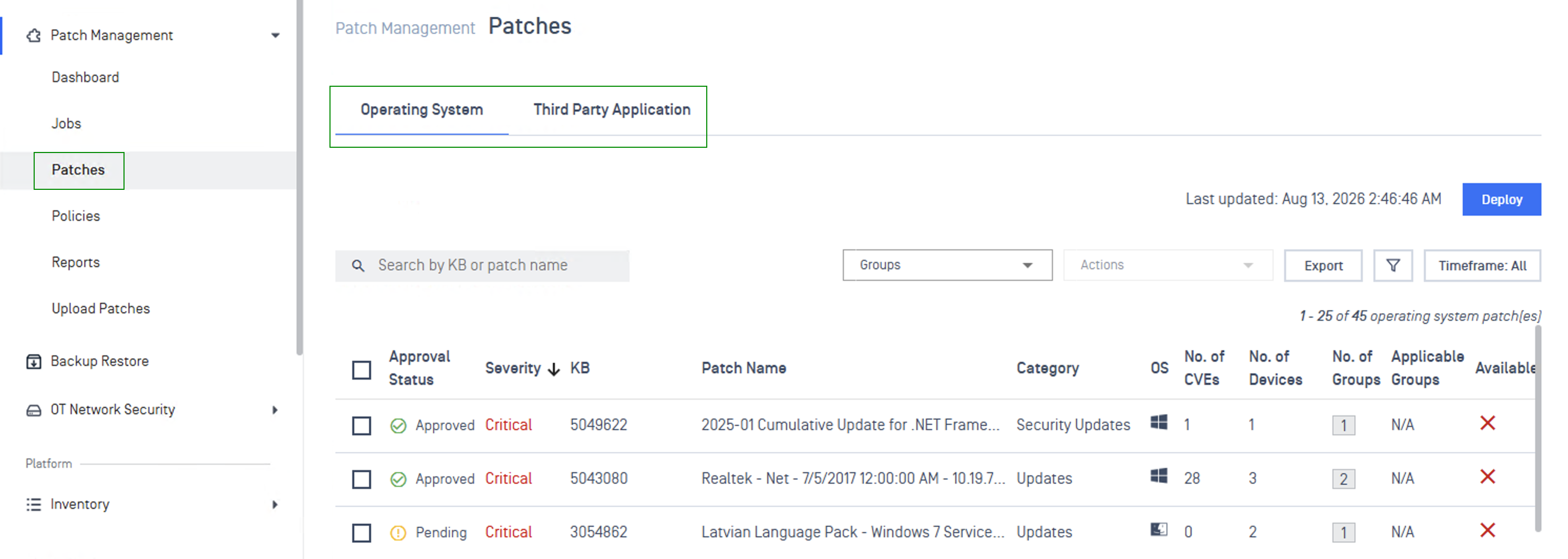
All missing patches aggregated among all devices
Patch Management > Patches > Operating System / Third Party Application tabs
Refer to Manage Missing Patches and Outdated Applications for more details.
Patch Dashboard
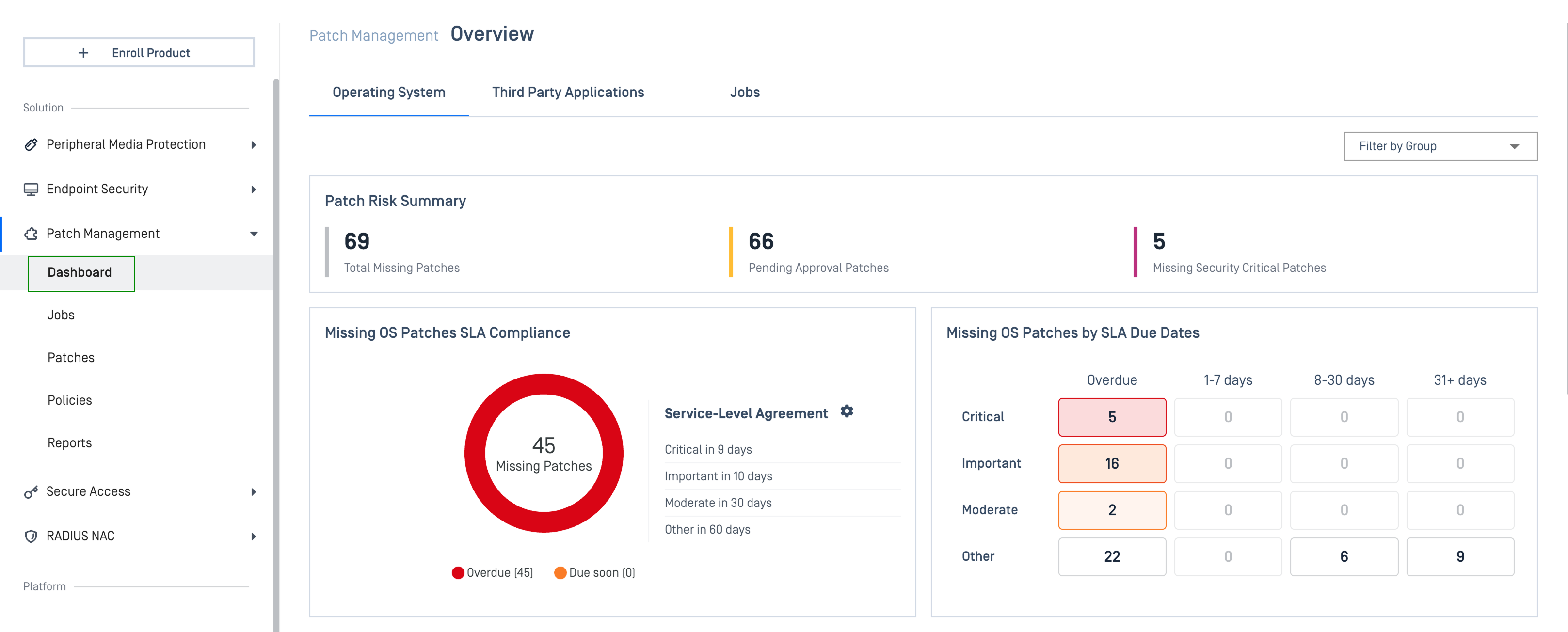
Patch Dashboard gives you a centralized view of OS and application patch posture, and deployment results across your environment. Use dashboard widgets to discover security gaps, prioritize what to fix first, and confirm your deployment outcome.
In the left navigation, select Patch Management > Dashboard
Refer to Patch Dashboard for more details.
Enable air-gapped patching
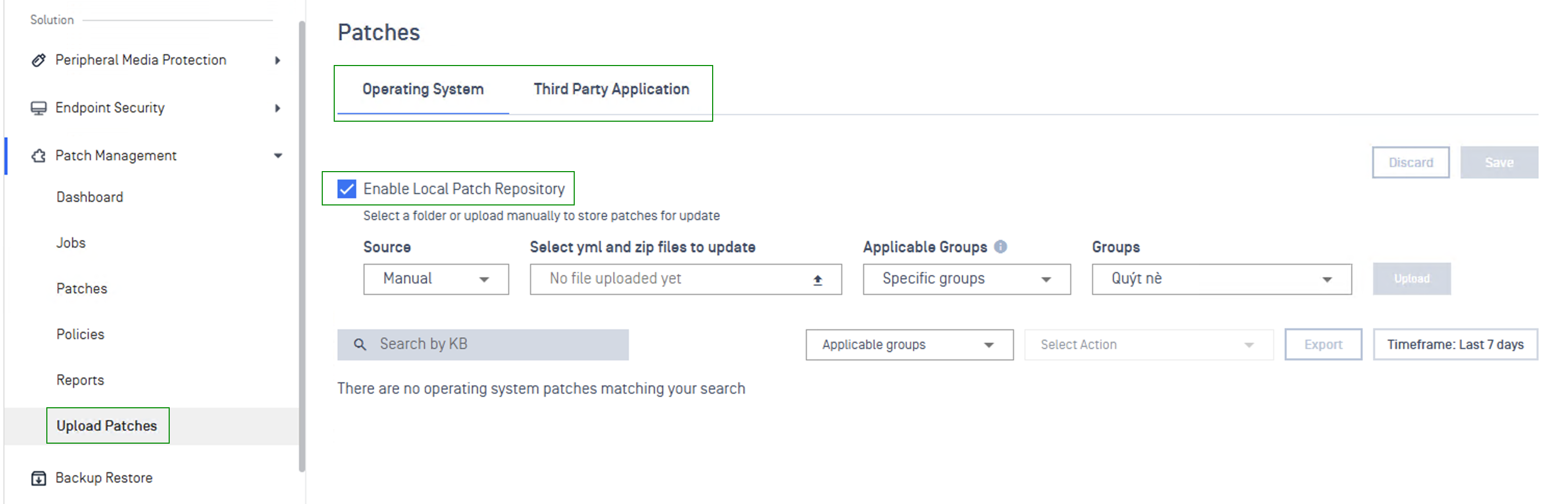
To enable Endpoints to retrieve patches from My OPSWAT Central Management:
Log in to My OPSWAT Central Management
Navigate to Patch Management > Upload Patches > Operating System / Third Party Application
Check "Enable Local Patch Repository"
Click the Save button to apply
Obtaining patch packages
Your vendor, in partnership with OPSWAT, will provide the capability to download patch packages to upload & distribute via My OPSWAT Central Management to MD Endpoints.
Contact your vendor for further information on how to obtain patch packages.
If you are an ICS vendor looking to provide patch packages for your customers, please contact OPSWAT directly to enable the operation.
Upload patches to distribute
Patch packages are delivered in two pieces:
.zip package containing the patch content
.yml descriptor file for validating the .zip package
There are 2 modes for providing patches:
Manual
Folder

Manual

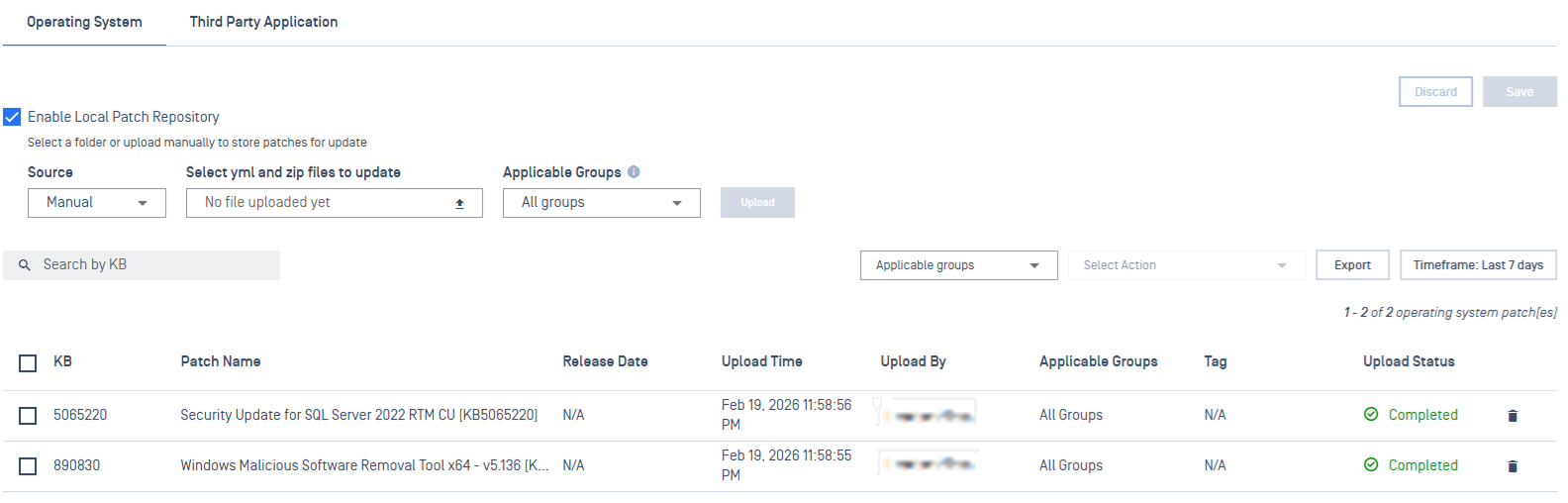
When selected, additional boxes are displayed for the upload:
Select yml and zip files to update
click the upload icon to browse for the yml (descriptor) and zip (package) file to upload
Applicable Groups
set the specific groups the patches being uploaded will be applicable for
this setting informs if a patch setting configuration is valid, if the deployment includes a disallowed group or devices that are within a disallowed group
default setting: All groups
As patch packages are uploaded, My OPSWAT Central Management will validate the package with the descriptor file.
All uploaded patches will be listed out after upload:
Folder

When selected, a Patch Repository Location is displayed. The path is local to the system My OPSWAT Central Management is installed on.
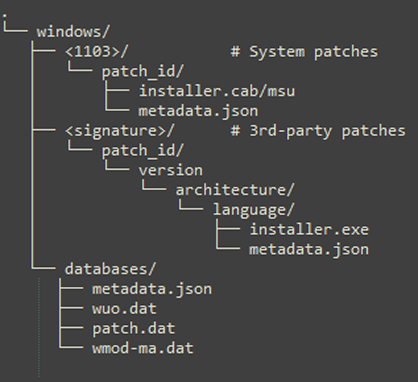
All patches are expected to be stored in this directory, under a distinct structure outlined below.
Simply copy and paste the patches to the location configured.
Admins need to maintain the following directory structure in the specified format for My OPSWAT Central Management to correctly identify patches:
Configure Patch Deployments
Once patches are uploaded, you can create and configure patch deployments.
Choose a deployment method based on your target devices and intended purpose, then configure the deployment accordingly.
Deployments | Details | Configure Deployment |
|---|---|---|
On-Demand Deployment | Pushes patches to targeted endpoints immediately. Use it for urgent security fixes, critical vulnerabilities, or targeted updates. | |
Policy Deployment | Installs patches automatically on a repeating schedule, without manual deployment triggering. | |
Ring Deployment | Roll out patches in stages before deploying broadly. Use it to reduce risk when patching large or sensitive environments. |
Configure a Cache Node
By default, all Endpoints will reach out to My OPSWAT Central Management to download and apply patches.
This can introduce a large bottleneck on the server if there are many Endpoints enrolled for management.
To reduce this load, Endpoints can be selected to serve as a Cache Node to help distribute patches to other Endpoints instead if solely relying on My OPSWAT Central Management.
Cache Nodes support distributing patches to configured device groups. Up to 2 devices can serve as a Cache Node for a specific group. A single Cache Node can span multiple groups.
Requirements for an endpoint to be set as a Cache Node:
Visible to other MetaDefender Endpoint on a network
Sufficient free disk space for caching
Disk requirement:
Disk available needed: 10 GB (65% free disk space)
Note: A firewall inbound rule for TCP port 8443 will be created
To configure an Endpoint as a Cache Node, navigate to Inventory > Devices > select device to set.
On the device's details page, open the Actions dropdown in the top right corner and select Set as Cache Node.
A dialog menu will open describing the requirements and important information:
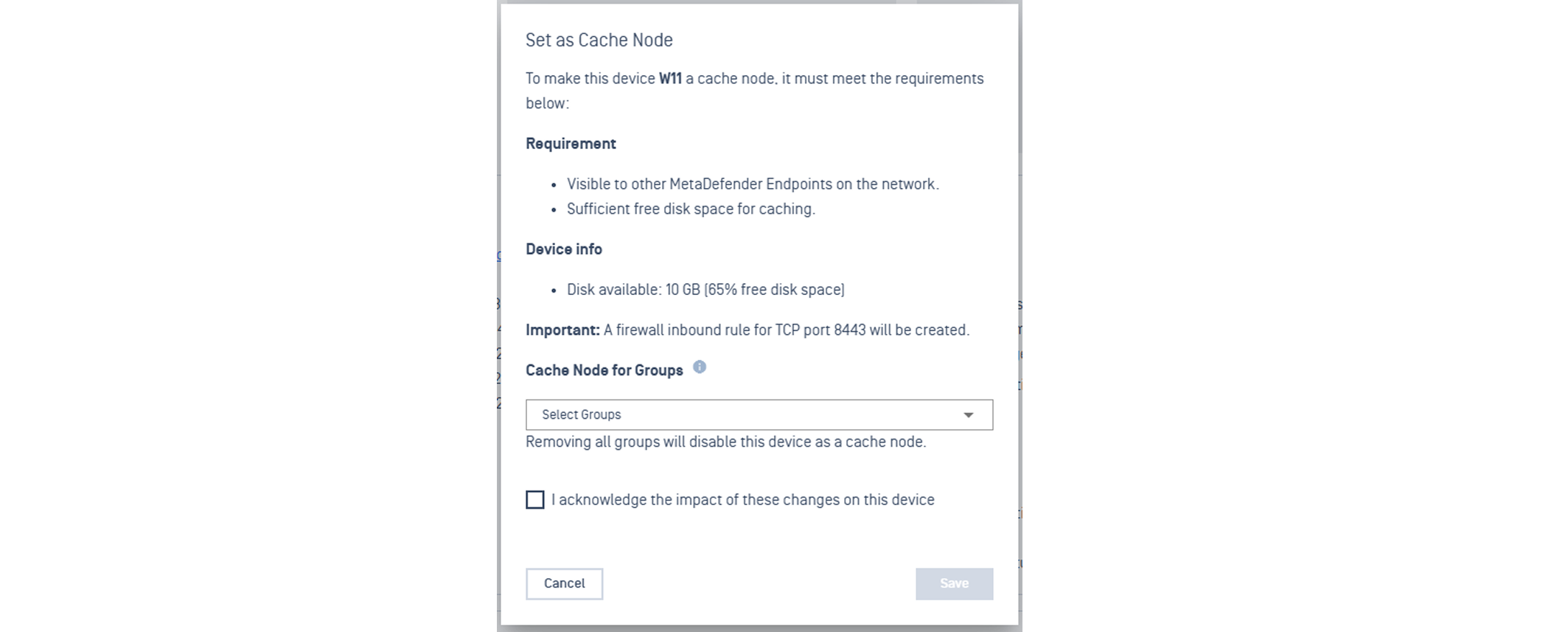
To set the device as a Cache Node, select the Groups for which the device will serve as a node. Check the acknowledgement and click Save.
View which device is a Cache Node
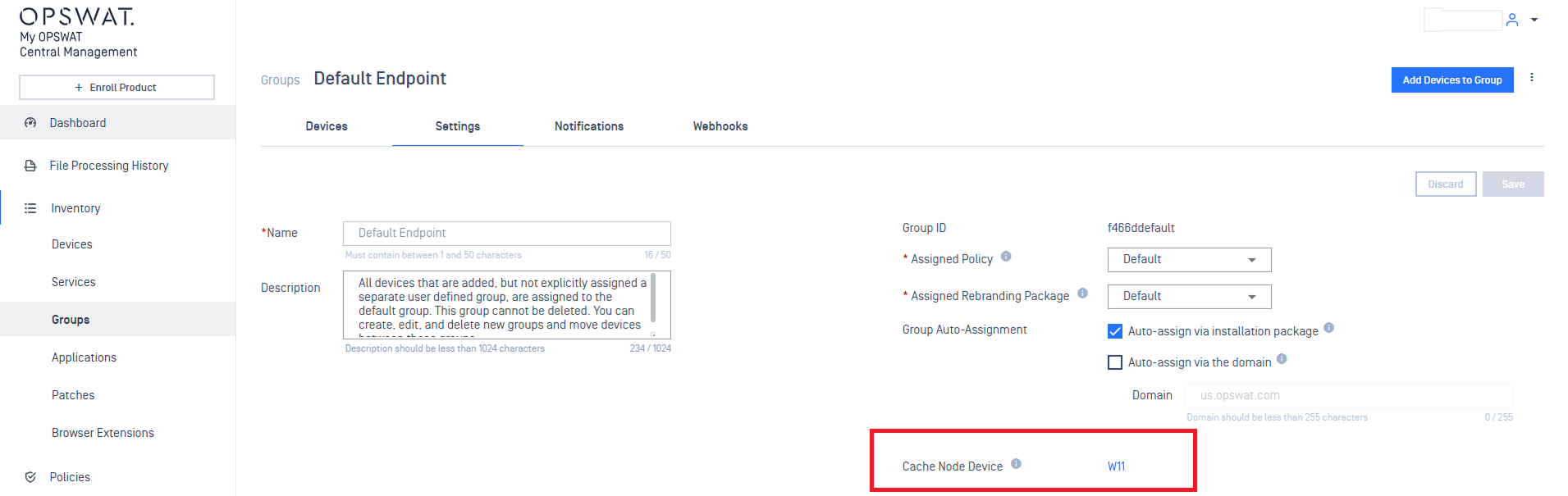
Verifying which device is a cache node can be seen in a device's System Information:

Remove a Cache Node
To remove an Endpoint as a Cache Node, navigate to Inventory > Devices > select device to set.
On the device's details page, open the Actions dropdown in the top right corner and select Set as Cache Node.
In the dialog menu, de-select the configured groups, check the acknowledgement, and click Save.
Update Patch database definitions
My OPSWAT Central Management comes pre-bundled with vulnerability and patch management definitions.
These databases will be downloaded by MetaDefender Endpoint when it syncs with the management server. They enable the ability for Endpoint to scan the local system and identify what patches are missing and vulnerabilities associated with versions installed on the system.
To ensure identification is up to date, new definitions can either be downloaded from your vendor or from My OPSWAT Portal.
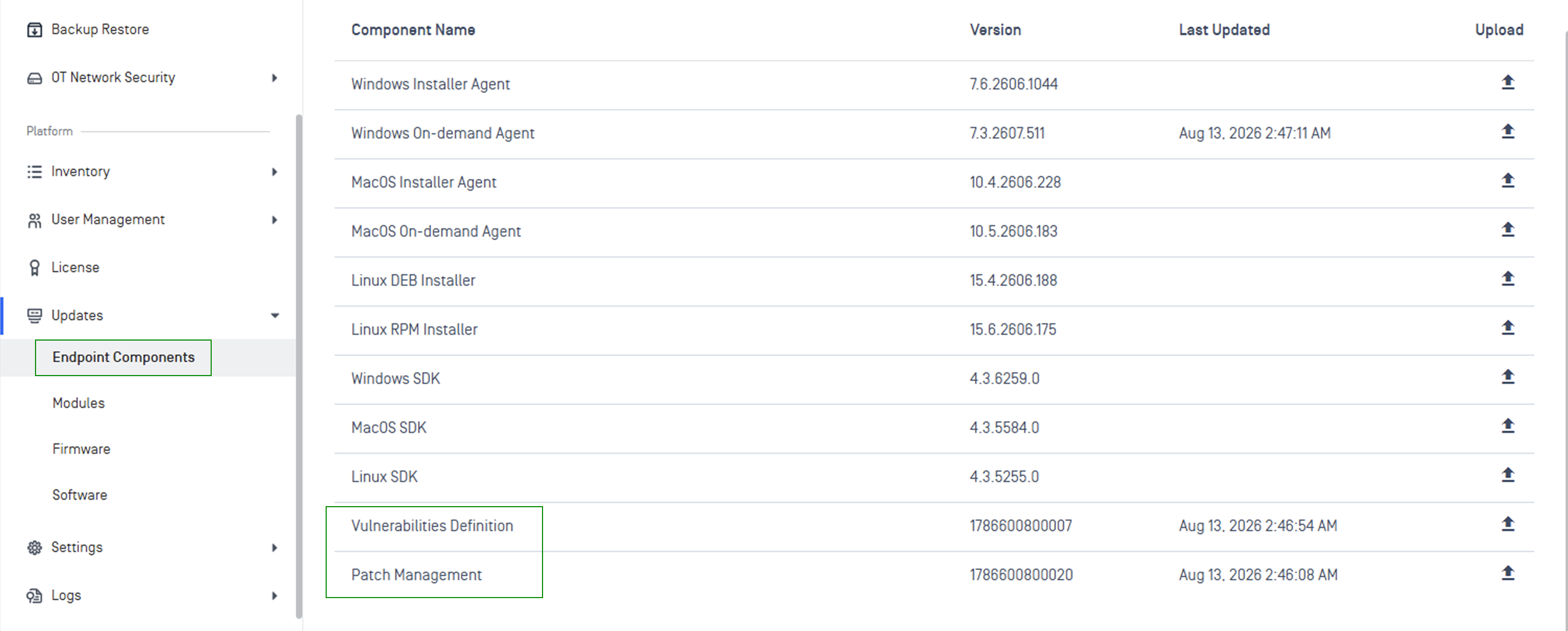
Definitions can then be uploaded in Updates > Endpoint Components > Vulnerability Definitions / Patch Management
Patch Reports & Notifications
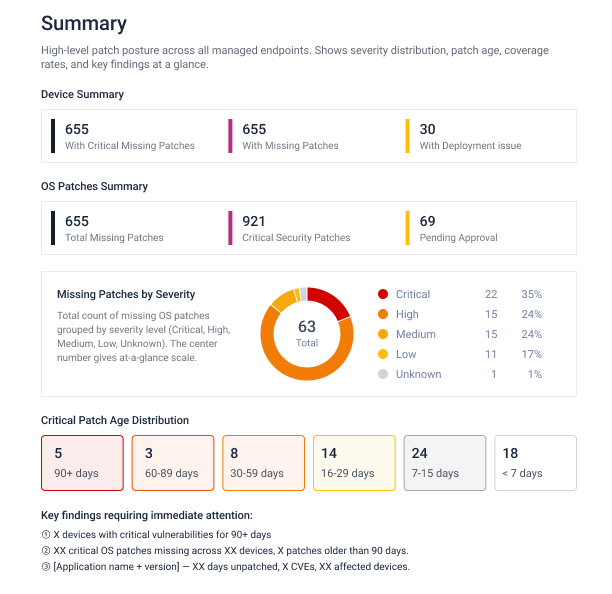
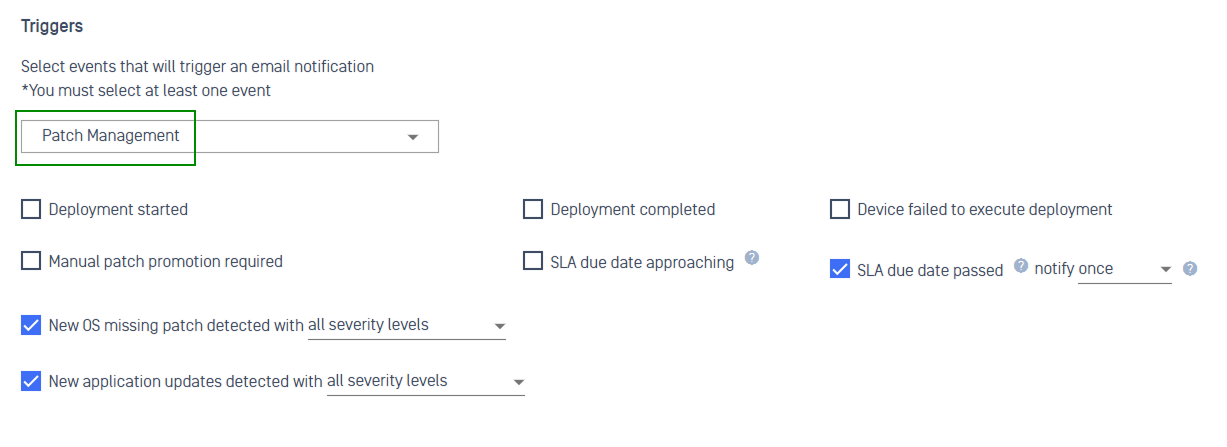
Patch Reports & Notifications provides administrators with the centralized tools to maintain full visibility into patch compliance, communicate patch posture to stakeholders, and receive timely alerts for critical patching events, all from within My OPSWAT Central Management.
Refer to Patch Reports & Notifications for more details.