
On-demand deployment pushes specific OS, application, and driver & firmware updates to targeted endpoints immediately. Use it for urgent security fixes, critical vulnerabilities, or targeted updates.
The process is the same for OS, Third-Party Application, and Driver & Firmware.
Please Note
On-demand deployment only support Window patches. Non-Window devices will be automatically excluded.
Driver & Firmware Updates is supported on Dell and Lenovo Windows devices only.
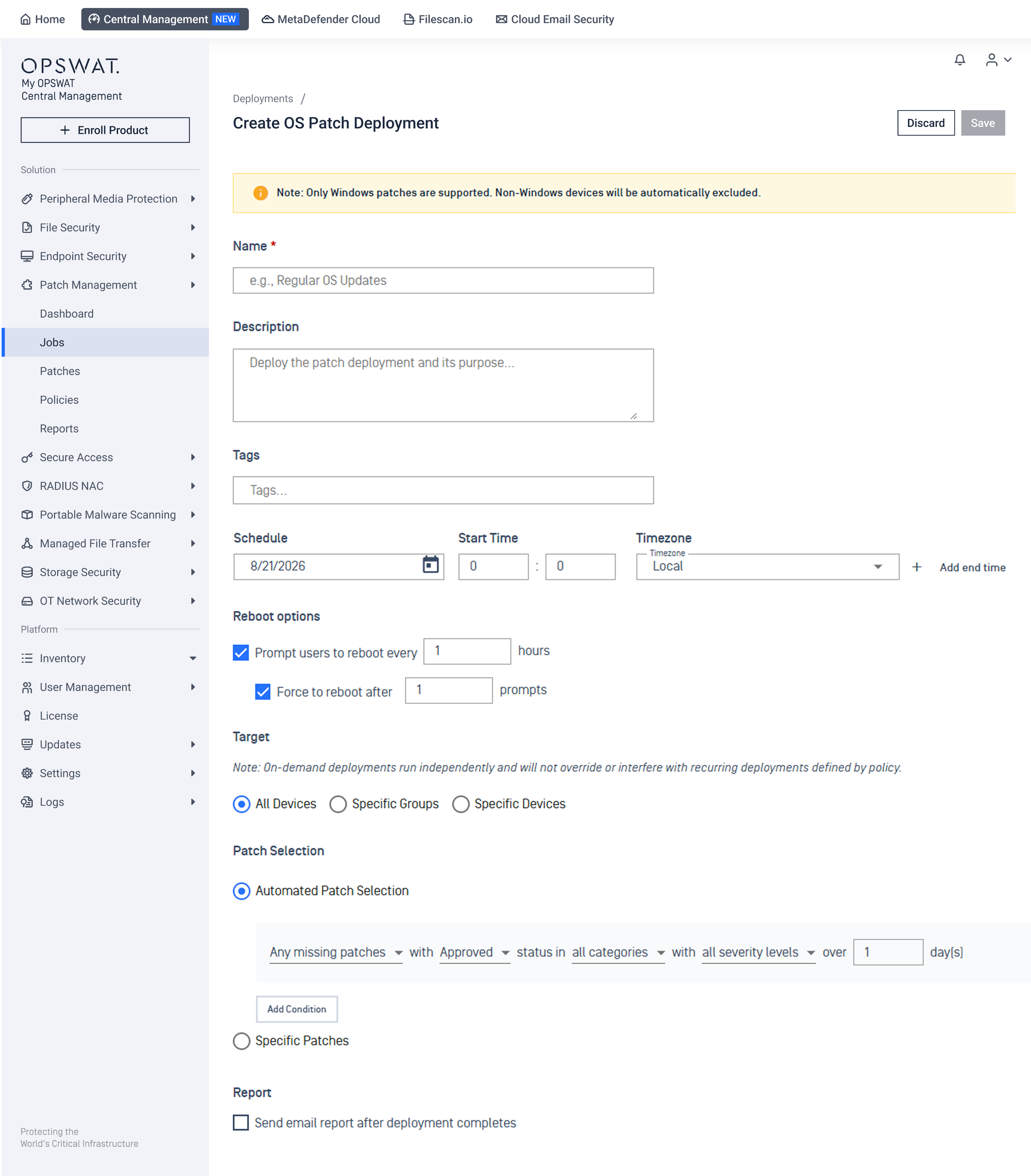
Start On-Demand Deployment
In the left navigation, select Patch Management > Jobs
Select Create On-Demand Deployment
In the dialog, choose what to deploy:
For Windows Patches
For Application Patches
For Driver & Firmware Updates
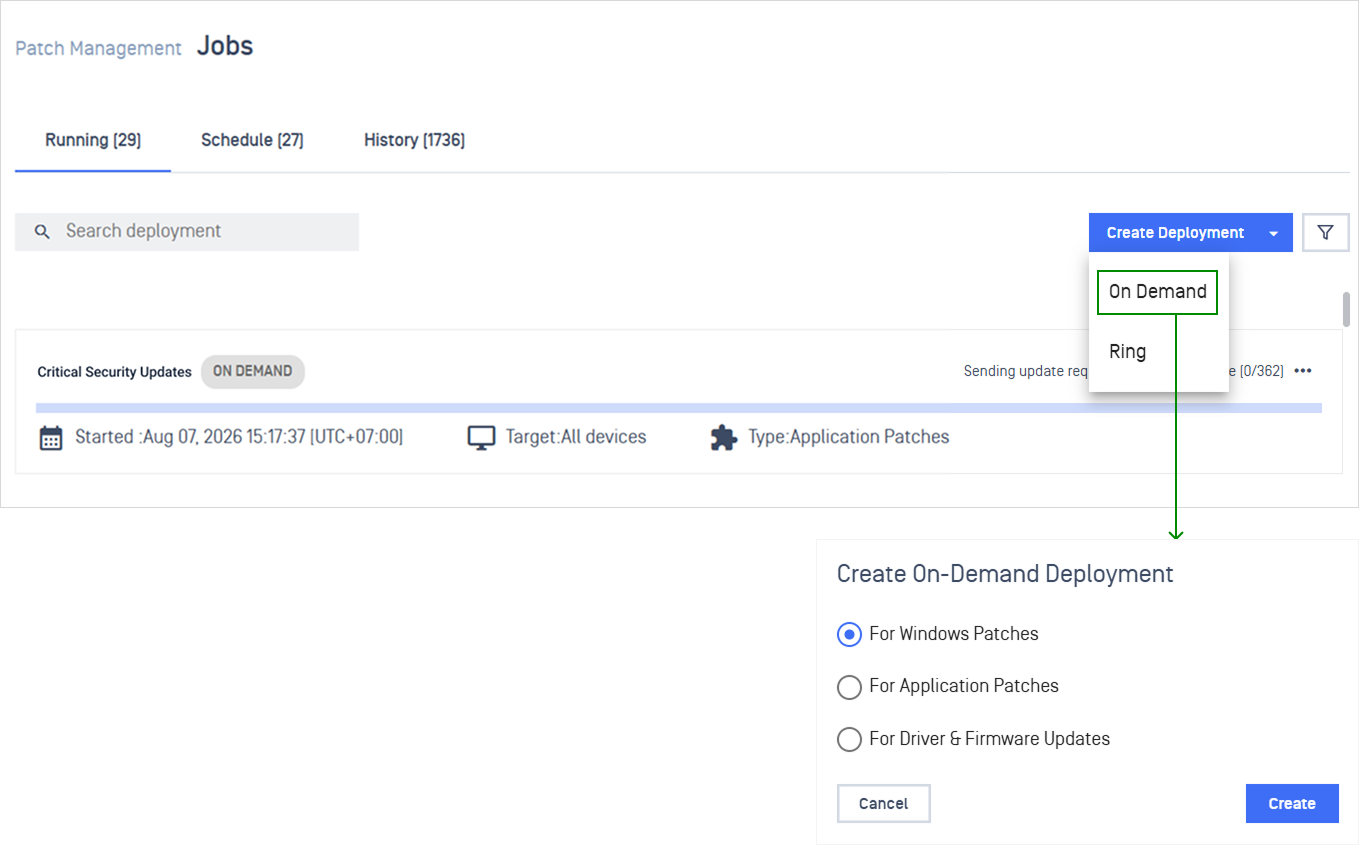
Configure On-Demand Deployment
Note On-demand deployments run on Windows devices only.
Configuration | Details |
|---|---|
Name and describe the deployment | Enter a Name, a short Description, and any Tags you want to filter by later 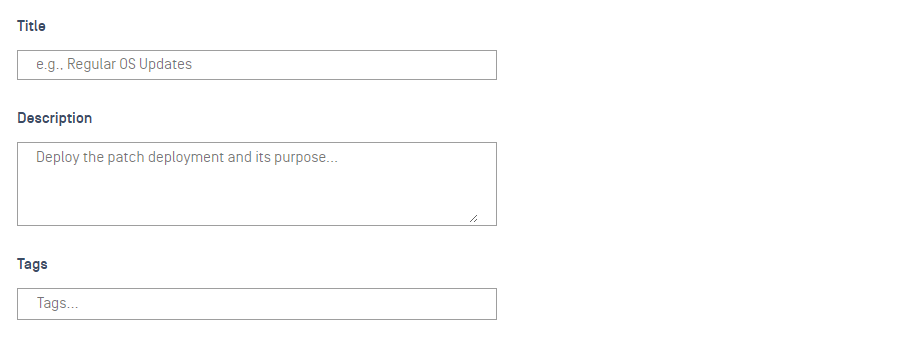 |
Schedule when deployment runs | Set the Date and Start time. Add an End time if you want it to stop automatically  Note If no end time is specified, the deployment is marked complete only once every endpoint finishes and reports back to My OPSWAT Central Management. Offline endpoints during the window are marked Unreachable. |
Control restart and user notifications | Configure Reboot Options (Windows) or Update Notification (Application) to reduce user disruption 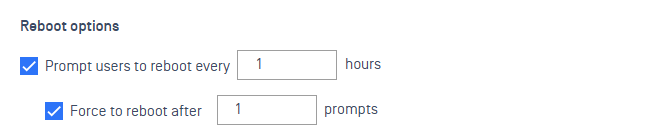 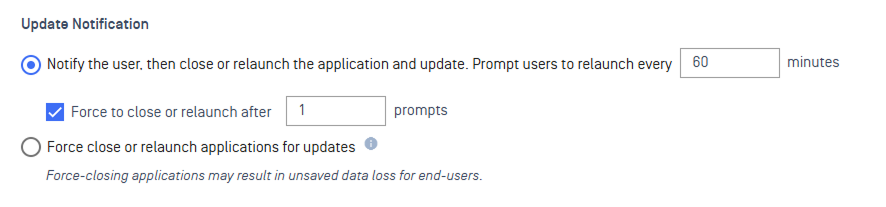 |
Configure automation scripts for pre- and post-checks. | Upload pre-script and post-script file to prepare environments and automate post-patch tasks, with execution tracking and options to abort on failure.  See Deployment Scripts for detailed instruction. |
Choose which endpoints get the update | Select All Devices, Specific Groups, or Specific Devices  |
Choose what gets installed | Use condition-based selection to automatically include updates that match criteria, or pick Specific Patches / Specific Applications manually 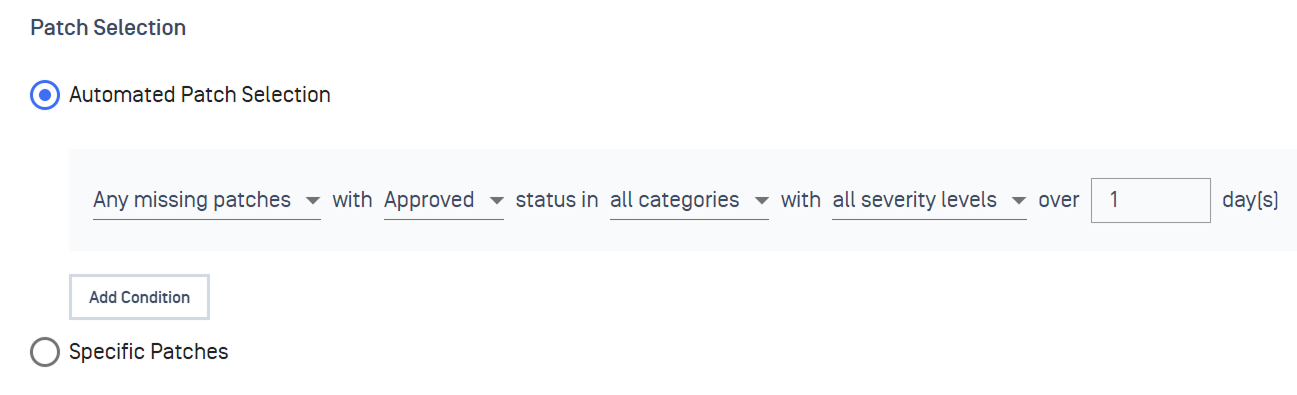 Note Rejected and unsupported items are automatically excluded, even if they match your selection criteria. |
Get notified when it's done | Add one or more email addresses under Report to receive a summary via email 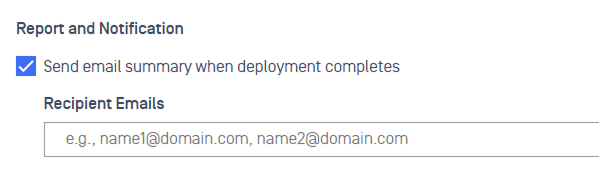 |
Next Steps
Track a specific deployment in Monitor Deployment
Configure point-in-time patch reports with Custom Patch Reports
Set real-time alerts for key patch events under Patch Notification
Define SLA timeframes to maintain compliance visibility via Patch SLA