
Check your version
This article applies to all OPSWAT MetaDefender Central Management version 10.x deployed on Linux or Windows systems.
Symptoms
When trying to add an SSL certificate or private key in PEM format to CM10, the upload fails with the following error

This indicates that CM10 was not able to parse the PEM file or files.
And the end of the certificate or key looks like the following:
Certificate:
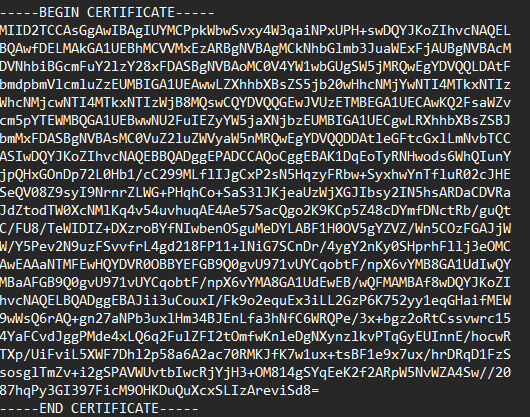
Example of a Certificate in PEM formart creatred by OpenSSL
Key:
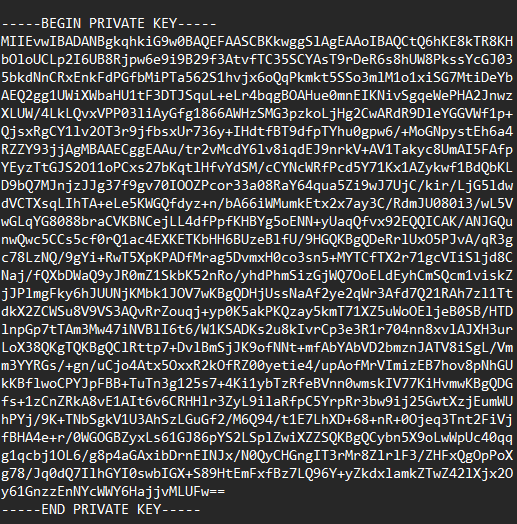
Example of a Key in PEM formart creatred by OpenSSL
Root cause
The CM10 certificate parser expects PEM files to end with a terminating newline character after the
-----END CERTIFICATE----- or ----END PRIVATE KEY -----boundaries. While RFC 7468 does not strictly mandate a trailing newline, the CM10 parser requires one in order to correctly process the file.
Certificates exported from some tools commonly omit this trailing newline, including:
Windows certmgr exports
Certain OpenSSL one-liner exports
Copy-paste from a browser or text field
Resolution
Add a newline at the end of the PEM file, after the -----END CERTIFICATE----- or ----END PRIVATE KEY -----boundaries. boundary. The file should look like this:
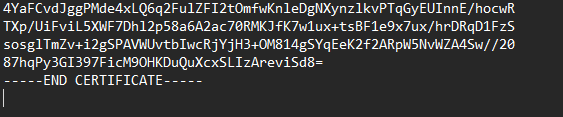
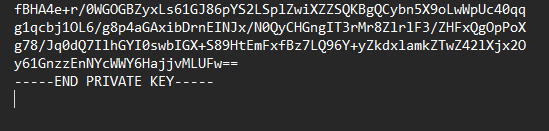
Adding the newline
Linux / macOS:
Windows PowerShell:
Manually: Open the file in a text editor that shows line endings (Notepad++, VS Code, vim) and press Enter after the final -----END CERTIFICATE----- or -----END CERTIFICATE----- line so the cursor moves to a new empty line.
Verifying the fix
Before re-uploading, confirm the file ends with a newline character (LF or CRLF):
Linux / macOS:
Expected output ends in 0a (LF) or 0d 0a (CRLF).
Windows PowerShell:
Expected output is a newline character.
After verification, retry the upload to CM10 via the Management Console.
Support
If you need further assistance, please contact OPSWAT Support through the OPSWAT Portal or your assigned support representative.