
Identity Scanning speeds up file processing by identifying files that have already been scanned in previous runs. When MDSS (MetaDefender Storage Security) detects that a file hasn't changed since the last scan, it reuses the existing scan results instead of re-scanning the file.
This feature is useful for backup datasets where many files stay the same across multiple scan cycles, and for recurring scans of the same dataset.
Benefits
Improves performance for backup datasets and recurring scans
Reduces scanning time by skipping unchanged files
Keeps complete reporting while avoiding redundant work
Maintains security with customizable rescan intervals
How it works
Identity Scanning uses file metadata to check whether files have been scanned before. Here's what happens:
Mount backup repositories as NFS/SMB file shares to MDSS
Enable Identity Scanning in your workflow and set a scan interval (for example, 3 days)
First scan: All files are scanned (no stored results exist yet)
Later scans: Only new or changed files are scanned; unchanged files use cached results
You get better performance while keeping full security coverage
Rescan interval
To maintain security, Identity Scanning includes a rescan interval. Even files that haven't changed get rescanned after the time period you configure. This ensures nothing slips through the cracks.
Deep CDR and Real-Time Processing are currently not supported by Identity Scanning.
Things to know
Identity Scanning works with On-Demand and Scheduled scans only
You cannot start Real-Time Processing with Identity Scanning enabled
The feature checks file metadata to identify files accurately
Configuration
Setting up identity scanning
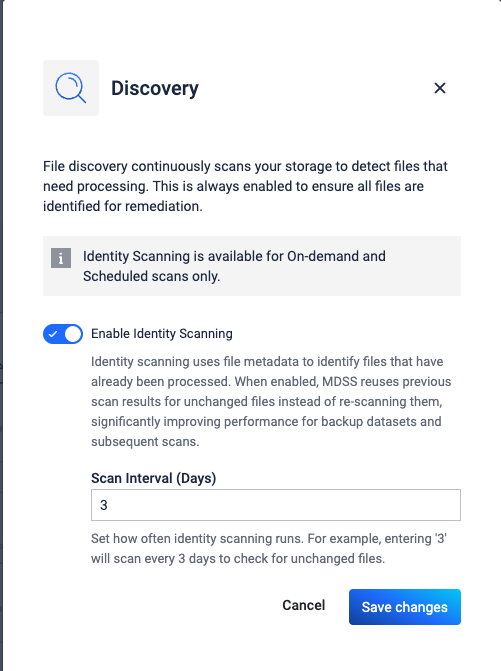
Configure Identity Scanning from the Discovery tile in your workflow:
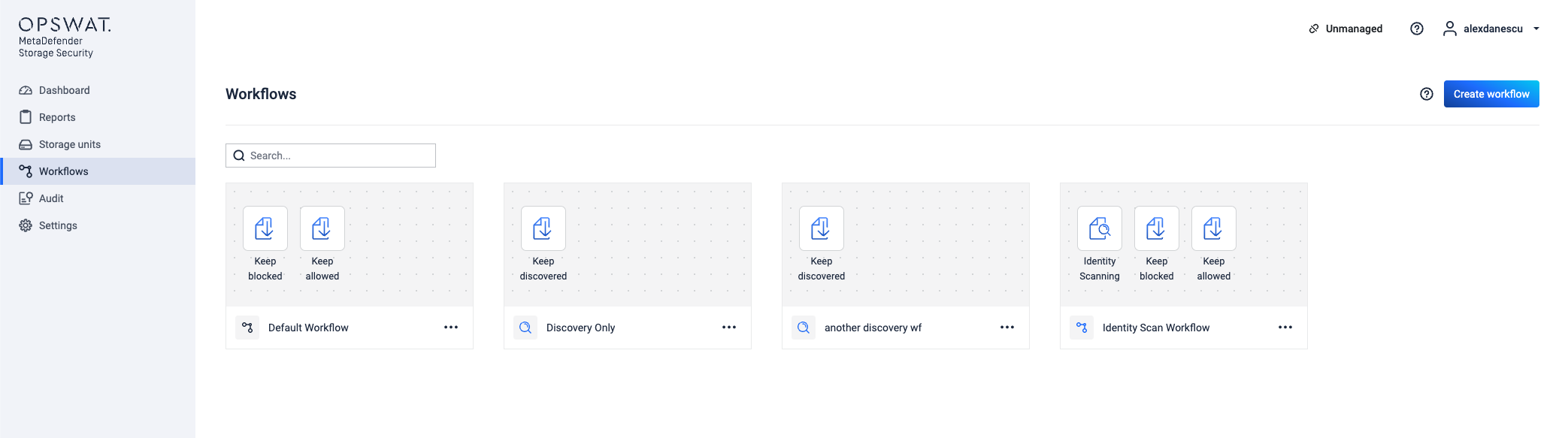
Create or edit a Standard Workflow with scanning enabled
Turn on "Enable Identity Scanning"
Set the "Scan Interval (Days)" value
Save your changes
Scan interval
Choose how often MDSS will rescan files to check for changes. For example, if you enter "3", MDSS will scan every 3 days to verify files that haven't changed.
Reading scan results
What happens during scans
First Scan
All files in storage are scanned
No identity matches exist in the database yet
All files show as "Scanned"
Later Scans
New or changed files are scanned
Unchanged files use stored results and show as "Stored"
Reports show all files, whether scanned or stored
What the labels mean
Identity: Scanned
Files that were scanned in this run
Includes new files and files changed since the last scan
Identity: Stored
Files that were skipped during scanning
These files haven't changed since the last scan
Results come from stored data
Using Reports
Dashboard
When a scan with Identity Scanning runs, you'll see an "Identity Scan" indicator on the scan card.
Report list
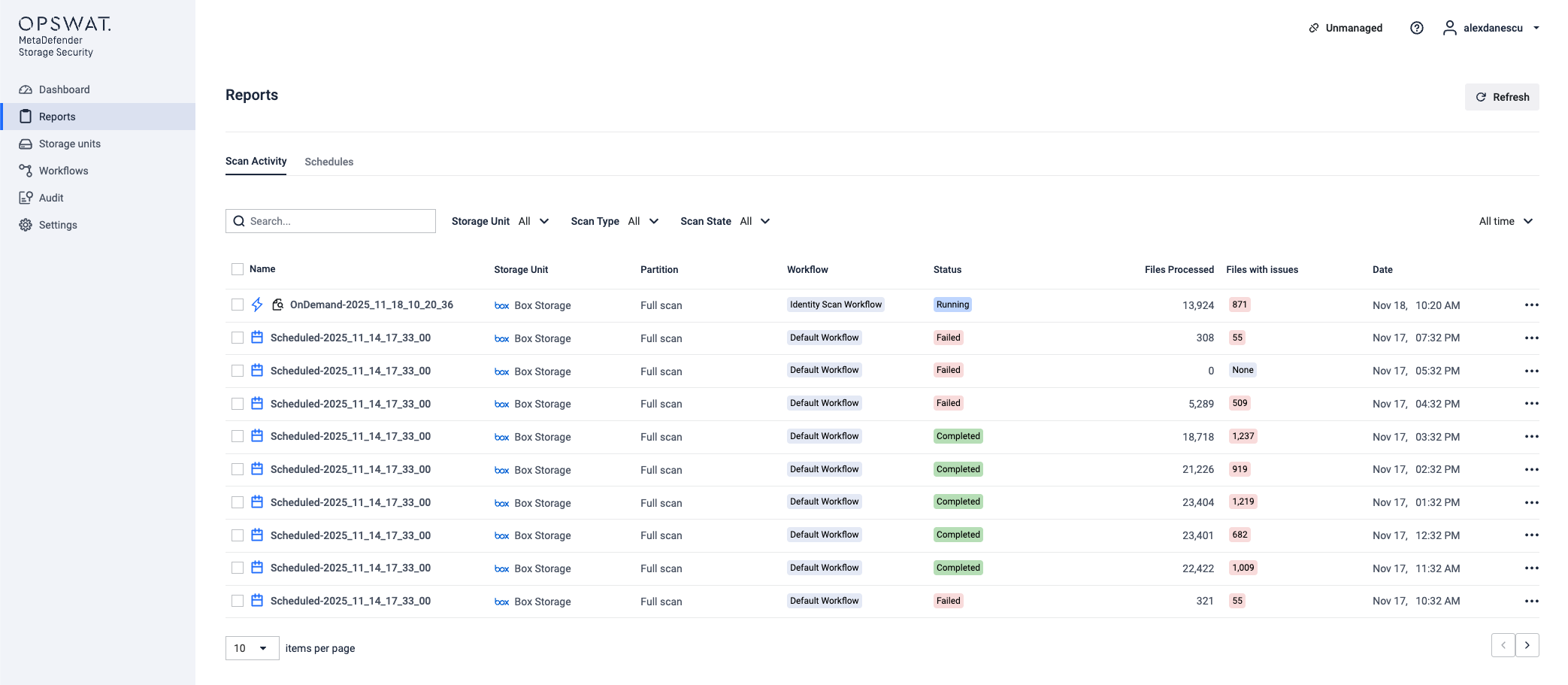
Reports that used Identity Scanning show an icon next to the report name.
Report details
Inside a report, you'll find:
Summary Cards
Identity Scanned - the number of files scanned in this run
Identity Stored - the number of files that used stored results
Filters and Columns
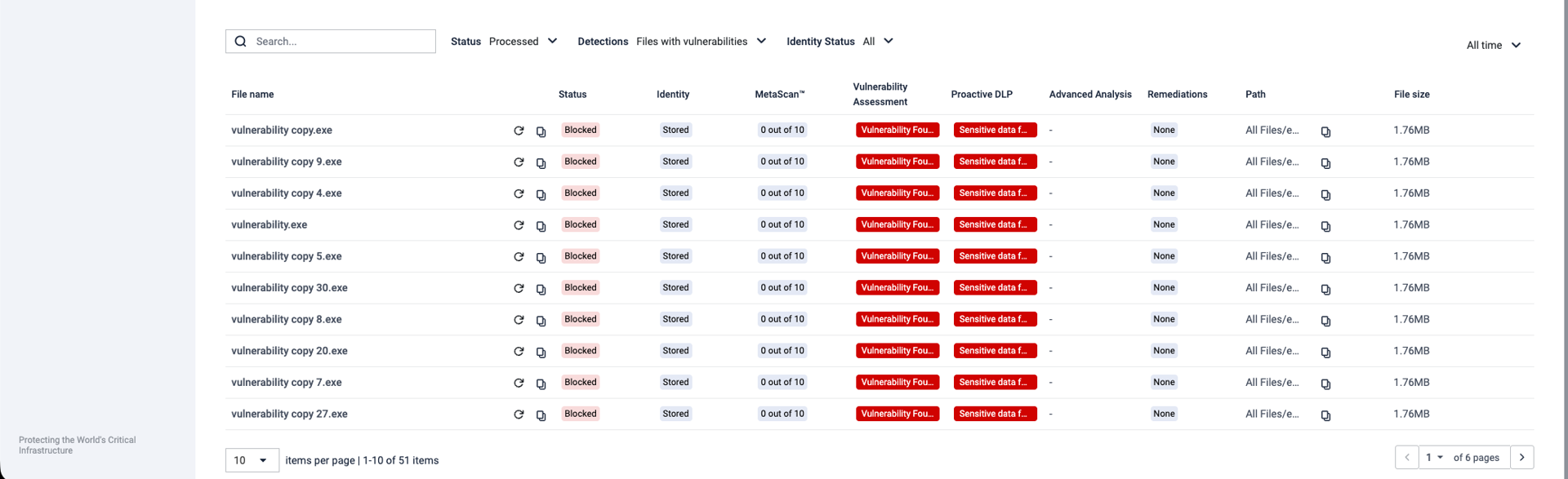
Filter by "Identity Status" to see only "Scanned" or "Stored" files
Each file shows its status in the table
Active Scans
See Identity Scanned and Identity Stored counts in real-time
Filter the file table by Identity Status while scans run
Special cases
Files that are always scanned
Even with Identity Scanning turned on, some files always get scanned:
Manual reprocessing - if you manually reprocess a file, it gets scanned regardless of identity status
Different Scan Instance - if a file was scanned with a Scan Instance that's not in your current Workflow's Scan Pool, it gets scanned again
After the interval expires
When you run a scan after your configured interval (like 3 days), all files get scanned again even if they haven't changed. This keeps your security coverage complete.
Example workflow
Here's how Identity Scanning works in practice:
Create a workflow with Identity Scanning turned on and a 3-day interval
Run the first scan
All files are scanned
Report shows all files as "Identity: Scanned"
Run a second scan (within 3 days)
Unchanged files show as "Stored"
Only new or changed files actually get scanned
Run a third scan (after 3 days)
All files get scanned again, whether they changed or not
This keeps your security coverage up to date
Tips for Using Identity Scanning
Identity Scanning works well for backup datasets where most files stay the same
Pick a scan interval that balances security needs with performance
Look at Identity Scanned vs. Identity Stored numbers to see how your files change over time
Use Identity Scanning with scheduled scans for automated security coverage