
This article applies to all MetaDefender Kiosk V4 releases deployed on Windows systems
A Media Manifest is a digitally signed file that lists the hashes of all the files that were cleaned and approved by MetaDefender Kiosk during its session.
This article covers the entire course of Media Manifest setup and usage in MetaDefender Kiosk, including:
Setting up the certificate for digital signing (via MetaDefender Core)
Enabling the Media Manifest feature (via MetaDefender Kiosk)
Utilizing Media Manifest (via the OPSWAT Media Validation Agent)
Media validation flow.
Setting up the certificate for digital signing (via MetaDefender Core)
Go to your MetaDefender Core Management Console>Inventory>Certificates to add a certificate that will be used for digital signing.
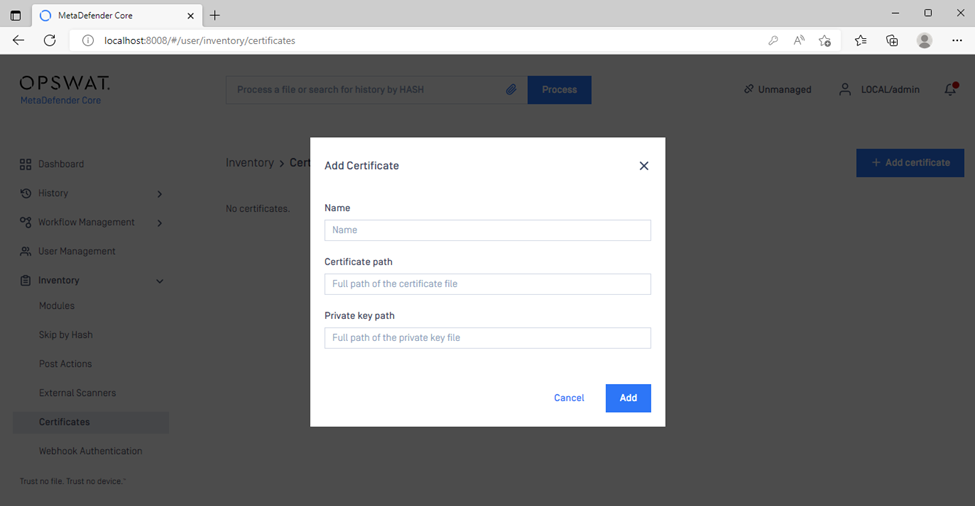
Note: OPSWAT does not issue certificates directly to customers for use with OMVA or Media Manifest signing.
Customers have two primary options for setting up the Media Validation Public Certificate:
Self-Signed Certificate (Recommended for testing or small-scale deployments) You can generate your own certificate and manually install the public key on each endpoint running the OMVA agent.
CA-Signed Certificate (Recommended for production environments) Use a certificate issued by your internal PKI or a trusted Certificate Authority. This enables better trust management and adheres to enterprise security standards.
⚠️ Important: The same certificate used to sign manifests on the Kiosk/Core must be trusted by the OMVA agent to successfully validate scanned media.
For more information on adding certificates, please Read This and This.
Now, go to Core Management Console>Workflow Management>Workflows to open the appropriate workflow.
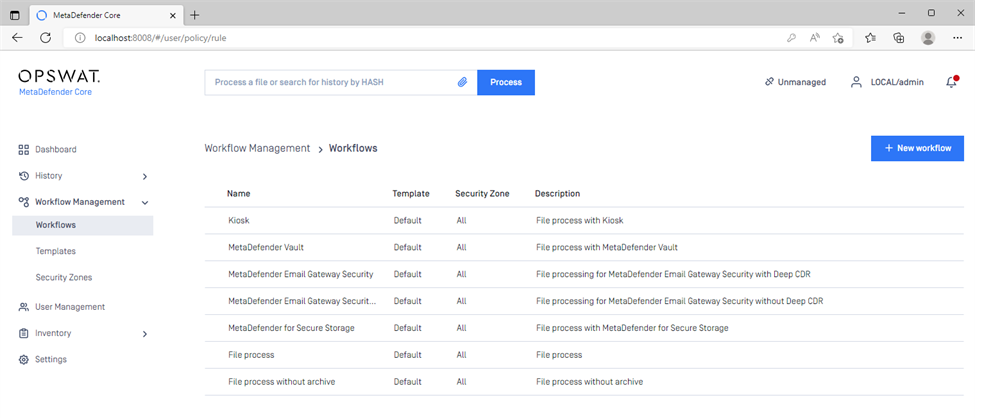
Assign the certificate you created to the Workflows > Generate batch signature with certificate, as illustrated in the screenshot below.
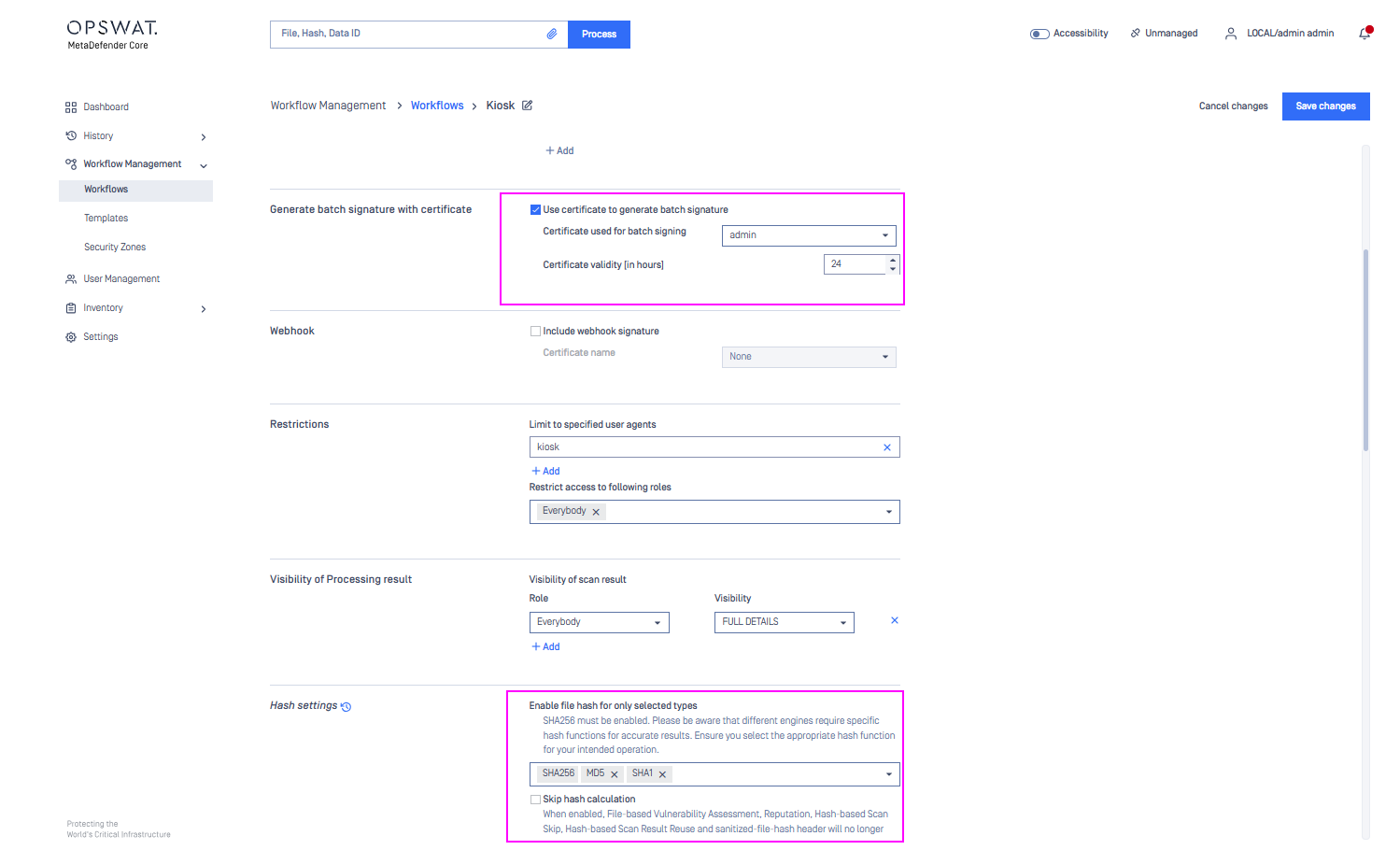
SHA256 must be enabled to generate the manifest files. Make sure the 'Skip hash calculation' checkbox is not selected
Enabling the Media Manifest feature (via MetaDefender Kiosk)
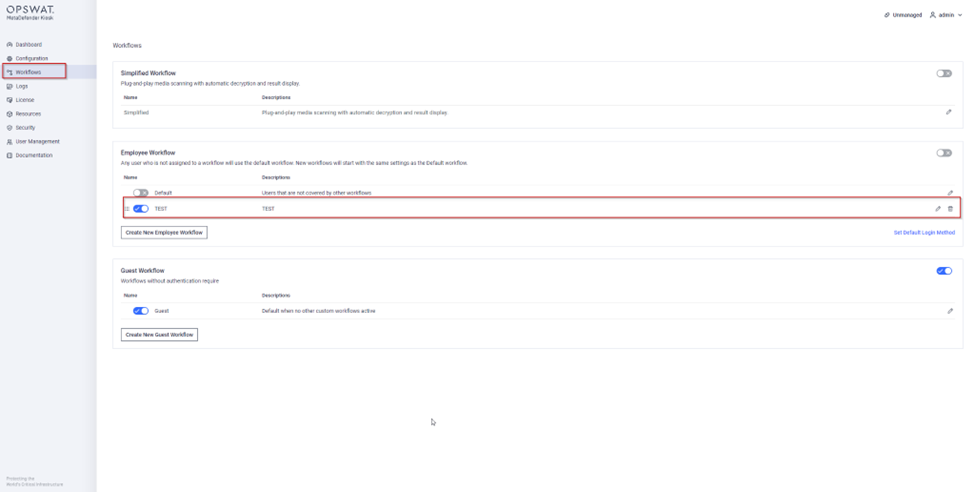
Enable Media Manifest in Kiosk by going to the MetaDefender Kiosk Management Console>Workflows, then clicking the edit icon on the appropriate workflow, as highlighted in the screenshot below.
Now, go to the Processing section to assign the appropriate workflow rule (i.e. the workflow configured in the Core Management Console) and select the Include Media Manifest option, as illustrated below.
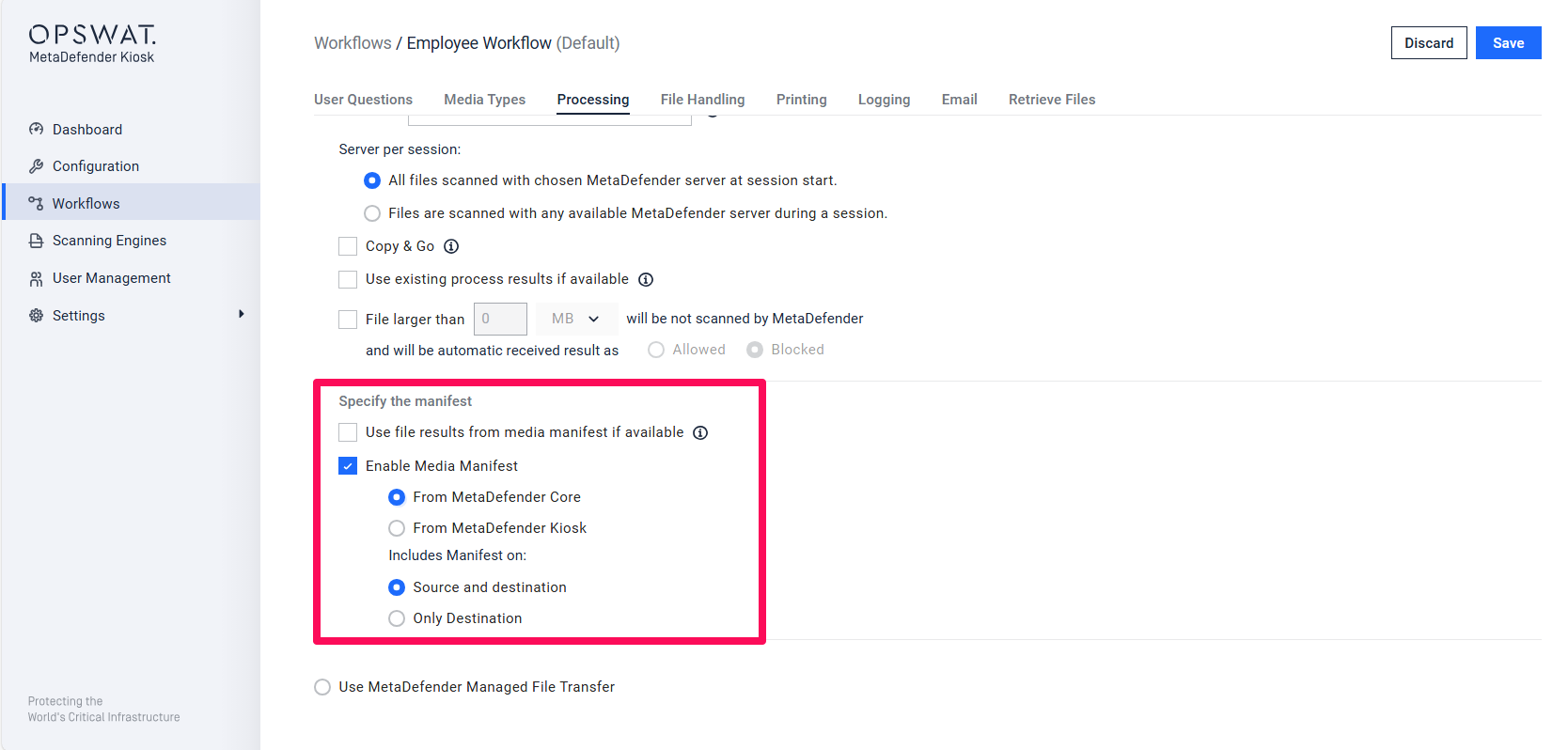
You can choose to use a manifest file generated by either MD Core or Kiosk. The manifest from Kiosk will be signed using the certificate configured under Settings > Security > Certificates
Finally, click Apply to activate your selections.
Utilizing Media Manifest (via the OPSWAT Media Validation
Agent)
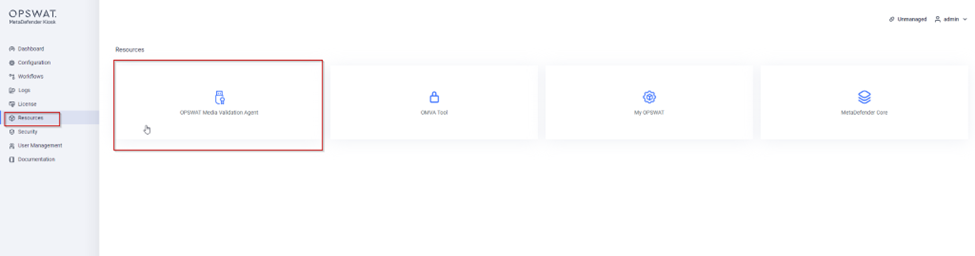
Go to MetaDefender Kiosk Management Console>Resources to download the OMVA, as illustrated in the screenshot below.
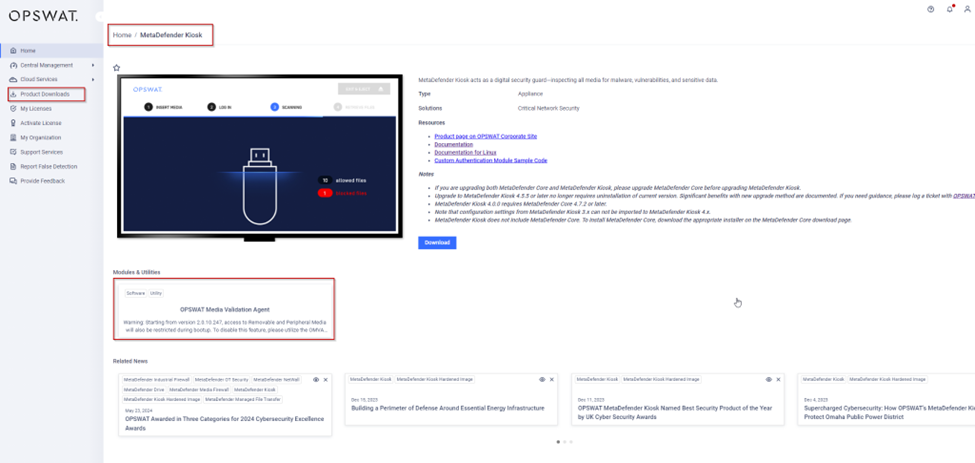
Alternatively, go to the Opswat Portal>Products>Endpoint Clients section to download the OMVA, as shown below.
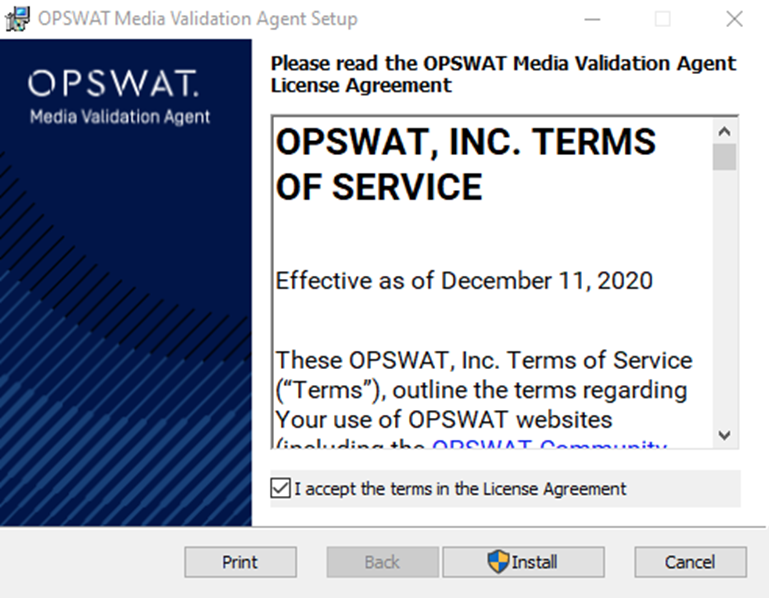
Follow the Setup Wizard to install the agent on the appropriate endpoint. Please Read This for more information.
Finally, install the Public Key of your certificate to the endpoint.
Media validation flow
In order to process files from external media, Kiosk sends them to the associated MetaDefender Core instance.
MetaDefender Core then generates a manifest listing all the files that it processed during the Kiosk session, signed with a digital certificate.
The Kiosk then downloads this manifest to the processed media, along with the processed files.
This media can now be inserted into any endpoint that has the OPSWAT Media Validation Agent installed.
The OMVA will then check the hashes of the files in the media manifest against the files physically located on the media.
All Media devices will be blocked if any discrepancies are noticed.
If you are having difficulty Setting Up the Media Manifest Feature in MetaDefender Kiosk, please follow these instructions on How To Create a Support Package, before logging a Support Case with the OPSWAT team.