
This article applies to all MetaDefender Kiosk V4 releases deployed on Windows systems.
Online Activation
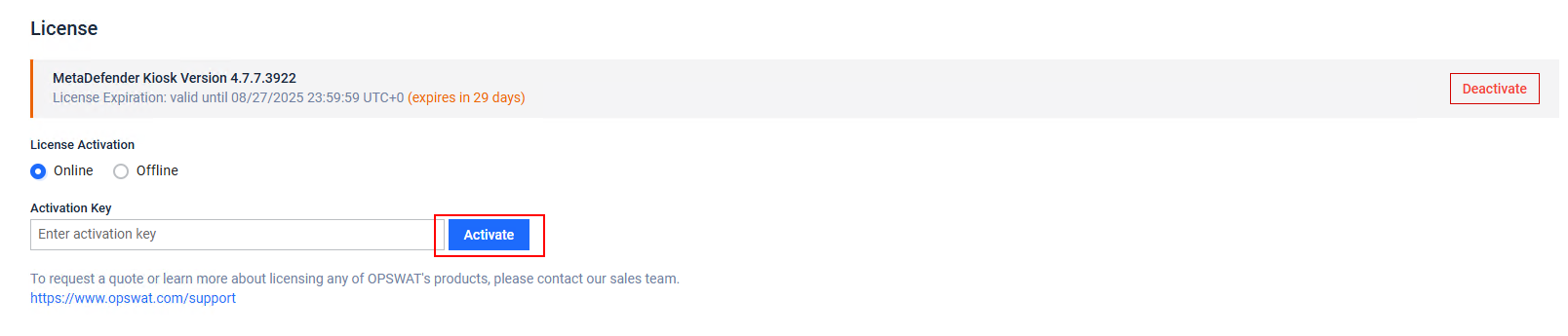
To do this, go to your MetaDefender Kiosk Management Console>Settings>License tab, enter your license and then click Activate License as highlighted in the screenshot below.
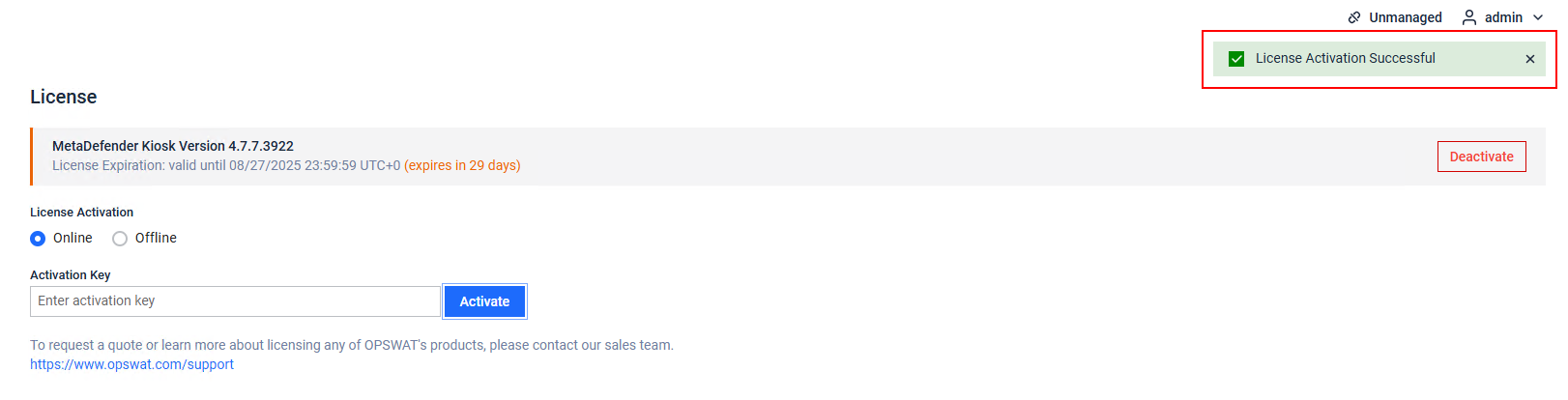
If the activation is successful, there will be a green bar appear in the top left of your screen as seen below
Offline Activation
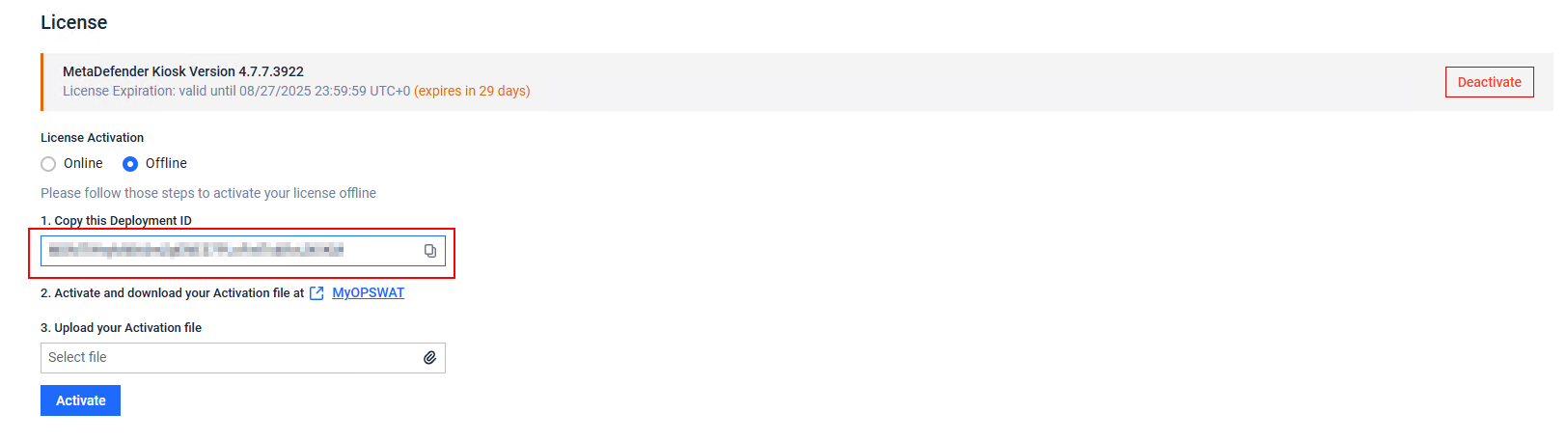
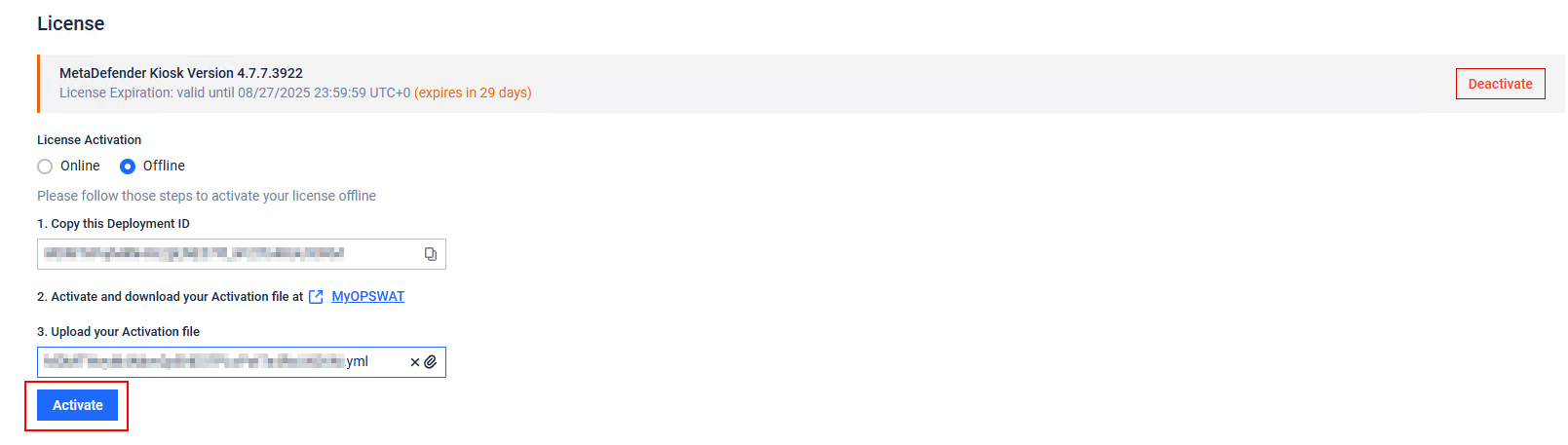
Go to your MetaDefender Kiosk Management Console>Settings>License tab.
Click on Offline radio button
Copy the Deployment ID as highlighted in the screenshot below
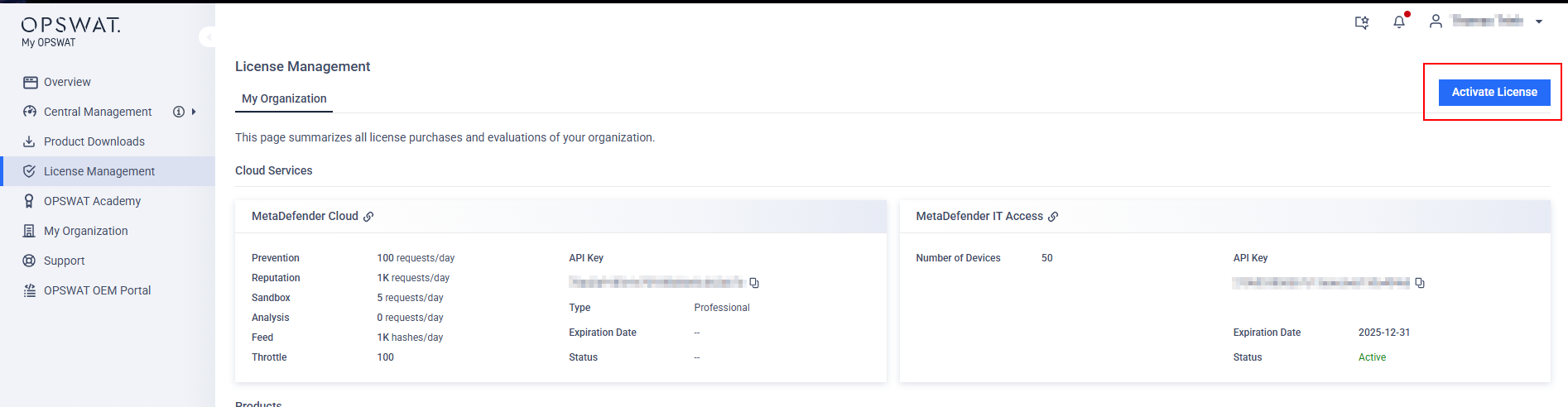
Navigate to My OPSWAT Portal and go to License Management and click on Activate License on the top right of the page
Fill out all necessary information, including your Activation Key, Deployment ID and selection of the Product you want to activate.
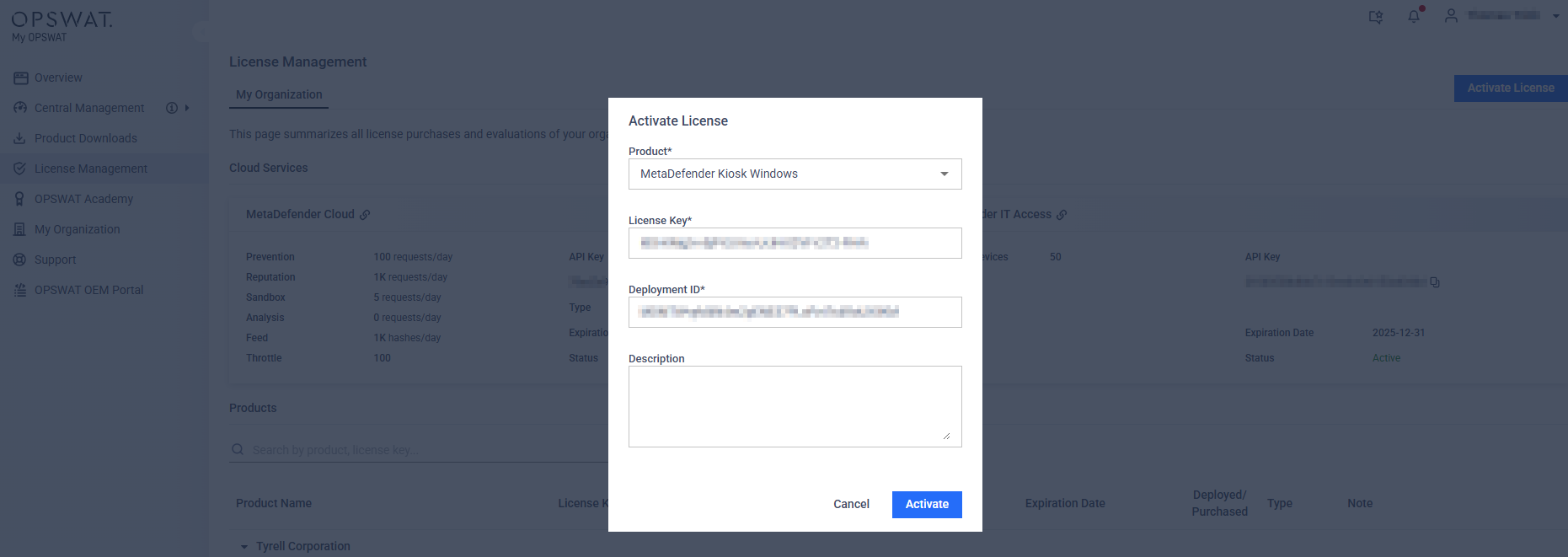
Click Activate, then download it to a secure location.
Return to the MetaDefender Kiosk Management Console> Settings>License tab to upload your activation file (.yml file).
Finally, click Activate to activate your offline deployment of MetaDefender Core.
If you have any queries regarding the MetaDefender Kiosk’s License Activation, please proceed to create a support case or chat with our support engineer.