
This article applies to OPSWAT Central Management V7.5+ and all MetaDefender Endpoint releases including and subsequent to V7.6.474.deployed on Windows, macOS, Linux, iOS and Android systems.
As of OPSWAT Central Management V7.6.474.0, endpoint users can now benefit from a Client User Interface (UI) with which users can interact to learn more about the security and compliance status of their device.
The MetaDefender Endpoint UI offers compliance data regarding applications installed on the endpoint device. This data can be found under either the Patch Management or Vulnerable Applications pages, depending on which version of MetaDefender Endpoint is installed.
Most importantly, the MetaDefender Endpoint UI provides endpoint users with remediation options (if applicable), allowing them to resolve potential security issues on applications before they can be exploited by nefarious parties.
If you would prefer that users not have access to data regarding applications installed on their devices (including details regarding software updates pending and possible vulnerabilities), you are welcome to disable this specific feature of the UI by following the instructions below.
Download the default MetaDefender Endpoint Rebranding Package Here, then Extract it to a preferred location.
Inside the config.json file, make the following modifications:
Change the value of the app_management.disabled parameter to 1. By default this value is 0, which enables the option to show the Patch Management feature on the MetaDefender Endpoint UI.
If available, change the value of the vulnerabilities.disabled parameter to 1. By default this value is 0, which enables the option to show the Vulnerable Applications feature on the MetaDefender Endpoint UI.
The config.json file is different for older MetaDefender Endpoint versions, which include:
Windows Persistent Client lower than 7.6.2306.298
Windows On-Demand Client lower than 7.3.2306.158
macOS Persistent Client lower than 10.4.2306.82
macOS On-Demand Client lower than 10.5.2306.54
Only the app_management.disabled parameter is available and setting it to 1 will d isable both the Patch Management and Vulnerable Applications features on the MetaDefender Endpoint UI.
Zip all of the files and folder again, ensuring that they are not nested within an additional folder.
Log into the My OPSWAT Console as an administrator.
Navigate to Settings>Global Settings>Device Agents, then scroll down to the Agent section.
Check the option to Make OPSWAT user interface available to end-users, then click the Choose File button to upload your newly modified branding package.
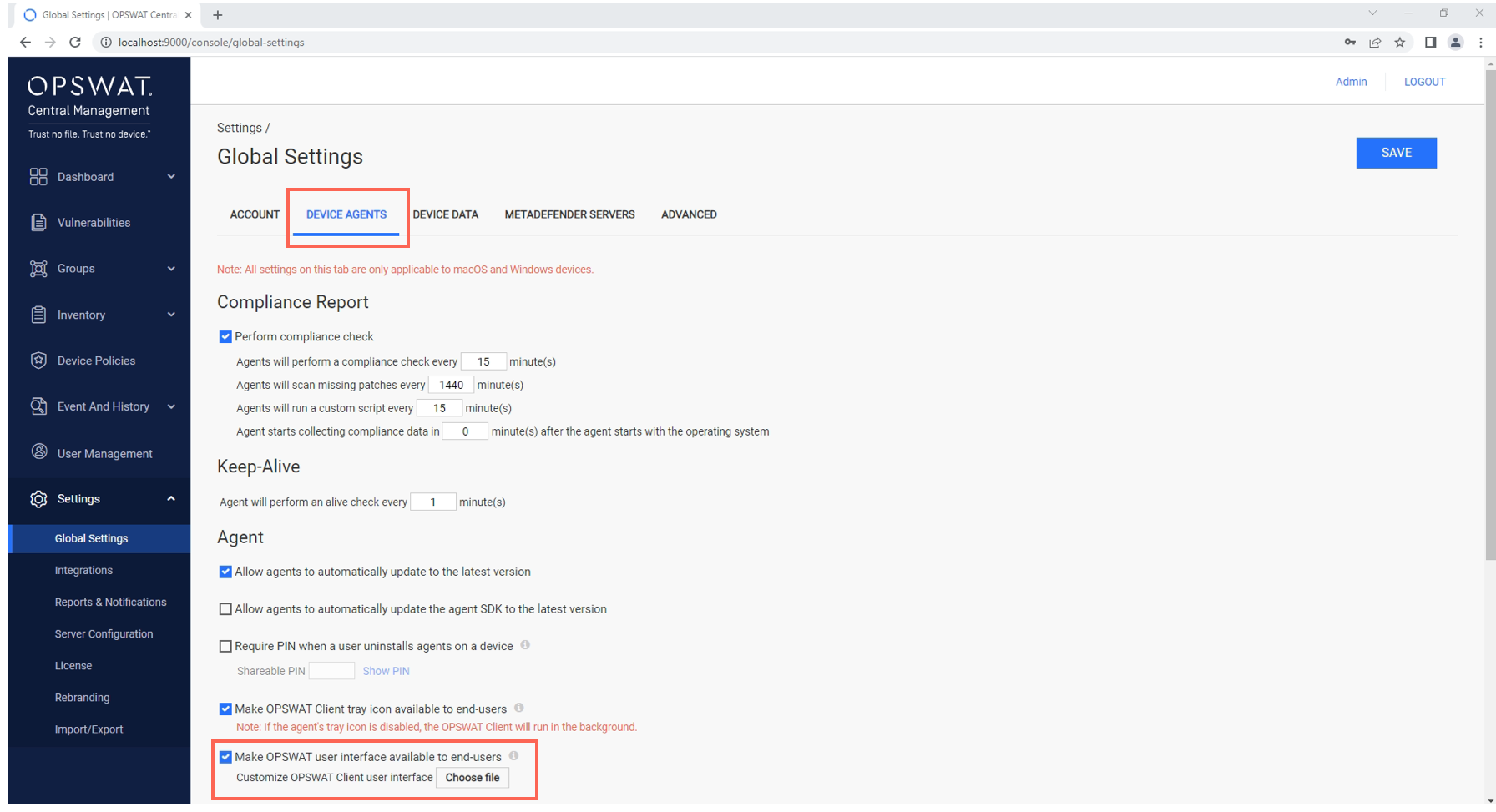
Click the Save button in the upper right, then confirm your administrator PIN to implement your settings.
Wait a few minutes for the changes to be deployed, then check any of your managed endpoints to confirm whether the client UI is now available.
If you have followed the instructions above but are Unable To Hide the Patch Management or Vulnerable Applications features On The MetaDefender Endpoint UI, please open a Support Case with the OPSWAT team via phone, online chat or form, or feel free to ask the community on our OPSWAT Expert Forum.