
This article applies to macOS FileVault, the current MetaDefender IT-OT Access Console and API, and all MetaDefender Endpoint releases deployed on macOS systems.
Users running MetaDefender Endpoint on one or more macOS devices may occasionally see MetaDefender IT-OT Access device compliance warnings/flags related to FileVault encryption.
FileVault is a native macOS tool that allows users to easily encrypt or decrypt their hard disks.
Filevault uses XTS-AES-128 encryption with a 256-bit key to encrypt your startup disk and prevent unauthorized access to any data on it.
When FileVault is turned on, the disk will be encrypted and will remain in that state unless Filevault is turned off.
Turning FileVault off will decrypt the disk.
This warning/flag is triggered by a device issue and will appear under MetaDefender IT-OT Access Console>Inventory>Devices>Relevant Device>Detailed Device Information>Deep Compliance>Encryption, as illustrated below.
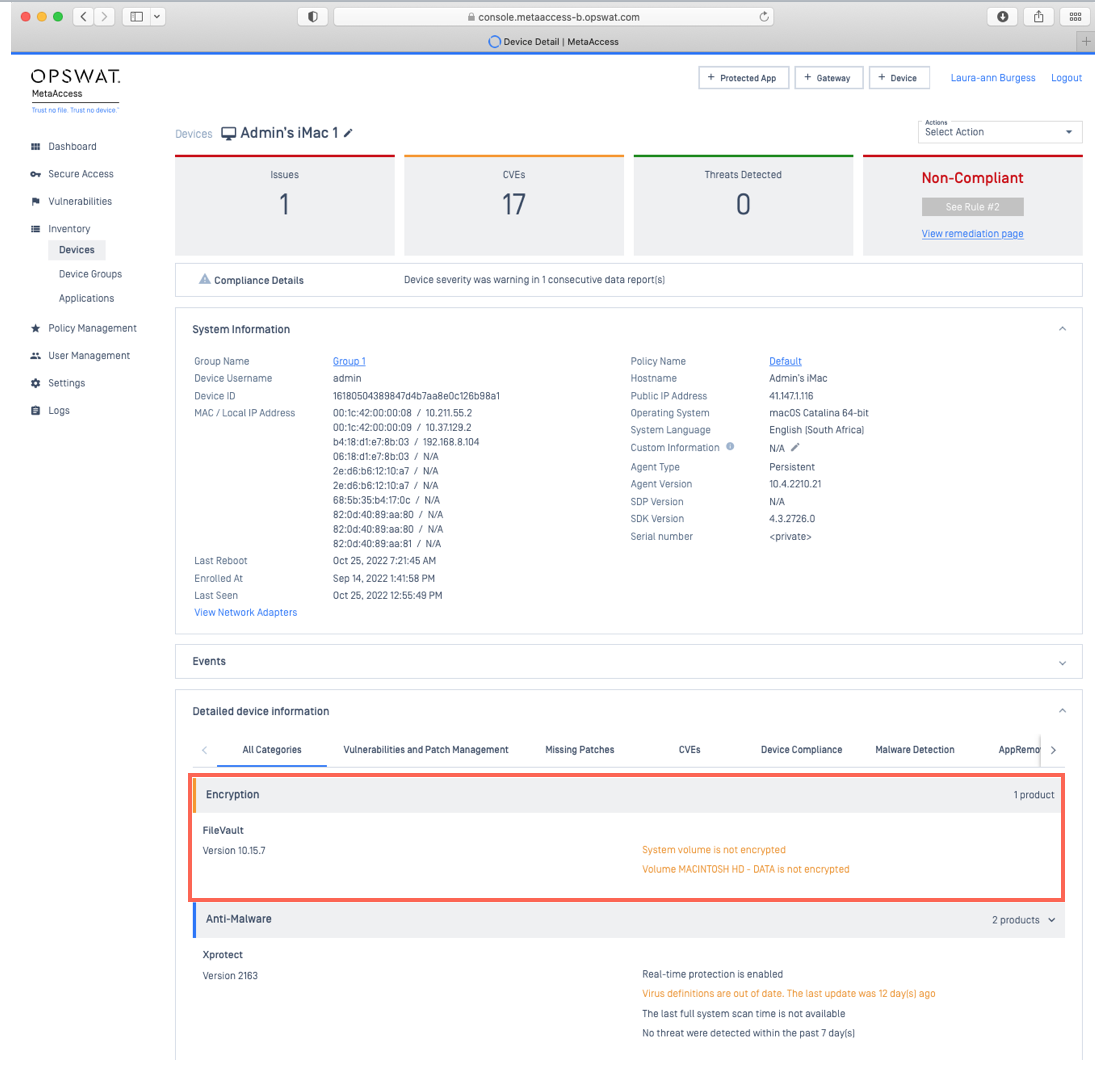
MetaDefender IT-OT Access Compliance Warning: FileVault - System volume is not encrypted/Device volume data is not encrypted
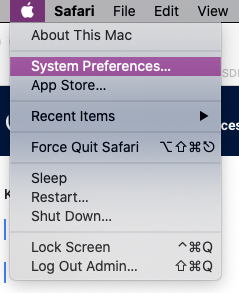
Click on the Apple menu in the top left-hand corner of the screen.
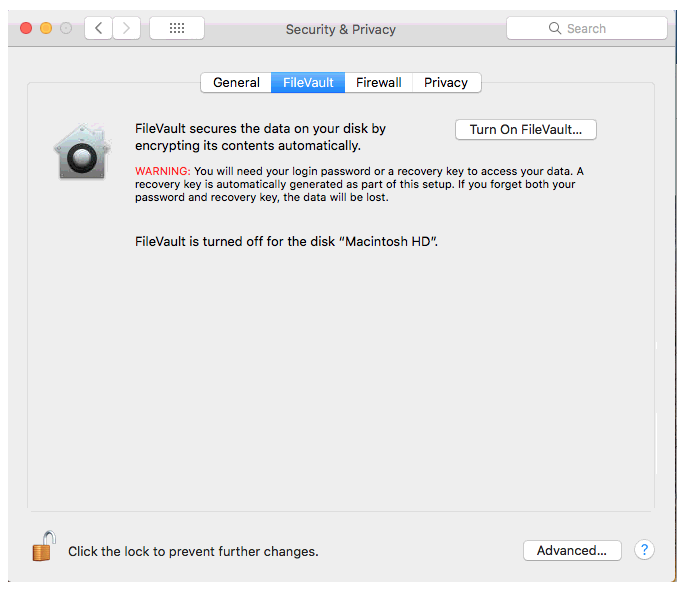
Navigate to System Preferences>Security & Privacy.
Click on FileVault.
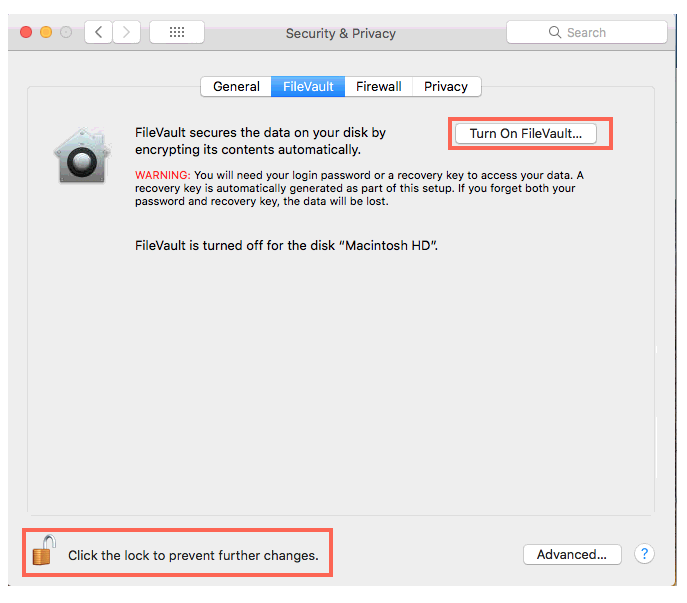
Click the Lock to open it, then click Turn on FileVault.
Select how you want to unlock the disk and reset your password, in case you forget, by checking the appropriate option. Your choices are to:
Allow your iCloud account to unlock your disk - i.e, use your iCloud password.
Create a recovery key and not use your iCloud account - i.e, use a generated recovery key.
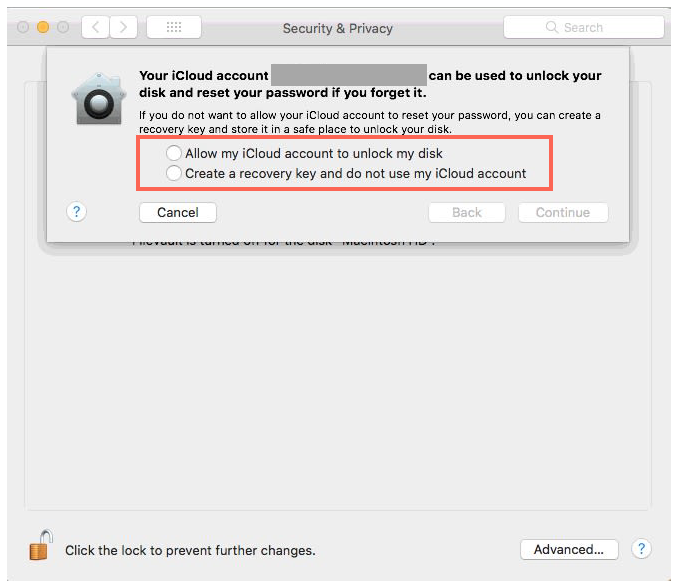
Your disk will now be encrypted.
The encryption process may take a number of hours and will run in the background while your system is powered on.
It is safe to switch your system off and on while this process is underway.
New files that are created while the process is underway will also be encrypted.
With FileVault encryption enabled, no account will be permitted to log in automatically.
Once encrypted, your disk will remain in an encrypted state until FileVault is turned off, at which time a lengthy decryption process will ensue.
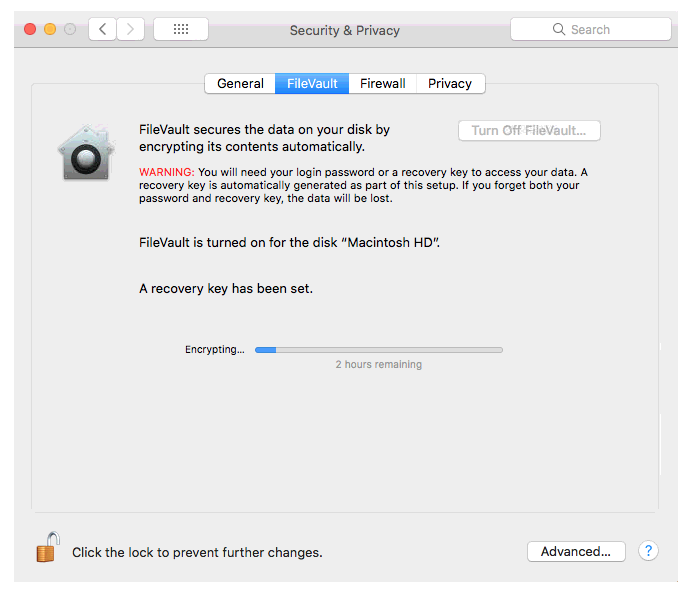
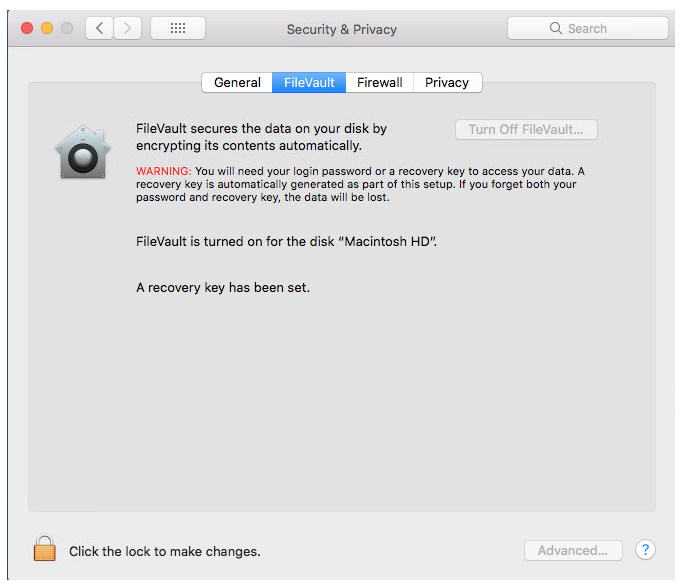
Once FileVault encryption has completed, Restart your system, using your chosen Password method to unlock the disk and finish the process.
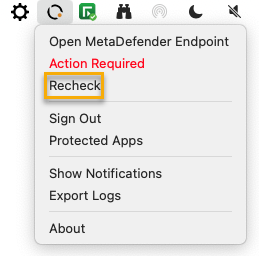
Click on the OPSWAT Tray Icon, then click the Recheck option.
If you have followed the instructions above but Continue To Experience macOS FileVault Encryption Issues On Your MetaDefender Endpoint/MetaDefender IT-OT Access Devices, please open a Support Case with the OPSWAT team via phone, online chat or form, or feel free to ask the community on our OPSWAT Expert Forum.