
This article applies to all MetaDefender Endpoint releases deployed on Windows, macOS, Linux, iOS, and Android systems
When troubleshooting an issue on a device, OPSWAT Support will usually request that the user send us the MetaDefender Endpoint logs from their machine.
There are two ways to retrieve MetaDefender Endpoint logs:
OPTION 1: Collect logs directly from the client device by selecting the option "Export Logs" in the tray-icon of MetaDefender Endpoint.
OPTION 2: Retrieve the logs remotely via My OPSWAT Central Management
requires the user to have administrator privileges on the associated My OPSWAT Central Management account
requires that the device is enrolled & connected to the My OPSWAT Central Management server
is only applicable for Windows/macOS Persistent MetaDefender Endpoint clients
OPTION 1: Collect logs directly from the MetaDefender Endpoint device
Automatic Collection
This option is only available for Windows and macOS Persistent MetaDefender Endpoint clients
Windows (Persistent MetaDefender Endpoint)
Download OPSWAT’s Log Collector tool, Here.
Extract and run the downloaded file.
The zipped log file, which may be very large, will automatically be placed on your desktop, to be forwarded to the OPSWAT team.
macOS (Persistent MetaDefender Endpoint)
Download OPSWAT’s Log Collector tool, Here.
Extract and run the downloaded file.
The zipped log file, which may be very large, will automatically be placed on your desktop, to be forwarded to the OPSWAT team.
Manual Collection
**Windows (**Persistent MetaDefender Endpoint)
Go to the relevant locations below to collect the required logs from File Explorer:
Client logs:
Type * \OPSWAT\Gears\logs* into the path bar and hit Enter
Crash dumps:
Type \OPSWAT\Gears\logs\reports into the path bar and hit Enter
SDK logs:
Type \OPSWAT\Gears\sdk into the path bar and hit Enter
OPG (verification file) logs:
Type \AppData\Local\OPSWAT\Gears\logs into the path bar and hit Enter
Copy the required logs, to be compressed (if necessary) and forward to the OPSWAT team.
Windows (On-Demand MetaDefender Endpoint)
Go to the relevant locations below to collect the required logs:
Client logs:
Go to the folder where the MetaDefender Endpoint executable file is located
Collect the file named gears-ondemand.log
Crash dumps:
Type \AppData\Local\CrashDump into the path bar and hit Enter
If the On-demand MetaDefender Endpoint is triggered by third-party vendors, go to the relevant locations below to collect the required logs:
Pulse Secure Host Checker:
Type \Pulse Secure\Host Checker\policy_## into the path bar and hit Enter (for example: C:\Users\bob\AppData\Roaming\Pulse Secure\Host Checker\policy_1)
Omnissa Horizon Client (formerly known as VMWare Horizon Client)
Depending on the version oh Horizon Client in use, both the On-Demand MetaDefender Endpoint executable file and the log file can be found in one of the locations below:
*C:\Users<username>\AppData\Local\Omnissa\Omnissa Horizon Client\Code Cache<uuid>* while Horizon Client session is still on
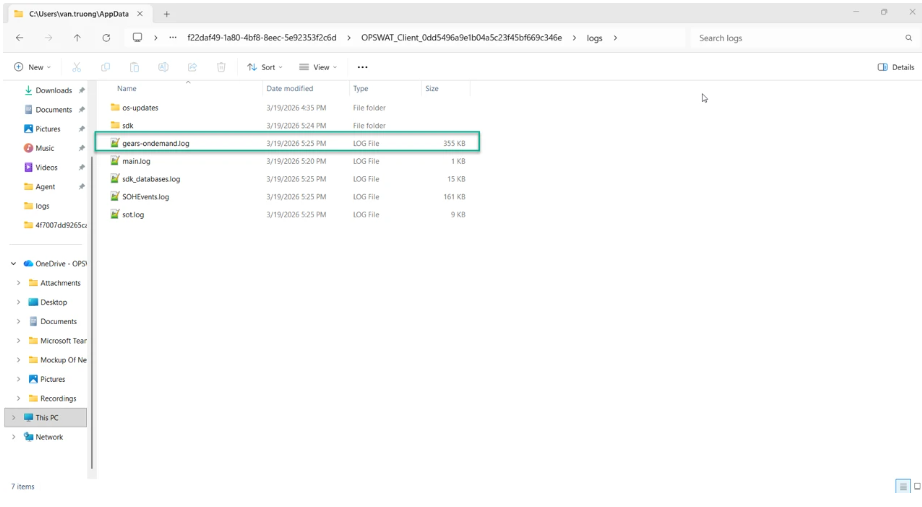
For Omnissa Horizon Client log : C:\Users<username>\AppData\Local\Omnissa\Horizon\logs
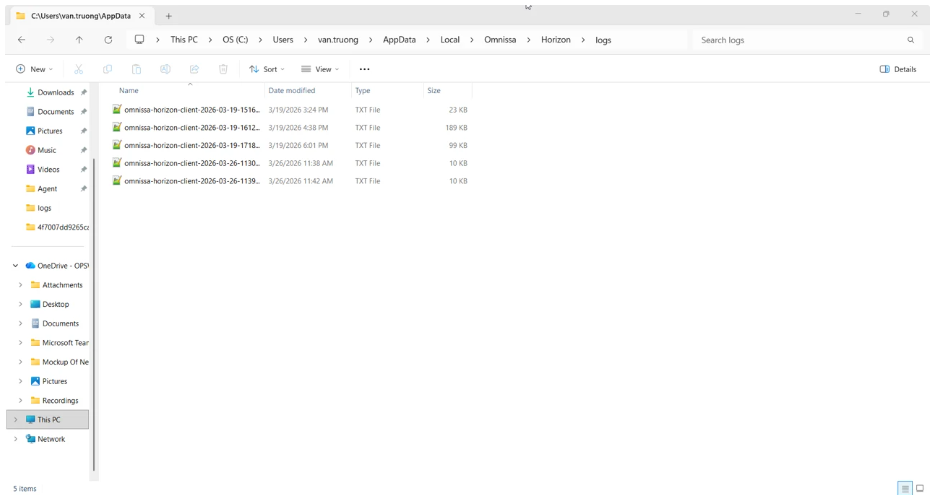
Copy the required logs, to be compressed (if necessary) and forward to the OPSWAT team.
macOS (Persistent MetaDefender Endpoint)
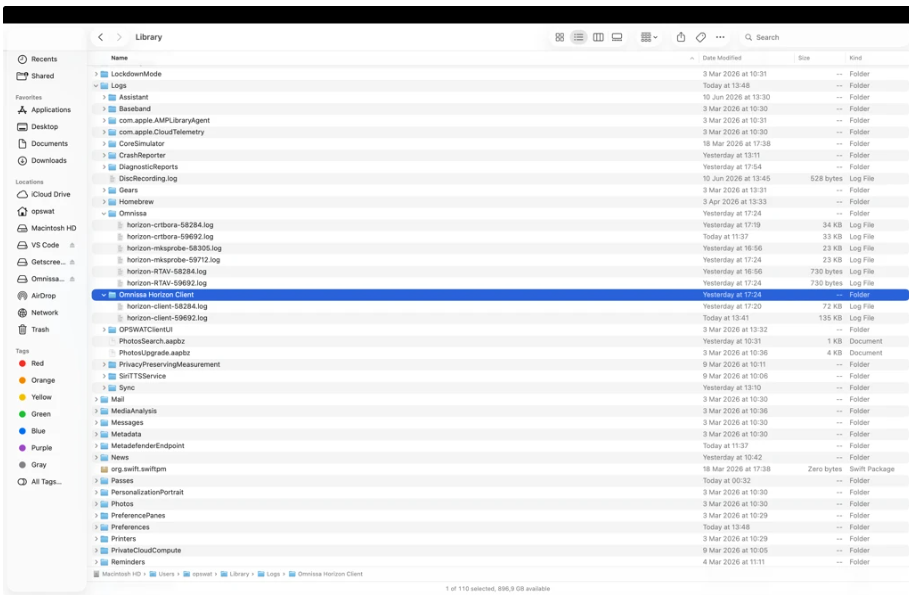
Open Finder and go to /Library/Logs/Gears/logs, as illustrated in the screenshot below:
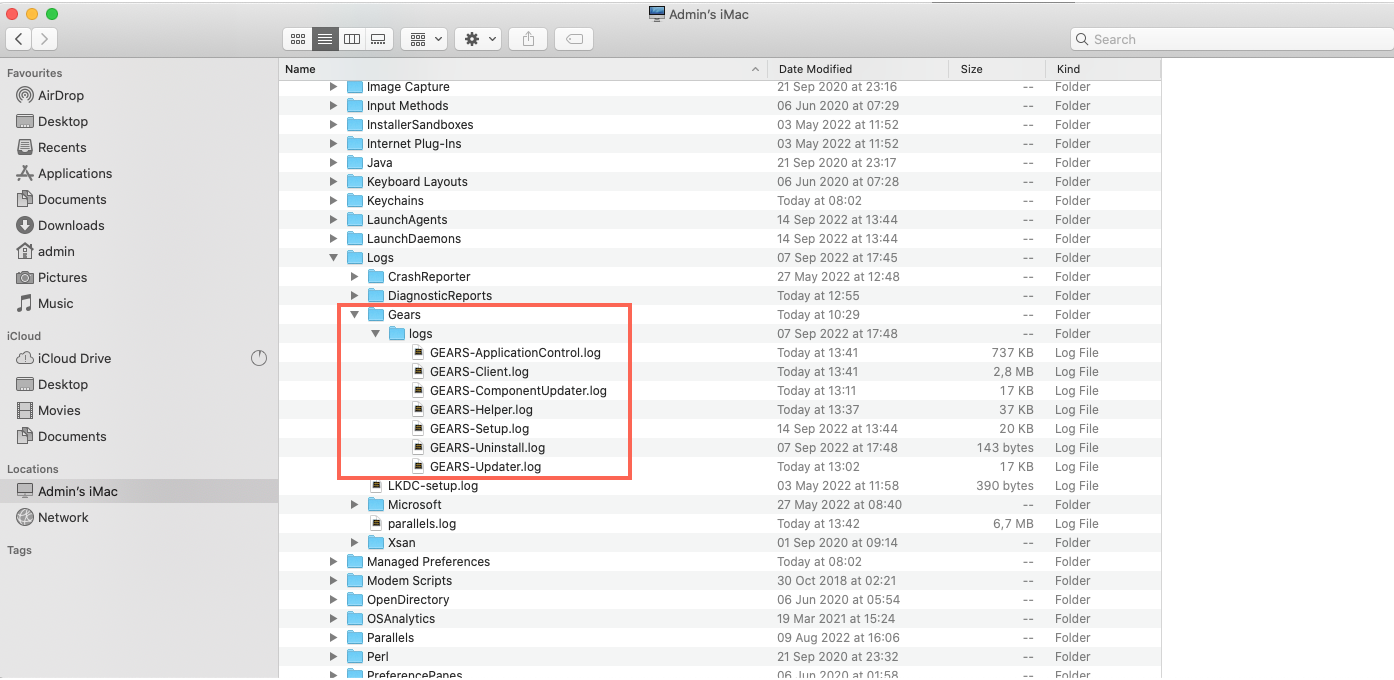
Copy the required logs, to be compressed (if necessary) and forward to the OPSWAT team.
macOS (On-Demand MetaDefender Endpoint)
Go to the relevant locations below to collect the required logs:
Client logs:
For MetaDefender Endpoint version 10.5.218.0 or earlier, go to /Desktop/gears-ondemand.log
For MetaDefender Endpoint version 10.5.222.0 or later, go to /Users/{username}/Library/Logs/Gears/logs
Crash dumps:
Open Finder and go to /Library/Logs/DiagnosticReports
When running the macOS On-Demand MetaDefender Endpoint as Root, go to the locations below to collect the required logs:
MetaDefender Endpoint logs:
Go to /var/root/Desktop/gears-ondemand.log
Additional malware logs:
Go to /Library/Logs/Gears/logs/Metascan-Client-V2.log
Copy the required logs, to be compressed (if necessary) and forward to the OPSWAT team.
If on-demand Client is triggered by third-party vendors, go to the relevant location/s below to collect the required log/s:
Omnissa Horizon Client (formerly known as VMWare Horizon Client)
/Users/<User name>/Library/Logs/Gears/logs/<License Key>/GEARS-Ondemand.log
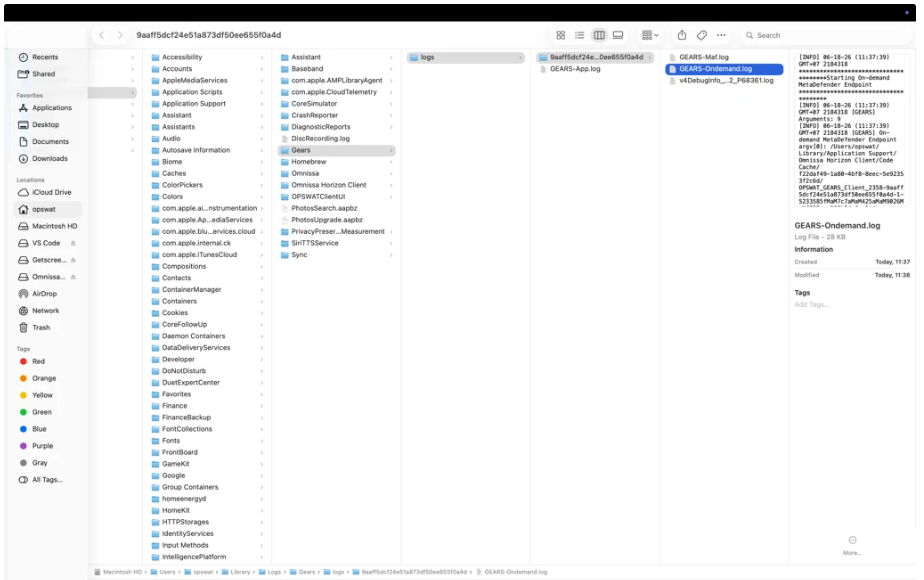
For Omnissa Horizon Client log: /Users/<username>/Library/Logs/Omnissa Horizon Client/
Linux V4 (Version 15.x.y.z)
Go to the location below to collect the required log:
Client logs:
Go to /var/log/opswatclient
Copy the required log, to be compressed (if necessary) and forward to the OPSWAT team.
Linux V3 (Version 14.0.x.y)
Go to the relevant locations below to collect the required logs:
Client logs:
Go to /var/log/gears/log
Error logs:
Go to /var/log/gears.err
Configuration logs:
Go to /etc/gears/gears.json
Copy the required logs, to be compressed (if necessary) and forward to the OPSWAT team.
Android/iOS
On mobile devices, logs are stored in memory, but can be emailed directly from the OPSWAT Mobile App by selecting the Report a Bug option.
OPTION 2: Retrieve logs remotely via the My OPSWAT Central Management Console
This method:
requires administrator privileges on the associated My OPSWAT Central Management account
requires that the device is enrolled & connected to the My OPSWAT Central Management server
is only applicable to Windows/macOS Persistent MetaDefender Endpoint clients
to learn which versions support this command, Read This.
As a My OPSWAT Central Management account administrator, follow the steps below:
Log into the My OPSWAT Central Management Console and navigate to Inventory>Devices.
Use the Search field to locate the relevant MetaDefender Endpoint device.
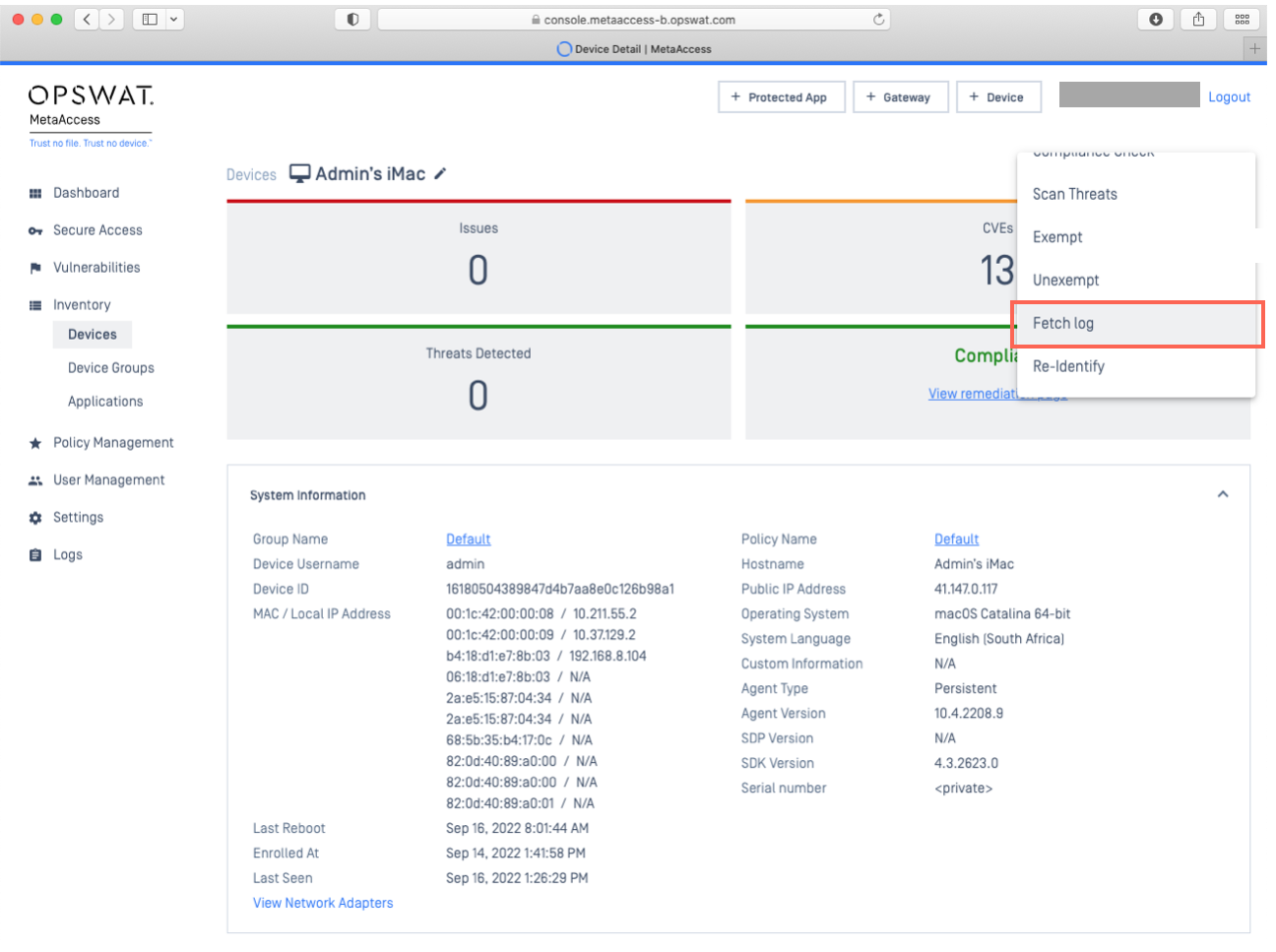
Click on the chosen device, then access the Select Action drop-down menu in the top right-hand corner of the screen, directly under your username.
Select the Fetch log option, as illustrated in the screenshot below.
To view the log you fetched: Go to Inventory>Devices>selected device>Events>Device Logs, as illustrated below.
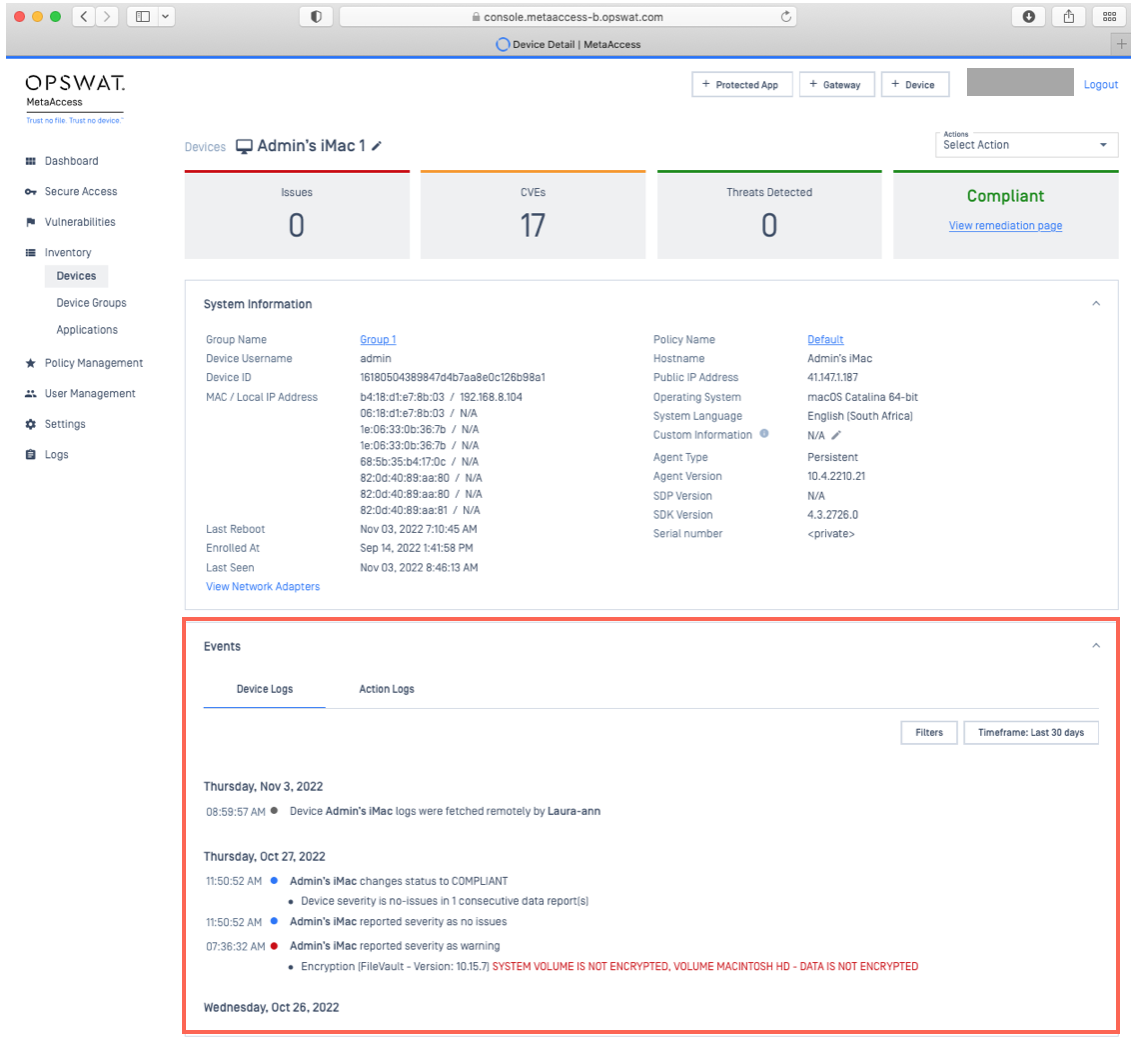
When a MetaDefender Endpoint device is connected to My OPSWAT Central Management Cloud, the device will collect the log files and submit them directly to the My OPSWAT Central Management Cloud.
If you have any queries, concerns or issues around Collecting MetaDefender Endpoint Logs To Send To OPSWAT Support or to Send Log Files To OPSWAT Support, please open a Support Case via phone, online chat or form. If you have been asked to send Client logs to OPSWAT Support as part of the troubleshooting process, but they are too large to email or attach to the support ticket, please use the Large File submission feature on the OPSWAT Support Portal, Here.