
This article applies to the current My OPSWAT Central Management and all MetaDefender Endpoint releases deployed on Windows, macOS, and Linux systems.
With the incalculable number of applications available for users to download and install (sometimes actively, sometimes inadvertently) it is critical that IT and security professionals establish maximum visibility and control over their network of managed devices.
Shadow IT, riskware, grayware, potentially unwanted applications and potentially unsafe applications are all very real threats that can dramatically increase the chances of a breach, infection, data theft, or other harmful event.
MetaDefender Endpoint is designed to rapidly detect and categorize installed applications on each device on which it is installed, while observing which of them are actively running and when.
This information is then encrypted and sent to My OPSWAT Central Management, where it is added to the database for that device, to be acted upon by the administrator.
To set up application controls for your managed devices via the My OPSWAT Central Management Console, please follow the instructions below.
Go to your My OPSWAT Central Management Console>Policies>Endpoint Security>select the policy to edit>Application Control
You will now see a list of software categories for Windows, macOS & Linux devices. Dropdowns & checkboxes exist for indicating which rules to be apply to applications in each category:
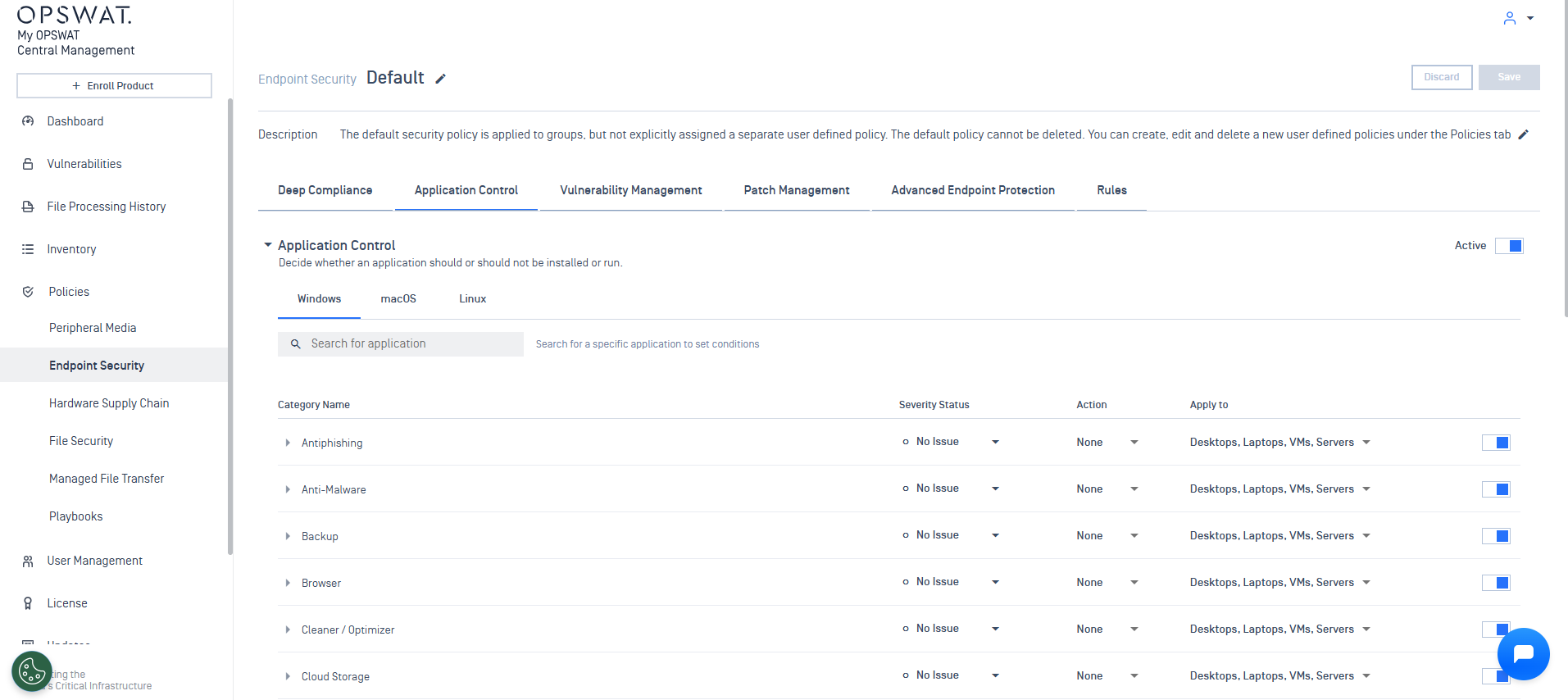
For each category, you can set rules for reporting/consideration, actions to take, and device types to include for each rule.
Severity Status (set the severity level if the application is installed or running)
If Installed
No Issue
Warning
Critical
If Running
No Issue
Warning
Critical
Action
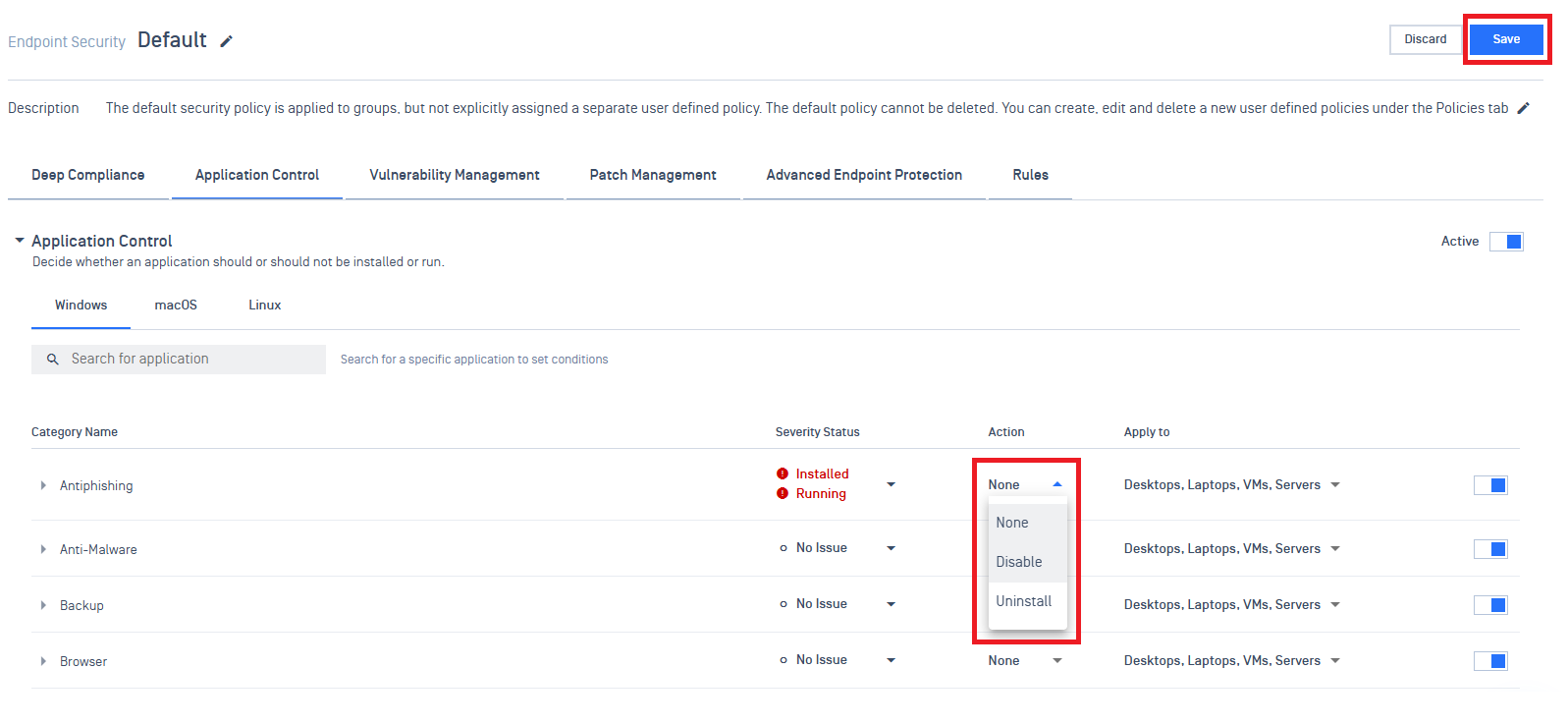
None (take no action)
Disable (close the application)
Uninstall (uninstall the application)
Apply to (select the device type to apply these rules to)
Desktops
Laptops
VMs
Servers
Toggle (enable/disable the rule for application/category)
Click Save to apply your settings.
If you set Actions (Uninstall or Disable) in step 3, no further action is needed. The following steps only apply if, in step 3, you set a policy to treat certain applications (Installed or Running) as an issue, but opted not to configure an Actions setting.
Once your device policy is configured, additional issue categories and/or issue warnings will appear in your Inventory>Devices>select device to view>Detailed Device Information>All Categories view.
In this example, a policy was set against Antiphishing software, and so Antiphishing appears as a critical issue in red:
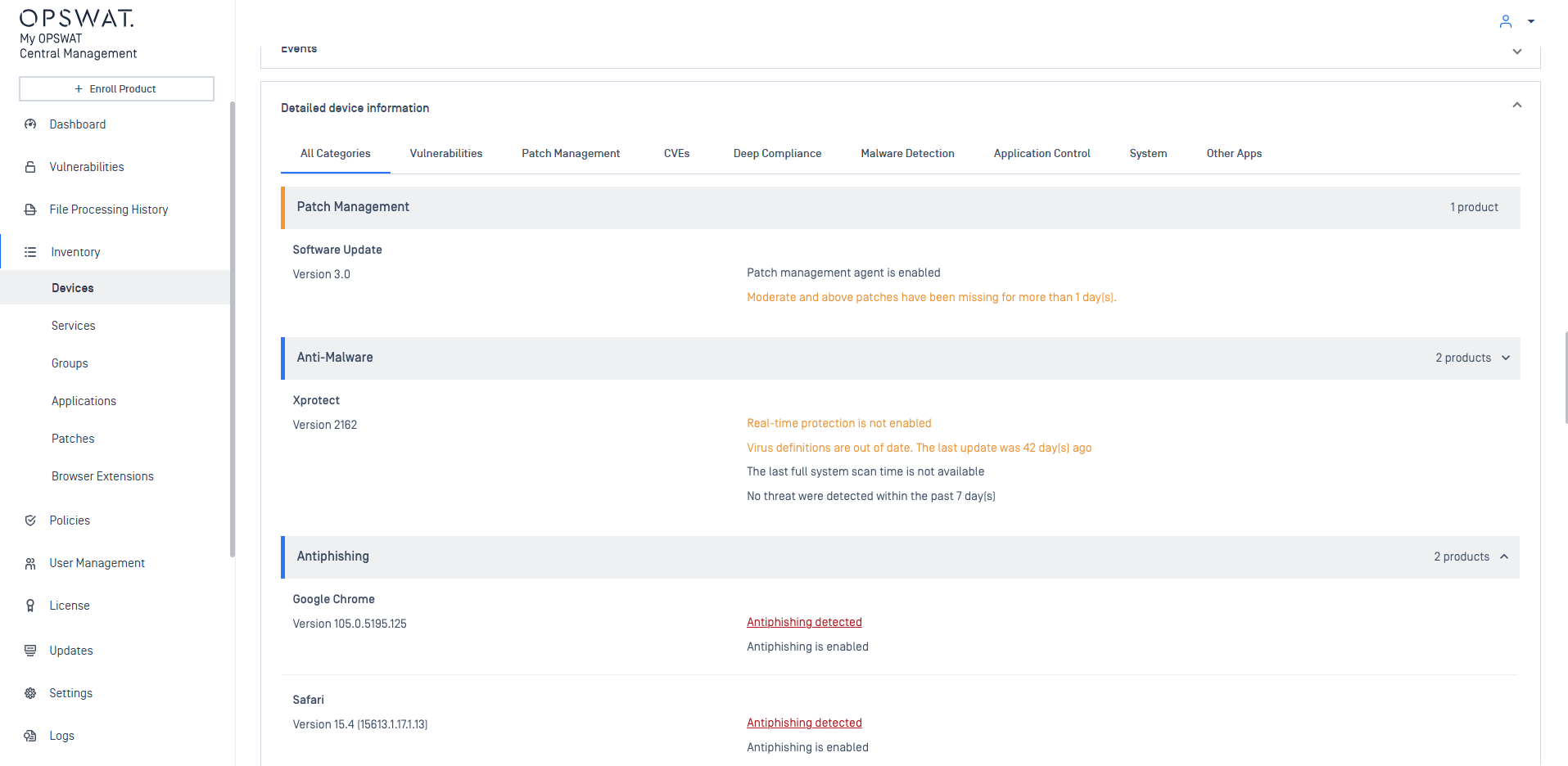
When you click on the issue, you will be redirected to the Application Control policy page, where you can choose to take further action by either uninstalling or disabling the offending software.
This is done by checking the appropriate box, and clicking Save:
If you have any difficulty Implementing Policies to Block Unwanted Applications via MetaDefender Endpoint, please open a Support Case with the OPSWAT team via phone, online chat or form, or feel free to ask the community on our OPSWAT Expert Forum.