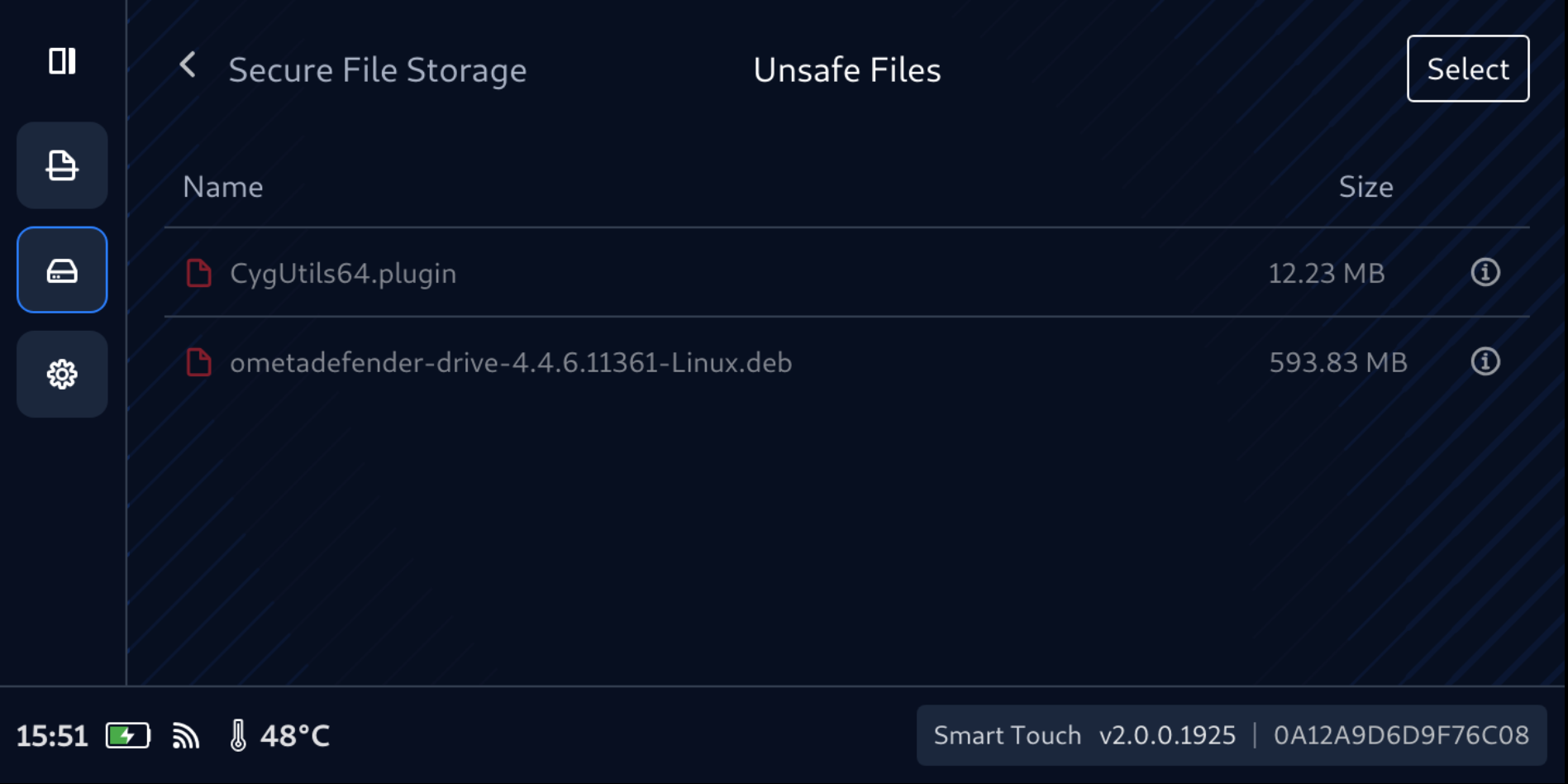
View files and folders inside Secure File Storage
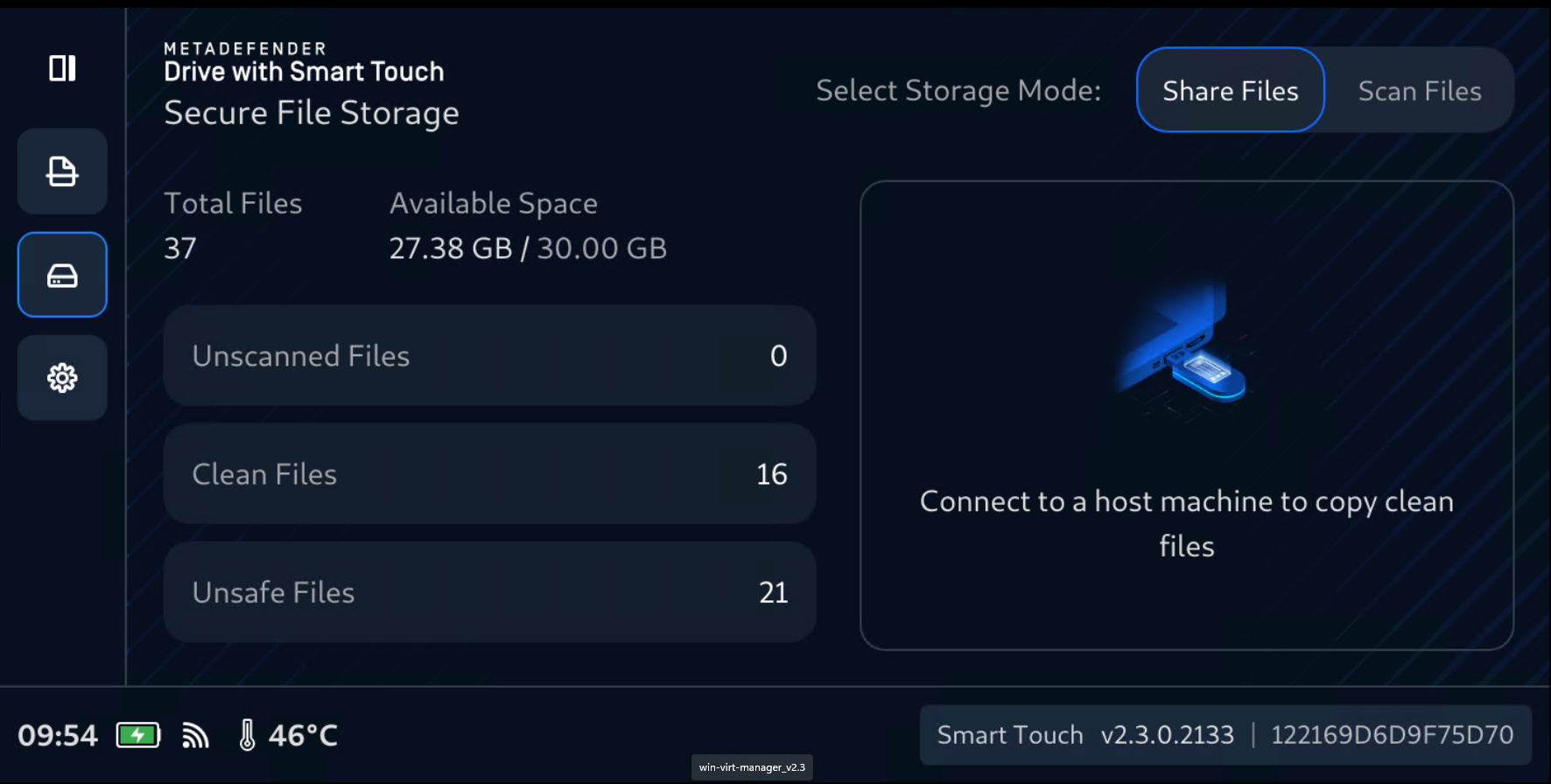
Tap any title Unscanned Files, Clean Files, or Unsafe Files to view what in there, and see what is consuming space, verify expected content, and make better decisions about sharing or cleanup. Note: info of size will just populate for Files only.
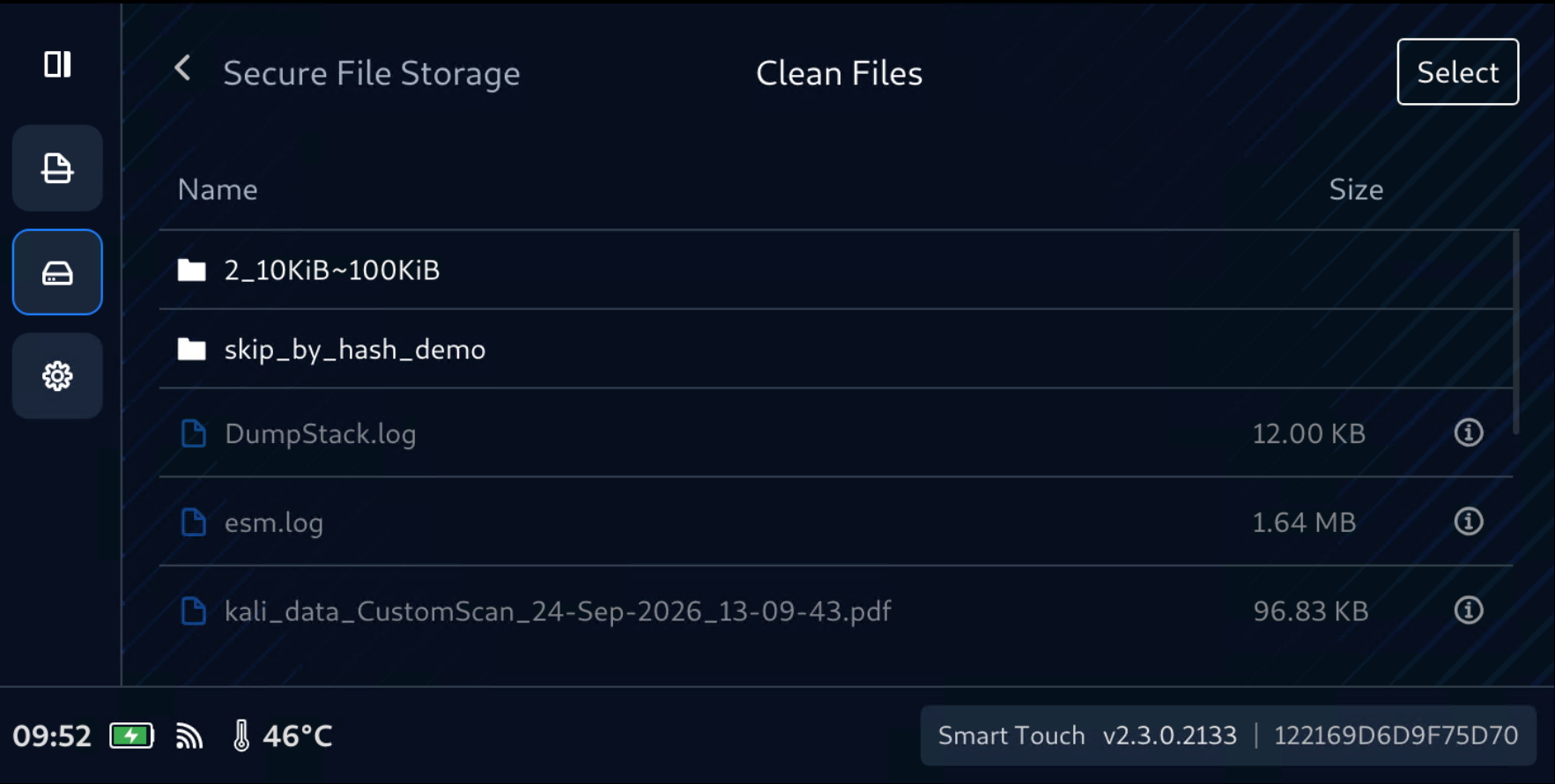
Size information is available only for Files, not for Folder
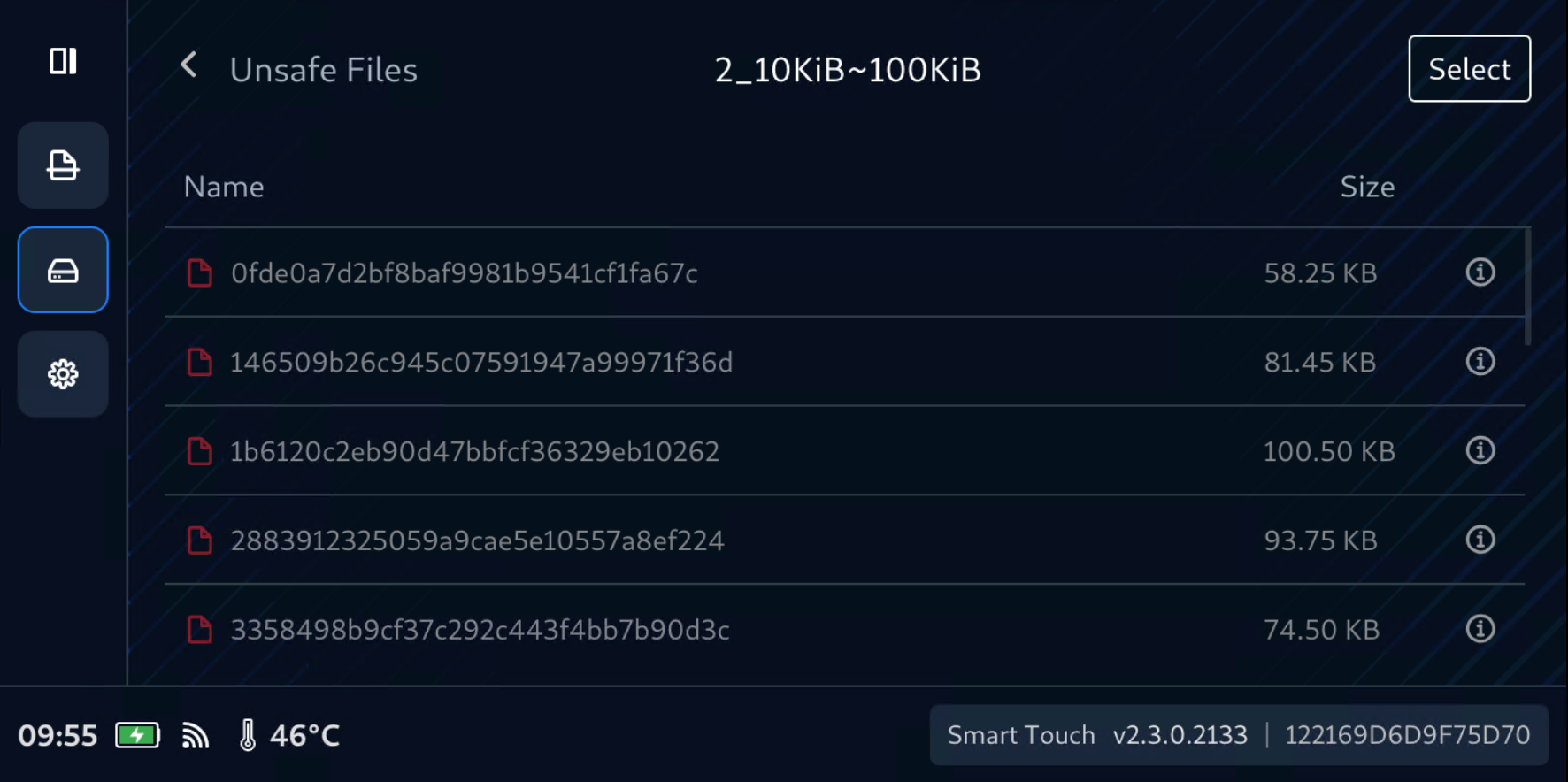
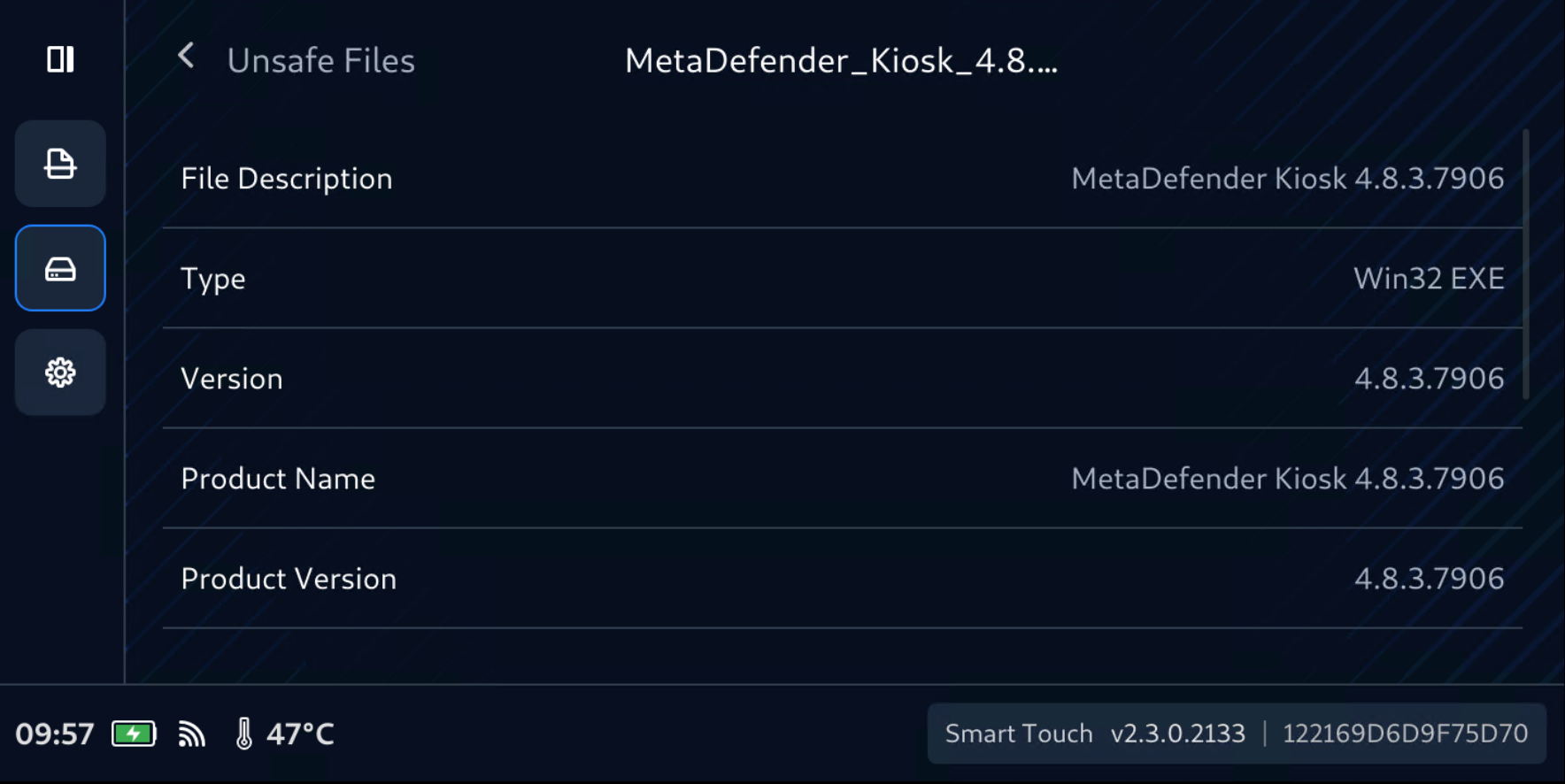
When tapping on the (i) icon, the detail information for file will show up
Select and Delete Files and Folders
Navigate to folder and files you wanted to manage
Tap Select button
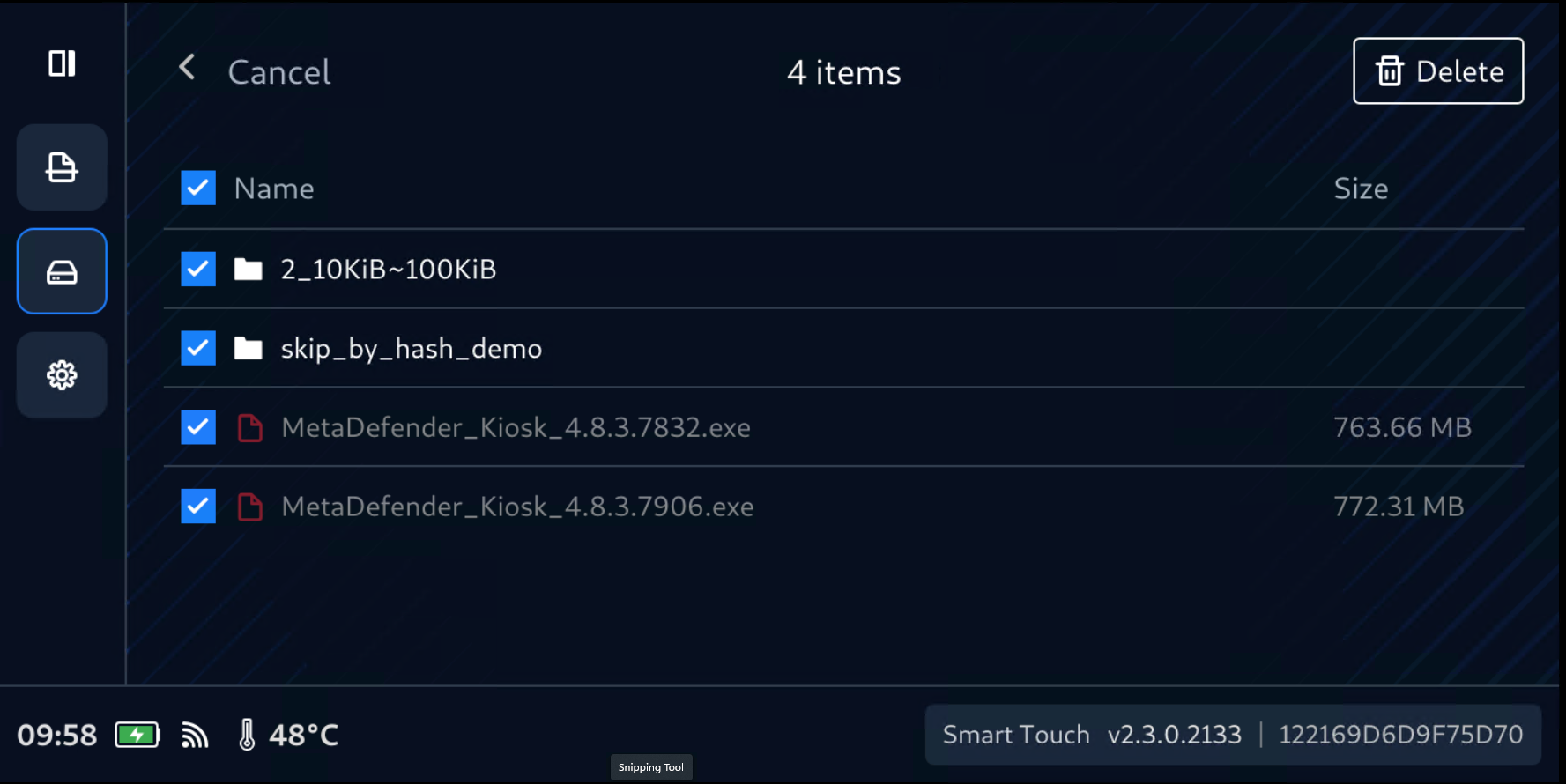
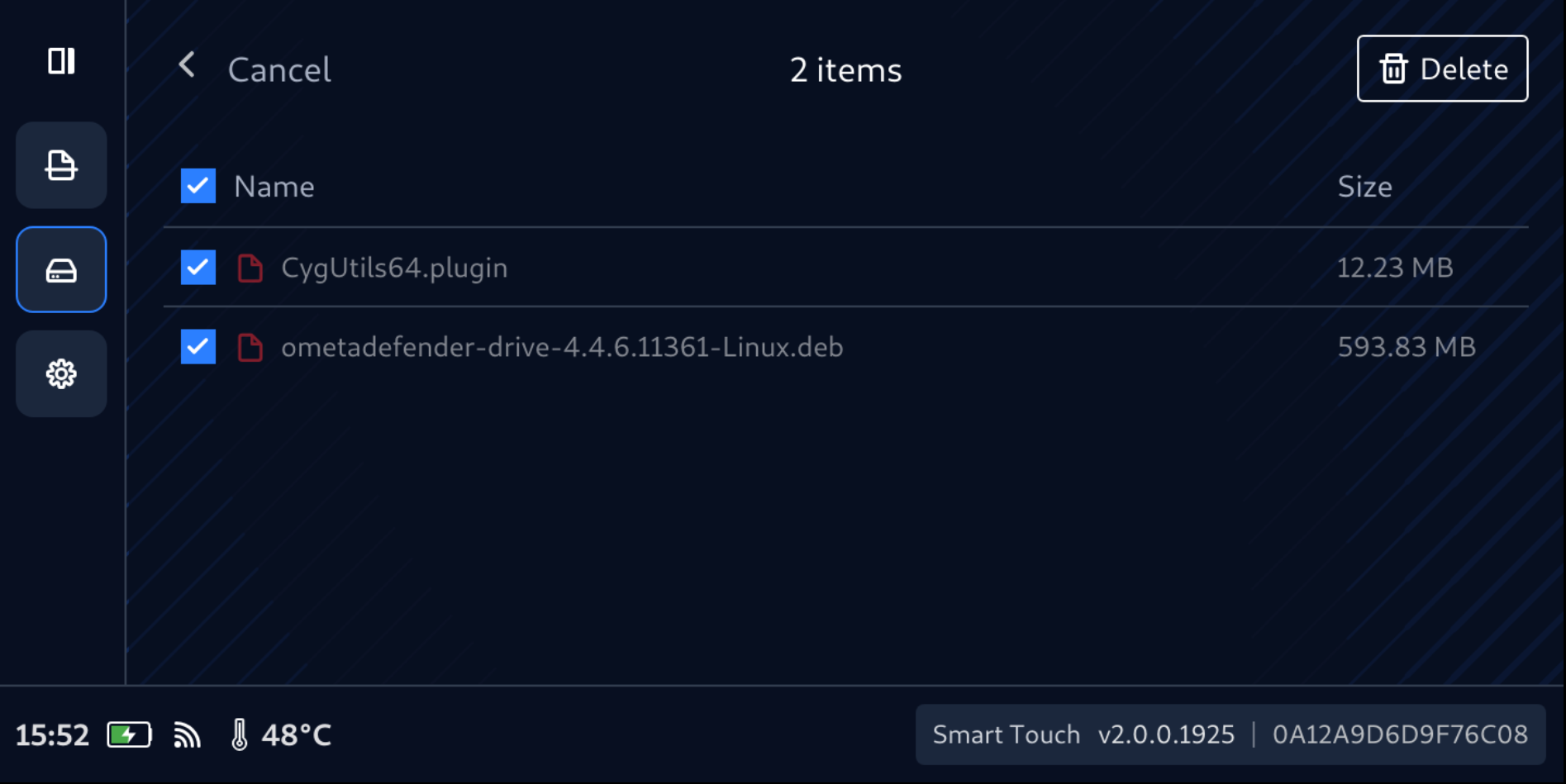
Check boxes will be available for each files and folder
Select files to delete, then tap Delete button
Confirm Yes, delete to delete selected files permanently
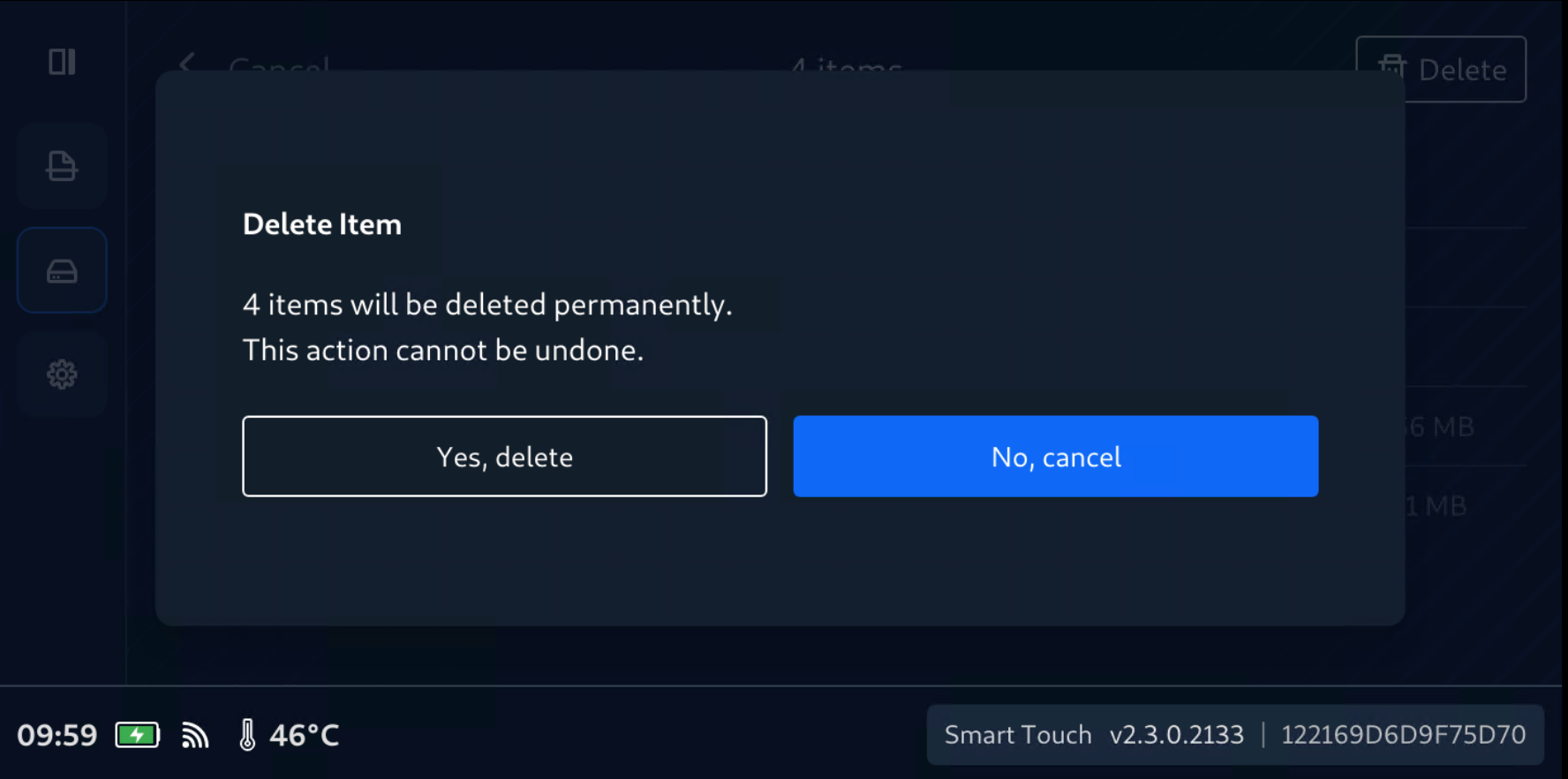
Confirming deleted files are gone
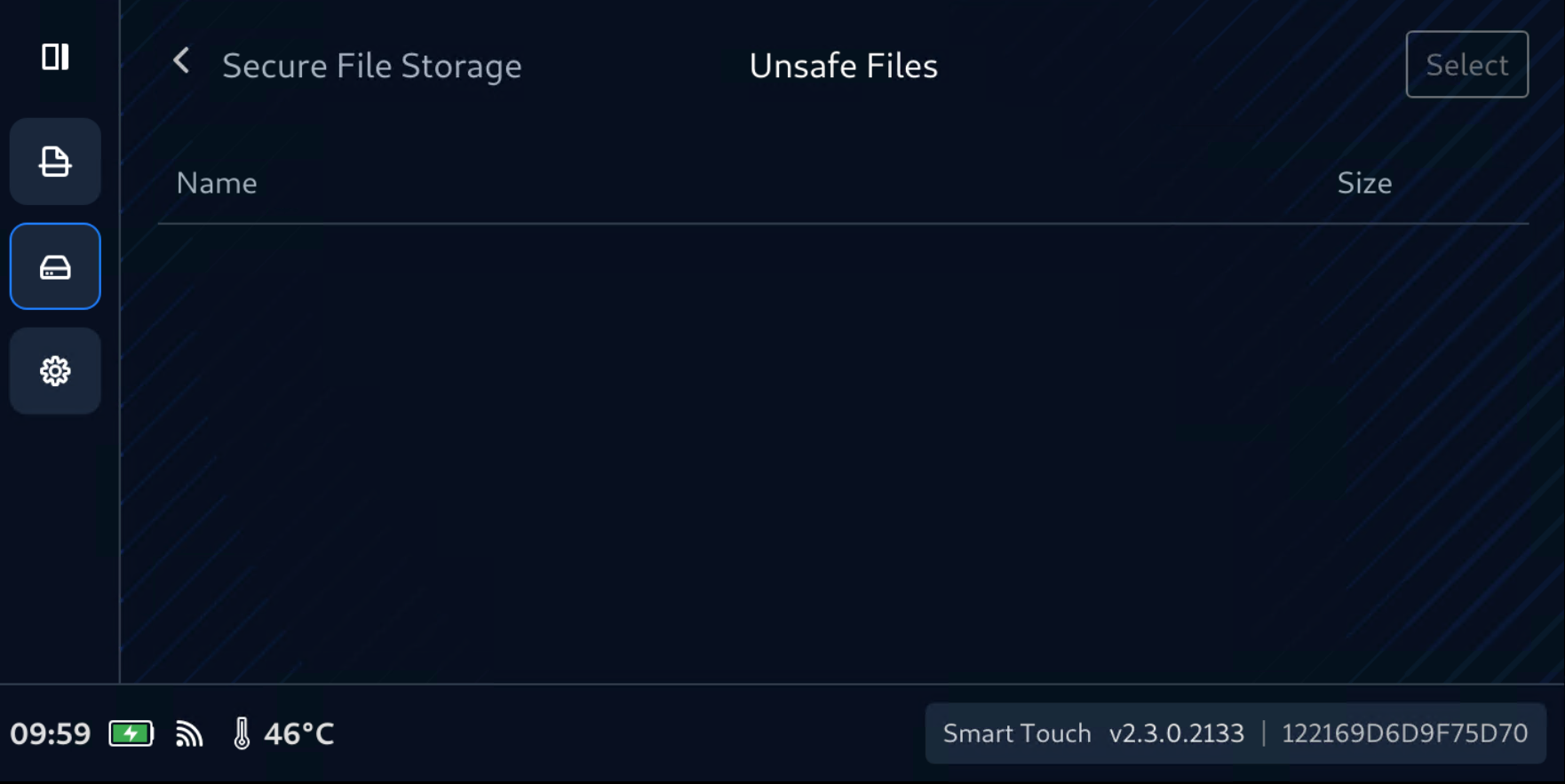
Notice that Select and Delete function is also available for Folder. So it should be handled with caution.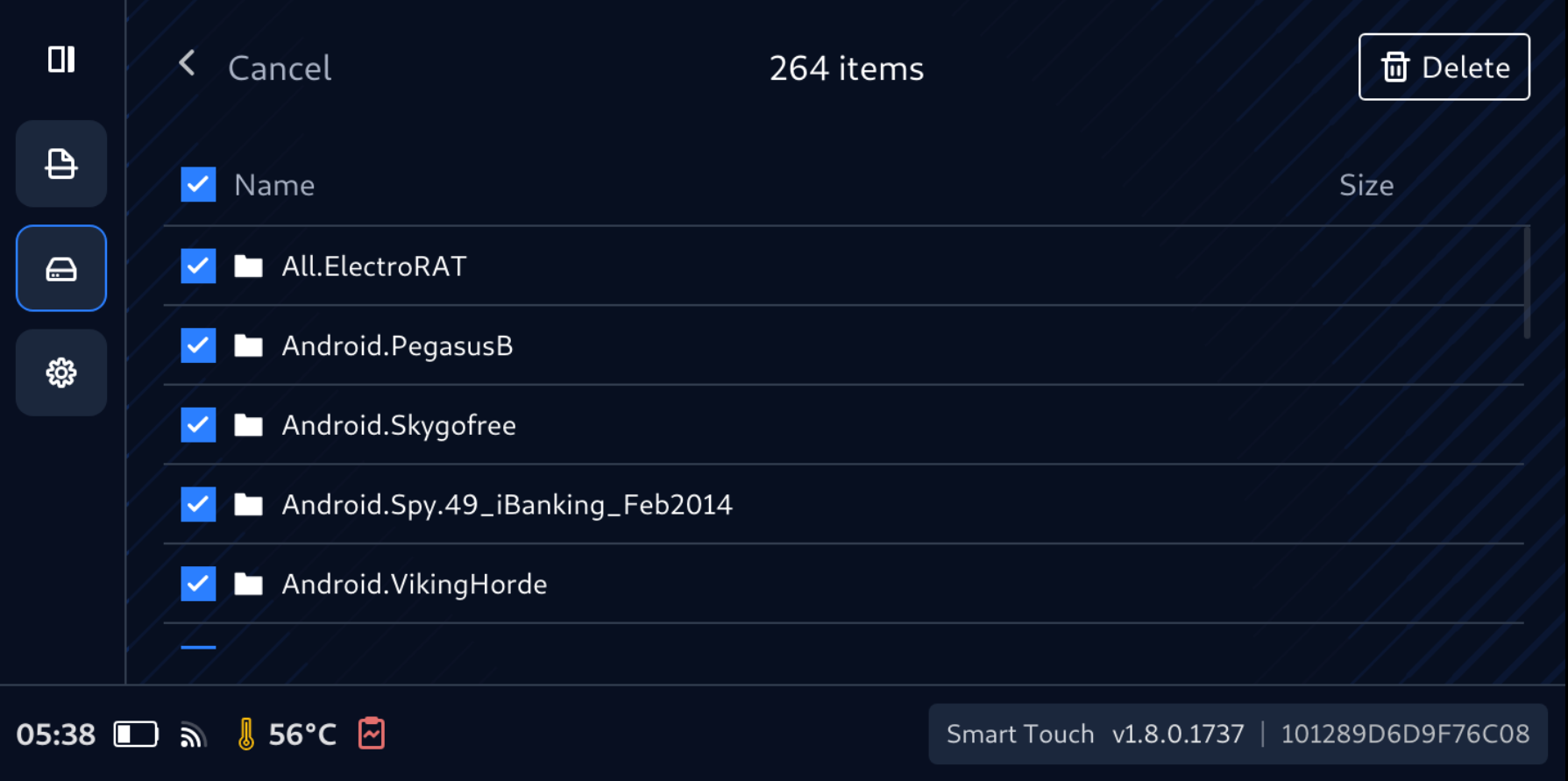
Remediation when File Secure Storage gets full
The total space available for Secure File Storage is 32GB and can be filled up if data not being cleaned up.
There will be the time when Secure Files Storage got full and the message will appear reminding that a clean-up is needed.
To clean-up the storage there are two ways:
Tap Erase All Data then follow instruction on screen
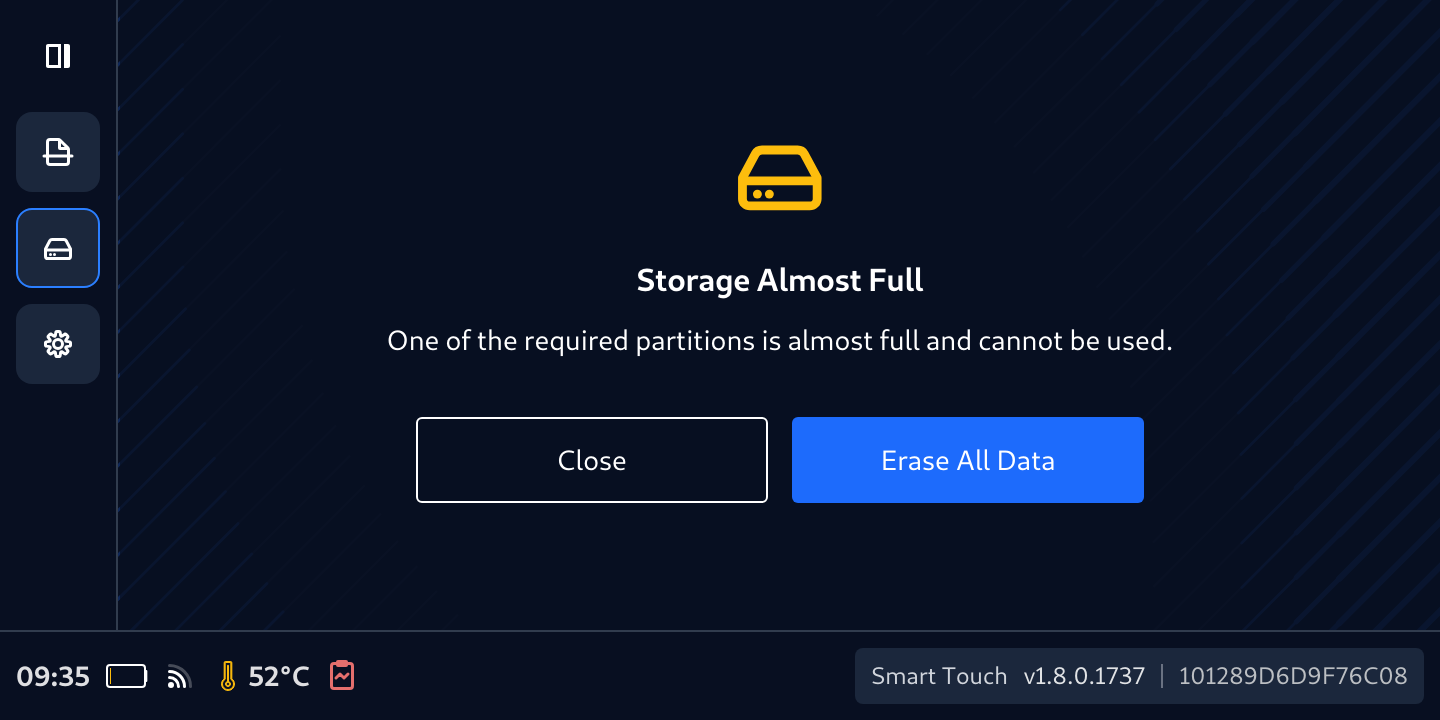
Tap Unsafe Files then select files or directories to delete them