While your device OS is running, insert your OPSWAT MetaDefender Drive into the device's USB Type-A port.
Navigate to the root folder inside the MetaDefender Drive partition and locate the MetaDefender Drive In-Sesion Scan.exe file
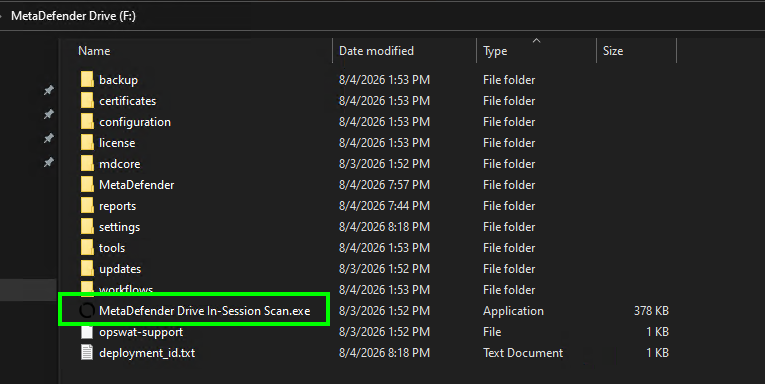
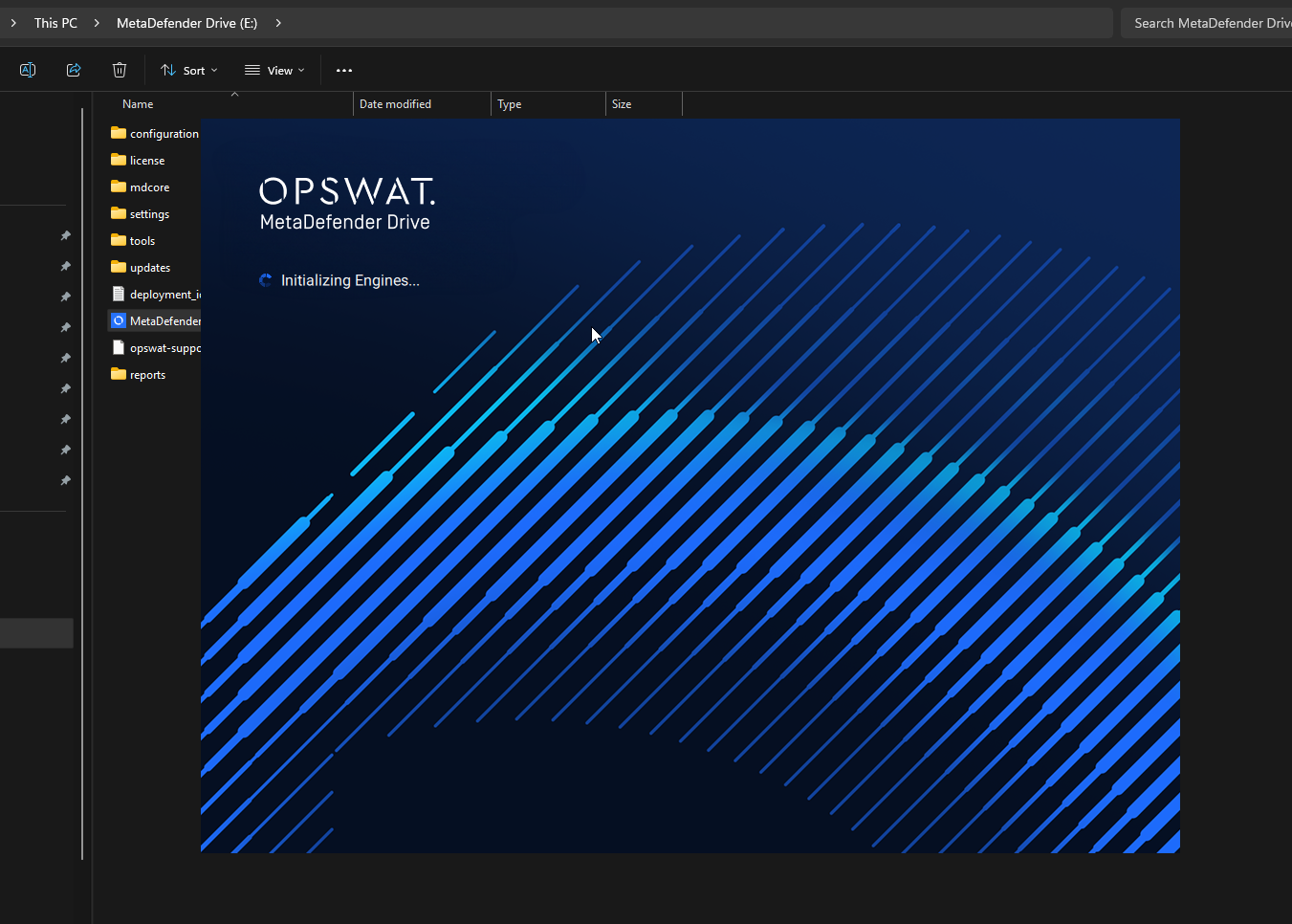
When click it, In-Session will initialize with a splashing screen
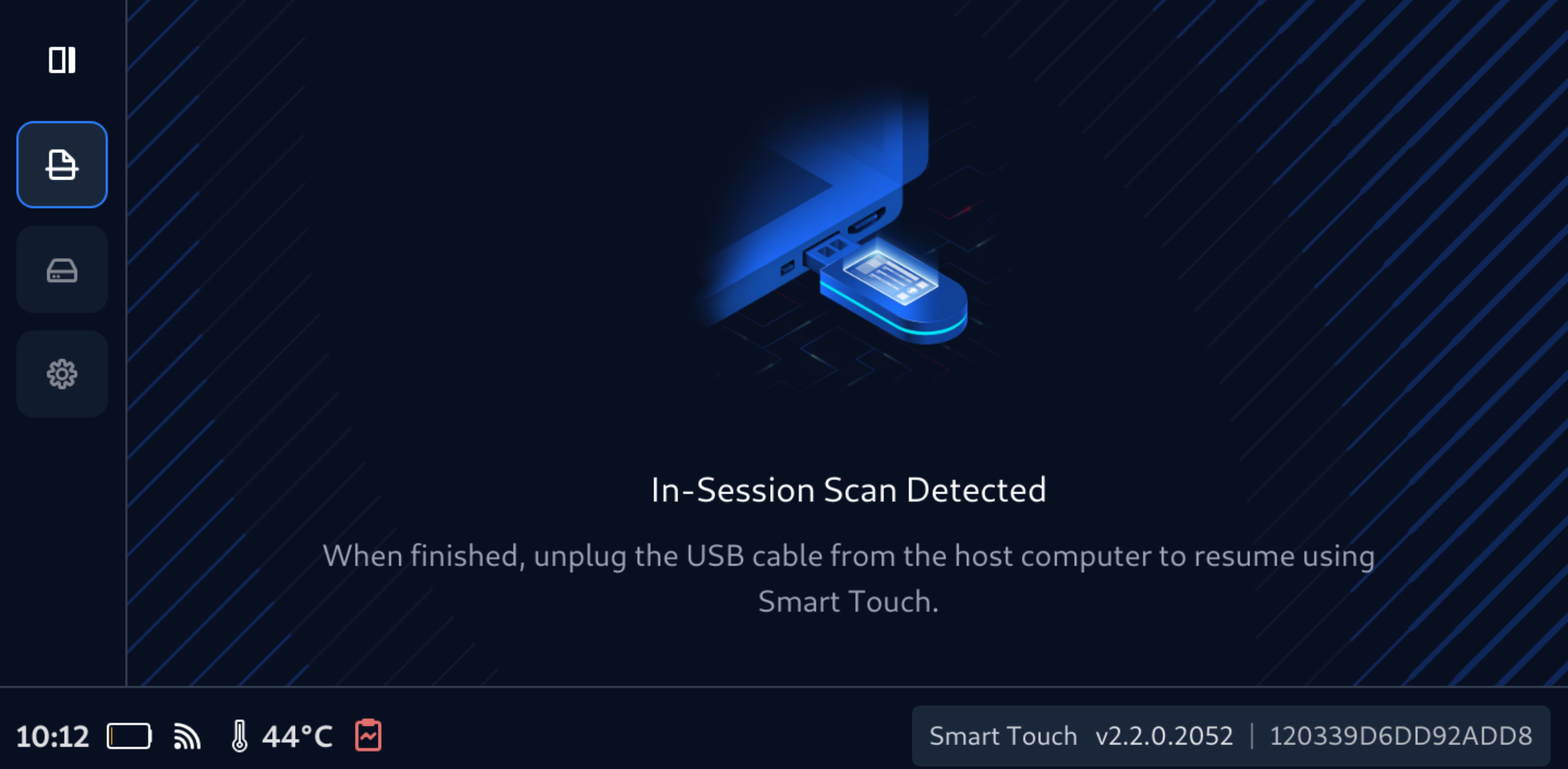
Launching In-Session from Smart Touch
If you are running In-Session from Drive with Smart Touch, on Smart Touch screen you will see it status changes to In-Session Scan Detected
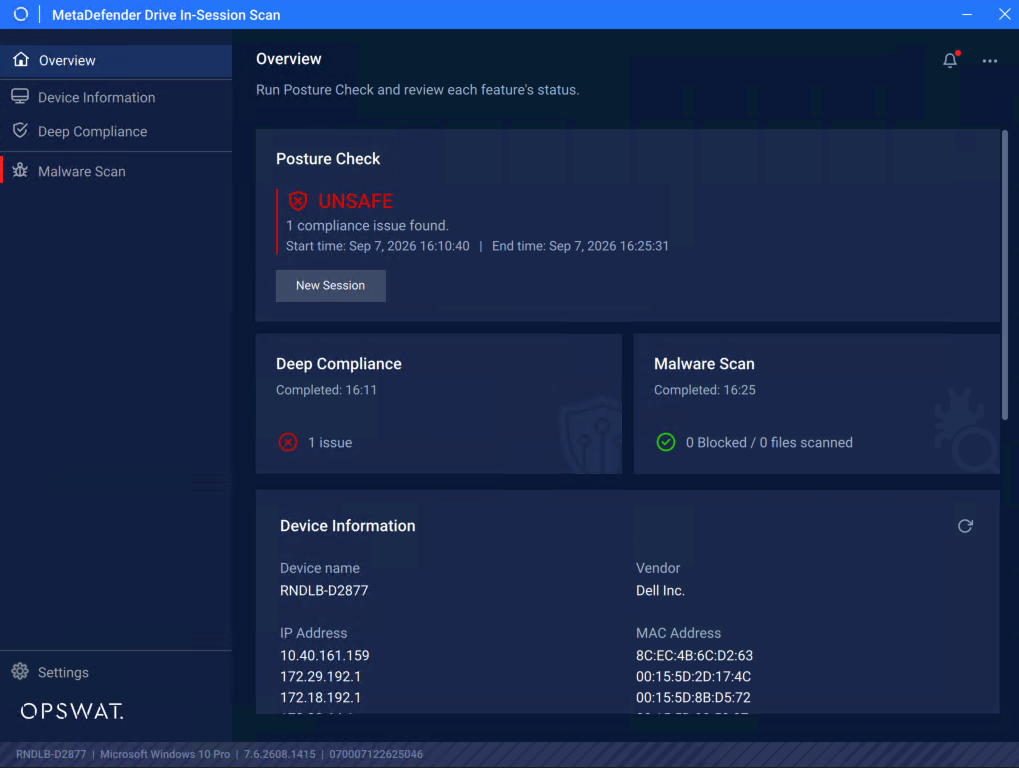
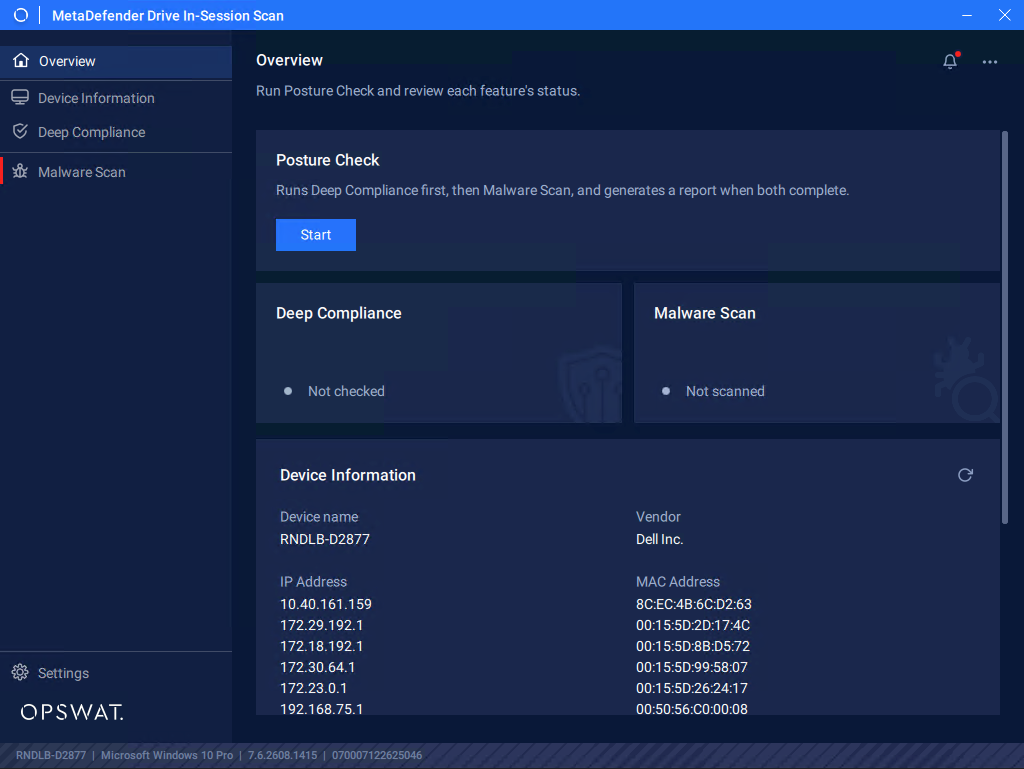
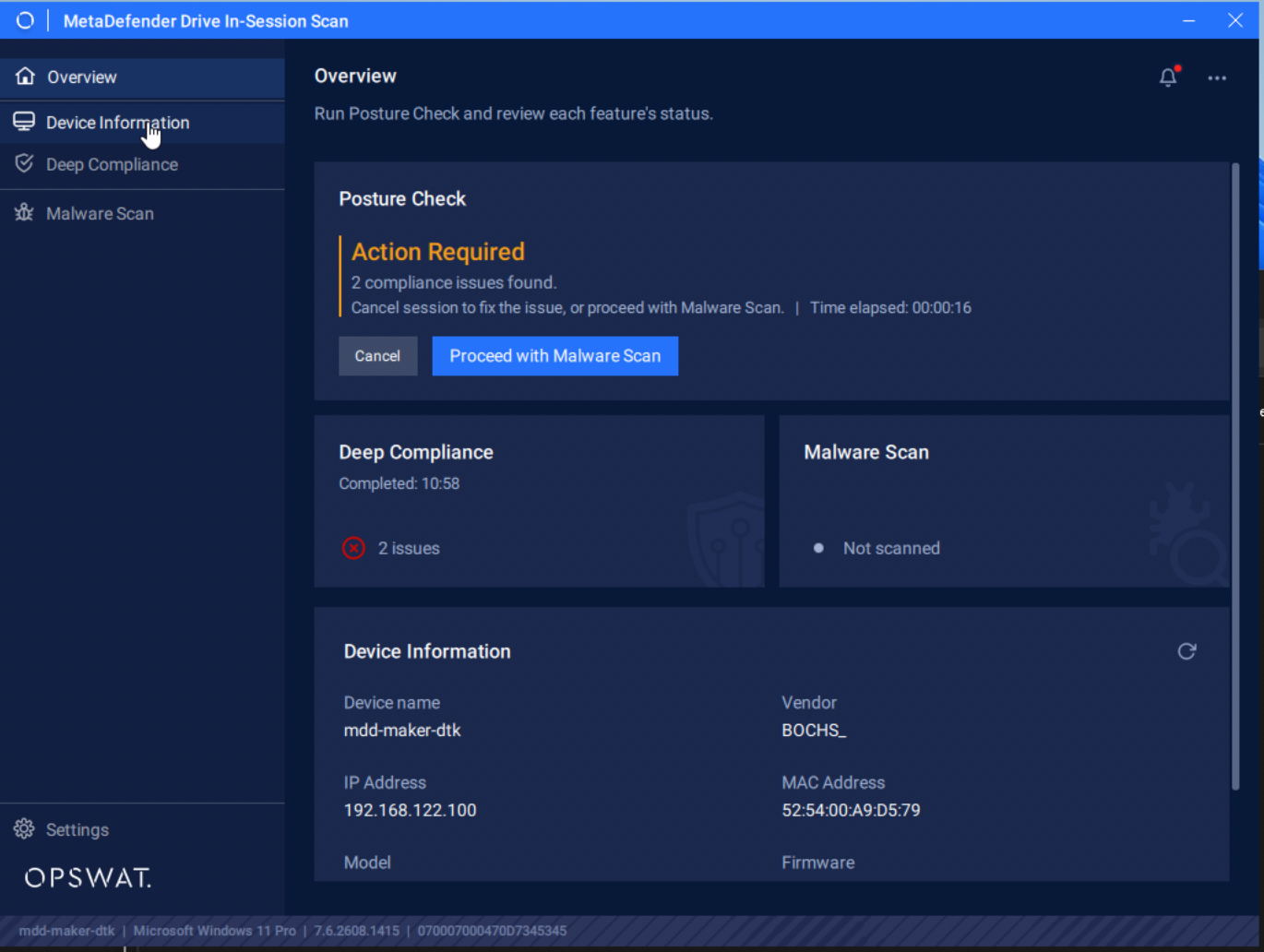
Then the application starts into Overview with option to run **Posture Check **which is a combination check where **Deep Compliance **will be triggered first and then **Malware scan **after
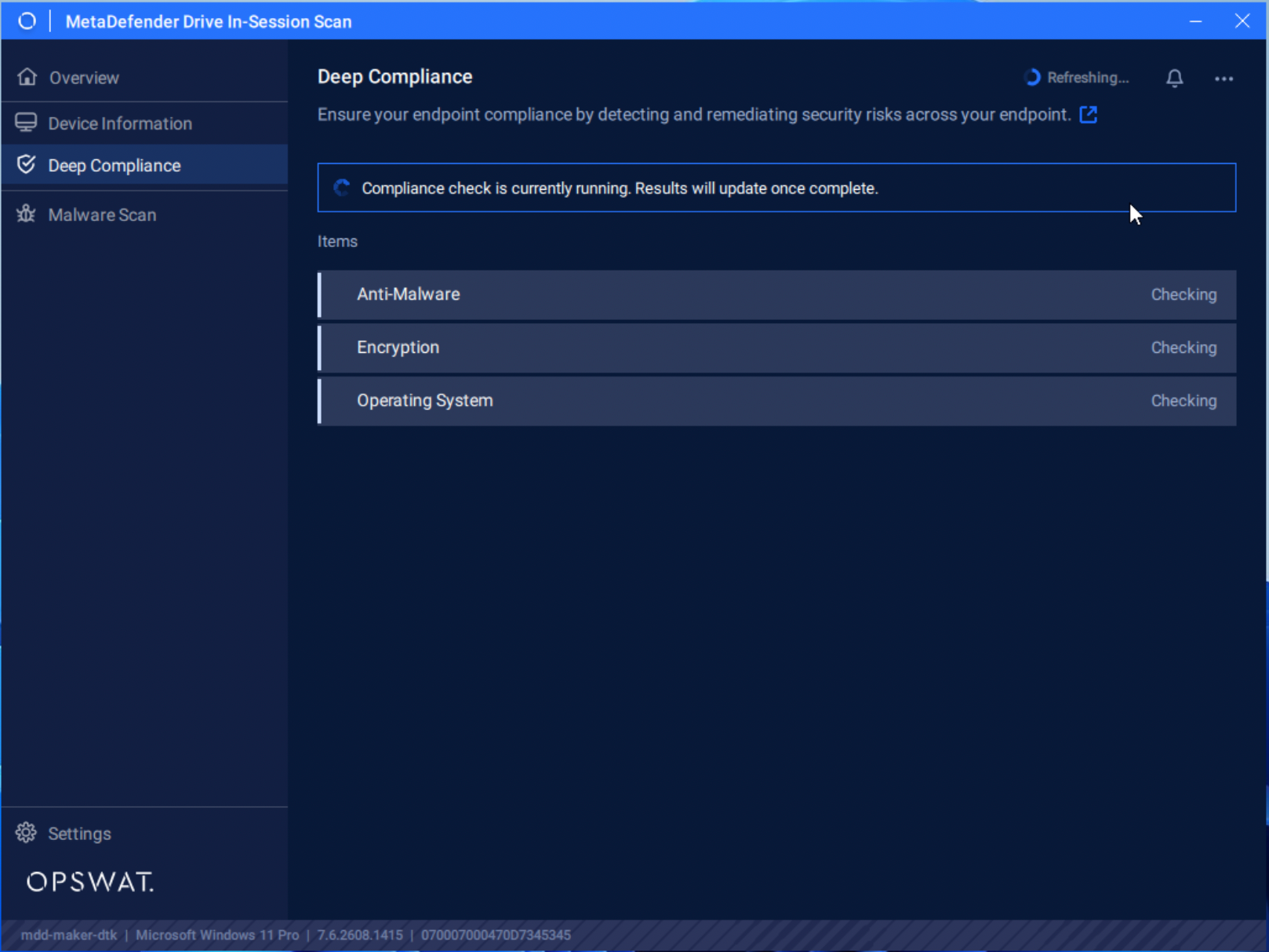
Deep Compliance checks if Operating System Update in **Anti-Malware, Encryption **
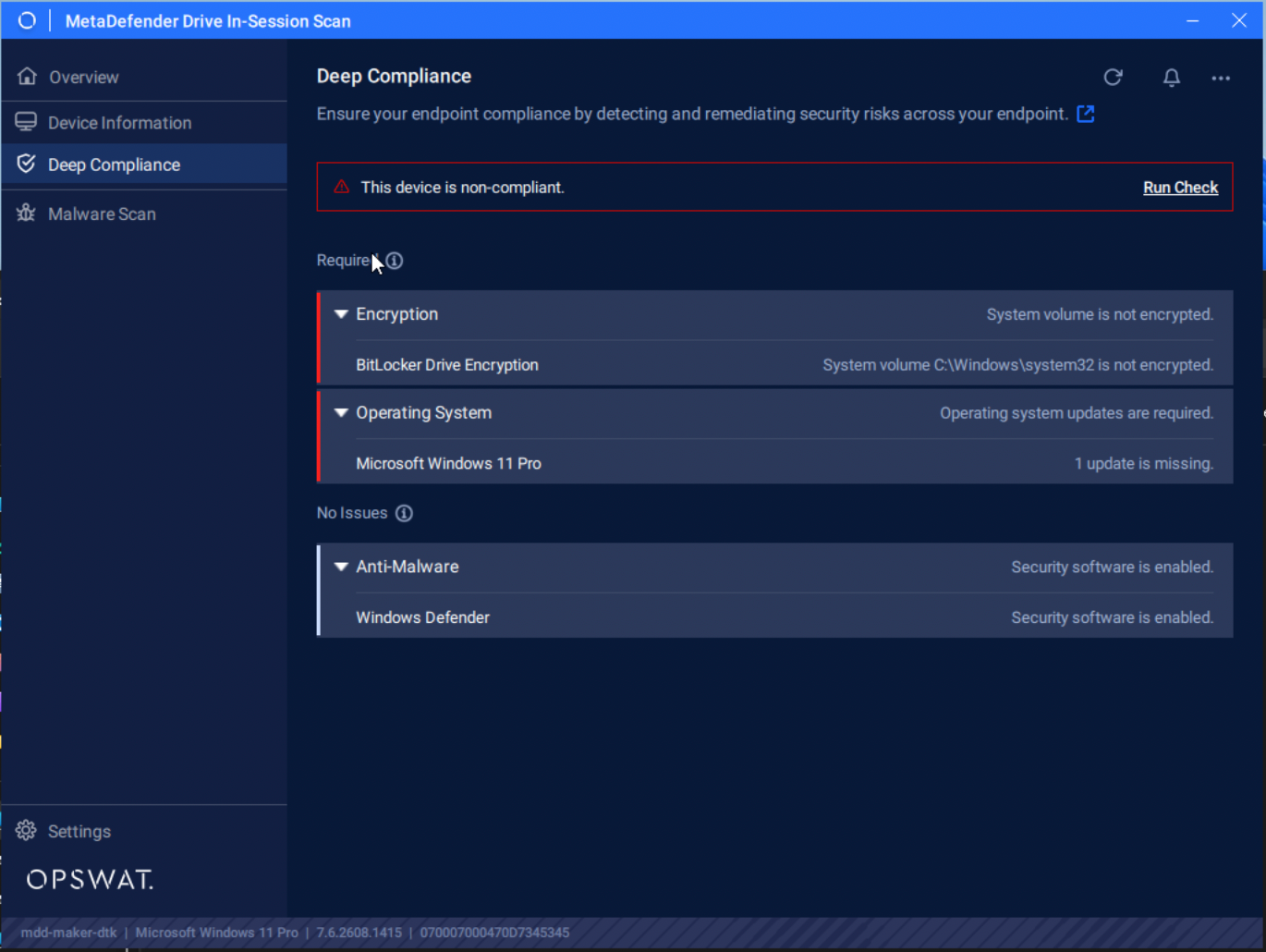
Any compliant issues will be reported in Deep Compliance tab, and can be expanded to provide more details
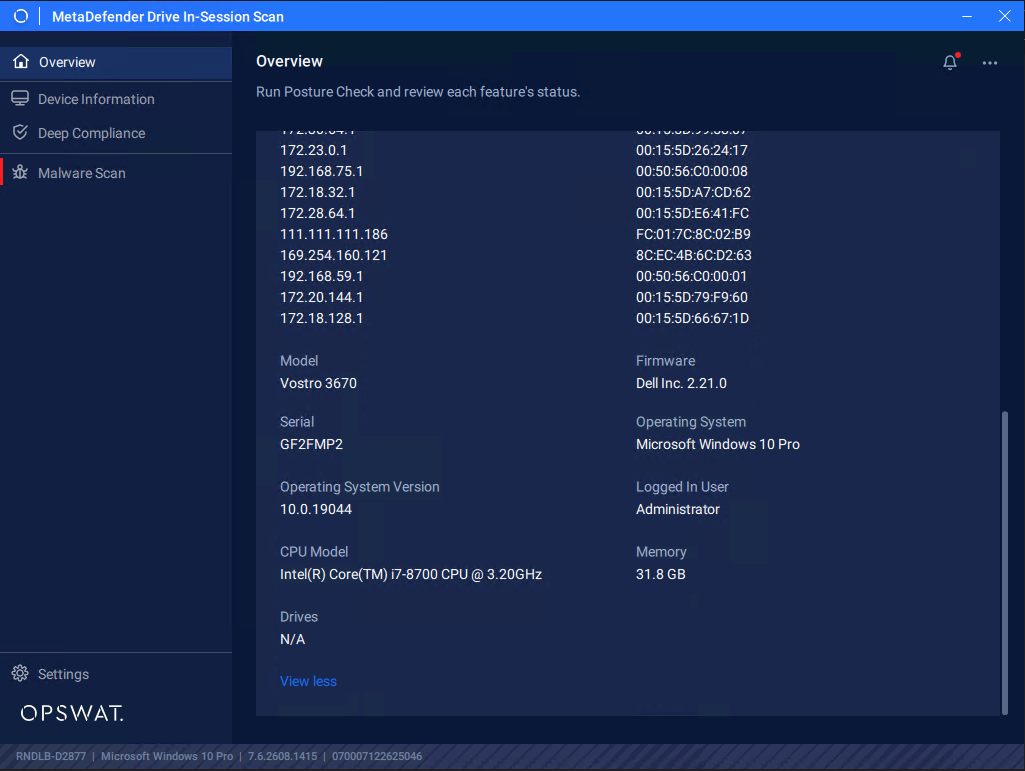
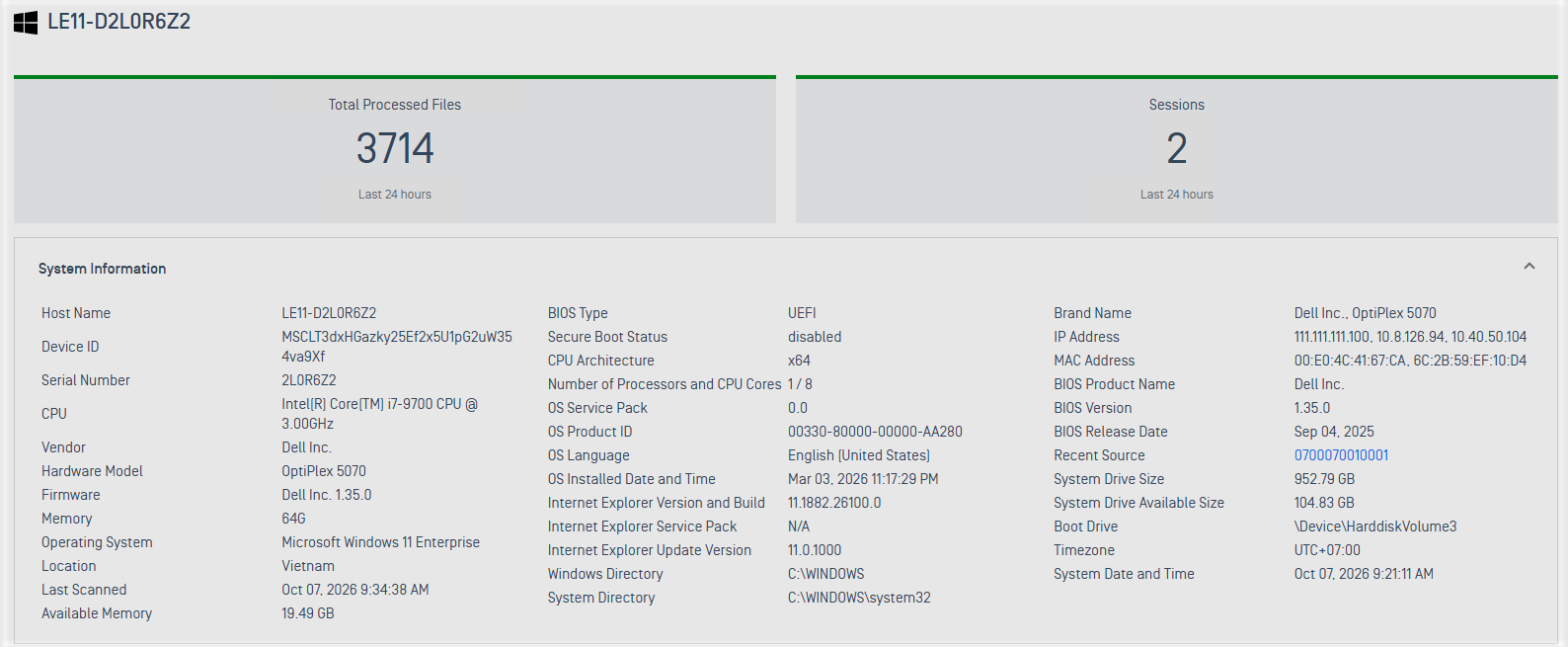
The issue will also be reflected in Device Information tab as well, along with other details about the device being checked
View collected information of the scanned devices from Central Management
If MetaDefender Drive is enrolled and managed by Central Management, after reports are synced, from Central Management, navigate to **Solution → Portable Malware Scanning → Dashboard → Scanned Host. **Click a scanned host, the collected information will be shown under System Information.
After** Compliance Check** is done, you can also chose to Proceed with Malware Scan
Click Malware Scan tab, you will see all of scan modes available for MetaDefender Drive In-Session
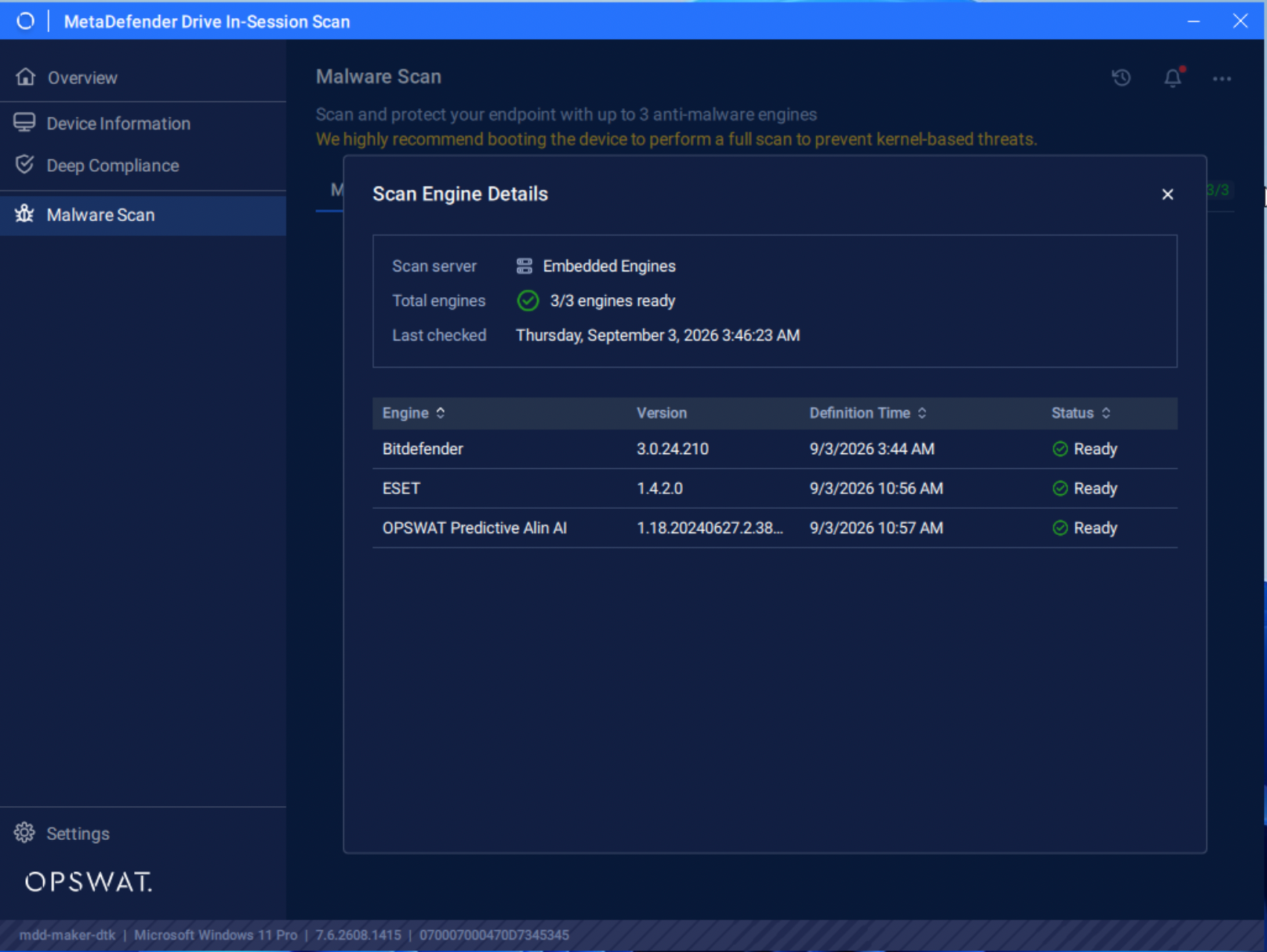
Engines for In-Session
Engines for In-Session scan will not be updated when In-Session is running. Engines must be updated in advanced by
Wait until all of the embedded engines display the Ready status. Click the (i) icon to see the embedded engines provided with the version. Those engines are only available after Drive has been updated either by Drive Toolkit or by Update from Drive's UI.
Memory Scan
To scan all the libraries loaded into the memory:
Click the Memory Scan tab, then click Start
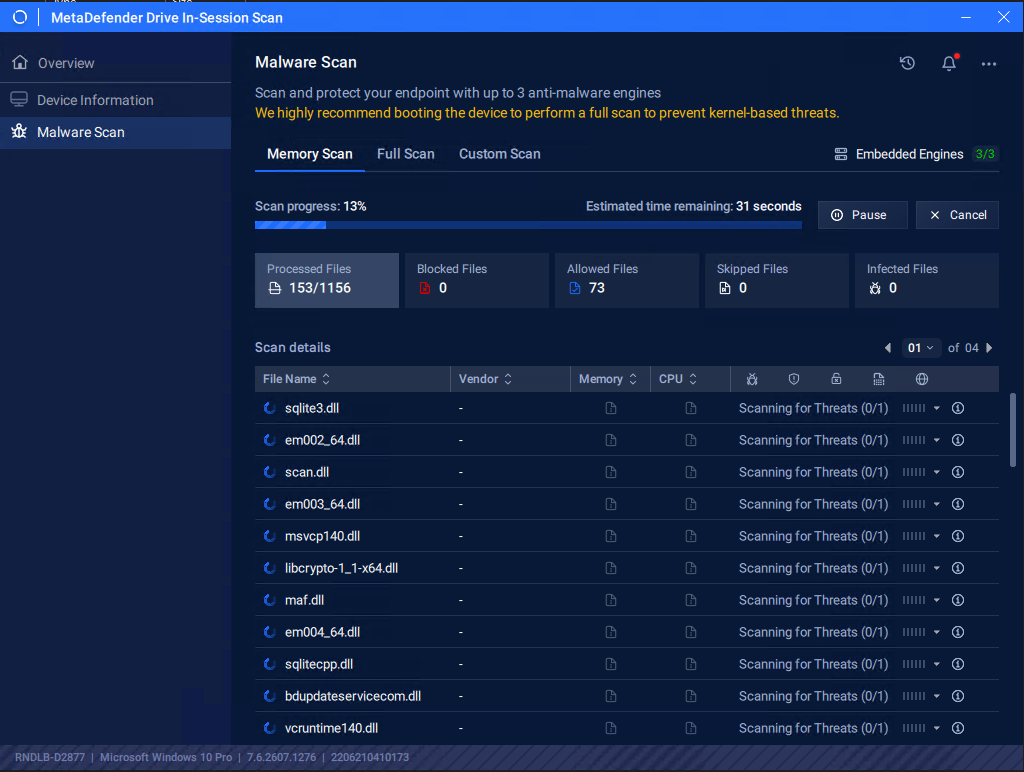
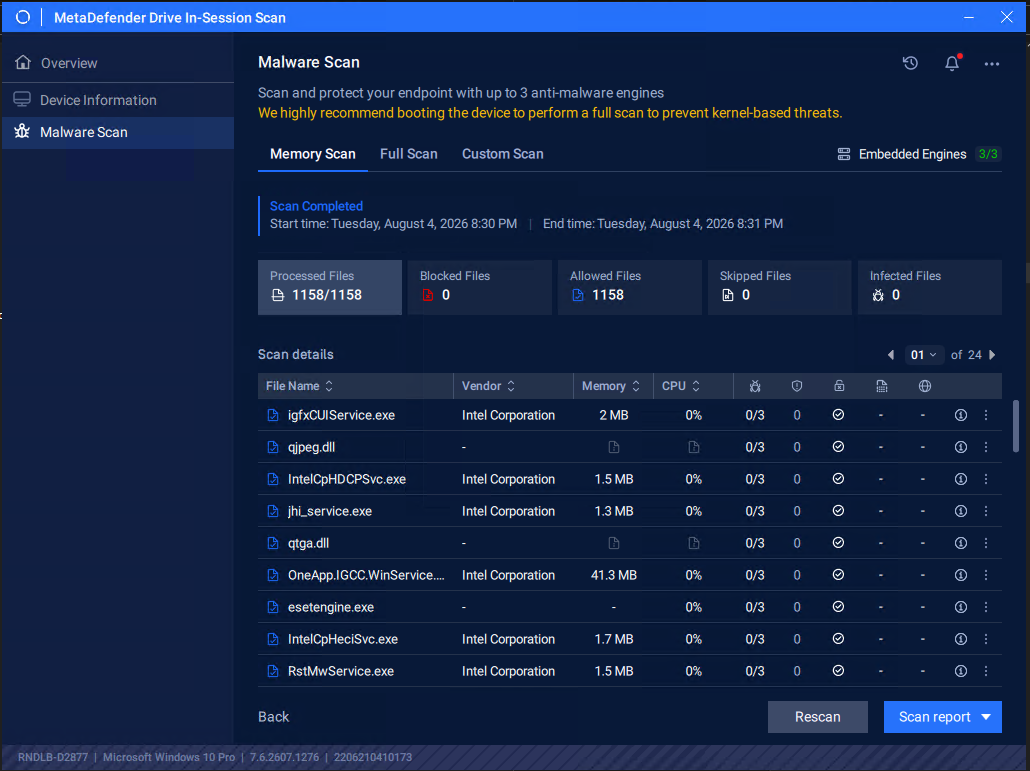
Once the scan is completed, the results of scanning all the libraries loaded into the memory will be displayed.
Full Scan
To run a full system scan:
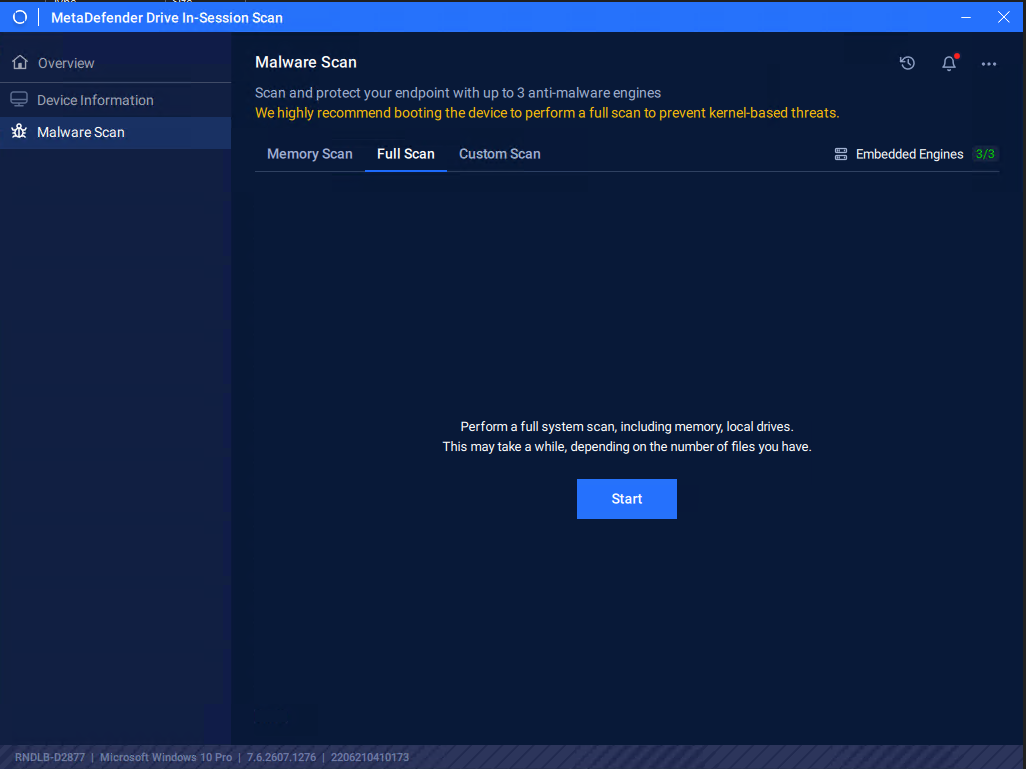
Click the Full Scan tab, then click Start
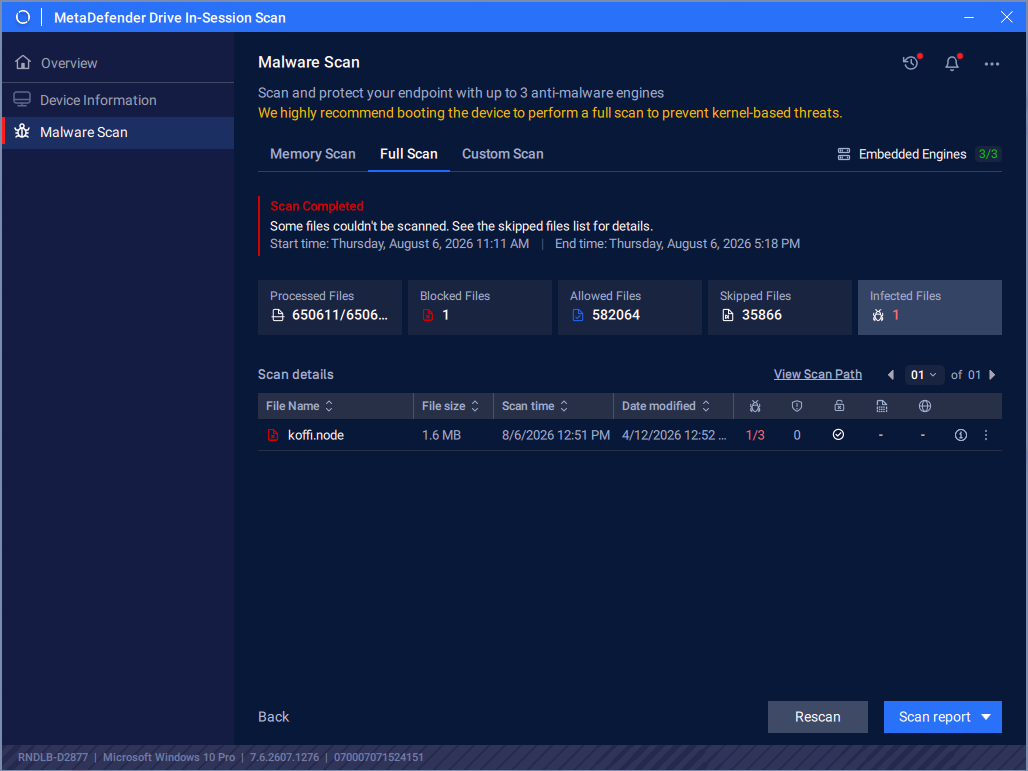
After scan completes, the full scan report will show:
Custom Scan
To select specific partitions, folders, or files to scan:
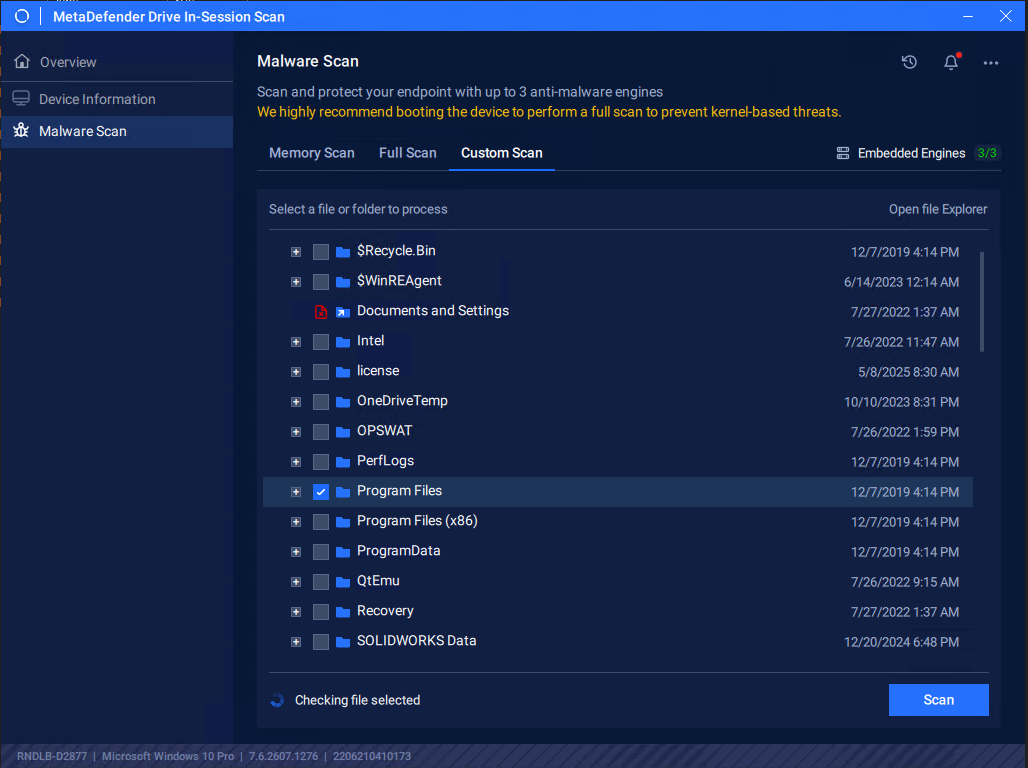
Click the Custom Scan tab, select the paths you want to include in the custom scan, then click Start.
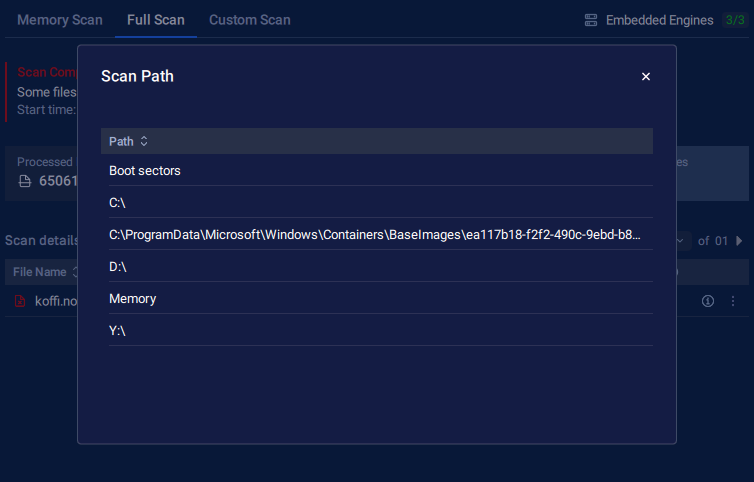
When a Scan is in progress, you can click View Scan Path.
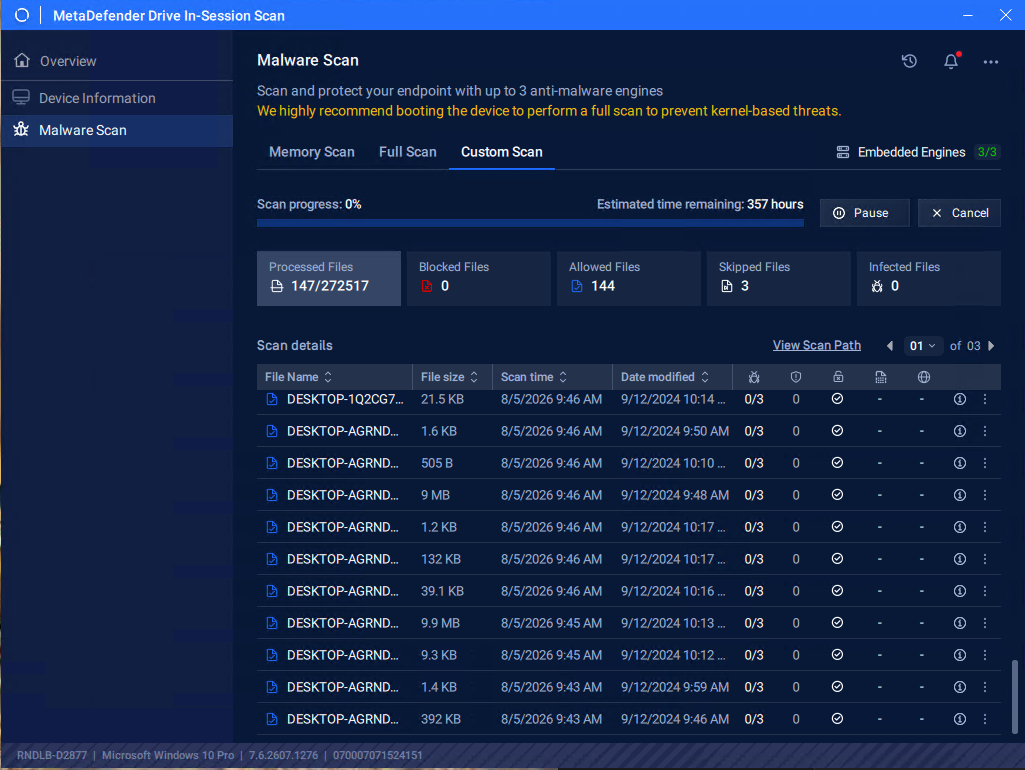
It will open a popup to view what directories are under scan session
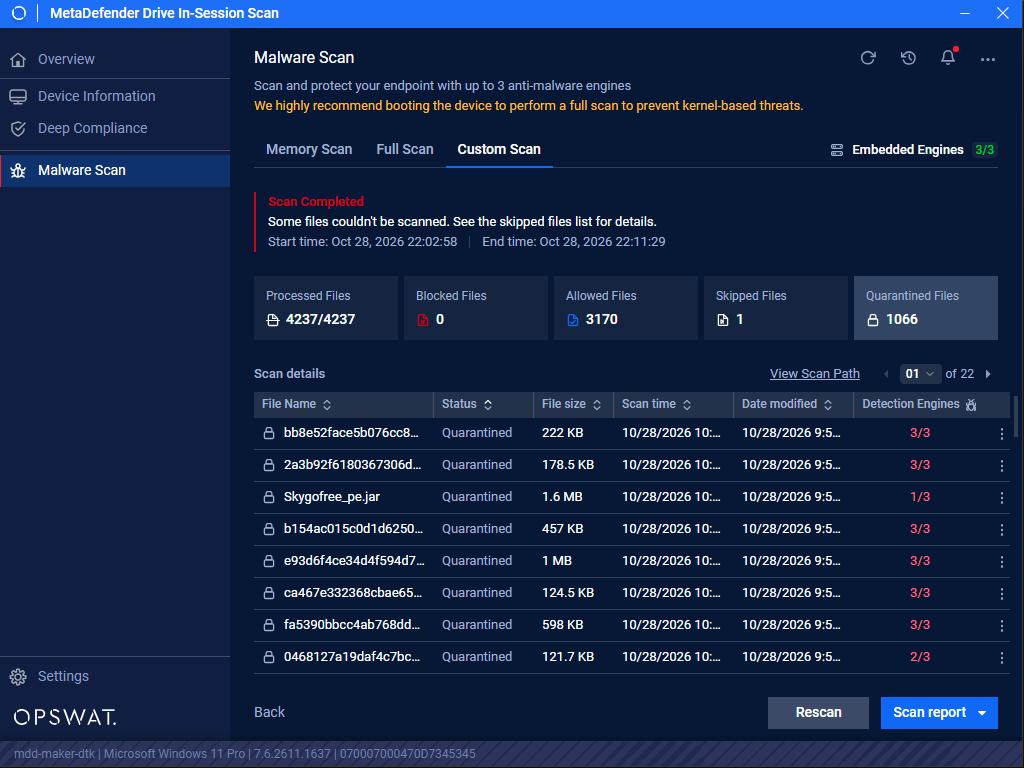
Once the scan is completed, the detailed results of the selected paths will be displayed, as in the following screenshot displaying scan results of C: and D: partitions on Windows 10
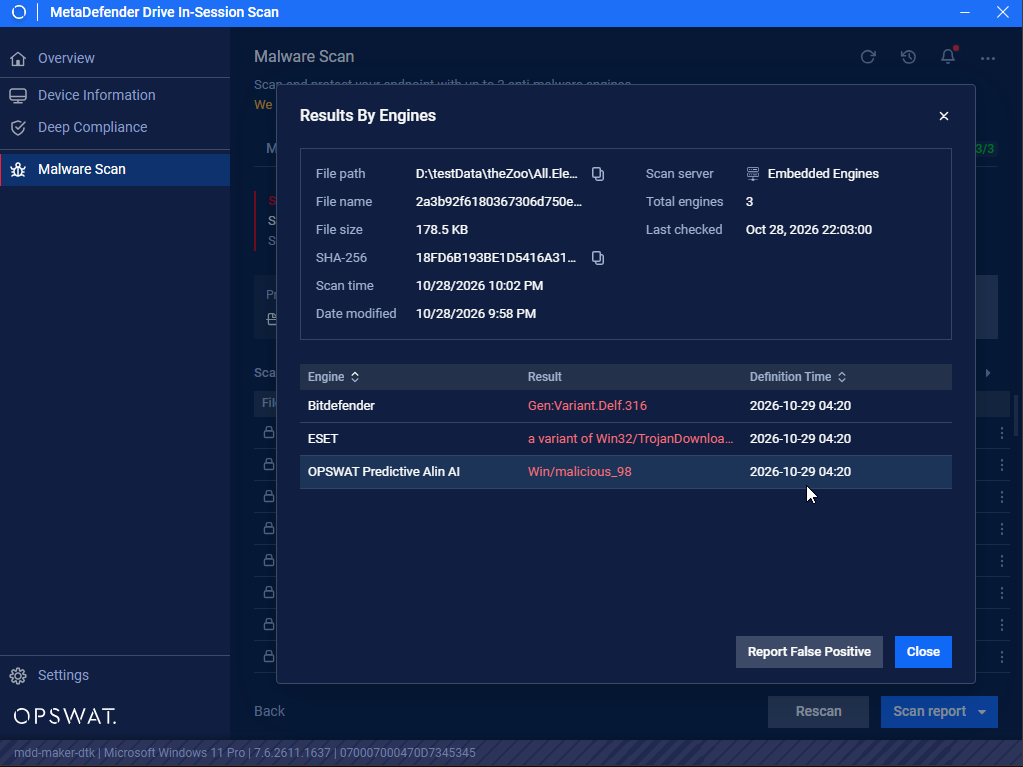
Clicking on a finding will provide more details about the assessment
Smart Scan
Smart Scan is a preset scan that runs with one click. The engines and directories are set in advance, so every operator runs the same scan.
Configure Smart Scan
Open Settings → Malware Scan → Scan Types.
Check Smart Scan, then click Edit Settings next to it.
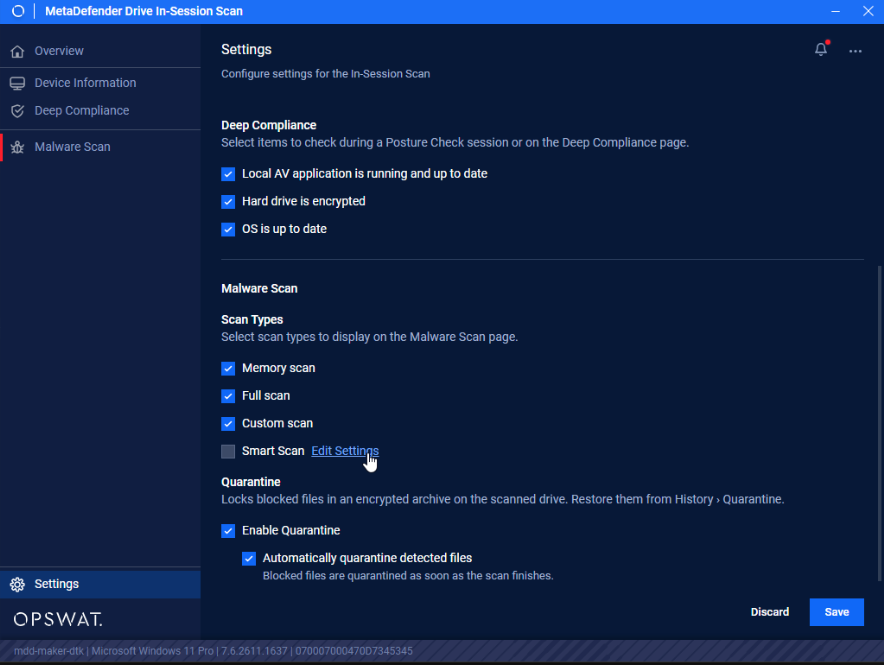
Set the following:
Name and Description: shown on the Smart Scan tab.
Require One Time Password to unlock: allows operators to run Smart Scan while the device is locked by a Centralized Scanning Profile. Available only when the device is enrolled in a Centralized Scanning Profile.
Engines: the anti-malware engines to use.
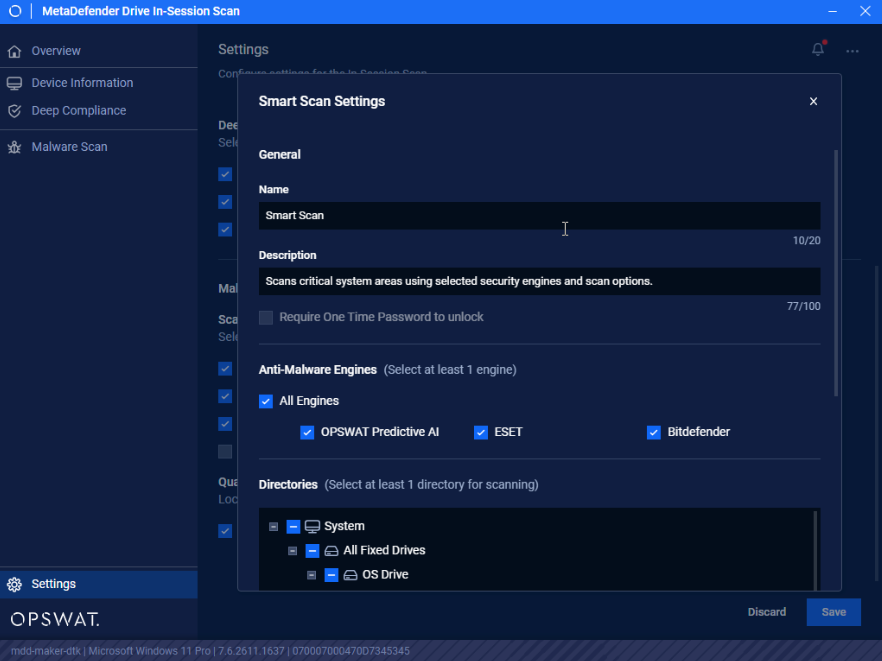
Directories: the drives and folders to scan, such as system folders on the OS drive, other fixed drives, removable drives, and network drives.
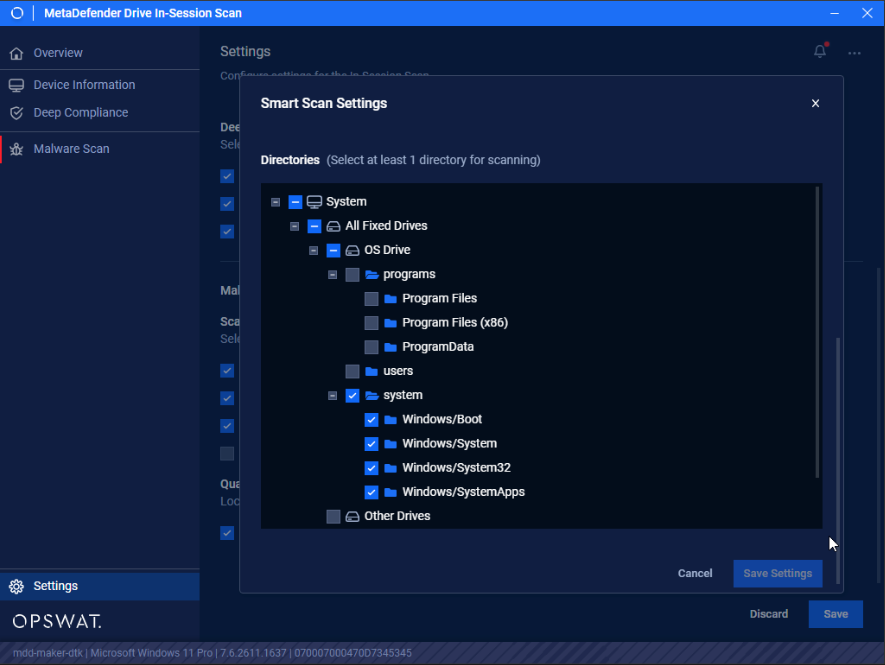
Save your changes.
Smart Scan managed by Central Management
When MetaDefender Drive is enrolled in a Centralized Scanning Profile, Smart Scan is configured from Central Management → Inventory → Devices → select the device → Settings → Smart Scan Settings. Operators can run Smart Scan but cannot change its settings.
Run Smart Scan
After Smart Scan is set up properly, the new Smart Scan will appear in Malware Scan screen with options configured for it.
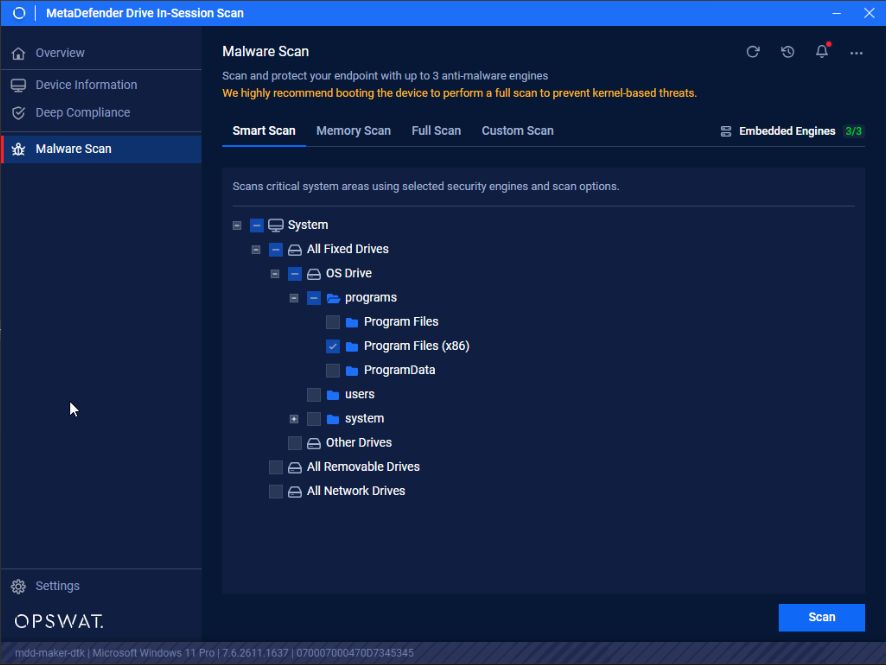
Click the Smart Scan tab, then click Start.
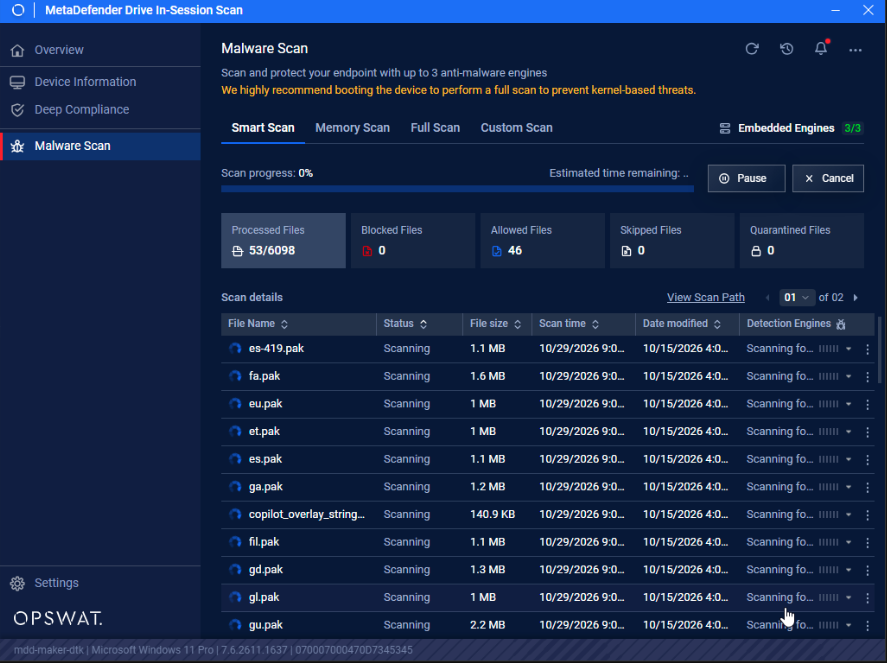
Once the scan is completed, the results of the configured directories will be displayed.
Smart Scan in Posture Check
To run Smart Scan as part of Posture Check, open Settings → Posture Check, check Run Malware Scan with, and select Smart Scan. Smart Scan must also be enabled under Malware Scan → Scan Types.
Device Final Verdict
The device will be marked Unsafe when Deep Compliance or Malware check report any issue.