
Ring Deployment lets you roll out patches in stages instead of pushing updates to all devices at once. Patches go to a small group first, and only move forward after enough devices in that group install them successfully. This helps reduce risk when updating large environments.
When to use a ring deployment
Choose a ring deployment when the risk of a bad patch reaching every device at once is too high to accept, typically on large fleets or with high-impact patches. Use a standard deployment for known-safe patches, urgent fixes, and smaller fleets. The table below compares both modes at a glance.
Standard deployment | Ring deployment | |
|---|---|---|
Rollout | All devices at once | Sequential waves, ring by ring |
Risk control | All-or-nothing, a bad patch reaches everyone | Blast radius contained to each ring until promotion |
Promotion | N/A | Automatic or manual, evaluated per patch |
Reusability | One-off (on-demand) or recurring (policy) | Reusable configuration, creates a new run on each schedule |
Best for | Known-safe patches, urgent fixes, smaller fleets | Large fleets, high-risk patches, compliance-sensitive environments |
On This Page
How Ring Deployments Work
A ring deployment is a reusable configuration (comparable to a policy) that spawns runs each time its schedule fires. Each run processes rings sequentially:
Ring 1 starts: patch commands are sent to devices in Ring 1.
Progress is tracked: as devices report results, the success rate for each patch is calculated.
Threshold evaluation: when installed patches reach the configured success threshold:
If Auto Promote is enabled, the ring automatically advances to Ring 2.
If Auto Promote is disabled, the run pauses at Pending Promote until a user manually approves progression.
If Manual Promote is enabled,
Next ring starts: the process repeats for Ring 2, Ring 3, and so on.
Completion: when the final ring finishes, the run is marked completed and an email report is sent.
What is Auto Promote and Manual Promote?
Auto Promote is a promotion mode in which patches are automatically advanced to the next ring once the success threshold for that ring is met, without requiring any manual intervention.
Manual Promote is a promotion mode in which patches pause at "Pending Promote" after meeting the success threshold, requiring an administrator to review and approve the promotion before the patch advances to the next ring.
Independent Patch Promotion
Each patch is evaluated against the success threshold independently and move to next ring individually. This means different patches in the same deployment can be at different rings at the same time, each moving at its own pace.
Create a Ring Deployment
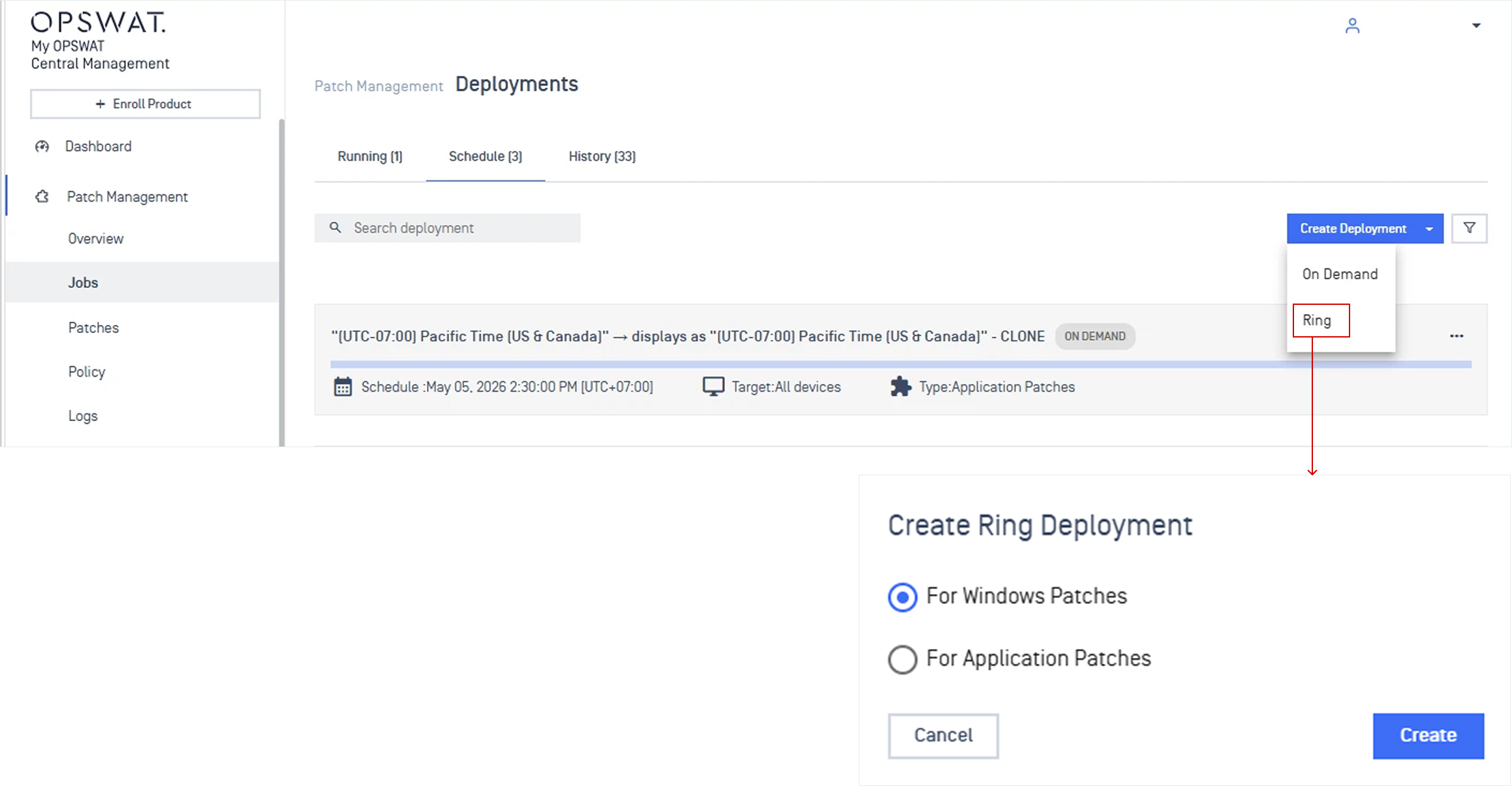
Go to Patch Management > Jobs, click Create Deployment, then select Ring in the dropdown selection.
Choose For Windows Patches to continue.
General Information
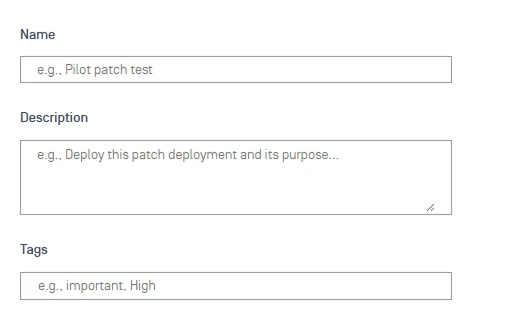
Provide details to identify and track the ring deployment.
Name: A brief, memorable name for the ring deployment.
Description: Specify the purpose, target audience, and expected outcomes.
Tags: Add tags for easy categorization and filtering.
Patch Selection
This section determines which patches are included in each run.
Note Deployment supports Windows patches only.
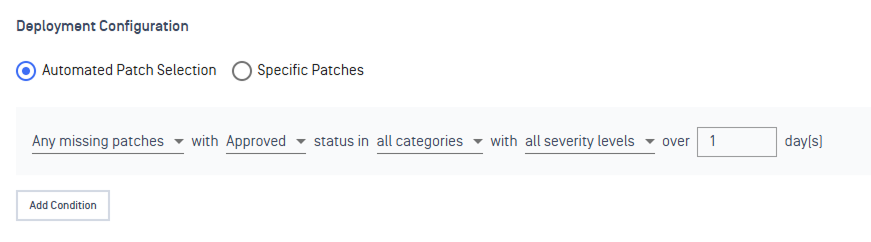
Automated Patch Selection: Includes patches that match your criteria (e.g., "critical severity"). If you set multiple conditions, a patch only needs to match one to be included.
Specific Patches: Manually select the exact patches you want to deploy in this on-demand deployment.
Rejected and unsupported patches are automatically excluded from the deployment, even if they match your selection criteria.
Schedule
Set when the deployment runs. Choose a recurrence pattern that aligns with your patching needs, whether it’s a regular automated schedule or a one-time controlled rollout.
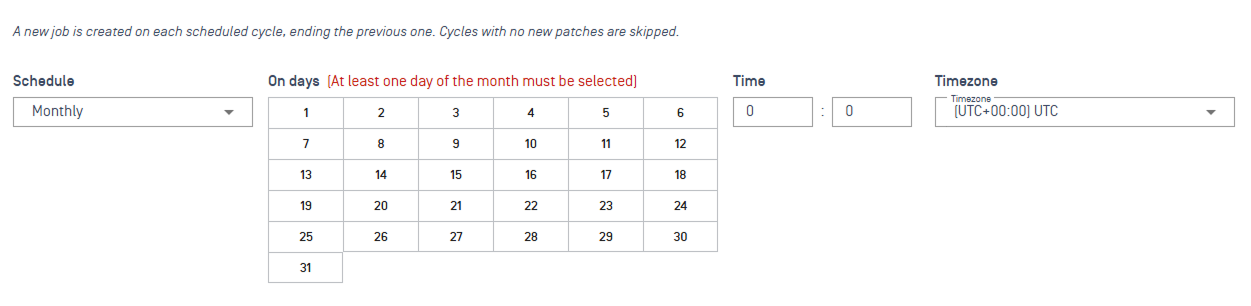
Supported recurrence include:
Daily
Weekly on one or more selected days
Monthly on one or more selected days
Monthly – Patch Tuesday: Select how many days after Microsoft's monthly Patch Tuesday release to run your deployment
One Time: Run once at a specific date and time.
One Time — Manual Start: Run once and will run when you click the 'Start' button in the list.
Time: Set the exact future start time.
Timezone: Set the timezone.
Maintenance Window
Even after a patch is promoted to a ring, it does not install on devices immediately. The Maintenance Window tells the MetaDefender Endpoint agent on each endpoint the permitted time window to perform patch installation. Patches wait in a queue on the device and are only installed when the next maintenance window opens.
This protects end-users from unexpected interruptions, for example, you can restrict patching to nights and weekends so that devices used during business hours are never disrupted mid-work.
If no patches are ready, that window is skipped and the process continues at the next scheduled window.

Recurrence | Date & Time | Description |
|---|---|---|
Daily | From time, To time, Timezone | Opens a patching window every day between the specified hours. |
Weekly | On Days (Mon–Sun), From time, To time, Timezone | Opens a patching window on the selected days of the week. |
Monthly | On Days (calendar grid), From time, To time, Timezone | Opens a patching window on the selected days of the month. |
Targets for Ring Deployment
Define how your rollout is staged. Each ring is a self-contained stage with its own target devices, promotion rule, and success threshold. Rings execute sequentially, Ring 1 must complete before Ring 2 begins, and so on.
You can configure up to 10 rings per deployment. At least one ring is required before saving.
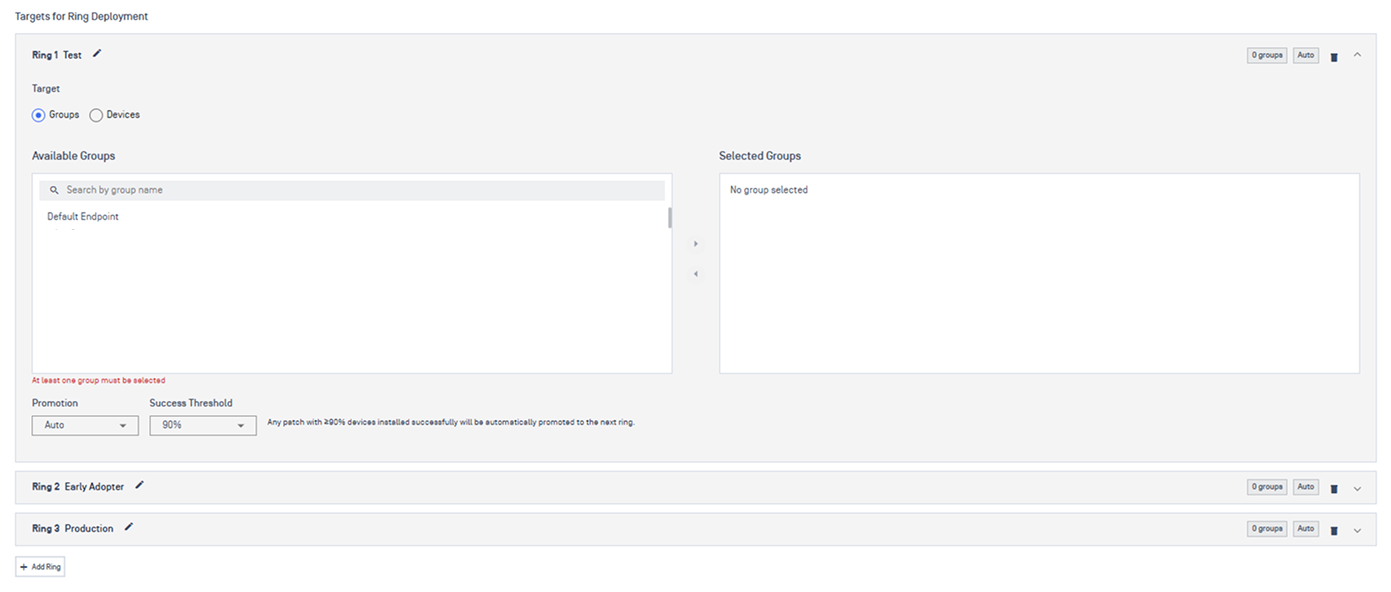
Each ring is independently configurable:
Naming: Each ring is created with a default name (Ring 1, Ring 2, etc.). You can rename it to match your rollout strategy (e.g., Canary, Early Adopter, or Production).
Target type: Choose whether to apply the ring to device groups or individual devices. Each ring can use a different targeting method.
Promotion: Determines how patches move to the next ring after results are collected:
Auto: Patches move to the next ring automatically once the success threshold is met.
Manual: Admins review results and manually approve promotion.
Success Threshold: The percentage of targeted devices that must successfully install the patch before it moves to the next ring (available when Auto promotion is selected).
Reboot Options
Customize reboot behavior to ensure patches are finalized with minimal disruption to users.
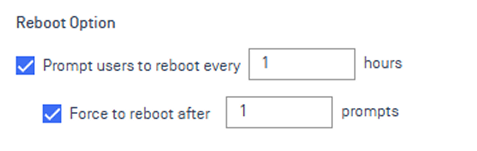
You can set how often the endpoint prompts the user to restart (e.g., every 1 or 2 hours).
You can set the number of prompts a user can skip before the system triggers an automatic reboot to enforce the updates.
Report and Notification
After each run completes, Central Management can automatically send an email summary to your chosen recipients. This keeps stakeholders informed without requiring them to log in and check the console manually.
Configure notifications for ring deployment completion.
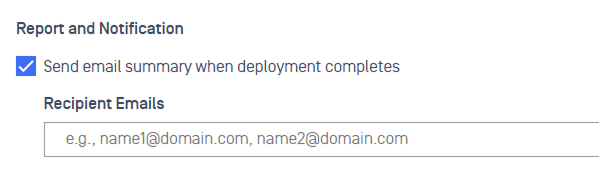
Add one or more email addresses (e.g., admins, security teams). Recipients get a summary with per-device status: Success, Failure, or Unreachable.
Monitor a Ring Deployment
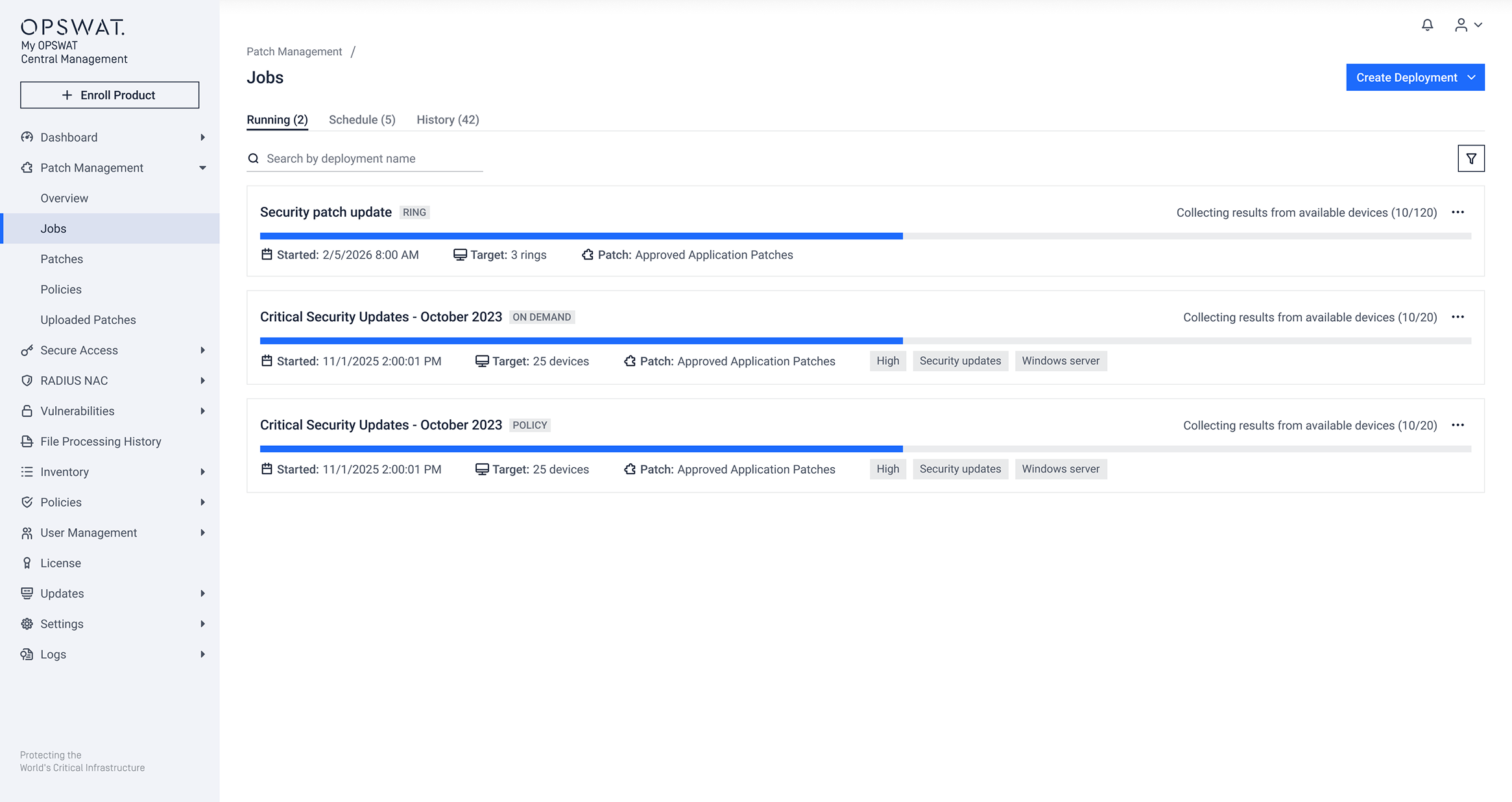
Navigate to Patch Management > Jobs, the ring deployment appears under Running or Schedule tab.
Click on any ring deployment to open a detailed view showing real-time progress across all rings, patches, and devices.
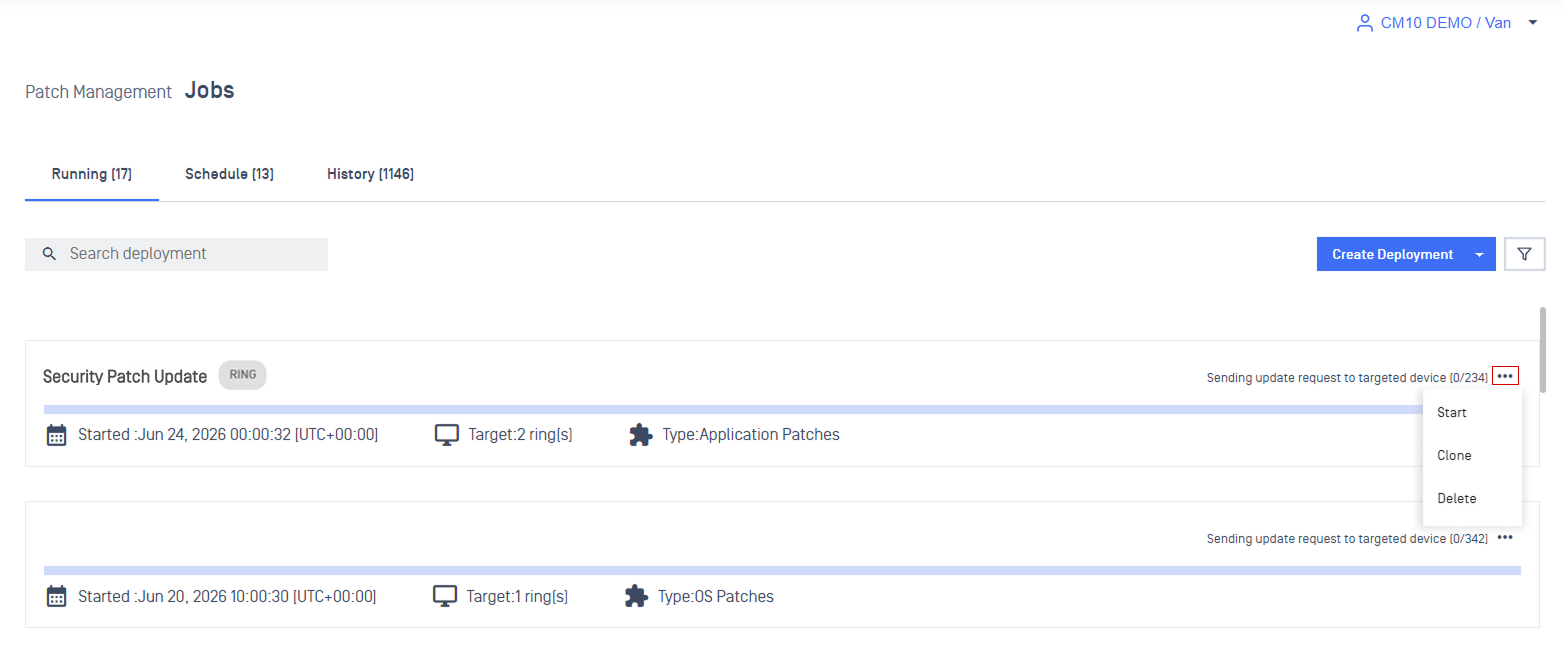
Supported Actions: From the three-dot menu, you can:
Start: Start the deployment (available for One Time – Manual Start only).
Clone: Create a copy of the deployment with the same configuration.
Delete: Remove the deployment.
General Information
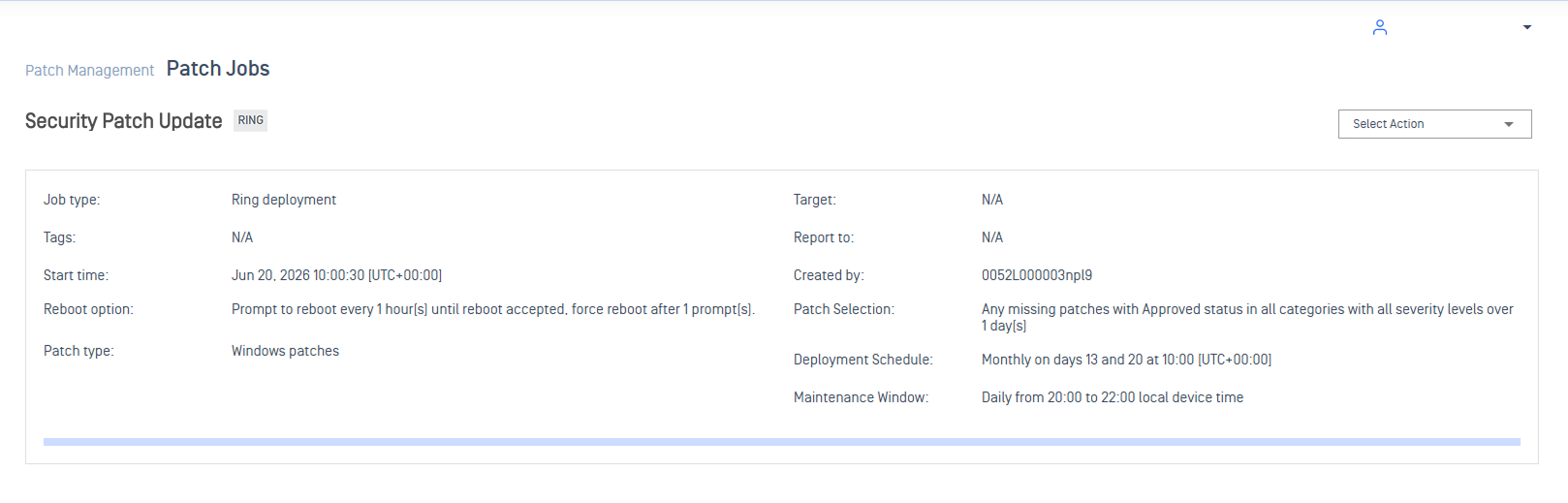
The top panel provides a high-level summary of the deployment.
General information including Job type, Tags, Start time, Reboot option, Target, Report to, Created by, and Patch selection.
Ring Tab
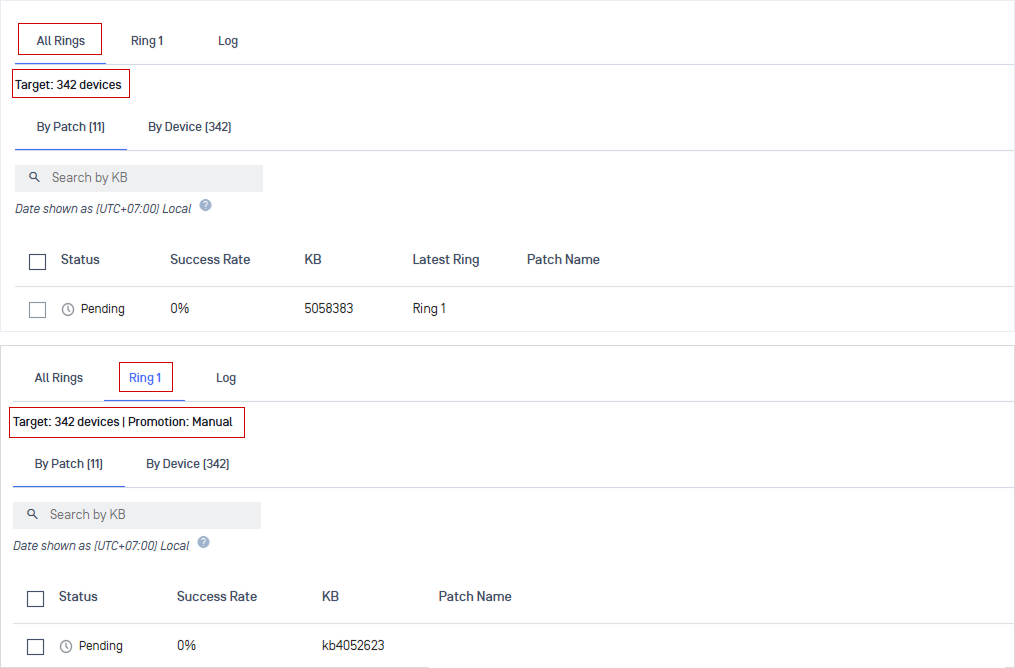
These tab show progress across all rings or individual ring:
All Rings: Displays the total number of targeted devices across all rings.
Individual Ring: one tab per ring, showing:
Number of target devices
Promotion setting (Auto or Manual)
Within each tab, you can switch between By Patch and By Device views.
By Patch
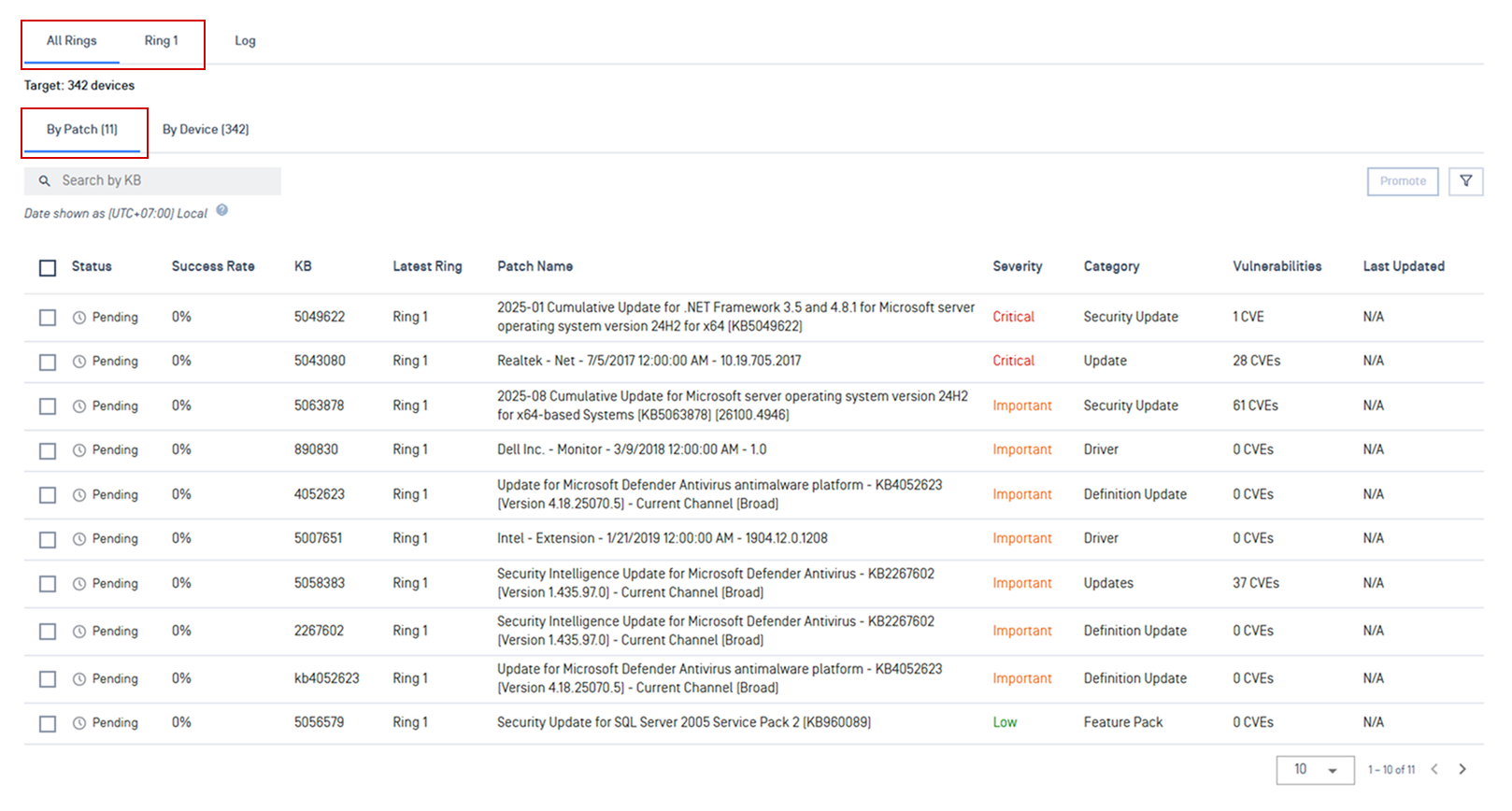
Click the tab By Patch to track the patch status and success rate across all devices in the selected ring.
Quick scan on Status, Success Rate, KB, Latest Ring, Patch Name, Severity, Category, Vulnerabilities, Last Update.
Status: Approval status to promote to next ring
Pending: Waiting for manual approval to move to the next ring.
Promoted: Already moved to the next ring.
In Progress: Has not yet met the success threshold for auto promotion.
Click any patch row to open the Device Installation Status panel, which shows results for every targeted device.
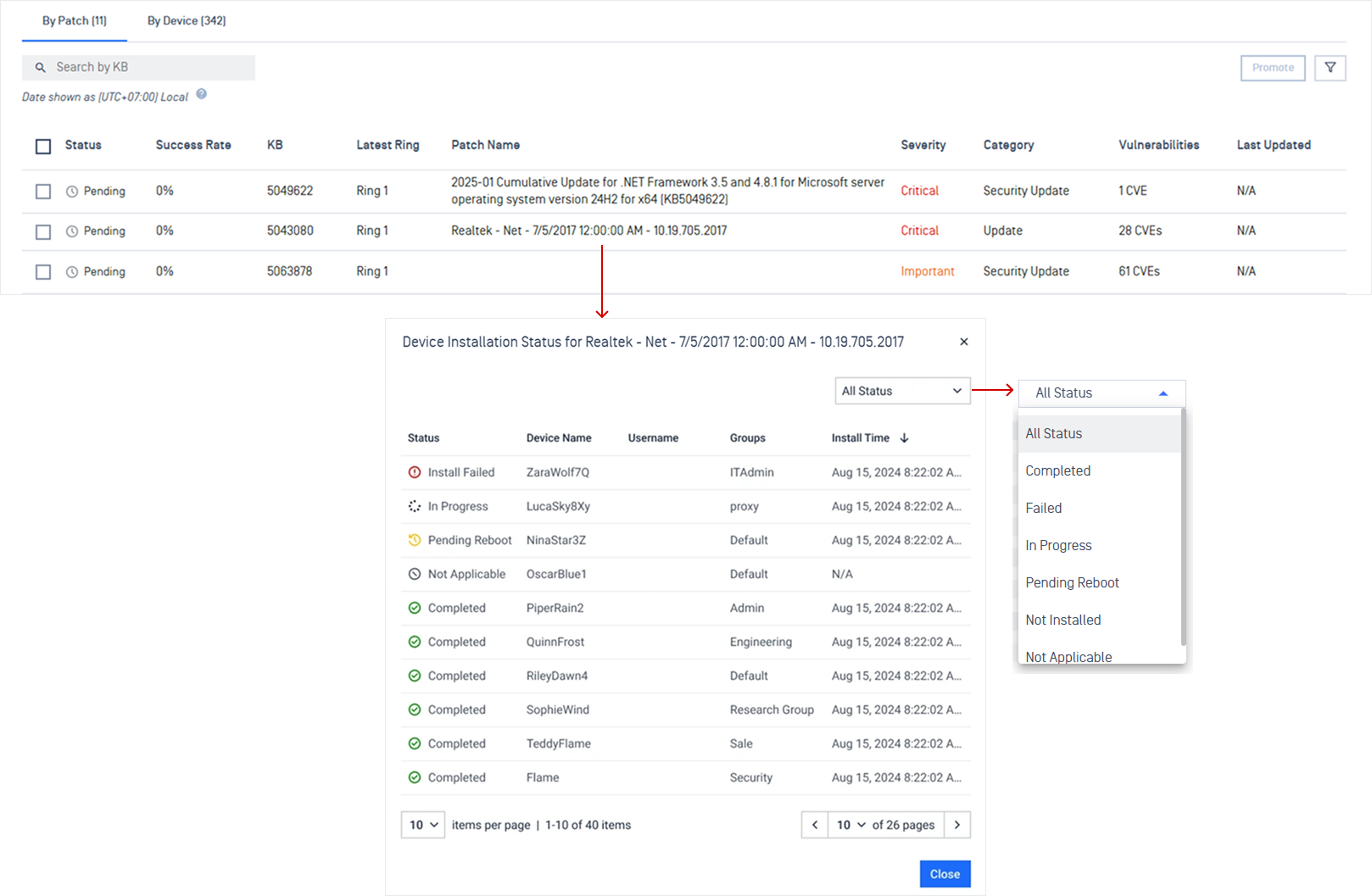
Filters: Choose specific device status to show
In Progress: Patch is being installed.
Installed: Patch successfully installed.
Not Applicable: The patch was not required by the target device.
Pending Reboot: At least one patch requires a restart.
Not Installed: Device was unreachable and never received the command
Installed Failed: Installation was unsuccessful.
By Device
The By Device tab focuses on individual devices. It shows each targeted device in the selected ring along with its overall patching status.
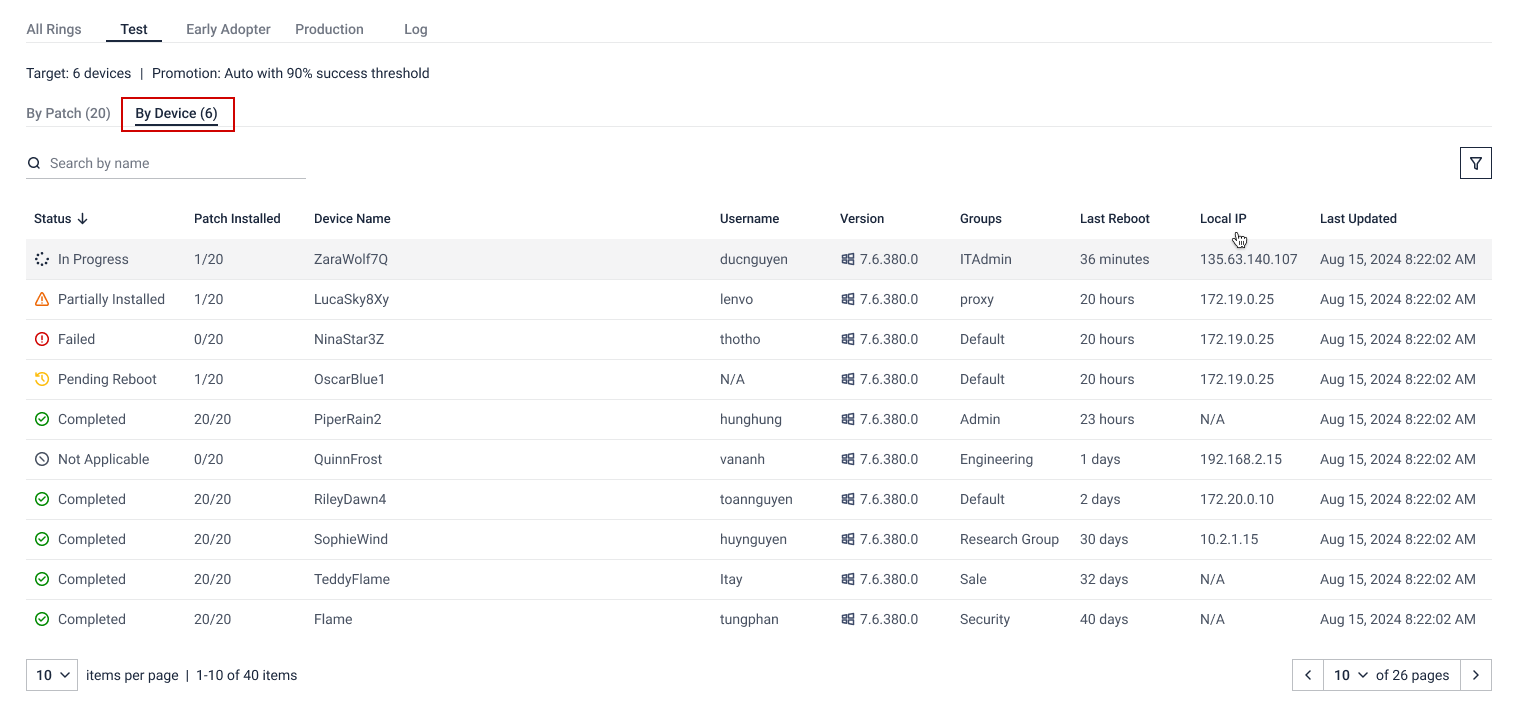
Quick scan on Status, Patch Installed, Device Name, Ring Name, Username, Version, Groups, Last Reboot, Local IP, Last Updated
Status: Indicates the patching status of a device
In Progress: The device is executing the deployment.
Partially Installed: Some patches were installed successfully, but others are still pending, failed, or not applicable.
Failed: All patch installations failed on this device.
Pending Reboot: At least one patch on targeted device requires a restart.
Completed: All assigned patches are successfully installed, or were not applicable on the device.
Unreachable: The device was offline or unavailable during the deployment window.
Patch Installed: The ratio of patches installed to total patches assigned to this device (e.g., 1/20).
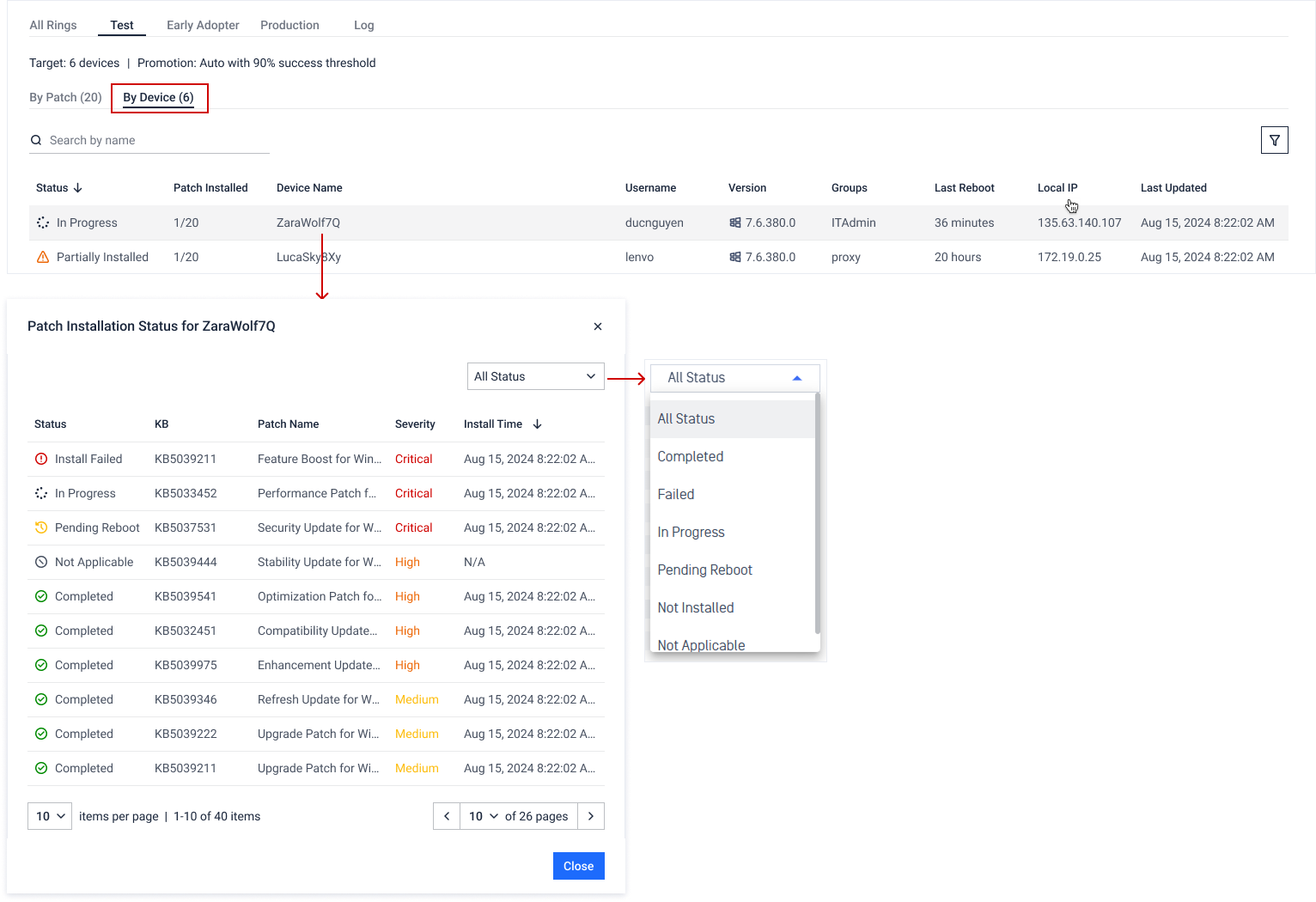
Click any row to open the Patch Installation Status panel for that patch, which lists every patch targeted for that device and its individual result.
Filters: Choose specific device status to show.
In Progress: Patch is being installed.
Installed: Patch successfully installed.
Not Applicable: The patch was not required by the target device.
Pending Reboot: Installation is staged; requires a system restart to finalize.
Not Installed: The patch was skipped because the deployment window closed before the device could install it.
Failed: Installation was unsuccessful.
Logs Information
Click on the Logs tab for a granular, timestamped record of every patch installation attempt.
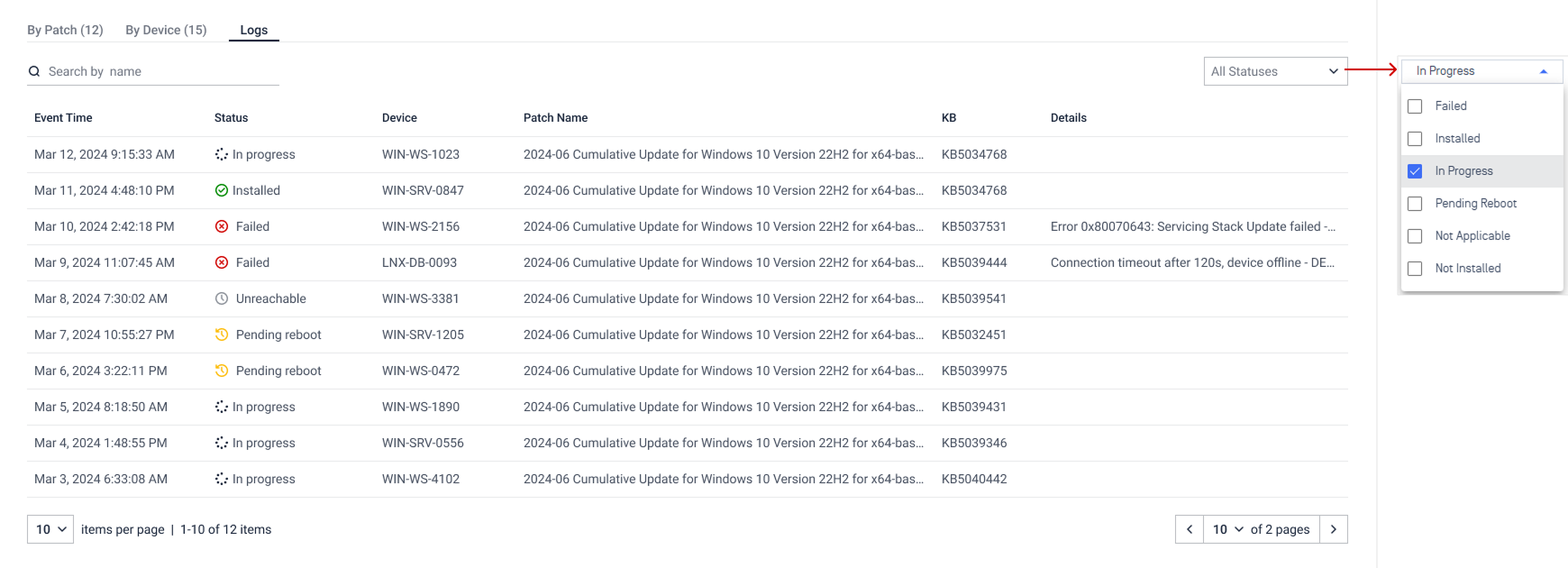
Manual Promotion
Manual Promotion means admins manually promote patch to next ring. This allows security and compliance teams to maintain full control over what is rolled out to the wider environment.
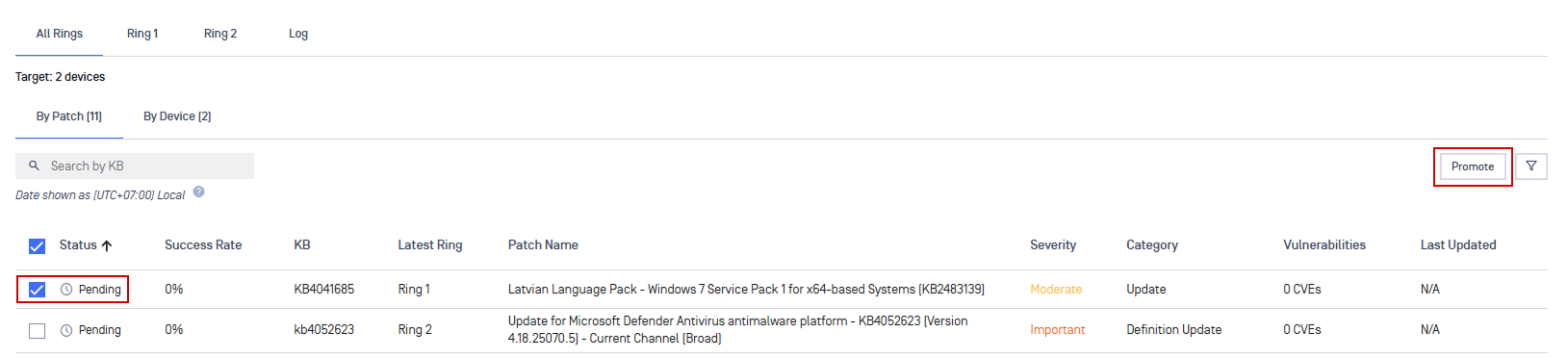
In the By Patch tab, you can manage promotion for patches in Pending status:
Open a patch to review its installation results for the current ring, including success rate and any failed devices.
Select the patches you want to promote by ticking the checkbox.
Click Promote to move the selected patches to the next ring immediately.
Every manual promotion is recorded with the approving user’s identity and timestamp, providing a complete audit trail of who approved each promotion and when.
Stop Deployment
A ring deployment can come to an end in three different ways:
The user decides to stop it manually
The system stops it automatically when a new scheduled run is about to begin
It finishes on its own after all devices have been successfully patched.
Deployment History
To track past deployments, navigate to Patch Management > Jobs > History.
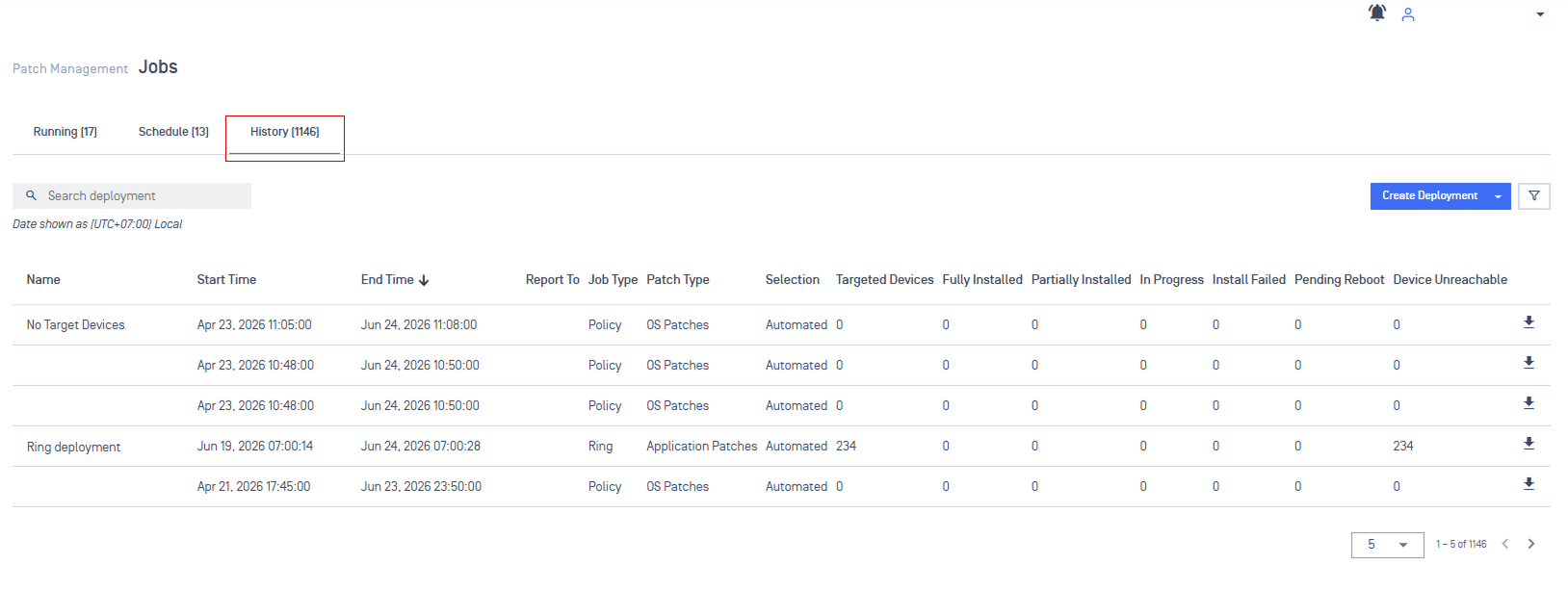
View details: Click on a history deployment to view its detailed information.
Search: Quickly locate specific jobs by name.
Filter: Filter by On-demand, Policy or Ring deployments.
Download report: Download the execution report of a deployment by clicking the arrow symbol.