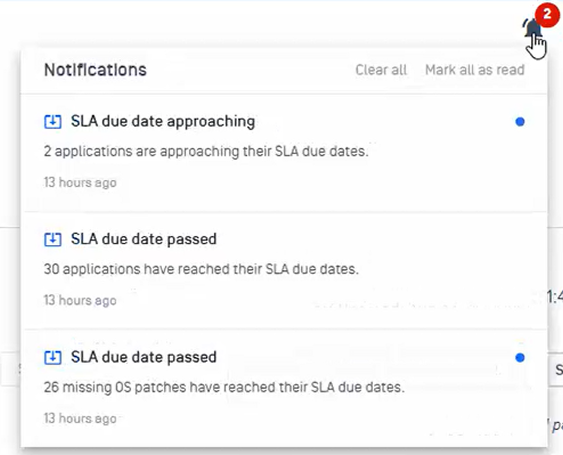
Patch Management SLA (Service-Level Agreement) lets you set timeframes for how quickly patches must be applied, based on severity level. Track compliance in real time, identify overdue updates, and receive automatic alerts when a patch misses its due date
Configure Patch SLA
Open the Patch Dashboard
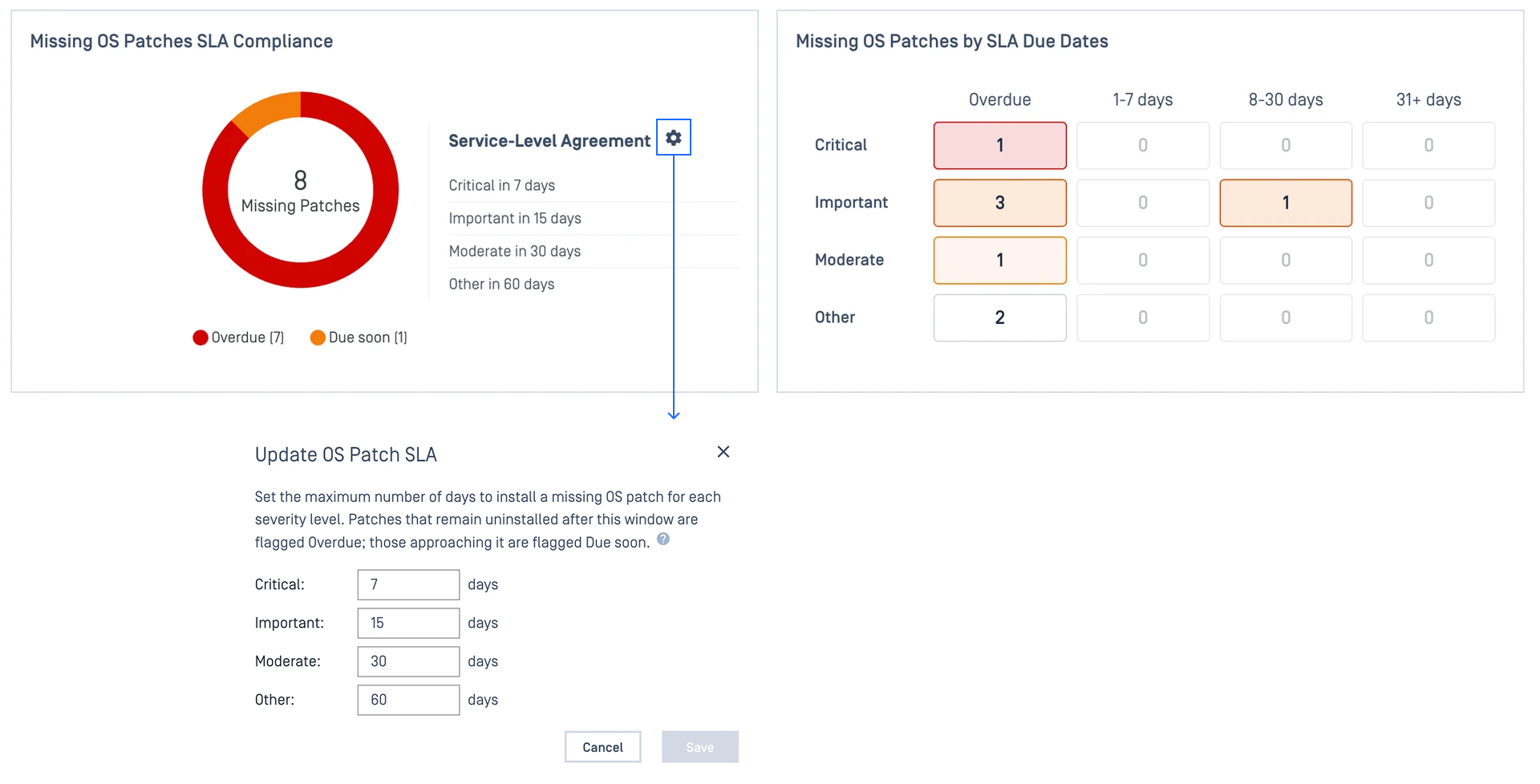
On the SLA Compliance widget, select the gear icon. This is visible only to administrators with write access to the Patch Management dashboard
In the Update Service-Level Agreement dialog, set the maximum number of days (1 to 365) for each severity level
Track Patch SLA
Use the Patch Dashboard to quickly identify patches that are approaching or exceeding your remediation targets.
Open Patch Dashboard
Use the following widgets to assess patch SLA compliance:
Goal | Widgets To Look At | What It Tells You |
|---|---|---|
Get an overall SLA compliance snapshot | SLA Compliance 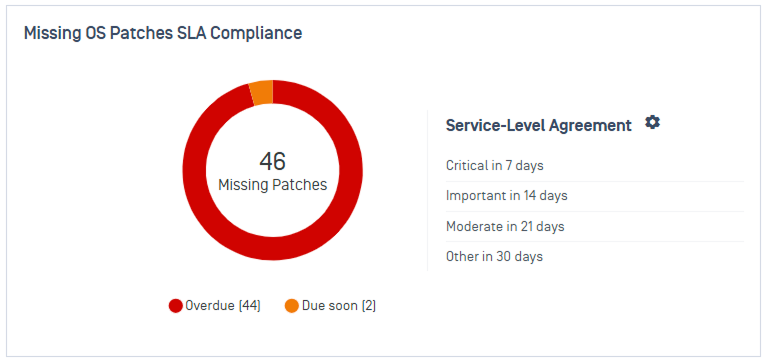 | Shows how many missing patches are Overdue versus Due Soon, helping you quickly assess compliance status |
Find your most urgent patching risks | By SLA Due Dates 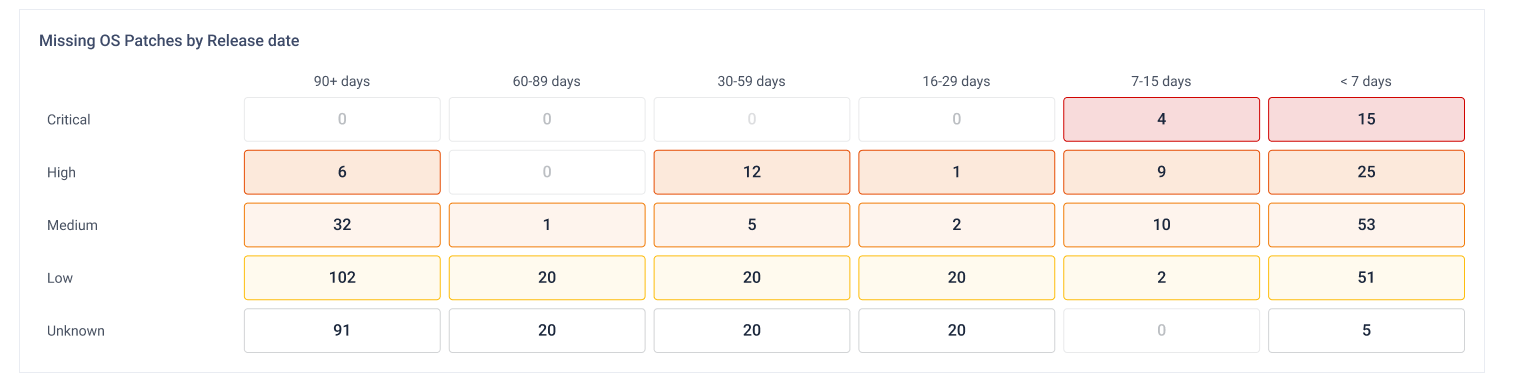 | Breaks down missing patches by severity and SLA status so you can identify overdue items and remediation priorities |
To investigate further, select a widget entry to open the corresponding patch list.
From the Patches page, review affected devices, assess risk, and approve or deploy updates as needed.
Next Step See Manage Missing Patches and Outdated Applications for instructions on reviewing, approving, and deploying patches.
Get Notified on Patch SLA
Patch notifications can alert in real time when SLA deadline approaching and SLA deadline passed.
Refer to Patch Notification guidelines for detailed instruction on creating patch SLA notification.