
Administrators can create custom Patch Reports to share patching progress with stakeholders, prove compliance, and track remediation outcomes across operating systems, third-party apps, and deployment jobs.
On This Page
To view and manage your reports, navigate to Patch Management > Reports.
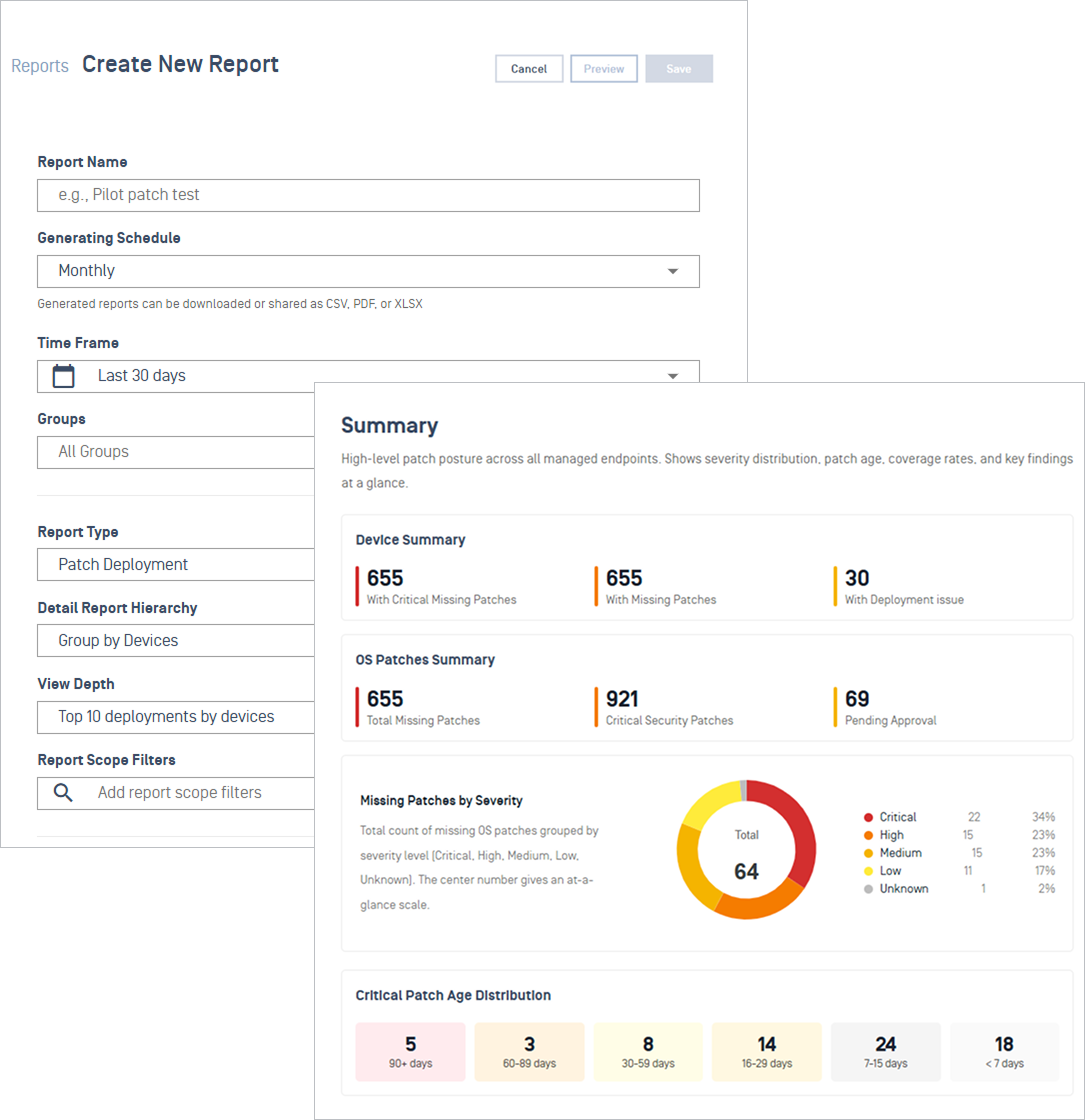
Create a Report
From the Reports list, select Create Report.
Fill in the configuration fields, then select Preview to review the output or Save to store the report.
Configurations | Details |
|---|---|
Report Name  | Enter a clear, recognizable name that appears in the report list, header, and email subject |
Generating Schedule 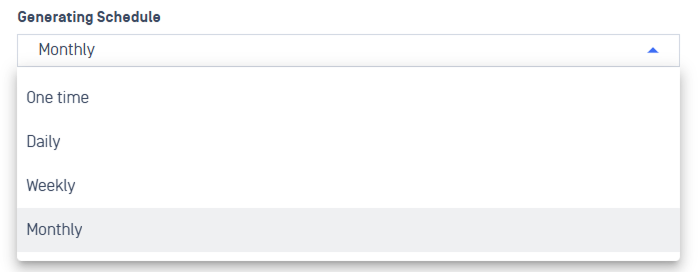 | Choose how often the report runs |
Time Frame Note Time Frame configuration is only available on Patch Deployment reports. 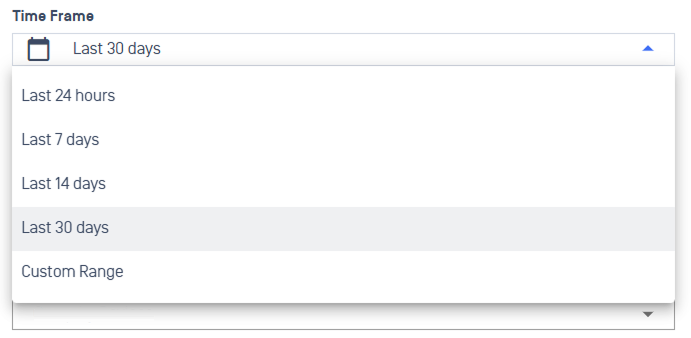 | Define the reporting window |
Groups  | Select the device groups to include in the report. |
Report Type 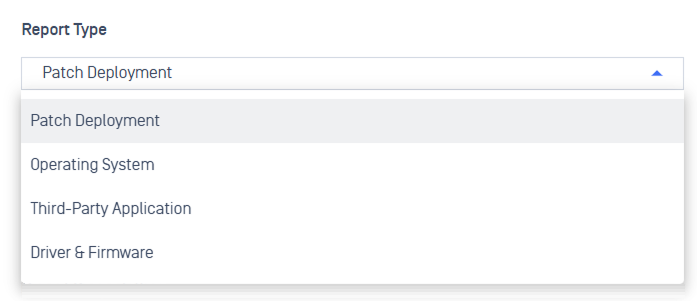 | Select the focus of the report. This determines the metrics, charts, and details included in the output |
Detail Report Hierarchy
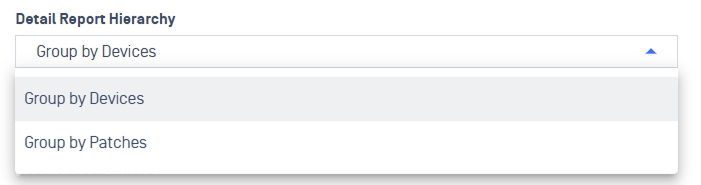 | Define how detailed data is organized in the report, based on the selected report type |
Report Scope Filters Note The available filters depend on the selected Report Type.  | Refine the data set with one or more scope filters. |
Share Report by Email Note You can update the recipients anytime by editing the report configuration from the Reports List page.
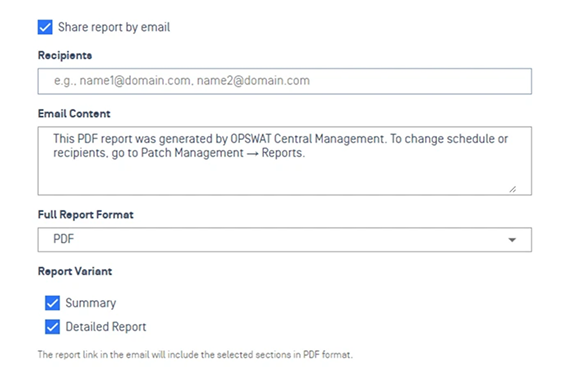 | Enable this option to automatically email the report to selected recipients each time it runs. |
Preview a Report
After completing the required fields, select Preview to see a sample version of the report. Click the X symbol to close the preview.
Note The preview is a sample for reference only and does not reflect actual generated data. The full HTML report is created only after you Save the configuration.
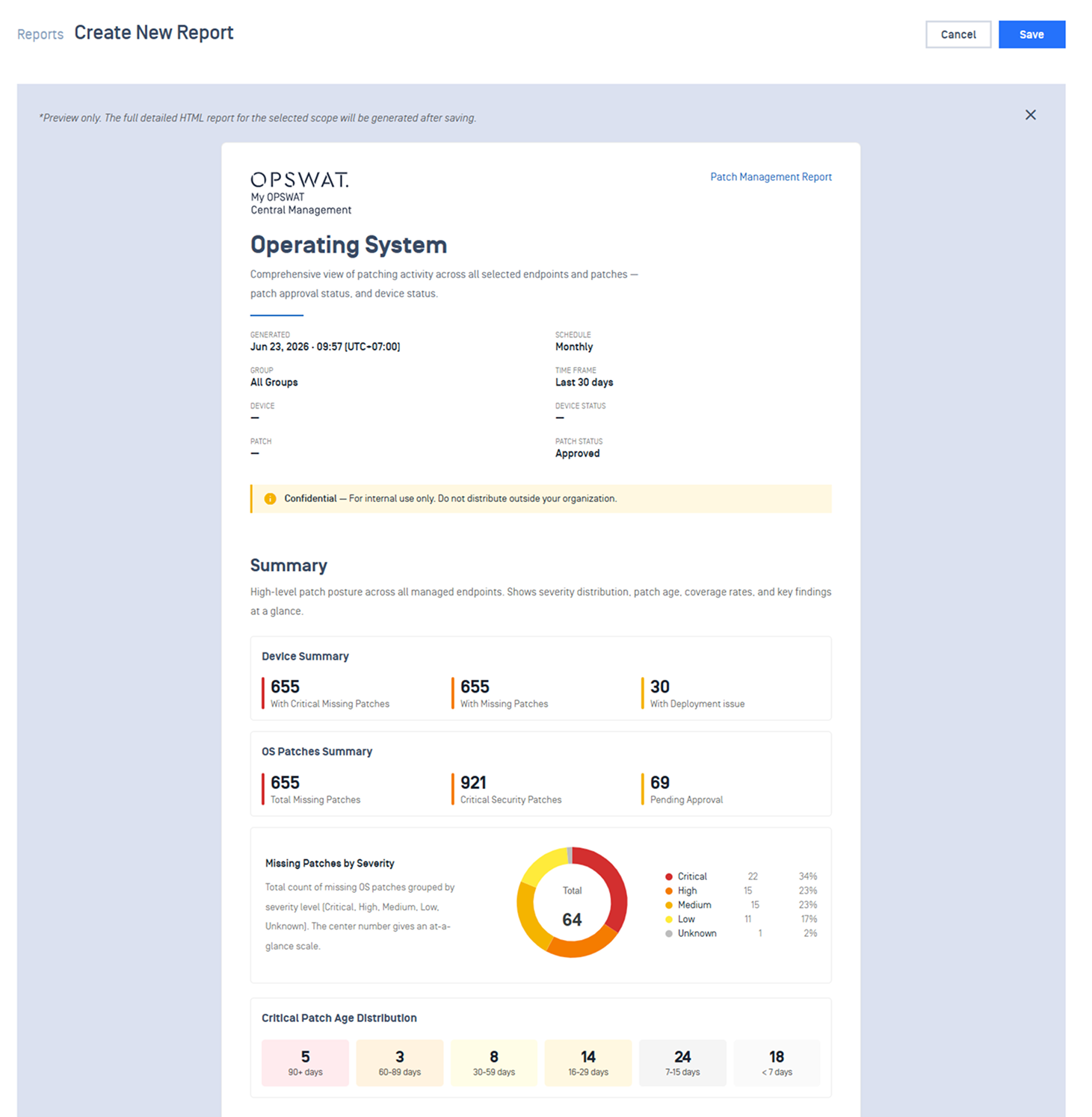
Report Details
From the Reports List, select a report or choose View details to open its detail page. This page serves as the central hub for running, editing, and managing generated copies of a report.
Report Section | What It Shows |
|---|---|
Summary | Shows the report configuration 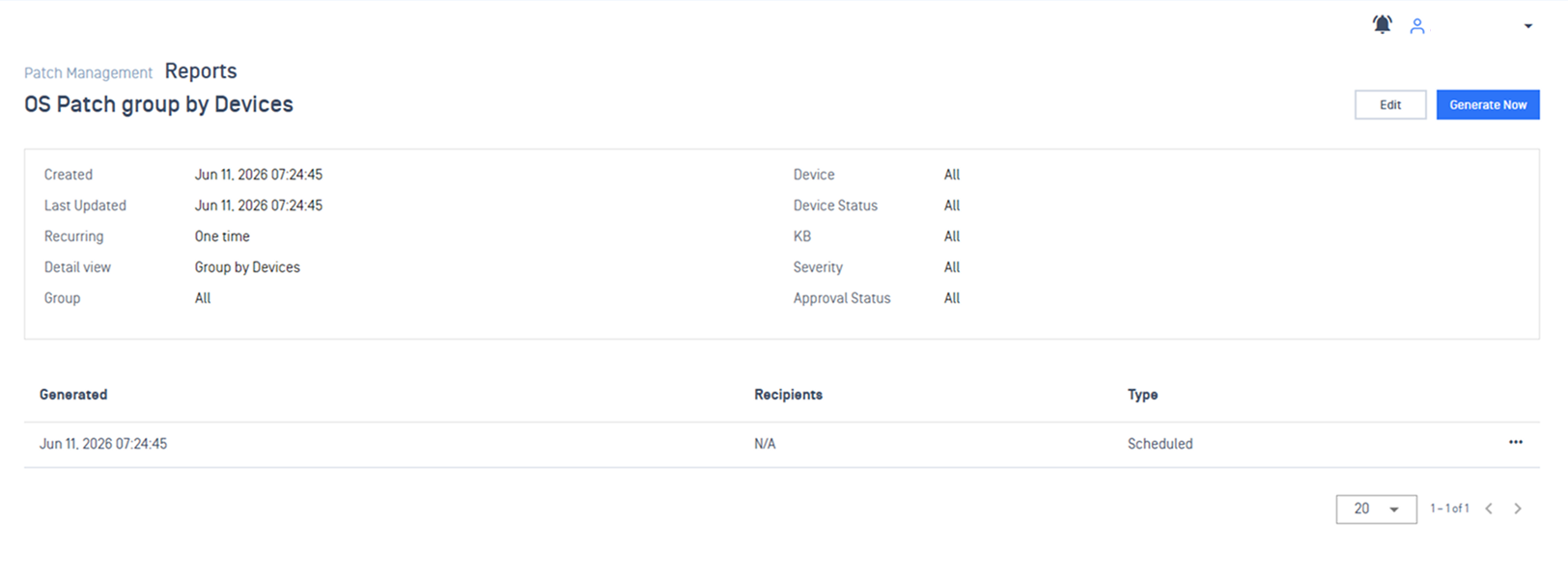 |
Generated Reports List | Lists each generated copy of the report  |
Export a Report | Select Export as from three-dot menu. 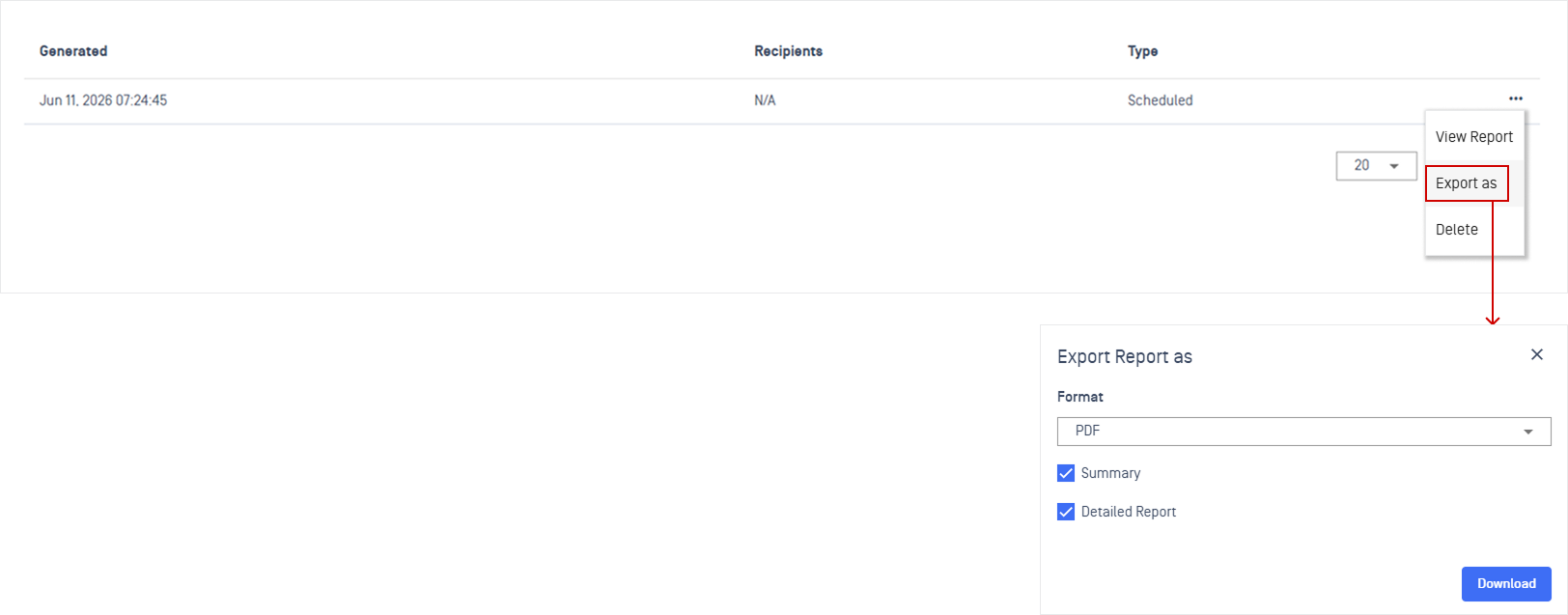 |
Report Structure
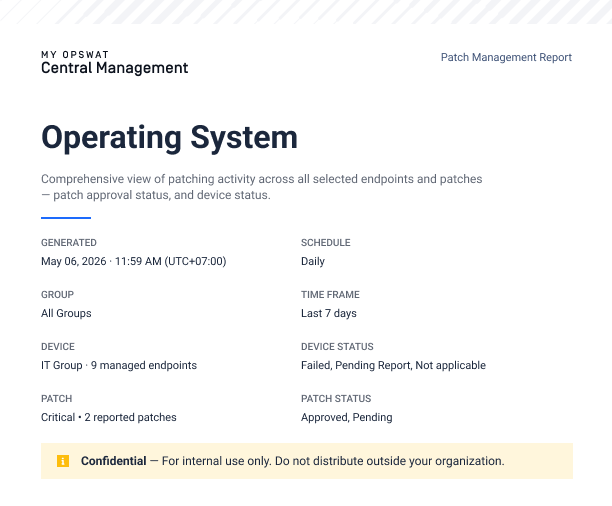
Every generated report follows the same three-part layout, regardless of type:
Cover Page
The cover identifies the report and its scope at a glance:
The report title, a one-line description
Generated, Schedule, Group, Time Frame, Device, Device Status, Patch, and Patch Status.
Job Status, and Deployment Type (only for Patch Deployment report type).
A Confidential notice marks the report for internal use only.
Summary
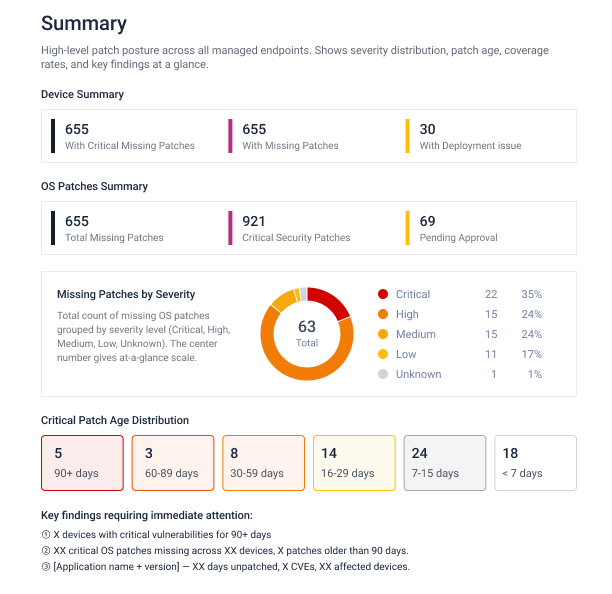
Report Type | Shown Info |
|---|---|
Operating System |
|
Third-Party Application |
|
Patch Deployment |
|
Detailed Report
Includes the full dataset, organized based on the selected Detail Report Hierarchy.
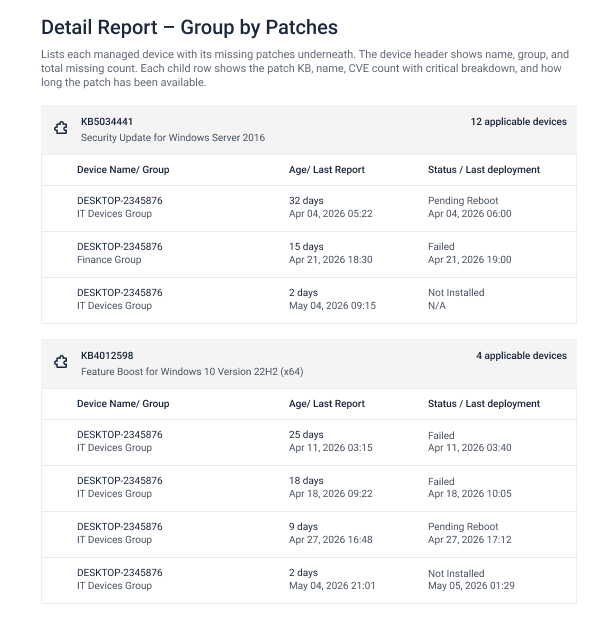
Operating System: Detailed Report can be grouped by Devices or by Patches.
Third-Party Application: Detailed Report can be grouped by Devices or by Applications.
Patch Deployment: Detailed Report can be grouped by Devices or by Patches.