
The Roles tab of the User Management page displays all user roles in the My OPSWAT On-premises server.
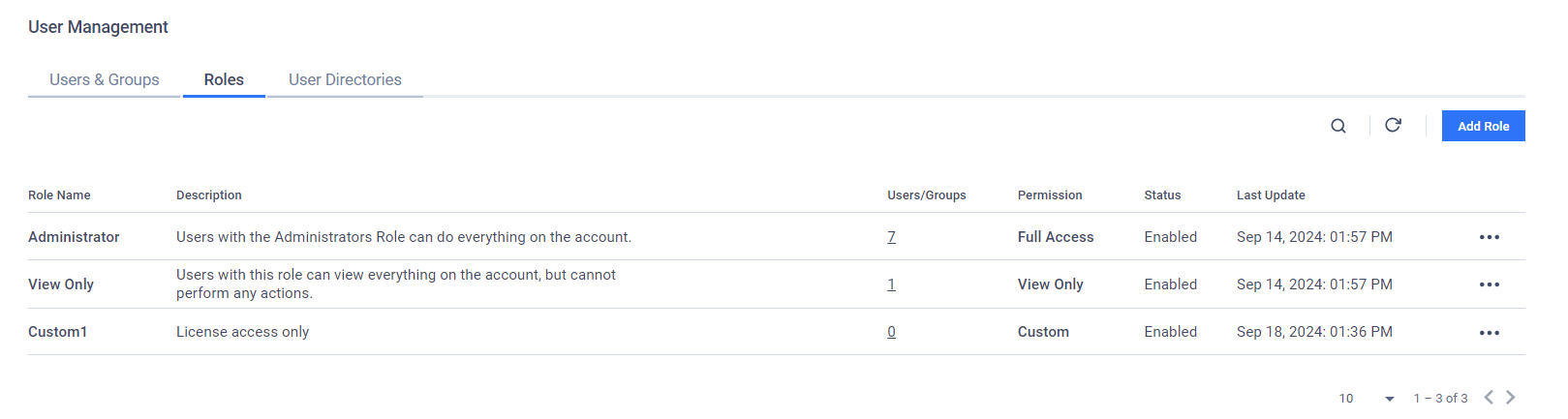
By default, there are 2 pre-defined roles available
Administrator: a user with this role has full access to all features
View-Only: a user with this role only views and exports data.
To add a new user role:
Click Add Role.
In the Add Role page, fill in the required information
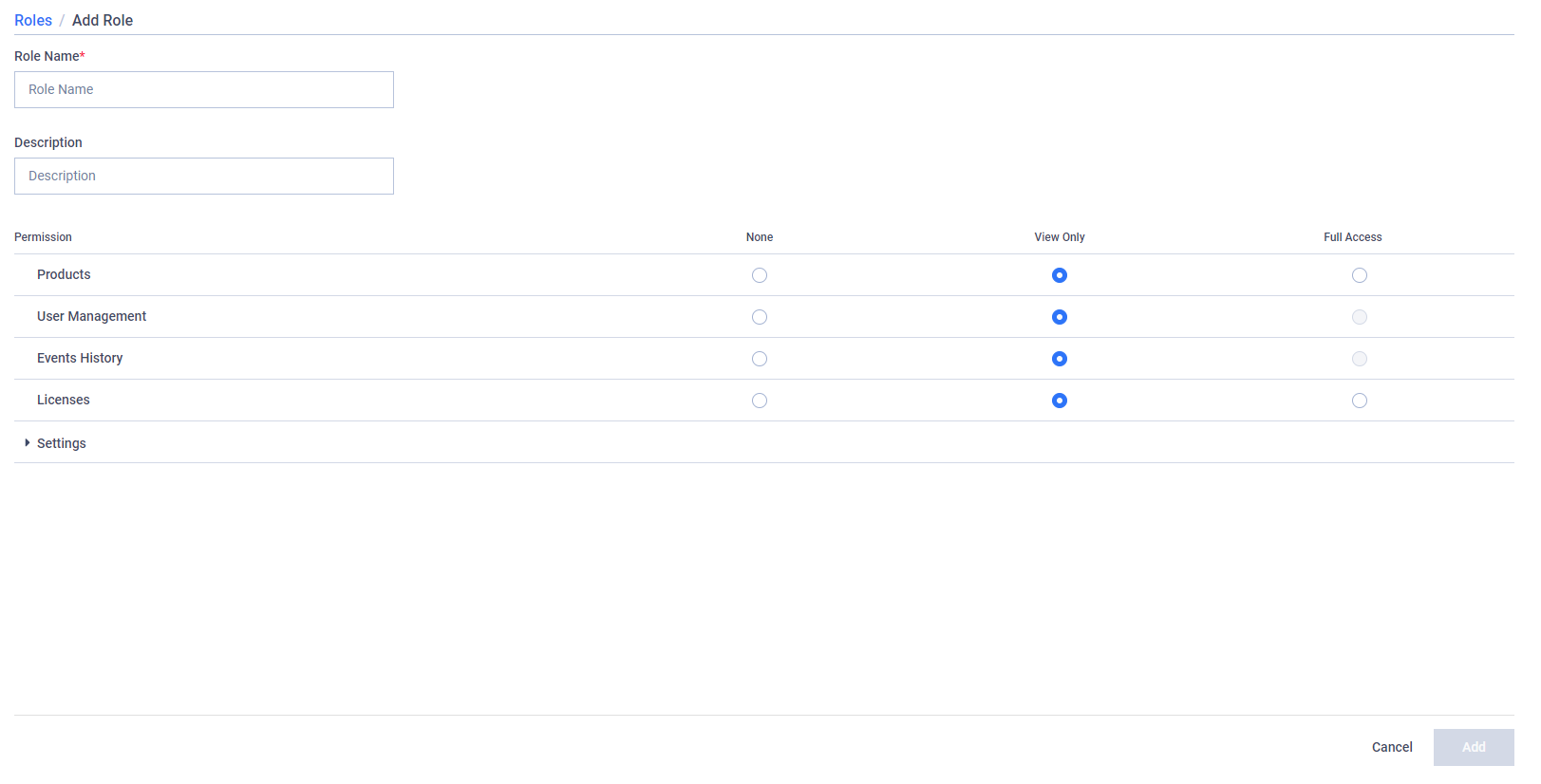
Role Name: The display name of the new user role.
Description: The description of the new user role.
Permission: The permission assigned to the new user role for each My OPSWAT feature.
None: This user role cannot access the selected feature.
View Only: This user role can only view and cannot make any changes to the selected feature.
Full Access: This user role can make changes to the selected feature.
Click Save to confirm your selection and add the new user role.