
My OPSWAT Portal offers an integration with a 3rd-party Single Sign-on Service (SSO).
My OPSWAT Portal uses the secure and widely adopted industry standard Security Assertion Markup Language 2.0 (SAML 2.0), so that you can integrate easily with any identity provider that supports SAML 2.0.
To get started, log into Microsoft Entra and create an application for My OPSWAT Portal . Details can be found here
Log into Microsoft Entra as an Administrator
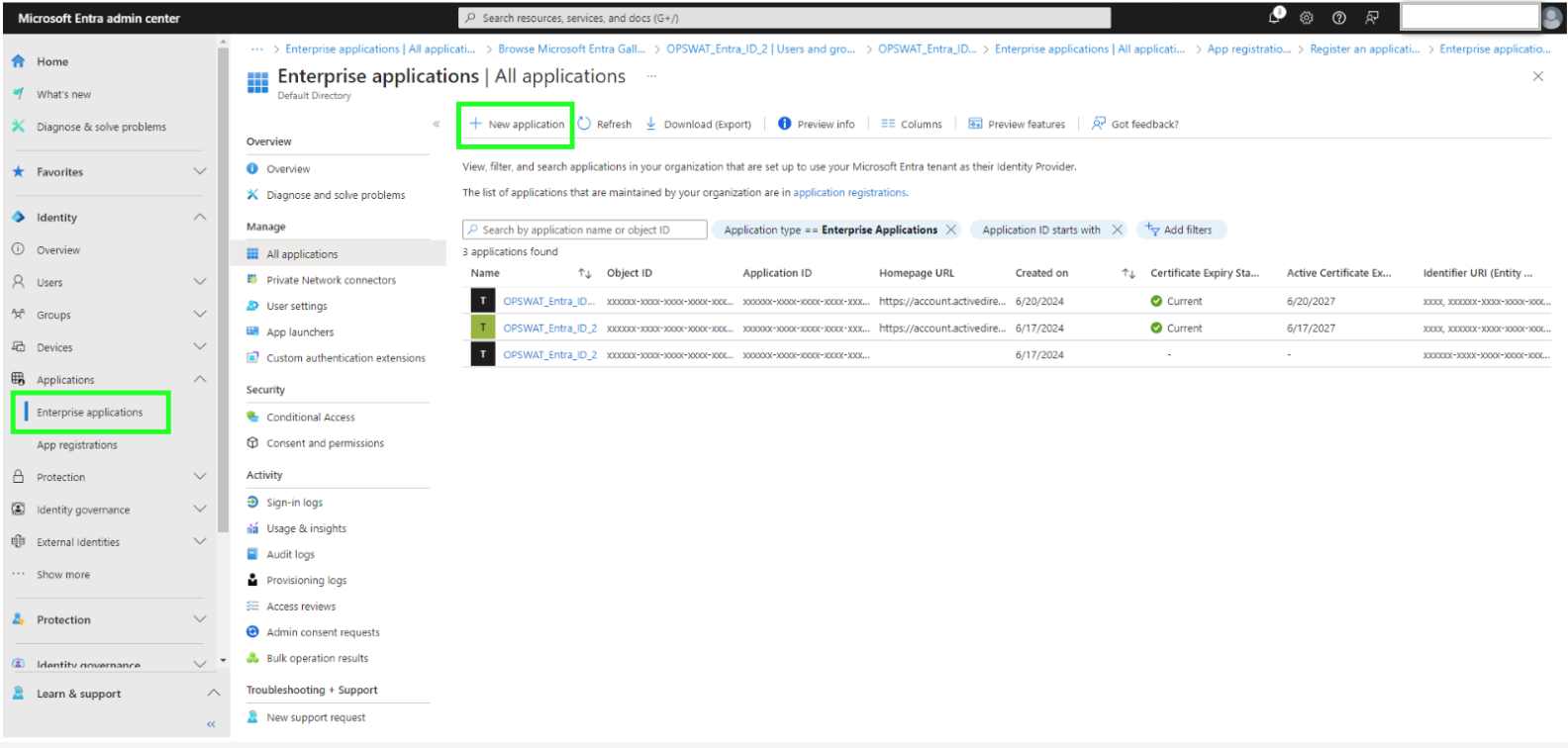
Select Application → Enterprise applications → ”New Application”
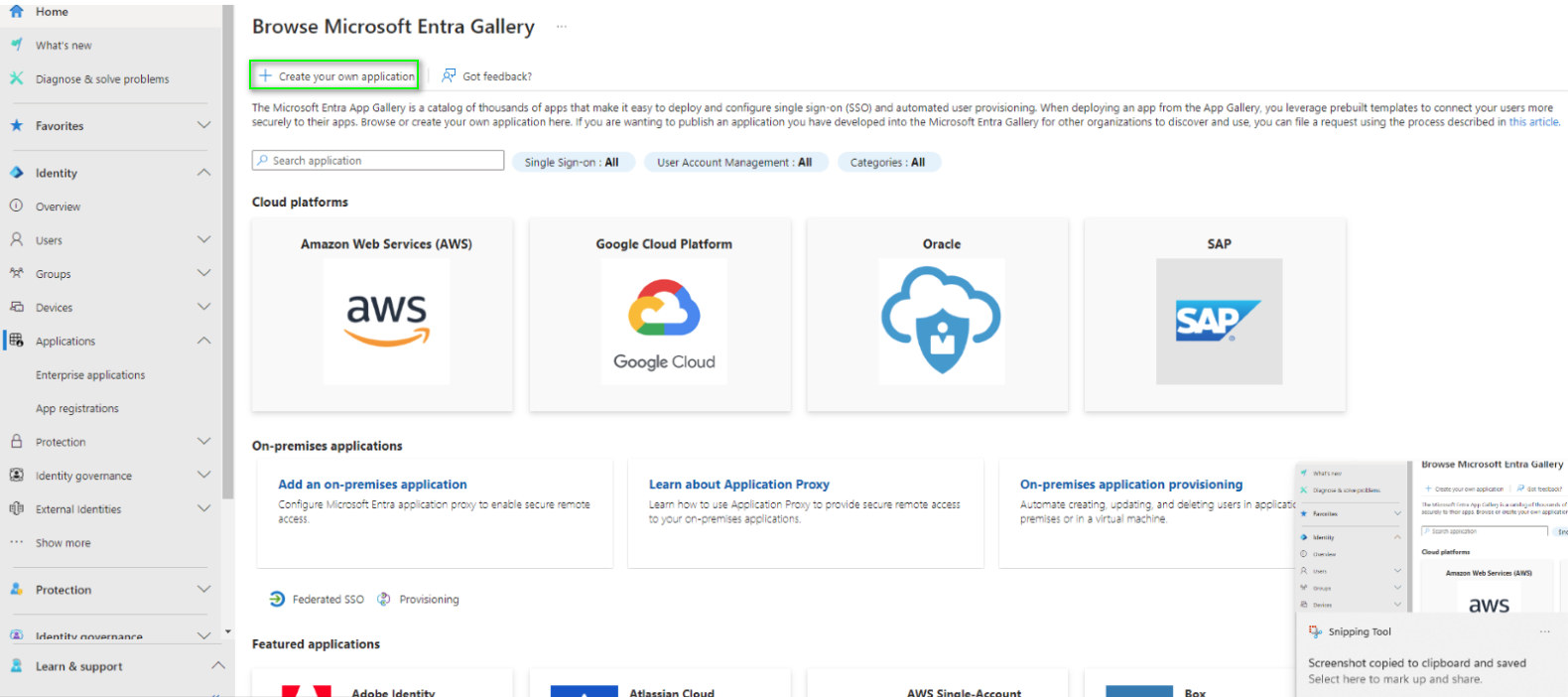
Select “Create Your own Application”
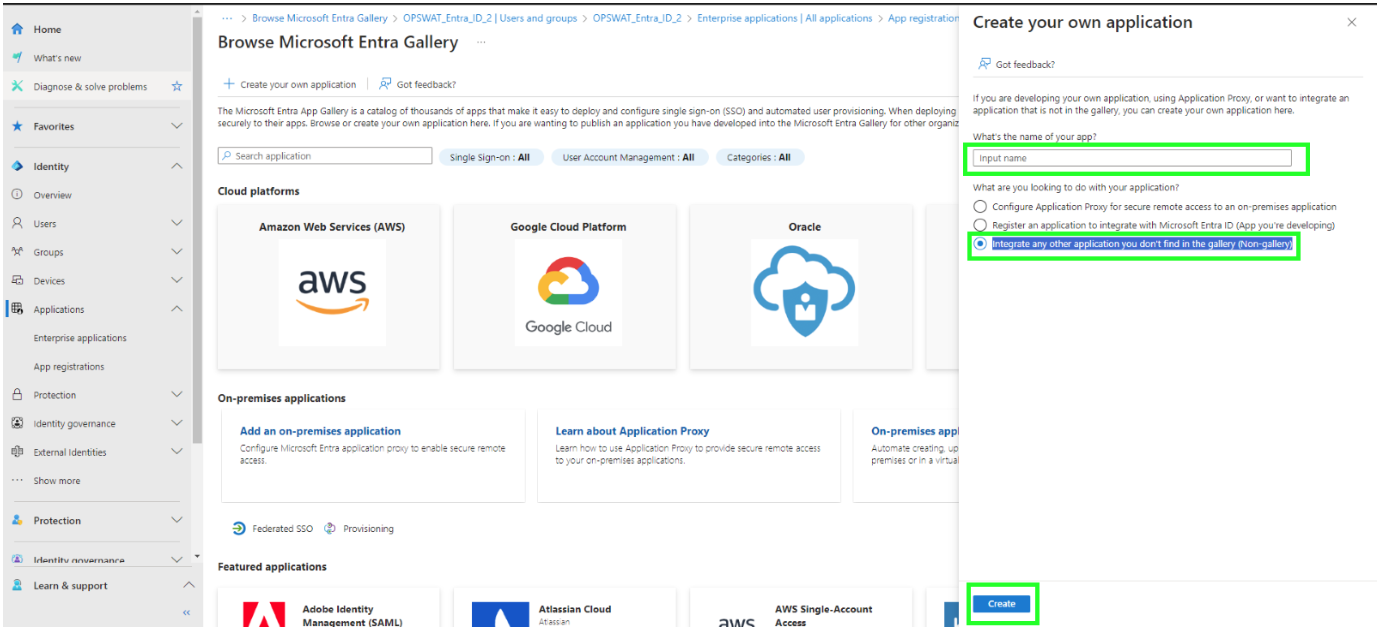
Input Application Name into "What's the name of your app?" field and select “Integrate any other application you don't find in the gallery (Non-gallery)” → Click Create button
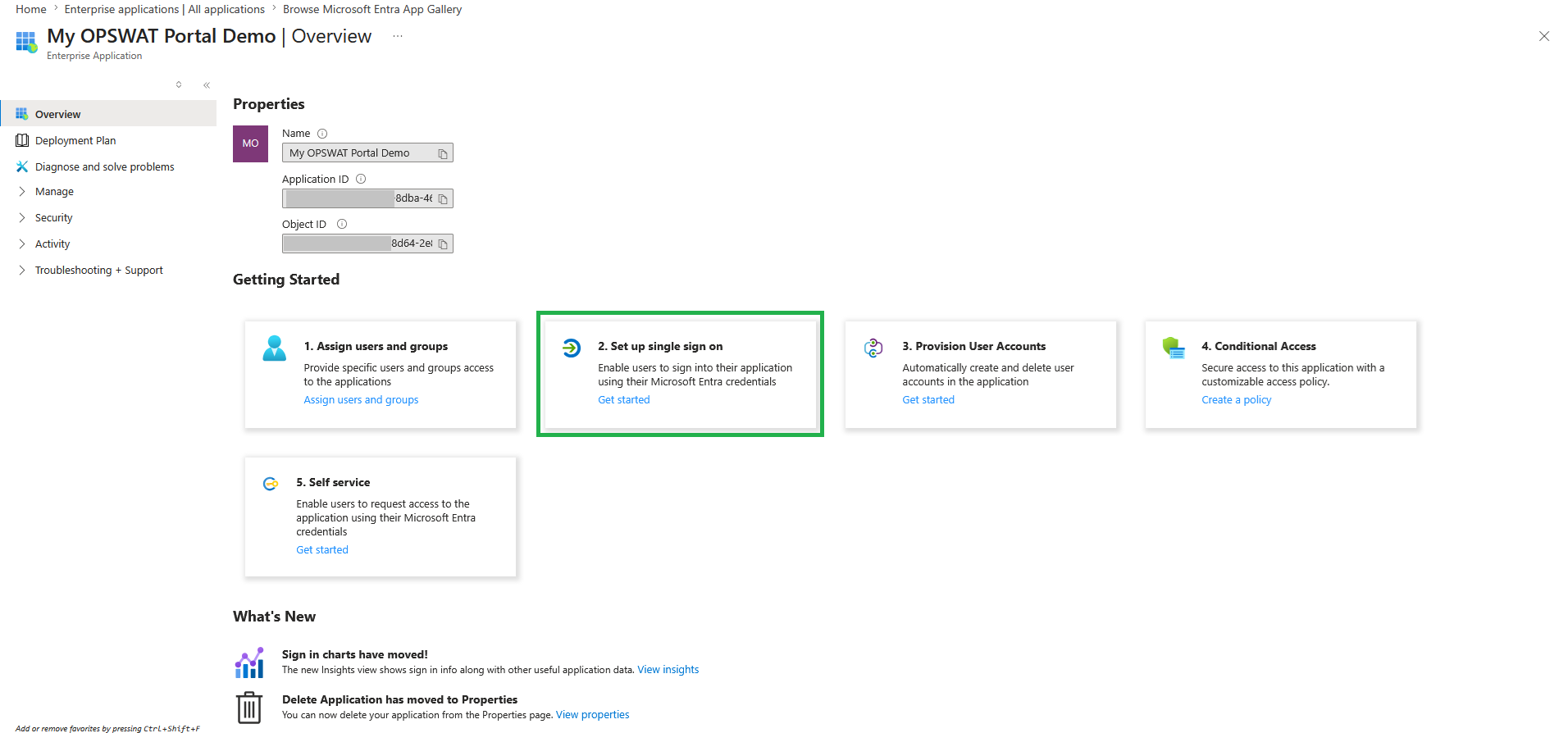
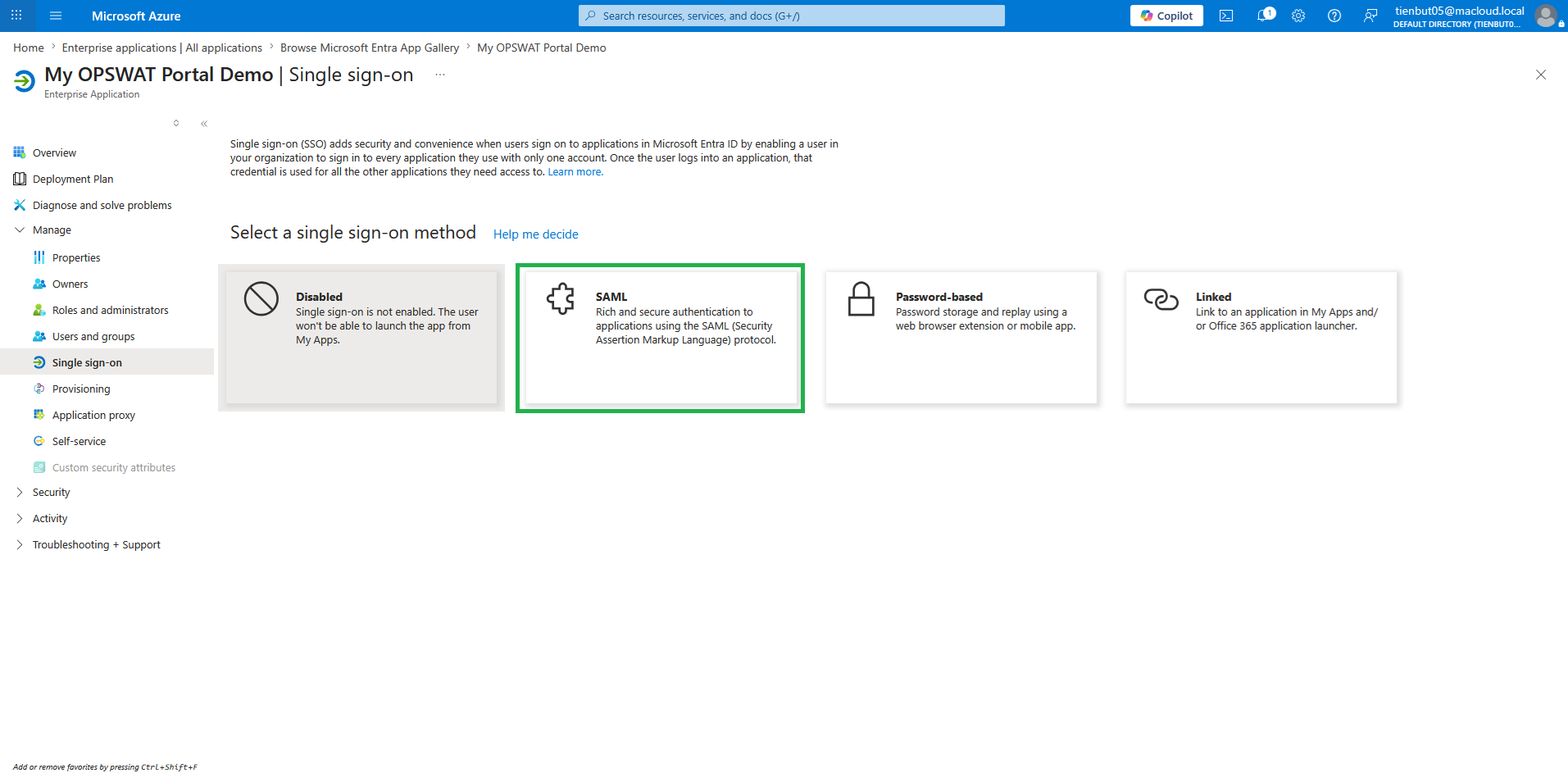
After the Create new application finished. In the middle of page, choose “Set up single sign on”
Select SAML method
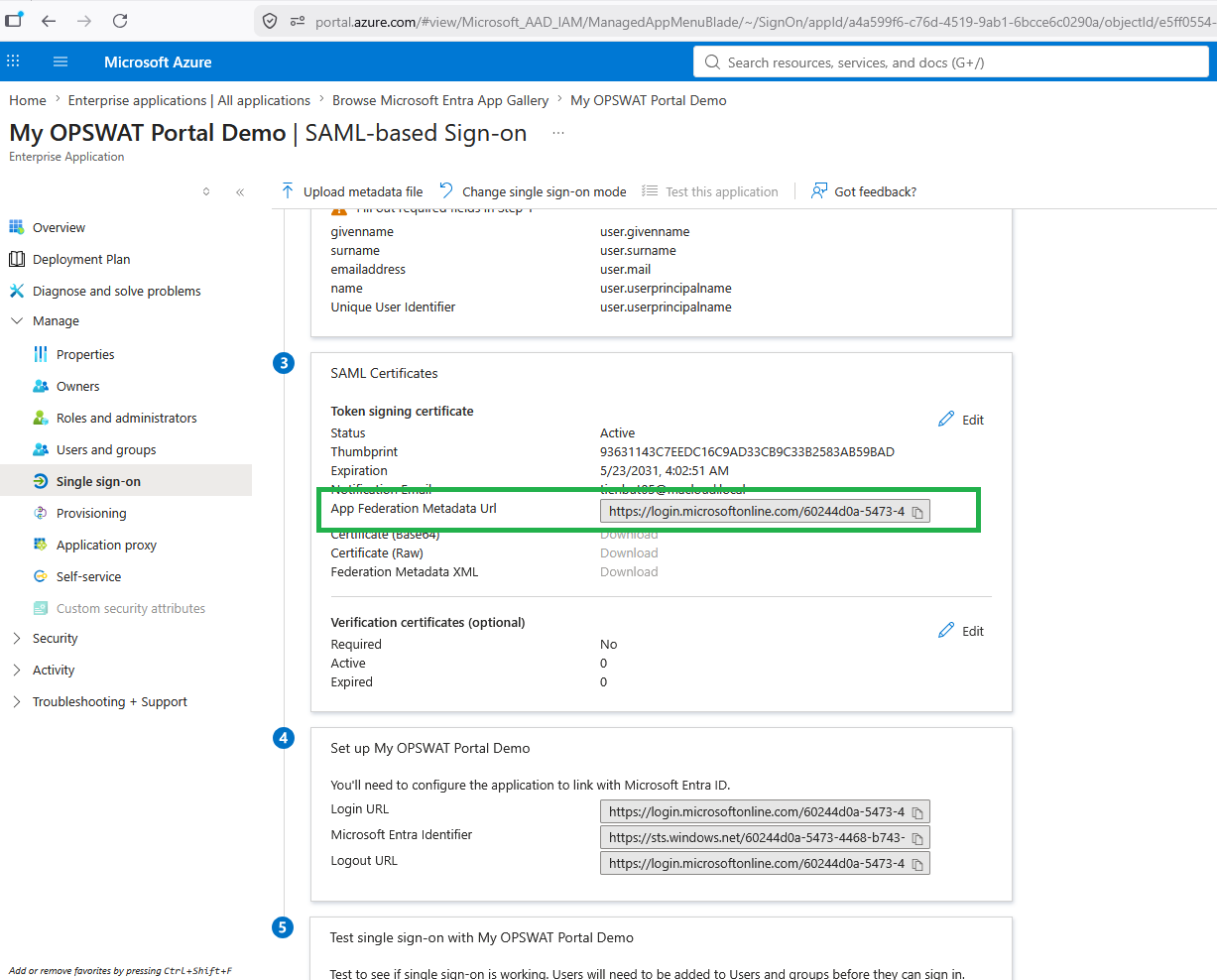
At SAML Certificate section → App Federation Metadata Url → Copy the XML file/URL. URL example: https://login.microsoftonline.com/xxxxxxx/federationmetadata/2007-06/federationmetadata.xml?appid=xxxxxxxx
Contact My OPSWAT support team via Support Service and provide all below info:
Ticket Summary: “Integrate Microsoft Entra with My OPSWAT Portal”
Description:
Customer Company Name:<your company name>
Domain name: <opswat.com (It must be a valid domain, if not it will not be accepted)>
Sample user*: <user_email> * To minimize the risk of blocking all users in the domain from signing in if there is an issue with the SSO configuration, we would like to enable SSO for a single test user first. Once you confirm that everything is working correctly, we will roll it out to all users in the domain.
The XML file/URL: <Which is downloaded from step #7>
How many users?
Do you have Organization?
No: please provide Organization name, email of the first Admin.(We will create an Organization and add the first Admin for this Org, then you can invite user to the Organization)
If Yes: skip this info
OPSWAT will redirect users to authenticate by the configured IDP based on provided domain or specific user. Do you have any specific users in IDP with different domain emails?
If No: skip this info
If Yes: Please provide a list user emails
Waiting response from Support Team, they will provide back to you:
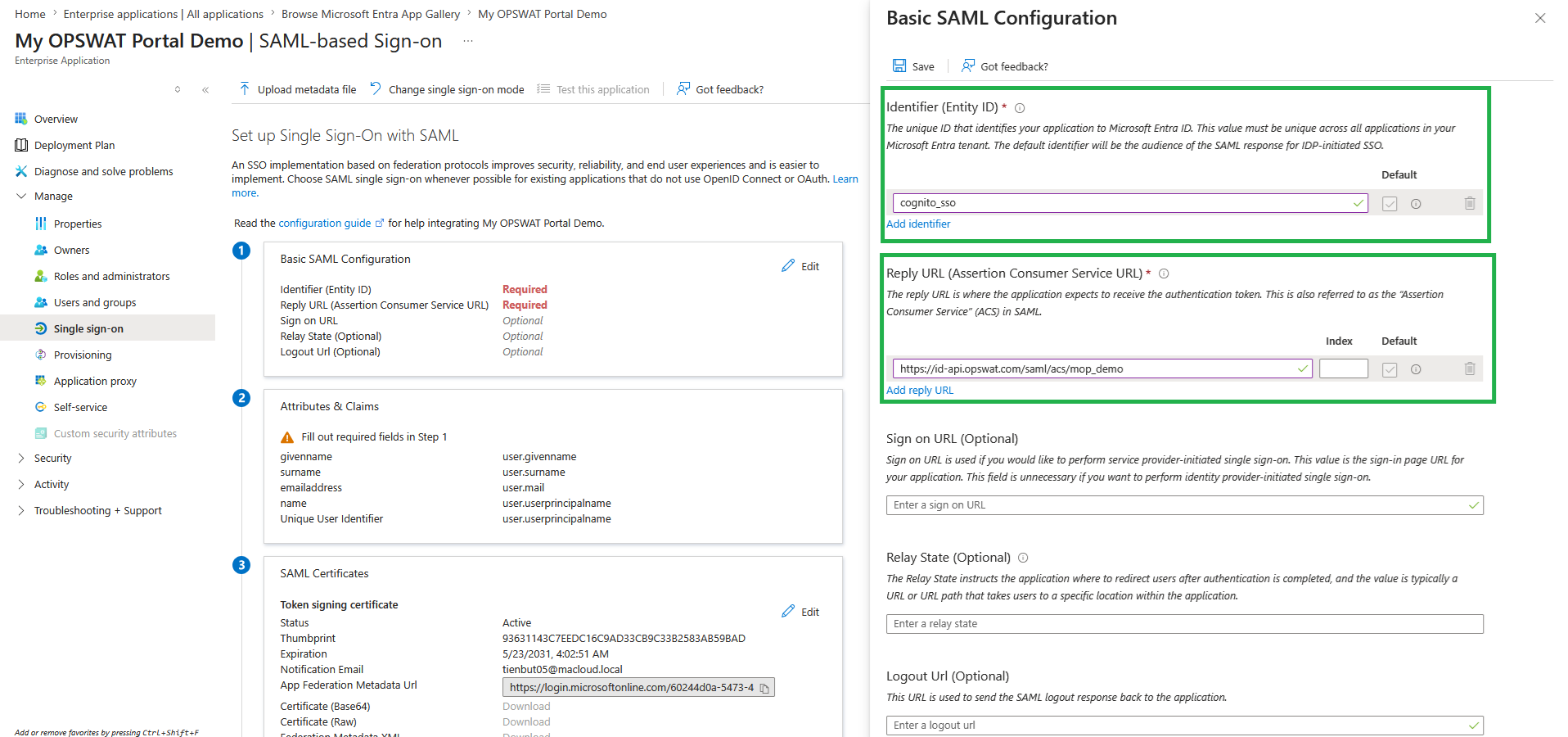
Assertion Consumer Service URL (ACS Url): https://id-api.opswat.com/saml/acs/{opswat_will_provide}
Identifier (Entity ID): cognito_sso (this is typically the expected value)
At “Basic SAML Configuration" section, Setup ACS Url and Entity ID with data is received from step #9
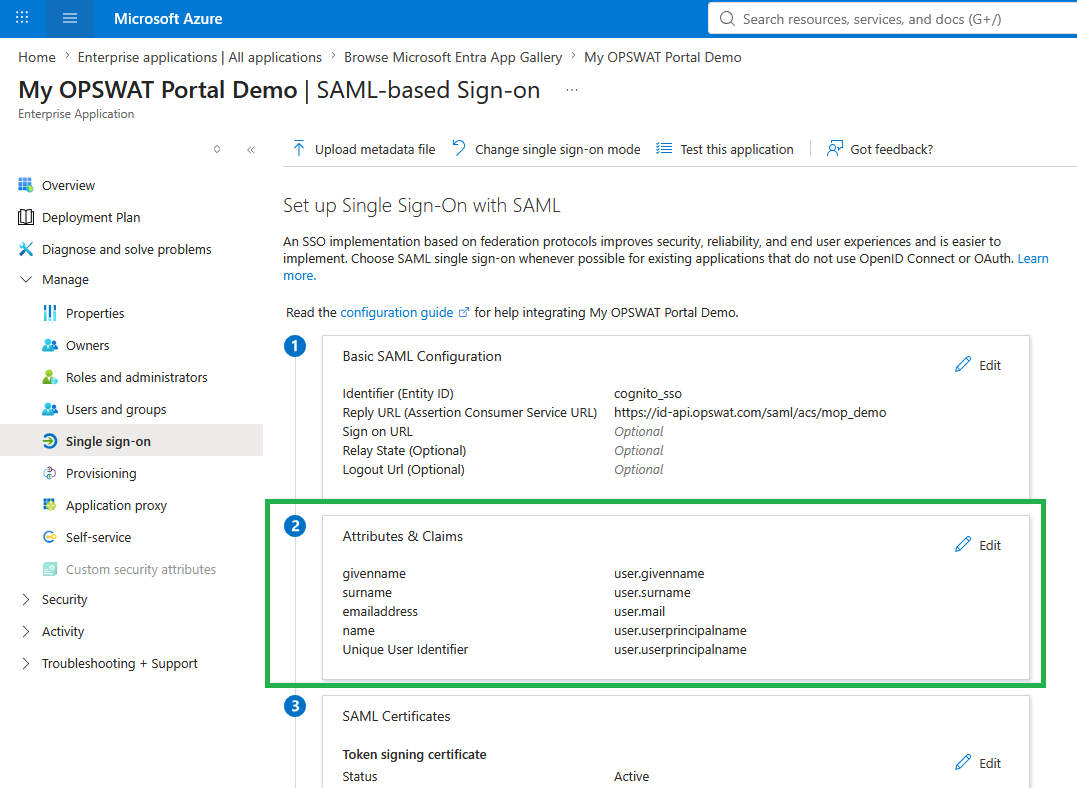
[Option] If you change or add any attributes or claims in the Attributes & Claims section, please let us know. Otherwise, you can keep the default configuration for a stable setup.
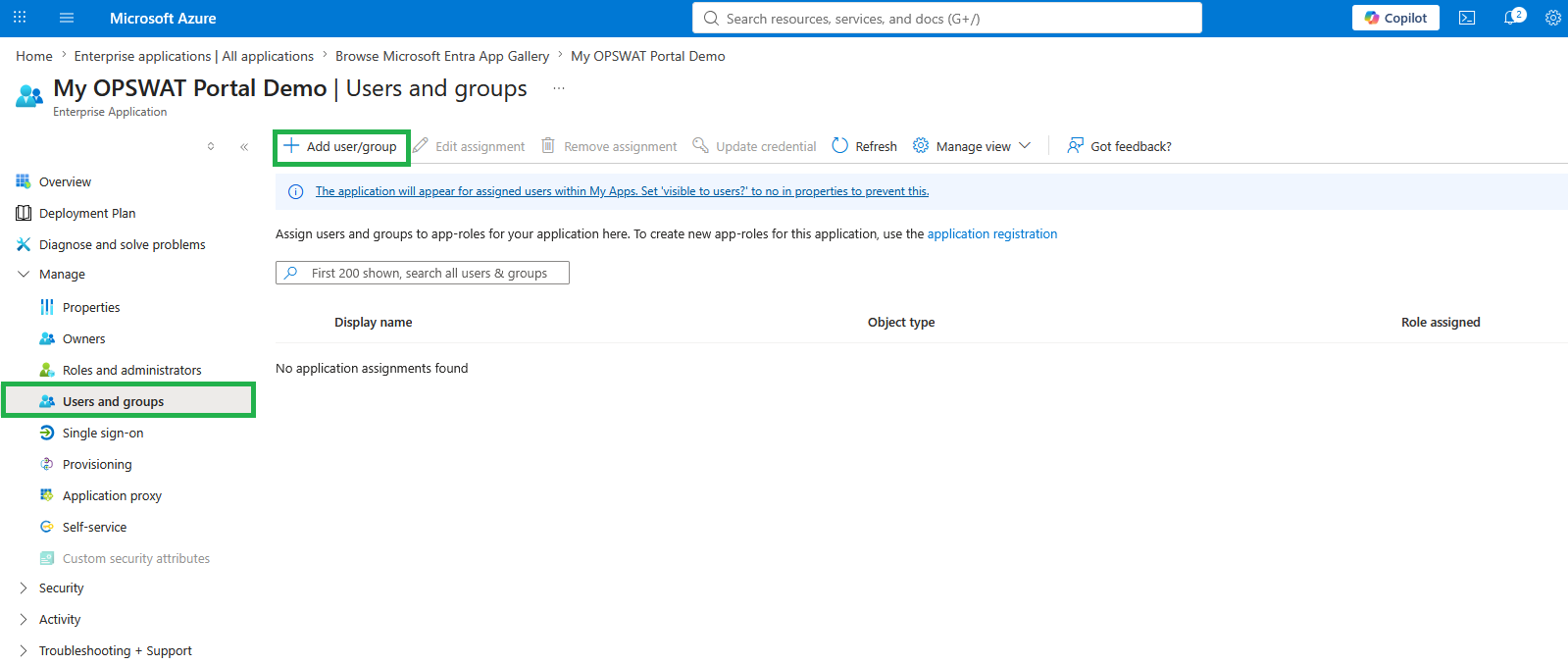
Now you need to assign people/groups who can access this application on Microsoft Entra. On the left menu, select Users and groups → Add user/group.
Info
After the user signs in to My OPSWAT Portal using Single Sign-On (SSO), the Admin must manually invite the user to the Organization, or the user needs to send a request to join. This is required in order to share organization entitlements.
Warning
If user is created without emailAddress, lastName, firstName info on Microsoft Entra, the user cannot single sign-on My OPSWAT Portal.