
The Nodes page manages the MetaDefender® MFT servers monitored by the MetaDefender MFT HA Controller™. A minimum of 1 and maximum of 2 nodes are supported.
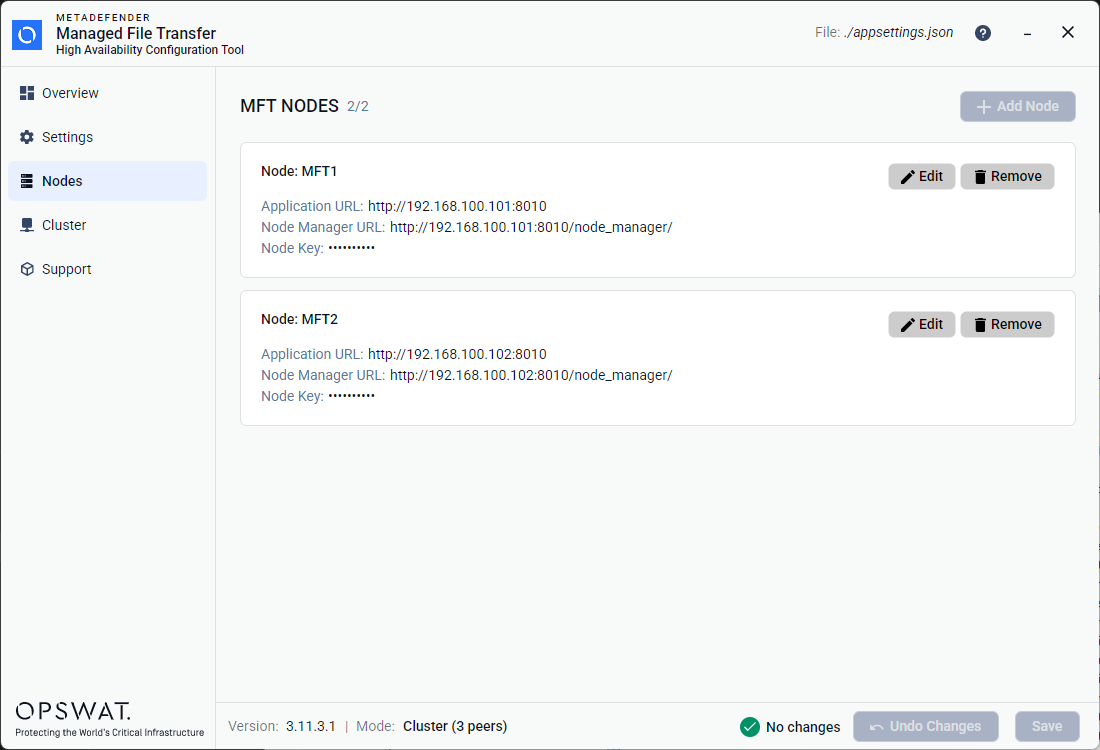
After a new installation the nodes are pre-filled with placeholder data. In this case setting up the nodes can be done by editing the prefilled nodes.
Viewing Nodes
Each node is displayed as a card showing:
Field | Description |
|---|---|
Node name | Display name of the Node (e.g., "Node: MFT1") |
Application URL | The public-facing MetaDefender® MFT URL |
Node Manager URL | The internal API endpoint used for health checks. |
Node Key | Always masked (shown as |
Editing a Node
Click the Edit button on the node card.
A dialog appears pre-populated with the node's current values:
Field | Description |
|---|---|
Node name | Display name of the Node (e.g., "Node: MFT1") |
Application URL | The public-facing MetaDefender® MFT URL |
Node Manager URL | The internal API endpoint used for health checks. This is typically the same as the Application URL followed by Example:
|
Node Key | This value can be copied from the |
Click OK to apply the changes or Cancel to discard
Adding a Node
If there is not already two nodes present on the page, you can add nodes with the + Add Node button.
Click the + Add Node button in the upper-right corner.
The same dialog opens with empty values.
Fill all fields and click OK to apply changes.
The + Add Node button is disabled when 2 nodes already exist.
Removing a Node
Click the Remove button on the node card.
The node is removed from the list immediately.
The Remove button is disabled when only 1 node exists (minimum of 1 is required).