
Introduction
The MetaDefender MFT HA Configuration Tool™ is a desktop application for editing the MetaDefender MFT HA Controller™'s appsettings.json configuration file. It provides a visual interface for managing:
Nodes — the MetaDefender® MFT instances that the MetaDefender MFT HA Controller™ monitors and fails over.
Cluster Peers — the MetaDefender MFT HA Controller™ instances that coordinate via Raft consensus.
HA Settings — health check intervals, failover thresholds, and timeouts.
Reverse Proxy — the built-in reverse proxy that forwards traffic to the active node.
Real-time Health Dashboard — live status of all nodes and peers.
Support Package — diagnostic ZIP export for troubleshooting.
Installation and Launch
The HA Configuration Tool™ is installed automatically as part of the MetaDefender MFT HA Controller™ installation. No separate installation or file copying is required — the tool is located in the MetaDefender MFT HA Controller™'s installation directory alongside the configuration files it manages.
Launching the Tool
Double-click the HA Configuration Tool™ shortcut on the desktop. The tool automatically reads appsettings.json and localpeer.json from the working directory on startup.
If either file is missing or malformed, an error banner is displayed at the top of the window and all controls are disabled.
Application Layout
The application window consists of four main areas: the title bar, the sidebar, the content area, and the footer.
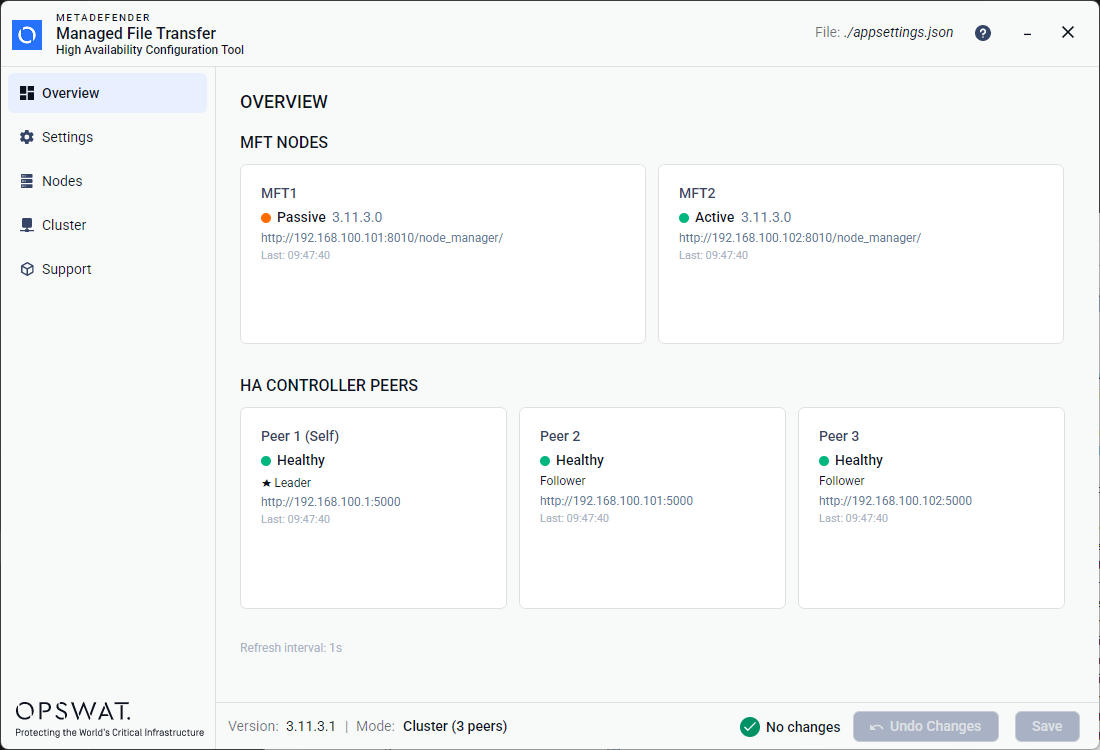
Title Bar
The title bar spans the top of the window and contains:
Logo
File Path: shows the path to the
appsettings.jsonto be editedDocumentation link
Window minimize and close buttons
Sidebar Navigation
The left sidebar contains navigation items:
Overview - Real-time health dashboard for nodes and peers
Settings - Configure HA operational parameters and the reverse proxy endpoint.
Nodes - Add, edit, and remove product_name_short nodes.
Cluster - Manage cluster peers, options, and the Raft endpoint.
Support - Generate diagnostic support package.
The currently selected page is visually highlighted. If a page has validation errors, a red dot appears next to its name.
Content Area
The main area to the right of the sidebar displays the currently selected page.
Footer
The footer bar at the bottom of the window displays:
Version - The application version number
Mode - Current operating mode: Standalone (Non-cluster mode) or Cluster (N Peers) when cluster is enabled.
Status indicator - A green checkmark with "No changes" or and orange Pencil icon with "Unsaved changes".
Undo changes - Discards all unsaved changes and reloads from disk. Disabled when there are no changes.
Save button - Validates all pages and writes changes to
appsettings.json. Disabled when there are no changes.
Saving and Discarding Changes
Save
Make changes on any page (Nodes, Settings, Cluster).
The footer status changes from "No changes" (green checkmark) to "Unsaved changes" (orange pencil icon).
Click the Save button in the footer.
The tool validates all pages. If validation passes, changes are written to
appsettings.jsonand the status reverts to "All changes saved".If validation fails, a red error banner appears at the top: "Please fix all validation errors before saving." Pages with errors show a red dot in the sidebar.
Undo Changes
Click the Undo Changes button in the footer (only enabled when there are unsaved changes).
The configuration is reloaded from disk, discarding all in-memory changes.
Unsaved Changes Warning
If you attempt to close the application while there are unsaved changes, a confirmation dialog appears:
Unsaved Changes You have unsaved changes. Are you sure you want to exit without saving?
Click Yes to close without saving, or No to return to the application.