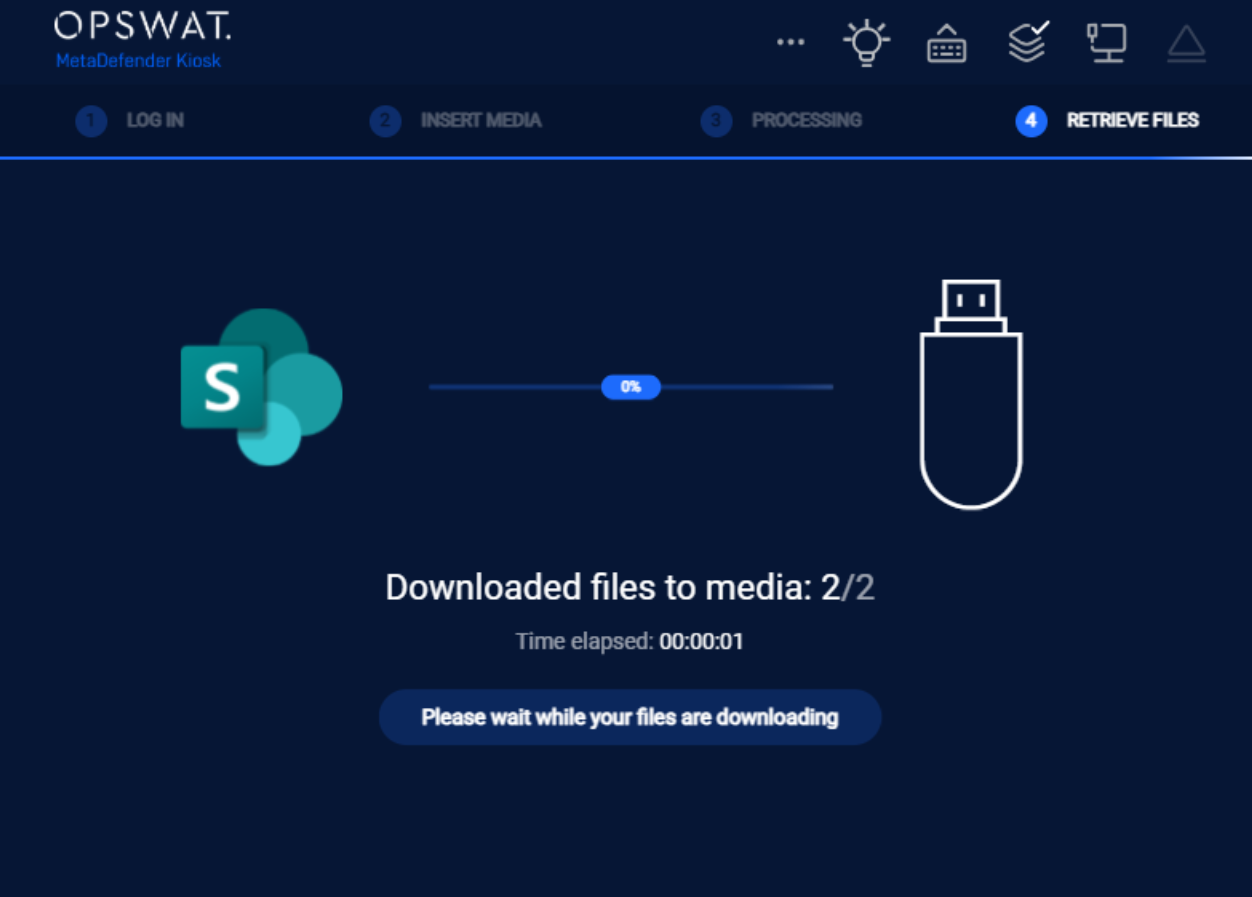
MetaDefender Kiosk supports file retrieval from multiple source types, giving organizations flexibility in how content enters the secure scanning workflow. Administrators can configure Kiosk to pull files directly from a Managed File Transfer (MFT) server, a local or network directory, SharePoint, or OneDrive — ensuring that files from across the organization's infrastructure are subject to the same rigorous scanning policy before being transferred to media.
Users from a Remote Active Directory (view Enabling user authentication in 8.3. Configuring Global Kiosk Settings) can retrieve files from all supported sources . Users logged in from Windows user login are not supported for file retrieval.
Guests are allowed to retrieve files from MFT only and are required to enter a MFT Owner ID to access files. See 9.9. Retrieving Files from an External Source
Only AD accounts are allowed to retrieve files from networked folder
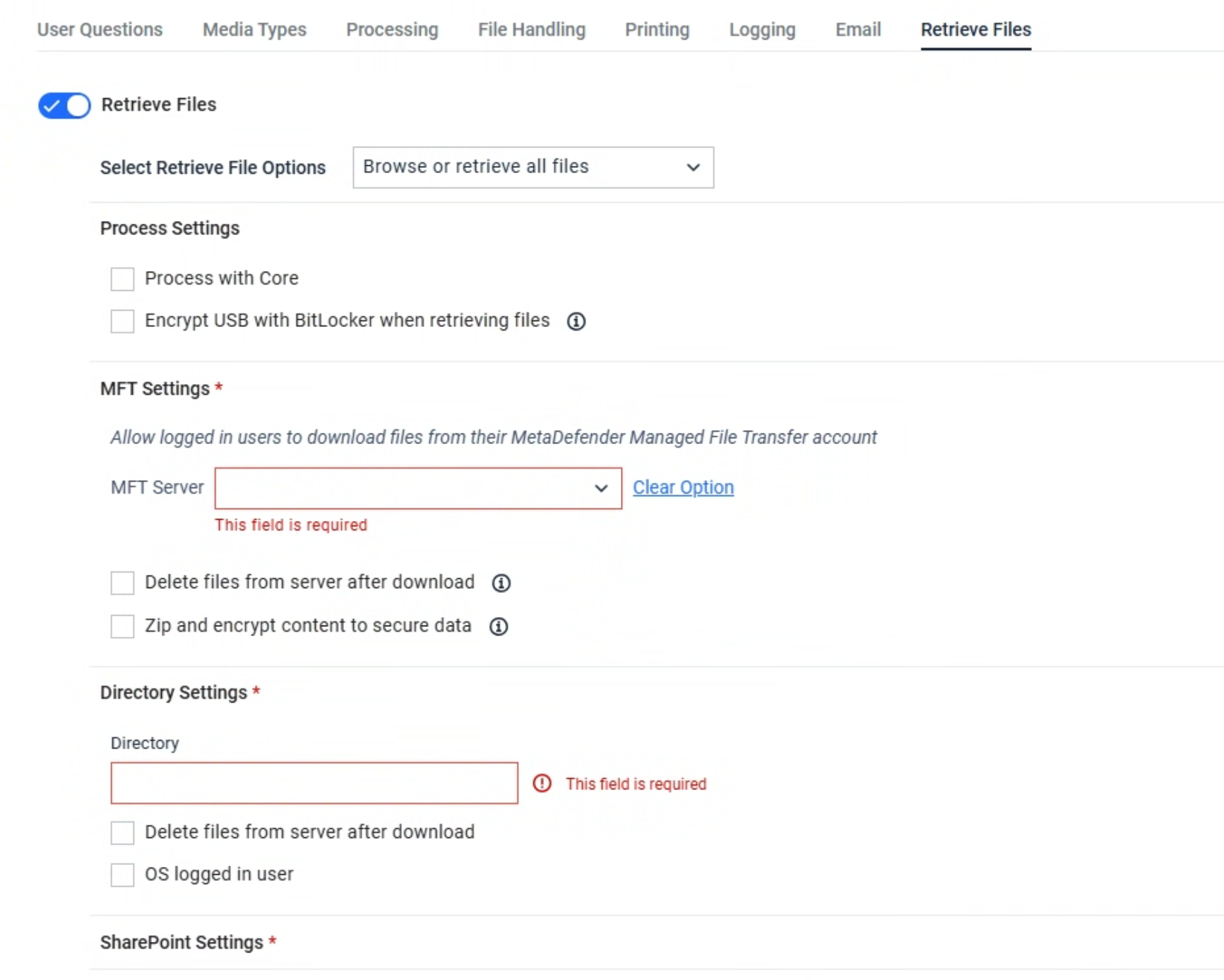
Retrieve File Options
Defines how files are selected and collected from the user folder during the retrieval process.
Browse File: Allows the end user to manually browse and select specific file(s) to retrieve.
Retrieve All Files: Automatically retrieves all files from the user folder without user selection.
Browse or Retrieve All Files: Gives the user the choice to either browse and select files or retrieve all files automatically.
Processing Settings
Process with Core
When retrieving files from supported sources, administrator can configure to process files with MetaDefender Core using a specific rule before downloading those files to the end user media.
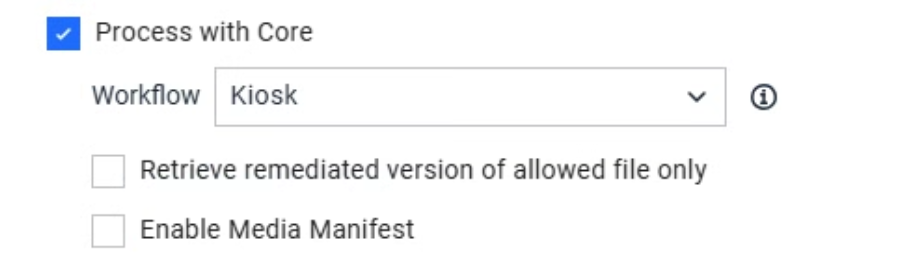
Administrators can optionally enable the following settings for file retrieval
Remediated version of allowed files only: When enabled, Kiosk retrieves only the remediated version of the file, rather than the original
Enable Media Manifest: When enabled, Kiosk generates a digitally signed record of the retrieval session upon completion. Refer to this KB to understand more about media manifest
Users can monitor file scanning progress in real time through the Core interface. allowed files are copied to the inserted media. If a file was modified by CDR or DLP during processing, the remediated version is transferred instead of the original.
Starting with Kiosk version 4.7.11, administrators can enable the generation of a manifest file. Once the file retrieval process is successfully completed, a manifest file will be created on the media. For more details, please refer to the documentation How do I set up and use the Media Manifest feature in MetaDefender Kiosk? - MetaDefender Kiosk Windows for more details
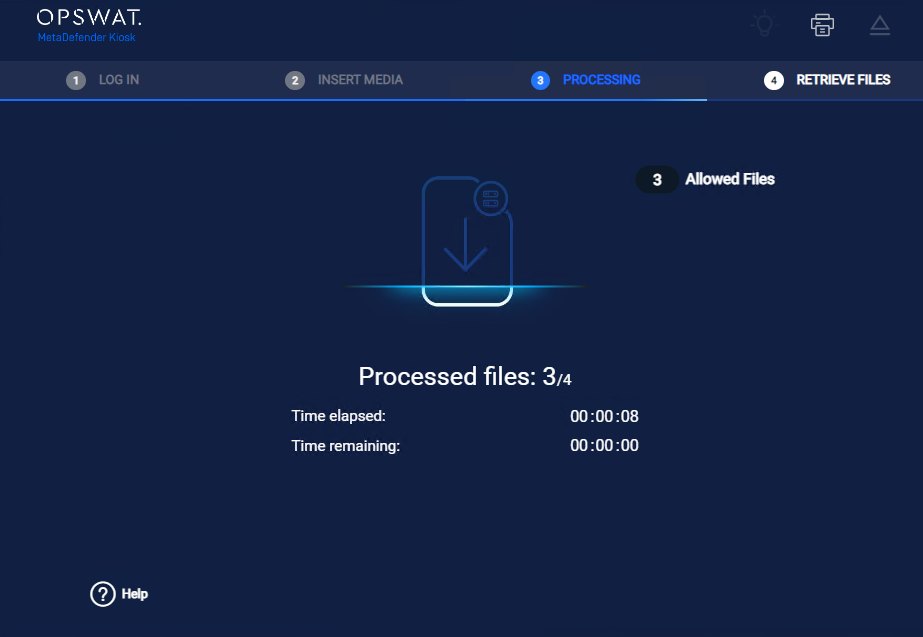
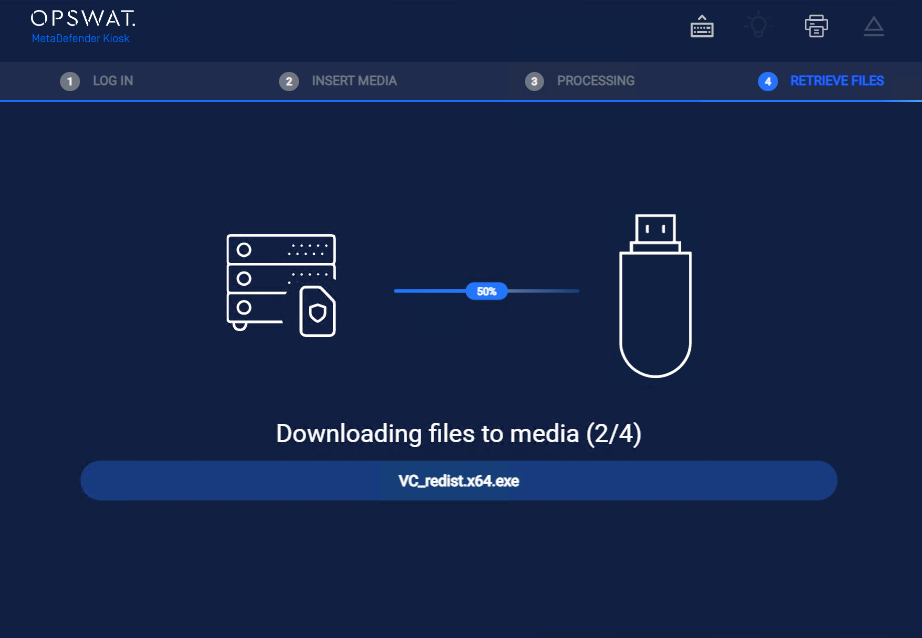
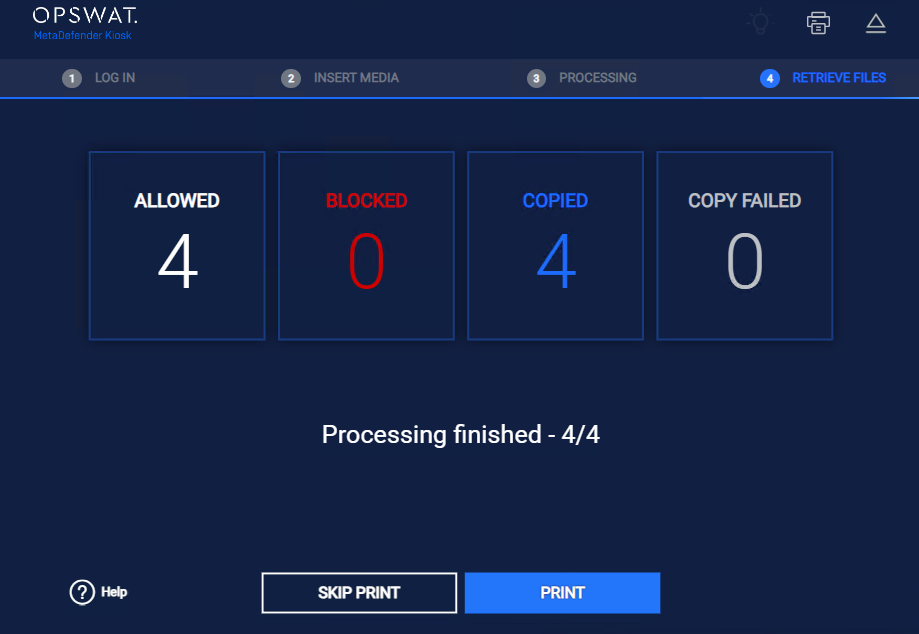
Encrypt USB with BitLocker when retrieving files
This option allows administrators to force BitLocker encryption on a USB drive before retrieving files from the supported source, such as MFT or Directory. It was designed for high-security environments where sensitive data must be protected even after leaving the Kiosk's secure environment.
The option of encrypting USB with BitLocker when retrieving files support only USB. Other media types, such as SD card or Floppy disc are not supported
Administrators can configure where the BitLocker recovery keys are stored.
On the USB Drive: The recovery key is saved as a file on the USB.
On the Kiosk Device: The recovery key is securely stored in the Kiosk’s local database.
Both: Keys are stored in both locations for redundancy.

Step | Description |
|---|---|
Initiate retrieve file process | Insert a non-encrypted USB drive into the Kiosk. Choose the "Retrieve Files" option and proceed as usual. |
Provide password for encryption | Kiosk prompts the user to enter a password for BitLocker encryption.
|
Encryption process | Kiosk applies BitLocker encryption to the USB. Depending on the amount of data on the USB, encryption time could be varied.
|
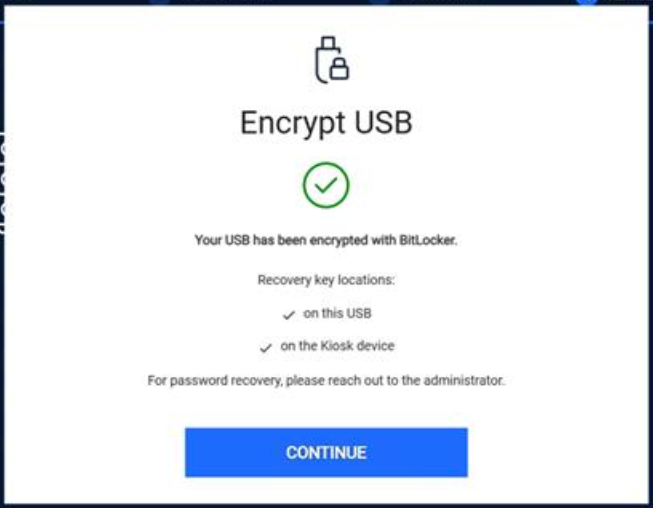
Encryption complete | Once the encryption complete, Kiosk informs the end user the status and where the recovery key is stored.
|
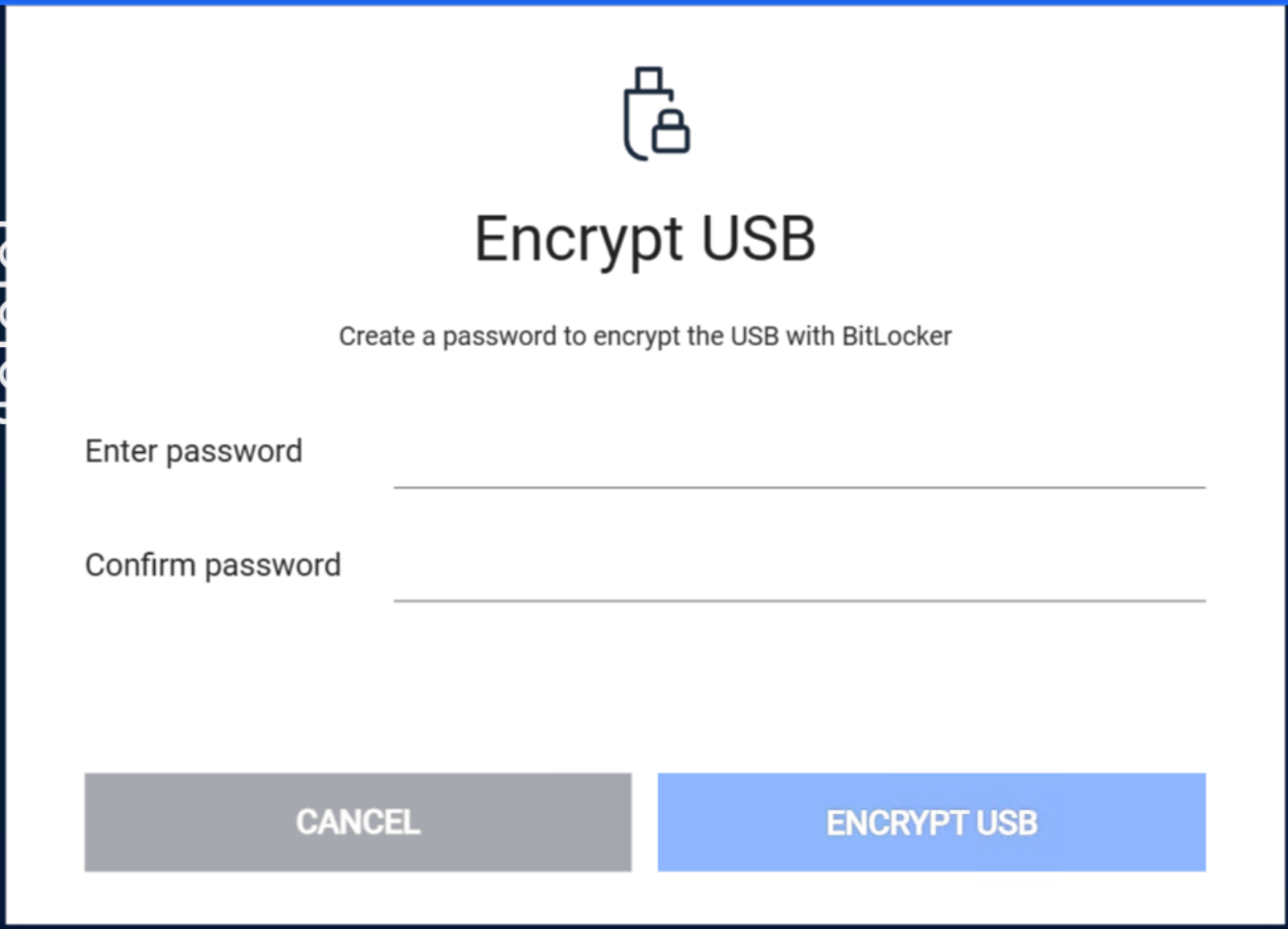
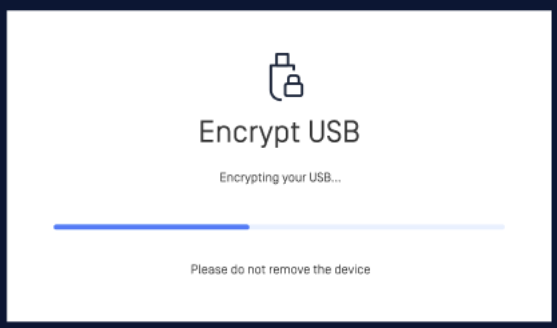
If BitLocker Recovery Key is configured to be stored in Kiosk, administrators can be managed the generated key from the Kiosk Console > Settings > Security > BitLocker Recovery Keys.
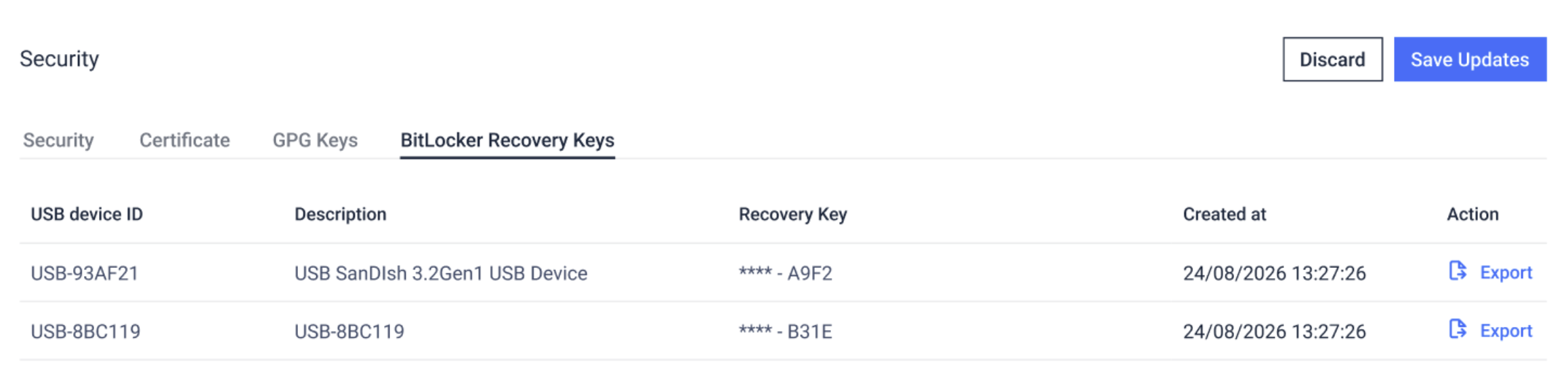
When the BitLocker password is forgotten, the recovery key is used to unlock the encrypted drive and regain access. Ensure the recovery key is stored in a safe and accessible place
Retrieval Sources
MFT
When an AD user logs in to a Kiosk session, the same login credentials will be used for accessing the user's account on MFT. When a Guest user has uploaded files to MFT server, a MFT owner ID for that session is generated at MFT and is used as an input for guest to retrieve files later. Refer to 6. Configuring with MFT to enable MFT server selection.
It is recommended for both Kiosk and MFT to be connected to the same user directory in order for the integration to work seamlessly.
Retrieving files from MFT or directory via SSO is not yet supported.
Delete files from server after download
With this enabled, files that are successfully downloaded will be marked for deletion on MFT. MFT's background worker will later proceed to delete the file.
Zip and encrypt content to secure data
With this enabled, files that are successfully downloaded from MFT will be compressed into a zip archive with password protection before copying to the media.
User will be required to enter the encryption password.
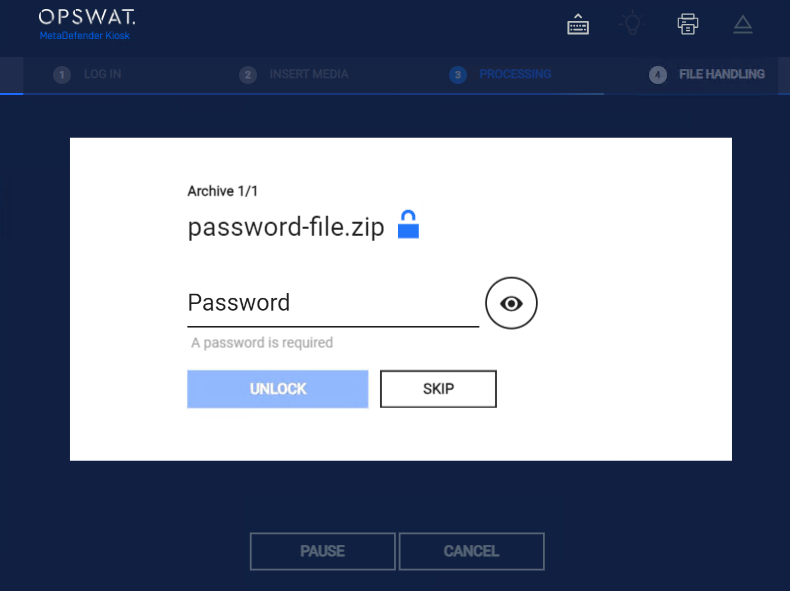
Max length of the password is 100
Special characters are not supported: " !"#$%&'()*+,-./:;<=>?@[]^_`{|}~"
Directory
Local directory or network share is supported. Guests cannot retrieve files from a directory.
Variables can be used to create folder name or to map the home folder of the end users
The %%%% variable is supported to map the user that is logged in to the Kiosk session to their own personal directory.
Responses to user questions can also be utilized via the predefined '%%%userresponse#%%%' variable, where '#' is the number of the response to the corresponding user question.
For example, to utilize the answer to the question 2, the variable to use would be '%%%%'. If no response to the question was given or no such question exists for the user response to exist (e.g. %%%%), then the variable will exist in the path created. The user's credentials are used to access the directories contents, ensure security permissions are set accordingly.
Delete files from server after download
With this enabled, files that are successfully downloaded will be deleted on the directory
OS logged in User:
An Admin can enable utilizing the OS logged in user's credentials if the copy initially fails with the AD user credentials
When retrieving files from a network share, the OS logged in user option can only access the path if it uses the server's IP address instead of its hostname."
SharePoint and OneDrive
MetaDefender Kiosk (4.8.0 or later) allows users to browse and retrieve existing files directly from Microsoft OneDrive and SharePoint.
To use this option, Microsoft Entra ID must be configured and selected as a Default Login Method for Kiosk authentication. Refer to Setup Microsoft SharePoint or OneDrive as storage - MetaDefender Kiosk Windows for details about the setup.
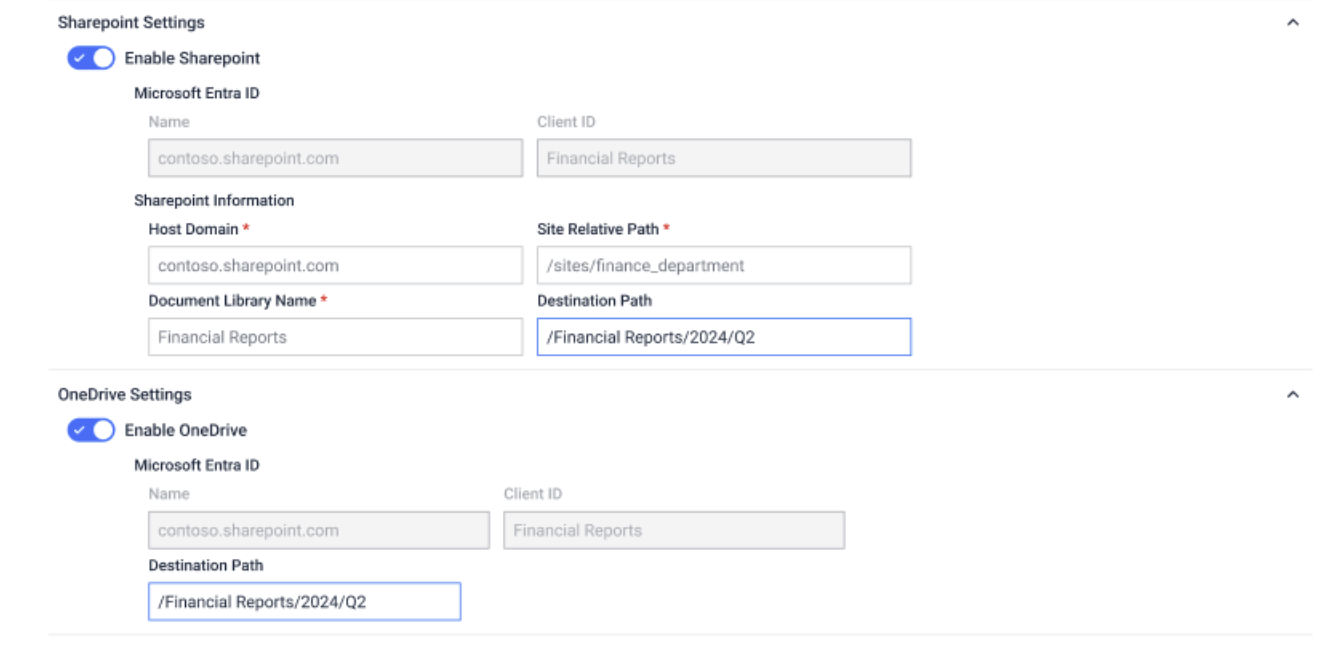
Settings for SharePoint
Microsoft Entra ID: Auto-populated from the configured Default Login Method > Entra ID settings.
Host Domain: Provide SharePoint Domain name
viethunghoang1999gmail.sharepoint.com as example from the screenshot above
Site Relative Path: Relative path to the site
/sites/hoangviethung-team as example from the screenshot above
Document Library Name
Documents as example from the screenshot above
Destination Path: The relative path from the root of the document library where the uploading folder will be stored
/Factory-3/Room1 as example from the screenshot above
Destination Path supports %%%% and %%%userresponse#%%% variables, please refer to Directory Naming for more information.
If you want to upload files into the root of the document library. Please enter Root, or leave this field empty
Settings for OneDrive
Microsoft Entra ID: Auto-populated from the configured Default Login Method > Entra ID settings.
Destination Path: The relative path where the uploading folder will be stored.
/Financial Reports/2024/Q2 as example from the screenshot above
Destination Path supports %%%% and %%%userresponse#%%% variables, please refer to Directory Naming for more information.
If you want to upload files into the user's personal folder. Please enter Root, or leave this field empty