
If at least one encrypted archive is found during processing (as described in 9.4. Processing Digital Media) and encrypted archive decryption is enabled, a list of the encrypted files encountered is presented.
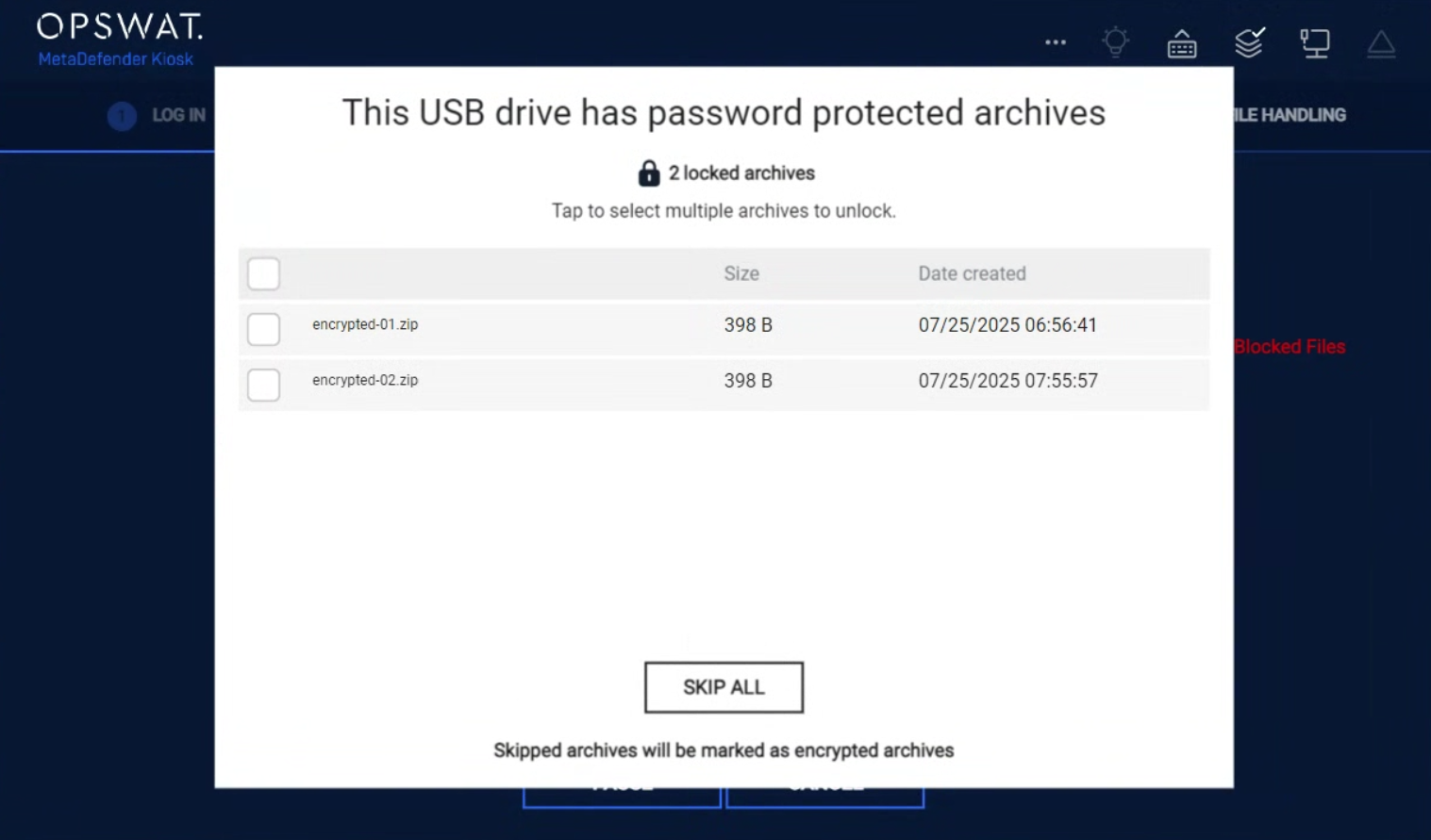
To process encrypted archives:
Select the checkbox next to one or more of the encrypted archives. A password screen will appear:
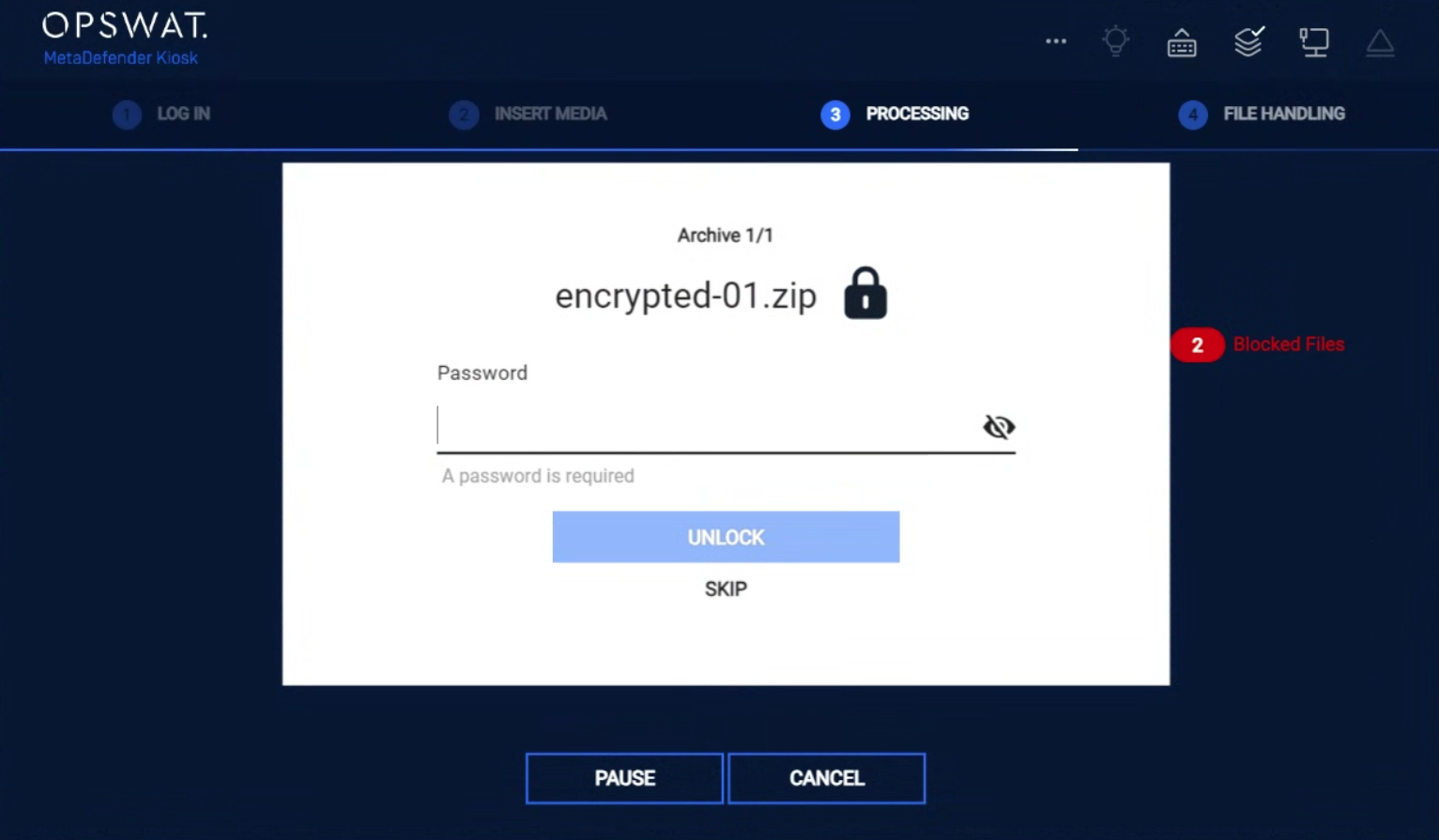
Enter the password for the encrypted archive and then click Submit .
Note: If you selected multiple encrypted archives, you are prompted to enter different passwords for each archive or select to apply the same password to all archives.
Note: Kiosk tries each password for all archives until it can extract it or failed, so a wrong password for an archive A might be a correct one for archive B, as a result the archive B might not be asked again for password.
Click Unlock to scan the selected encrypted archives . If the encrypted archives are successfully unlocked, the Session Results appear.
Note: Click Skip to bypass the encrypted archives and go directly to the Session Results screen.
If another encrypted archive is found within a previous archive, the user will be re-prompted to enter a password until a successful unlock or skip is chosen.