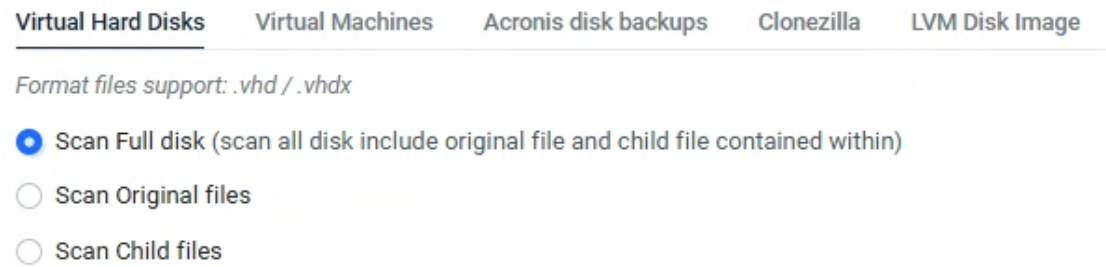
The Kiosk functionality enables comprehensive deep scanning of disk image files by seamlessly mounting and scanning all nested files within, ensuring thorough analysis even in the presence of multiple layers of disk image files.
Supported disk image file types
Virtual Hard Disks (.VHD or .VHDX)
Virtual Machines (.VMDK) — including Linux partitions formatted with XFS (the default filesystem on Red Hat Enterprise Linux, CentOS, and many other Linux distributions), in addition to ext4 and Windows-formatted partitions
Arcronis Disk backups (.TIB or .TIBX), including Linux disk backups that use LVM (Logical Volume Manager) partitions
Clonezilla — supports source disks partitioned with either GPT or standard MBR (primary partitions only; disks using extended/logical MBR partitions are not supported)
LVM Disk Image
MetaDefender Kiosk 4.8.0 or later supports mounting and scanning of modern Acronis backup formats (.tibx) across versions 15, 16, and 17. This enhancement ensures that administrators can process the latest backup archives from Acronis Cyber Protect while maintaining full backward compatibility with legacy .tib files from version 12.5.
Configuration to scan disk image files
See Disk Image Files for more detail to configure scanning for each type of disk image file.
The scanning flow
1. User select the disk image files to scan
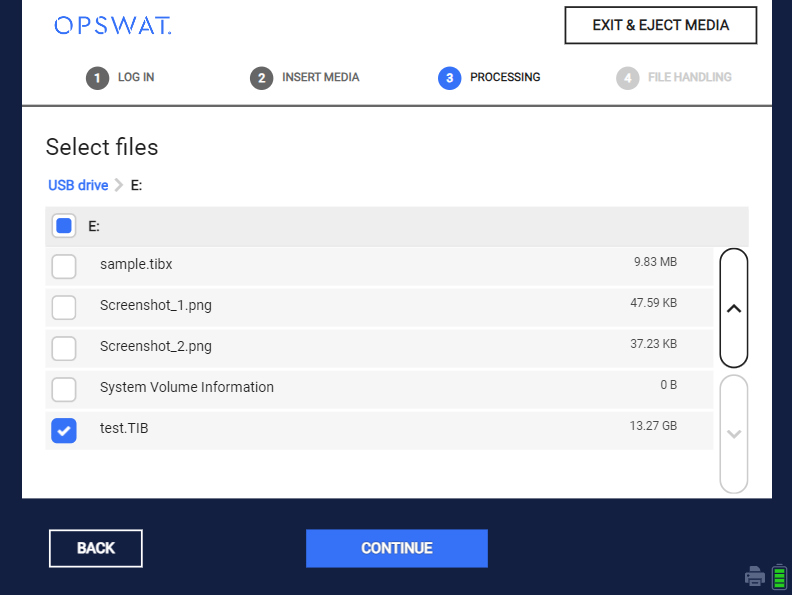
2. Kiosk prepares for scanning
Kiosk will mount and enumerate all child files to scan.
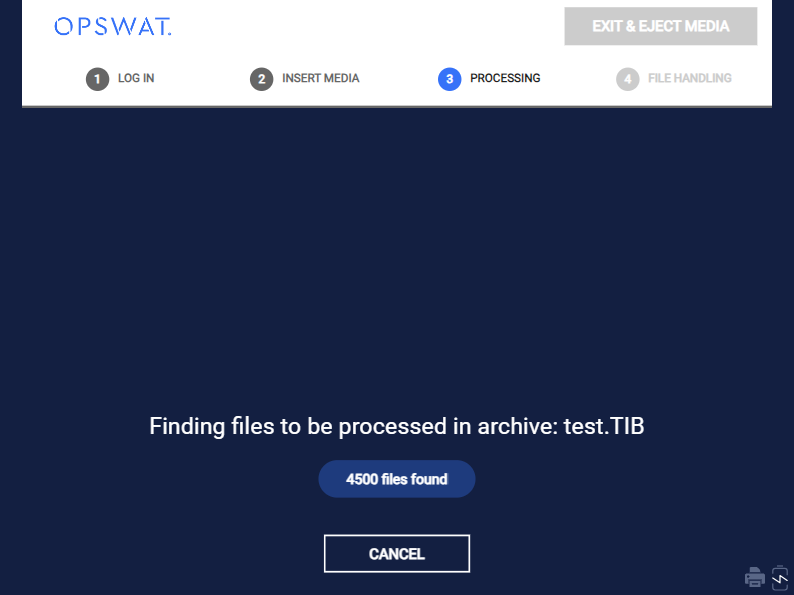
For any nested disk image files inside the selected one, Kiosk will mount and scan all of them according to option mounting and scanning corresponding to that types of disk image.
For example, If the test.TIBcontains the A.vhd file inside:
When
Mount and scan Virtual Hard Disksis enabled, Kiosk will mount and scan A.vhd file as well.When
Mount and scan Virtual Hard Disksis disabled, Kiosk will not mount A.vhd file, only original file A.vhd file is processed.
3. Scanning
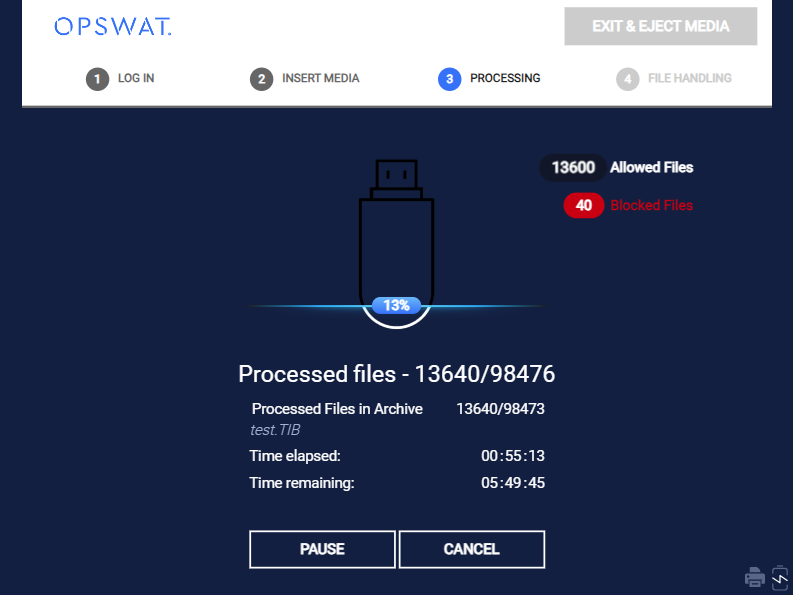
Kiosk scans all enumerated files and show the progress of current processing disk image file on the UI.
From Kiosk v4.6.8, the child files inside the disk image is added into the Processed files for better statistics and estimation remaining time.
Starting from Kiosk version 4.7.7, administrator can configure to disable the estimated time to complete the scan from Console > Configuration > Kiosk UI > Kiosk Interface > Disable display scan estimation time.
4. Reporting
Kiosk UI
User can view the detailed result of original file and child files on Kiosk UI.
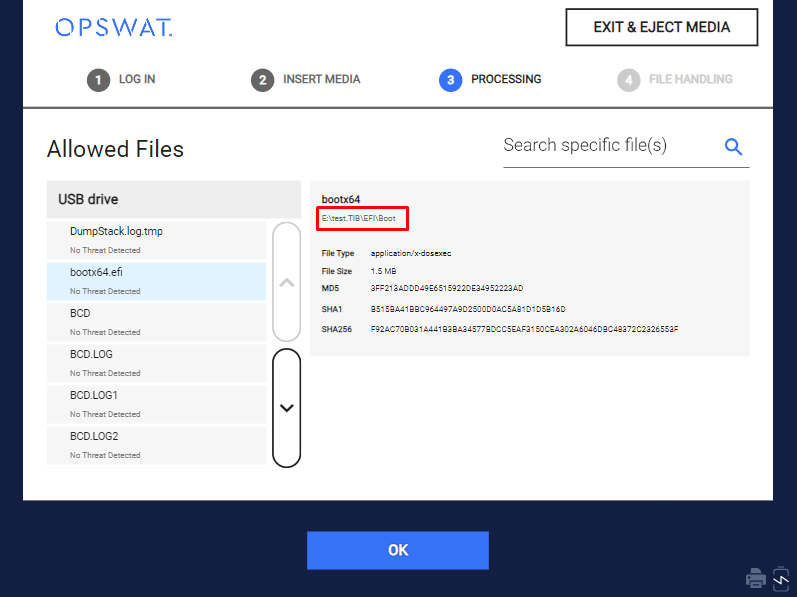
This view can only display a maximum of 500 files
Session Log
Beside the primary report, Kiosk will create a folder named session ID to gather all reports of disk image files.
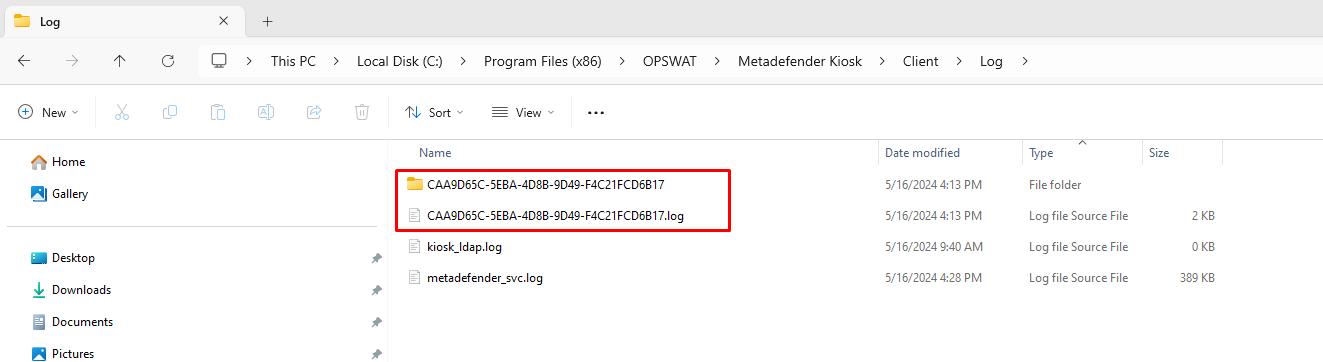
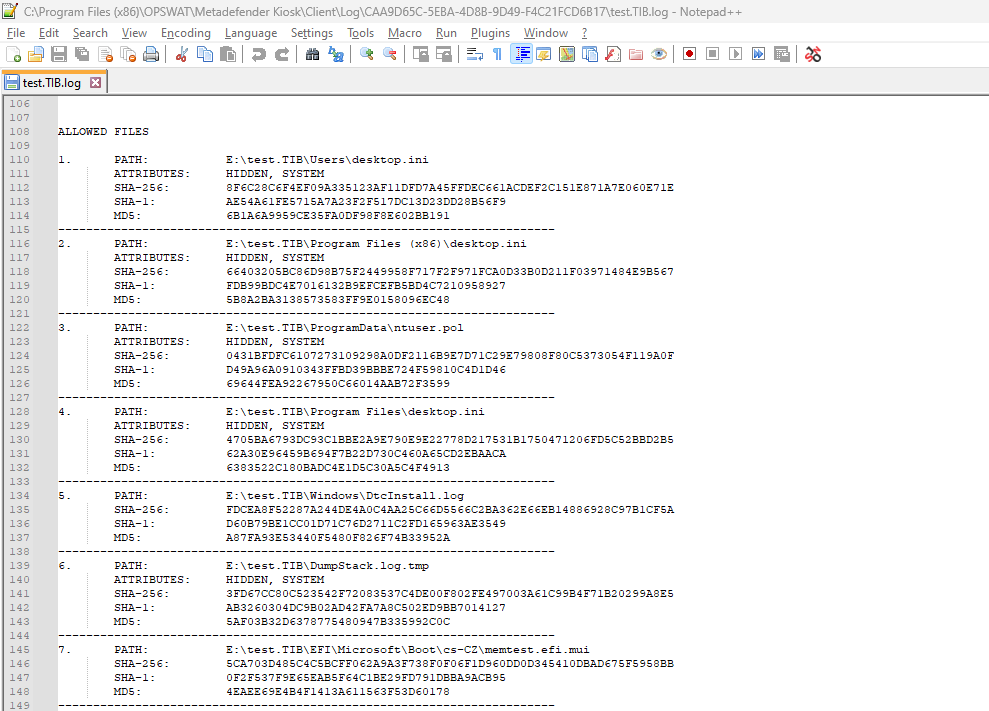
The primary report contains the final result of the disk image file selected by the user. Meanwhile, Kiosk will generate a separate report for the child files. This additional report will be named as the original file and will follow the same format as the primary report.
Starting in version 4.8.5, a disk image's PDF report uses the same modern layout as the main session log — a clear summary of the scan result, distinct sections for device and scan details, and numbered file entries that are easy to scan through. This applies to both the report for the disk image you selected and the report generated for any nested disk image found inside it. Unlike the main session log, a disk image report does not include a blank first page.
5. Post processing actions
See Processing virtual disk files for more details.
Preparing to Scan Acronis Backups with LVM Partitions
Some Linux disk backups organize their storage using LVM (Logical Volume Manager), a layout that Windows cannot mount directly. When Kiosk detects an Acronis (.TIB or .TIBX) backup whose source disk uses LVM, it temporarily reserves free space on one of the kiosk machine's own internal drives to reconstruct and mount the backup's volumes for scanning. Once scanning finishes, that reserved space is released automatically.
To choose which drive Kiosk may use, and how much space it can reserve:
Navigate to Configuration > Disk Image Settings.
Open the Acronis disk backups tab.
Under Mount Options, select the Drive Kiosk should use as scratch space from the list of eligible drives on the machine.
Choose how much of that drive's free space Kiosk may use — for example, 10%, 20% (the default), or up to 50%, depending on how much you want to reserve for this purpose versus leave available for the rest of the system.
Save your changes. No restart is required.
Only internal, fixed drives can be selected for this setting — external or removable drives are not offered as options, since they aren't reliable scratch space for this purpose.
Notes
The Session History on Kiosk Console and Print result will display only the disk image files selected by the user, excluding their respective child files.
For some TIB files, two limitations are addressed with Acronis tool.
Filenames ending with numbers are considerred invalid
Same filename with different extension, e.x: somefile.tib and somefile.tibx are considered invalid.
When scanning an Acronis backup that requires this reserved-space mounting step, the session may take a little longer to begin while Kiosk prepares the backup — progress is shown on screen during this step.
VMDK files with Windows and Linux filesystems are supported, including Linux partitions formatted with XFS (the default filesystem on Red Hat Enterprise Linux, CentOS, and many other Linux distributions) in addition to ext4 — Kiosk reads both directly. In case Kiosk is unable to mount a Linux filesystem directly on Windows, Kiosk will convert the VMDK file to VHDX and then mount it to scan if Scan Full Disk Virtual Hard Disks is enabled along with Scan Full Disk Virtual Machines.
A VMDK's XFS partition may not be readable if it was created using a newer Linux disk-formatting toolchain (this is the default on some Linux distributions released in 2024 or later). When that happens, the individual files on that partition aren't listed, but the VMDK file itself is still scanned as a whole. If you run into this, try creating the disk image from an earlier release of the source Linux distribution, or reformat the XFS partition using its legacy timestamp option before exporting the VMDK. An XFS partition nested inside another XFS partition is also not currently supported.
In earlier versions, generating the PDF report for a disk image could fail if a scanned file's name contained certain non-Latin characters (for example, Chinese or Devanagari script), producing an empty report file. This is resolved as of version 4.8.5.
If a single device contains more than one Clonezilla backup, all of them are mounted and scanned within the same session. Clonezilla backups from disks that use non-standard (extended/logical) MBR partitioning are not currently supported; only GPT disks and standard MBR disks with primary partitions are recognized.