
This article applies to all MetaDefender ICAP Server releases deployed on both Windows & Linux systems.
In order to improve the file scan speed, a custom tempdirectory can be set for the Metadefender ICAP Server.
1. Instructions for Windows
Step 1:
Create a RAMDISK on your system.
We recommend the following tool for this: Tools and utilities for Windows
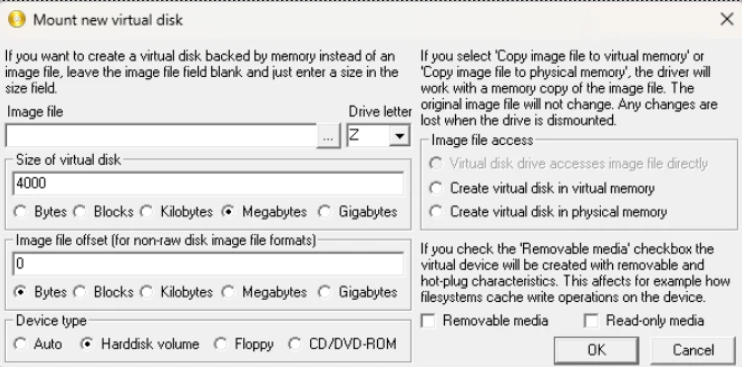
After installation, use the ImDisk Virtual Disk Driver application to create a new RAMDISK.
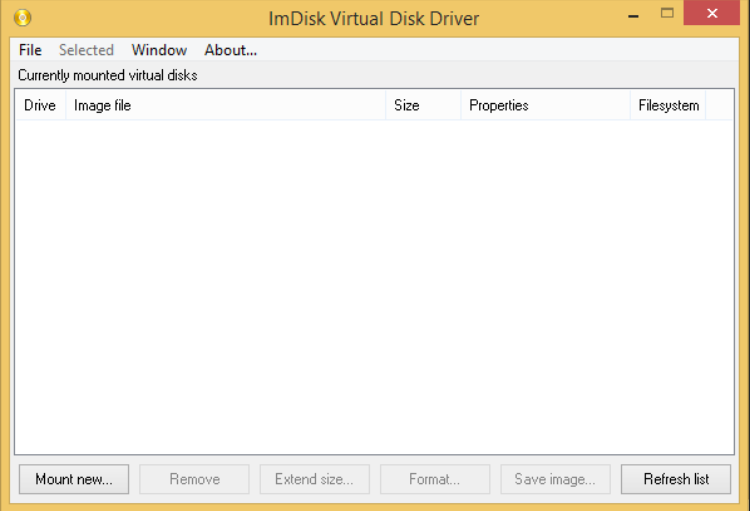
Mount a new virtual disk:
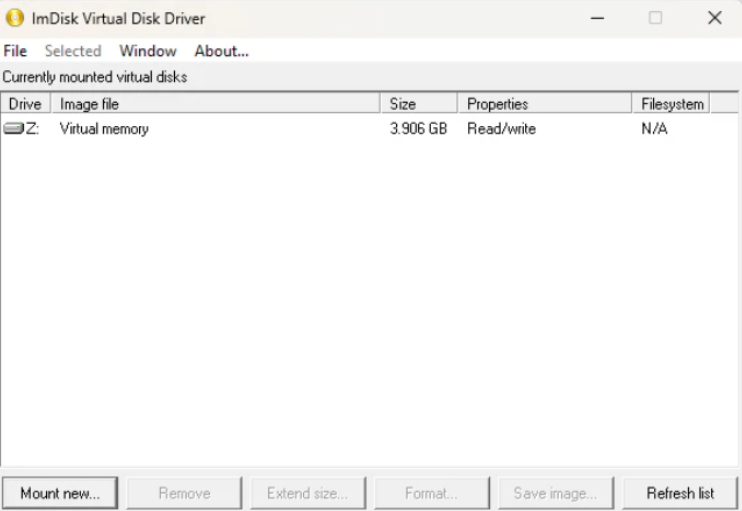
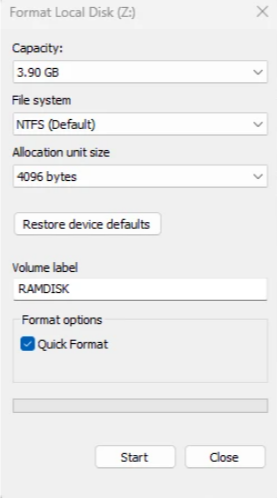
After disk creation, Windows will ask you to format the new disk.
Step 2:
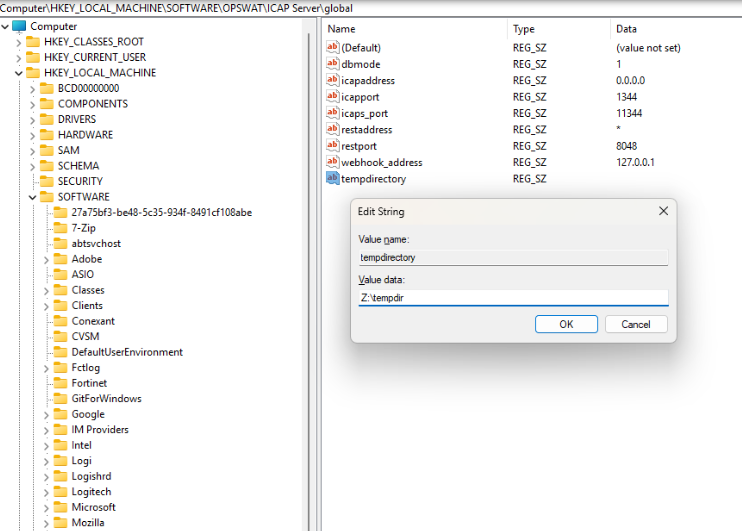
Create, or edit the following registry entry:
HKEY_LOCAL_MACHINE\SOFTWARE\OPSWAT\ICAP Server\global\tempdirectory
where tempdirectory should be a string value with a desired location, for example: Z:\tempdir
Step 3:
The changes to take effect restart the mdicapsrv service.
After the service restart, your custom directory will be used for temporary file storage during file scan.
2. Instructions for Linux:
Step 1: Update the file fstab in the directory /etc/fstab
Step 2: Mount this directory
Step 3: Validate the directory
Please note that the mdicapsrv service can write to this directory.
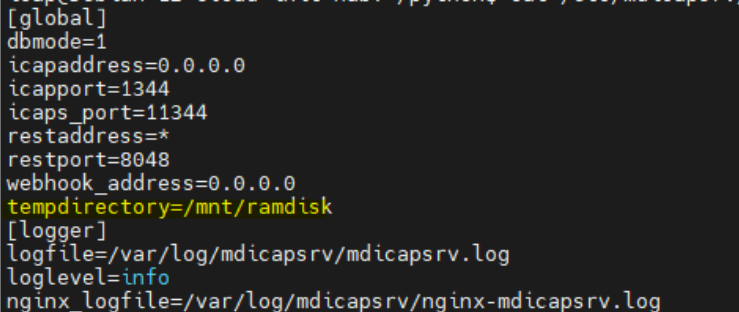
Step 4: Update the config file /etc/mdicapsrv/mdicapsrc.conf
The changes to take effect restart the mdicapsrv service.
After the service restart, your custom directory will be used for temporary file storage during file scan.
If Further Assistance is required, please proceed to create a support case or chat with our support engineer.