
Telnet Installation
Windows:
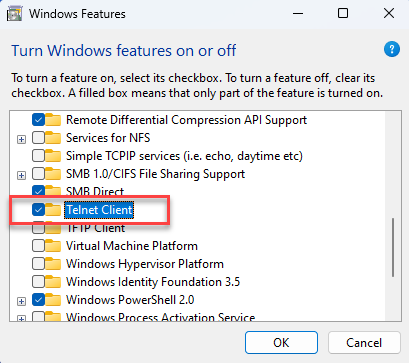
Make sure Telnet is enabled under "Turn Windows features on or off."
Linux:
Make sure Telnet is installed on your system.
Debian/Ubuntu-based distributions:
sudo apt install telnet -y
RHEL/CentOS/Fedora:
sudo yum install telnet -y
For newer versions (CentOS 8+, RHEL 8+, Fedora):
sudo dnf install telnet -y
Verify Installation:
After installation, check if Telnet is installed by running:
telnet --version
Simulate ICAP traffic using Telnet
1. Open a Telnet Connection
Use the following command in a terminal or command prompt:
telnet <ICAP_SERVER> <ICAP_PORT>
Example:
telnet 192.168.233.132 1344
2. Construct an ICAP Request
After connecting via telnet, Copy and paste the ICAP request. Below is an example request for REQMOD (Request Modification):
ICAP REQMOD Request Example:
REQMOD icap://192.168.233.132/OMSScanReq-AV ICAP/1.0
Host: 192.168.1.100
Encapsulated: req-hdr=0, null-body=120
GET /index.html HTTP/1.1
Host: www.example.com
User-Agent: Telnet-ICAP
After typing, press Enter twice to send the request.
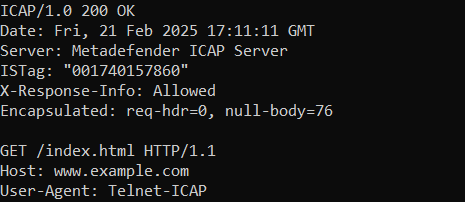
If the request is successful, you will see the response as the output.
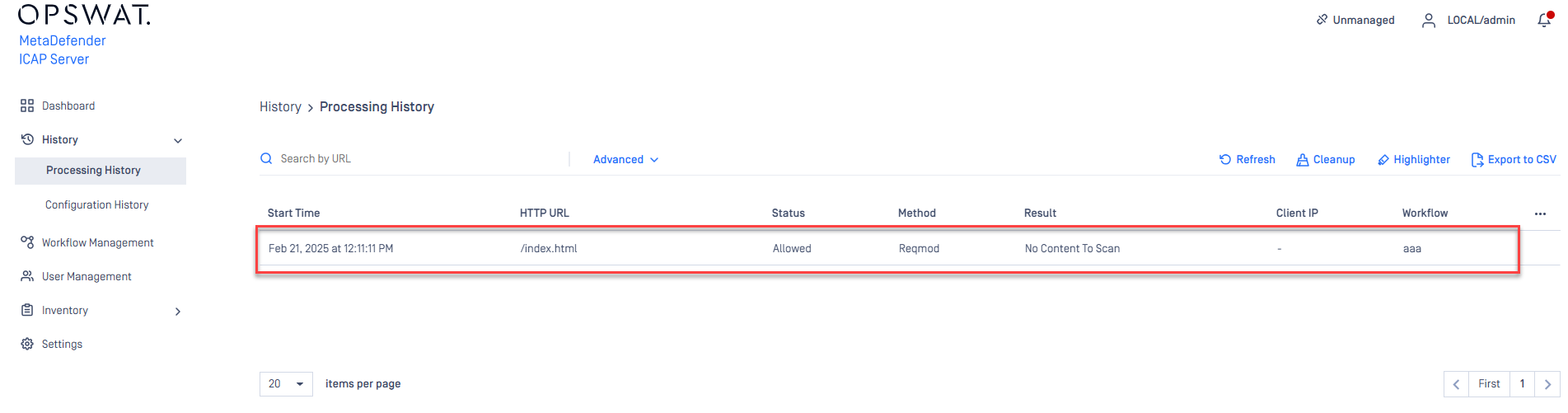
On the MetaDefender ICAP Console Management
Support:
If Further Assistance is required, please proceed to create a support case or chat with our support engineer.
Was this page helpful?
On This Page
How to Simulate ICAP Traffic to Test ICAP Functionality Using Telnet?Telnet InstallationSimulate ICAP traffic using TelnetWindows:Linux:1. Open a Telnet Connection2. Construct an ICAP RequestDebian/Ubuntu-based distributions:RHEL/CentOS/Fedora:For newer versions (CentOS 8+, RHEL 8+, Fedora):Verify Installation:Knowledge Base