
Who can use this feature?
User type: Organization user
Role: View only or Full access on Support Service - RMA Cases
A Return Merchandise Authorization (RMA) request lets you ask OPSWAT to review, repair, or replace a defective piece of OPSWAT hardware. You can submit an RMA request directly in My OPSWAT Portal instead of emailing Support, and then track its progress from start to finish. This page is for organization users who manage hardware, and for partners who manage hardware on behalf of their customers.
Prerequisites
You must be signed in to My OPSWAT Portal as an organization user.
You need Full Access to Support Service - RMA Cases permission to submit RMA requests, View Only permission to view existing RMA cases. If you do not see the RMA options described below, ask your organization administrator to grant this permission.
The hardware you are reporting must be associated with your organization (or, for partners, with the customer you are acting on behalf of).
Submit an RMA request from the Support page
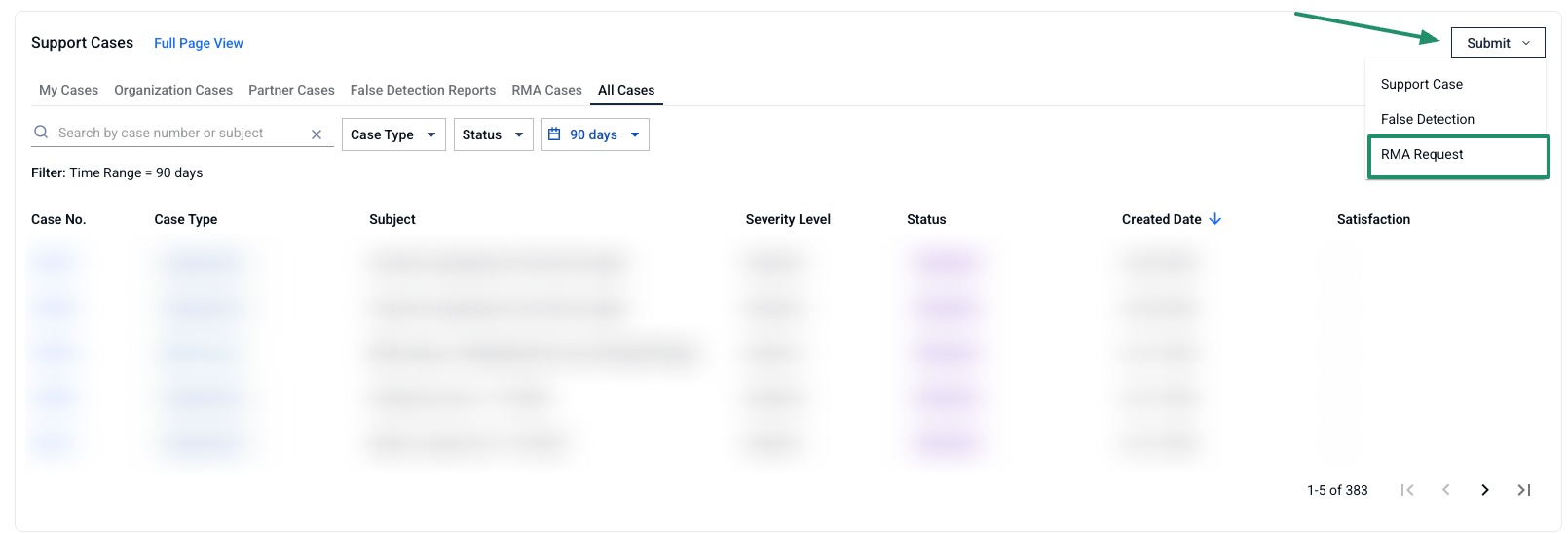
Go to Support in the left menu.
Click Submit, then select RMA Request.
In the Serial number field, select the affected device from the list. The list shows your organization's hardware; selecting a device fills in its product, model, and warranty details automatically.
Review the pre-filled details and complete the required fields (see "What the RMA request form includes" below).
Attach photos or a short video as proof of the defect.
Click Submit.
Submit an RMA request from the Organization Hardware list
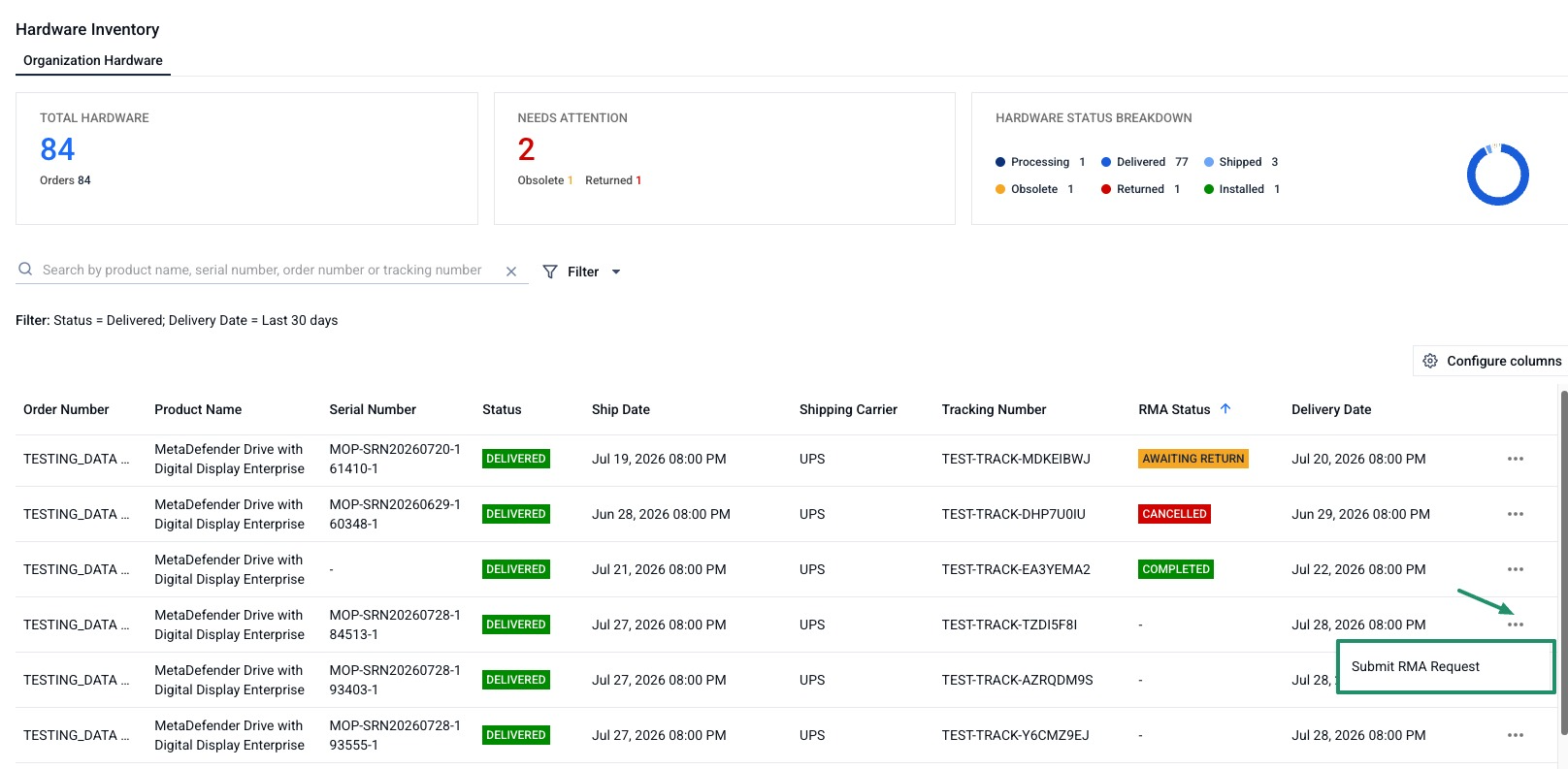
Go to Hardware Inventory then open the Organization Hardware tab.
Find the affected device in the list.
Click Submit RMA Request in the 3 dot menu for that device.
The RMA request form opens with the serial number and device details already filled in. Complete the remaining required fields and attach your proof of defect.
Click Submit.
What the RMA request form includes
Most fields are filled in for you when the device is known. You can edit contact and return details before submitting. The form includes:
Serial number - the affected device (required)
Product and model - filled in automatically (read only)
Warranty status and dates - filled in automatically (read only)
License key and product version
Primary contact and primary email
Reason for RMA - for example, physical damage, component failure, dead on arrival, or firmware/hardware defect (required)
Severity (required)
Subject - generated automatically from the device name and serial number
Description - supports inline images; describe the issue (required)
Date the issue was first observed (required)
Recipient contact name, email, and phone (required)
Return shipping address (required)
On-site contact name and phone for pickup coordination
Proof of defect - up to 5 photo or video files
If the device already has an open RMA request
You can only open another RMA request for the selected hardware if the existing RMA request is COMPLETED or CANCELLED. You can choose View Existing Request to open the request that already exists.
Track your RMA requests
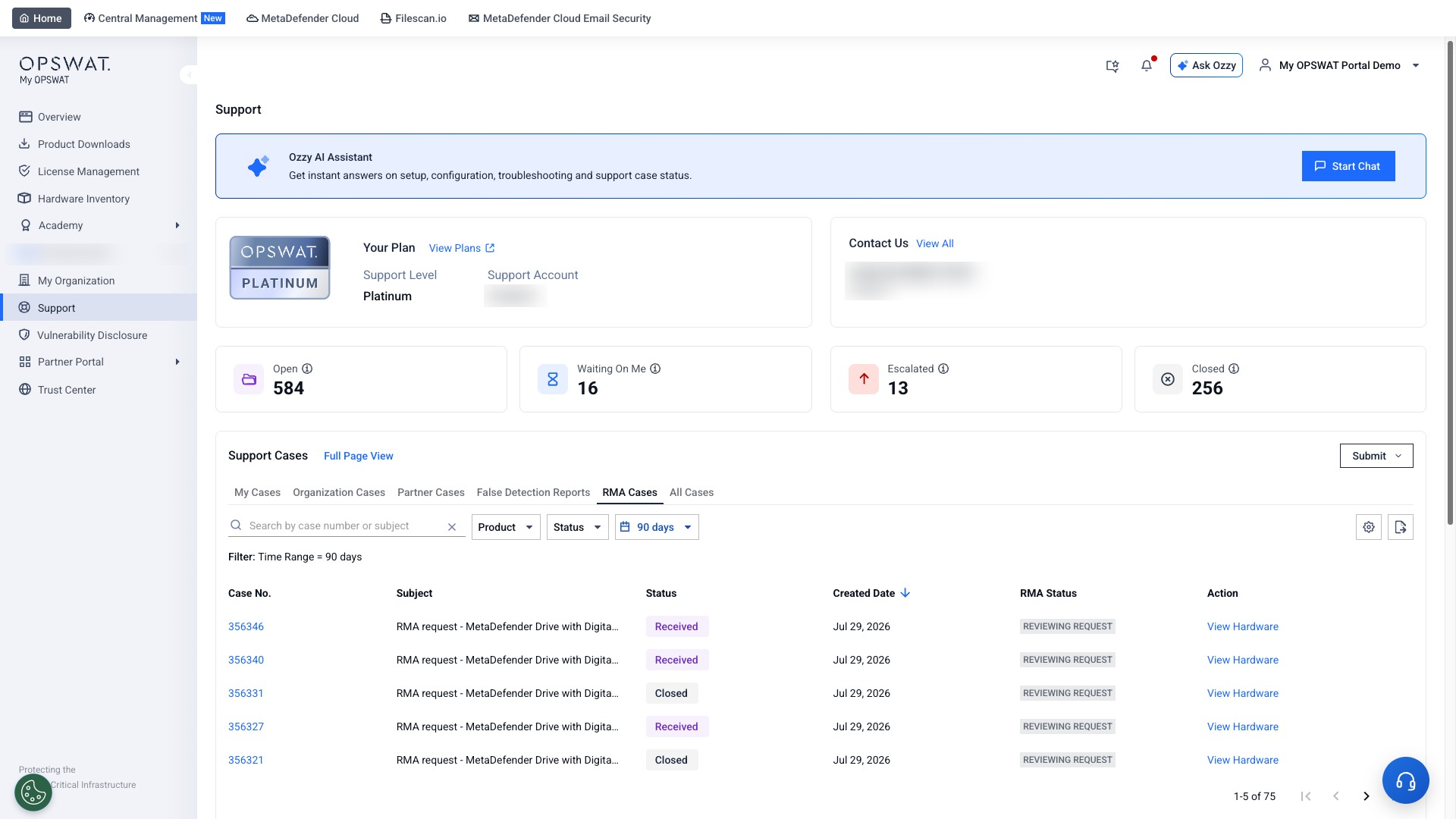
After you submit, My OPSWAT creates a linked support case and shows a confirmation with the new case number.
Go to Support in the left menu.
Open the RMA Cases list to see all RMA requests for your organization.
Click a case number to open its details, add comments, and view the current status.
[For partners] Submitting an RMA on behalf of a customer
If you are an OPSWAT partner, you can submit an RMA request for hardware you manage on a customer's behalf.
Go to Hardware Inventory, then open the Customer Hardware tab.
Find the affected device and click Submit RMA Request in the three-dot menu.
The form opens with an I am logging a ticket on behalf of field showing the customer, and the device details filled in. Complete the remaining fields and submit.
RMA cases you submit on behalf of customers appear in your RMA Cases list.