
User type: Personal or Organization user
Role: View only or Full access on License Management
Your My Organization tab shows all product licenses you’re authorized to manage for your organization. To access this tab
Select License Management in the left navigation.
Click the My Organization tab.
No Organization or Licenses
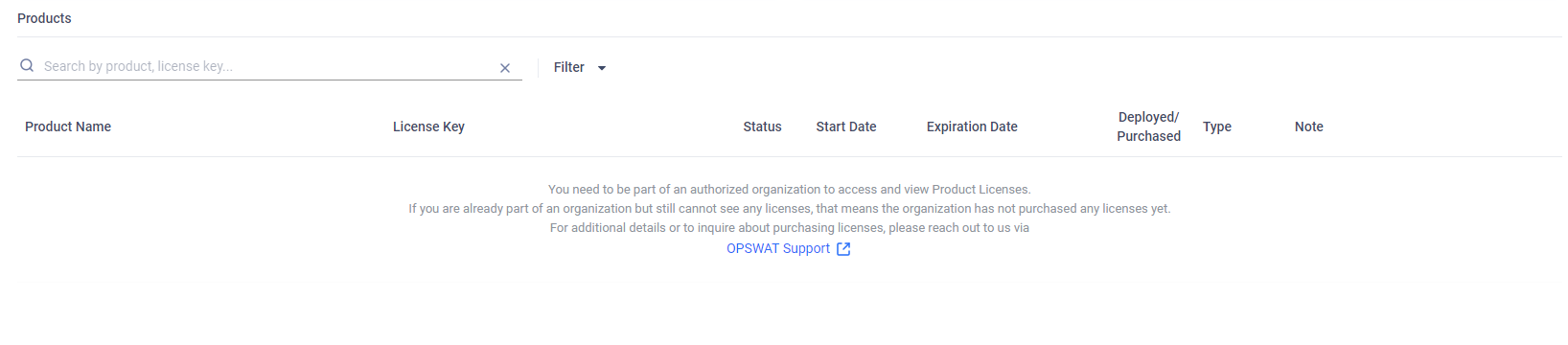
If you’re not in any organization or your organization has no licenses, you’ll see the below message:
Valid Organization and Licenses
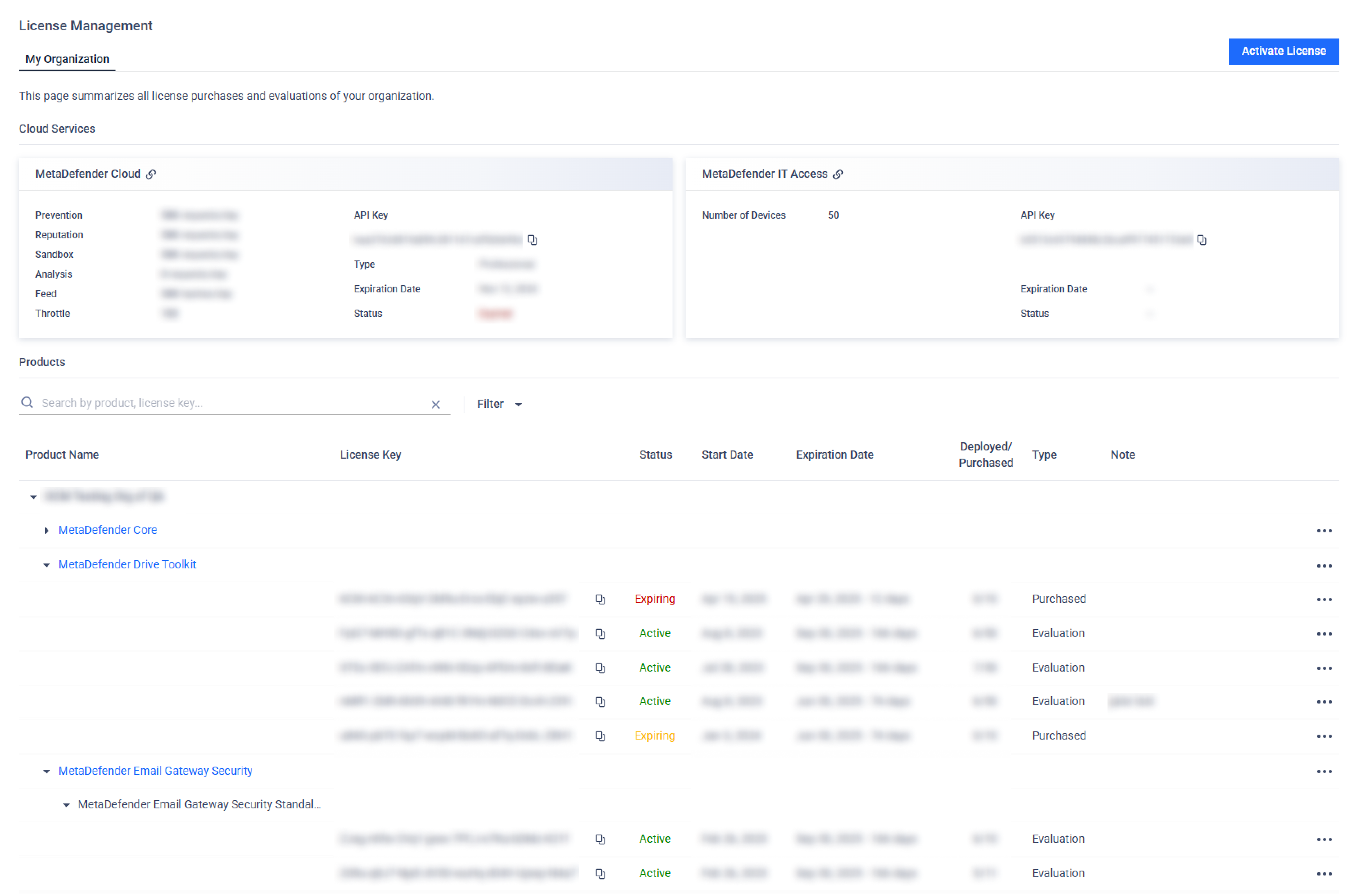
When you belong to an organization that holds licenses and have either View Only or Full Access permission on License Management (See Roles for details), you’ll see a detailed list of your organization’s licenses.
1. Cloud Services: Licenses for Cloud Services purchased by the user account. You can view the limitations associated with your licenses when interacting with the cloud services, such as the number of specific API requests per day.
2. On-Premises Product Licenses: Each license entry includes:
Field | Description |
|---|---|
Product | Name of the OPSWAT product. |
License Key | License keys associated with the OPSWAT Product. |
Status | Active, Expiring or Expired. |
Start Date (UTC) | The date when the license becomes effective. |
Expiration Date (UTC) | The expiration date of the license. Please note License start and expiration dates are shown in UTC (UTC+0) for consistency across all environments and time zones. This may look different from other features of My OPSWAT Portal that use your local time zone. |
Deployed / Purchased | Number of deployed instances versus purchased limit. |
Type | Evaluation/Purchased
|
Note | Custom remarks for each license key. |
Actions
Depending on your permission level on the License Management role object, you have access to different actions:
None:
Activate License: Activate a license for the selected product. Please refer to Activate License for details.
View personal MetaDefender Cloud licenses
View personal MetaDefender IT Access License
View Only permission:
Pin: Move the license to the top of the section for better visibility and quick access.
See full License History: View the full license history (expired ones are hidden by default).
Download Product Installer: Open the installer download dialog.
Full Access permission:
View organization's MetaDefender Cloud licenses
Edit note: Edit the note attached to the license.
Download Active Deployment Report: Export an Excel File containing all the License Key information and the list of active Deployments. (not applicable for Expired licenses)
If you have no organization, you’ll only see the cloud-based product licenses specifically associated with your user account.
License Expiration Notifications
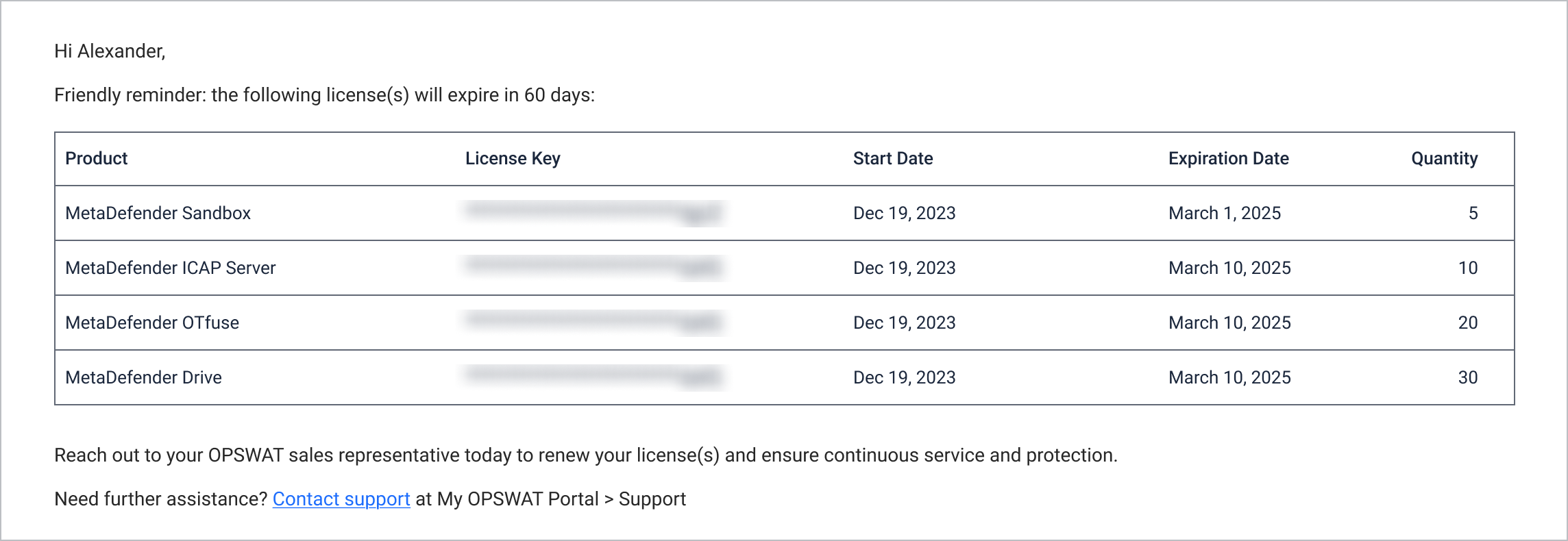
My OPSWAT Portal provides function called Critical Alerts Users allowing individuals on this list receive to receive automatic alerts for upcoming license expirations—60 and 30 days in advance, enabling better planning and prioritization.
Settings:
For organization admins: Add add any email address to the list, even if it is not a registered user in My OPSWAT Portal by navigating to My Organization > License > Critical Alerts Users > Add Users
Licenses across your organization hierarchy
If your organization has sub-organizations, this reminder can cover the whole hierarchy in one email. Which version you receive depends on your permissions:
Without View Only or Full Access on the License Management - Sub Organizations role object, you receive the reminder for your current organization only. This is also the version sent to any address on the Critical Alerts Users list that does not belong to a My OPSWAT account. (See Sub-organization Custom Roles for details.)
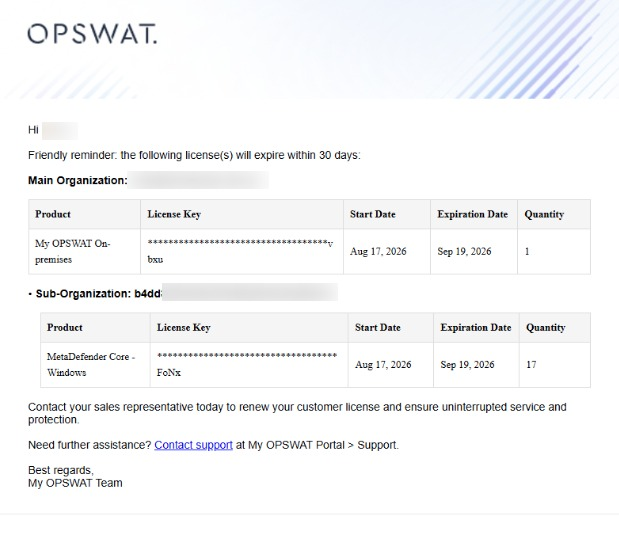
With View Only or Full Access on License Management - Sub Organizations, you receive one reminder covering your main organization and each of its sub-organizations. The licenses are grouped under Main Organization, then one group per Sub-Organization.
Both versions are sent from noreply@opswat.com, with the subject [My OPSWAT Portal Notification] - Renewal needed within 30 days or [My OPSWAT Portal Notification] - Renewal needed within 60 days. They cover purchased licenses expiring within 60 or 30 days, and are sent once a day only when there are expiring licenses to report.
A license held by both a main organization and a sub-organization is listed once, under the sub-organization.
For organizations with sub-organizations, refer to additional details at My Organization and its sub-organizations