
User type: Organization user
Role: View Only/Full Access on License Management - Sub Organization
This section outlines how to view and manage licenses for both your main organization and its sub-organizations within My OPSWAT Portal.
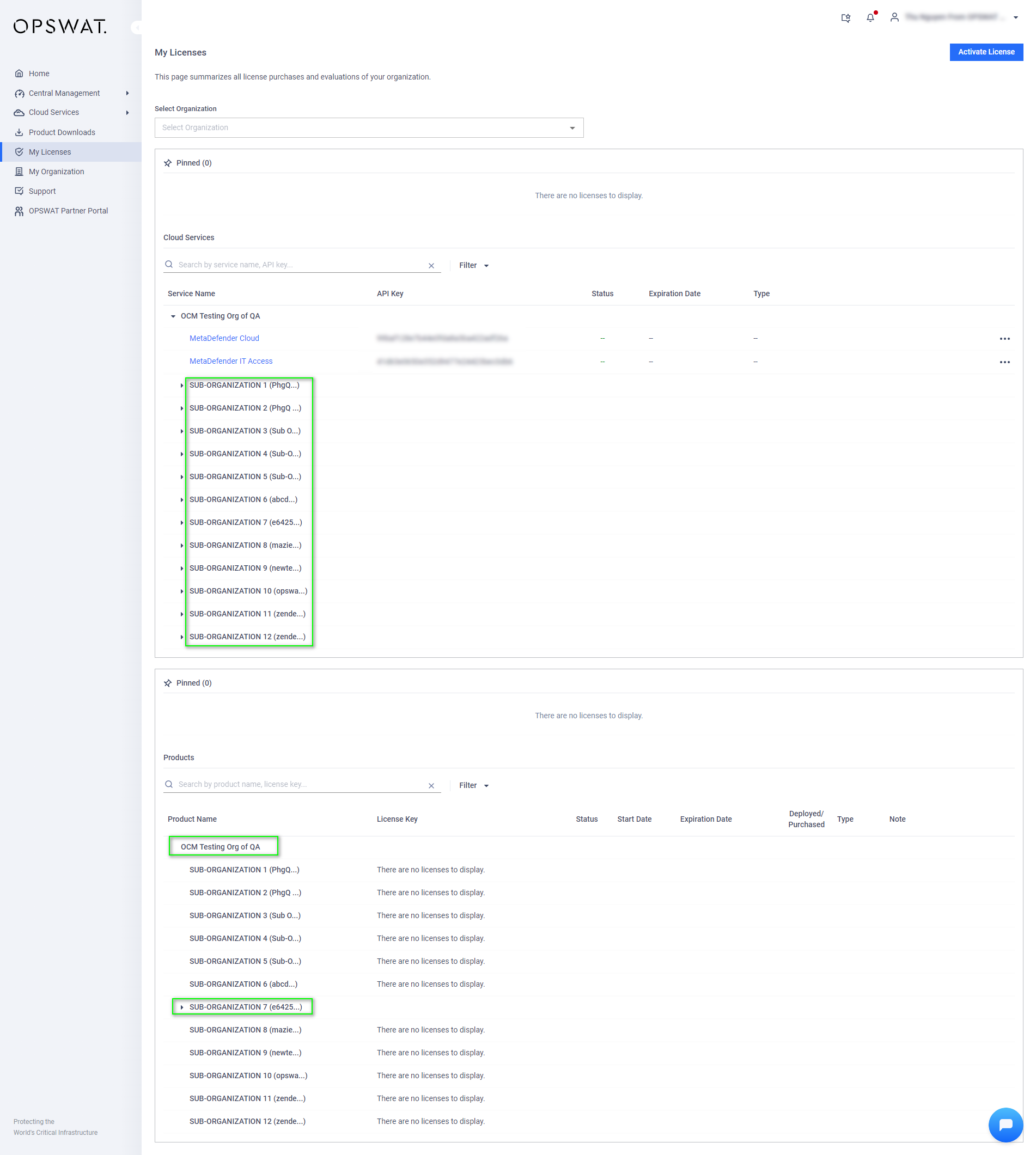
To view licenses for your organization and its sub-organizations, the following conditions must be met:
Sub-Organization Management Enabled: Your organization must have the "Manage Sub-organizations" setting enabled. Submit a support ticket or contact your Customer Success Manager to request this.
License Management Permission: You have View Only or Full Access on the License Management role object. (See Roles for details).
Sub-Organization License Permission: You must have View Only or Full Access permission on the License Management - Sub Organizations role object. Request your organization's Admin to grant this permission if necessary. (Refer to Sub-organization Roles for details)
Viewing Licenses
Authorized users can view or manage licenses and perform certain actions for both the main organization and its sub-organizations, depending on their assigned permissions.
1. Cloud Services:
For MetaDefender Cloud: My OPSWAT Portal displays the main organization’s license information, including the user's API Key and license details. For sub-organizations, only license details are displayed.
For MetaDefender IT Access: Since the license is personal, the portal shows user's license information for the current organization only.
2. On-Premises Product Licenses: Each license entry includes:
Field | Description |
|---|---|
Product | Name of the OPSWAT product. |
License Key | License keys associated with the OPSWAT Product. |
Status | Active, Expiring or Expired. |
Start Date (UTC) | The date when the license becomes effective. |
Expiration Date (UTC) | The expiration date of the license. Please note License start and expiration dates are shown in UTC (UTC+0) for consistency across all environments and time zones. This may look different from other features of My OPSWAT Portal that use your local time zone. |
Deployed / Purchased | Number of deployed instances versus purchased limit. |
Type | Evaluation/Purchased
|
Note | Custom remarks for each license key. |
The Portal prioritizes displaying the licenses of sub-organizations. Licenses assigned to both main and sub‑organizations appear only under the sub‑organization to avoid duplication.
Actions
Depending on your permission level on the License Management - Sub-organization role object, you have access to different actions:
None
Activate License: Activate a license for the selected product. Please refer to Activate License for details.
View personal MetaDefender Cloud licenses
View personal MetaDefender IT Access License
View Only permission:
Pin: Move the license to the top of the section for better visibility and quick access.
See full License History: View the full license history (expired ones are hidden by default).
Download Product Installer: Open the installer download dialog.
Full Access permission:
View organization's MetaDefender Cloud licenses
Edit note: Edit the note attached to the license.
Download Active Deployment Report: Export an Excel File containing all the License Key information and the list of active Deployments. (not applicable for Expired licenses)