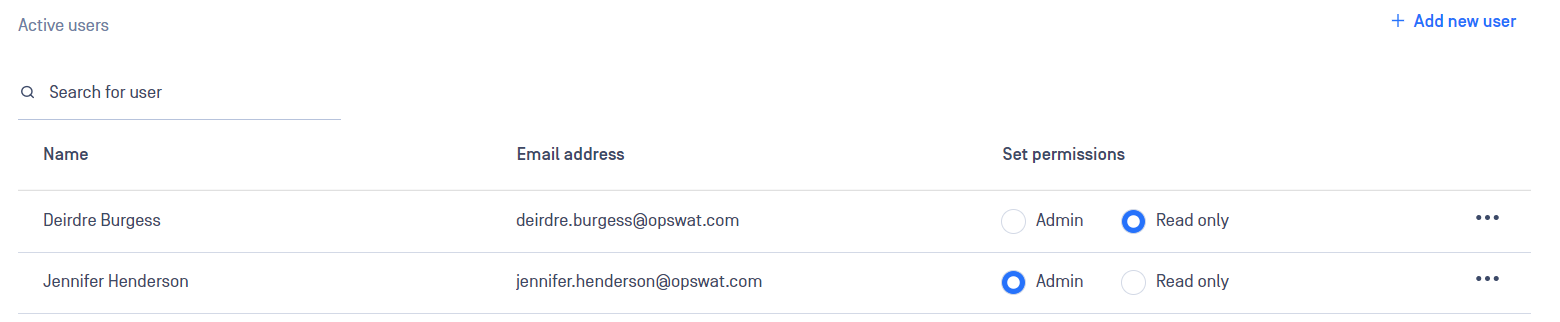
Sharing administrative accounts is strongly discouraged.
For users who only need to review reports, assign read-only permissions.
For organizations requiring multiple individuals to access MetaDefender Storage Security or MetaDefender Storage Security Cloud for report review or storage integration, you can create individual user accounts.
MetaDefender Storage Security supports various user roles with different permission levels.
Local Administrator
Accounts with administrative privileges have full control over each available configuration and all features
Exclusive to one individual per deployment
Hidden from other users in the system
Configure and set up the MDSS deployment with all necessary parameters
Modify any settings related to the deployment as required
Facilitate the creation and management of additional user roles for customer use
Permissions
Add, delete, or modify scan instances, scan pools, and workflows
Manage the product license settings
Configure data retention settings
Configure the possibility of external logging (to Kafka)
Modify the SSO configuration if any alterations are necessary
Access user management-related settings
View the settings related to Workflows
View the status of scan pools and individual scan instances
View the configuration of data retention policies
Set up and manage webhook notification settings to facilitate external integrations
Add, delete, or modify storage units and remediation actions
Initiate instant, scheduled, or real-time scans on specific storage units
Access and review generated reports for insights into scan results
View the audit page to track changes and activities within the system
Monitor the dashboard for an overview of storage activity and key metrics
Tenant Administrator
Available only on MDSS Cloud
Highest privilege role available to standard users of MDSS Cloud
Multiple users can hold this role simultaneously
Utilize the MDSS features and functionalities without altering the overall configuration
Manage common operations and user interactions within the application
Permissions
Access user management-related settings
View the settings related to Workflows
Set up and manage webhook notification settings to facilitate external integrations
Add, delete, or modify storage units and remediation actions
Initiate instant, scheduled, or real-time scans on specific storage units
Access and review generated reports for insights into scan results
View the audit page to track changes and activities within the system
Monitor the dashboard for an overview of storage activity and key metrics
Read-Only
designed for users with minimal access privileges
Multiple users can hold this role simultaneously
Use the MDSS functionality without the ability to make any modifications or changes to MDSS
Provides basic monitoring and visibility into system operations
SSO Read-Only
Designed for users with minimal access privileges
Multiple users can hold this role simultaneously
This role can be used when logging in via SSO
Permissions
View the audit page to track changes and activities within the system
Monitor the dashboard for an overview of storage activity and key metrics
SSO Administrator
Designed for users with minimal access privileges who need scan capabilities
Multiple users can hold this role simultaneously
This role can be used when logging in via SSO
Permissions
Add, delete, or modify Workflows
Manage the product license settings
Configure data retention settings
Configure the possibility of external logging (to Kafka)
Initiate instant, scheduled, or real-time scans on specific storage units
Access and review generated reports for insights into scan results
Creating New User Accounts
There are two methods to create user accounts:
User Self-Registration - users can create their own accounts by clicking Sign Up on the web interface login page.
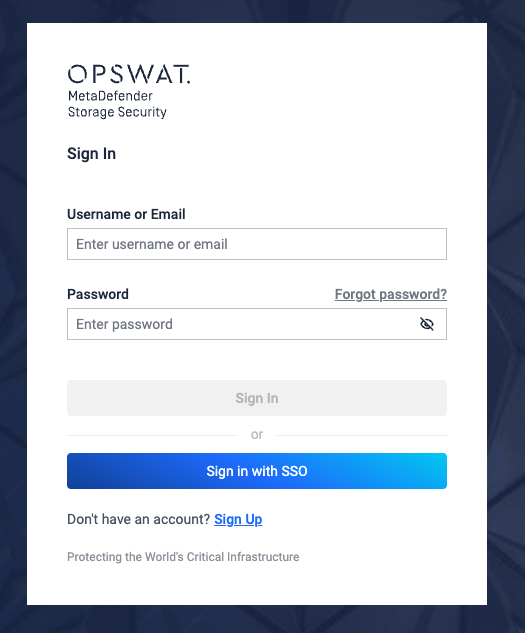
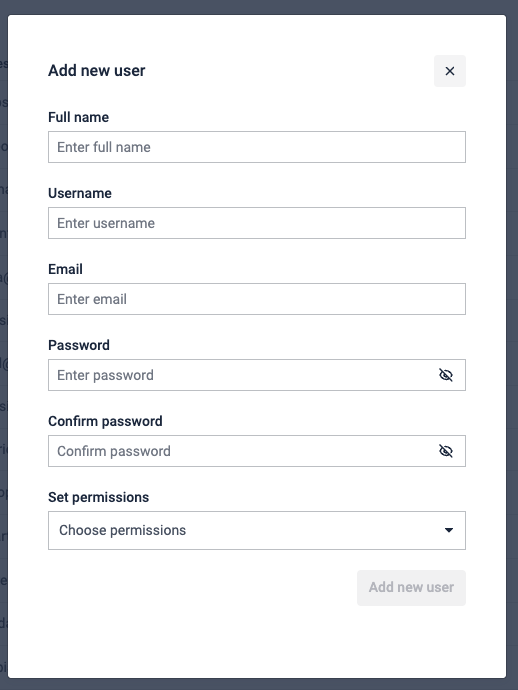
Administrator Creation - administrators can create accounts through Settings/Users by clicking Add new user by clicking Add new user
Approving or Denying User Registration Requests
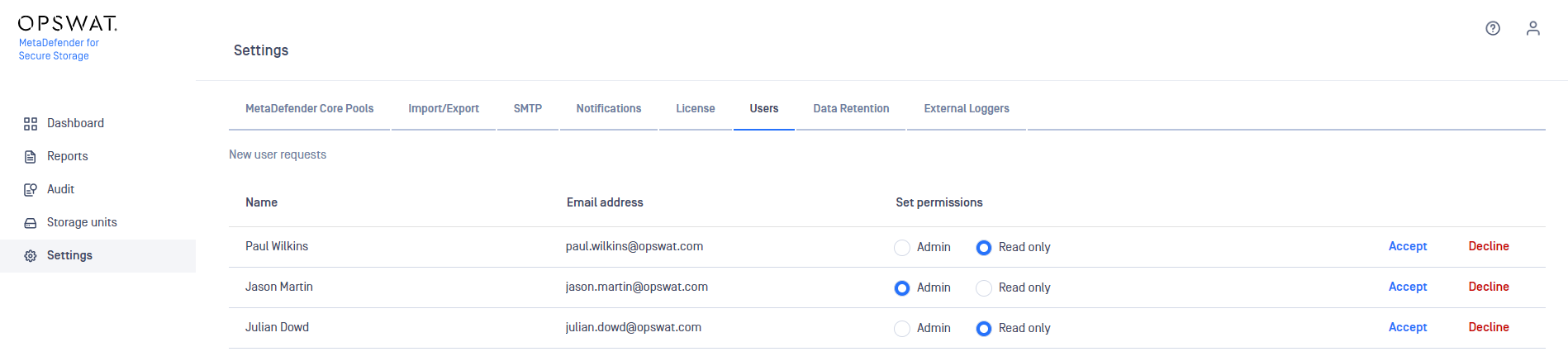
When a user registers via the login page, their account is created but initially inactive. Administrators must approve these requests to grant access.
To manage registration requests:
Navigate to Settings / Users.
Select the user request.
Choose the desired permissions for the account.
Click Accept to activate the account or Decline to deny access.
Modifying Permissions for Existing Users
To change the permissions of an existing user:
Navigate to Settings/Users.
Select the user account.
Choose the new permission level.