
What is Kiosk Hardened Image Upgrade
The Kiosk Hardened Image is a customized Windows OS bundled with pre-installed MetaDefender Kiosk and Core. It includes built-in security hardening and is regularly updated with the latest Windows patches and software versions. Upgrading to the latest image is recommended for optimal security, stability, and features.
Starting with Kiosk Hardened Image version 25.01.0 (bundled with Kiosk 4.7.3), administrators can now automatically upgrade the Hardened Image directly from the Kiosk Web Management Console (WebMC).
Before performing the upgrade, it is highly recommended to:
Upgrade in-place the Kiosk application to the latest version to take advantage of the new features included
Review the limitations of the current Kiosk Hardened Image upgrade process
Release notes of the latest Kiosk Hardened Image
Consider to backup the existing Kiosk and Core configurations
It is important to check out the limitations of the Kiosk Hardened Image before performing the upgrade.
Please checkout limitations of the current Kiosk Hardened Image upgrade for more details
The Kiosk Hardened Image is released monthly and includes the latest Windows patches, BIOS updates, drivers, as well as updated versions of Kiosk and Core. Please refer to the release notes for details on new features and improvements
Upgrade Settings
To perform the upgrade, from the Kiosk Console left navigation, select Upgrades, then open the Kiosk Hardened Image Upgrade tab.
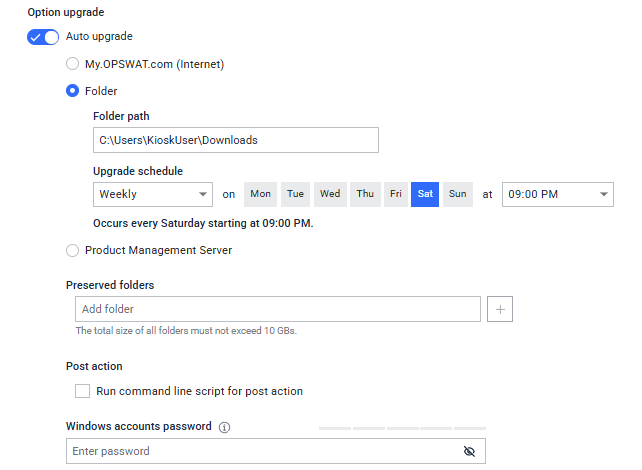
Upgrade Options:
Auto upgrade: If this option is disabled, the system will not perform any upgrades.
Internet: The Kiosk system verifies and automatically downloads the version of Kiosk Hardened Image from My OPWAT. Please ensure the Kiosk system can reach to the following URL to get the upgrade package
URL needs to be whitelisted - https://installer-cdn.opswat.com
Folder: Administrators can specify a folder path containing the Kiosk Hardened Image files. The system will automatically download and use these files for the upgrade. This option supports a local folder and networked folder.
Please refer to Manual Upgrade of Kiosk Hardened Image
During the Kiosk Hardened Image Upgrade process, Kiosk will require to download the upgrade package. The size of the image files would be about 10 GBs, please ensure the internet speed and storage space are adequate.
Upgrade schedule: Specify the local system time when the Kiosk system should download and install the upgrade image.
Additionally, administrators can initiate the upgrade immediately by clicking on Upgrade Now
Preserved folders: When configured, Kiosk will back up and retain the specified folders during the Kiosk Hardened Image upgrade process. This ensures that important data or custom configurations are restored after the upgrade is complete
Post action: If a post-upgrade batch script is provided, the Kiosk system will automatically execute this script after the upgrade is successfully completed.
Windows account password:
To restore existing Windows accounts and their associated passwords on the Kiosk system, administrators must provide the account password in this field. The account will automatically be enabled with autologon.
The Kiosk only backs up and restores local admin users who have been created and have logged in.
If this field left empty, Kiosk will not restore existing accounts and will instead apply default Kiosk credential
If Windows account field is left empty, Kiosk will not restore existing account and will instead apply default Kiosk credential
Run a Pre-Upgrade Health Check
Before starting a Hardened Image upgrade, you can run a health check to confirm your Kiosk is ready. From the Hardened Image Upgrade tab, click Run Pre-Check.
The check reviews conditions such as:
Whether MetaDefender Core is reachable, licensed, and running a compatible version
Connectivity to Central Management, if the Kiosk is enrolled
Whether a scan session is currently in progress
Available disk space
Whether BitLocker drive encryption is enabled
Whether the Kiosk is currently being accessed remotely
Windows administrator accounts on the device
Proxy configuration, if one is in use
Each item reports whether it passed, deserves a warning worth reviewing, or needs attention before you upgrade. If a result depends on MetaDefender Core and no Core instance is configured, the related Core checks are simply marked as skipped rather than failed.
If any check reports that it needs attention, clicking Upgrade Now shows a summary of the items found so you can review them. You can still choose to proceed with the upgrade after reviewing — the check is meant to inform your decision, not to lock you out.
Run results are cleared once an upgrade completes, so run the check again before your next upgrade.
Example messages you may see
Disk space: "Not enough disk space. Available: 12 GB. Required: 25 GB. Free at least 13 GB on drive C:."
BitLocker: "BitLocker encryption is enabled on drive C:. Suspend BitLocker protection before upgrading."
Multiple Windows accounts: "Multiple administrator accounts detected. After the upgrade, only the default KioskUser account will be retained and other accounts may be removed. Configure the Windows Account Password in Upgrade Settings before proceeding."
Release Notifications
To be notified in the Console when a new Kiosk Hardened Image or Kiosk Application version becomes available, go to Upgrades and turn on Show release notifications.
When this is turned on and a newer version is detected, a banner appears at the top of the Console with the new version and a Go to Upgrade link that takes you straight to the Upgrades page. The banner stays visible as you navigate the Console until you either dismiss it or complete the upgrade.
Dismissing the banner hides it only for that specific version — if a newer version becomes available later, the banner reappears.
Turning this setting off (or leaving it off) doesn't hide upgrade availability entirely — you can still see whether a new version is available by opening the Upgrades page directly. It only controls whether the Console proactively notifies you with a banner.
Configuration backup and restore
During the upgrade, the Kiosk system automatically backups and restores essential system and product settings (for more information, please refer to this link)
System settings:
Computer host name
Windows local accounts (if the password is provided)
System hosts file (C:\Windows\System32\drivers\etc\hosts)
Trusted Windows certificates in Certificate Microsoft Management Console (MMC)
Windows certificates, including their private key when the private key was created or imported as exportable (for example, a certificate used for Enterprise Wi-Fi authentication)
Network settings (DHCP/Static, Wi-Fi network, IP Address)
Product configurations
Kiosk and Core licenses
Kiosk and Core configurations
Kiosk session history
Quarantine files from MD Core
Kiosk User Management settings
Secure connection (HTTPS) certificate and setting
Kiosk branding and logo customization
Instance management on My OPSWAT (if applicable). A device that is not enrolled with My OPSWAT Central Management (a standalone device) has nothing to preserve for this item; for an enrolled device, its enrollment and centrally managed settings are unaffected by the upgrade.
Backup and restore of these settings follows a defined order (secure connection settings, license, engines, workflows, users, and management enrollment) so that dependent settings are always restored after the settings they rely on. License restoration includes automatic retries to tolerate a brief delay in network connectivity right after the upgrade, and the process waits for at least one scanning engine to become ready before continuing. This reduces the chance of an upgrade failing partway through and rolling back.
Certificates with Private Keys and Wi-Fi Reconnection
If your kiosk uses a certificate to authenticate to an Enterprise Wi-Fi network, that certificate — along with its private key — is backed up before a Hardened Image upgrade and restored afterward, as long as the private key was marked exportable when the certificate was created or imported. After the upgrade completes, the kiosk automatically attempts to reconnect to the Wi-Fi network it was previously connected to using the restored certificate.
If the private key was not marked exportable, it cannot be backed up, and the certificate will need to be reissued or reimported after the upgrade. If automatic Wi-Fi reconnection is unsuccessful, the kiosk logs a warning; this does not affect the success of the Hardened Image upgrade itself, and the network can be reconnected manually if needed.
To check the limitations of the Kiosk Hardened Image, please refer to
Limitations of previous versions - Archive release notes
Upgrade process overview
Initiation: The upgrade begins either when the scheduled time is reached or when the "Upgrade Now" button is clicked. The Kiosk system automatically downloads the latest version of the Kiosk Hardened Image. The download time may vary depending on the Internet speed. Before clicking Upgrade Now, it's recommended to run the pre-upgrade health check described above so you know about any potential issues in advance. When you click Upgrade Now, you'll also see a notice confirming that the upgrade may take several hours to complete and that the Kiosk must remain powered on until it finishes — you'll need to confirm this before the upgrade starts.
Backup and preparation: The Kiosk system backs up the required configurations and settings before proceeding. Administrators will see a warning message indicating that the system will restart several times to perform the upgrade.
Upgrade execution: The system prepares the environment and a separate partition will be created to store a snapshot of the current state. Ensure that the system has at least 40% free storage space available to accommodate the snapshot creation and upgrade process.

Error Handling and rollback
To benefit from the latest backup and restore reliability improvements, update MetaDefender Kiosk to version 4.7.7 or later before performing a Hardened Image upgrade.
If an issue occurs during the upgrade process, Kiosk will automatically restore the system using the created snapshot to ensure continuity
From Upgrade History section, administrators can click on the rollback icon to revert to a previous version of success upgrade if desired
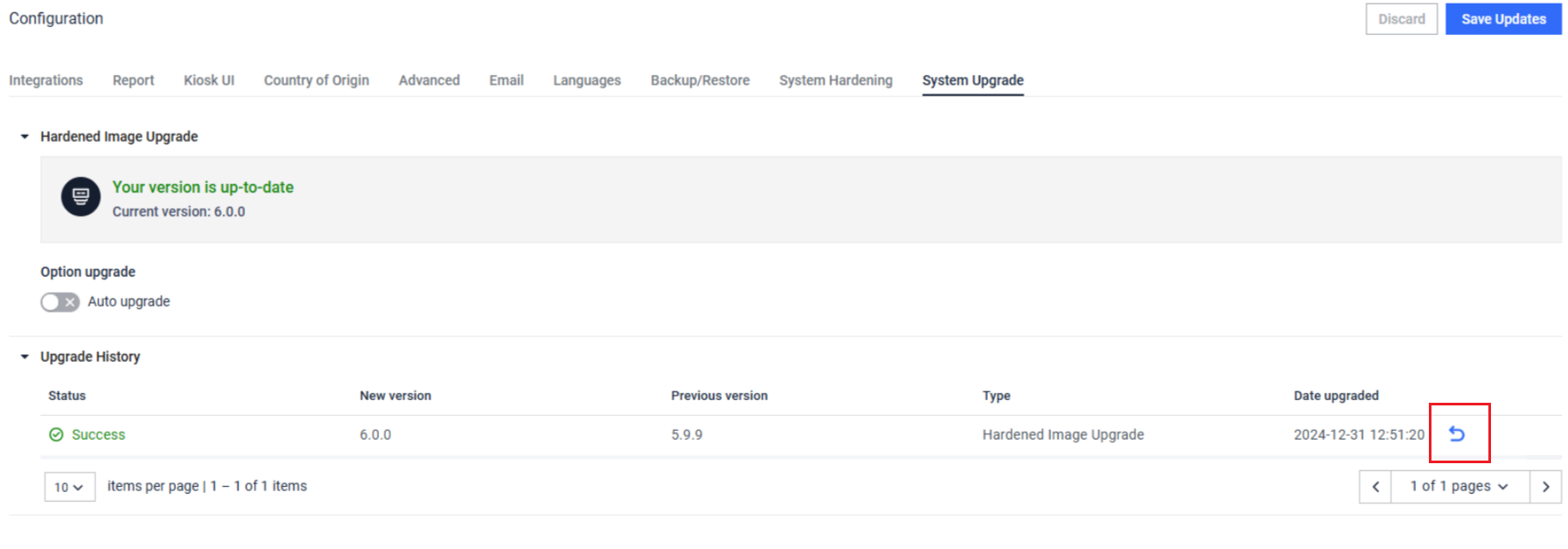
Post-Upgrade Validation
After a Hardened Image upgrade completes, Kiosk automatically checks that everything came back up correctly. From Upgrade History, click View Details on the relevant entry to see:
Kiosk and Core service status
Kiosk and Core database connectivity
Connectivity from Kiosk to Core and to Central Management
Kiosk and Core license status
If something didn't come back up as expected, this summary is the first place to check before contacting support.
Troubleshooting
Please refer to Kiosk Image Upgrade Known Limitations page for known issue and the workaround