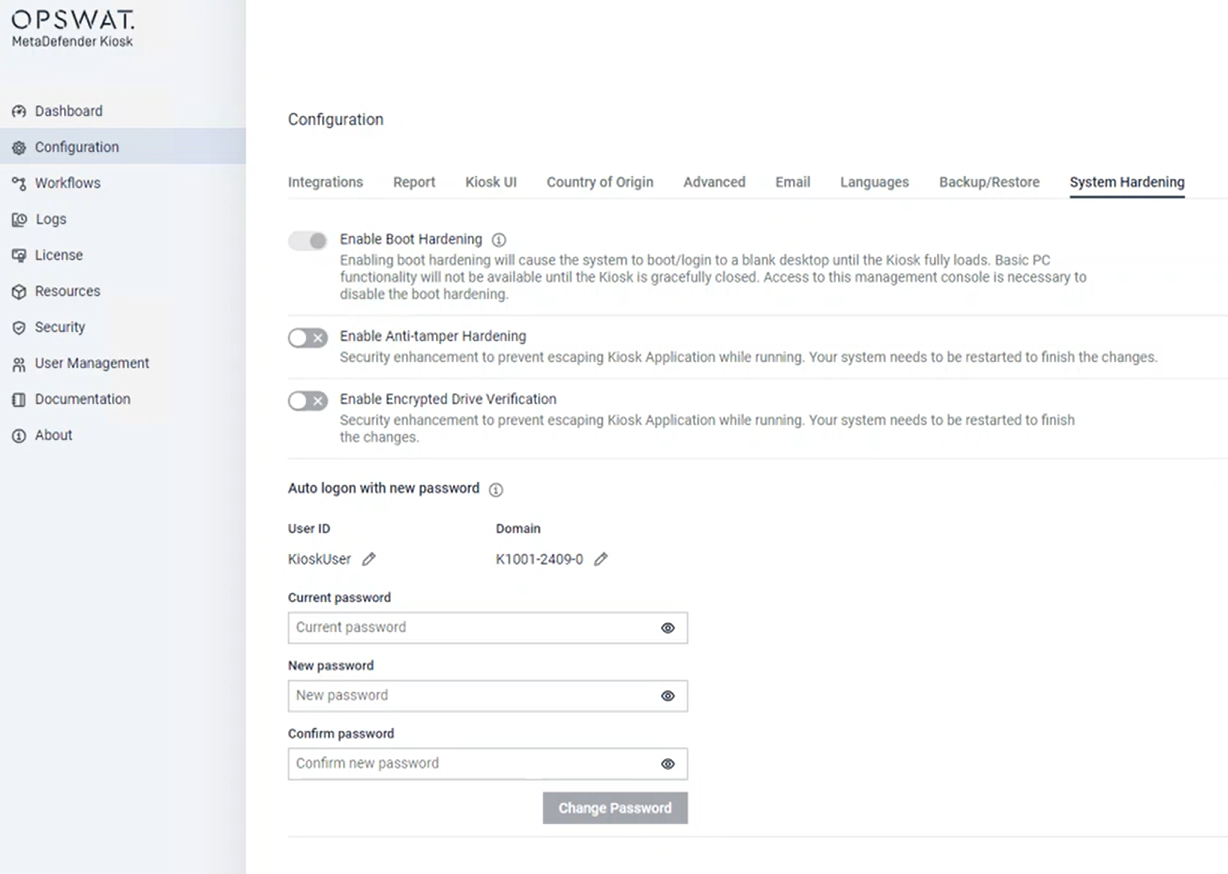
The latest versions of Kiosk Hardened Image are configured with Windows autologon to enhance the security level. With Kiosk version 4.7.2, Administrator can change the autologon password directly from Kiosk WebMC.
To change the autologon password, select Configuration, select System Hardening Image, provide Current password and New password, click Change Password.
When applying the change, the password will be applied directly to the system. Kiosk does not store this information.
Change autologon password option is only available on Kiosk Hardened Image with Kiosk version 4.7.2 or newer.
Starting in Kiosk 4.8.5, you can also change the autologon password from My OPSWAT — for a single device, or for every device covered by a policy at once. See Changing the autologon password from My OPSWAT below.
Changing the autologon password from My OPSWAT
If your Kiosk Hardened Image devices are enrolled in My OPSWAT, you can change the autologon/RDP account password centrally instead of visiting each device individually — either for one device, or for every device that a policy applies to.
Prerequisites
Your My OPSWAT instance must be on a recent enough version to support this feature. If the option described below isn't available, confirm your My OPSWAT version with your account team.
The device must be a Kiosk Hardened Image running Kiosk 4.8.5 or later.
Login with Windows authentication must be turned off for the device (or the policy managing it). When it's on, the autologon password panel is disabled.
The autologon account must be a local Windows account (not a domain account) — this option only manages local accounts.
This option is available in My OPSWAT only. It is not available when managing devices from an on-premises Central Management (CM8) console.
Changing the password
In My OPSWAT, open either the specific device, or the policy that manages the devices you want to update.
Go to Settings > System Hardening.
Click Edit.
Expand Change autologon password. If this section is disabled, check that Login with Windows authentication is turned off and that the device is a Hardened Image.
Fill in:
User ID — the local Windows account used for autologon (for example,
KioskUser).Domain — optional; you can normally leave this blank. Each device fills in its own value automatically when it applies the change.
Current password — the password the device (or every device in the policy) currently uses.
New password — the password to change to. It must meet the Windows password requirements configured on the device itself.
Confirm password — must match New password.
Click Apply for the page. Unlike changing the password directly on a device, My OPSWAT has no separate "Change Password" button for this panel — the change is sent along with the rest of your System Hardening settings when you apply the page.
Allow a few minutes for each affected device to check in and apply the change.
Device scope vs. policy scope
Applied at the device level, only that device is updated.
Applied at the policy level, every device the policy currently covers is updated — and so is any device added to that policy later, without needing to re-enter the password.
At either scope, the Current password you enter is checked against each device's actual current password before anything changes. If a device's password doesn't match — for example, because it was changed locally outside of My OPSWAT — that device is left completely untouched (it keeps signing in and accepting RDP connections with its existing password) and shows an issue on its status so you know to follow up on that device individually.
After you save the change, My OPSWAT does not display or store the password anywhere you can view it again — only the device itself ever handles the actual password value.
As with the console, applying a new password here does not require restarting the Kiosk service — each device applies the change during its normal check-in.