
This page provides guidelines for managing files uploaded by Guest Users in Salesforce. Guest Users allow external visitors to interact with certain features in the Salesforce organizations without creating an account or logging in.
Guest Users are assigned a Guest User license and profile by Salesforce. Since permission sets cannot be assigned to Guest Users, any required permissions—such as Read access to the Log object for scanning actions (e.g., file uploads)—must be configured directly in the Guest User profile.
How to configure Guest User Access for OPSWAT - MetaDefender Logs
Follow the steps below to ensure scanning is performed and properly logged for guest (unauthenticated) users:
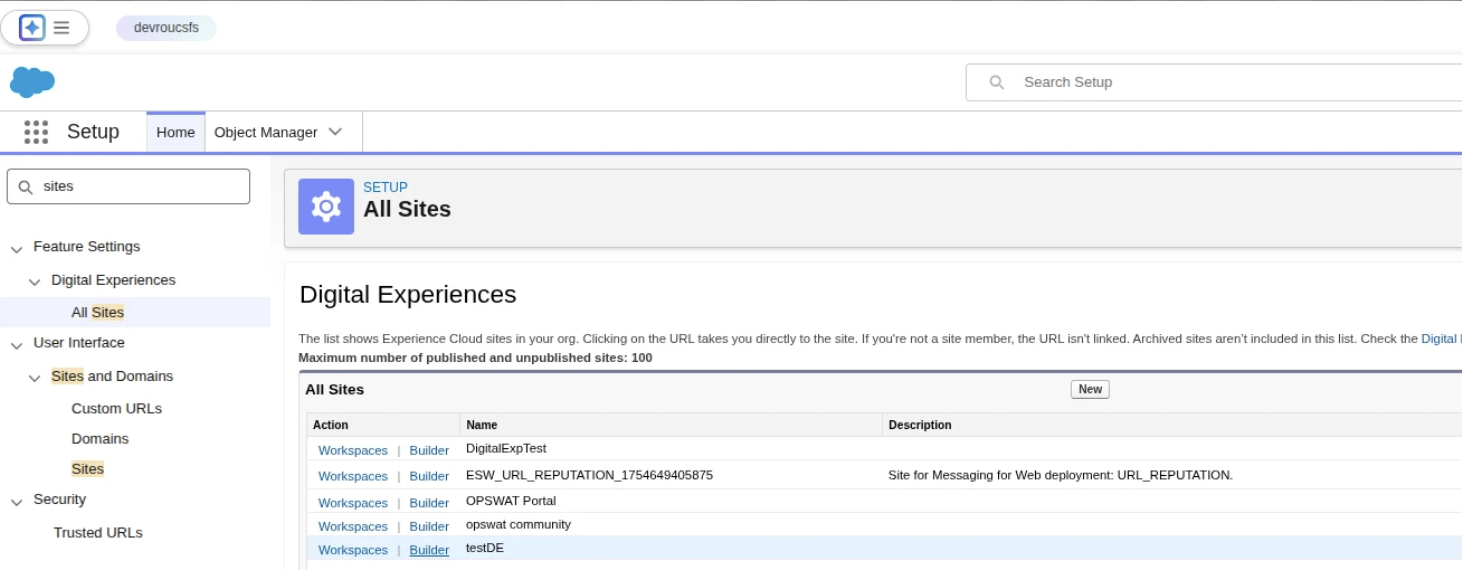
In Setup → All Sites, locate your Digital Experience site and click Builder.
Go to Settings → General. Here, you can see the site details and the profile assigned to the Guest user.
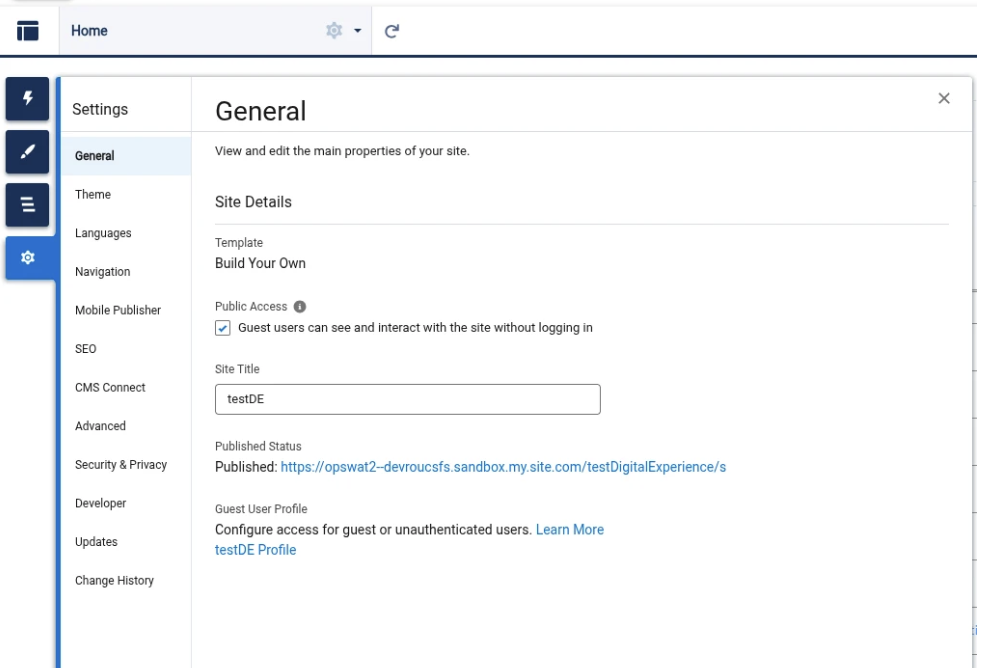
Click the profile link under Configure access for guest or unauthenticated users.
On the profile page, click Object Settings.
In the list of objects, find OPSWAT - MetaDefender Logs and click it.
Click Edit, enable Read, and then click on Read Access so that all related checkboxes are selected.
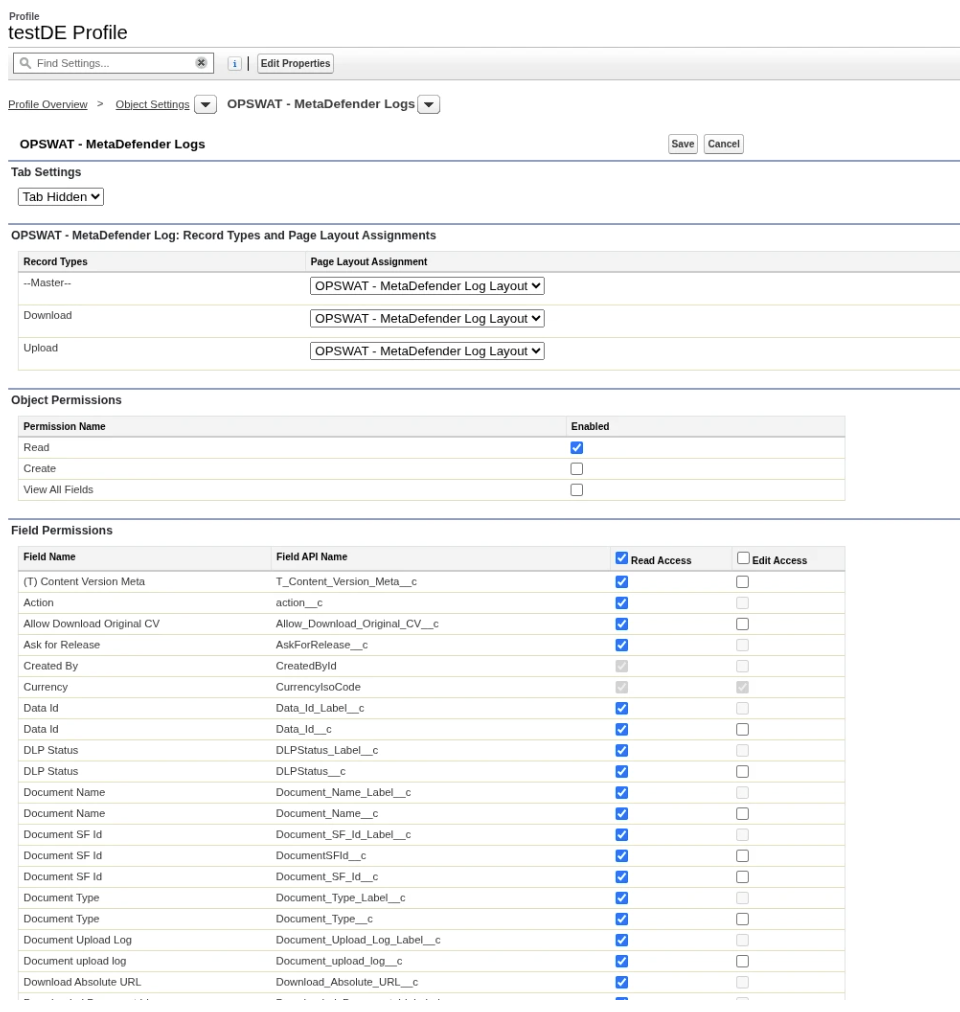
Save the changes
How to test the configuration
To test this configuration, have a user on the Digital Experience portal upload a file. A log entry with the scanning result will be created in the OPSWAT – MetaDefender Logs tab, and in the System Information section the fields Created By and Last Modified By will show the guest user who performed the upload.