
This article applies to all MetaDefender Endpoint releases deployed on Windows, Linux or macOS systems.
MetaDefender Endpoint comes equipped with the option to auto-upgrade. However, administrators will need to manually enable this feature by adjusting the device MetaDefender Endpoint’s settings either globally or at a group level.
Auto-upgrade for MetaDefender Endpoint: global level configuration
To enable automatic MetaDefender Endpoint upgrades for all devices in your inventory, follow the instructions below.
Log into your MetaDefender IT-OT Access Console and navigate to Settings>Global>Device Agents.
Under the Agents section, select the Automatically update to the specific version option.
It is also highly recommended that you select the Automatically update the agent SDK version to the specific version option, as illustrated in the screenshot below. This ensures that both components of the Agent/Client will always update together.
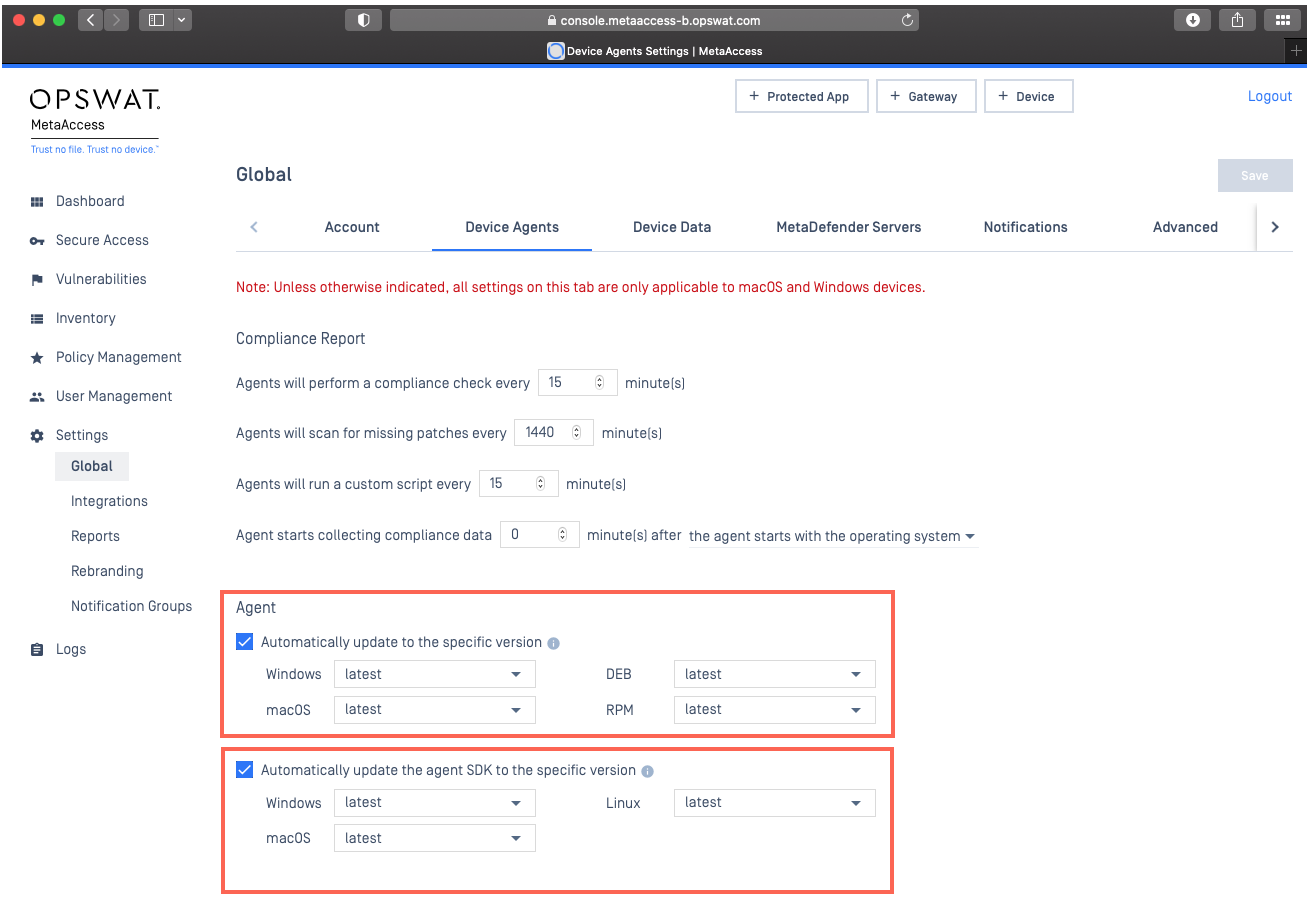
Finally, click Save and confirm your PIN to implement your changes.
Auto-upgrade for MetaDefender Endpoint: device group level configuration
To enable automatic MetaDefender Endpoint upgrades for specific devices in your inventory, follow the instructions below.
Log into your MetaDefender IT-OT Access Console and navigate to Inventory>Device Groups and, under the relevant device group, access the Settings tab.
Toggle the switch alongside the Agent section to its Enabled state to open the Override settings.
Select the Automatically update to the specific version option.
It is also highly recommended that you select the Automatically update the agent SDK version to the specific version option, as illustrated in the screenshot below. This ensures that both components of the agent will always update together.
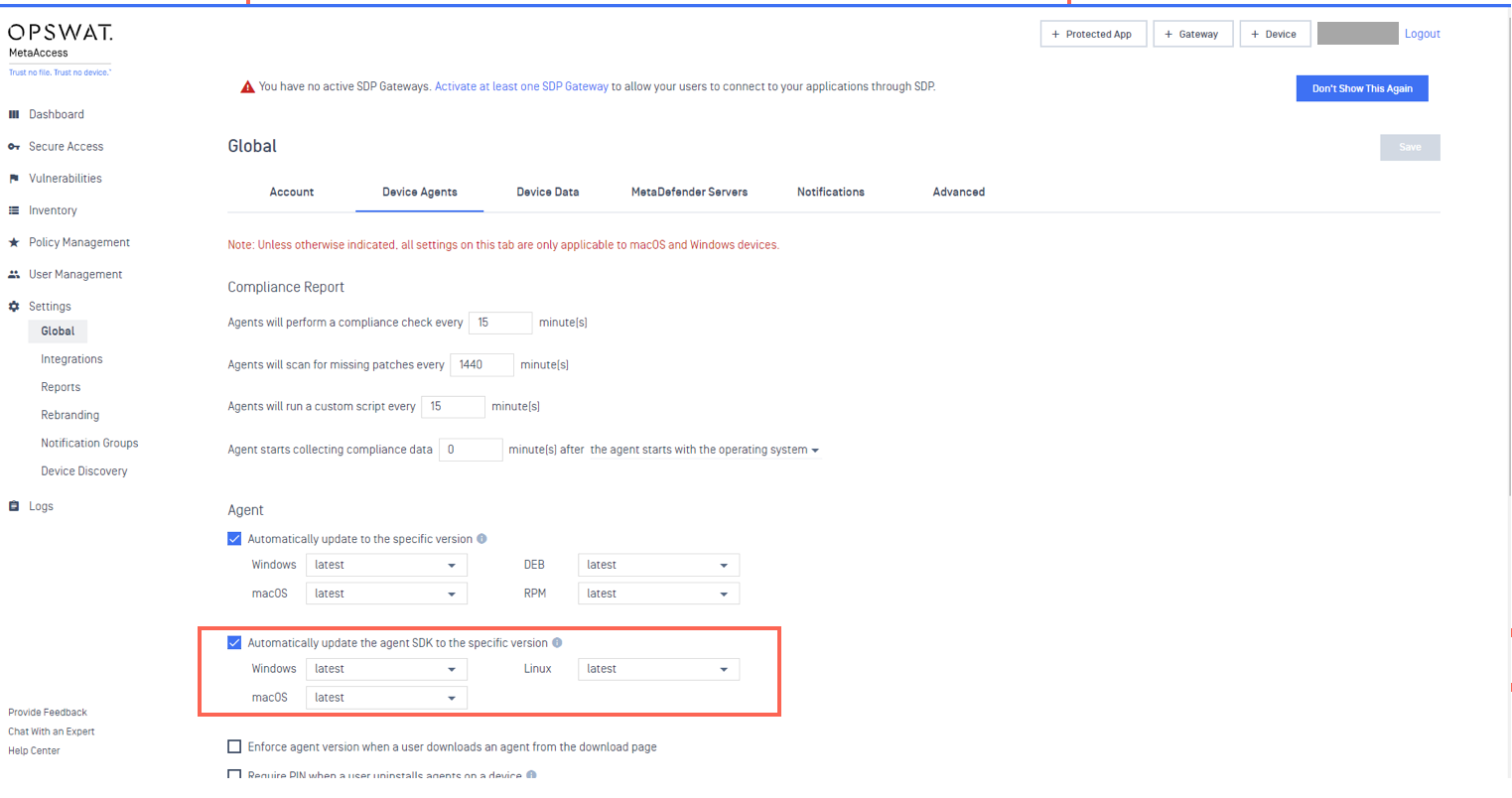
Finally, click Save and confirm your PIN to implement your changes.
The MetaDefender Endpoint device upgrade timeline
For any end-point that is online with these auto-upgrade settings enabled, the MetaDefender Endpoint will perform version checks every 60 minutes, with 60 minutes being the maximum allowed time between version checks. This means every 60 minutes the agent will check if there is a new version or not. If the 60-minute threshold is not reached, compared to the previous check, nothing will be done.
Once the MetaDefender Endpoint detects that a new version is available, it will immediately begin downloading the latest version, before performing the update.
Once the update is complete, the MetaDefender Endpoint version in MetaDefender IT-OT Access will display as the latest version.
The MetaDefender Endpoint will then perform an updated scan on the device, and will update the compliance status displayed in MetaDefender IT-OT Access.
OPSWAT only supports initial MetaDefender Endpoint auto-upgrades from versions no more than three releases prior to the latest.
For example, if a user has a MetaDefender Endpoint at version 7.4.84.0 before enabling the auto-update feature, auto-upgrade will only support upgrades to versions 7.4.88.0, 7.4.94.0 or 7.4.95.0.
It is therefore recommended that, if an agent is at a version more than three releases prior to the latest, users perform an initial manual upgrade before enabling the auto-upgrade feature.
If you experience any difficulties Enabling MetaDefender Endpoint ’s Auto-Upgrade Feature, or if You Have Enabled The Feature But Auto-Upgrades Are Not Being Applied, please open a Support Case with the OPSWAT team via phone, online chat or form, or feel free to ask the community on our OPSWAT Expert Forum.