
Unenrolling removes the Centralized Profile from a MetaDefender Drive. The profile loses its approver and its security code. You can do this from OPSWAT Central Management (OCM).
To set the profile up, see Centralized Scanning Profile - Provisioning from OPSWAT Central Management.
Unenroll the Centralized Profile
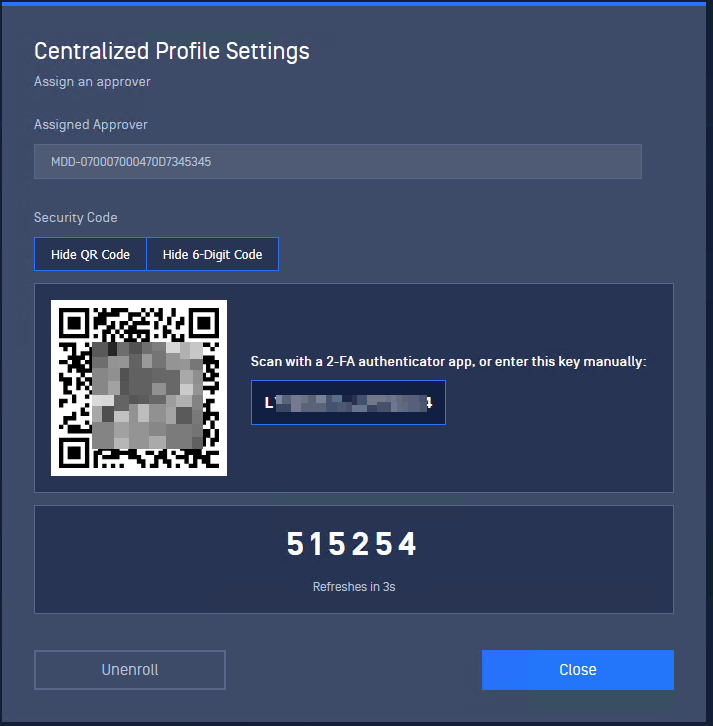
In OPSWAT Central Management, open the drive's settings and open Centralized Profile Settings. The dialog shows the assigned approver.
Select Unenroll.
In the Unenroll Centralized Profile dialog, read the message: "Are you sure you want to unenroll this Centralized Profile? This profile will lose its approver and security code."
Select Unenroll to confirm. Select Cancel to keep the profile.
After you unenroll
The profile no longer has an approver or a security code.
Remove the drive's entry from the approver's authenticator app.
To use the profile again, enroll it again. See Provisioning from OPSWAT Central Management.