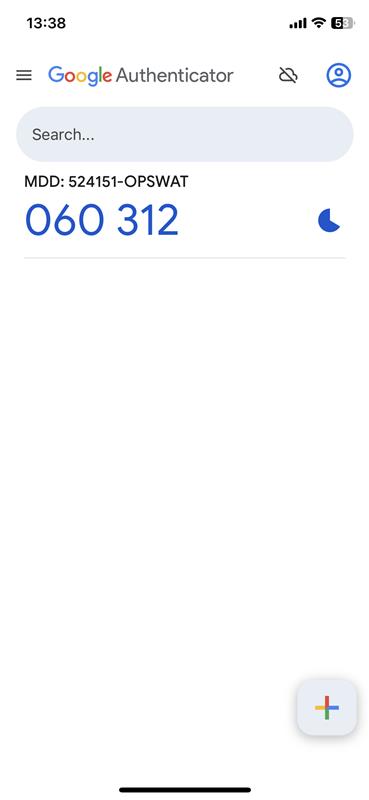
Enrollment and Lock MetaDefender Drive
To enroll a MetaDefender Drive withe Centralized Scanning Profile, the administrators open MetaDefender Drive Toolkit.
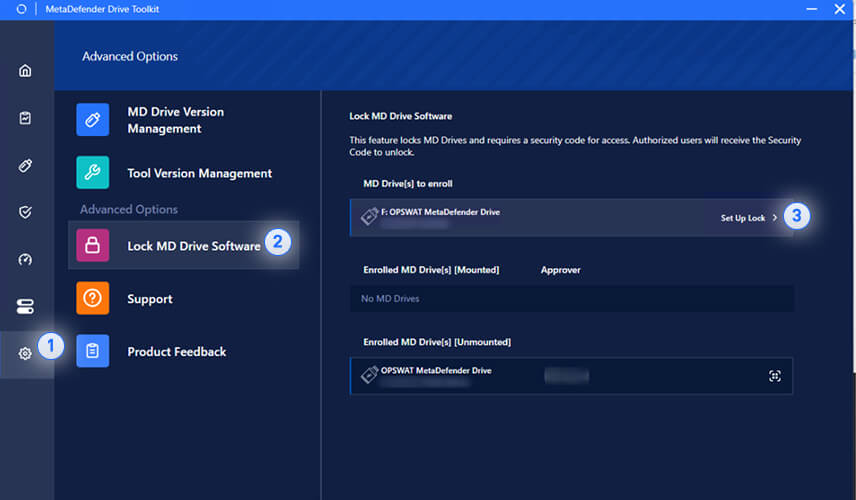
Go to Settings tab
Select Lock MD Drive Software
Click Set up Lock
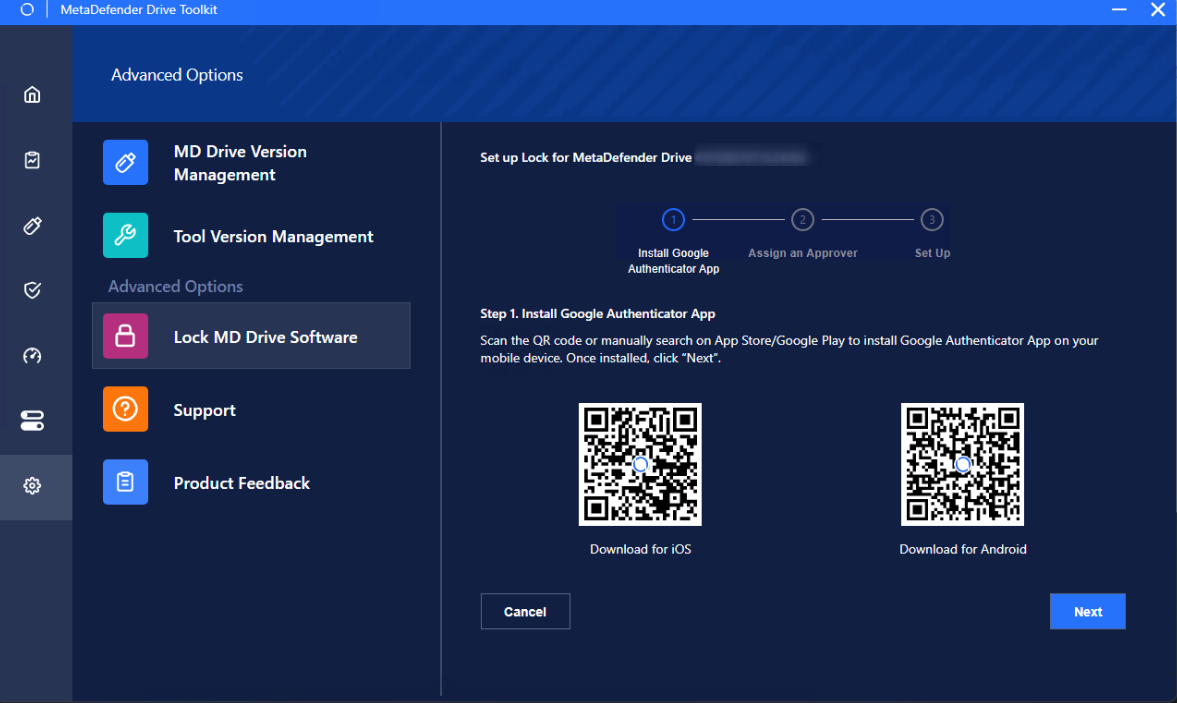
Install Google Authenticator, Microsoft Authenticator or Okta Verify 2-factor authentication applications (to generate a 6-digit OTP (one-time password) in the next steps)
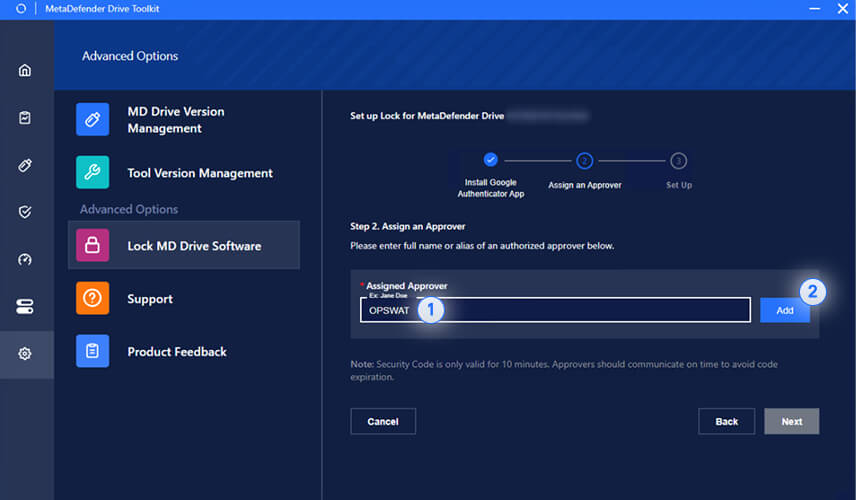
Assign an Approver
Enter a name to identify the Approver, then click Add
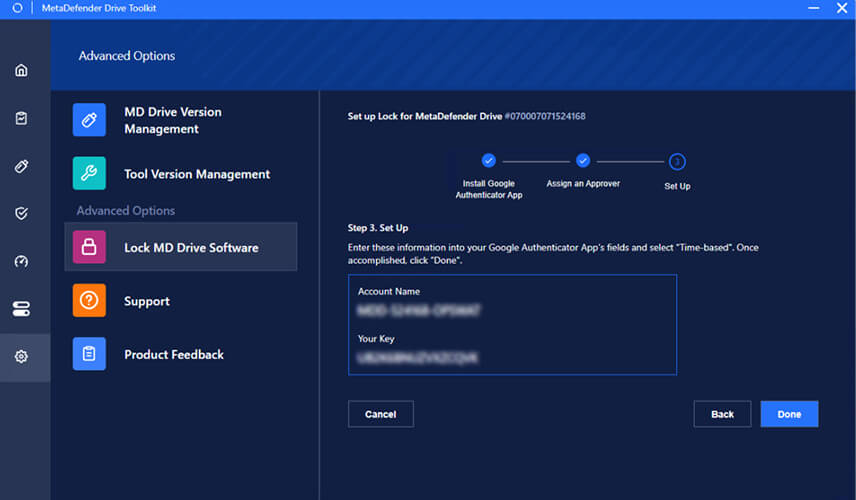
Enter the MetaDefender Drive credentials (Account Name and Your Key) into the 2-factor authentication application that you chose for secure OTP generation.
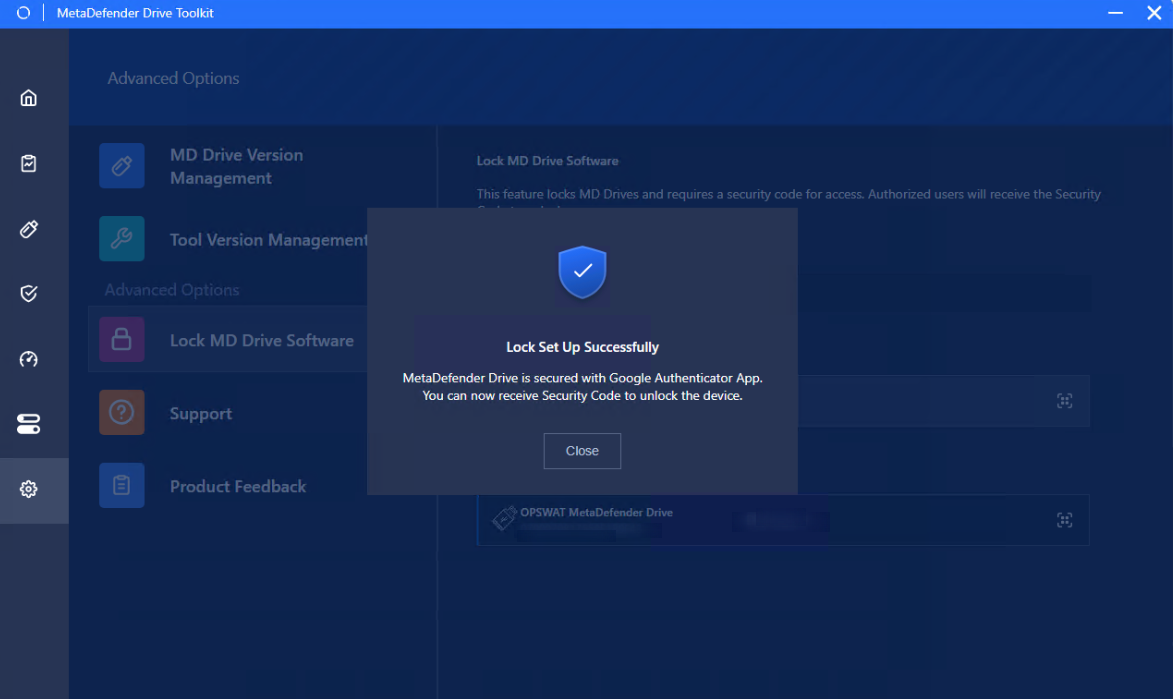
A pop-up will confirm successfully locking MetaDefender Drive.
Unenrollment for MetaDefender Drive
After booting the MetaDefender Drive the administrators wish to unenroll:
Go to Settings tab
Select Lock MD Drive Software
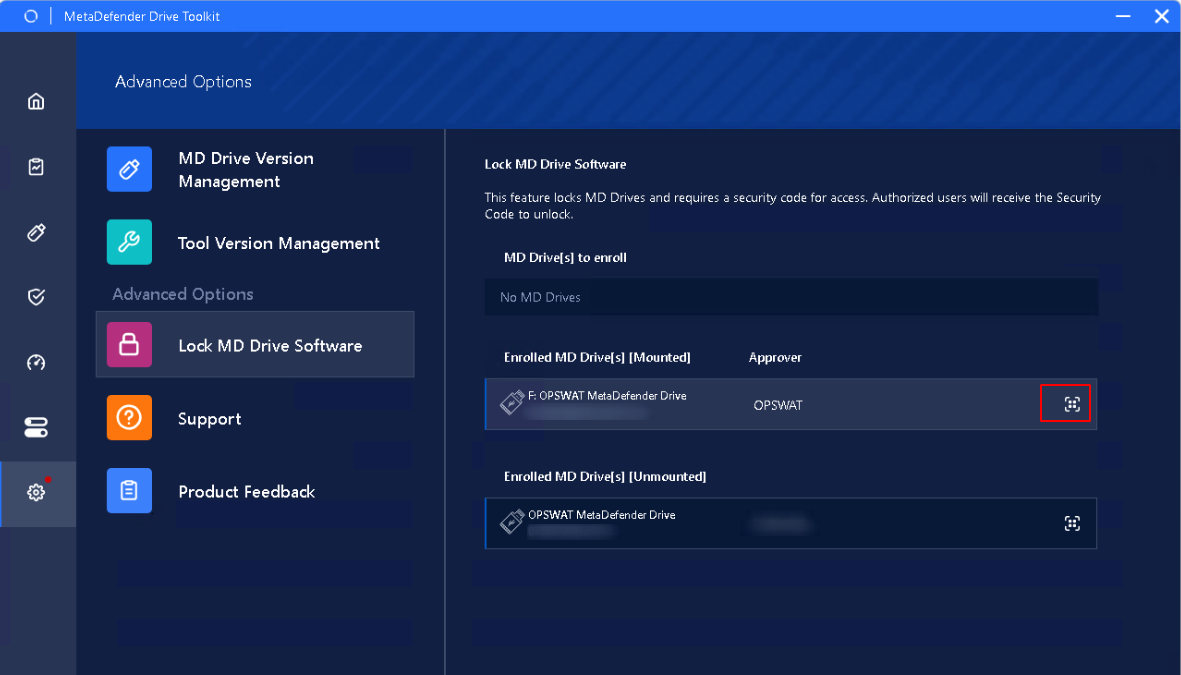
Click on icon
Administrators can directly unenroll on Drive Toolkit by clicking Unenroll Device
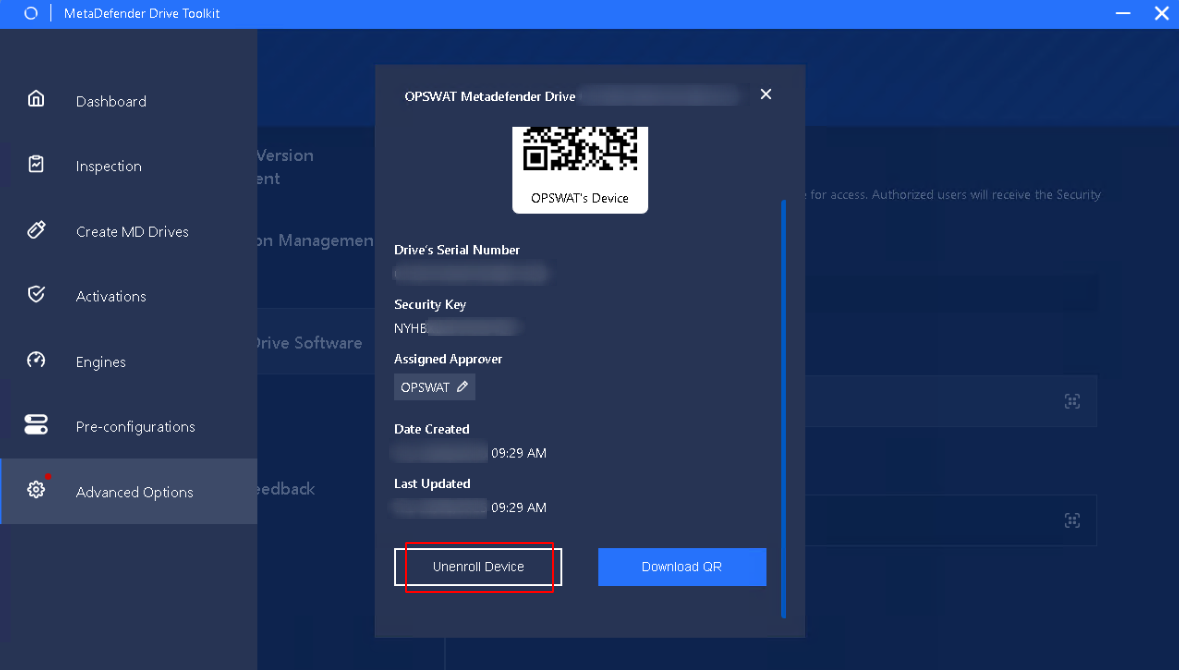
Click Yes
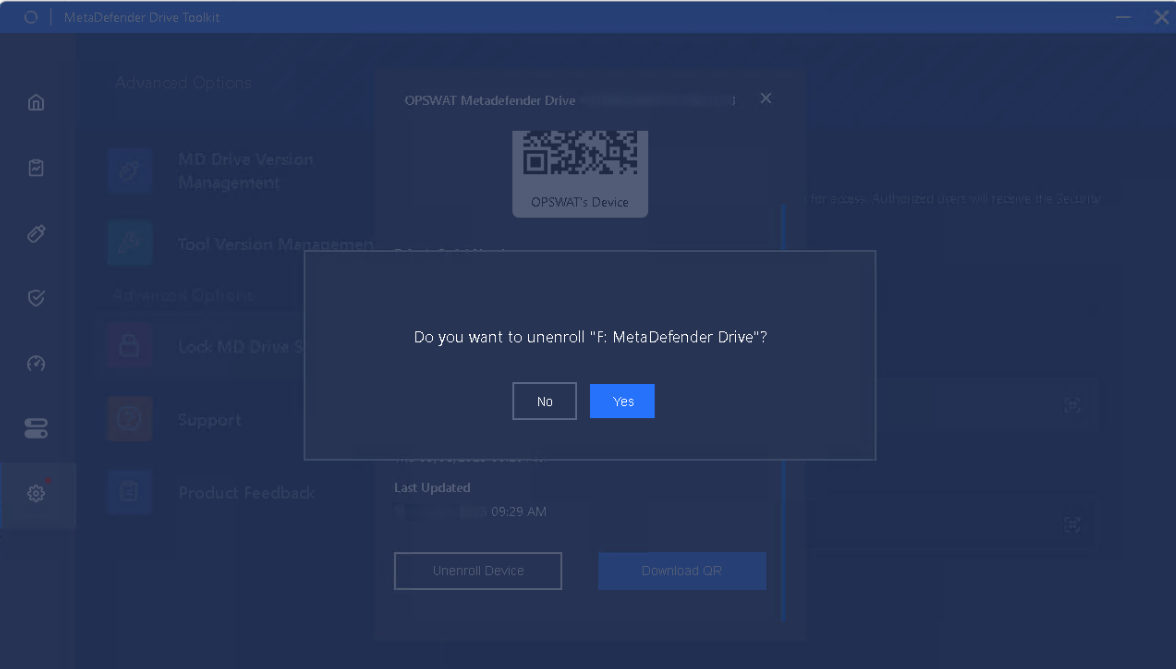
A prompt will appear upon completion.
Approver provides OTP when asked by Operators
Assigned by the Administrator to authorize Operators to unlock MetaDefender Drive. Administrators can also perform the Approver role.
Approvers need to install Google Authenticator application on their device to generate 6-digit OTP for remote authorization.
An approver receives a one-time password via Google Authenticator to authorize scan configuration changes. The approved request is then sent to the operator to apply the ad-hoc modifications.
The input screen for one-time passcode approval now clearly shows the last 6 digits of the MetaDefender Drive ID long with the Approver's name, for faster local scan change approval.