OPSWAT Customer Success team is here to help whenever you face persistent issues that can't be solved using any of the troubleshooting instructions. Support Packages, log files, and Drive images are different methods to help OPSWAT's support specialists identify the root cause of MetaDefender Drive's issues and malfunctions, and provide support to solve them. This section of the documentation covers 5 different ways to generate Support Packages, log files, and clone Drive images.
Solution
The following are 5 different ways to get logs from a malfunctioning drive, starting by the easiest to the hardest:
1. Generate a Support Package using MetaDefender Drive Toolkit
If you haven't installed MetaDefender Drive Toolkit, you can download it from this link.
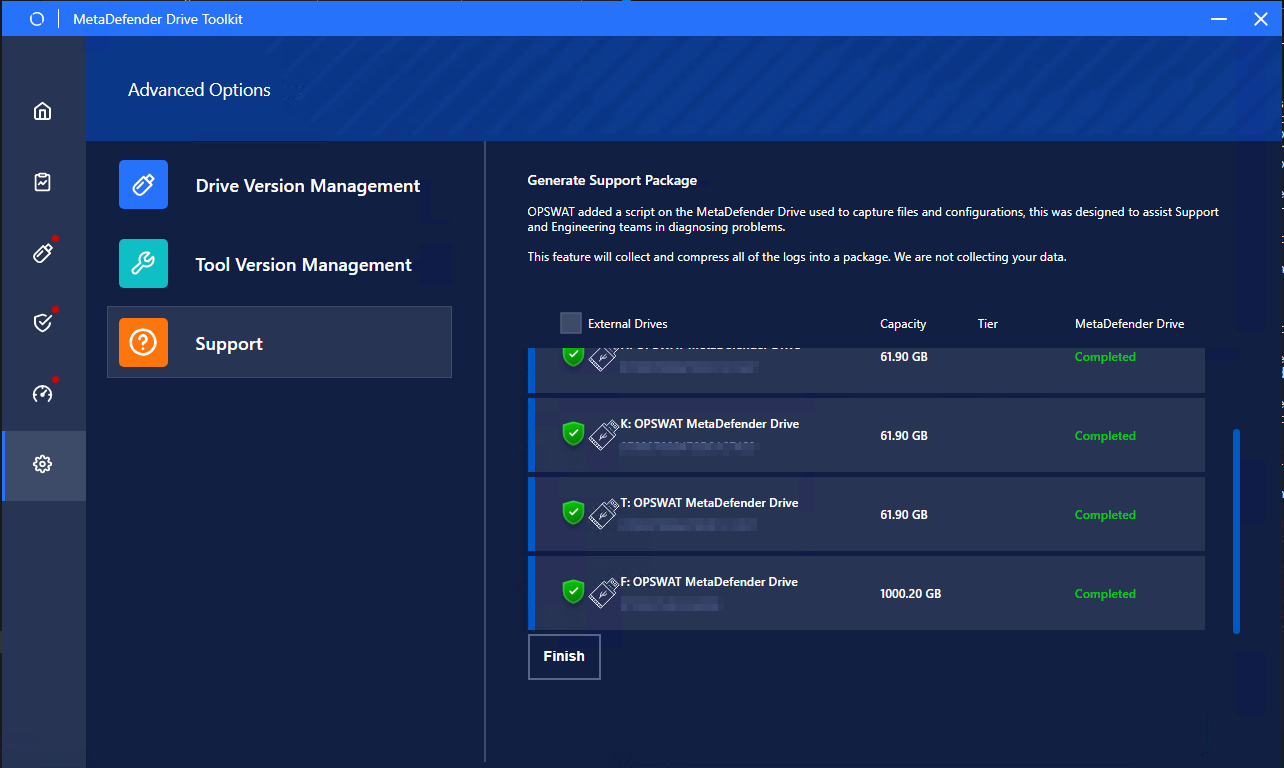
Launch Toolkit and navigate to Advanced Options → Support menu (Follow the on-screen instruction to install the missing packages and restart your Windows devices if needed
Now choose the Drive you want to get the log, identified by its serial number, click Generate Support Package and wait for some minutes until it's done. The needed time will depend on how much reports and logs being located on the Drive's storages.
2. Generate Support Package when MetaDefender Drive is running
If you face an issue while using MetaDefender Drive
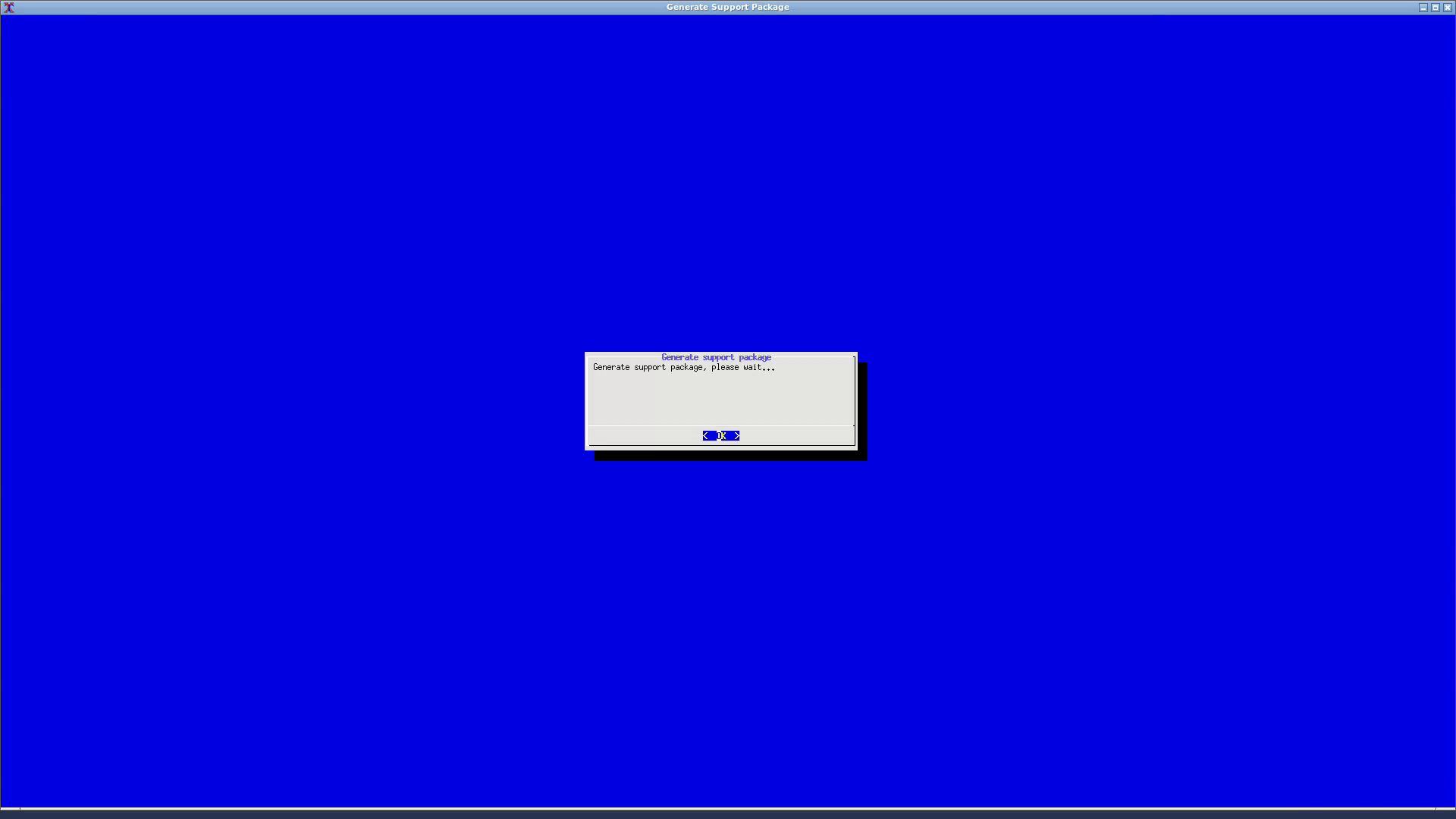
Press and hold the keyboard keys ⌥+ ⇧+ F3 for 5 seconds**.**
A blue screen will appear saying that the Support Package is being generated and will disappear when the task is finished after a moment.
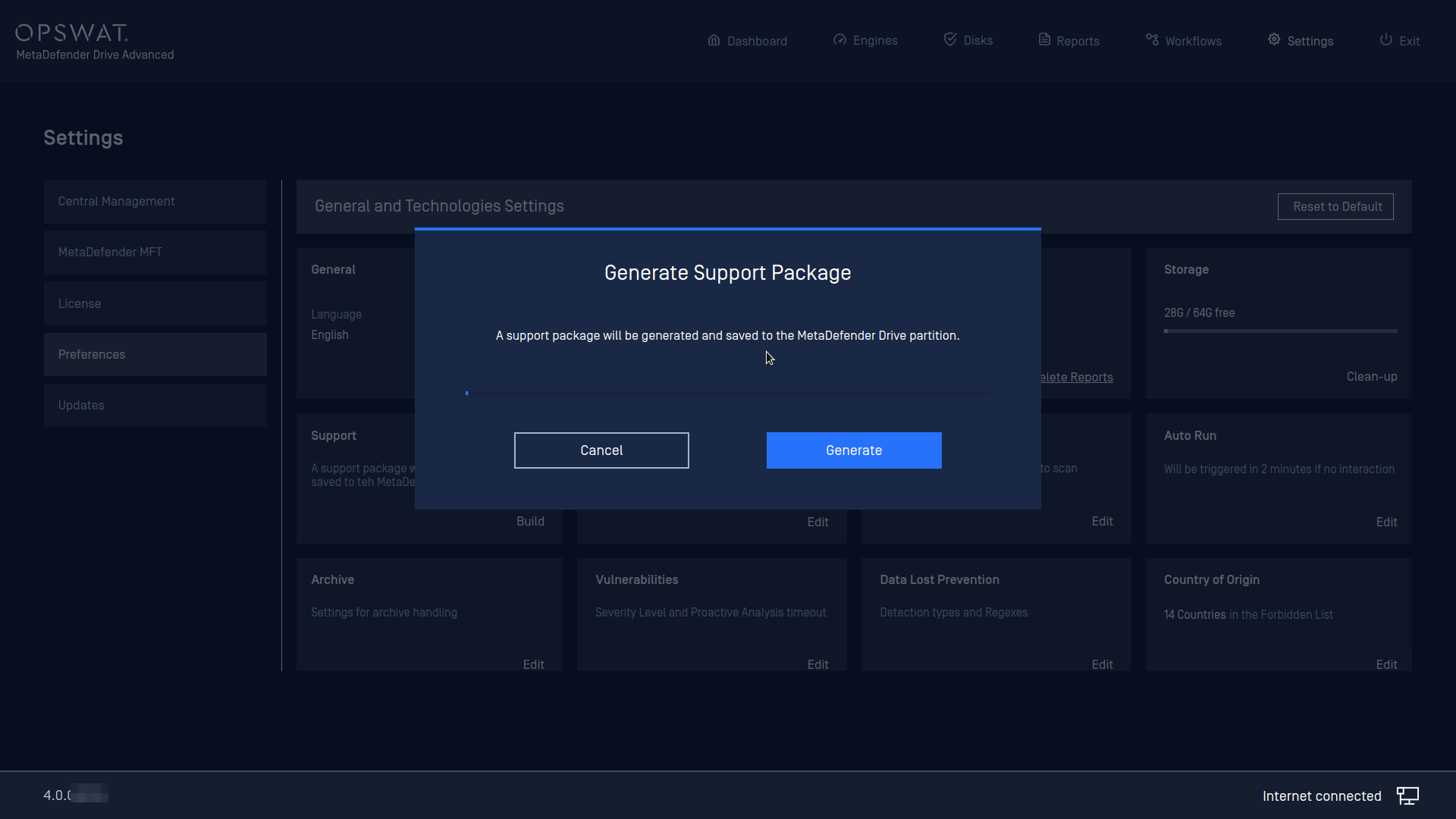
3. Generate Support Package with the built-in GUI function, when MetaDefender Drive is running
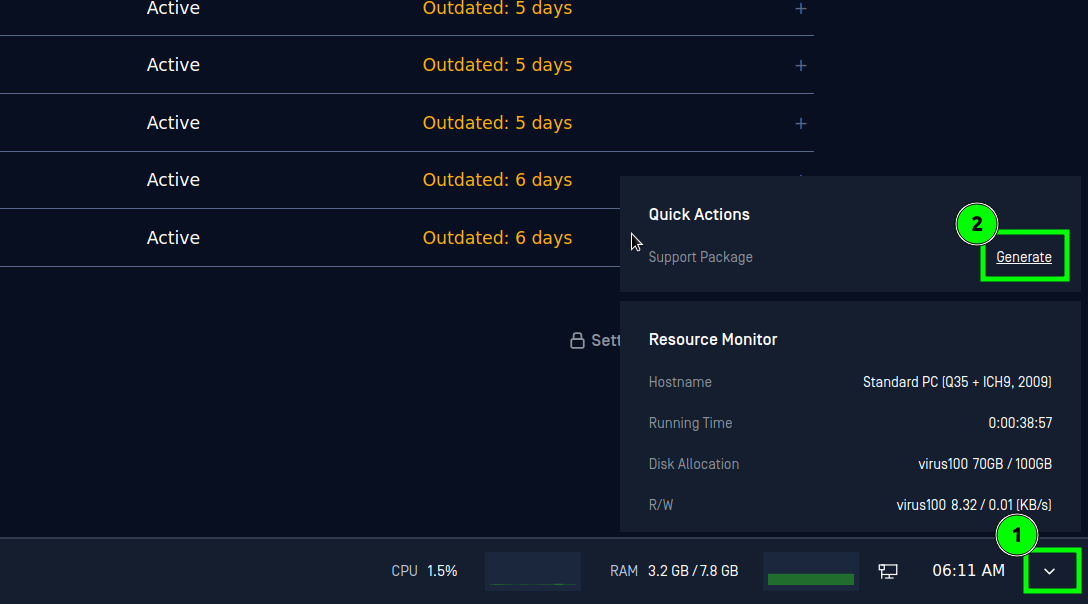
You can also generate a Support Package by clicking Generate from the Quick Actions menu at the bottom right corner:
4. Generate a Selective Collection of Logs (for Linux)
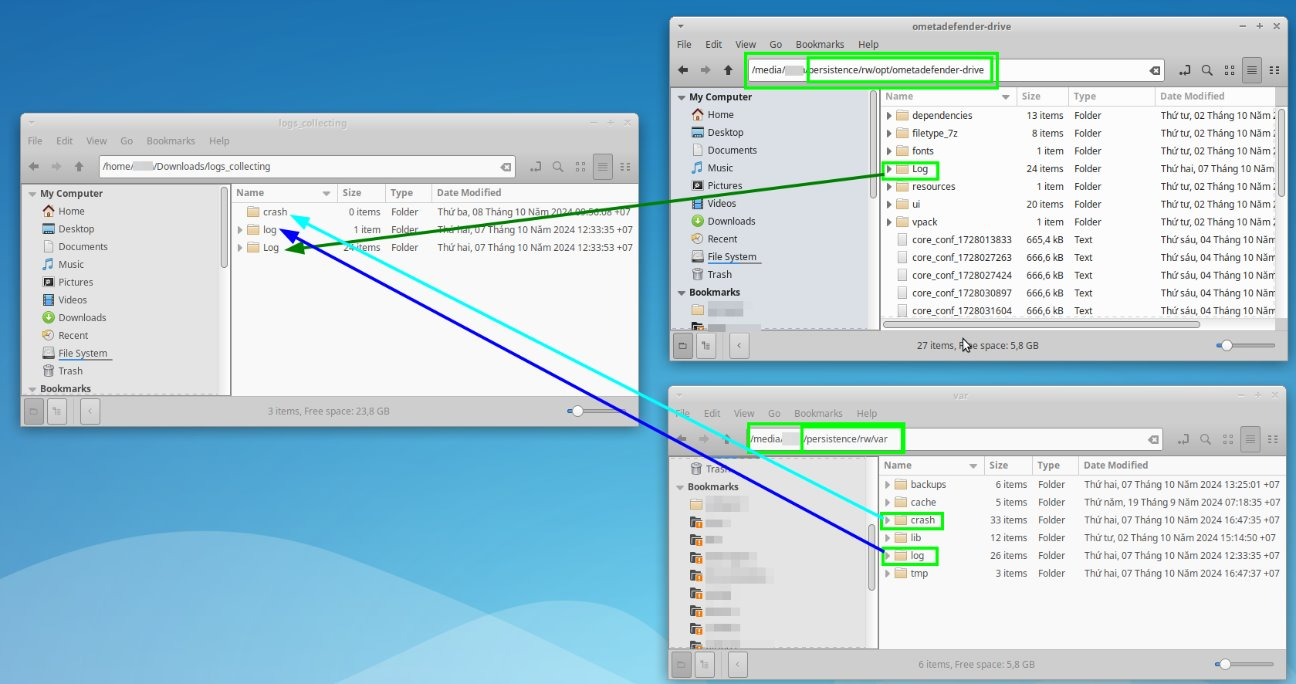
While MetaDefender Drive is plugged in, run a file browser as an admin using the
sudocommandNavigate to the /persistent partition of MetaDefender Drive and copy the logs from the following folders:
/media/"your_user_account"/p__ersistent/rw/opt/ometadefender-drive then copy Log folder
/media/"your_user_account"/persistent/rw/var then copy crash __and log __folders
5. Generate a MetaDefender Drive Image (for Linux)
Plug the MetaDefender Drive that you want to clone into a running Linux machine.
Launch the terminal, and run the following command:
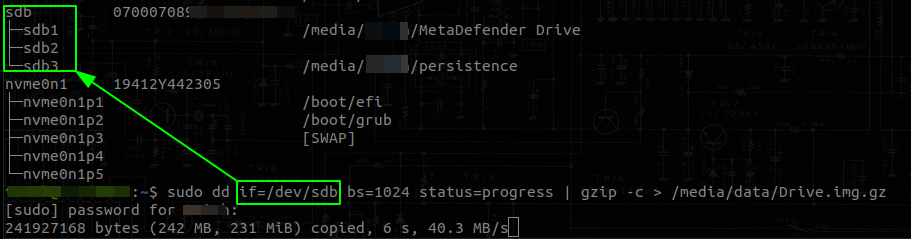
Identify the drive you want to clone by the
serialvalue, then copy itsname. In the image below, the drive that needs to be cloned is/dev/sdb.Run the following command after replacing
/dev/sdxwith your Drive'snameand/path/to/img/Drive.img.gz4with the filesystem location and the file name where you want the image saved: