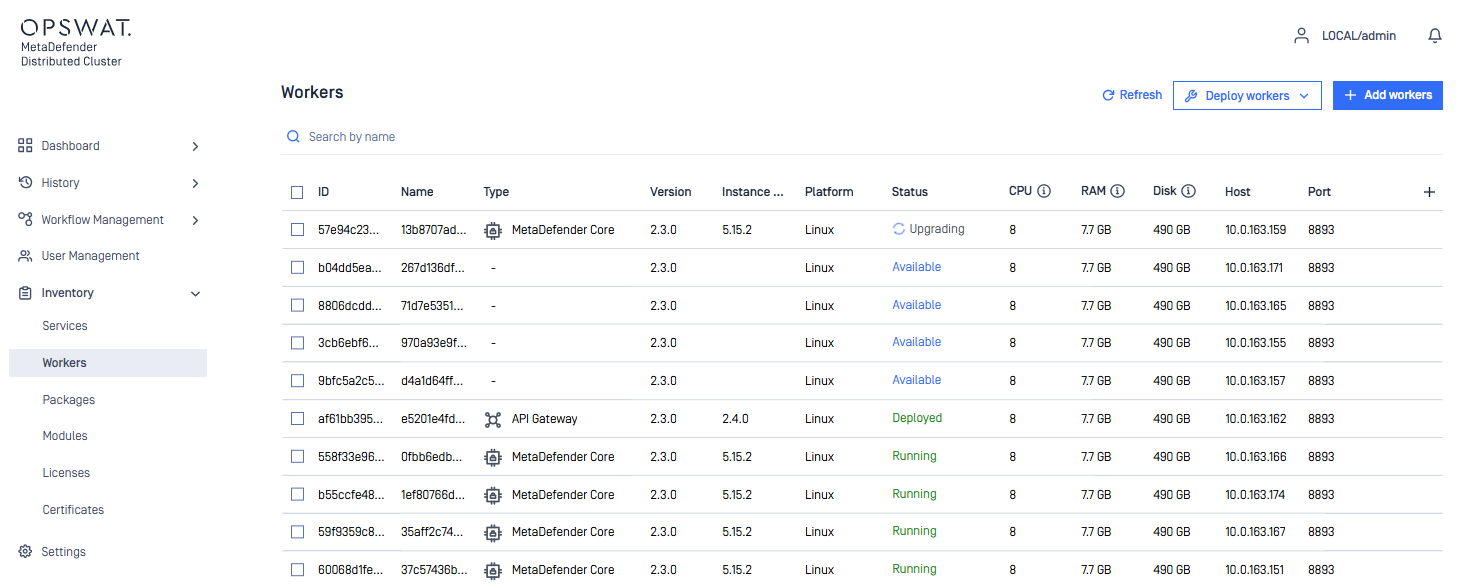
This section will allow the system administrator to add the MetaDefender Cluster (MD Cluster) Workers which will help deploy and monitor activities of MetaDefender Core, MD Cluster API Gateway and MD Cluster Callback Service.
MD Cluster Callback Service is optional. However, if the scan result needs to be sent to a Webhook. This service must be installed in order to use the Callback Service feature.
Automatically Deploy Workers
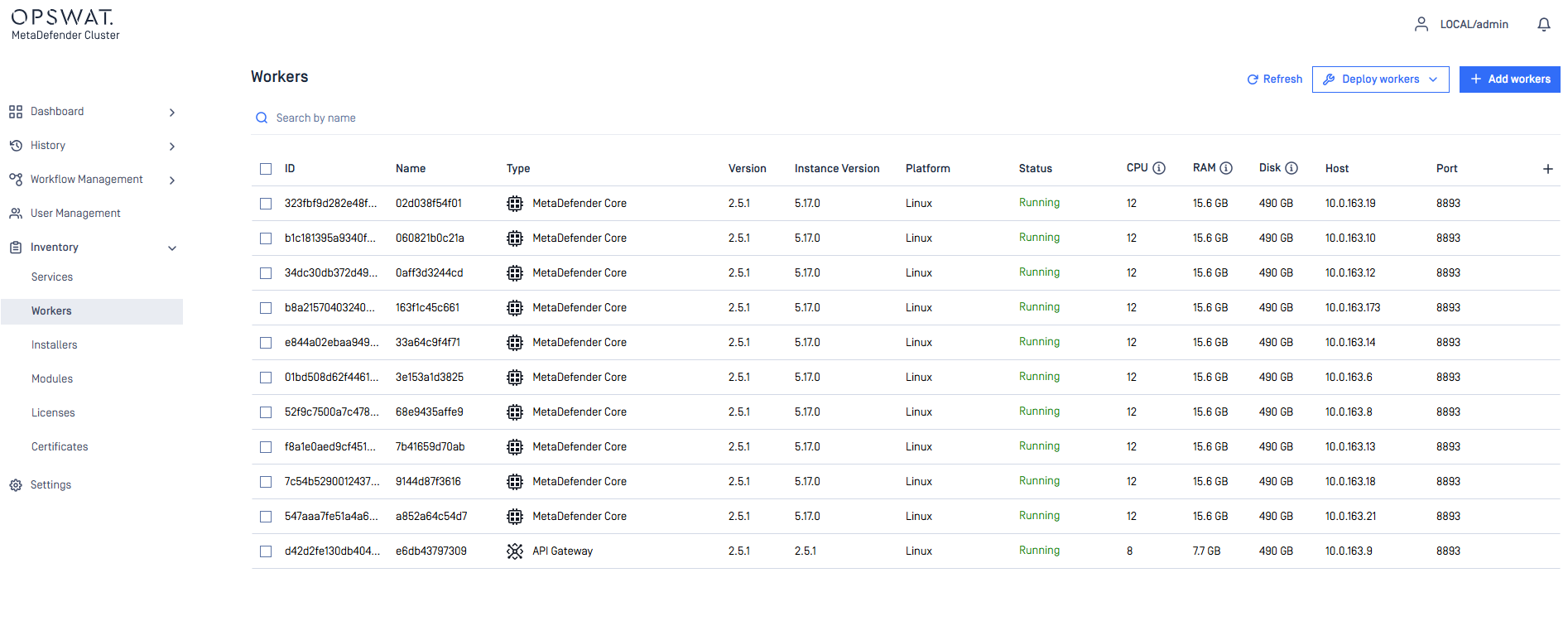
MD Cluster Workers can be automatically installed and enrolled using deployment scripts generated from MD Control Center. Administrators can follow the instructions to retrieve the installation script and then run the installation script on target hosts to deploy Workers with the required configuration and cluster enrollment settings. This automated approach simplifies large-scale deployments, reduces manual effort, and helps ensure consistent Worker configuration across all managed hosts.
Manually Add Workers
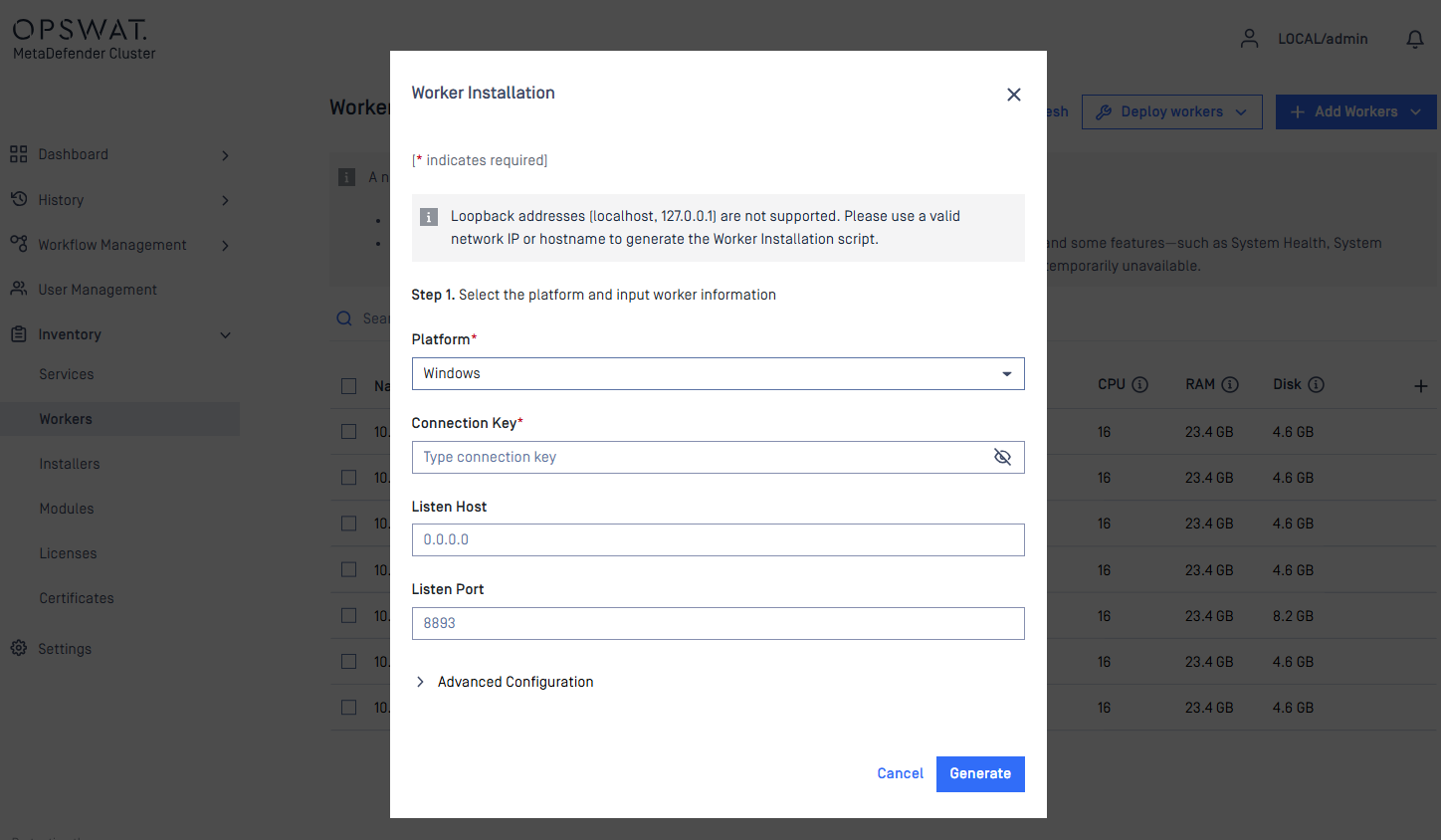
To manually add an MD Cluster Worker, enter the Name, Host, Port, and Connection Key. The Port and Connection Key must match the values configured in the Worker during installation. After completing the fields, select Submit. MD Cluster will validate the connection and indicate whether the Worker was added successfully.
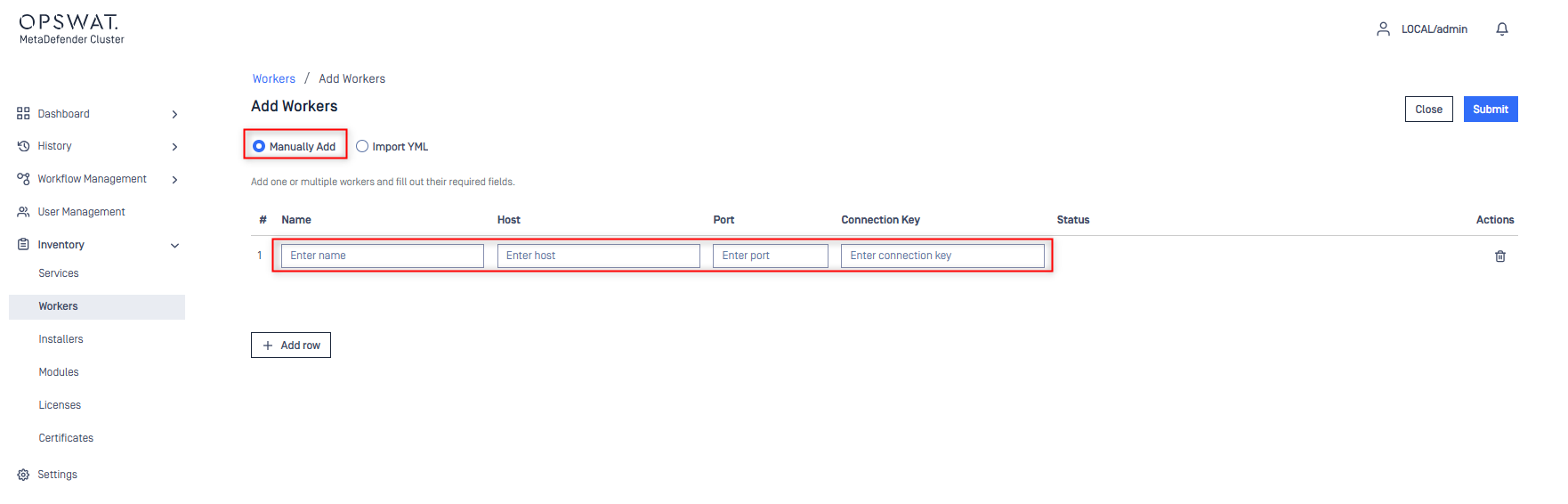
Manual addition is intended for Workers that are already installed but not currently connected to MD Control Center. For new deployments, use the automated deployment process whenever possible.
Bulk Import Workers
System administrators can import MD Cluster Workers using a YAML file instead of adding them individually through the MD Cluster Control Center interface. To simplify the process, a downloadable template is available when selecting the Import YAML option. The following example demonstrates a YAML configuration that includes an MD Cluster API Gateway and three MetaDefender Core instances:
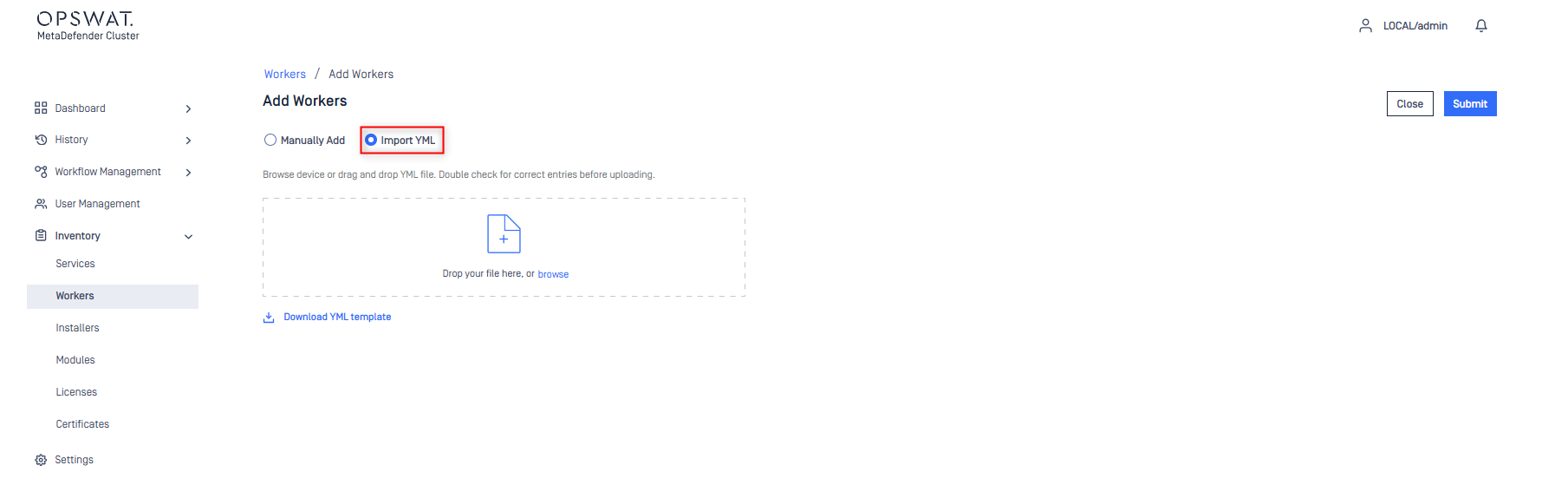
Importing a list of Workers is intended for Workers that are already installed but not currently registered with MD Control Center. This method provides a convenient way to add multiple existing Workers at once. For new deployments, use the automated deployment process whenever possible.
Upgrade Workers
MD Cluster Worker is included with MD Cluster Control Center. Whenever the Control Center is upgraded to a newer version, a corresponding version of MD Cluster Worker also becomes available for centralized upgrade directly from the Control Center console.
To upgrade Workers:
Navigate to
Inventory>Workers.Look for the notification banner displayed on the page indicating that a Worker upgrade is available.
Click
Upgrade Now.
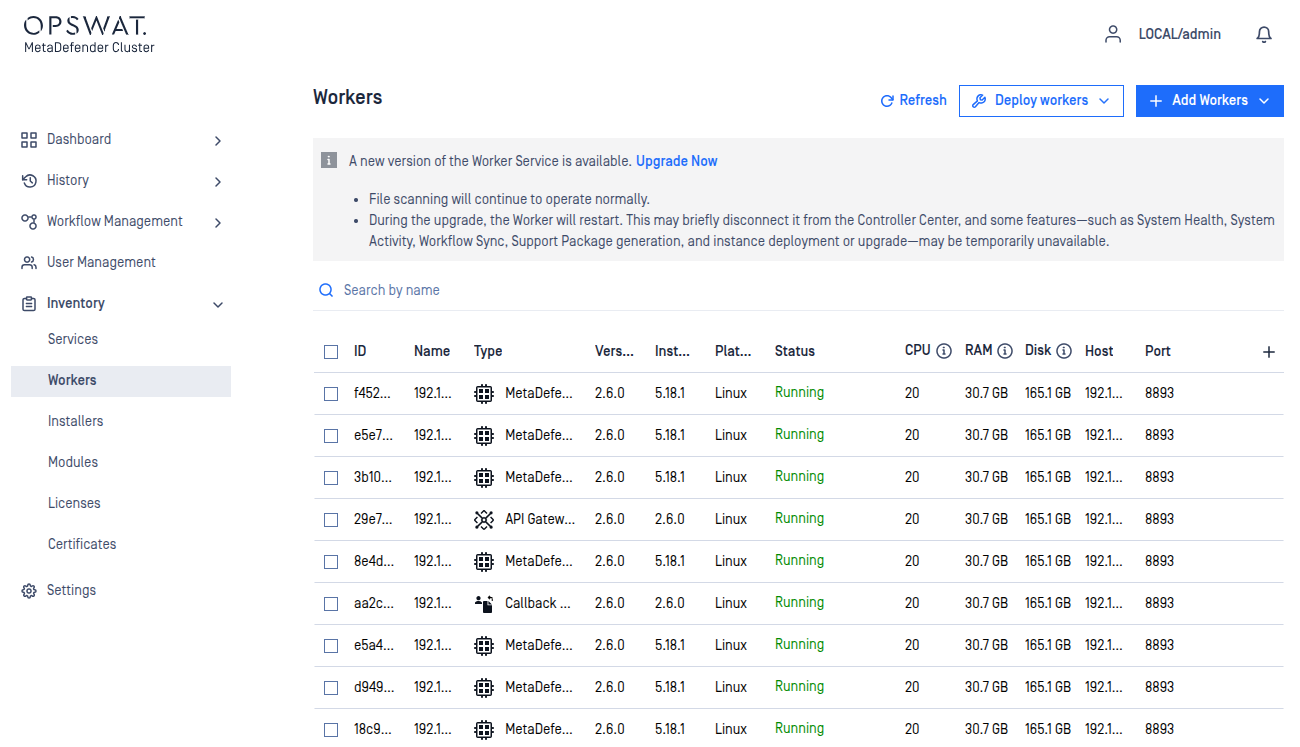
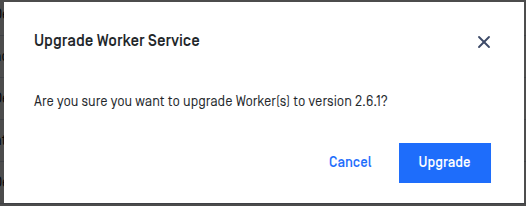
Confirm the action to begin the upgrade.
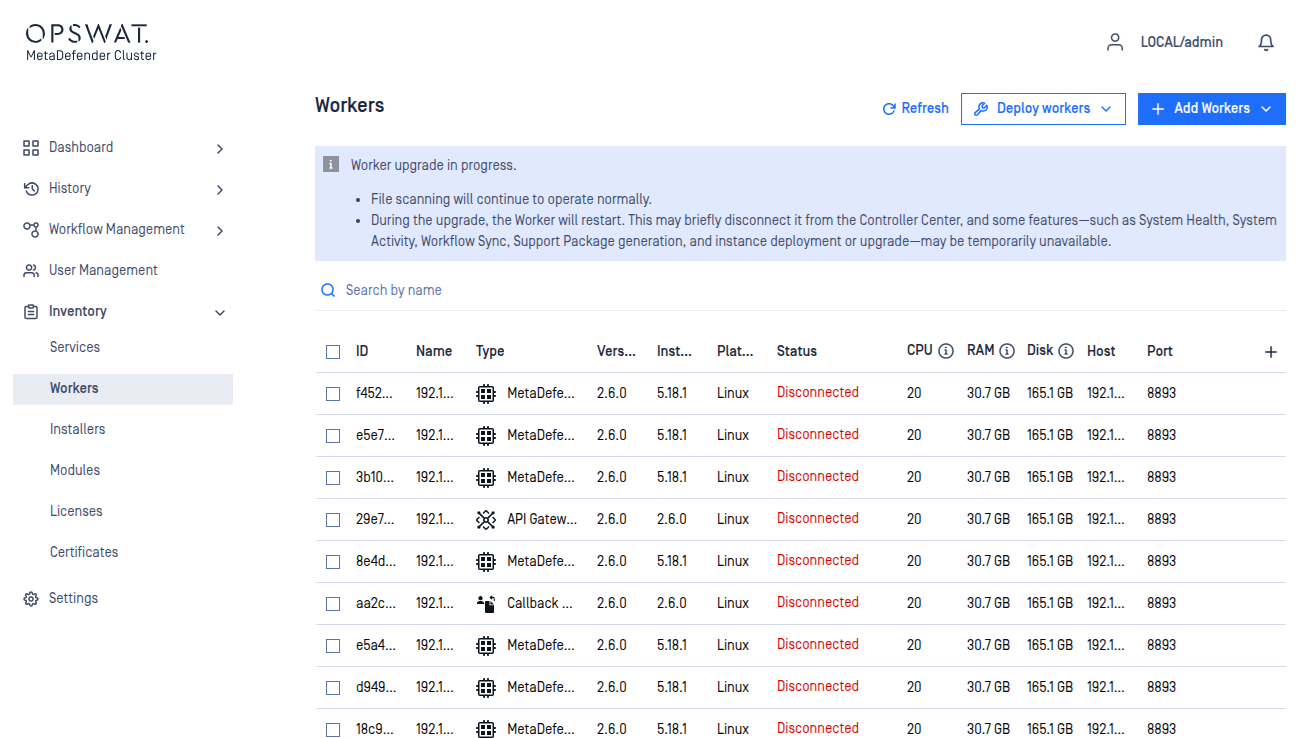
During the upgrade process:
The banner displays the message: “Worker upgrade in progress.”
Worker instances may temporarily show a Disconnected status while restarting.
File scanning operations continue normally during the upgrade.
After the upgrade completes successfully, all Workers display the new version number (for example, 2.6.1) in the Version column.
Deploy Instances
Once MD Cluster Workers have been added and their status are shown as Available. The system administrator can now deploy MetaDefender Core, MD Cluster API Gateway, MD Cluster Callback Service, and Download Service separately or all at the same time.
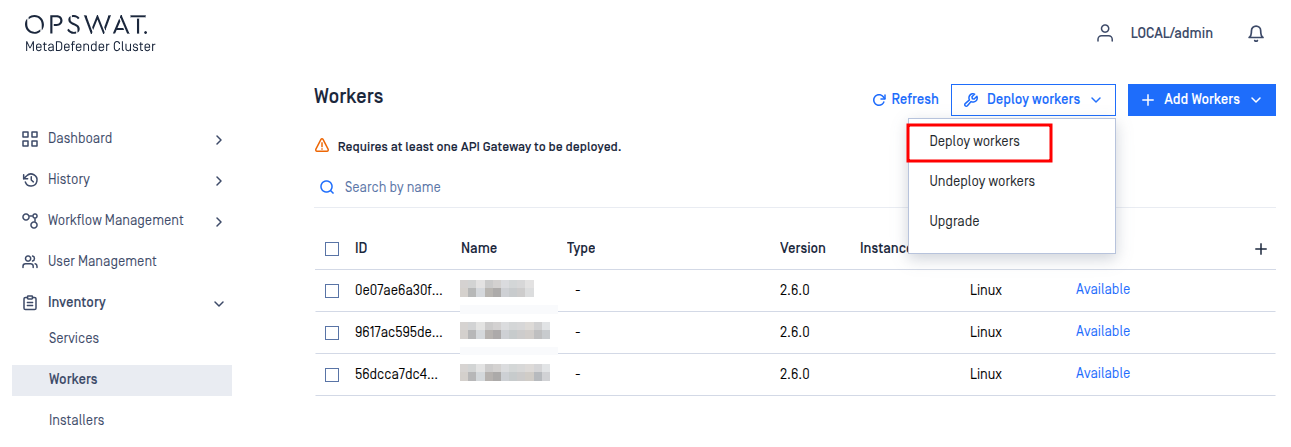
To deploy the MD Cluster API Gateway. Simply choose the version of MD Cluster API Gateway and select an available MD Cluster Worker.
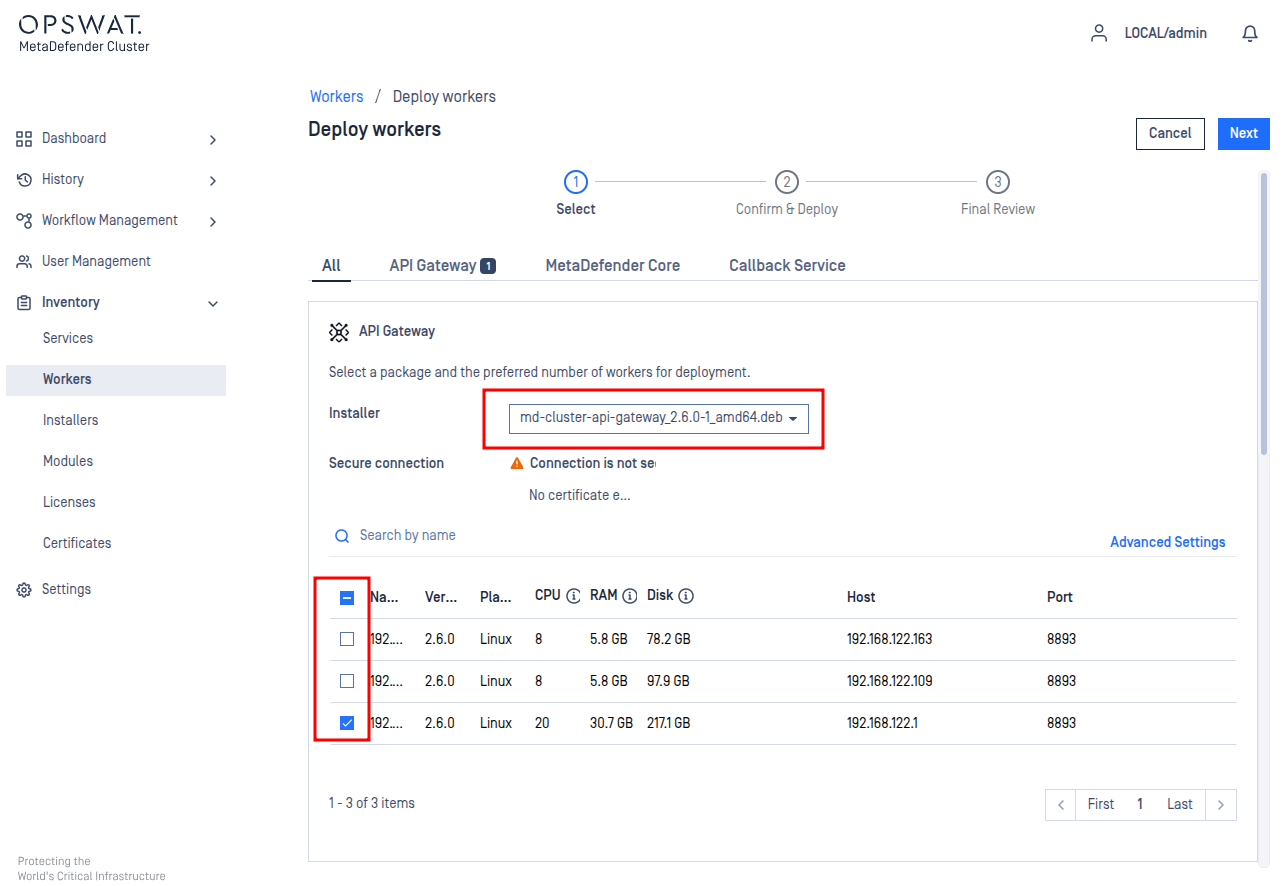
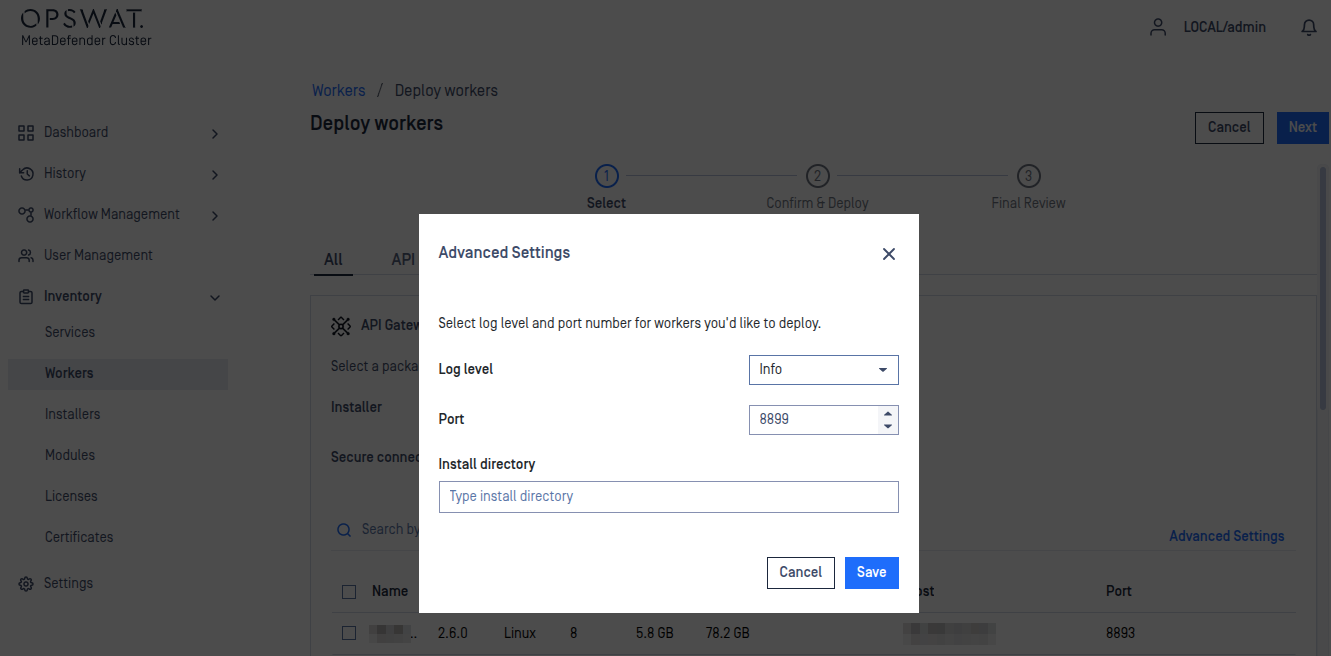
The Log level, Port, and custom Install directory that will be assigned to MD Cluster API Gateway can be set by clicking Advanced Settings.
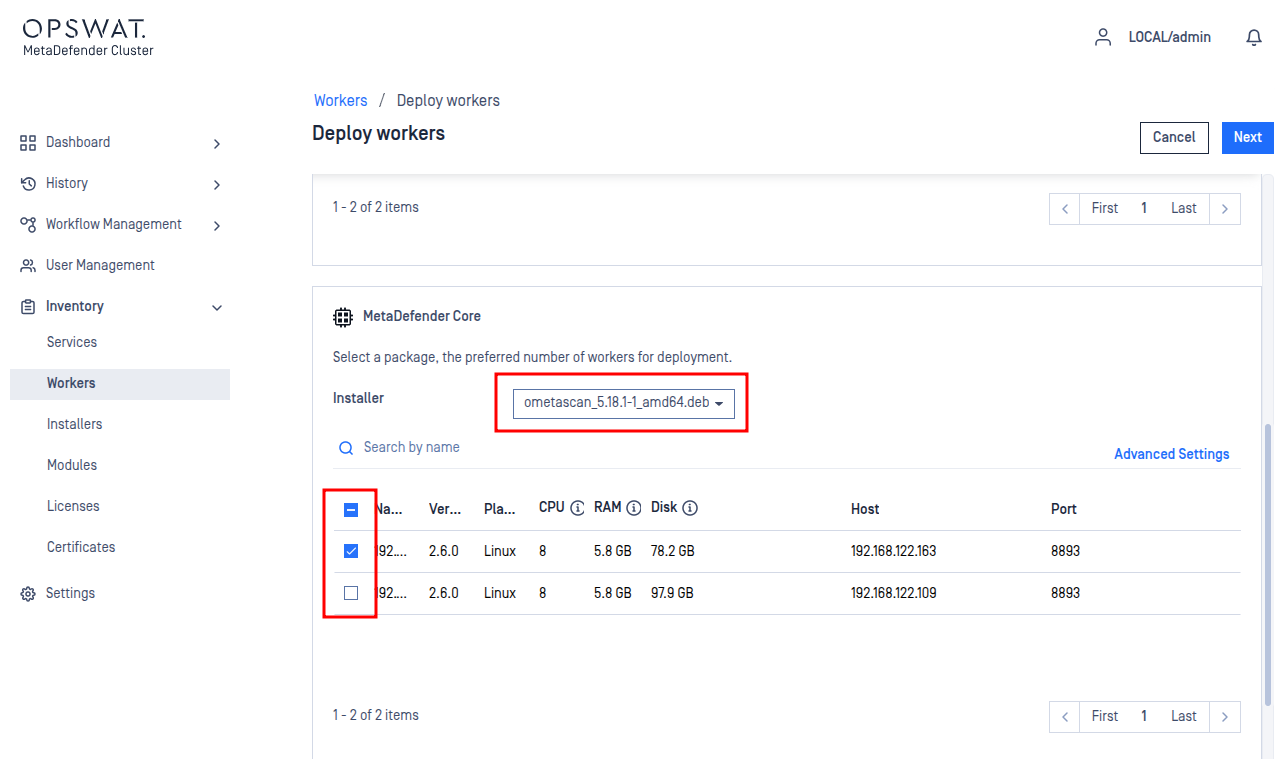
The system administrator can choose the version of MetaDefender Core should be deployed on available MD Cluster Workers.
The system administrator can also modify the Log level, Port, custom Install directory, custom temporary directory, and Connection per file service of MetaDefender Core that will be deployed by selecting Advanced Settings.
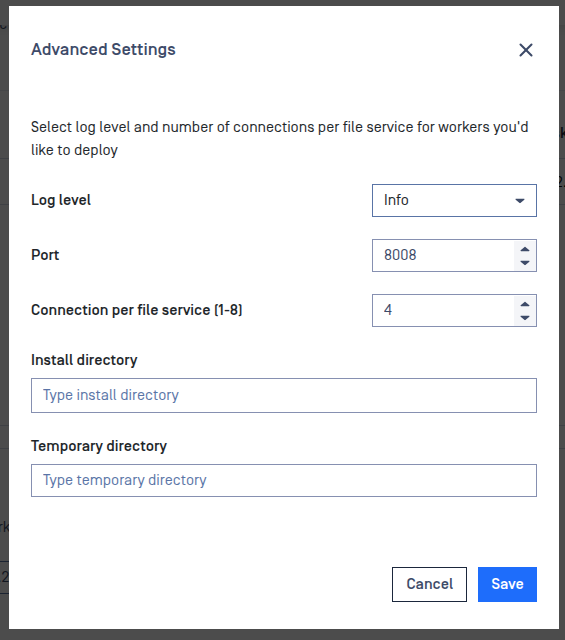
Installation directory: Existing absolute path on the MD Cluster Worker host where this instance will be installed. Leave empty to use the default path.Temporary directory: Existing writable absolute path on the MD Cluster Worker host for MD Core temporary scan files. On Linux, the path can be up to 67 characters. Leave this field empty to use the default path. You can also use a RAM disk.
Click Next to confirm the deployment and Finish to start deploying on selected MD Cluster Workers.
Assign Workflows to Instances
By default, a deployed MetaDefender Core instance processes files for every workflow. From the Workers page, you can restrict an instance to specific workflows, which is the same setting as Assigned Instances on the workflow itself. The Workflows column shows the workflows each instance is currently assigned to.
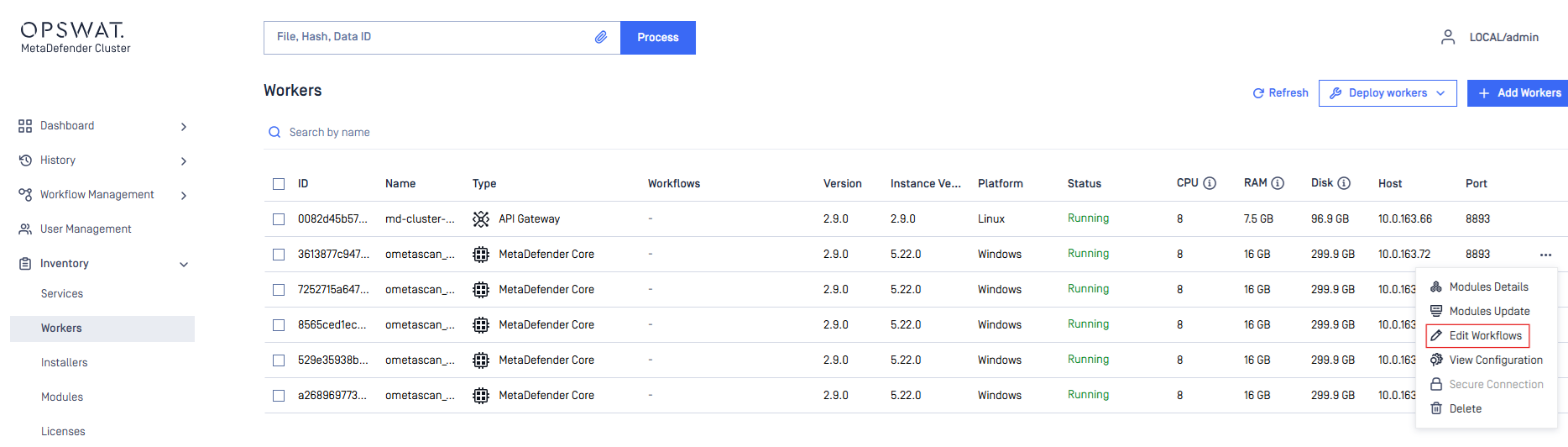
In the MetaDefender Core row, click the three-dot menu and select Edit Workflows..
Check the instance details at the top of the page (ID, name, status, CPU, RAM, and platform) to confirm you are editing the right instance, then select the workflows to change.
Click Add to Worker to assign the selected workflows, or Remove from Worker to unassign them. The Assigned Status column shows the result for each workflow.
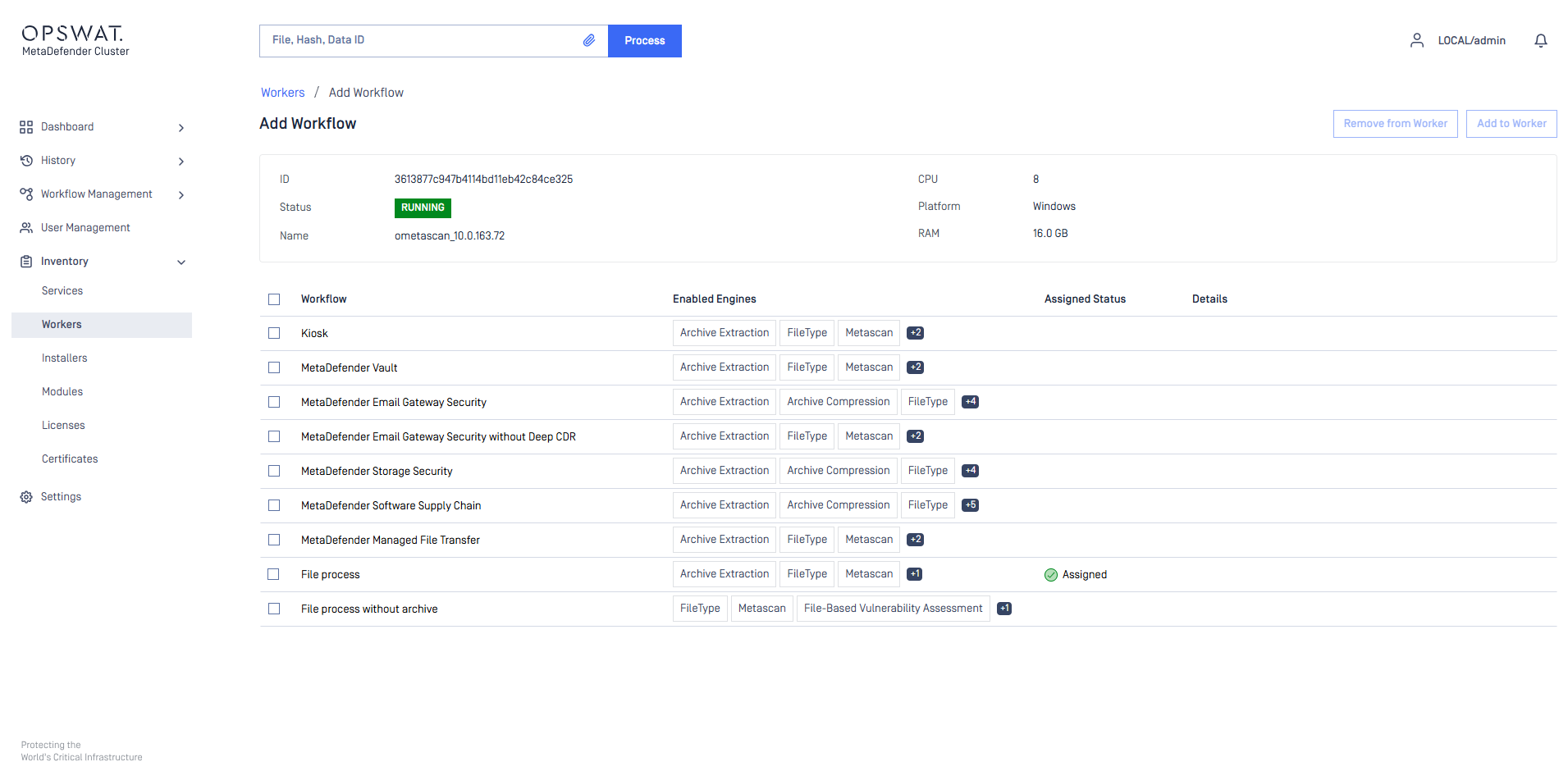
Only MetaDefender Core instances can be assigned to workflows, so Edit Workflows is not offered for the API Gateway or the Callback Service. Assignment requires MetaDefender Core 5.22.0 or later.
A MetaDefender Cluster Worker cannot be undeployed or deleted while workflows are assigned to it. Remove all workflow assignments first.
Release Instances
To release MD Cluster API Gateway, MD Cluster Callback Service, or MetaDefender Core on MD Cluster Workers, the system administrator can select Undeploy workers in the top right corner.
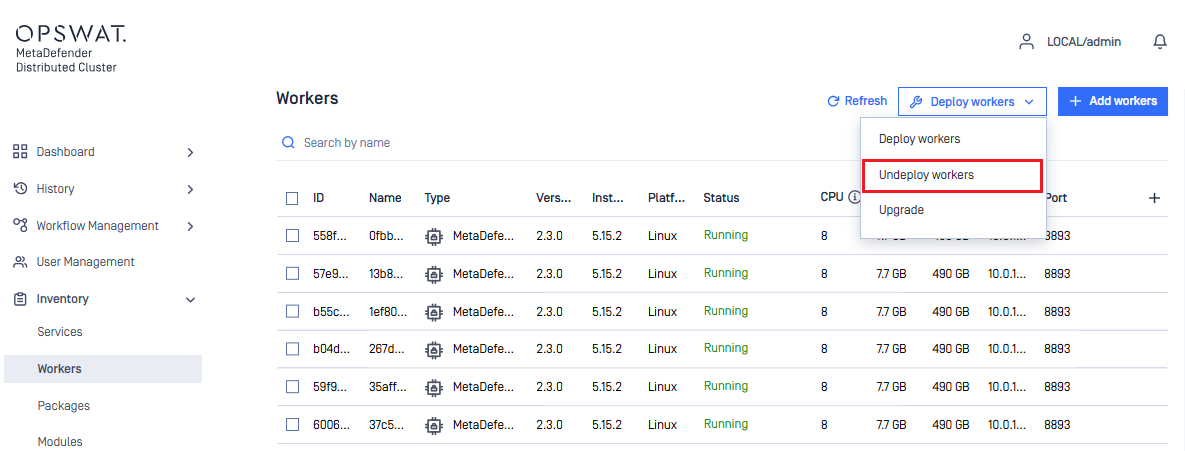
From the list of hosting MD Cluster Worker instances, the system administrator can choose instances to release MD Cluster API Gateway, MD Cluster Callback Service or MetaDefender Core.
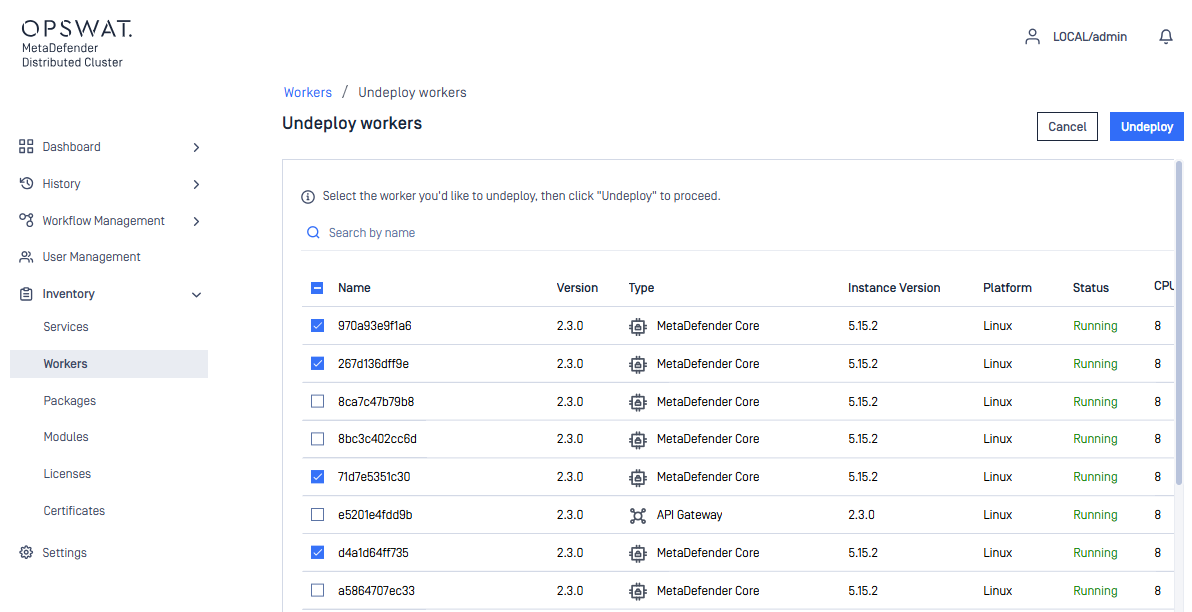
When the Undeploy button is selected. MD Cluster API Gateway, MD Cluster Callback Service, and/or MetaDefender Core on selected MD Cluster Worker instances are uninstalled. Once uninstalled, the MD Cluster Worker instances will become available to deploy new MD Cluster API Gateway, MD Cluster Callback Service or MetaDefender Core.
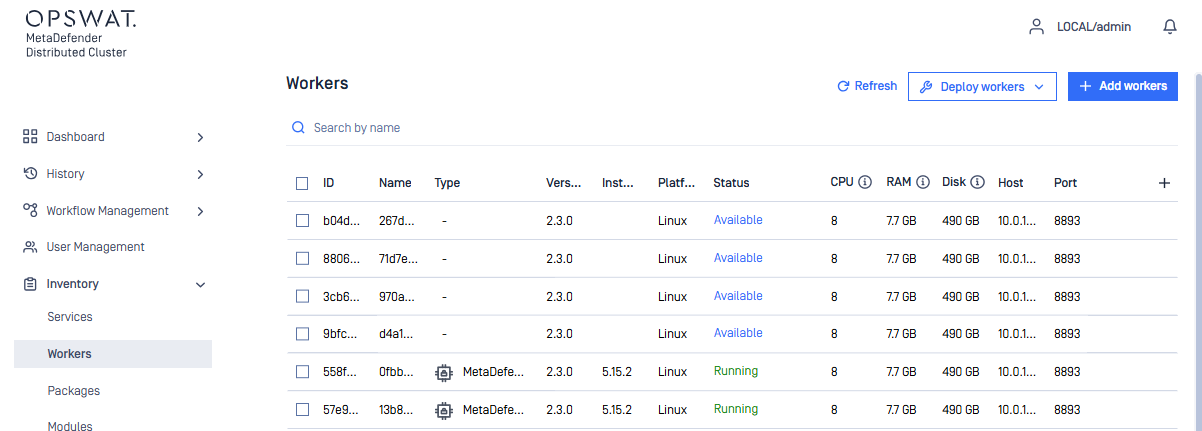
Upgrade Instances
When a new version of MD Cluster API Gateway, MD Cluster Callback Service or MetaDefender Core is available. And all three installers have been uploaded to the Installers section. The system administrator can perform an upgrade for the three products by selecting the Deploy Workers menu and then Upgrade.
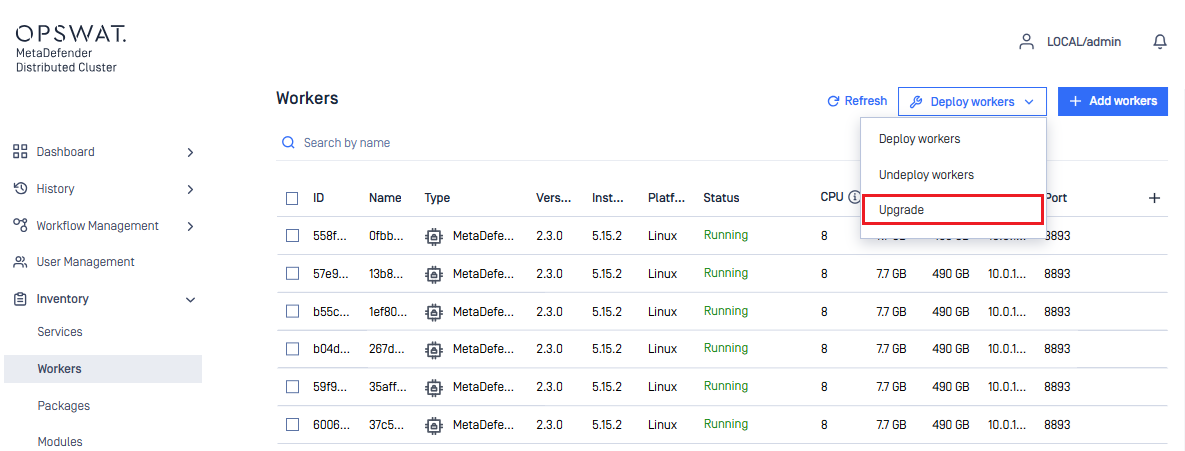
The system administrator can then choose the new version of MD Cluster API Gateway, MD Cluster Callback Service and MetaDefender Core to perform the upgrade.
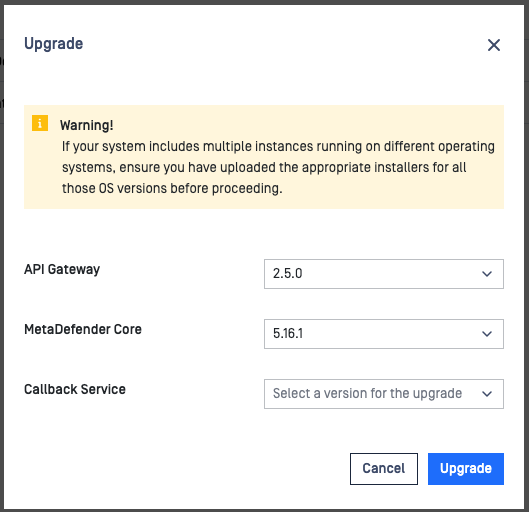
The new versions of MD Cluster API Gateway, MD Cluster Callback Service, or MetaDefender Core are streamed to the MD Cluster Workers and remote upgrade process will takes place automatically.
If there are scans currently active. MetaDefender Core will isolate itself by no longer taking scan request and finishes its current scans before upgrading. Upgrades are performed one MetaDefender Core at a time so that scans are uninterrupted.