
The Modules section provides visibility to the modules that are available to MetaDefender Core to use when deployed. Modules are downloaded by MetaDefender Cluster (MD Cluster) Control Center or if deploying in an Offline Environment, Modules can be uploaded manually by the system administrator when using MetaDefender Update Downloader.
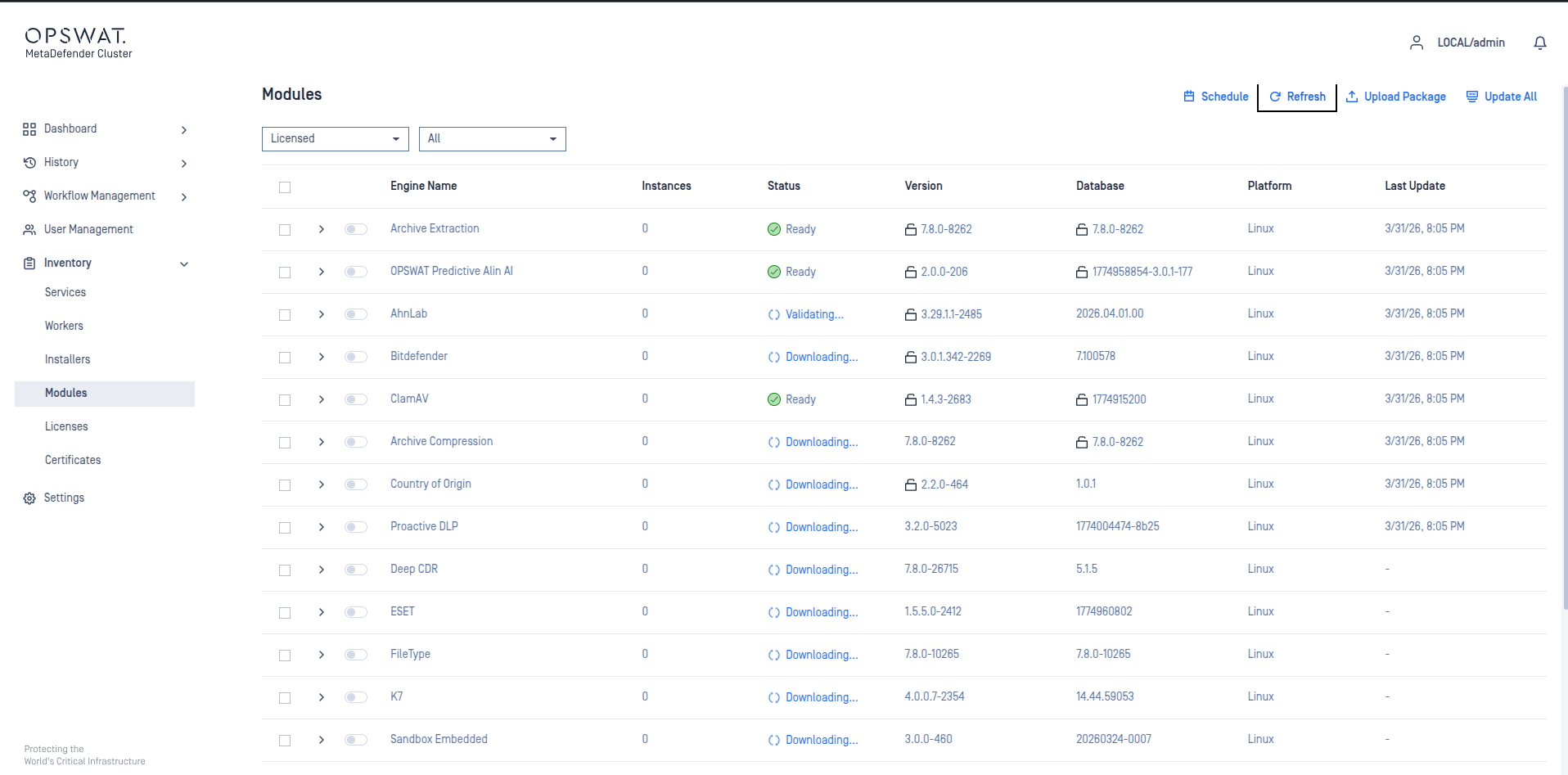
Licensed
This section of the Modules will show all the modules that are available and will be used when MetaDefender Core is deployed. The modules shown in this section are based on the MetaDefender Core license. Modules are automatically downloaded if the MD Cluster Control Center has access to the internet.
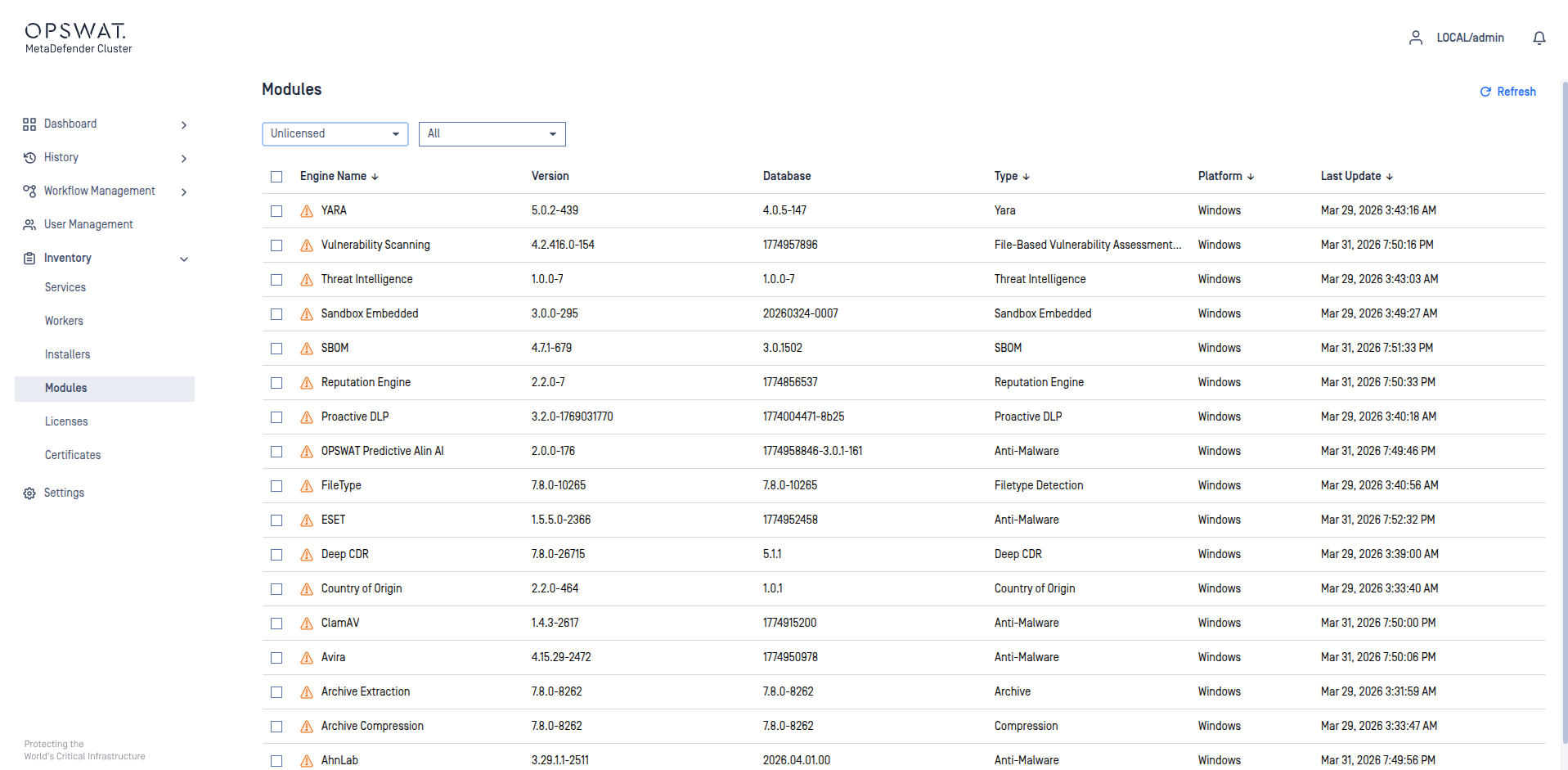
Unlicensed
This section of Modules will show all the modules that were previously licensed. From here, since the modules are no longer licensed they can be removed by selecting all the modules and clicking Delete.
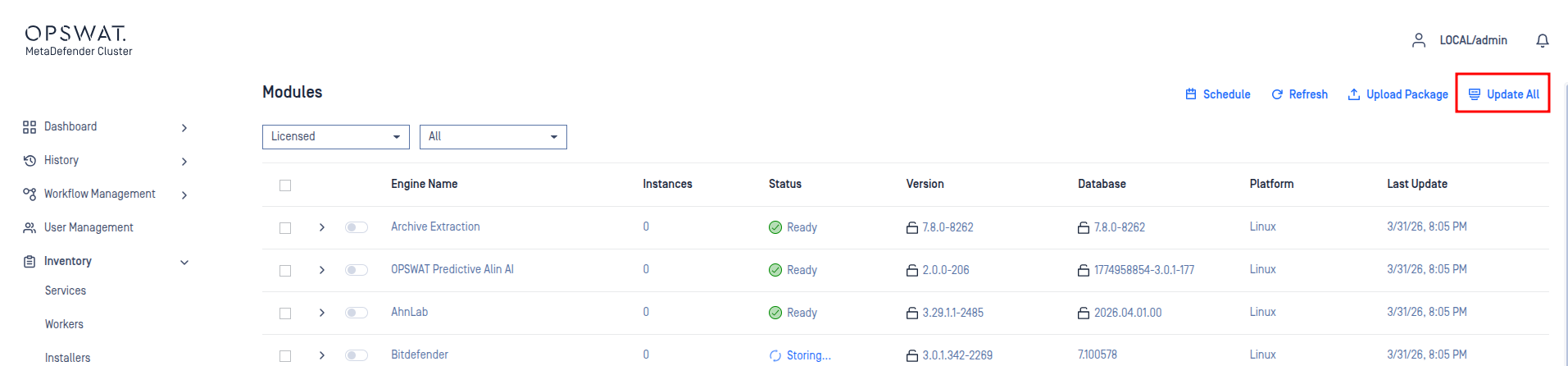
Manual Updates
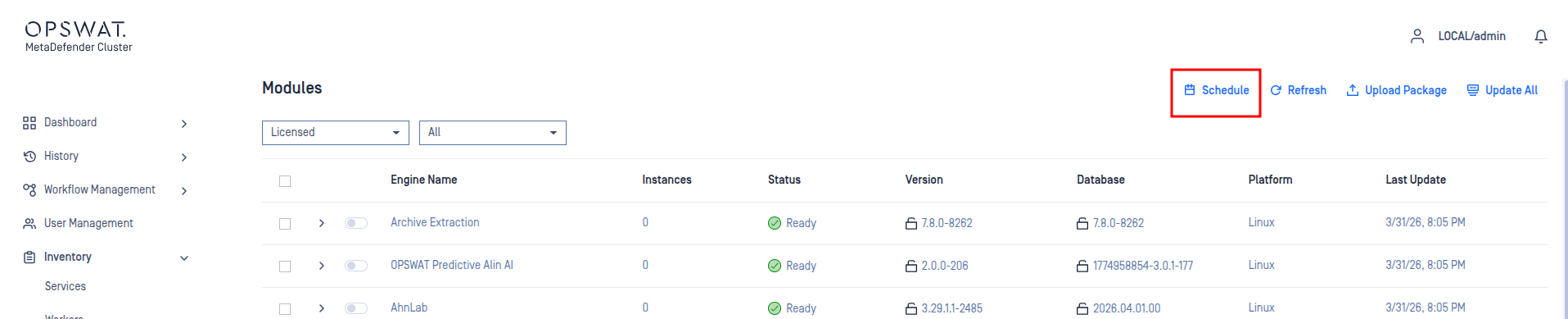
The system administrator can trigger an update by simply clicking the Update All button.
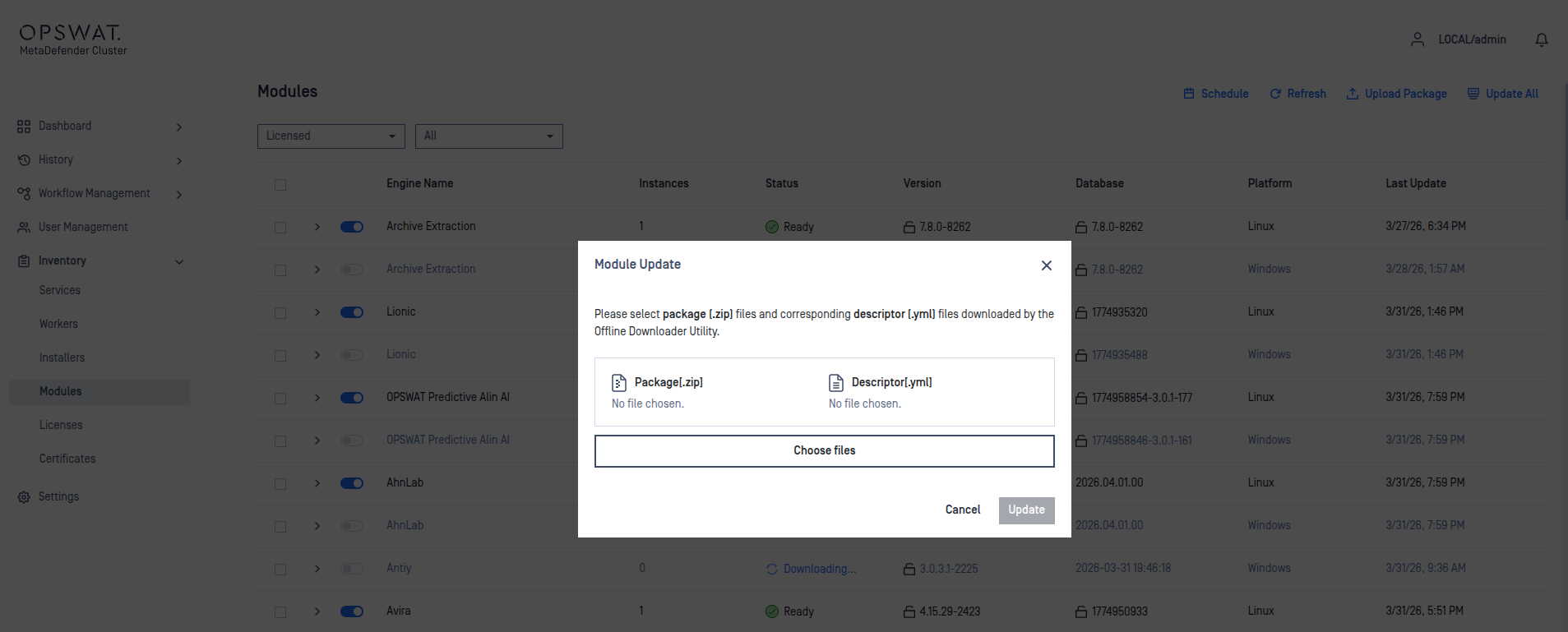
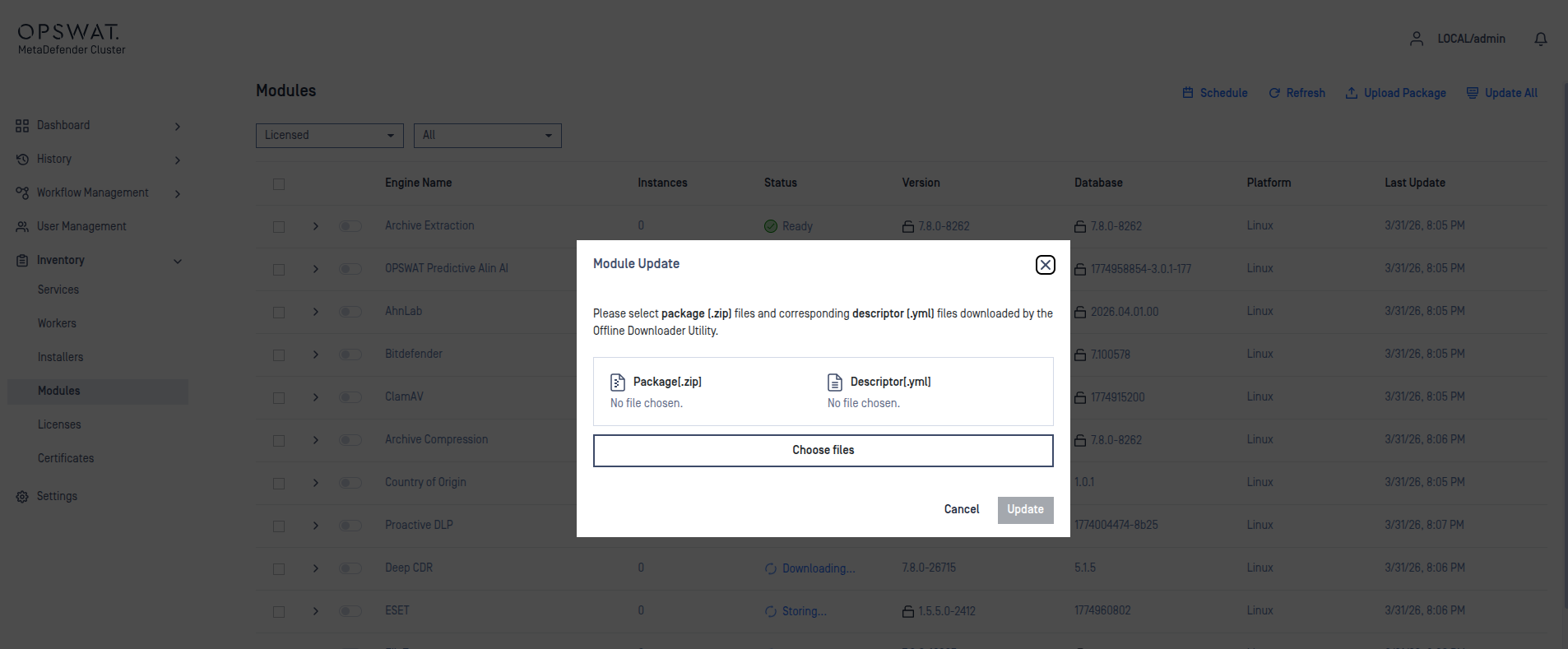
If MD Cluster Control Center does not have internet access, the system administrator will need to use MetaDefender Update Downloader to obtain the required modules. After downloading, these modules can be manually uploaded to MD Cluster Control Center using the Upload Packages option.

Choose the package files and proceed with the upload.
Module Update Configuration
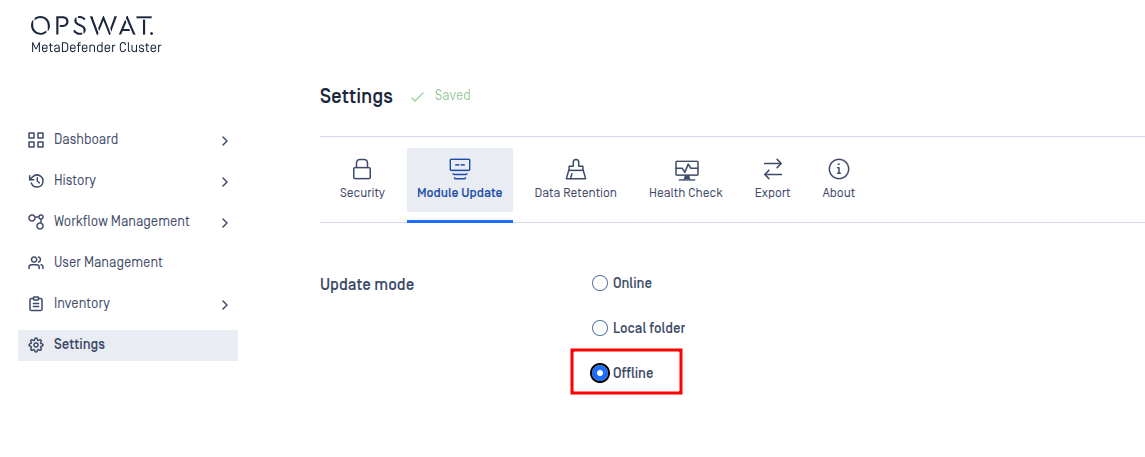
The system administrator can select an update mechanism for the Modules.
Online: Automatic Updates which will download modules from the internet.
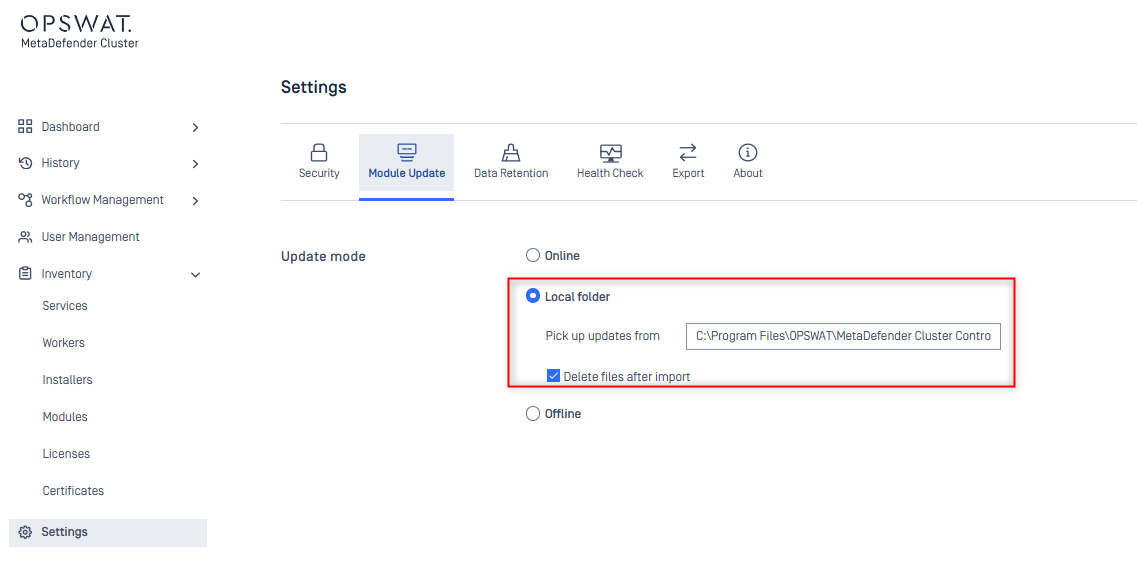
Local Folder: MD Cluster Control Center will pick up Module updates from a specific folder.
Offline: Disable Automatic Updates.
Online
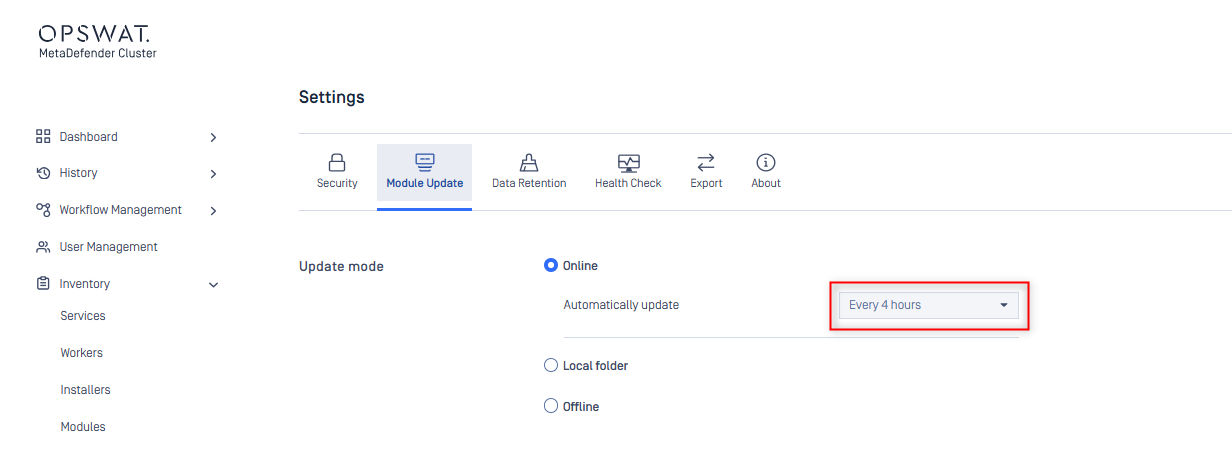
Choosing the Online method will allow MD Cluster Control Center to perform an automatic update by downloading the modules directly from the internet.
MD Cluster Control Center needs access to https://update.dl.opswat.com in order to receive module updates.
MD Cluster Control Center will periodically check the latest version of modules every 4 hours.
When using https://update.dl.opswat.com, whitelisting by IP address on your firewall may not work reliably over time. This is because OPSWAT uses a CDN (Content Delivery Network) to deliver updates faster worldwide, and the IP addresses of the edge servers can change periodically.
Local Folder
Choosing Local Folder method will allow MD Cluster Control Center to monitor any changes to the specified folder. If there are any changes, MD Cluster Control Center will apply the new module updates.
MetaDefender Update Downloader must be used to download the modules.
Offline
Choosing Offline method will turn off the module update mechanism.
Engine management & engine advanced settings
MD Cluster Control Center centrally manages and synchronizes engine and module configurations across all MD Core instances. Any changes made in MD Cluster Control Center—such as enabling or disabling an engine, pinning or unpinning, editing, deleting or restoring, or reinstalling—are automatically propagated to every MD Core in the cluster, ensuring a consistent module state throughout the system.
Engine status
System administrators can monitor the real-time status of engines across the system.

Each engine displays its deployment status across multiple instances, as outlined below:
Status | Description | Action |
|---|---|---|
Ready | The engine is fully initialized, up to date, and ready to scan files. | No action needed. |
Inactive | The engine is installed but pending startup. | No action needed; It will start automatically. |
Disabled | The engine has been manually turned off by an administrator. | Enable it if scanning is required. |
Failed | A critical error occurred during startup or scanning, often due to dependency issues. | Check the Diagnostics column or system logs, resolve the issue, then click Reinstall. |
Wait for installation | The system is currently downloading the engine binaries. | No action needed; just wait for it to finish. |
In Progress | The engine is initializing its services and loading updates. | No action needed; wait until the process completes. |
Mismatched | There is a version mismatch between this MD Core and the MD Cluster Control Center. | No action needed; the engine will sync automatically within a few minutes. |
Enable & Disable engines
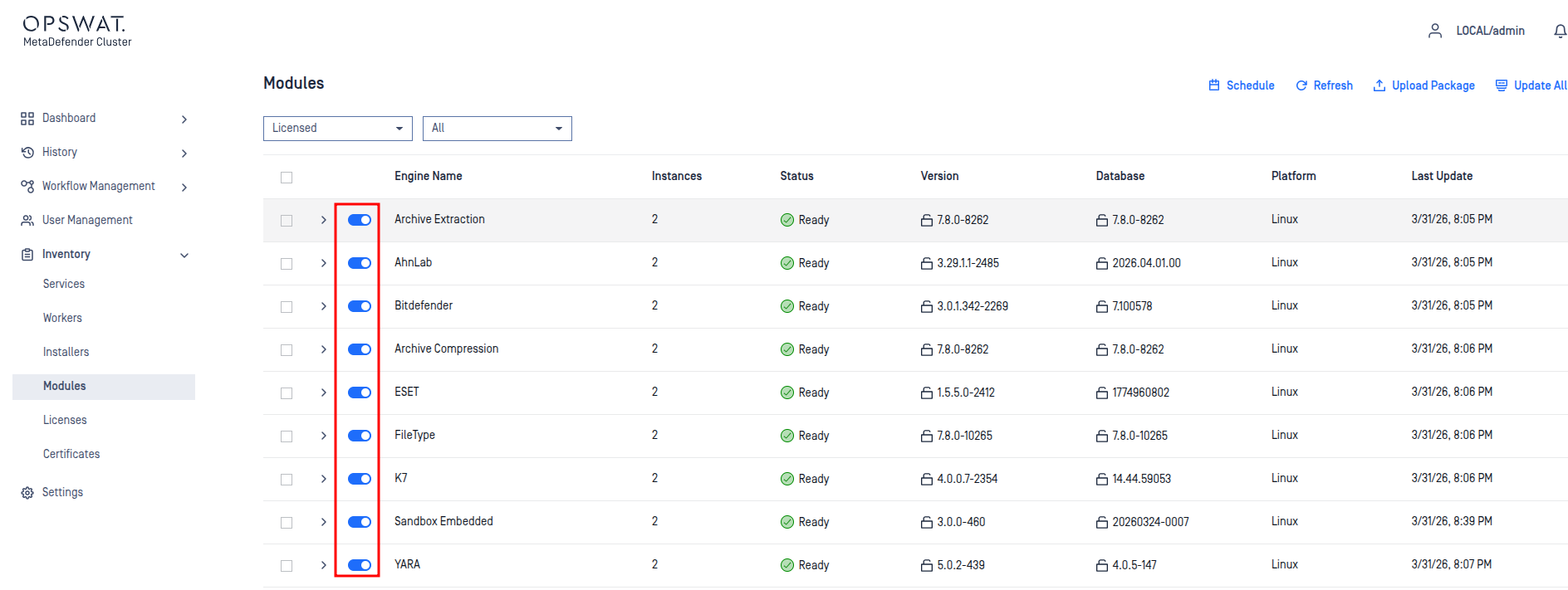
An engine can be disabled by switching off the toggle at the beginning of its row. Turn it back on the same way whenever needed.
Remove engines
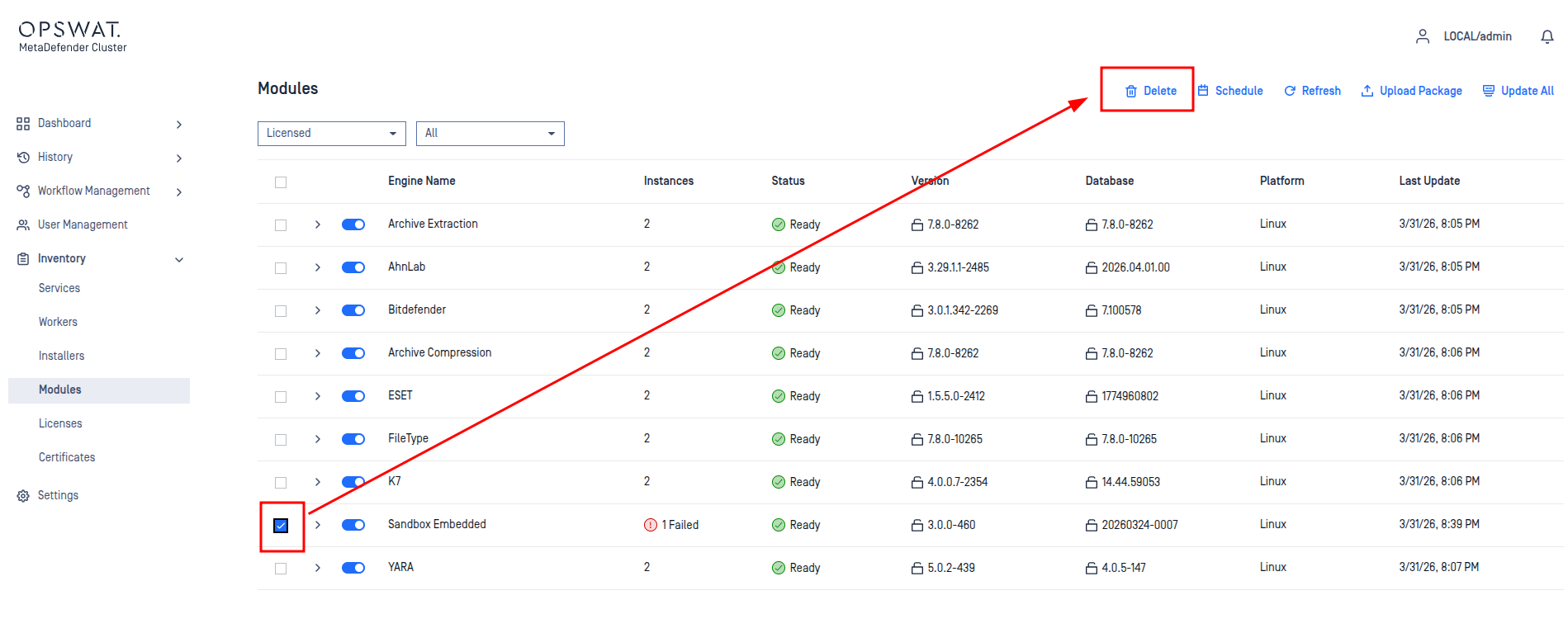
In some cases, an engine may become unstable and remain in a failed state. When that happens, you can remove it by selecting the engine and clicking Delete.
Lock & Unlock engines
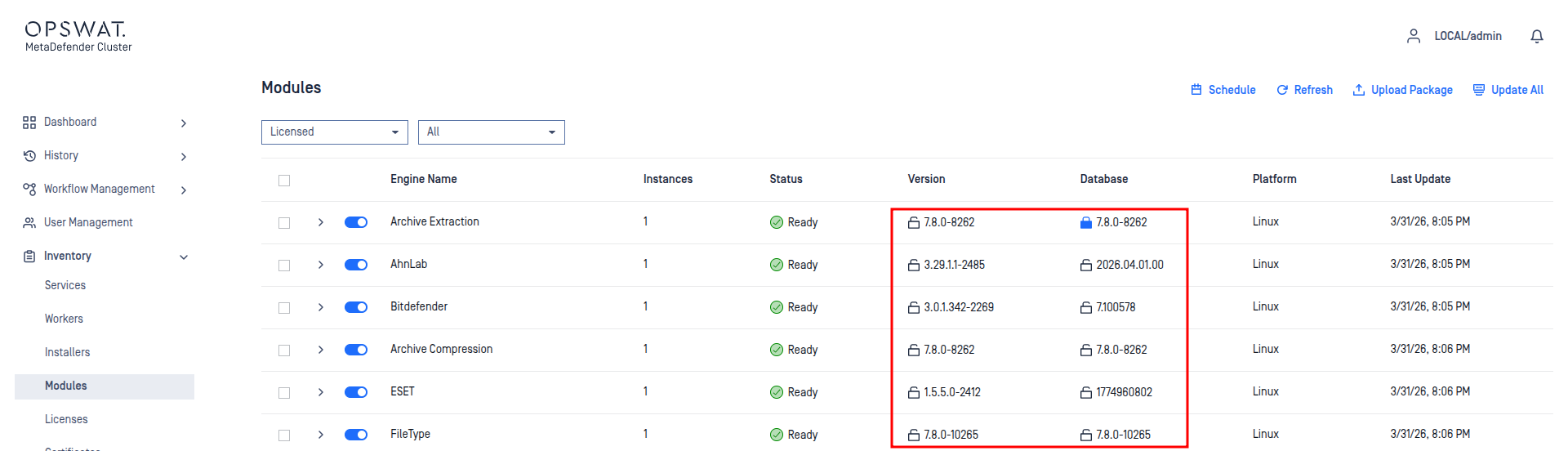
You can lock an engine and its database to prevent new updates from being applied, even when auto-update is enabled.
You can lock the engine and its database separately for the same engine.
Once locked, that part (engine or database) won’t receive any updates—even if the
Update Allbutton is triggered.
Engine advanced settings
Some engines offer advanced settings that you can configure.
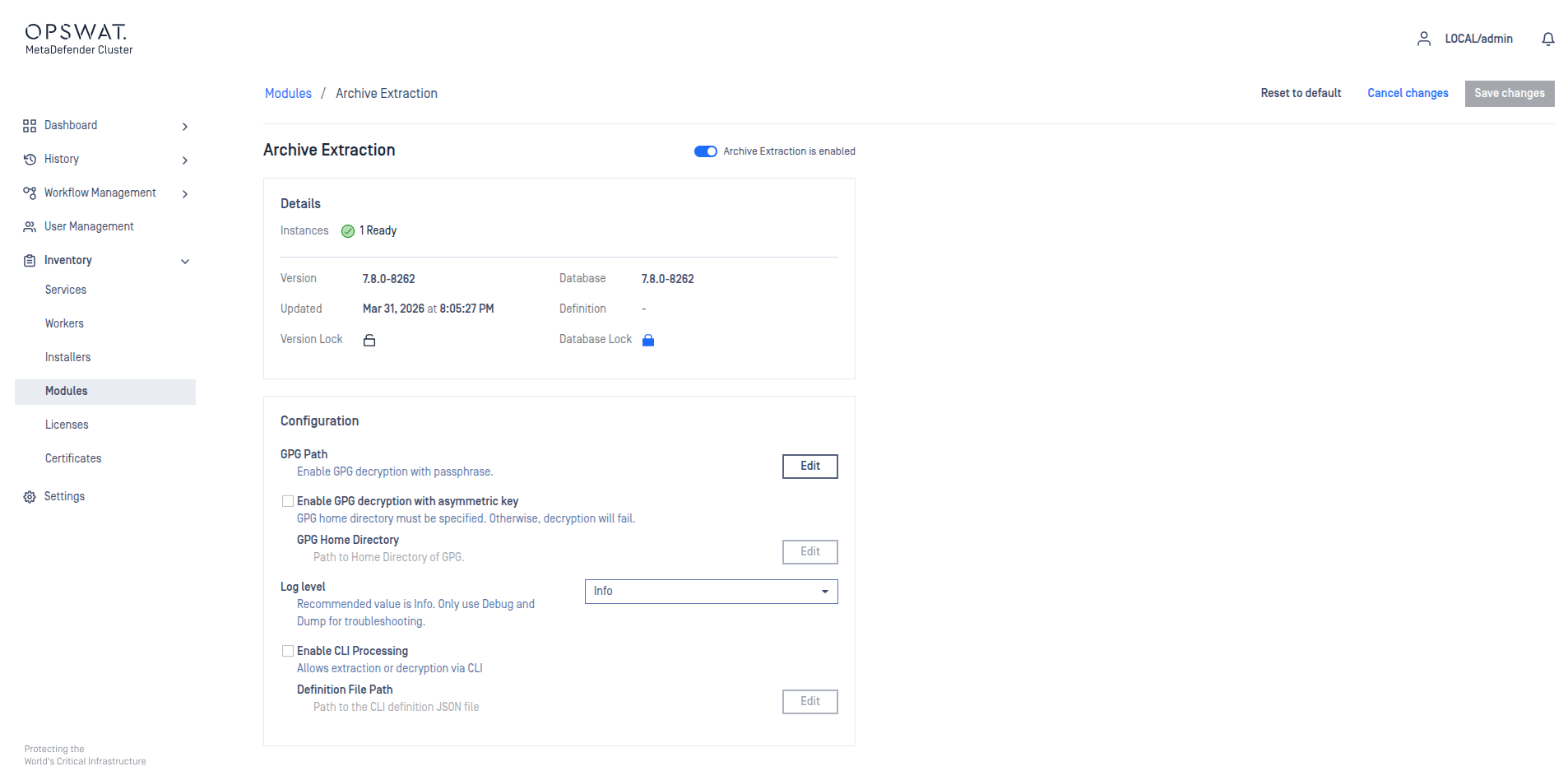
After selecting your preferred options, click Save Changes and your updates will be automatically synchronized across all MD Core instances.