
A RAM disk stores data in memory instead of on a physical disk. You can use one for the MetaDefender (MD) Core temporary directory to reduce disk I/O and improve access to temporary scan files.
Because a RAM disk uses system memory and is cleared whenever the operating system restarts, plan its size carefully. Make sure the host still has enough memory for MD Core, the operating system, and any other services.
Before you begin, choose values for the following placeholders:
Placeholder | Description | Example |
|---|---|---|
| Amount of memory allocated to the RAM disk |
|
| Directory used as the MD Core temporary directory | Linux: Windows: |
| Windows drive letter assigned to the RAM disk |
|
Set up the RAM disk
Linux
Linux provides two in-memory file systems: tmpfs and ramfs.
Aspect | tmpfs | ramfs |
|---|---|---|
Size limit | Enforces the limit set by | Does not enforce a size limit and continues to grow while memory is available. |
Behavior when full | New writes fail with a | Continues to consume memory and may cause the operating system to terminate processes. |
Disk usage in | Shows the configured size and available space. | Does not provide useful capacity information. |
We recommend tmpfs.
The temporary directory can contain extracted archive files, so its peak usage is difficult to predict. A size limit prevents an unusually large scan from consuming all memory on the host. Use
ramfsonly when you understand and accept this risk.
Option 1: Set up tmpfs - Recommended
Create the mount point:
sudo mkdir -p <ramdisk_path>Add the following entry to
/etc/fstab:tmpfs <ramdisk_path> tmpfs defaults,size=<ramdisk_size>,mode=0755 0 0Reload the systemd configuration and mount the file system:
sudo systemctl daemon-reloadsudo mount -aConfirm that the RAM disk is mounted with the expected size:
df -h <ramdisk_path>
Option 2: Set up ramfs
Use this option only if you have deliberately chosen ramfs. The configuration does not include <ramdisk_size> because ramfs cannot enforce a size limit.
Create the mount point:
sudo mkdir -p <ramdisk_path>Add the following entry to
/etc/fstab:ramfs <ramdisk_path> ramfs defaults,mode=0755 0 0Reload the systemd configuration and mount the file system:
sudo systemctl daemon-reloadsudo mount -aConfirm that the RAM disk is mounted:
findmnt <ramdisk_path>
Windows
On Windows, use a virtual disk driver to create the RAM disk. Because its contents are lost at every restart, configure Task Scheduler to recreate it automatically when Windows starts.
Install and test ImDisk
Install the ImDisk Virtual Disk Driver. Then open Command Prompt as an administrator and run the following commands:
Confirm that the new drive and temporary directory are available before continuing.
Create a startup script
Save the following commands in a file such as C:\OPSWAT\create-ramdisk.cmd:
The existence checks make the script safe to run more than once.
Run the script at startup
In Task Scheduler, create a new basic task with the following settings:
Setting | Value |
|---|---|
User account |
|
Run with highest privileges | Enabled. Creating a virtual disk requires elevated privileges. |
Run whether the user is logged on or not | Enabled. The disk must be available even when no user is signed in. |
Trigger | At startup, with a delay of approximately 30 seconds to allow the ImDisk driver to initialize. |
Action | Select Start a program, and fill in Program/script with |
Additional setting | Enable Allow task to be run on demand so that you can test it without restarting Windows. |
Run the task once on demand and confirm that it creates both the drive and <ramdisk_path>.
Configure MetaDefender Core to use the RAM disk
When you deploy the MetaDefender Core instance, open Advanced Settings and set Temporary directory to <ramdisk_path>. For deployment instructions, see Deploy Instances.
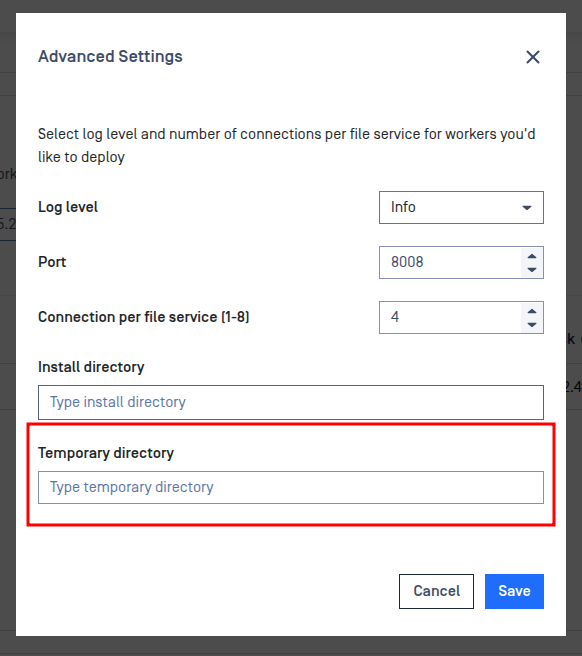
After deployment, submit a test scan and confirm that MD Core creates temporary data on the RAM disk.
What happens after a restart
A RAM disk is empty after the operating system restarts, so the temporary subdirectory created by MD Cluster no longer exists. When the MD Cluster Worker service starts, it automatically attempts to recreate the directory for approximately 20 seconds. This delay allows time for the RAM disk to become available during startup.
The following behavior is expected:
If the RAM disk becomes available within approximately 20 seconds, the MD Cluster Worker recreates the directory and starts the MD Core instance.
If the RAM disk takes longer to mount, the instance remains stopped. Restart the MD Cluster Worker service after the RAM disk becomes available.
If the RAM disk does not mount, the instance remains unhealthy. MD Cluster does not create the directory on regular storage, which prevents temporary scan data from being written to the wrong device.
On Linux, MD Core may briefly appear unhealthy immediately after a restart and then recover automatically. This happens when MD Core starts before the temporary directory has been recreated and MD Cluster restarts it.
On Windows, the MD Core instance normally starts after the RAM disk and its temporary directory have been recreated, so you should not see this temporary unhealthy state.